






If your WordPress site has ever thrown a blank white screen or a vague server error out of nowhere, you’ve run into what’s commonly called a WordPress runtime error. These happen when something breaks while your site is actively running, not during setup, but mid-operation, and they can be jarring if you don’t know what’s actually going on behind the scenes.
Fortunately for you, the majority of the runtime errors that occur follow a predictable pattern. Under the hood of the WordPress platform are a bunch of PHP files, a database, themes, and plugins that interact, and when they fall out of synchronization, this is when runtime errors arise. Being a developer is not necessary to solve most of these problems. All you need is some insight.
In this blog, we’ll walk through the most common runtime errors, including the notorious HTTP 500 error, why they happen, and exactly how to fix them.
A runtime error a WordPress site throws is different from a setup mistake; it happens while the site is actively running, not while you’re installing or configuring something. Think of it as a breakdown mid-operation rather than a wrong turn during setup.
Despite its intuitive and user-friendly interface, the WordPress platform is powered by actual software stacks comprising PHP scripts, a MySQL database, WordPress plugins, themes, and external scripts, all working together in real-time. Wondering how exactly this collaboration takes place? Well, the answer is that it happens via the Runtime Environment, a layer of software that handles execution and resource management of a particular program.
Whenever there is a problem with any of those components, be it an outdated version, insufficient memory, or some kind of permission issue, that is when an error pops up. Determining what went wrong is usually the most efficient way to resolve it.
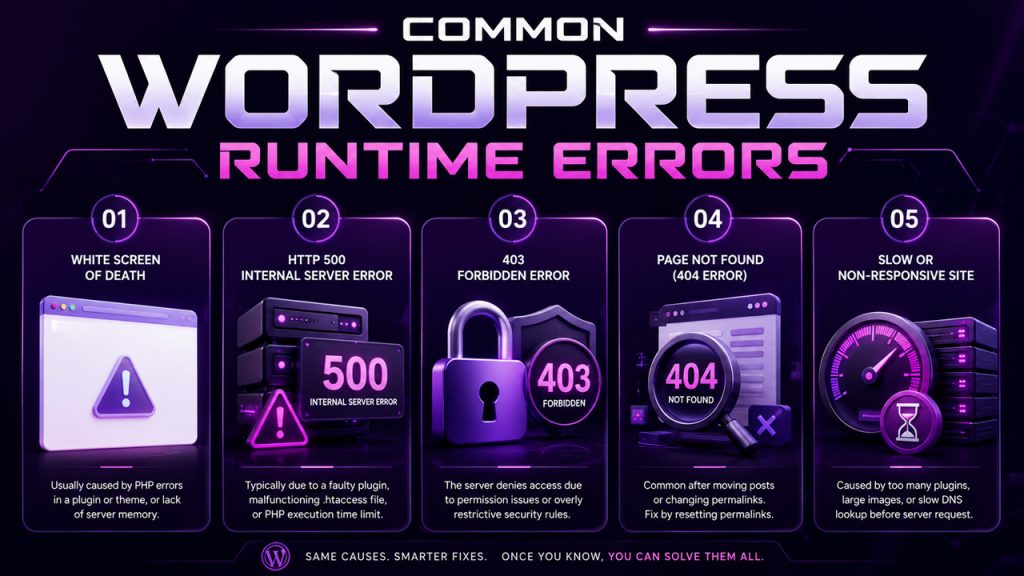
This is how you should look at them and what is usually behind them:
All you see on your website is just a blank screen. This is typically due to some PHP errors in a plugin or theme, or lack of memory in the server.
A Vague “something went wrong” message. This is typically due to some faulty plugin, a malfunctioning .htaccess file, or exhaustion of the PHP execution time limit.
The server denies access to a specific web page. It could be because of permissions issues or excessive restrictions imposed by some security plugin.
Quite common when moving posts or changing permalinks. In most cases, it could be solved simply by revising your permalink settings.
It’s not always an error, but the problem exists anyway. It can be caused by too many plugins on the server, low-optimized images, or even slow DNS Lookup before the first request to the server.
Most of these trace back to the same handful of causes, so once you know how to check for them, fixing the next one gets faster every time.
The steps for proper WordPress troubleshooting tend to always be the same regardless of the specific error faced:
Put define (‘WP_DEBUG’, true); in your wp-config.php file to see the actual error message rather than a white screen.
This will usually lead straight to the source of the error, whether this is a file or a plugin.
First, disable them all, and then activate them one by one until the error message appears again.
This will show if the problem lies within the current theme.
Browser cache and plugin cache may cause an error message not to go away even when the error itself has already been fixed.
If a fix seems to work but you’re suddenly blocked from logging back in, you may be running into a CAPTCHA Challenge Response issue tied to a security plugin, worth ruling out before assuming the original error came back.
If you’ve worked through all of this and the error is still there, that’s usually the point where it’s worth bringing in your hosting provider or a developer rather than continuing to guess.
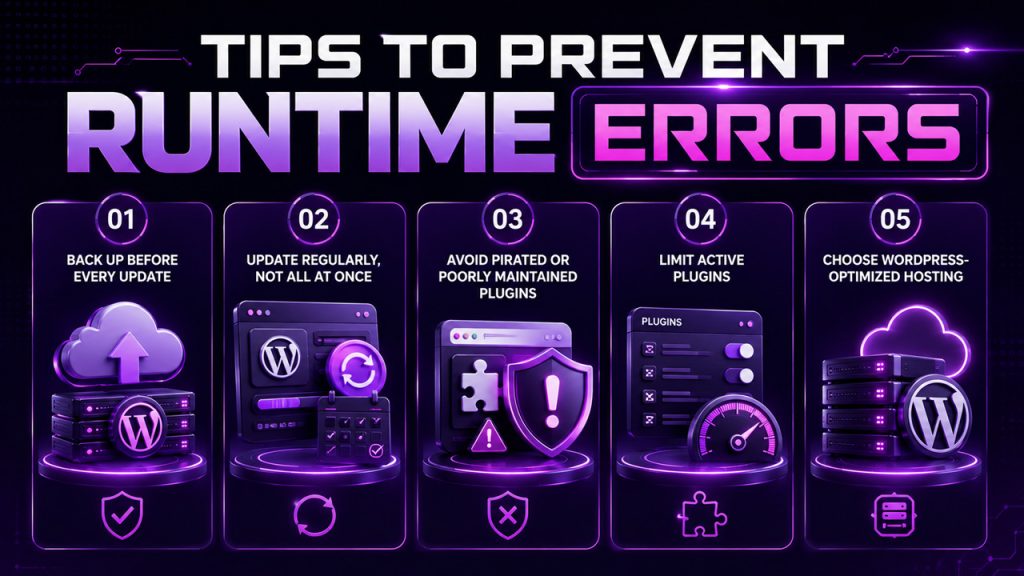
A little prevention goes a lot further than repeated troubleshooting :
Plugins, themes, and WordPress core itself. If something breaks, you can roll back in minutes instead of hours.
Staggering updates makes it far easier to spot which one caused a problem, if something does go wrong.
A huge share of WordPress runtime errors trace back to low-quality or outdated third-party code.
Every plugin you’re not actively using is one more potential point of failure.
Solid hosting resolves a surprising number of memory and performance-related errors before they ever happen.
None of this makes your site immune to every error, but it does mean fewer surprises and faster recoveries when something does go wrong.
WordPress runtime errors may seem scary at the time, with either an empty page or server error messages offering no comfort, but usually, they can be traced back to a few well-known culprits. It is once you find out what those are that dealing with such issues becomes quite predictable.
It also helps in terms of prevention; having regular backups and taking care of your updates and hosting will ensure many of these errors never happen. When they do, however, you know where to look first.
Runtime errors in WordPress happen due to conflicting plugins, update failure, server memory restrictions, or file permission mistakes.
Rename your .htaccess file and refresh your site; if the problem remains, look at your PHP memory and execution limits.
It might happen because of a PHP error in your plugin or theme, or because of a memory shortage on the server.
It is not a runtime error, but it is closely associated with runtime errors – usually it means too many heavy plugins, oversized images, and similar issues.
You probably won’t need a developer to fix any WordPress runtime errors, as most of them are easily fixed by entering debug mode.
此内容由惯性聚合(RSS阅读器)自动聚合整理,仅供阅读参考。 原文来自 — 版权归原作者所有。