


惯性聚合 高效追踪和阅读你感兴趣的博客、新闻、科技资讯
阅读原文 在惯性聚合中打开

推荐订阅源

IT之家
IT之家
让小产品的独立变现更简单 - ezindie.com
阮一峰的网络日志
阮一峰的网络日志
腾讯CDC
美团技术团队
博客园_首页
酷 壳 – CoolShell
酷 壳 – CoolShell
C
CERT Recently Published Vulnerability Notes
Project Zero
Project Zero
有赞技术团队
有赞技术团队
freeCodeCamp Programming Tutorials: Python, JavaScript, Git & More
The Cloudflare Blog
博客园 - 聂微东
Forbes - Security
Forbes - Security
D
Darknet – Hacking Tools, Hacker News & Cyber Security
The Hacker News
The Hacker News
T
Threatpost
月光博客
月光博客
人人都是产品经理
人人都是产品经理
钛媒体:引领未来商业与生活新知
钛媒体:引领未来商业与生活新知
Security Archives - TechRepublic
宝玉的分享
宝玉的分享
Know Your Adversary
Know Your Adversary
Spread Privacy
Spread Privacy
J
Java Code Geeks
Scott Helme
Scott Helme
S
SegmentFault 最新的问题
C
Cybersecurity and Infrastructure Security Agency CISA
H
Hacker News: Front Page
L
LINUX DO - 热门话题
Last Week in AI
Last Week in AI
V
V2EX
OSCHINA 社区最新新闻
OSCHINA 社区最新新闻
T
Tor Project blog
罗磊的独立博客
Hugging Face - Blog
Hugging Face - Blog
奇客Solidot–传递最新科技情报
奇客Solidot–传递最新科技情报
量子位
Apple Machine Learning Research
Jina AI
Jina AI
博客园 - 叶小钗
C
Cisco Blogs
小众软件
小众软件
S
Securelist
cs.CV updates on arXiv.org
博客园 - Franky
V
Visual Studio Blog
www.infosecurity-magazine.com
WordPress大学
WordPress大学
博客园 - 司徒正美

wp-1click.com

Database Optimization: A Complete Guide to Improving Database Performance 10 AI software development companies setting new industry standards in 2026 Knowledge Base Software: What It Is, How It Works, and Why Businesses Use It How to Launch Anime Websites Using WordPress? WordPress Runtime Errors: Common Issues and How to Fix Them How to Fix Slow MySQL Queries and Boost WordPress Performance Custom WordPress Development: 7 Signs Your WordPress Site Has Outgrown No-Code Tool How to Fix PageSpeed Insights Errors in WordPress (2026 Guide) WordPress SEO Guide: Achieve Local Search Dominance in 2026 How to Fix a 504 Error in WordPress: Step-by-Step Guide How to Solve CAPTCHA Challenge Response Errors Quickly What Is Latency vs Bandwidth? Key Differences Explained ERR_CONNECTION_RESET Error: Causes, Solutions, and Prevention Tips Pixlr vs Canva: Which AI Design Tool Is Better in 2026? Software Testing Basics: Manual Testing vs Automation Testing Explained How to Add Blooket Join to Your WordPress Educational Website How to Fix Slow DNS Lookup Issues: 9 Easy Solutions That Work Understanding Version Control Systems for WordPress Development Best Coding Practice Websites to Learn How to Code How to Fix WordPress Theme Installation Failed Error Best Audacity Plugins for WordPress Podcasters in 2026 Google Meet vs Zoom: Which Video Conferencing Tool Is Right for You? How to Delete WordPress Comments (Single, Bulk, Spam & All Comments Guide) 2026 5 Best SEMrush Alternatives for Keyword Research in 2026 WordPress Website Launch: Essential Pre-Launch Checklist Top 11 SEO Internal Links Plugins for WordPress in 2026 Local SEO Strategies in WordPress for Better Rankings 5 Best WordPress CRM Plugins for Better Customer Management 5 Best WordPress CDN Plugins to Speed Up Your Website in 2026 9 Best Ecommerce Plugins for WordPress in 2026 (Expert Guide) Cybersecurity in Financial Services: 5 Best Practices Financial Companies Must Follow What is WordPress Plugins: A Complete Guide for Beginners 6 Ways a Crypto Dedicated Server Improves WordPress Site Performance SQL Window Functions Explained: Syntax, Examples & Best Practices SEO Tips For Video Marketing To Improve Your Content Performance Top 5 WordPress Survey Plugins for Creating Engaging Surveys Why Fintech Products Fail Adoption Despite Strong Technology How to Show a Promotion on LinkedIn and Improve Post Visibility What Is a Checksum? How It Works, Types, and Limitations 7 Best WordPress Backup Plugins in 2026 (Compared & Ranked) Best WordPress Search Engine Plugins to Improve Your Site Search On-Page vs Off-Page SEO: What's the Difference and Why It Matters 10 Best WordPress Translation Plugins for a Multilingual Website Best Coding Kata Sites in 2026: Top 7 Platforms for Sharper Programming Skills Getting Started with Rust Programming Language in 2026 GuestPostCRM Launching Soon: A Smarter Way to Manage Guest Posting Campaign Drop Down Info Plugin for WordPress: Features, Benefits, and Setup Guide Best WordPress Booking Plugin Options to Streamline Your Business Custom Web Development Services for Modern Businesses: Handy Guide What Is a Runtime Environment? A Complete Guide for Beginners and Developers Plugins Not Working Minecraft? Common Causes & Easy Fixes Top Cybersecurity Bootcamp Courses to Kickstart Your IT Security Career 15 Top Programming Tutorials to Learn Coding Faster Database Design Patterns Every Developer Should Know WordPress vs Weebly: Which Website Builder Is Better? WordPress vs Bluehost: Which Web Hosting Platform Is Right? Top 10 Best SEO Plugins for WordPress in 2026 WordPress vs Blogger: Which Blogging Platform Should You Choose? WordPress vs Joomla: Choosing the Right CMS for Business - wp-1click.com 30 Best Coding Challenges for Beginners (With Solutions) WordPress vs Drupal: Which CMS Is Right for Website in 2026? How to Change IP for a Minecraft Server WordPress vs WooCommerce: Which Platform Is Best for Website Best GoDaddy Alternative Domain Registration in 2026 Plugin Not Working in WordPress: Easy Way to Fix It WordPress vs Wix: Which Platform Is Better in 2026? (Complete Guide) Webflow vs WordPress: What to Choose for a Better Website Development in 2026 How to Change SQL Server System Admin: A Complete Guide for 2026 Localhost WordPress: A 2026 Guide to Local Development how to make a clickable phone number in WordPress Is WordPress Multisite One Theme or Multiple Top 10 Best Email Extractor Websites for Marketers 2026 How to install WordPress What is WordPress: Beginner's Guide to the Best CMS Understanding WordPress 6.5: New Plugin Capabilities Is Your WordPress Website Slow? And How to Fix It How to Install WordPress on Laragon (Step-by-Step Guide for Beginners) How to Migrate WordPress Website to Another Hosting WordPress 6.9 Broke Slider Revolution: Causes, Fixes & Recovery Guide How to Secure a WordPress Site in 2026 (Step-by-Step Guide) How to Make a Website Mobile Friendly | WP-1Click How to Find Your WordPress User ID Number (5 Methods) – 2026 Guide - wp-1click.com
How to Connect a Domain to a WordPress Website | WP-1Click
2026-04-07 · via wp-1click.com

Want to learn how to connect a domain to a WordPress website? The blog offers you a deep dive into the meaning, benefits, and process of connecting a domain to a WordPress website.

A custom domain is a personalized and unique web address that represents your brand. A custom domain replaces the free and generic URL provided by WordPress. The process of connecting a custom domain to WordPress is among the most crucial steps in building brand credibility. A custom domain also aids in improving SEO visibility and improves brand recognition.

To know how to connect a domain to a WordPress site, you need to understand what it means to connect a domain to a WordPress website and what its benefits are.

What is Meant by Connecting a Domain to WordPress?

Connecting a domain to a WordPress website is the process of linking a custom domain name, like yourbusiness.com, which is purchased from a registrar to a WordPress hosting account. Linking a unique domain to a WordPress website allows visitors to access your site using a specific and professional address.

The process of linking the domain to the WordPress website includes updating the DNS records to point toward the WordPress site in the domain registrar. The main goal of connecting a domain to a WordPress website is to direct the visitors from the URL to the server that hosts your WordPress website.

Importance of Connecting a Domain to WordPress

Connecting a domain to a WordPress website is an essential step for a website, as it establishes a professional online presence, along with enhancing the brand credibility and enabling accessibility. Some of the key benefits of connecting a domain to WordPress are:
  • Increases Brand Credibility: Use of a unique domain name helps in providing a professional appearance to your brand.
  • Enhance Brand Recognition: A unique domain name also helps in building a memorable brand presence, along with helping to distinguish the site from its competitors.
  • Increases Visibility: Connecting a domain server to WordPress hosting is considered a major step towards making your website more accessible and visible on the public internet.
  • Higher SEO Ranking: Connecting a custom domain to a WordPress website helps the search engines to better understand the website and boost its SEO performance and ranking of the website.
  • Email Branding: connected domain to a WordPress website also helps in setting up a branded email address, which further enhances trustworthiness and professional communication.

How to Connect the Domain to WordPress?


How to Connect the Domain to WordPress

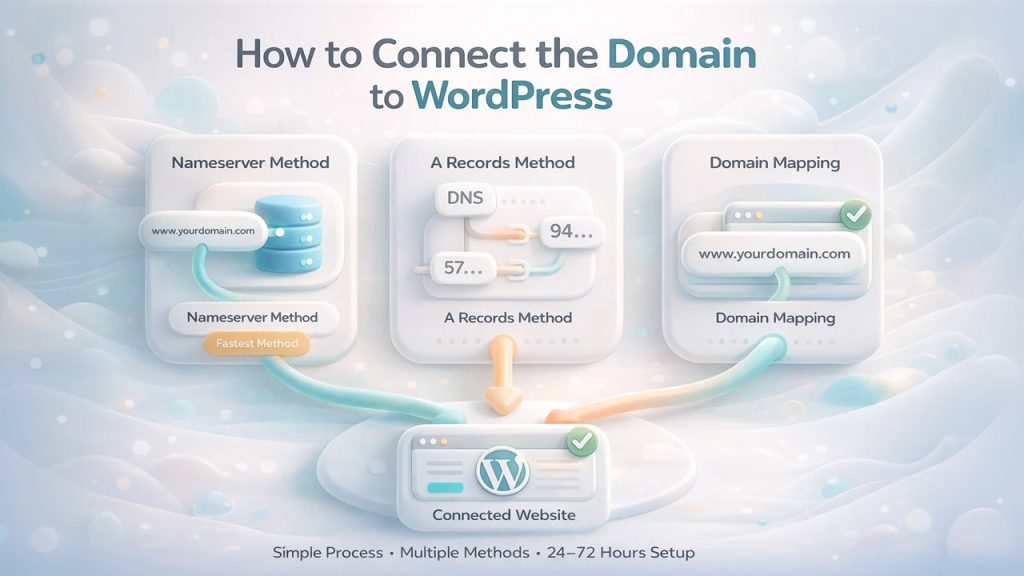
Connecting a custom domain to your WordPress website is a simple, easy-to-follow, and quick process. The process of connecting a domain includes three major methods and generally takes about 24 to 72 hours for the process to complete.

Here are a few main methods for connecting a domain to a WordPress website:

Method 1: Changing Nameserver

The method of changing the nameserver is the fastest and most recommended method of linking a domain to a WordPress website. The method connects a domain directly to WordPress. The process of changing the nameserver directs the DNS management to WordPress and requires 1 to 48 hours for global propagation.

Here are the steps to change a nameserver for WordPress:

  • Step 1: Log in to your WordPress account and navigate to Upgrades, and click on Domains, to find your designated nameserver.
  • Step 2: Log in to your domain registrar and navigate to DNS management.
  • Step 3: Select Use custom nameservers and remove the existing ones. Enter the WordPress name servers.
  • Step 4: Return to WordPress and click on “Verify Connection” to ensure the active settings.

Method 2: Use A Records

The A Records method of connecting a domain to a WordPress website includes updating the DNS settings of your domain registrar to point to WordPress IP addresses.

Here are the steps to connect a domain using A records:

  • Step 1: Log in to your WordPress website and navigate to Upgrades > Domains. In Domains, select Add a domain and select “Use a domain I own“, then select “Map Your Domain” and enter your domain name.
  • Step 2: Click on Connect your domain > Set up > Advanced setup > Start setup > I found the domain settings page to view the DNS records required in WordPress.
  • Step 3: Log in to your domain registrar and navigate to the DNS management. In DNS management, delete existing A records from the root domain and create two A records that point to the following IP addresses: 192.0.78.24 and 192.0.78.25. Replace the CNAME record with your actual domain.

Method 3: Domain Mapping

The process of connecting a domain to a WordPress website through domain mapping is only available for the Premium+ user of WordPress. Domain mapping replaces the default URL and connects a custom domain to a site that is hosted in WordPress.com or a multisite network.

The process of linking a domain to a WordPress website via domain mapping includes the following steps:

  • Step 1: Log in to your WordPress.com account and navigate to Dashboard. In the dashboard, click on Upgrades > Domains.
  • Step 2: Select Add a domain > Use a domain I own > Map Your Domain > Connect.
  • Step 3: Update the DNS settings of your registrar with the provided A records or CNAME.
  • Step 4: Set the new domain as “Primary Domain” in the domain menu.

You can also connect a domain to a WordPress website using the Automated Setup method. WordPress.com can automatically configure the DNS for popular providers. You will be prompted to log in to your domain registrar to confirm the connection in the domain setup screen.
Key Considerations for Connecting the Domain to WordPress


Key Considerations for Connecting the Domain to WordPress

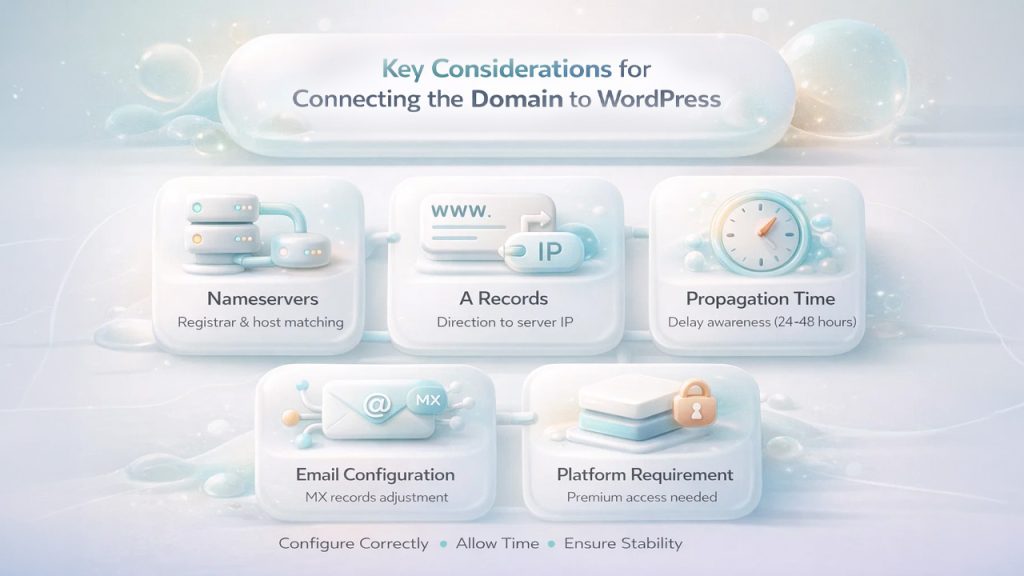
The process to link the domain to the WordPress website involves various key considerations, which include matching the nameservers from your host to your registrar, along with adding the domain to your WordPress account, ensuring the subdomain structure, and securing SSL.

  • DNS Configuration:
  • Nameservers- Add the default nameserver of your domain registrar with the nameservers provided by your WordPress host.
  • A Records- Direct your domain’s name to the IP address of your site. For this, you need to add a Type A record (@), which points to your web host’s IP address.
  • Propagation Time: It is important to consider that the changes in DNS settings are not instant, and typically take about 24 to 48 hours for the new domain to work globally.
  • Email Configuration: Changing the nameserver may also disrupt the email services hosted on the same domain. To prevent this, you may need to manually re-add the MX records in your DNS settings.
  • Platform Requirement: You need a paid plan to connect a custom domain if you are using WordPress.com.

Also Read: How to Migrate a WordPress Website

Conclusion

Connecting a domain to WordPress is considered the most important step in creating a credible brand image. Linking a custom domain to your preexisting subdomain of WordPress offers numerous benefits. A custom domain helps boost the brand trust among the visitors, along with improving the SEO ranking of the website, and offers full control over your brand. Using a subdomain offered by WordPress creates brand dilution, along with restricting the monetization of the website.

The process to connect a domain to WordPress involves three major methods: connecting a domain by changing the nameserver, by using A Records, and by domain mapping. Apart from these three methods, you can also link the domain to the WordPress website through the Automated Setup method, in which WordPress can automatically configure DNS for popular providers.

While connecting a domain to a WordPress server, it is also important to keep a few key considerations in mind, like changing the nameserver can also disrupt the email services hosted on the same domain, and the changes in DNS settings generally take about 24 to 48 hours to work globally.