Plugin Not Working in WordPress: Easy Way to Fix It
ashu_masih·2026-04-28·via wp-1click.com
Plugin not working in WordPress website? Learn how to fix it and also understand what the main causes of plugin failure are.
WordPress is among the most popular and powerful content management systems, which powers around 43% of the global websites. WordPress offers more than 60,000 free and open-source plugins, along with more than 30,000 premium plugins. In WordPress, the plugins help in extending the core functionality, which allows users to add specialized features to their sites. With high dependencies on the plugins in designing and building the website, failure of a single plugin can cause a critical error on the website. There can be various reasons for a plugin not working in WordPress, which include outdated software, plugin conflicts, exhausted PHP memory limit, and database errors, among others.
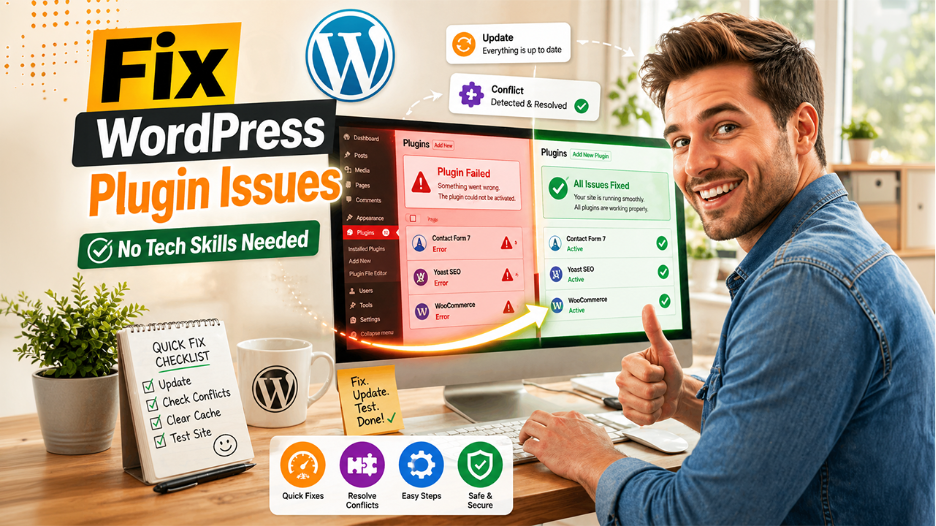
In fixing the plugin not working in WordPress issue, the first step is to perform a “Quick Fix”, as it is the simplest method and rules out the common and minor issues. The user can also fix the plugin issues by performing advanced troubleshooting, identifying conflicting plugins, and using third-party FTPs to fix the issue.
Plugin Not Working in WordPress: 5 Reasons Why
The failure of WordPress plugins generally depends on various technical and environmental factors, like plugin-to-plugin conflicts, PHP memory limits, database issues, or caching issues, among others. Five major factors that affect the working of WordPress plugins are as follows:
Compatibility & Version Conflicts: Compatibility or conflicts between the plugins are considered among the major factors affecting the working of a plugin in WordPress. In WordPress, a plugin fails to work if multiple plugins attempt to perform the same function clashes with each other, and cause errors. Incompatible themes also affect the working of plugins, as some themes override the standard hook of WordPress, which interfaces with the operations of the plugins.
WordPress Updates: The update of the core software of WordPress also significantly affects the working of plugins. Introduction of new updates can cause several technical conflicts, along with procedural errors, stopping the plugins from working. For instance, the introduction of WordPress 6.5 introduced a native plugin dependency system, which stops the plugins from being activated in multiple ways. Similarly, WordPress core system update also mismatches the PHP versions, causing the plugins to stop working.
Server & Resource Limitation: Server and resource limitations, like limited PHP memory and maximum execution time, also affect the working of WordPress plugins. Various heavy plugins require more RAM than is allowed by the hosting. This leads to the “Allowed memory size exhausted” error for the plugin. Similarly, maximum complex plugins can also take too long to run, which causes the server to terminate the script before completing the task.
Data Corruption: Missing or damaged plugin files, caused by interrupted uploads or downloads, can also affect the functioning of the WordPress plugin. Similarly, if a plugin fails to create or modify the required database table during activation, it will also lead to a malfunction.
Technical Configuration: Technical configuration factors, like caching issues, JavaScript errors, and missing dependencies, also lead to a plugin not working in WordPress. With the update of WordPress core software, some plugins require the parent plugin of a specific library to be activated before the specific plugin can function.
Plugin Not Working in WordPress: Steps to Fix It
The main factor that causes plugin failure in WordPress is conflicting with other plugins, themes, or outdated troubleshooting. To fix the non-working plugins in WordPress, users can follow any of the given methods:
Method 1: Performing Initial “Quick Fixes”
These are the simple steps that rule out common minor issues:
Clearing Cache: Clear the browser cache and any server-side or plugin-based caches, which ensures that the user is seeing the latest version of the site.
Update Everything: A major cause of plugin failure is outdated software. To update everything, the users can navigate to Dashboard > Updates and install any available updates for core WordPress, along with the theme and all plugins.
Check PHP Versions: Ensure that the server is running the latest PHP 8.1 or higher version, to prevent plugin failure issues. To check the version of PHP, the user can navigate to Tools > Site Health > Info > Server.
Method 2: Identify Plugin Conflicts
The method is recommended only if the plugin failure issue persists even after performing a quick fix.
Step 1: Deactivate all the plugins from the Plugin menu > select all plugins and choose Deactivate from bulk action.
Step 2: Reactivate the individual plugin one by one and test your site. If any plugin brings back the error, it has conflicts with another plugin performing the same task.
Method 3: Fix If the User is Locked Out
If the user fails to access the admin dashboard, they need to activate the plugins manually.
Step 1: Use an FTP client or File Manager to go to /wp-content/.
Step 2: Rename the “plugin” folder to “plugin-old“, which instantly deactivates every plugin. This also allows the users to log back in to their admin dashboard.
Step 3: Once logged in to the dashboard, rename the folder back to “plugins” and reactivate them from the dashboard.
Checking the Status of a WordPress Plugin
The process to check the status of a WordPress plugin involves verifying the activation status of the plugin, along with checking for updates or potential conflicts. There are three main methods of checking the status of a WordPress plugin, which include using the admin dashboard, using WP-CLI, and troubleshooting plugins.
Method 1: Using WordPress Admin Dashboard
This is the most direct method of checking the status of a plugin. The method includes:
Checking Activation Status: Open WordPress Admin Dashboard and navigate to Plugins > Installed Plugins. In this, the activated plugins will appear in blue highlights, while the inactive ones will appear in white highlights.
Checking for Updates: Navigate to Dashboard > Updates. The page lists all the plugins that offer updates for download.
Site Health Tool: Navigate to Tools > Site Health. In this page, the “Status” tab identifies the performance and security issues related to outdated plugins.
Method 2: Using WP-CLI (Command Line)
The WP-CLI method offers users or developers with SSH access and rapid status checks on all the installed plugins.
List All Plugins: Run the line “wp plugin list“, which instantly shows a table with the name, status, and update availability for every plugin.
Checking Single Plugin Status: Run the line “wp plugin status [plugin-name]”, to check the detailed metadata of any specific plugin.
Verify Activation: Use the line “wp plugin is-active [plugin-name]” to simply get a true/false return, on the activation status of any specific plugin.
Method 3: Diagnostic & Troubleshooting Plugins
The method helps the user check for conflicts or performance impacts of the WordPress plugins.
Health Check & Troubleshooting: Users can use the official troubleshooting plugin to enter a “Troubleshooting Mode“, which deactivates all the plugins for the session only, and lets the user reactivate them one by one to find any conflicts.
Query Modes: The method is used to check which plugins are loading in a specific page, and how they are impacting the database queries and load time.
How to Prevent Plugin Issues in WordPress
Preventing plugin failure issues requires a proactive strategy, which focuses on quality selection, a safe testing environment, and regular maintenance. The methods to prevent plugin failure issues include:
Method 1: Vetting the Plugins
Check the compatibility by only using the plugins that are tested with the current WordPress versions.
Select the plugins with recent updates or a higher number of active installations.
Limit the plugin count, as the increasing number of plugins increases the surface area of code conflicts.
Method 2: Use a Safer Testing Environment
Set up a staging site for testing new plugins or updates before making them public.
Use tools like LocalWP to build and test the plugin locally.
Apart from these two methods, regular WordPress maintenance also helps in preventing plugin failures. Regular WordPress maintenance ensures plugins work harmoniously with the latest versions of WordPress. Regular maintenance also cleans up unnecessary data, like overhead in database tables, that may reduce conflicts and speed up the site. WordPress maintenance services also provide proactively secure plugins for optimized site speed.
Conclusion
A plugin not working in WordPress is one of the most critical issues that can lead to critical site failure. In WordPress, a plugin is among the major component which is utilized to design and build a website. It helps in extending the core functionality of the platform and extending the features of the website. There are various reasons for a plugin not working in WordPress, which include factors like PHP memory limitations, conflicts with other plugins, and theme compatibility. Updates in the core software of WordPress also affect the working of the plugin, as it can cause a mismatch of PHP versions. There are three main methods to fix the plugin not working in WordPress issue, in which “Performing Quick Fixes” is considered the simplest and initial step. The user can also fix the plugin failure issue by identifying plugin conflicts or by using a third-party FTP client.