


惯性聚合 高效追踪和阅读你感兴趣的博客、新闻、科技资讯
阅读原文 在惯性聚合中打开

推荐订阅源

酷 壳 – CoolShell
酷 壳 – CoolShell
雷峰网
雷峰网
H
Hackread – Cybersecurity News, Data Breaches, AI and More
Spread Privacy
Spread Privacy
H
Hacker News: Front Page
PCI Perspectives
PCI Perspectives
Webroot Blog
Webroot Blog
罗磊的独立博客
H
Heimdal Security Blog
TaoSecurity Blog
TaoSecurity Blog
Exploit-DB.com RSS Feed
大猫的无限游戏
大猫的无限游戏
月光博客
月光博客
cs.CV updates on arXiv.org
Google Online Security Blog
Last Week in AI
Last Week in AI
美团技术团队
Help Net Security
Help Net Security
The Hacker News
The Hacker News
C
Cisco Blogs
T
The Blog of Author Tim Ferriss
J
Java Code Geeks
The Register - Security
IT之家
IT之家
WordPress大学
WordPress大学
Jina AI
Jina AI
Recent Commits to openclaw:main
H
Help Net Security
cs.CL updates on arXiv.org
T
Threat Research - Cisco Blogs
P
Proofpoint News Feed
NISL@THU
NISL@THU
爱范儿
爱范儿
The GitHub Blog
The GitHub Blog
Scott Helme
Scott Helme
V
Vulnerabilities – Threatpost
B
Blog
T
Tenable Blog
博客园 - 三生石上(FineUI控件)
T
The Exploit Database - CXSecurity.com
S
Security Affairs
小众软件
小众软件
Hacker News: Ask HN
Hacker News: Ask HN
Security Latest
Security Latest
Threat Intelligence Blog | Flashpoint
W
WeLiveSecurity
A
Arctic Wolf
L
LINUX DO - 热门话题
Google DeepMind News
M
MIT News - Artificial intelligence

Visual Studio Blog

Visual Studio Administrator? Join our Private Marketplace Preview! - Visual Studio Blog Built-in Agent Skills Bring .NET and Azure Expertise into Visual Studio - Visual Studio Blog The Visual Studio Dev/Test Benefit: Freedom to Build, Test, and Experiment in Azure - Visual Studio Blog Visual Studio June Update - Track Your Usage, Trust Your Tools - Visual Studio Blog Automating your Visual Studio extension builds with GitHub Actions - Visual Studio Blog Make Visual Studio look the way you want - Visual Studio Blog Review pull requests without leaving Visual Studio What’s Coming Next in Visual Studio: Our Microsoft Build 2026 Announcements Visual Studio May Update – Plan, Review, Refine Plan Before You Build: Introducing the Plan agent in Visual Studio VSLive! Microsoft AI Hackathon 2026: Send Your Team Home With Working Code Agent Skills in Visual Studio: Teach Copilot How Your Team Works TypeScript 7 Beta Now Enabled by Default in Visual Studio 2026 18.6 Insiders 3 SDK-Style Support for Extension Projects Visual Studio April Update – Cloud Agent Integration - Visual Studio Blog From AI to .NET: 20 VS Live! Las Vegas Sessions You Can Watch Now - Visual Studio Blog Azure MCP tools now ship built into Visual Studio 2022 — no extension required Stop Hunting Bugs: Meet the New Visual Studio Debugger Agent Workflow Visual Studio March Update – Build Your Own Custom Agents Visual Studio February Update
Pick, manage, and get the most from your models - Visual Studio Blog
Rachel Kang (SHE/HER) · 2026-07-15 · via Visual Studio Blog

You open the model picker, scroll past a dozen options, and pause. How are these models different? Which one should you actually use? And once you’re a few hundred messages deep, how much capacity is even left before things start dropping off?

We’ve all been there. These are the kinds of questions Visual Studio now makes a little easier to answer. Here’s a closer look at how you can see, compare, and get more from the models you already have.

A model picker that works the way you do

The model picker presents a long list of models you’ve needed to scroll through every single time. Starting in 18.9 Insiders 1, you can better focus on the models you care about most. Pin the models you actually reach for and they stay right at the top. Expand to see the full list, and collapse to hide the ones you never touch to send them out of your way.

What’s left is a short, familiar list that looks like your workflow, not the full catalog. It’s a small change you’ll feel every day.
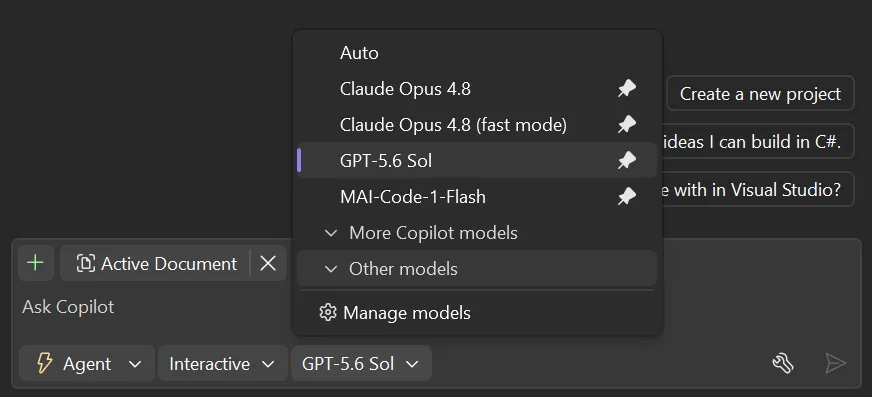
 updated model picker imageScreenshot of updated model picker with pinning and collapsed models

The full story on every model

But sometimes the model picker isn’t enough. You might want to take a closer look at the model details, and compare specs. Select Manage models and the new language models view opens up with everything laid out side by side: what each model is capable of, how big its context window is, and what the cost level is. No more guessing whether a model supports vision, or which one gives you the most space to work.

Your own models live here too, right alongside the Copilot lineup. Pin them, review their capabilities, or wire up a new provider, all without leaving the view.
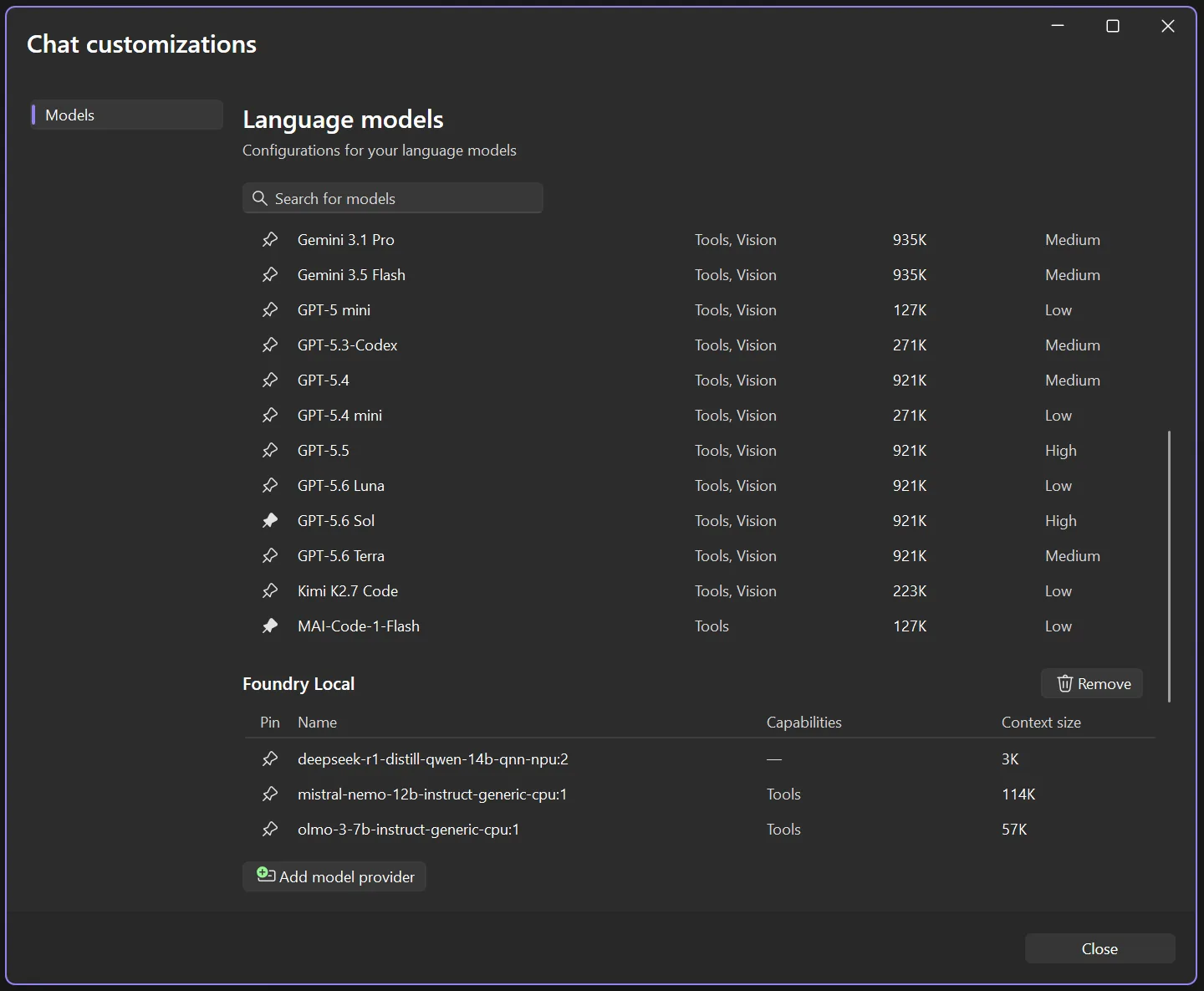
The new model management view

See how much capacity you’ve got left

Knowing a model’s context window size is one thing. Knowing how much of it you’ve used is what really matters when a conversation runs long. So as you work, Visual Studio shows you how full your context window is getting, no math required. In 18.6.0 and onward, click the donut chart icon in the upper right corner of your prompt box to see your context window usage for the current thread.

When you’re brushing up against the limit, you’ll see it approach 100% and you can decide when it’s time to summarize the conversation, start a new thread, choose a model with a higher context size, or make any other adjustments.

In 18.9 Insiders 1 onward, you’ll also catch a glimpse of an additional button to open the Copilot Usage window and see your full Copilot plan usage, so nothing sneaks up on you. The Copilot Usage window can also be accessed in earlier versions from the Copilot badge menu dropdown.
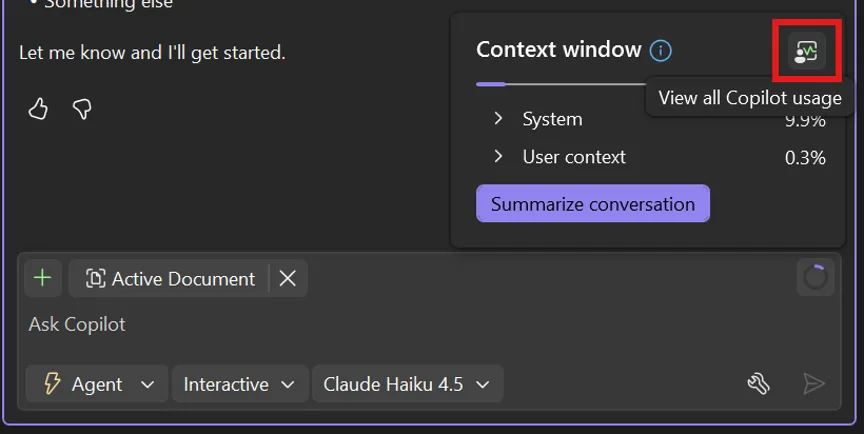
Context window indicator

Work with more confidence

Picking a model, checking what it can do, keeping tabs on your context window: none of it should slow you down or leave you guessing. These updates are all about giving you a little more clarity in the moments that matter, so you can spend less time wondering and more time building.

And we’re just getting started, so keep an eye out for more updates coming soon!

Give it a try in the latest Visual Studio Insiders and let us know what you think.