

惯性聚合 高效追踪和阅读你感兴趣的博客、新闻、科技资讯
阅读原文 在惯性聚合中打开

推荐订阅源

有赞技术团队
有赞技术团队
Martin Fowler
Martin Fowler
N
Netflix TechBlog - Medium
WordPress大学
WordPress大学
罗磊的独立博客
H
Help Net Security
MongoDB | Blog
MongoDB | Blog
A
About on SuperTechFans
让小产品的独立变现更简单 - ezindie.com
D
Docker
云风的 BLOG
云风的 BLOG
Microsoft Security Blog
Blog — PlanetScale
Blog — PlanetScale
P
Proofpoint News Feed
钛媒体:引领未来商业与生活新知
钛媒体:引领未来商业与生活新知
I
InfoQ
J
Java Code Geeks
博客园 - 聂微东
大猫的无限游戏
大猫的无限游戏
Engineering at Meta
Engineering at Meta
美团技术团队
小众软件
小众软件
Stack Overflow Blog
Stack Overflow Blog
C
Check Point Blog

Visual Studio Blog

Today I will... improve test coverage - Visual Studio Blog Today I will... find hidden latency across a distributed .NET application - Visual Studio Blog Stop alt-tabbing into the wrong Visual Studio - Visual Studio Blog Today I will... review GitHub PRs - Visual Studio Blog VSLive! @ Microsoft HQ: Developer Takeaways and Must-Watch Sessions - Visual Studio Blog The Visual Studio Debugger Agentic Workflow Gets a Test-Driven Upgrade - Visual Studio Blog Visual Studio August Update — Work Smarter Across Models and Branches - Visual Studio Blog Unlocking the Power of AI for Every Developer in Visual Studio with Bring your Own Model - Visual Studio Blog Today I will... Modernize a .NET application - Visual Studio Blog Today I will... manage Git Submodules without leaving the IDE - Visual Studio Blog Build Azure Skills Faster with Cloud Academy, a Visual Studio Subscriber Benefit - Visual Studio Blog Visual Studio July Update — Meet the New Agent, Powered by the GitHub Copilot SDK - Visual Studio Blog Visual Studio Administrator? Join our Private Marketplace Preview! - Visual Studio Blog Pick, manage, and get the most from your models - Visual Studio Blog Built-in Agent Skills Bring .NET and Azure Expertise into Visual Studio - Visual Studio Blog The Visual Studio Dev/Test Benefit: Freedom to Build, Test, and Experiment in Azure - Visual Studio Blog Visual Studio June Update - Track Your Usage, Trust Your Tools - Visual Studio Blog Automating your Visual Studio extension builds with GitHub Actions - Visual Studio Blog Make Visual Studio look the way you want - Visual Studio Blog Review pull requests without leaving Visual Studio What’s Coming Next in Visual Studio: Our Microsoft Build 2026 Announcements Visual Studio May Update – Plan, Review, Refine Plan Before You Build: Introducing the Plan agent in Visual Studio VSLive! Microsoft AI Hackathon 2026: Send Your Team Home With Working Code Agent Skills in Visual Studio: Teach Copilot How Your Team Works TypeScript 7 Beta Now Enabled by Default in Visual Studio 2026 18.6 Insiders 3 SDK-Style Support for Extension Projects Visual Studio April Update – Cloud Agent Integration - Visual Studio Blog From AI to .NET: 20 VS Live! Las Vegas Sessions You Can Watch Now - Visual Studio Blog Azure MCP tools now ship built into Visual Studio 2022 — no extension required
Tell your model when to think harder  - Visual Studio Blog
Rachel Kang (SHE/HER) · 2026-07-29 · via Visual Studio Blog

Not every question deserves the same amount of thought. Renaming a variable isn’t the same as debugging a memory leak, and they don’t need the same level of thinking. So why should your model treat them the same way every time?

Starting in Visual Studio 18.9 Insiders 2, it doesn’t have to. Supported models now come with a thinking effort control, so you can dial up the reasoning when a problem is genuinely hard and dial it back down when it isn’t. It’s a small knob with a big payoff: better-matched answers, and more control over how many credits you spend getting them.

A dial, not a switch

Thinking effort is exactly what it sounds like: how much reasoning a model does before it answers. It shows up as a set of named levels, and which ones you get depends on the model.

Here’s what each level is for:

  • Low – Quick responses with minimal reasoning. Great for straightforward questions and everyday code suggestions, and it consumes fewer AI credits.
  • Medium – Balanced reasoning and speed, and usually the default. A solid fit for typical coding tasks.
  • High – Deeper reasoning for complex problems. Reach for it when you’re staring down a tricky algorithm, an architecture decision, or a bug that won’t let go.
  • Extra High and Max – The most reasoning some models offer, for the gnarliest problems where you want the model to leave nothing on the table.

Which levels show up depends on the model you’ve picked, so the list you see is tailored to what that model actually supports. A few models don’t expose a thinking control at all, and that’s fine too: they’ll show a dash and keep working as they always have.

Set it where you already work

Setting it is quick. Open the model picker and click Manage models to bring up the expanded model management window, then adjust the thinking level for each model from there.
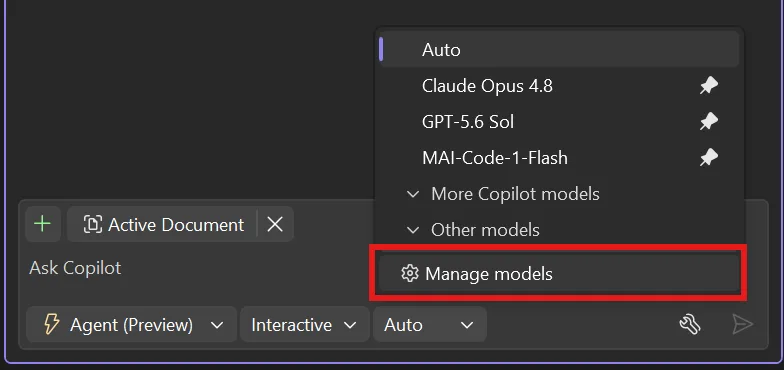
Manage models option shown at the bottom of the model picker

In the management view, thinking effort sits in its own column, next to each model’s capabilities, context size, and cost. So the same place you go to compare models is now the place you tune how they think. Pick a model, glance at what it can do and what it costs, and set how hard it should work, all in one pass.
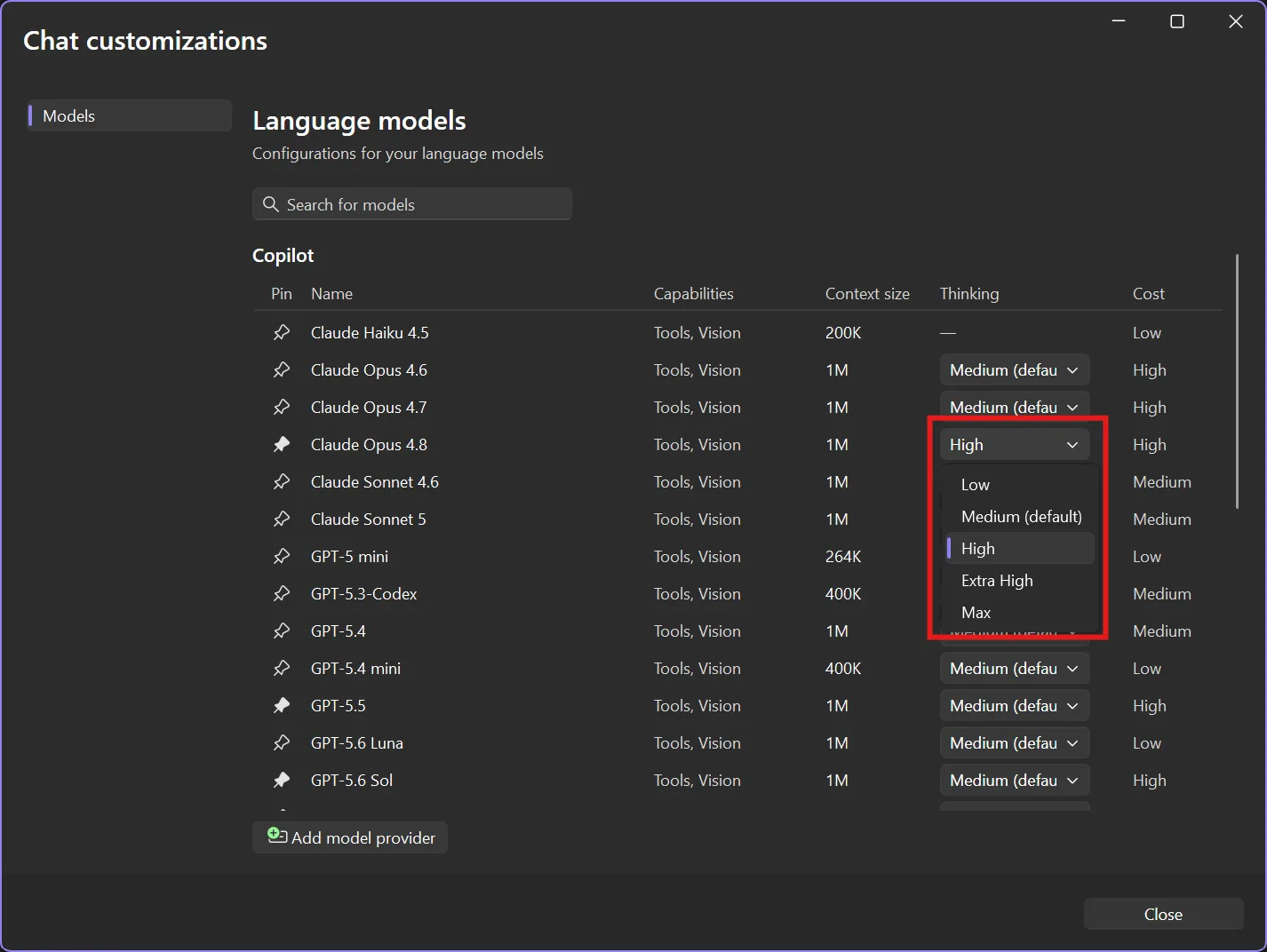
Thinking level config shown in expanded model details view

Consume your usage credits where they count

Here’s the part that adds up over a long day. Higher thinking levels do more reasoning, which consumes more credits. Lower levels use fewer. When you match the thinking effort level to the task, you stop consuming more credits than you need to for shallow-reasoning questions.

That means you can keep a model on Low for the dozens of small asks that fill a normal session, then bump it to High for the one hard problem that actually needs it. Same model, same conversation, right amount of thought each time. Your usage budget stretches further, and you’re the one deciding where it goes.

Give it a try

Thinking effort is a quiet feature that changes how the everyday feels: less waiting on simple questions, more depth on the hard ones. It lives in the model management view, which does a lot more than this one setting. For the full tour, check out Pick, manage, and get the most from your models.

Try it in Visual Studio 18.9 Insiders 2 or later, and let us know what you think.

More coming soon!

AI-assisted content. This article was partially created with the help of AI. An author reviewed and revised the content as needed. Learn more