
惯性聚合 高效追踪和阅读你感兴趣的博客、新闻、科技资讯
阅读原文 在惯性聚合中打开

推荐订阅源

博客园 - 司徒正美
大猫的无限游戏
大猫的无限游戏
腾讯CDC
J
Java Code Geeks
博客园 - 【当耐特】
Microsoft Azure Blog
V
Visual Studio Blog
人人都是产品经理
人人都是产品经理
博客园 - Franky
博客园 - 聂微东
阮一峰的网络日志
阮一峰的网络日志
美团技术团队
云风的 BLOG
云风的 BLOG
freeCodeCamp Programming Tutorials: Python, JavaScript, Git & More
U
Unit 42
雷峰网
雷峰网
B
Blog RSS Feed
博客园_首页
量子位
F
Fortinet All Blogs
罗磊的独立博客
H
Hackread – Cybersecurity News, Data Breaches, AI and More
酷 壳 – CoolShell
酷 壳 – CoolShell
C
Check Point Blog

Visual Studio Blog

Today I will... find hidden latency across a distributed .NET application - Visual Studio Blog Stop alt-tabbing into the wrong Visual Studio - Visual Studio Blog VSLive! @ Microsoft HQ: Developer Takeaways and Must-Watch Sessions - Visual Studio Blog The Visual Studio Debugger Agentic Workflow Gets a Test-Driven Upgrade - Visual Studio Blog Visual Studio August Update — Work Smarter Across Models and Branches - Visual Studio Blog Unlocking the Power of AI for Every Developer in Visual Studio with Bring your Own Model - Visual Studio Blog Today I will... Modernize a .NET application - Visual Studio Blog Today I will... manage Git Submodules without leaving the IDE - Visual Studio Blog Build Azure Skills Faster with Cloud Academy, a Visual Studio Subscriber Benefit - Visual Studio Blog Tell your model when to think harder  - Visual Studio Blog Visual Studio July Update — Meet the New Agent, Powered by the GitHub Copilot SDK - Visual Studio Blog Visual Studio Administrator? Join our Private Marketplace Preview! - Visual Studio Blog Pick, manage, and get the most from your models - Visual Studio Blog Built-in Agent Skills Bring .NET and Azure Expertise into Visual Studio - Visual Studio Blog The Visual Studio Dev/Test Benefit: Freedom to Build, Test, and Experiment in Azure - Visual Studio Blog Visual Studio June Update - Track Your Usage, Trust Your Tools - Visual Studio Blog Automating your Visual Studio extension builds with GitHub Actions - Visual Studio Blog Make Visual Studio look the way you want - Visual Studio Blog Review pull requests without leaving Visual Studio What’s Coming Next in Visual Studio: Our Microsoft Build 2026 Announcements Visual Studio May Update – Plan, Review, Refine Plan Before You Build: Introducing the Plan agent in Visual Studio VSLive! Microsoft AI Hackathon 2026: Send Your Team Home With Working Code Agent Skills in Visual Studio: Teach Copilot How Your Team Works TypeScript 7 Beta Now Enabled by Default in Visual Studio 2026 18.6 Insiders 3 SDK-Style Support for Extension Projects Visual Studio April Update – Cloud Agent Integration - Visual Studio Blog From AI to .NET: 20 VS Live! Las Vegas Sessions You Can Watch Now - Visual Studio Blog Azure MCP tools now ship built into Visual Studio 2022 — no extension required Stop Hunting Bugs: Meet the New Visual Studio Debugger Agent Workflow
Today I will... review GitHub PRs - Visual Studio Blog
Aaron Powell · 2026-09-02 · via Visual Studio Blog

Today I will show you how we can tackle one of the most common tasks when working in a development team or managing an open-source project, and that is working with Pull Requests.

While we’re going to be using the GitHub tooling within Visual Studio for this, the approach would be very similar with Azure DevOps.

Getting our PRs

Start by opening the pull requests for your repository. Select Git → GitHub → View Pull Requests. You can also search for the command in the Command Palette with Ctrl+Shift+P.
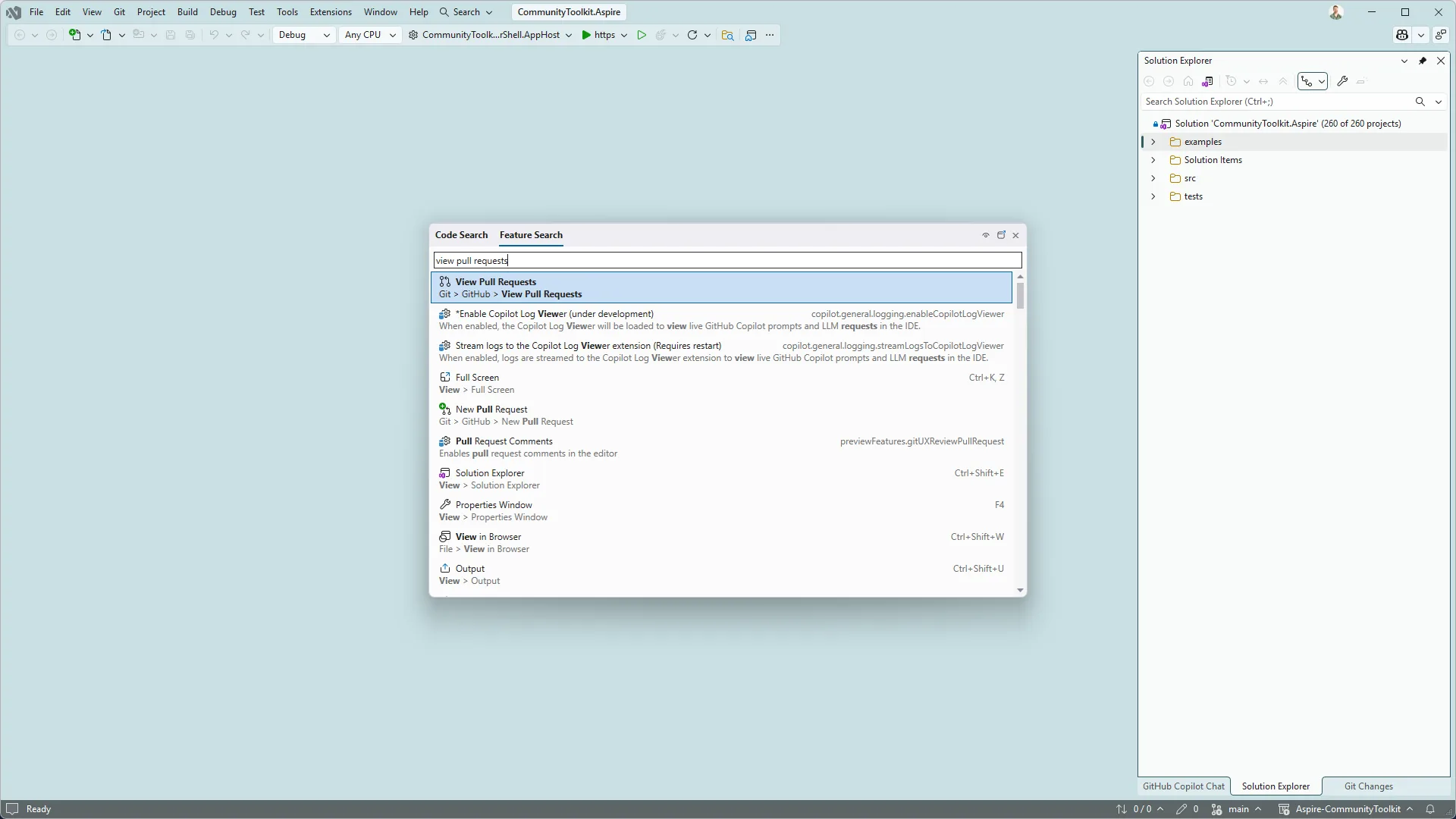
Feature Search showing how to open the View GitHub PRs window

From here, Visual Studio will load all the PRs in the repo and group them to the ones that are assigned to me, all the PRs in the repo, and even the PRs that Copilot has created on my behalf.
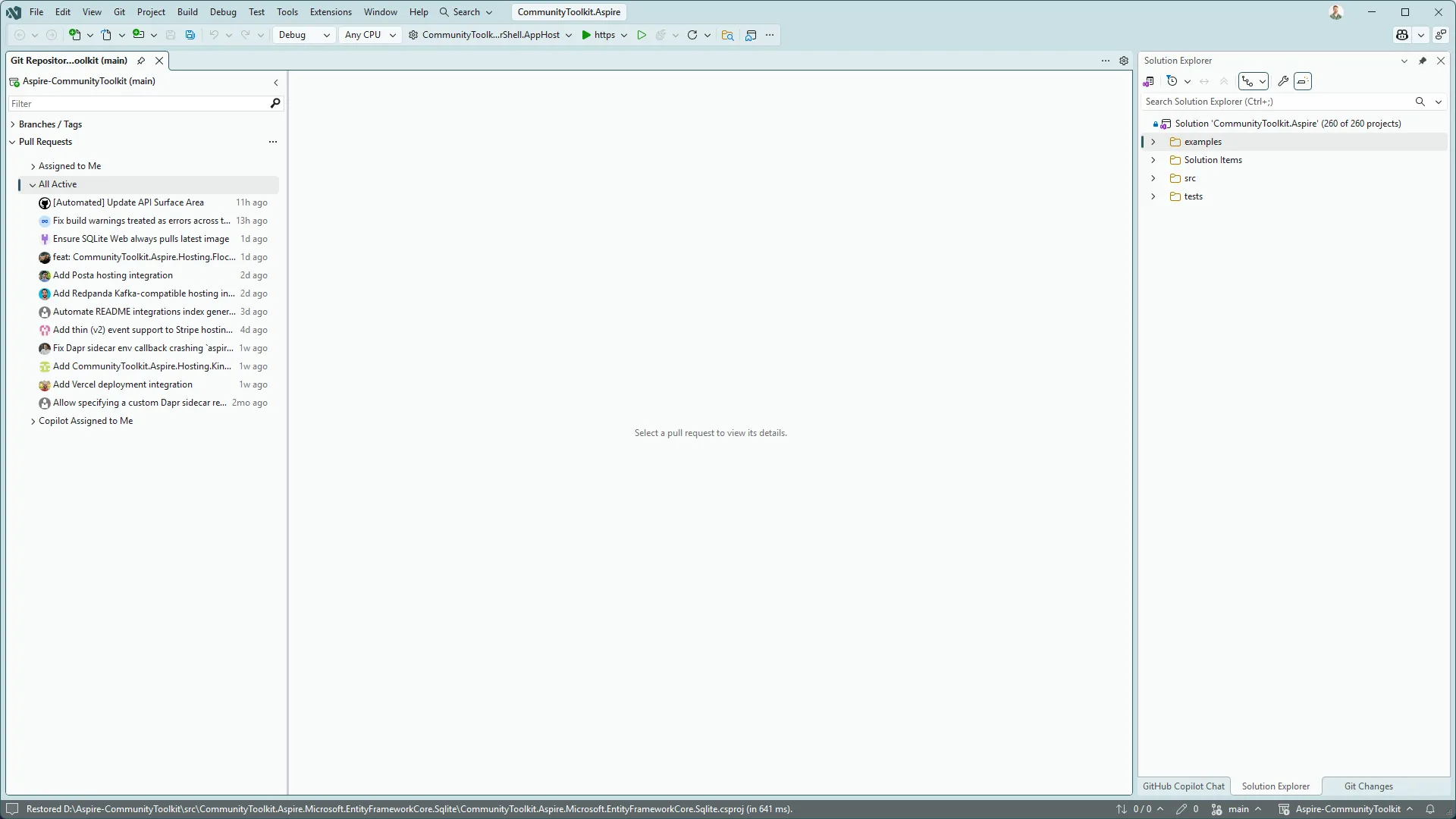
Window showing the list of PRs in a GitHub project

Time to select one of the PRs and start our review.

Working with our PR

Opening the PR loads it into the main section of the View Pull Requests tab, but I like to click the “Open in New Tab” option as pops it into a new tab and maximises my screen real estate.

In the view of the PR I have a file browser down the lefthand side, while the main window initially provides me with an overview of the PR, I can read the description, see the comments currently on it, as well as add my own comments.
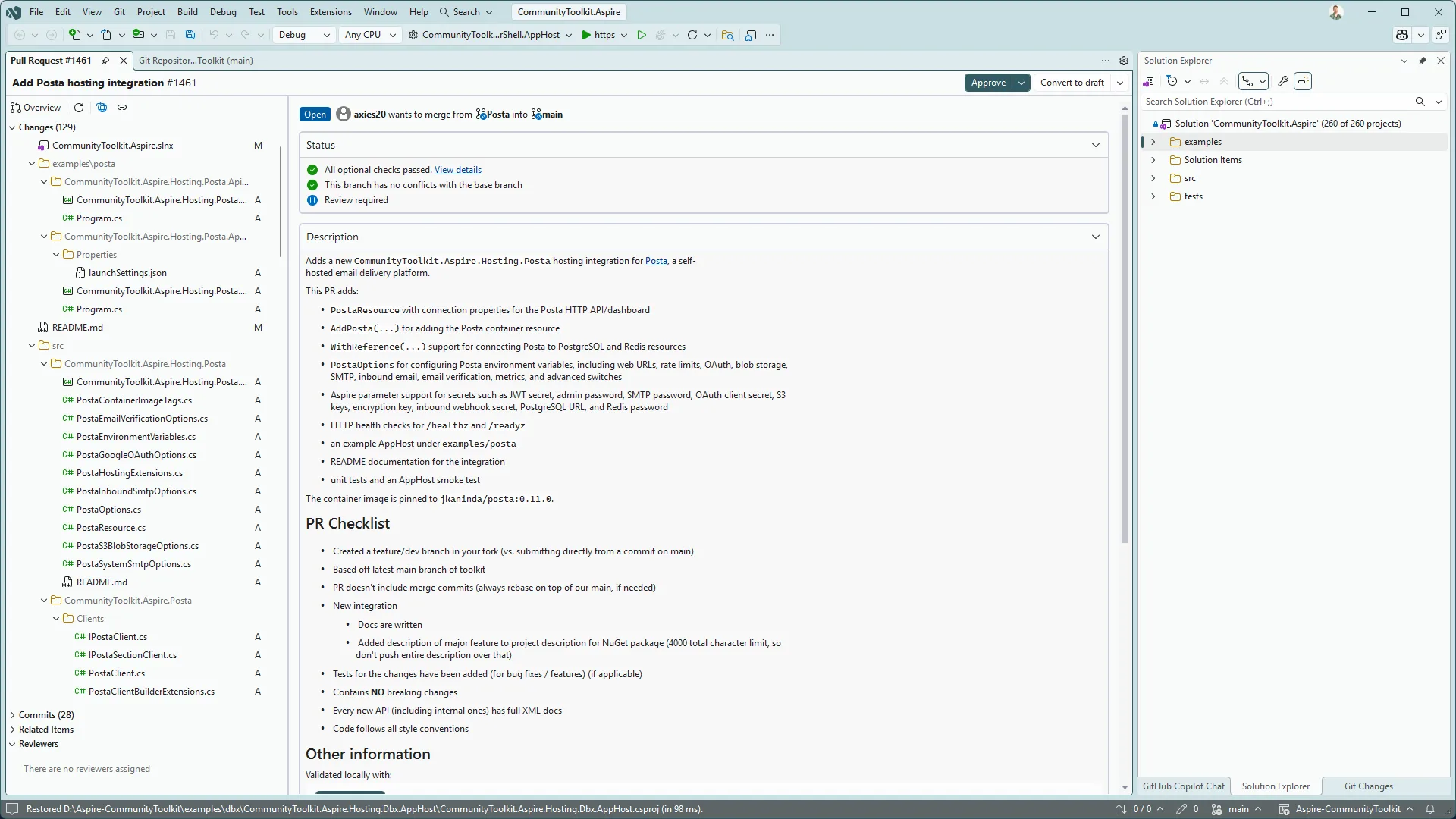
Details of a PR

Clicking on the files within our file list will give me a diff view of the file, and because I’m in Visual Studio we get syntax highlighting of the C#, as well as the list of all the types in the file I’m opening.

When viewing a file that has edits to it rather than a new file, you can choose to view the whole file, or a summary which will condense down the file to hide lines between points that are changed. This can be helpful if you’re viewing a long file and want to avoid excessive scrolling.

We can annotate files in the PR by clicking on the gutter next to the line (or lines if we select multiple first), then opening the inline comment window. Visual Studio will buffer our comments until we submit our review.
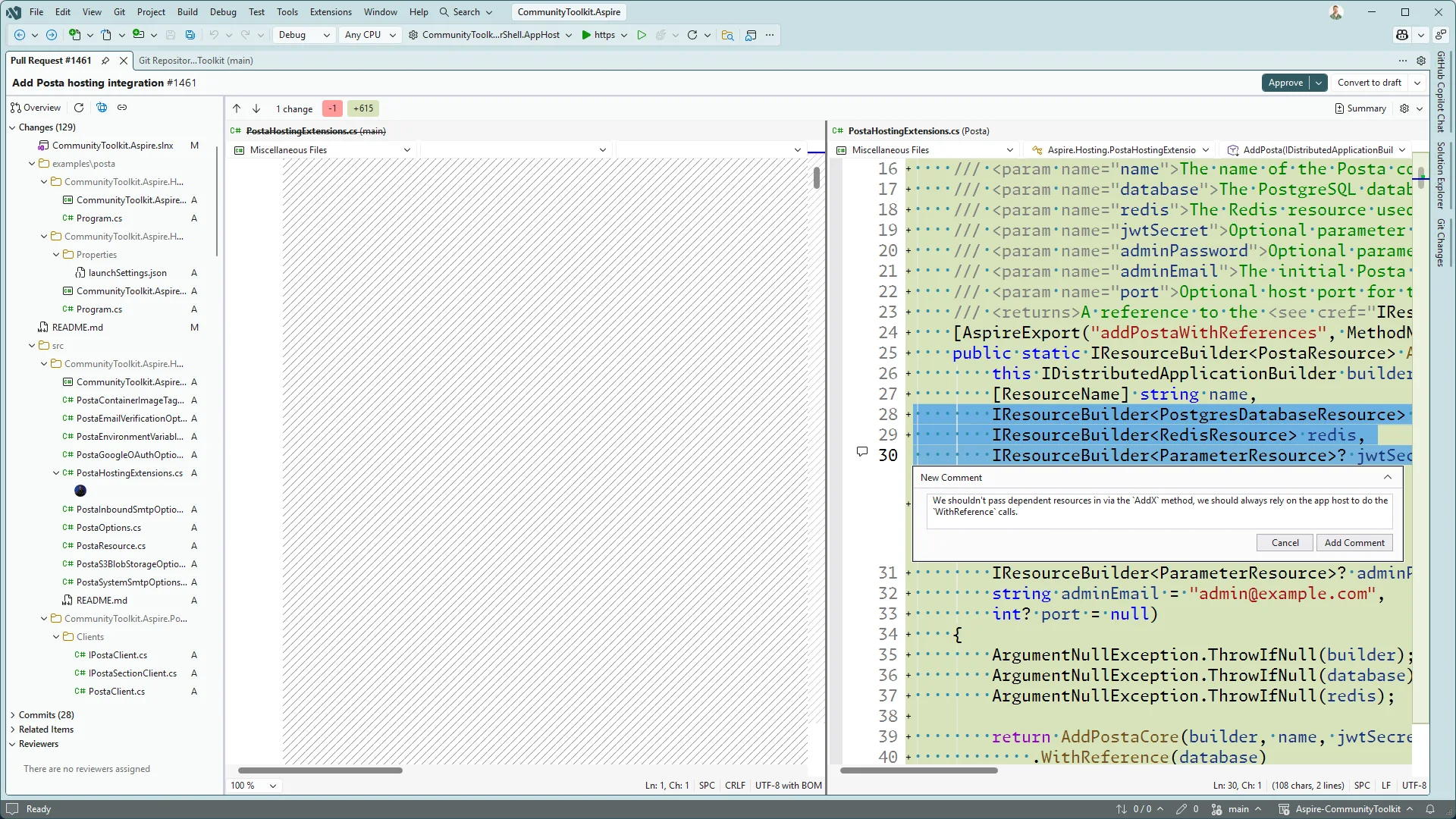
Adding an inline comment to a file diff in a PR

Approve and Merge

This PR looks good and is ready to merge into the main branch. In Visual Studio, click Approve in the top-right corner to update its status on GitHub.

The adjacent options let you merge the PR or configure auto-merge while waiting for additional checks. These options follow the policies configured for your repository.

Bringing Copilot in

We might want to get Copilot to act as a pair while we’re reviewing the PR, maybe we want a rubber-ducky review of some of the changes or ask it questions about the solution proposed. To do this, right-click on the PR within the list of active pull requests and select Add to Chat, or from a Copilot session, use #pullrequest:<id> – both of these will add it as context to the session you’re in.
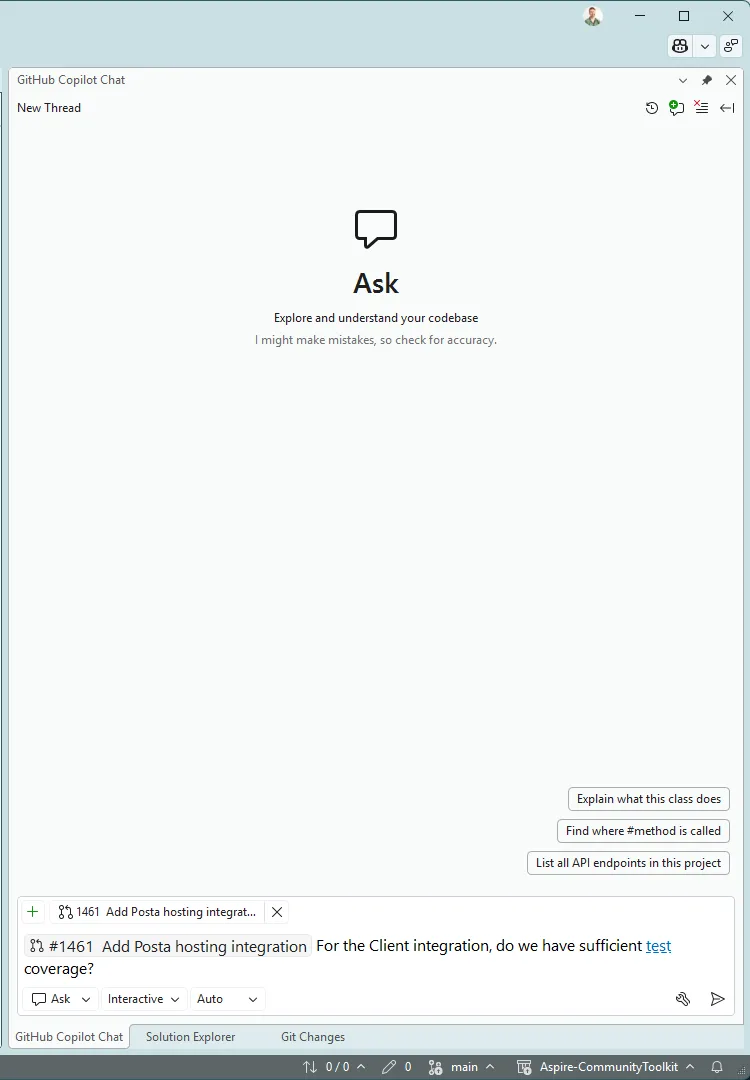
A GitHub Copilot session with a PR added as context for the agent.

Now you can continue working with Copilot, and it will have the context of that PR available to it as you work.

Wrap-up

Reviewing and actioning pull requests is a daily task for developers, whether they are working on open-source projects, or within their organisation. With Visual Studio, we can perform all of this within the one experience, avoiding the context switching as we jump between tools. This also means that we integration with Visual Studio, such as syntax highlighting and member hierarchy.

Category

Topics

Author

Aaron Powell

Aaron is a Developer Advocate at Microsoft. Having spent 15 years doing web development he’s seen it all, from browser wars, the rise of AJAX and the fall of 20 JavaScript frameworks (and that was just yesterday!). Always tinkering with something new he explores crazy ideas like writing your own implementation of numbers in .NET, creating IoC in JavaScript or implementing tic-tac-toe using git commits.