




Themes are personal. Some of us live in dark mode, some swear by high contrast, and some of us have very strong opinions about that one shade of blue from years ago. The new themes in Visual Studio 2026 are built on Fluent, which gives us a much more consistent and accessible foundation, but we have heard from plenty of you who want more control over specific colors. Accent colors, hover states, the line between the shell and the tab headers… the small things that make an IDE feel like yours.
So, we did something about it.
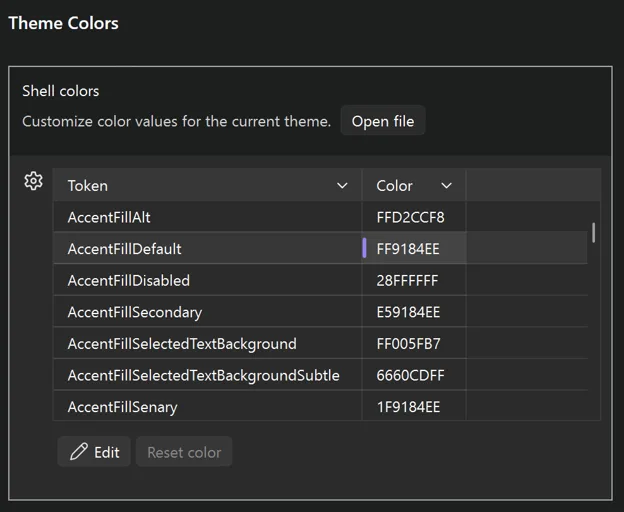
Visual Studio now has a new Theme colors options page that lets you customize any Fluent color token directly inside the IDE. No extensions, no JSON files to hunt down, no restarts. Just open the page, find the token you want, and pick a new color.
Where to find it
Open it from Tools > Options > Environment > Visual Experience > Theme colors. You’ll see every Fluent color token in the active theme listed in a searchable grid. Pick one, change the color, and the change applies live.
Customizations are per-theme
This is the part we like the most. Whatever you change is saved against the current theme, not globally. So, you can have your own personal twist on Dark, a different twist on Light, and a wildly different one on a tinted theme, and switching between them brings your customizations along automatically.
If you go too far down a rabbit hole, there’s a per-color reset so you can revert a single token without throwing away the rest of your work.
New tokens for more granular control
Alongside the options page, we also added some new color tokens that give you more separation between parts of the shell. The most commonly asked-for one is being able to color the tab and window headers independently from the rest of the shell chrome, which, among other things, lets you get pretty close to a classic retro look if that’s what you’re after.
See all the color tokens in the theme color tokens documentation.
Sharing your customizations
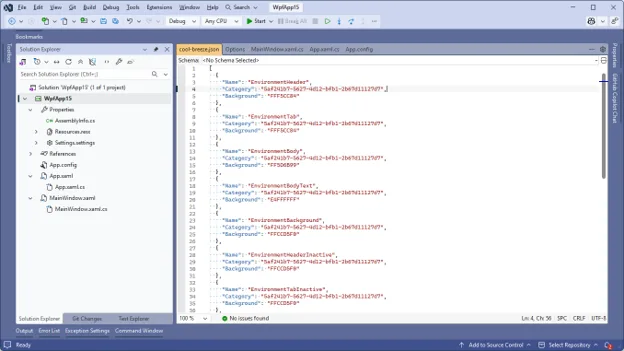
Because customizations are saved as JSON under the hood, they’re easy to share – and easy to apply on top of any theme. Drop a JSON file into:
%LOCALAPPDATA%\Microsoft\VisualStudio\18.0_xxxxxxxx\ColorThemes
…and Visual Studio will use it to override the theme it’s named after. The file name has to match the theme you want to override – so cool-breeze.json overrides Cool Breeze, dark.json overrides Dark, and so on. Restart Visual Studio and the overrides take effect on top of that theme.
Here’s an example set of overrides that leans Cool Breeze in a more retro, blue direction. Save it as cool-breeze.json in the folder above:
[
  {
    "Name": "EnvironmentHeader",
    "Category": "5af241b7-5627-4d12-bfb1-2b67d11127d7",
    "Background": "FFF5CC84"
  },
  {
    "Name": "EnvironmentTab",
    "Category": "5af241b7-5627-4d12-bfb1-2b67d11127d7",
    "Background": "FFF5CC84"
  },
  {
    "Name": "EnvironmentBody",
    "Category": "5af241b7-5627-4d12-bfb1-2b67d11127d7",
    "Background": "FF5D6B99"
  },
  {
    "Name": "EnvironmentBodyText",
    "Category": "5af241b7-5627-4d12-bfb1-2b67d11127d7",
    "Background": "E4FFFFFF"
  },
  {
    "Name": "EnvironmentBackground",
    "Category": "5af241b7-5627-4d12-bfb1-2b67d11127d7",
    "Background": "FFCCD5F0"
  },
  {
    "Name": "EnvironmentHeaderInactive",
    "Category": "5af241b7-5627-4d12-bfb1-2b67d11127d7",
    "Background": "FFCCD5F0"
  },
  {
    "Name": "EnvironmentTabInactive",
    "Category": "5af241b7-5627-4d12-bfb1-2b67d11127d7",
    "Background": "FFCCD5F0"
  },
  {
    "Name": "StatusBarBackgroundFillRest",
    "Category": "5af241b7-5627-4d12-bfb1-2b67d11127d7",
    "Background": "FF40508D"
  }
]
Share that file with a teammate, and they’ll see the same look the next time they launch Visual Studio – no extension to install, no theme to package up.
You can also grab the Blue Steel theme pack that ships with these new colors to mimic the retro blue theme.
Why this matters
Themes used to be an all-or-nothing thing. If you didn’t love one of the built-in options, your only real path was an extension that replaced the entire theme. That’s a lot of overhead for what is often a very small change (“I just want this one color to be a little less bright.”).
The new options page is meant to fix exactly that. Quick, one-off customizations should feel quick. Bigger overhauls still belong in extensions, and the marketplace is full of great ones, but most of the feedback we get is about a handful of specific tokens. Now you can fix those in about ten seconds.
Availability
This is now in latest version of Visual Studio 2026 (18.7). Give it a try, break things in interesting ways, and let us know in the comments what tokens you ended up changing – we’re always curious how people set up their IDEs.
Happy coding!