





The best AI assistance is the kind you can steer, understand, and rely on. The July update is built around all three. There’s a new Agent (Preview) in Copilot Chat, built on the same GitHub Copilot SDK that powers the GitHub Copilot CLI, that gets more done with less back-and-forth. New built-in .NET and Azure skills let you tailor your agentic workflow with expert guidance, organization owners can now shape Copilot’s responses across their whole team, and a couple of fundamentals round things out.
You can attach a branch to Copilot Chat for quick context, and C++ builds can now opt in to finding a pinned toolset version even when it lives in a different installation. Install the Visual Studio 2026 Stable Channel update when you’re ready, then take a look at what’s new below.
Try the new Agent (Preview)
Copilot Chat has a new Agent (Preview) option in the agent picker, built on the same GitHub Copilot SDK that powers the GitHub Copilot CLI. The idea is simple: get more tasks right the first time, with less back-and-forth to keep the agent on track. It also addresses feedback we’ve heard from Copilot users asking for a more consistent experience across Copilot surfaces, so work can move more naturally between them. You can start in the CLI, GitHub app, VS Code, or Visual Studio, then transition that work into Visual Studio when you’re ready to review, refine, or continue the change. Responses are shorter and easier to scan, so you spend less time reading and more time reviewing the actual change.
To try it, open GitHub Copilot Chat, click the agent picker at the bottom of the window, and select Agent (Preview). Then point it at the work you already do: feature changes, bug fixes, refactors, and the rest of your day-to-day tasks.
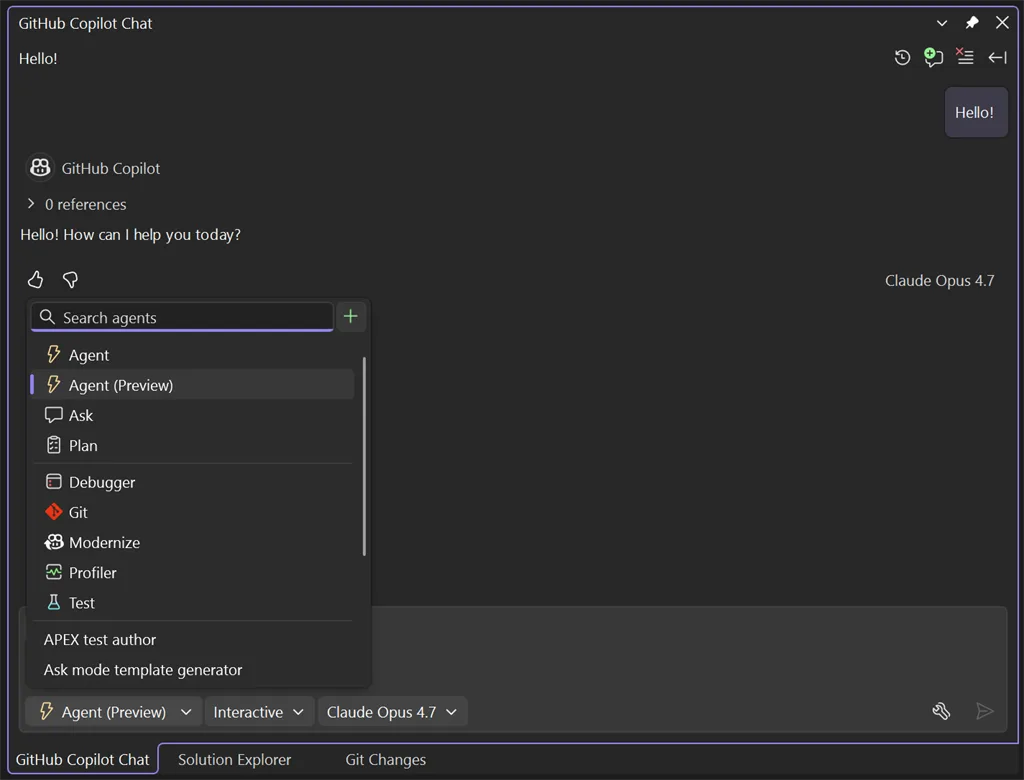
This one is still in preview, and your feedback shapes where it goes next. Send it through Help > Send Feedback > Report a Problem.
Built-in .NET and Azure skills
Visual Studio now ships with built-in skills authored by experts on the .NET and Azure teams, so you can customize your agentic workflow with guidance from the people who know these stacks best. The skills appear in the Built-in category of the tool picker whenever the matching .NET or Azure workload is installed.
Hover any skill to see its description and path, or use the three-dot menu to open the full skill or its folder location. They’re off by default, so you review and enable only the ones that fit the task in front of you.
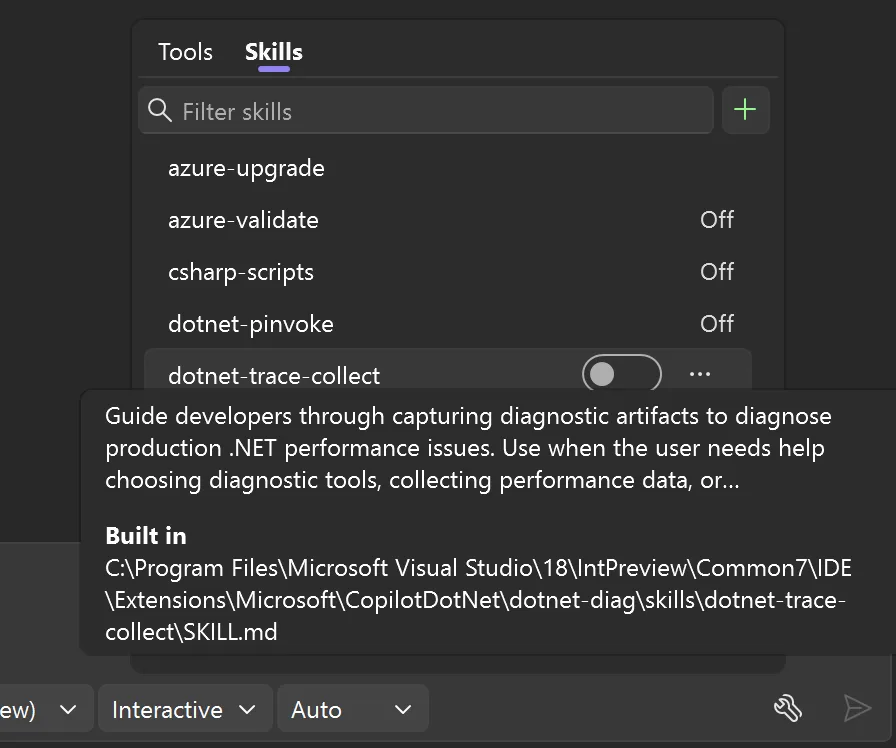
Want to dig into what’s available? Browse the .NET skills and Azure skills on GitHub.
Organization-level custom instructions
Teams often share the same ground rules for how they want Copilot to respond. GitHub organization owners can now add organization custom instructions that tailor those responses across everyone in the organization, so common preferences don’t have to be set up one developer at a time. This works when the repository belongs to a GitHub organization, and it’s meant for setting preferences, not enforcing policy.
When you work in a repository that belongs to your organization, these instructions apply automatically. You’ll see them in the reference list during your Copilot interactions, and you can click through to read the full set.
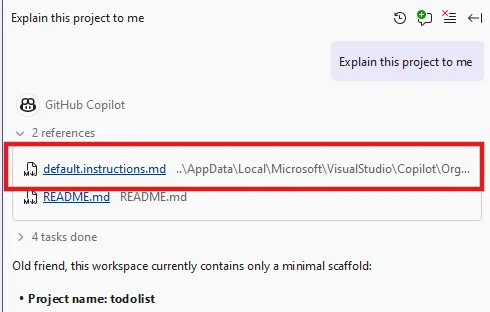
If you’d rather not use them, or want to avoid conflicts with your own user-level instructions, you can turn them off under Tools > Options > GitHub > Copilot > Copilot Chat by unchecking Enable organization-level custom instructions.
Attach branches to Copilot Chat
Ever wanted to ask Copilot about a branch before you check it out? Branches now join commits, changes, and pull requests as context you can attach to Copilot Chat. Right-click any branch in the Git Repository window and select Add to Chat to bring it into your conversation.
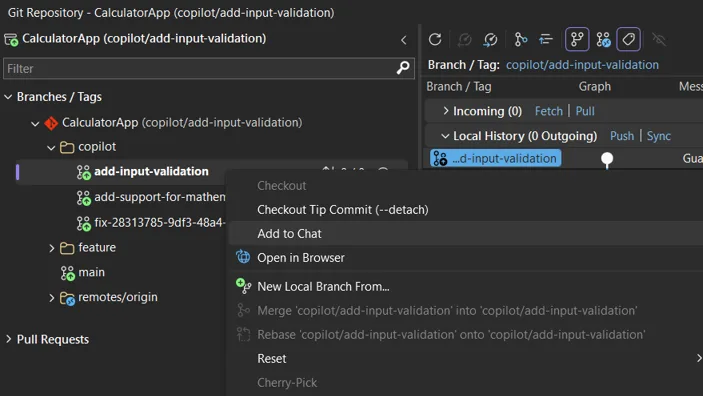
From there, ask something like tell me about this branch to get a quick summary before you dive into the code.
MSVC Build Tools auto-discovery across installations
If your team pins a specific C++ toolset, you want that exact version used, wherever it happens to be installed. You can now opt in to automatic discovery of the Microsoft C++ (MSVC) Build Tools across all your Visual Studio IDE and Visual Studio Build Tools installations, so a pinned VCToolsVersion resolves correctly even when it lives in a different install.
Previously, Visual Studio only searched other installations when your current install had no toolset at all for your target platform toolset. If your project targeted v143 and the current install already had any v143 toolset, the search stopped there, even when you’d pinned a specific VCToolsVersion that only existed elsewhere. Now the search keeps going to find the exact version you asked for.
To enable it, set EnableVCToolsVersionDiscovery to true in your project or Directory.Build.props:
<PropertyGroup>
  <EnableVCToolsVersionDiscovery>true</EnableVCToolsVersionDiscovery>
  <VCToolsVersion>14.43.34604</VCToolsVersion>
</PropertyGroup>
The payoff: version pins are honored regardless of which installation contains them, builds stay reproducible across your team without individual IDE updates changing compiler behavior, and cross-install toolset references resolve automatically instead of requiring manual VCToolsInstallDir overrides.
From our entire team, thank you for choosing Visual Studio! For the latest updates, resources, and news, check out the Visual Studio Hub and stay in touch.
Happy coding! The Visual Studio team