








Screen readers follow the reading order of objects on a slide (sometimes known as the z order), not the visual layout from top to bottom, left to right. Even if a slide appears visually correct, assistive technology may read the content out of sequence. Adding, removing, or rearranging content placeholders—including in standardized templates—can change the reading order, which may make the slide harder for screen reader users to follow and understand.
Depending on your version of Microsoft PowerPoint, there are two ways to define the order in which a screen reader announces slide content.
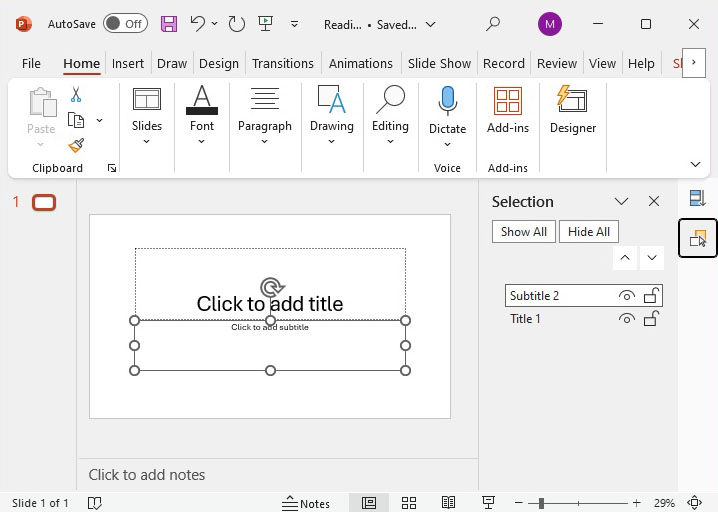
Figure 1. PowerPoint's Reading Order pane showing object Title 1 appearing after Subtitle 2.
When adding objects to a slide, use the Selection Pane to align and stack them in the correct order.
To open the Selection Pane, go to the Home tab, then select Arrange and choose Selection Pane.
The Selection Pane will appear in the right-hand sidebar, and displays every object on the selected slide. When you select an object in the pane, it will also be highlighted on the slide—helping you identify its content and position.
To re-order an item, simply click and drag it within the Selection Pane. You can also use the up and down arrow buttons at the top of the list of objects to adjust an object’s position.
Tip: Make complex slides easier to sort by renaming objects. Simply select an object and press Enter or double-click with your mouse, then rename as desired.
If you use these commands, double-check the Selection Pane to confirm the objects appear in the correct stacking order.
To the right of each item is an eye icon, which acts as a button to toggle the object’s visual display on the slide (Figure 1). Hidden objects remain in the Reading Order Pane and will still be read by a screen reader. This technique can be used to provide a slide title for screen reader users—helping with navigation and comprehension—while keeping it visually hidden.
To check the reading order for accessibility:
Important: The reading order shown in the Selection Pane runs bottom-to-top. This reflects how objects are layered—a screen reader will read the objects in the Selection Pane from the bottom of the list to the top.
Note: PowerPoint for the Web does not include the Reading Order Pane. Users should instead use the **Selection Pane** to arrange the reading order of objects.
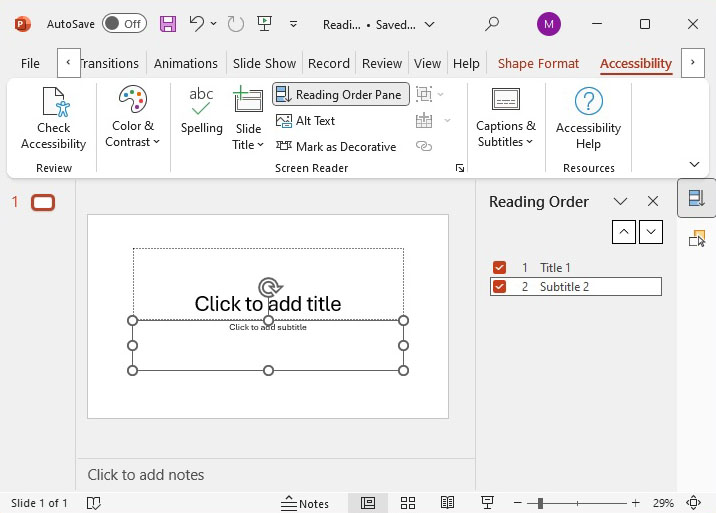
Figure 2. PowerPoint's Reading Order pane showing object Title 1 appearing before Subtitle 2.
When adding objects to a slide, you can use the Reading Order Pane to align and stack them in the correct reading order.
To open the Reading Order Pane, go to the Review tab, then select Check Accessibility and choose Reading Order Pane.
The Reading Order Pane will appear in the right-hand sidebar by default. It displays every object on the slide. When you select an object in the pane, it will also highlight on the slide—helping you identify its content and position.
To re-order an item, simply click and drag it within the Reading Order Pane. You can also use the up and down arrow buttons at the top of the Reading Order list to adjust an object’s position.
If you use these commands, double-check the Reading Order Pane to confirm the objects appear in the correct stacking order.
To the left of each object is a checkbox, which acts as a button to toggle the object’s description to screen readers (Figure 2). Unchecked or hidden objects remain in the Selection Pane and visually displayed, but will be skipped by a screen reader as a decorative image. This technique can be used to hide a decorative image for screen reader users—helping with navigation and comprehension—while keeping it visually displayed.
To check the reading order for accessibility:
Important: The visual order shown in the Reading Order runs top-to-bottom. This reflects how objects are layered—a screen reader will read the objects in the Reading Order Pane from the top of the list to the bottom.
| Feature | Selection Pane | Reading Order Pane |
|---|---|---|
| Primary Purpose | Manage object visibility, selection, and layering | Define the sequence for screen readers to interpret slide content |
| Display Order | Bottom-to-top: Bottom read first by screen reader | Top-to-bottom: Top read first by screen reader |
| Rename Objects | Yes | No |
| Reorder Objects | Yes to adjust layering, reading sequence | Yes to adjust layering, reading sequence |
| Hide/Show Objects | Yes via visibility toggles | No |
| Mark Object as Decorative | No, must use View ALT Text to mark as decorative. | Yes |
| Accessibility Focus | No | Yes |
| OS Compatibility | Windows, macOS | Windows |
For more information on creating accessible presentations, visit Content Creation.
To subscribe to, manage, or unsubscribe from Accessibility Bytes, visit GSA Email Updates.
*Disclaimer: Reference in this site to any specific commercial product, process, or service, or the use of any trade, firm or corporation name is for the information and convenience of the public, and does not constitute endorsement, recommendation, or favoring by GSA. GSA does not guarantee that outside websites or products comply with Section 508 (accessibility requirements) of the Rehabilitation Act.
Reviewed/Updated: September 2025
此内容由惯性聚合(RSS阅读器)自动聚合整理,仅供阅读参考。 原文来自 — 版权归原作者所有。