






Yes, every slide needs a unique title. When slides repeat topics—or titles—distinguish them with numbering, subtitles, or hidden titles. Clear titles help screen reader users navigate effectively and support people with cognitive or reading disabilities by making it easier to find information and understand the purpose of each slide.
Screen reader and other assistive technology (AT) users and other audience members rely on slide titles for navigation and comprehension, much like headings in other electronic document formats. Missing or duplicate titles can cause confusion, while unique titles make content easier to follow and understand.
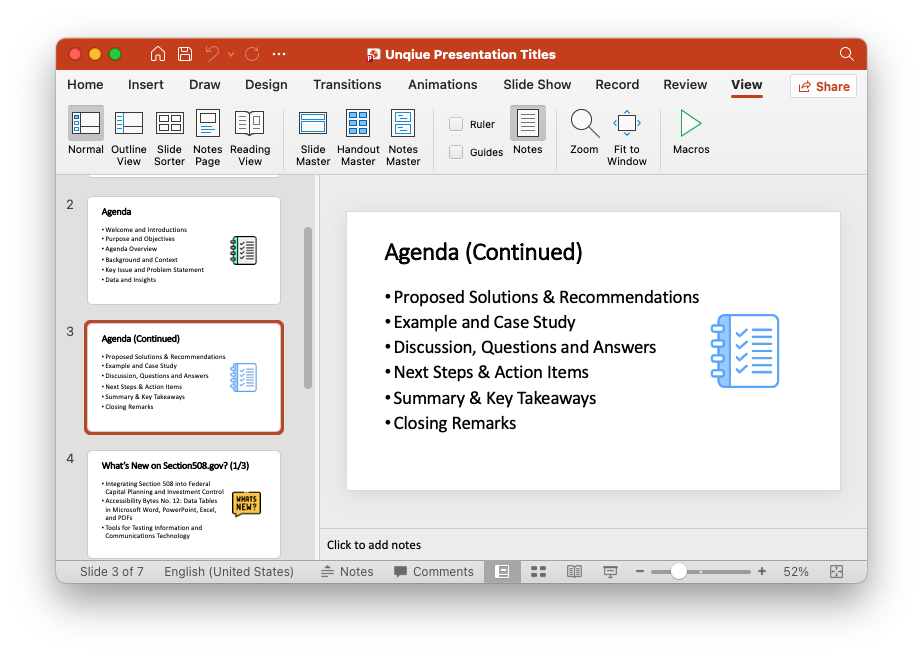
Figure 1. A PowerPoint presentation showing the handling of a repeated slide topic.
While there is no single standard for how to always provide unique slide titles, a best practice for handling repeated topics is to use modifiers to distinguish slides in a series—such as in the following examples:
Figures 2, 3, and 4: Three presentation slides showing technique 4: Topic (Slide # / Total # of repeated slides)
Unique slide titles also help the audience maintain context—especially when slides are moved, reused, or referenced out of order.
If you prefer not to display duplicate titles or a title on a specific slide, you can assign hidden titles in PowerPoint. Screen readers will still identify these and announce them to users, but they will not appear to sighted users. This technique is often used on closing slides that contain only logos or images—for example, hiding the title “Questions?” on a final slide by using the Selection Pane.
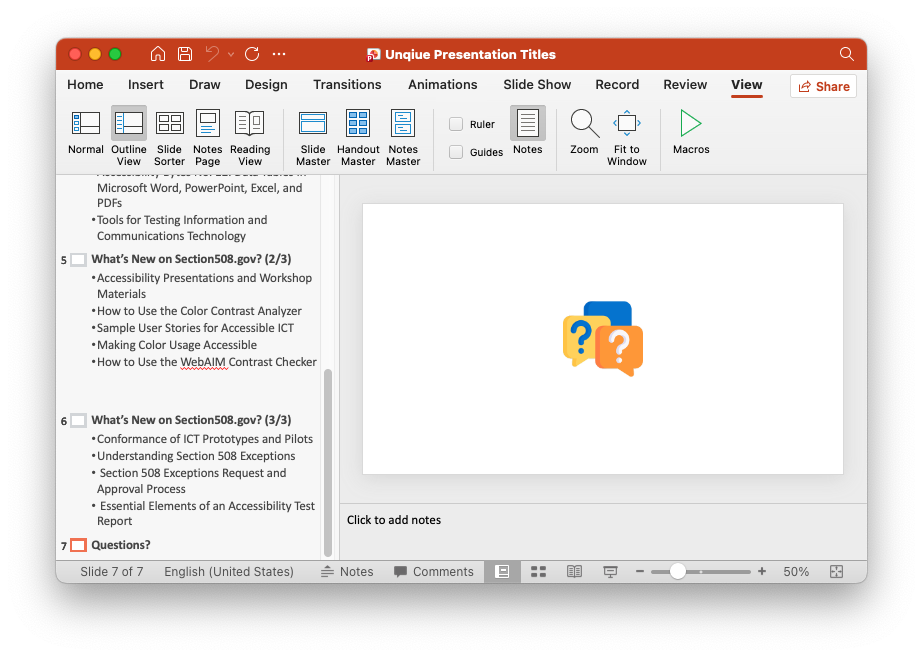
Figure 5: Microsoft PowerPoint presentation in Outline View, showing a hidden Title.
Finally, as a quick way to confirm that each presentation slide has a unique title, review your slides in Outline View (select View > Outline View). In this view, each slide number should have a title next to it. If a title is missing, either the slide does not have one entered, or the slide template lacks a title placeholder. To fix this, ensure your slide template includes a title placeholder and then enter a title that reflects the slide’s topic.
TIP: For best results, download and view this Microsoft PowerPoint presentation on your computer.
For more information and guidance on creating accessible presentations and other Office documents, visit Section508.gov/create/.
*Disclaimer: Reference in this site to any specific commercial product, process, or service, or the use of any trade, firm or corporation name is for the information and convenience of the public, and does not constitute endorsement, recommendation, or favoring by GSA. GSA does not guarantee that outside websites or products comply with Section 508 (accessibility requirements) of the Rehabilitation Act.
Reviewed/Updated: May 2025
此内容由惯性聚合(RSS阅读器)自动聚合整理,仅供阅读参考。 原文来自 — 版权归原作者所有。