


惯性聚合 高效追踪和阅读你感兴趣的博客、新闻、科技资讯
阅读原文 在惯性聚合中打开

推荐订阅源

cs.AI updates on arXiv.org
AWS News Blog
AWS News Blog
V
Vulnerabilities – Threatpost
D
Darknet – Hacking Tools, Hacker News & Cyber Security
量子位
博客园 - 叶小钗
AI
AI
T
Tor Project blog
Forbes - Security
Forbes - Security
W
WeLiveSecurity
博客园_首页
爱范儿
爱范儿
J
Java Code Geeks
B
Blog
G
GRAHAM CLULEY
aimingoo的专栏
aimingoo的专栏
Cloudbric
Cloudbric
C
CXSECURITY Database RSS Feed - CXSecurity.com
TaoSecurity Blog
TaoSecurity Blog
L
LINUX DO - 热门话题
阮一峰的网络日志
阮一峰的网络日志
有赞技术团队
有赞技术团队
Threat Intelligence Blog | Flashpoint
Simon Willison's Weblog
云风的 BLOG
云风的 BLOG
Google DeepMind News
H
Help Net Security
博客园 - 三生石上(FineUI控件)
C
Cisco Blogs
C
Cybersecurity and Infrastructure Security Agency CISA
cs.CV updates on arXiv.org
P
Palo Alto Networks Blog
Cyber Security Advisories - MS-ISAC
Recent Commits to openclaw:main
博客园 - 司徒正美
The Last Watchdog
The Last Watchdog
Blog — PlanetScale
Blog — PlanetScale
T
The Blog of Author Tim Ferriss
S
Secure Thoughts
Spread Privacy
Spread Privacy
F
Fortinet All Blogs
月光博客
月光博客
大猫的无限游戏
大猫的无限游戏
S
SegmentFault 最新的问题
H
Hackread – Cybersecurity News, Data Breaches, AI and More
A
About on SuperTechFans
Security Latest
Security Latest
Webroot Blog
Webroot Blog
Scott Helme
Scott Helme
Hugging Face - Blog
Hugging Face - Blog

Comments for The Eclectic Light Company

Should you try Golden Gate beta? Solutions to Saturday Mac riddles 367 In the shadow: Diego Velázquez Comment on Last Week on My Mac: Freshen up your documents by David Comment on Happy 250th birthday America 2 by mac Happy 250th birthday America 1 Brushstrokes: Portraits 1760-1877 Spotlight and Core Spotlight are different Comment on Sort order, collation and the Finder by eyelessjerry Comment on Apple has just released macOS 26.5.2 Tahoe by Derek Currie Great Ladies of Impressionism: Marie Bracquemond Comment on Get more from your Mac’s log by extending its duration by John Gilbert Comment on Keep your Mac cool using physics by F Portraits of trees: Coppices and pollards Comment on Firmware has become complicated again by John Woods Comment on Logistician 1.2 fixes a couple of bugs by info395288a4d1d Comment on What does Activity Monitor measure? by hoakley Last Week on My Mac: Spotlight on semantics An American in Paris: paintings of Henry Ossawa Tanner 1902-1930 An American in Paris: paintings of Henry Ossawa Tanner 1880-1902 Great Ladies of Impressionism: Berthe Morisot 1874-1891 What to do with a hot Mac Deprecations and removals from Golden Gate Brushstrokes: From El Greco to Rembrandt Portraits of trees: Dutch Golden Age Comment on Hero or hooligan: Achilles becomes the warrior by Deborah J. Brasket Solutions to Saturday Mac riddles 365 Comment on SilentKnight 3.0 for Apple silicon Macs running Sequoia and later (full release) by michaelriccioli Comment on Last Week on My Mac: Uncompressed compressed files by fds Comment on Explainer: Memory by jzonedotcom Comment on Colin Campbell Cooper painting America: 1896-1910 by House of Heart Brushstrokes: 16th century What can you do when an app uses too much memory? SilentKnight 3 second beta adds text and JSON reporting In the shadow: Caravaggism What to do with your encrypted HFS+ disks First beta-test version of SilentKnight 3 for Apple silicon Macs Hero or hooligan: Jason and Medea Comment on Fix documents that won’t open as expected using Quarant2 by EcleX Last Week on My Mac: The mystery of Safari’s Web Archives Last Week on My Mac: Why is it so hard to open a document? Explainer: Disk encryption In the shadow: Caravaggio Brushstrokes: innovators of the first century Changing Paintings: 36 Theseus and the Minotaur macOS virtualisation is leaping forward in Golden Gate Why can’t Preview open that PDF? Crossing the Golden Gate, Intel support, and an update to SystHist Reading the Finder’s Get Info dialog In memoriam Mary Cassatt: 2, 1880-81 Last Week on My Mac: What’s in a name? Explainer: Getting a location Get more from Get Info and the Finder’s contextual menu Stop your photos revealing your location Have you saved thousands of versions? Versatility 1.2 might be what you need Apple has released an update to XProtect for all macOS Apple has released macOS Tahoe 26.5.1 Comment on What Location Services do in macOS by Tristan Hubsch Comment on Protect files with the Locked or Immutable flag by markbot2zero Portraits of trees: Introduction Which tasks require mains power? Comment on Online reference to external displays for Apple silicon Macs by Brian What’s in that phishing email? How to search document versions Rubens’ Peace and War Comment on Last Week on My Mac: Syncing metadata in iCloud Drive by hoakley A weekend with Misia: 2 How to search Time Machine backups? Medium and message: Pottery Hero or hooligan: Theseus and the sandals How QuickLook provides thumbnails and previews Hunting extended attributes with an update to xattred Saturday Mac riddles 360 Comment on How to preserve versions, and how to create versioned PDFs by markbot2zero Comment on What gets synced in iCloud Drive? by hoakley Solutions to Saturday Mac riddles 359 Last Week on My Mac: snapshots, the elephant in APFS How to check whether Spotlight is getting the right metadata macOS Tahoe no longer fully supports Time Capsules The bicentenary of Frederic Edwin Church: 1857-77 macOS virtual machines and audio-video syncing Comment on Use Finder tags for categories by Chuck Last Week on My Mac: Dependency and skill fade Comment on Virtualisation on Apple silicon Macs is different by AndyS Painting Pandora and her box: 1883-1919 Mac Easter eggs Painting Spring blossom 2 Comment on The macOS Natural Language framework and Nalaprop by Ingo Comment on The MACL extended attribute by hoakley On Reflection: Cézanne Privacy: Which folders are protected in Tahoe? Last Week on My Mac: Root cause analysis and ClickFix Last Week on My Mac: Root cause analysis and ClickFix Last Week on My Mac: Root cause analysis and ClickFix Last Week on My Mac: Root cause analysis and ClickFix Why you can’t trust Privacy & Security How can I now have two apps named Pages? How to survive the loss of Rosetta Use Fallback Recovery on Apple silicon Macs Clean install macOS
How to get the most from SilentKnight 3
hoakley · 2026-06-24 · via Comments for The Eclectic Light Company

Over the last few years, Macs, macOS and their security have undergone great change. While SilentKnight started off checking which Macs hadn’t updated their firmware correctly, and installing updates to the now-disused Malware Removal Tool, MRT, and Gatekeeper data, since then checks and updates have become completely different.

SilentKnight 3 is therefore fully redesigned to focus on the needs of modern Macs with Apple silicon chips, mBoot firmware, weekly XProtect updates, and the complexities of Secure Boot. Its purpose is to help you ensure your Mac is properly protected from changed threats to its security, and to do that as cleanly and efficiently as possible.
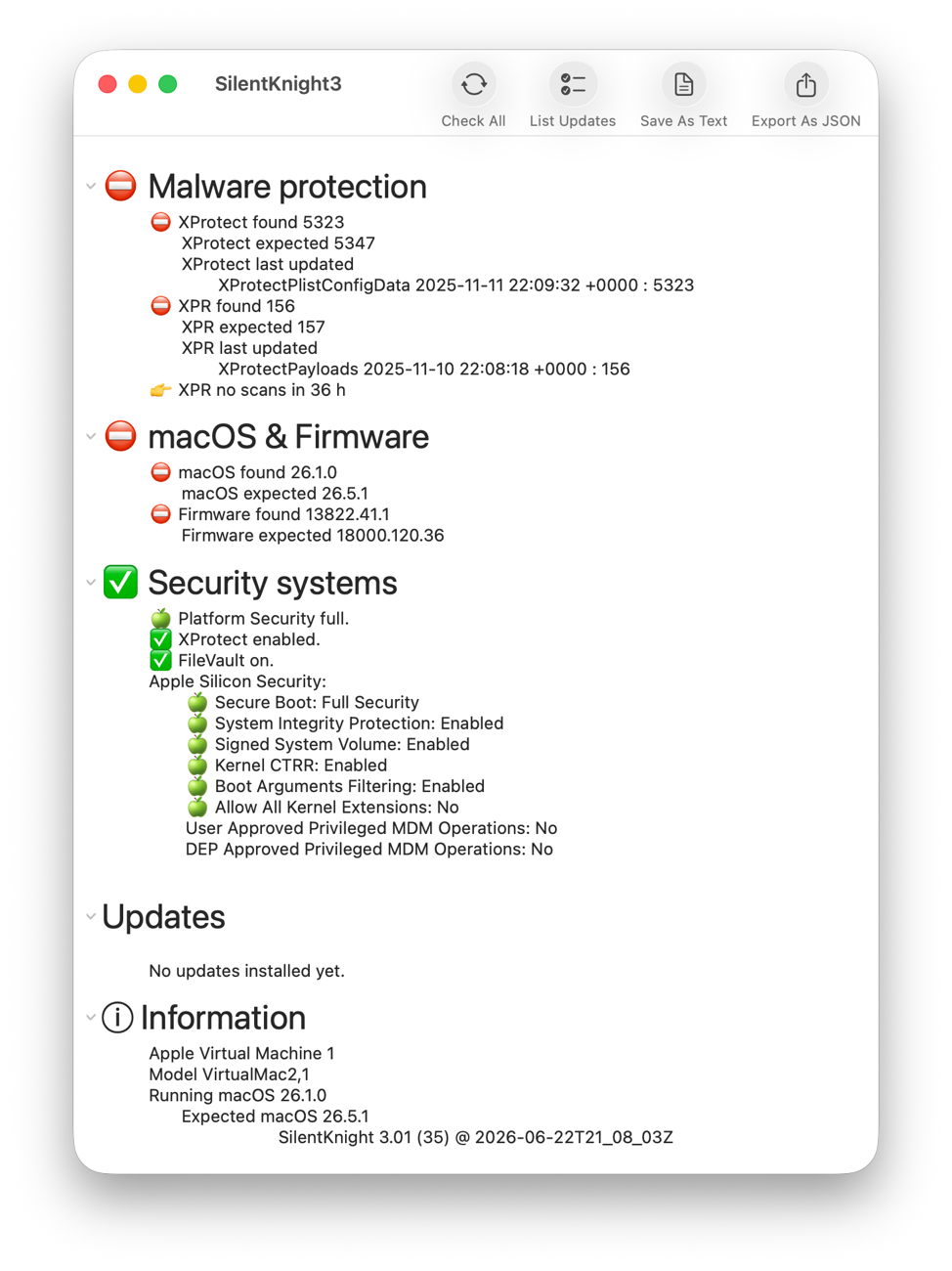
When you open SilentKnight it immediately runs its full set of checks, the same as those run by its Check All tool, and displays the results in the first three sections below. You can collapse and expand those sections by clicking on the small chevron at the left of each section title, such as Malware protection.

Malware protection

This checks the installed versions of XProtect and XProtect Remediator against the current version, and has here discovered that both are out of date. It also reports when the last version of each was installed locally, and gives a summary of XProtect Remediator’s malware scan results over the last 36 hours: in this case, no scans at all in that period.

Each result is distinguished by an appropriate emoji, with the section summary drawing your attention to any fixes needed, in this case by installing updates.

macOS & Firmware

This checks the current major version of macOS running, and whether that’s up to date for security and firmware updates. This respects your choice as to which major version you want to run. If you’re still running an older major version, it doesn’t nag you to upgrade to the current one. It also doesn’t report the firmware is wrong if your Mac is running a beta-release of macOS with a more recent mBoot firmware version, but simply reports their versions.

In this case, both need to be updated by installing the latest update to Tahoe, a task requiring Software Update, not SilentKnight.

Security systems

These report the state of your Mac’s most important security systems in detail. They include:

  • XProtect/Gatekeeper, ensuring new software is checked for malware before it’s run the first time;
  • FileVault encryption of the active Data volume;
  • Secure Boot, which should normally be at Full Security unless there’s good reason for its reduction;
  • SIP, System Integrity Protection, additional protection for many security features;
  • Third-party Kernel Extensions, only allowed when essential.

Macs running with a primary language other than English are more difficult to report here, as Apple Silicon Security is only available localised to the primary language, so SilentKnight can’t check each item, and just delivers the report available. I’m afraid there’s no way it can do otherwise.

List Updates

Unlike previous versions, SilentKnight 3 doesn’t automatically check to see if there are updates, and when it does it separates out macOS updates from the rest.

Since Big Sur, macOS updates and upgrades work differently from others, and need to be managed by Software Update settings. You can’t download an Installer package, and macOS has to decompress and prepare the components required. That’s not something that SilentKnight can try to take on. This also means that you get to choose the macOS updates you install, and when you do so.

Click on the List Updates tool and SilentKnight now informs you of non-macOS updates available, and those for macOS that it will leave well alone.
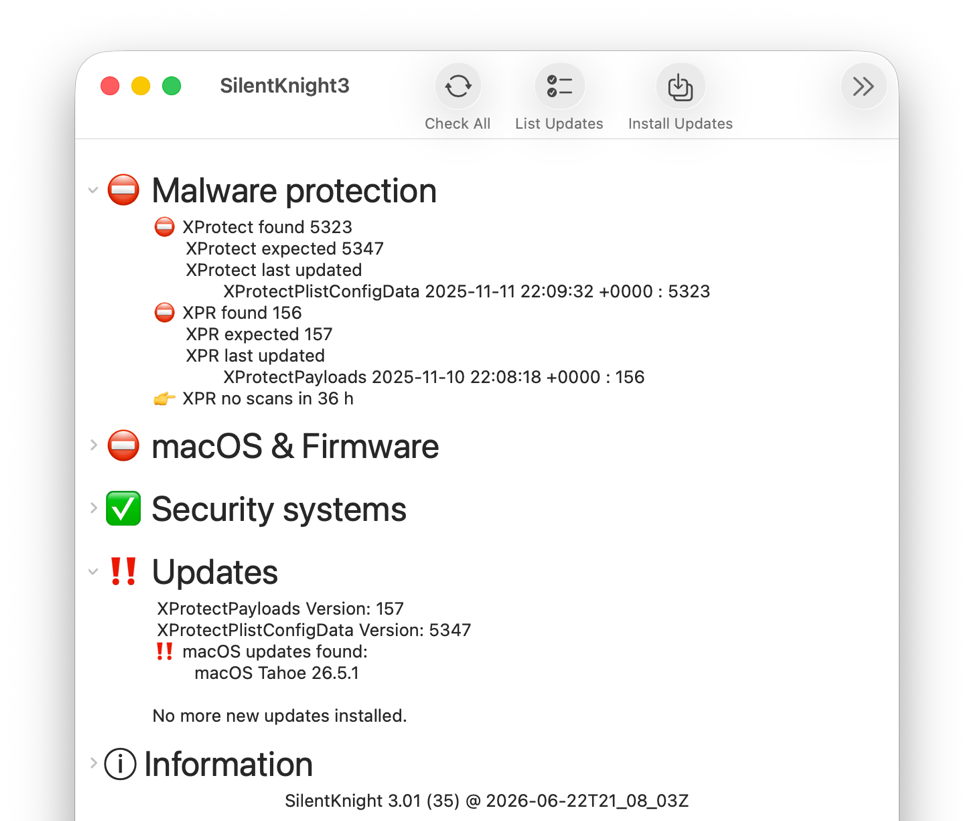
It here reports that it can download and install pending updates to XProtect and XProtect Remediator, and there’s also a macOS update you can choose to install separately using Software Update. It now offers its Install Updates tool to do that for you.
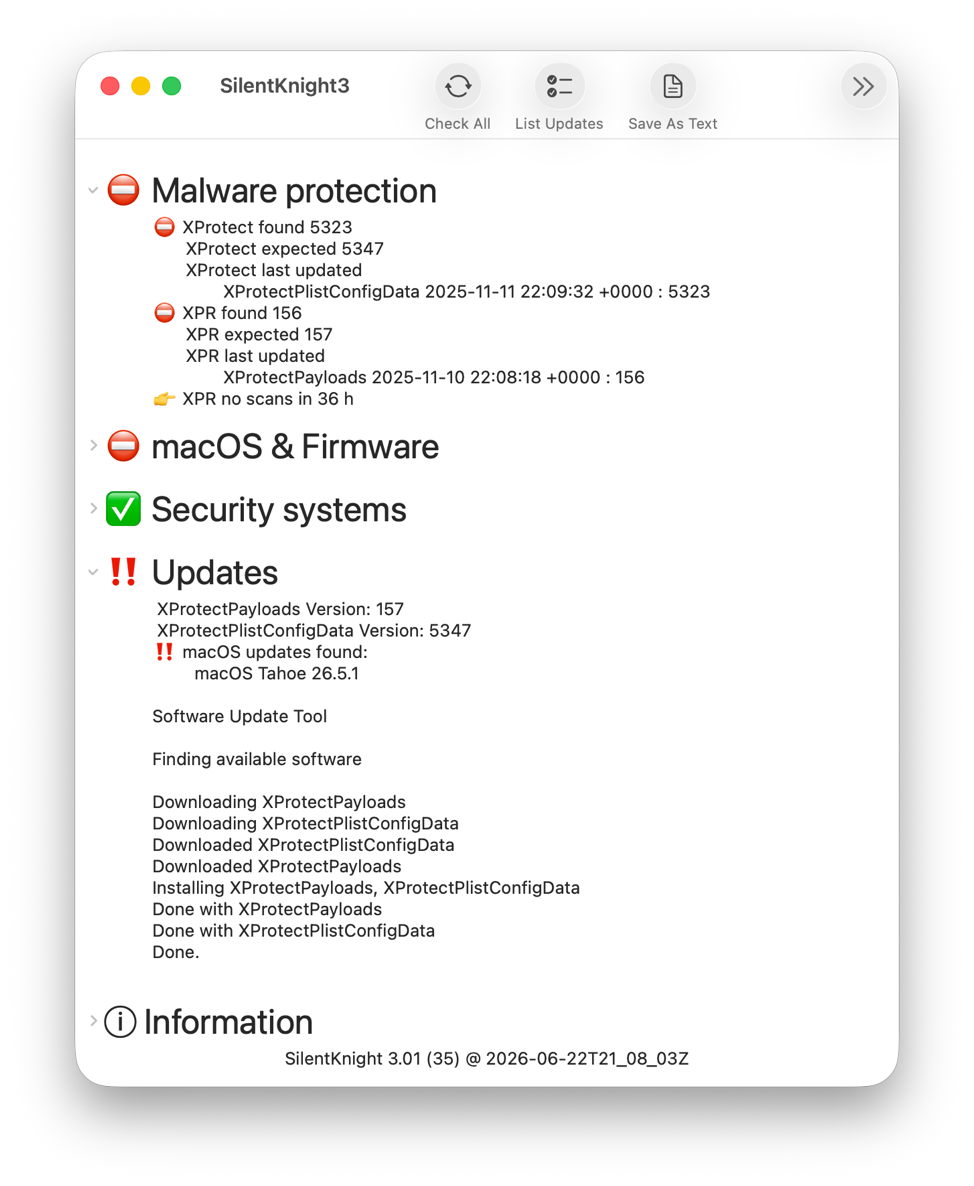
Install Updates

A little while after you’ve clicked on the Install Updates tool, SilentKnight will report the outcome of doing so. Here it has successfully downloaded and installed the updates to XProtect and XProtect Remediator as expected.

Unfortunately, updating XProtect is still a bit more complicated, as that update is installed to the old location, that is no longer used as the primary location. So before going any further, you should open Terminal and type
sudo xprotect check
to check whether the update is available from iCloud. If that returns the new version number, here 5347, you can then download and install that using
sudo xprotect update

If that new version isn’t yet available from iCloud, then you can only wait until it is, or XProtect updates itself. A future version of SilentKnight 3 will handle this better, by performing those checks for you, but still won’t be able to force an update that isn’t yet available from iCloud.

In case you’re wondering what the point is in downloading and installing XProtect to its old location, it can be used from there to update the new location as well. There are currently two known ways for XProtect to be updated in its new location:

  • Wen the update is made available in iCloud, it can be downloaded from there and installed directly.
  • Once a day, or so, a background updater process runs, and checks whether XProtect in the old location is a more recent version. If it is, it may then use that to automatically update it in its new location.

Final confirmation

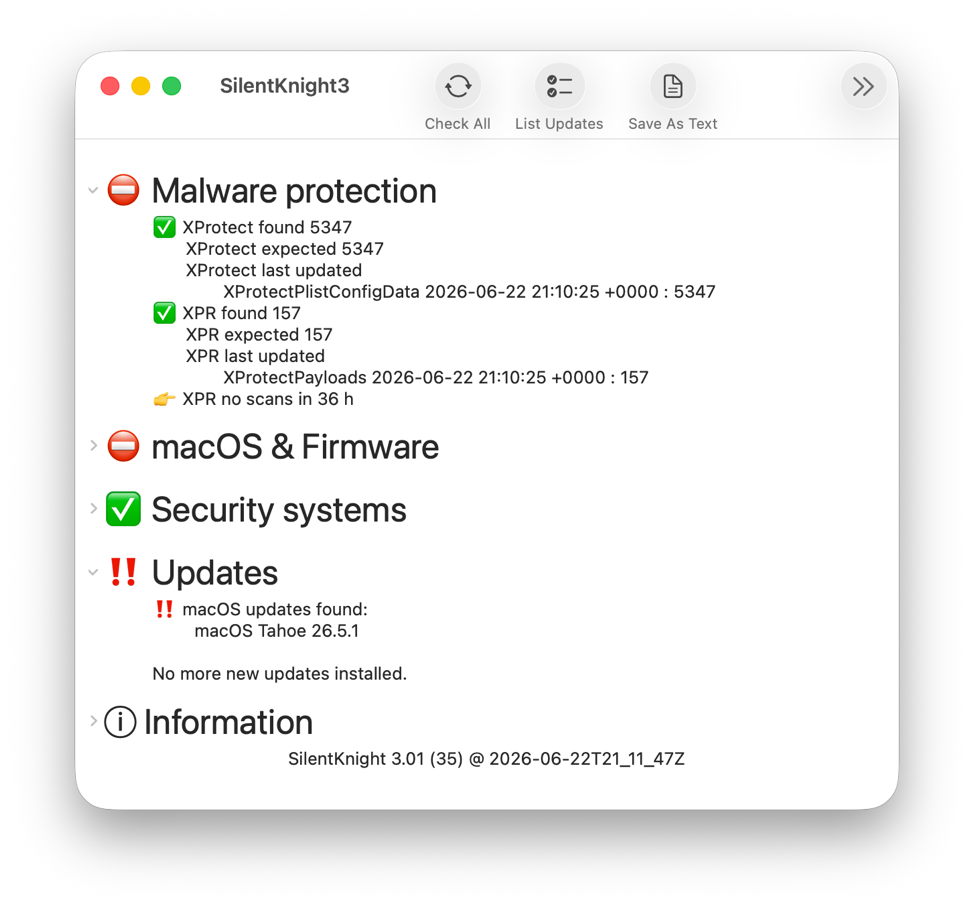
If you want to confirm that those updates have ‘taken’ correctly, and your Mac’s protection is complete, click the Check All tool again. You can then confirm that there are no further updates, apart from macOS, using the List Updates tool again.
Sequoia can be sticky

In macOS Tahoe and Golden Gate the disclosure chevrons at the left of each section heading should work fine. They are a bit small and fainter than I might wish, but work as well as those in the Finder’s Get Info dialog, for example.

Sequoia isn’t as obliging, though, and sometimes you may click on a chevron and nothing happens. Rather than clicking again, use an addition provided for Sequoia only, the Refresh tool. That should unstick the disclosure and make it behave as expected. You’ll find that using other tools has a similar effect. This appears to be a bug beyond my control, I’m afraid.

Reports and help

Finally, SilentKnight 3 offers a choice of two reports it can save to files. The Save As Text tool writes a text file containing the contents of the window, complete with its emoji. For those who want to keep a database record, there’s a tool to export the data in JSON format, and a file in the SilentKnight download folder gives details of its keys and values.

If SilentKnight does reveal a problem that you want to fix, its extensive Help book explains its significance and how you can fix it.

If you have an Apple silicon Mac running macOS Sequoia 15.6 or later, Tahoe or a beta of Golden Gate, I recommend you take this new version of SilentKnight for a spin. I hope you like it, and find it a better way to ensure your Mac is kept up to date and fully protected.

This latest version is available from here: SilentKnight 3.01.