








Even though we know prompting matters, most people are still using Claude like a glorified Google search. Let me lead by example – “Summarise this into 3 sentences max.” Sounds familiar? Well, there may be nothing wrong in typing such a prompt, but truth be told, all these letters are good for an article like this, not for an AI chat window. For the latter, you may want to use shortcuts on Claude.
And the good news is, we have loads of them!
Here is a long list of Claude shortcuts that you can use in your everyday conversations with the AI. What’s even better – they work on all other AI models too.
So without any delay, let’s dive right in.
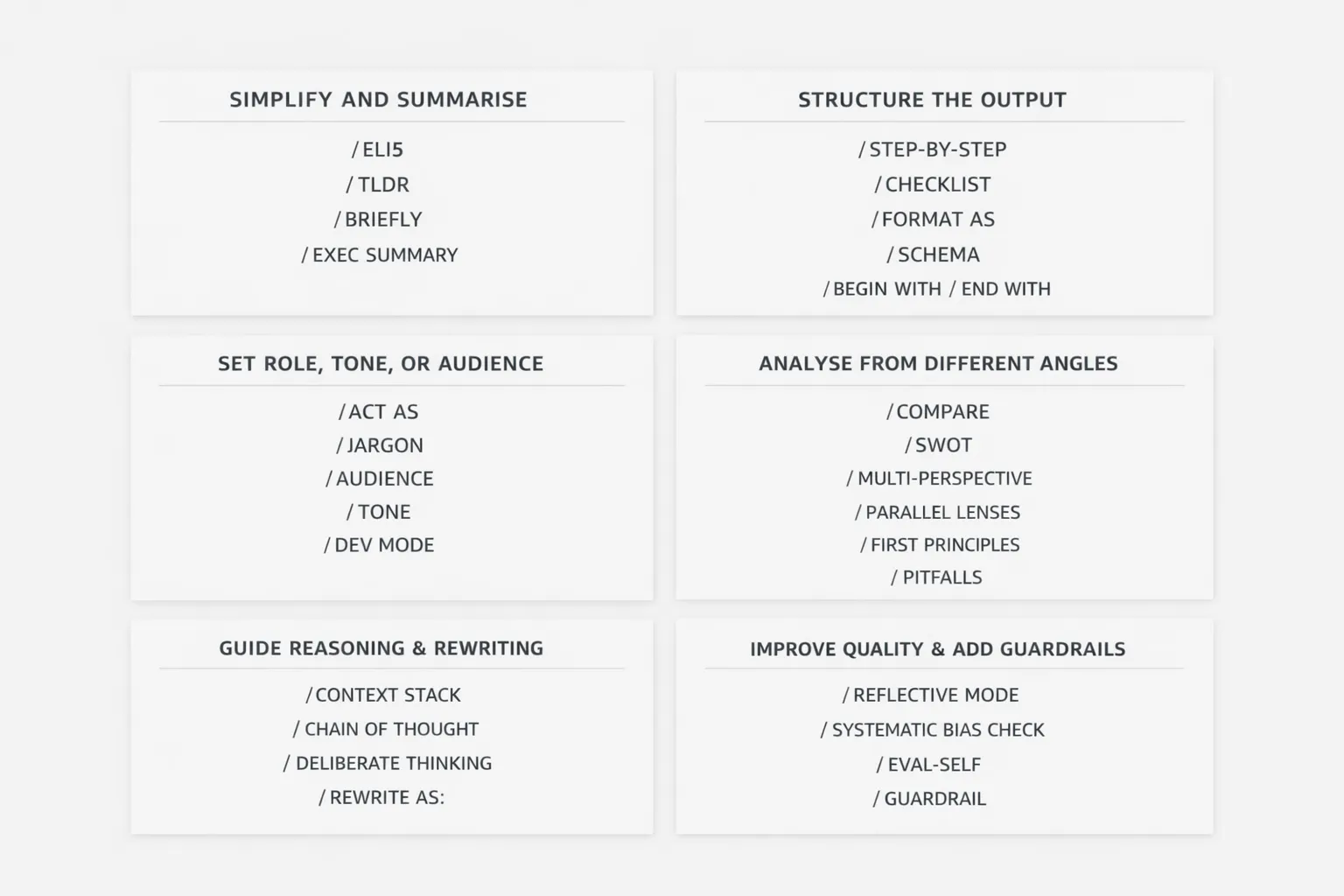
Sometimes, you do not want depth. You just want the answer, fast and clean. That is exactly where these shortcuts come in. They help Claude strip away the fluff and give you something easier to grasp, skim, or pass on to someone else.
Meaning “Explain it like I’m 5 years old”, use this when you want Claude to explain something like you are a complete beginner. Perfect for complex ideas that sound scary at first glance.
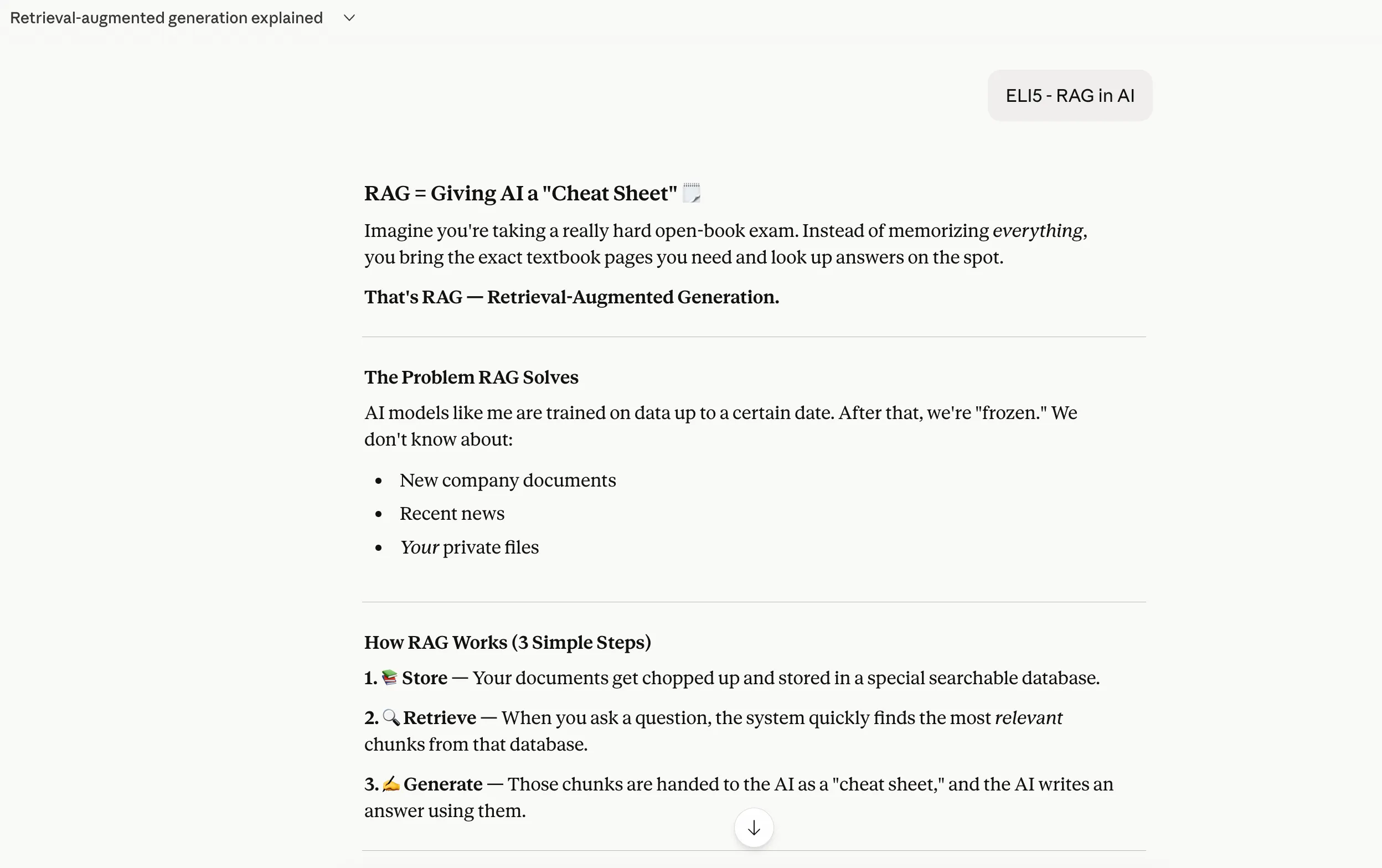
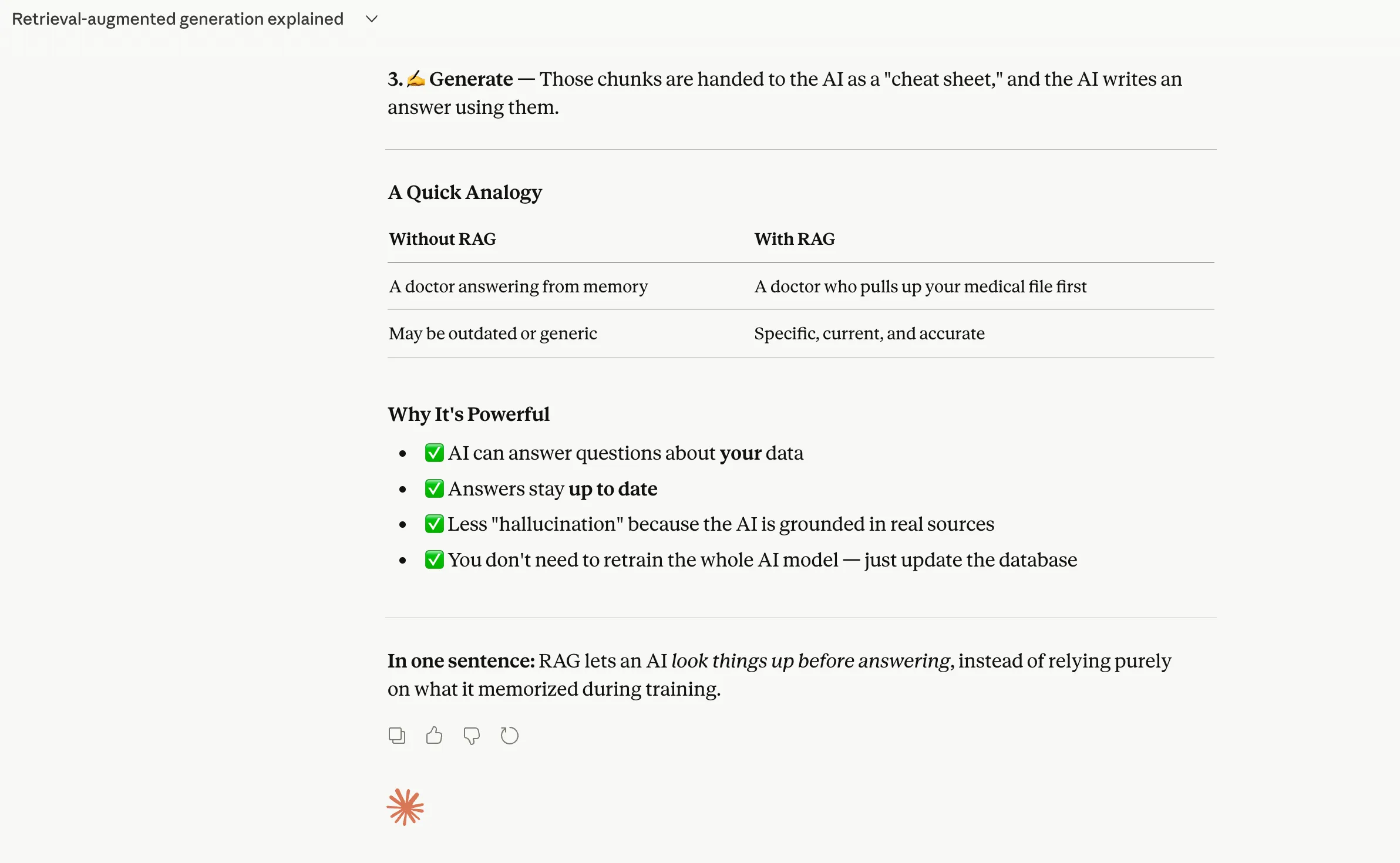
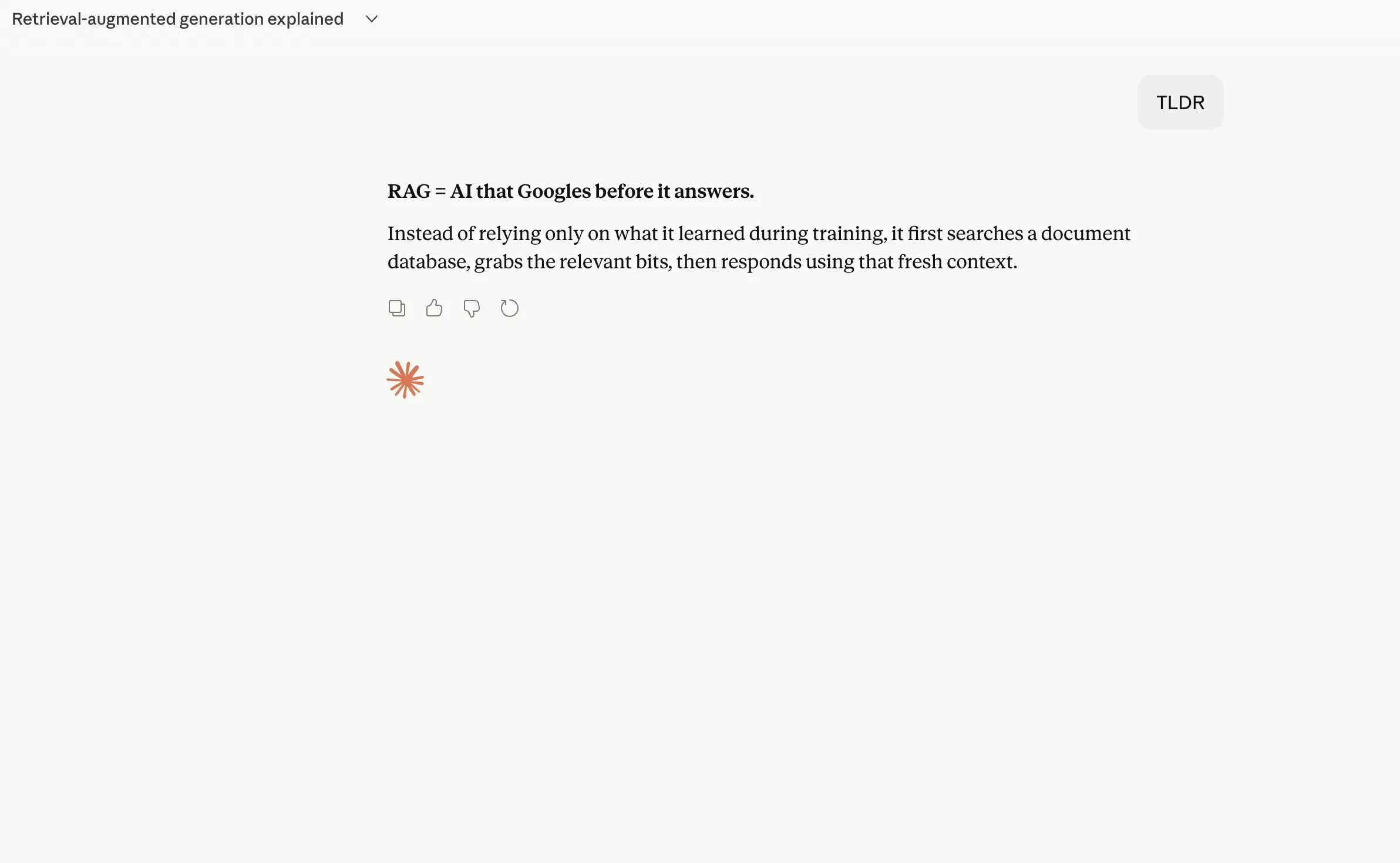
Short for “Too long, didn’t read”, this is your classic “just give me the gist” command. Best used when the output is too long, and you want the core point in a snap.
A handy shortcut when you want a short answer without sounding too restrictive. It tells Claude to keep things tight and to the point.
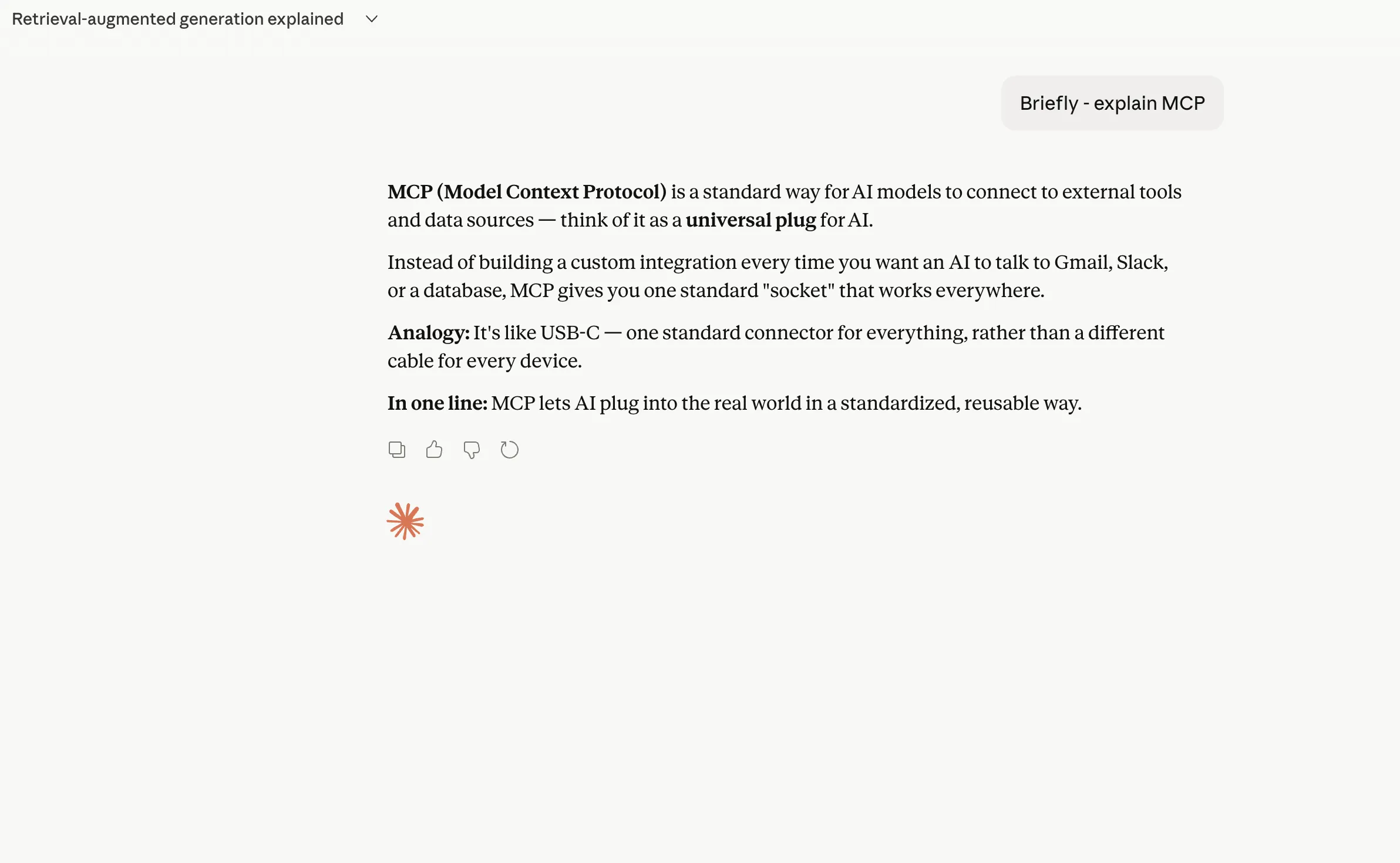
This one is for when you want the key takeaways in a polished, decision-maker-friendly format. Very useful for reports, long notes, or strategic documents.
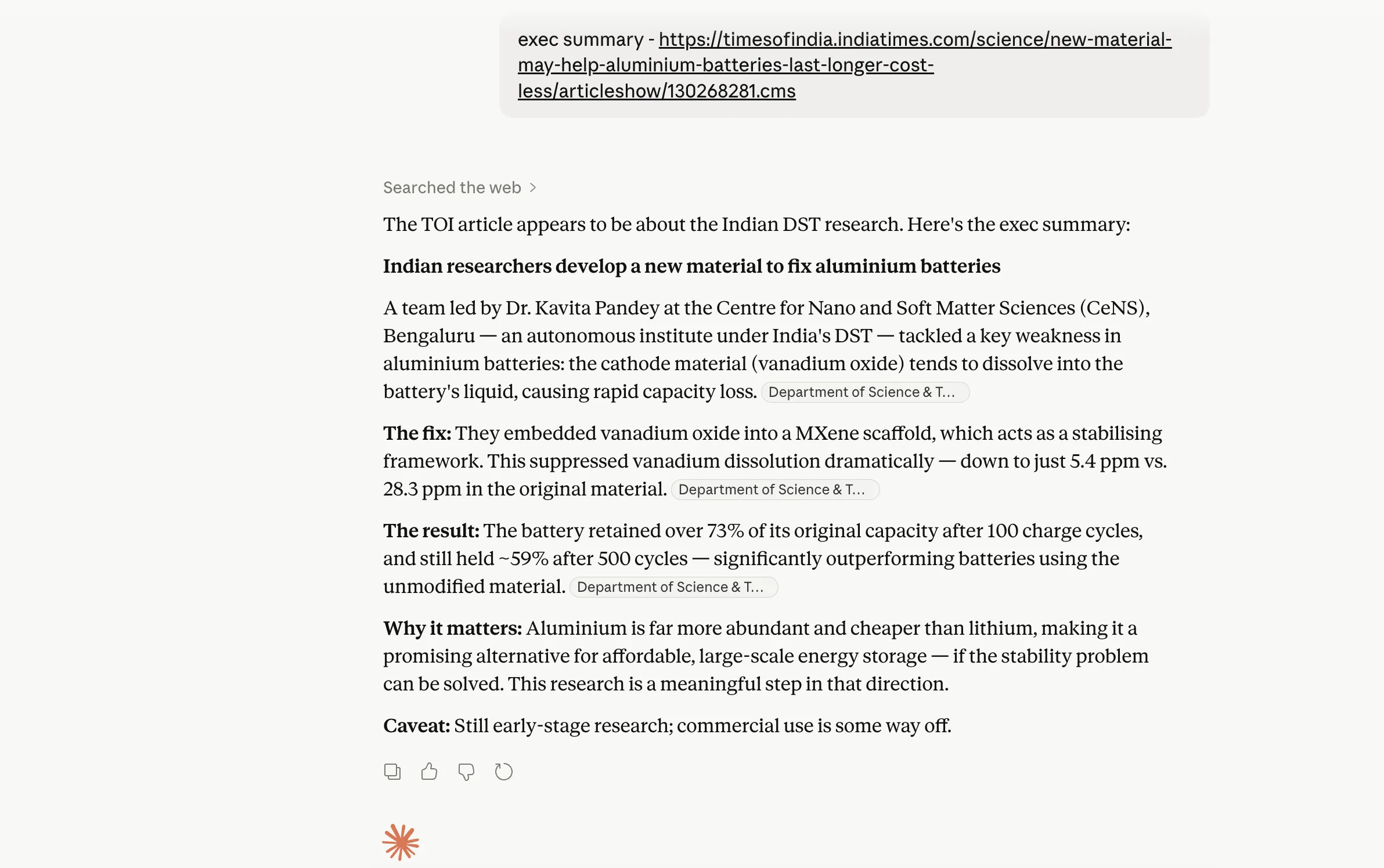
What if the real problem is not the answer itself, but the way it is presented? These shortcuts are useful when you already know the format you want and do not want Claude to freestyle its way into a messy response.
Use this when you want Claude to break a process down into clear directions that go one step at a time. Great for tutorials, workflows, and anything instructional.
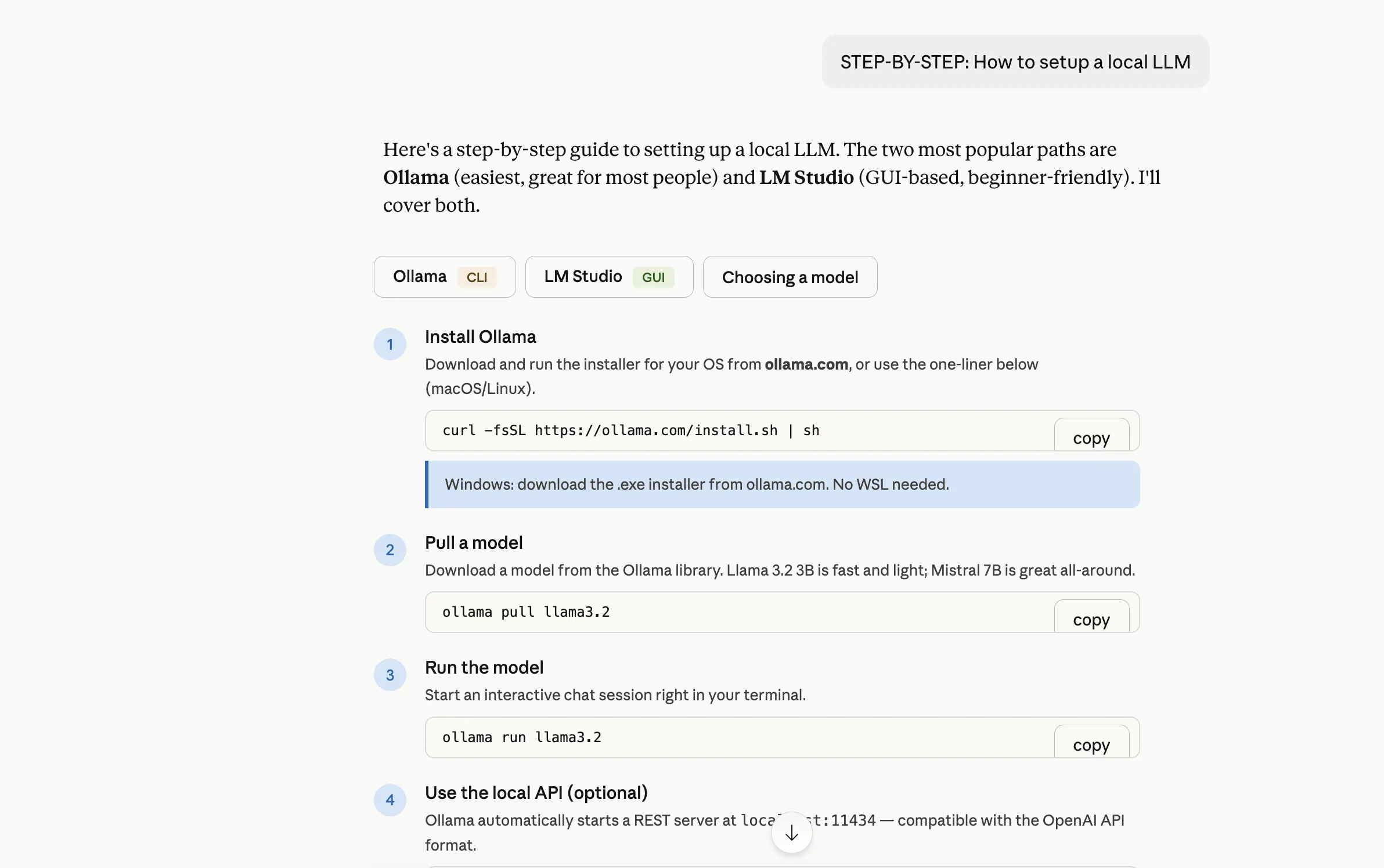
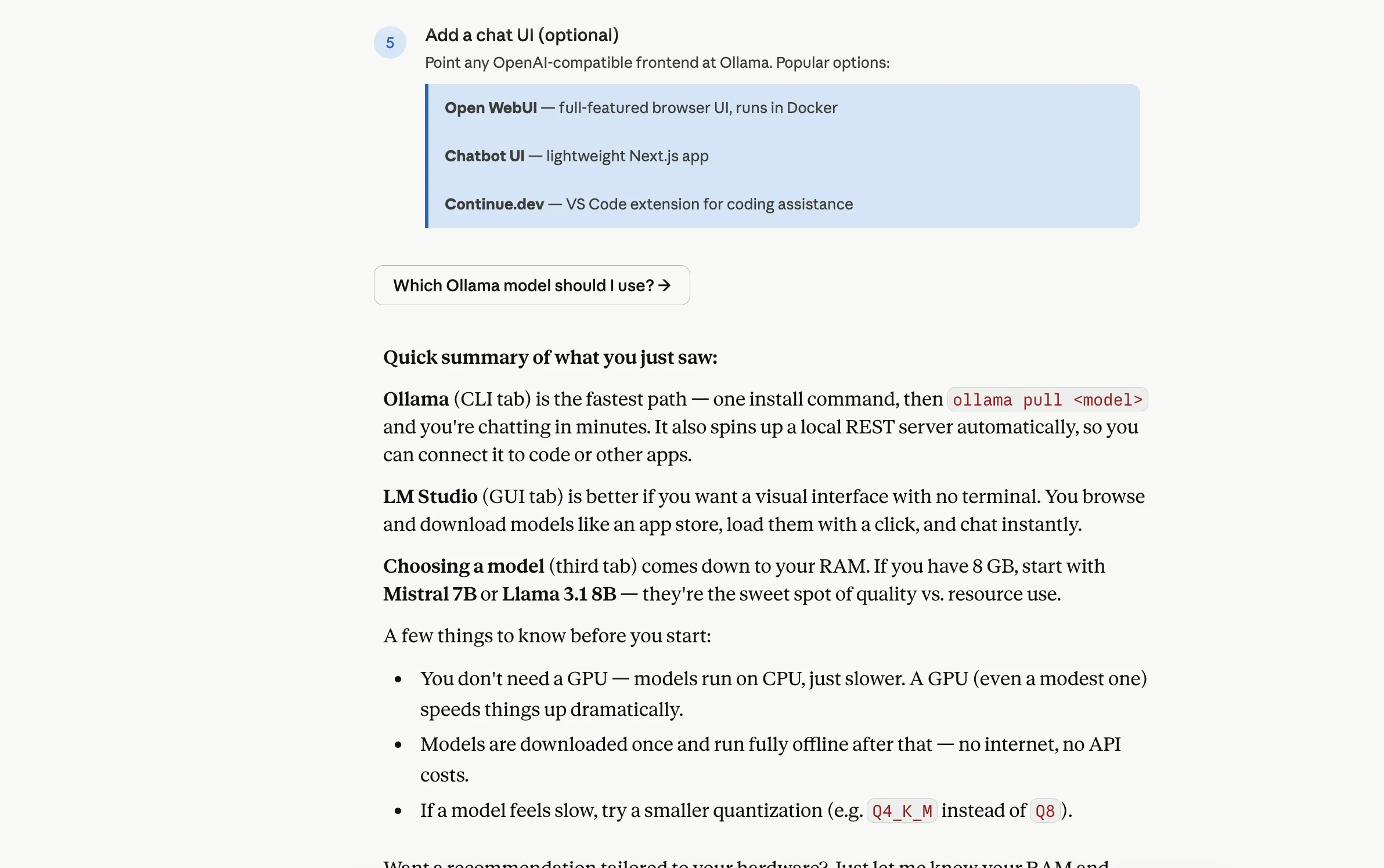
This turns the output into an easy-to-scan action list. Best for planning, reviewing, or making sure nothing gets missed.
This is a very flexible shortcut that lets you define the shape of the answer upfront. You can ask Claude to format the response as a table, bullets, email, blog outline, and more.
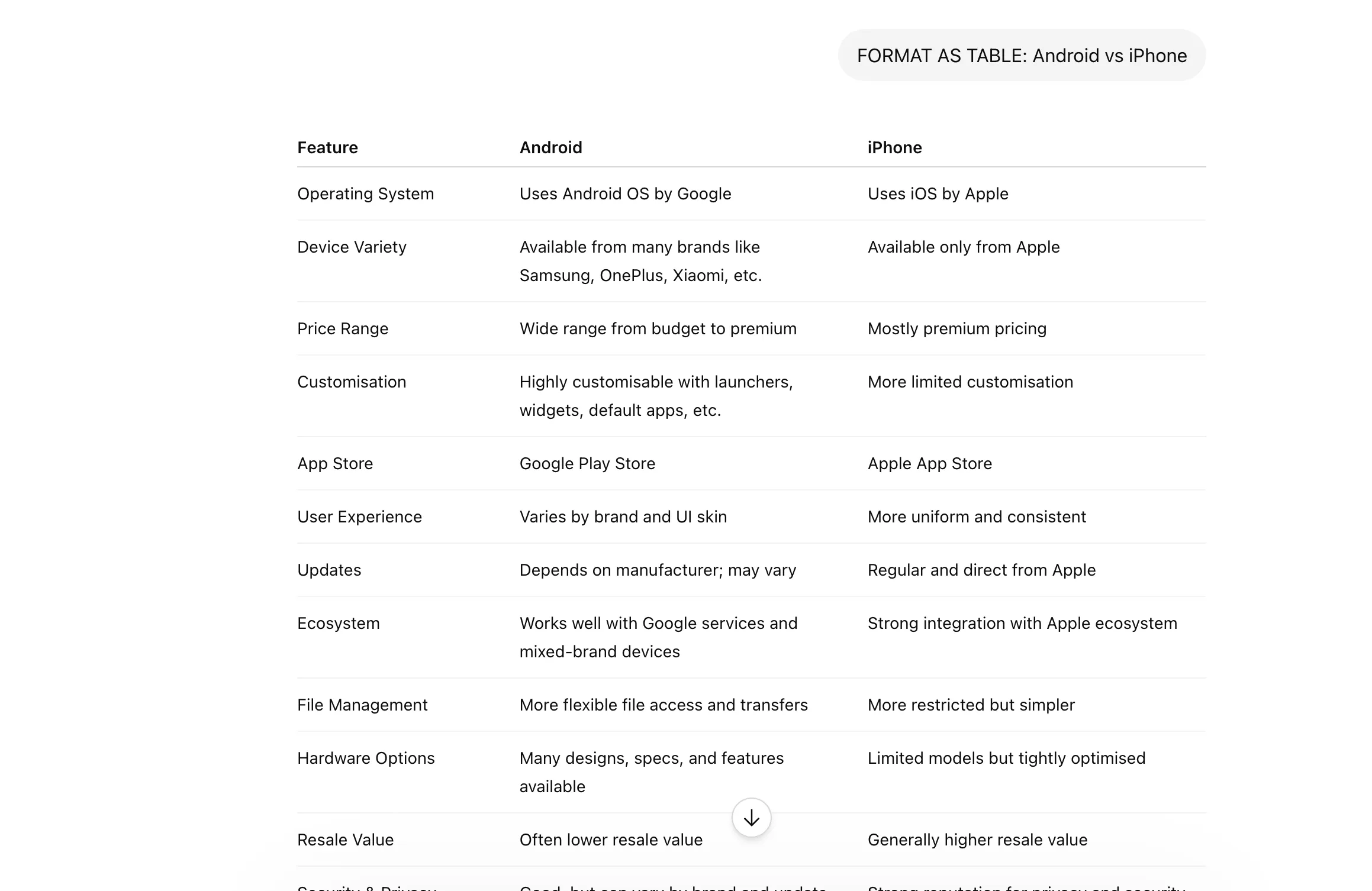
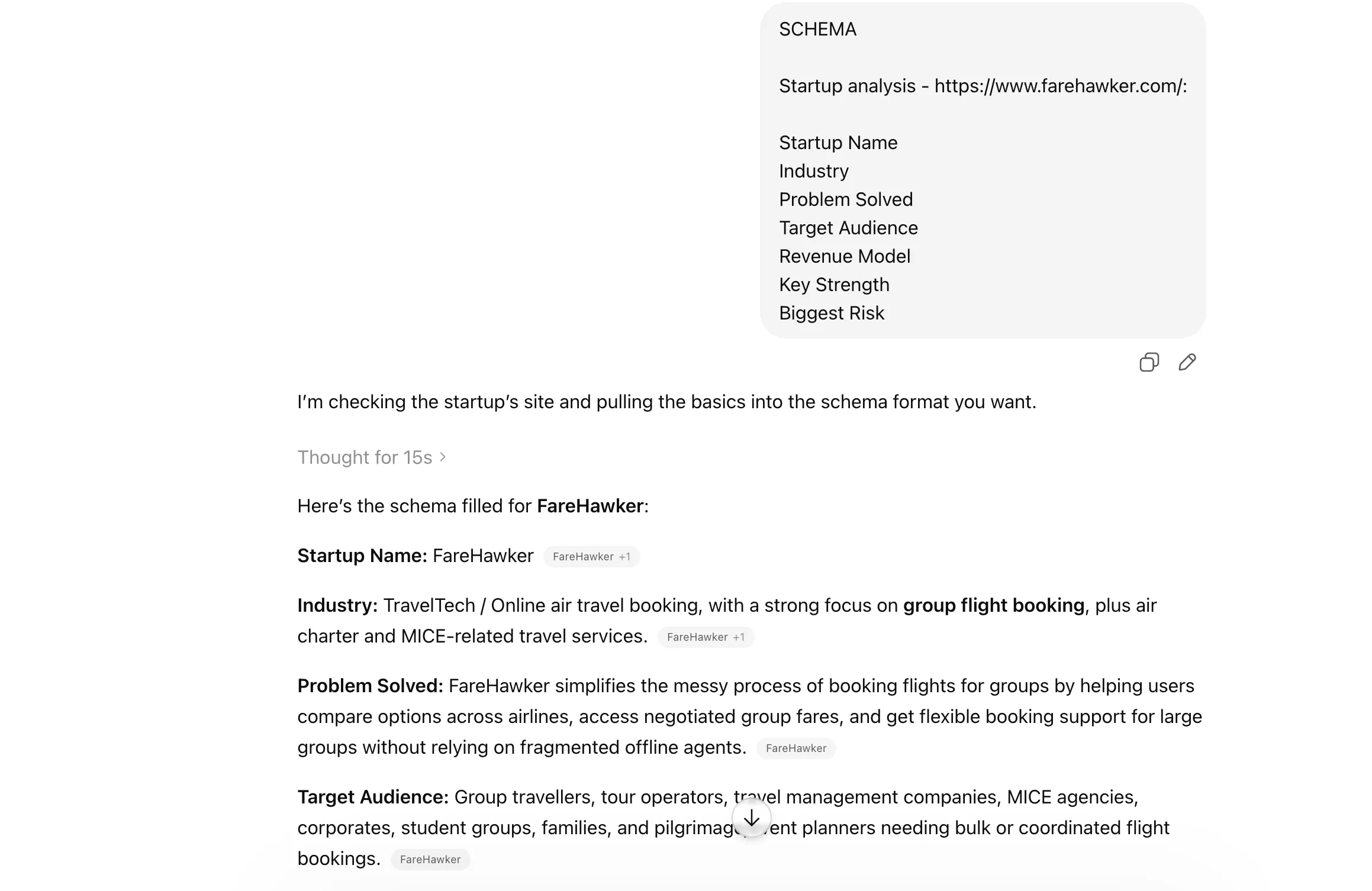
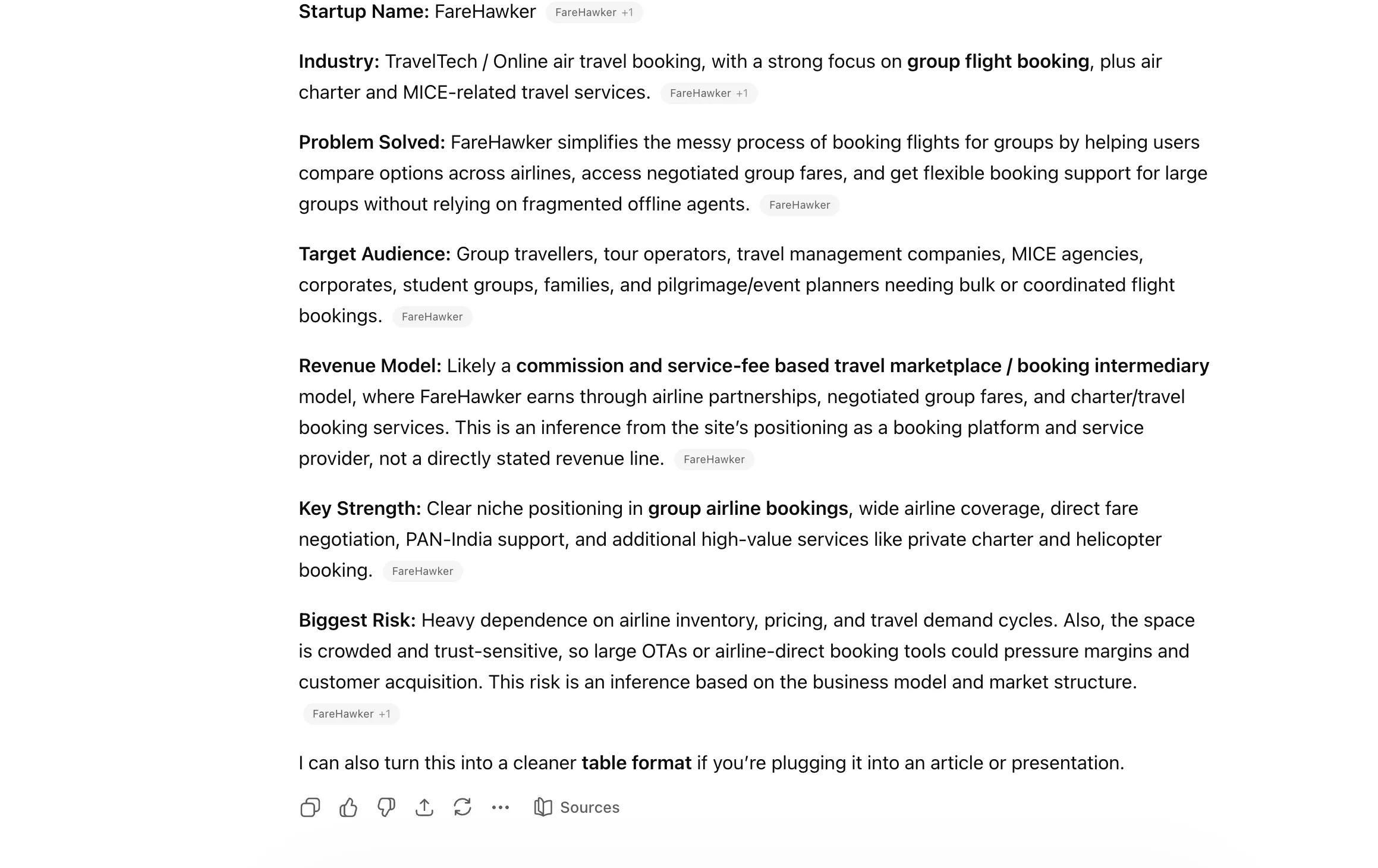
This is useful when you want structured output with fixed fields. Ideal for data extraction, templates, JSON-style responses, or repeatable formats.
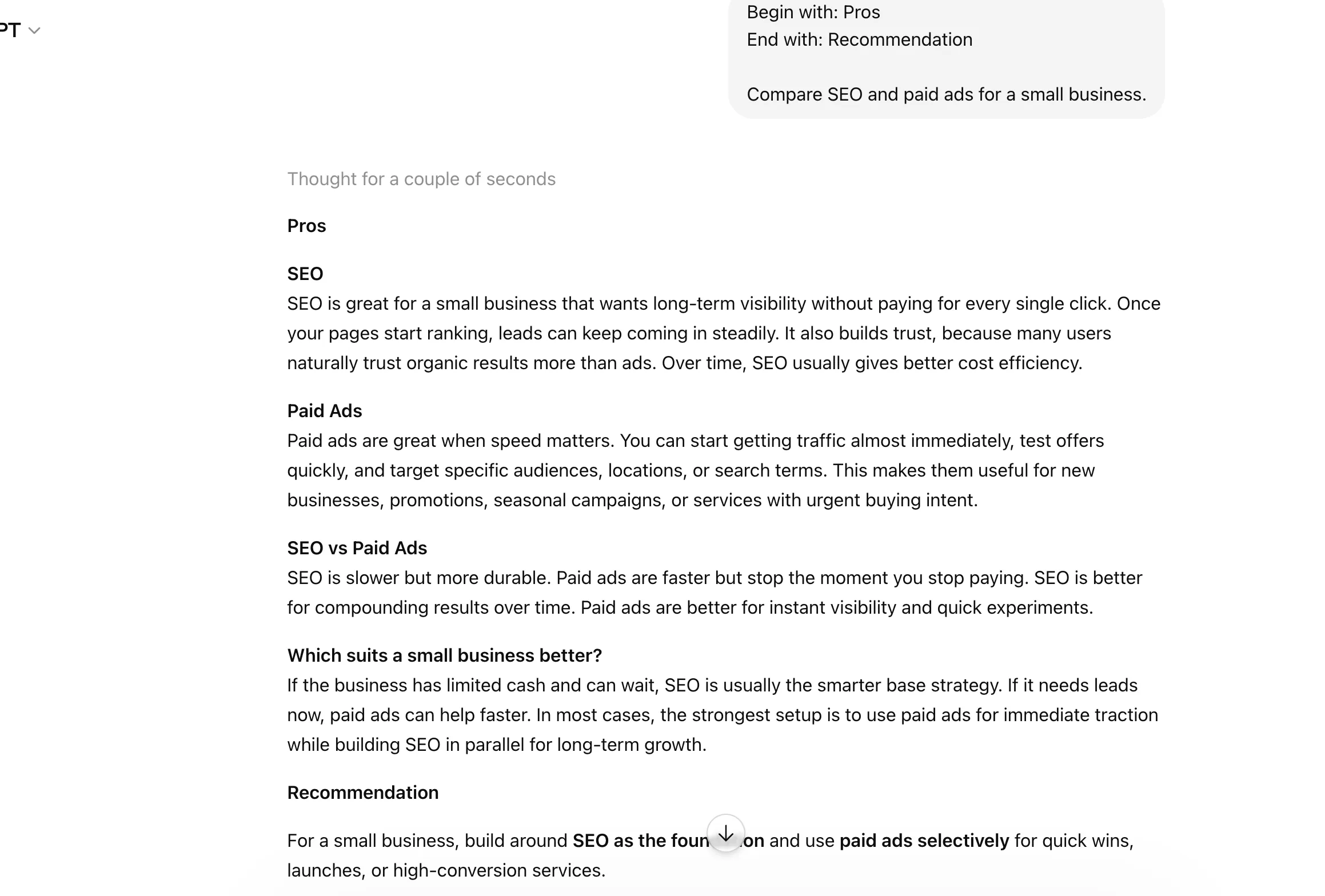
A neat way to control how the response starts and finishes. Helpful when you need Claude to follow a very specific framing or output pattern.
Half the time, I dispense the AI responses due to the robotic tone and output. Of course, being technically correct is not all there is to having a human conversation. And that is exactly where it helps to tell Claude to assume a particular role through these shortcuts. These help shape the voice, style, and target audience of the response.
Use this when you want Claude to respond from a specific role or perspective. It could be a marketer, teacher, developer, consultant, or almost anyone else.
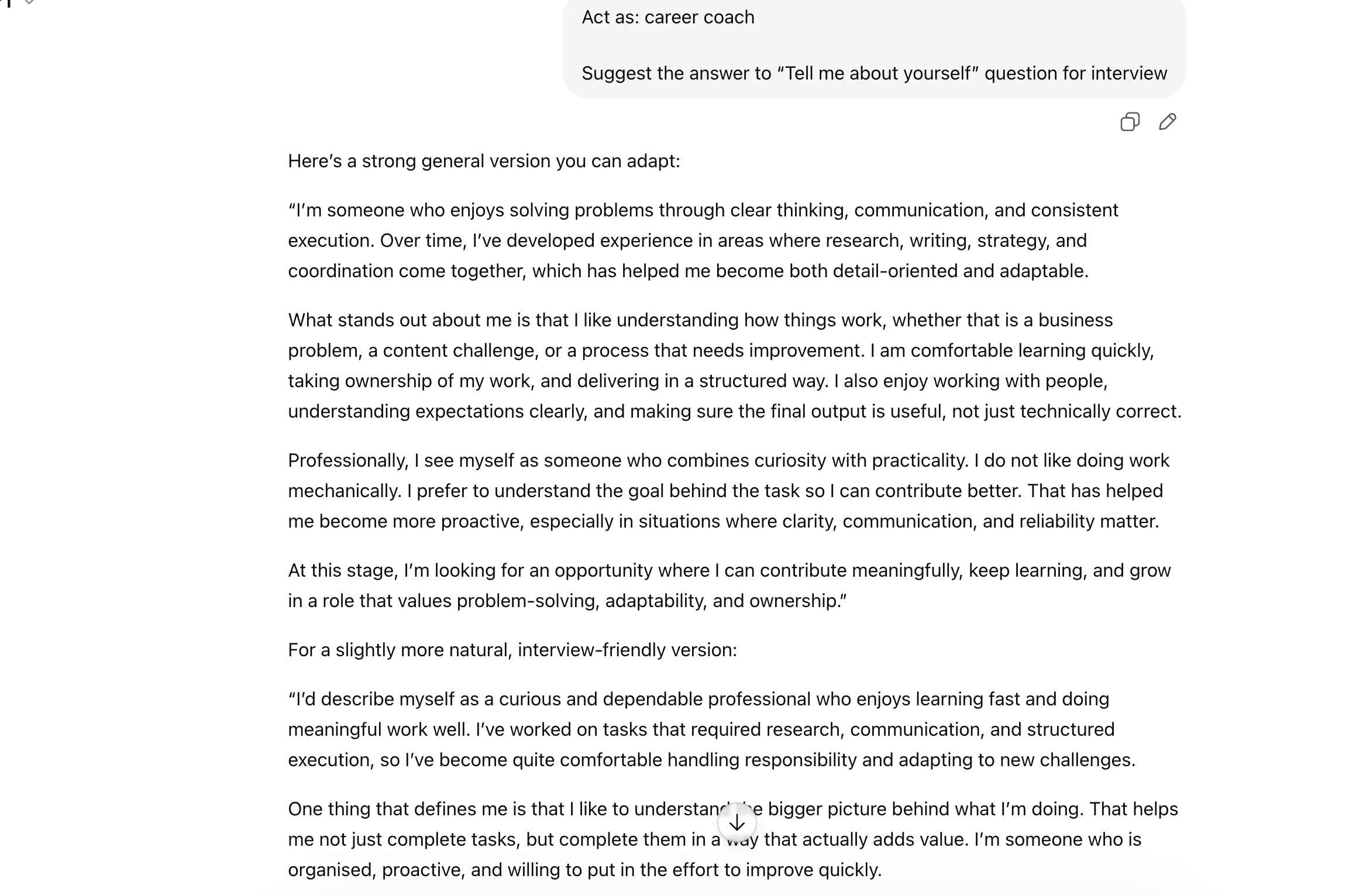
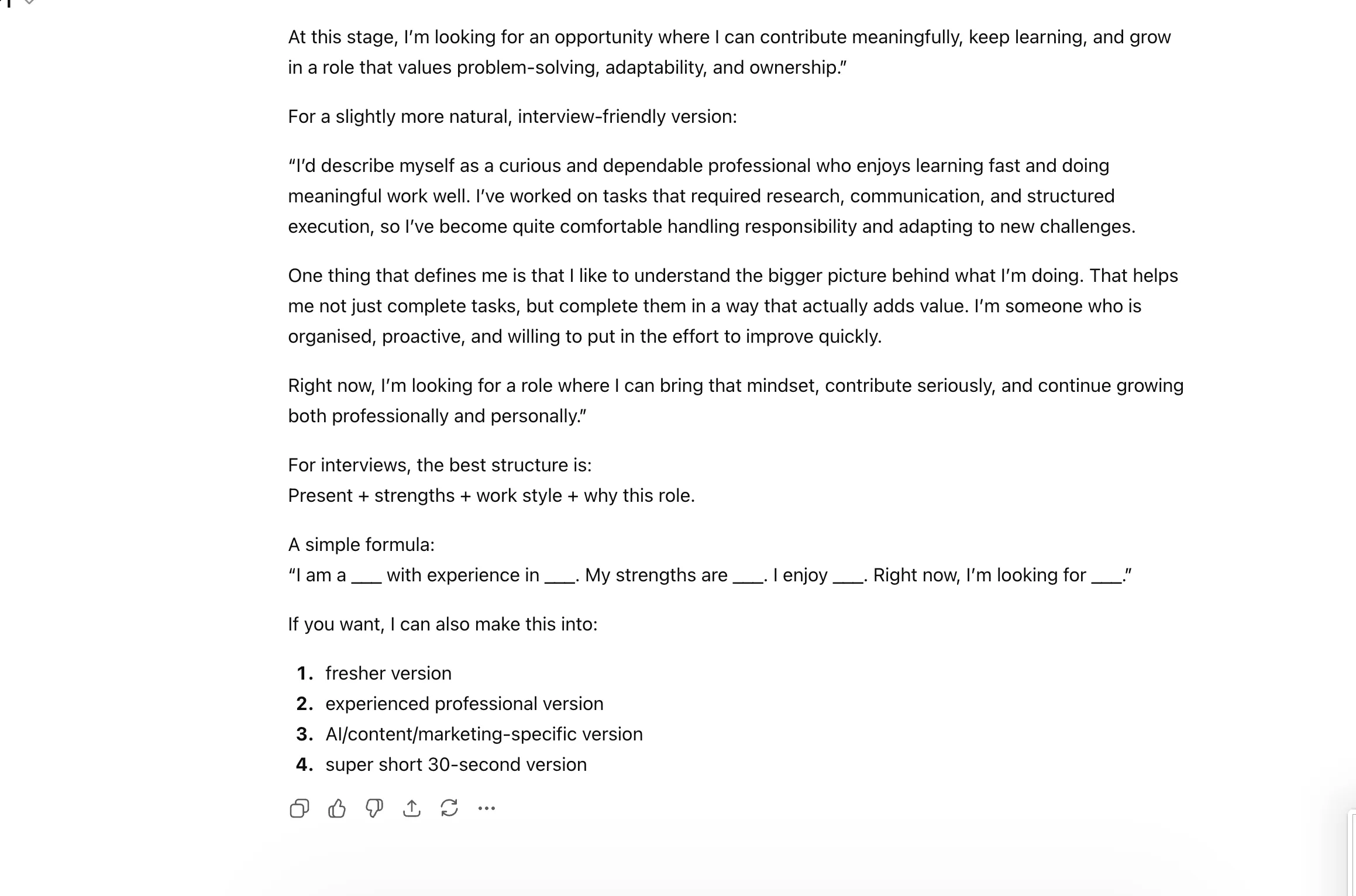
This helps control how technical or simplified the language should be. Useful when you want Claude to either sound more expert or far more beginner-friendly.
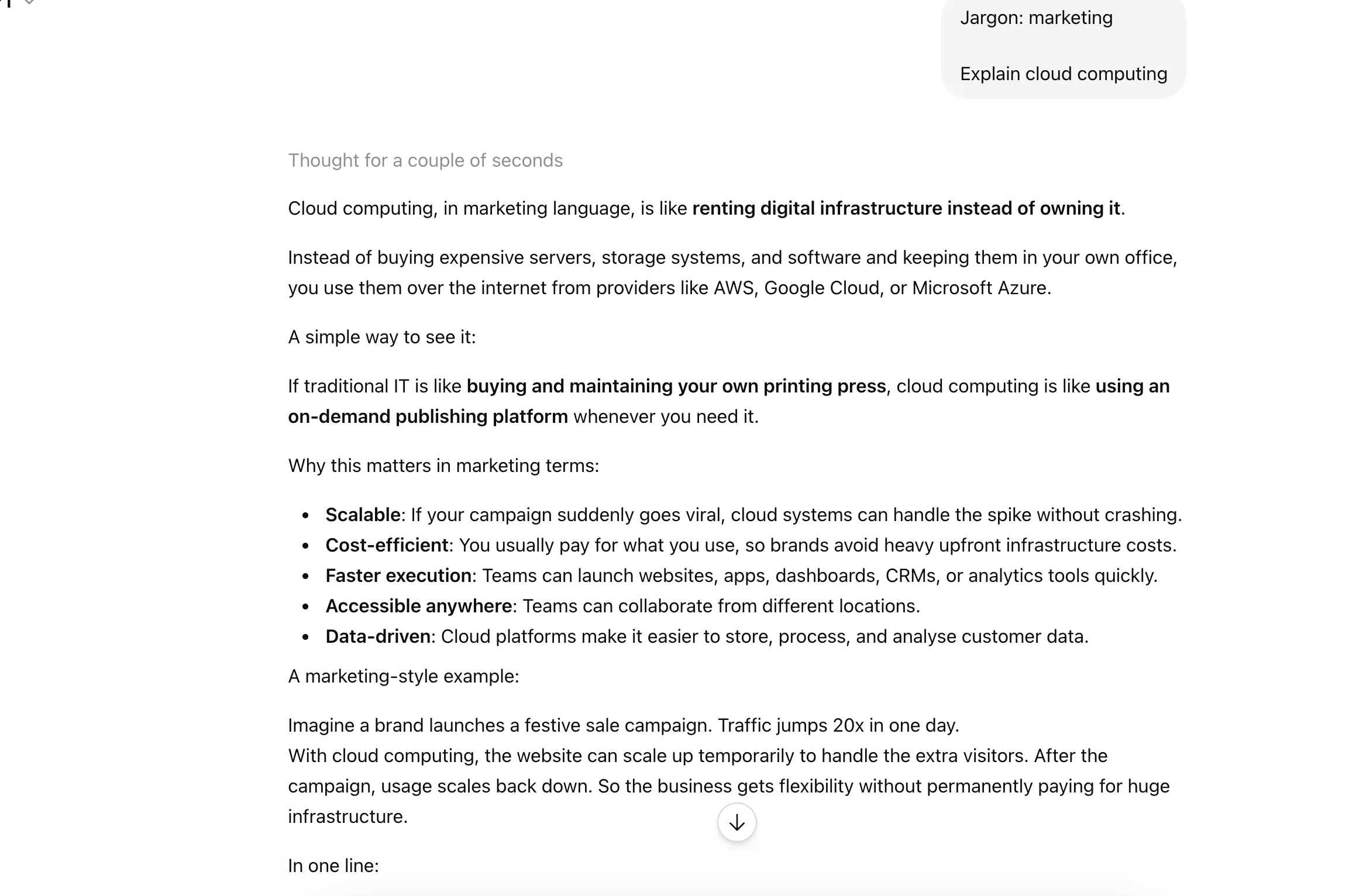
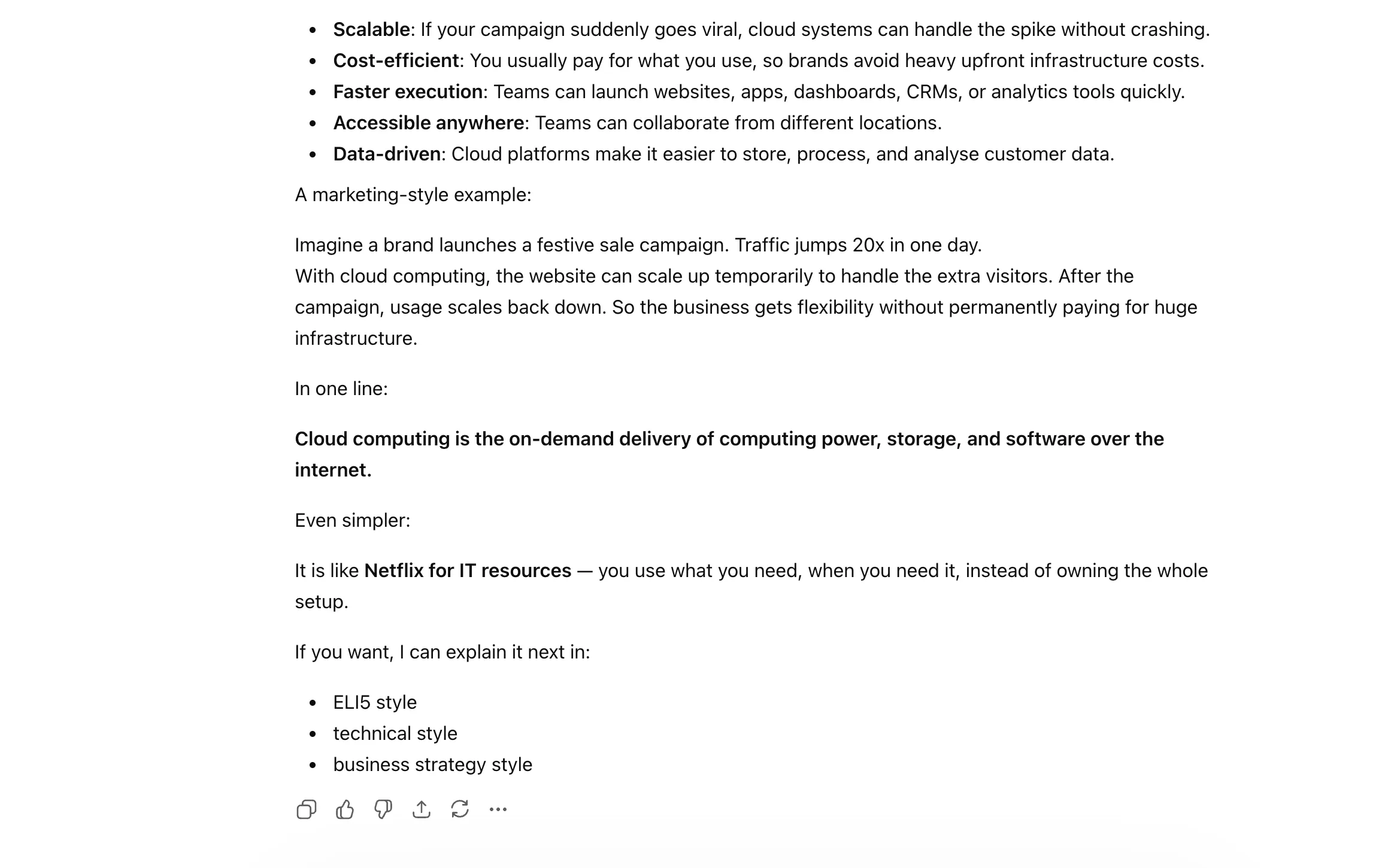
A very practical shortcut for telling Claude who the response is meant for. This can completely change how the explanation is framed.
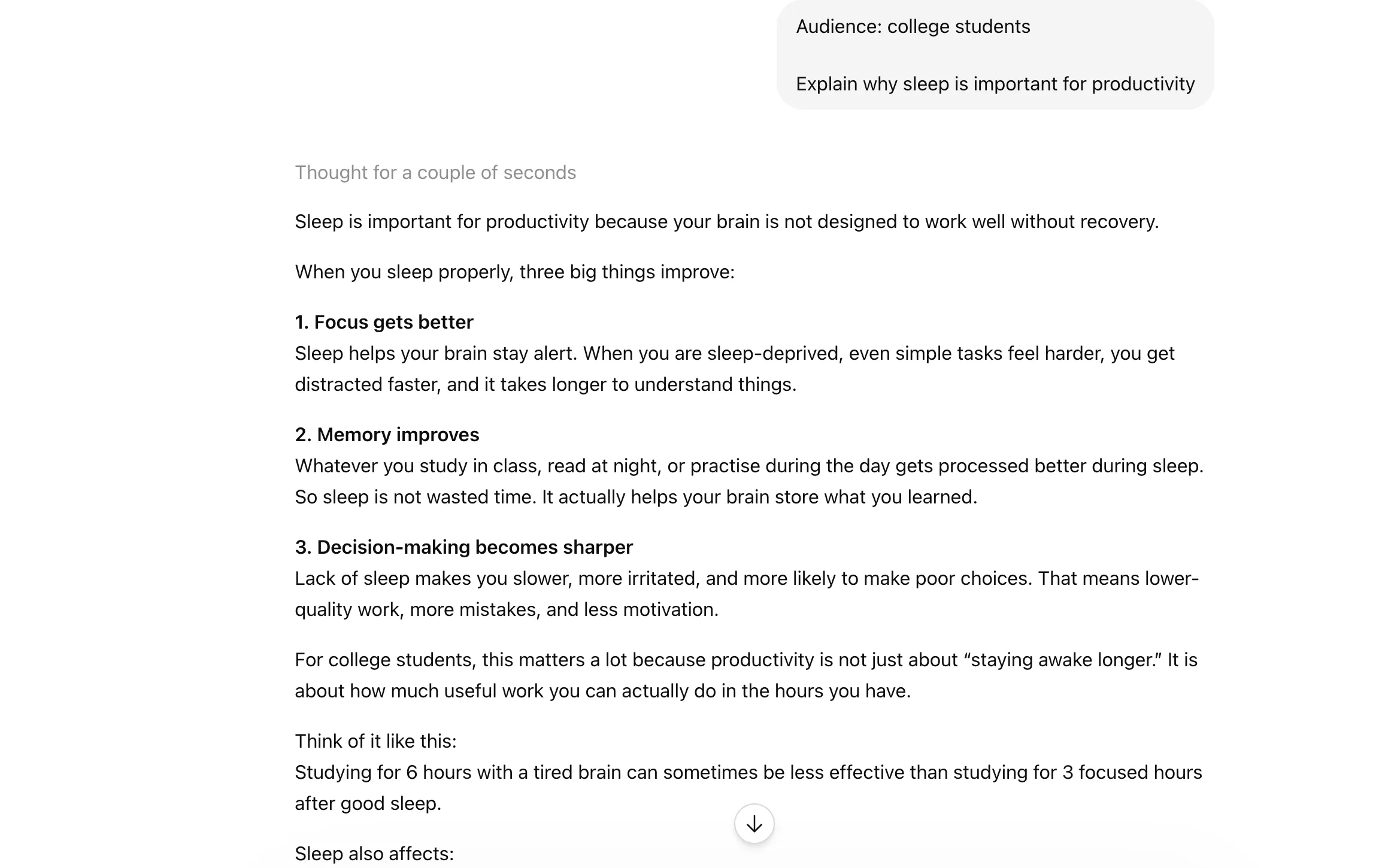
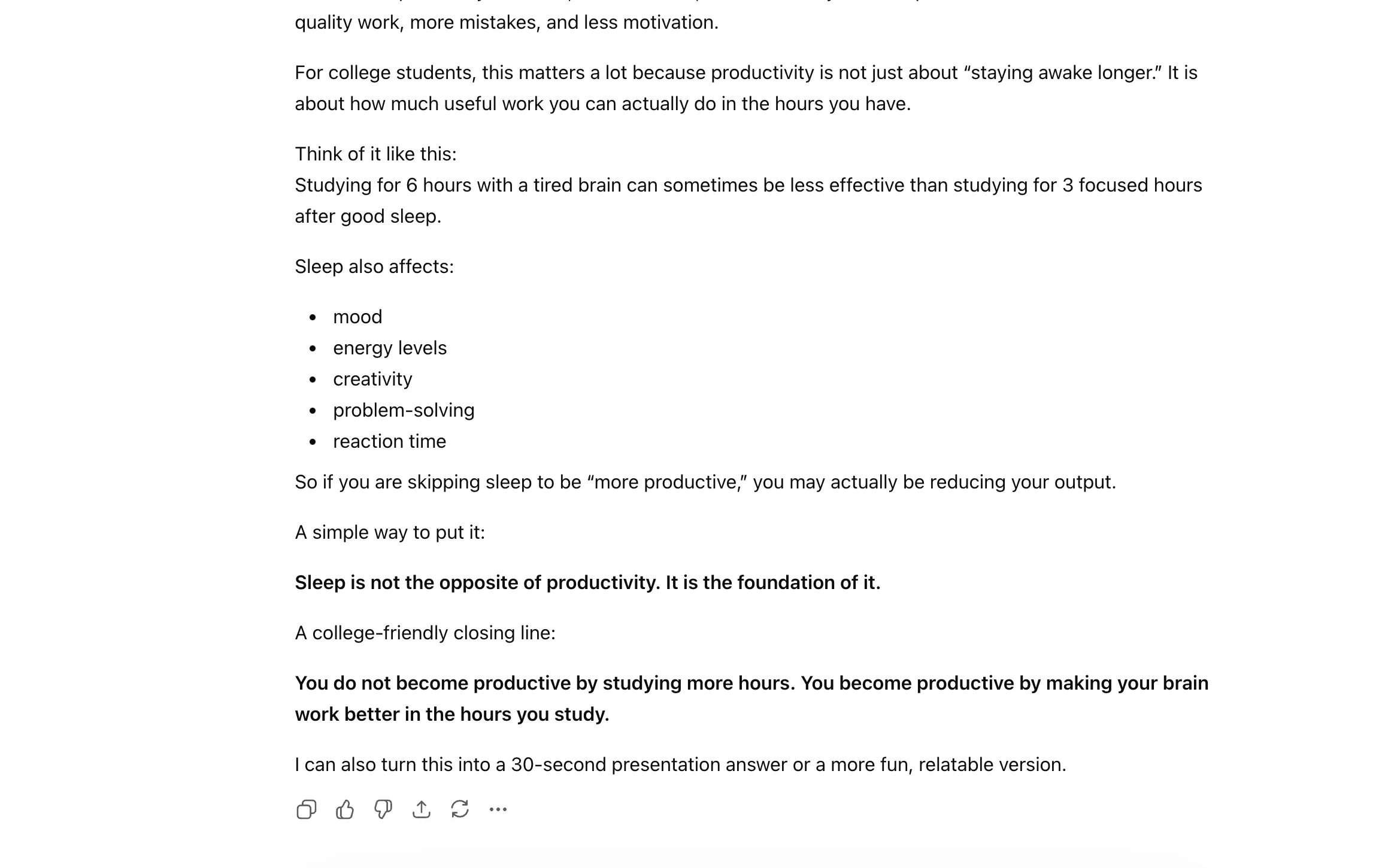
Use this to shape the mood of the answer, whether you want it formal, casual, persuasive, sharp, friendly, or something else.
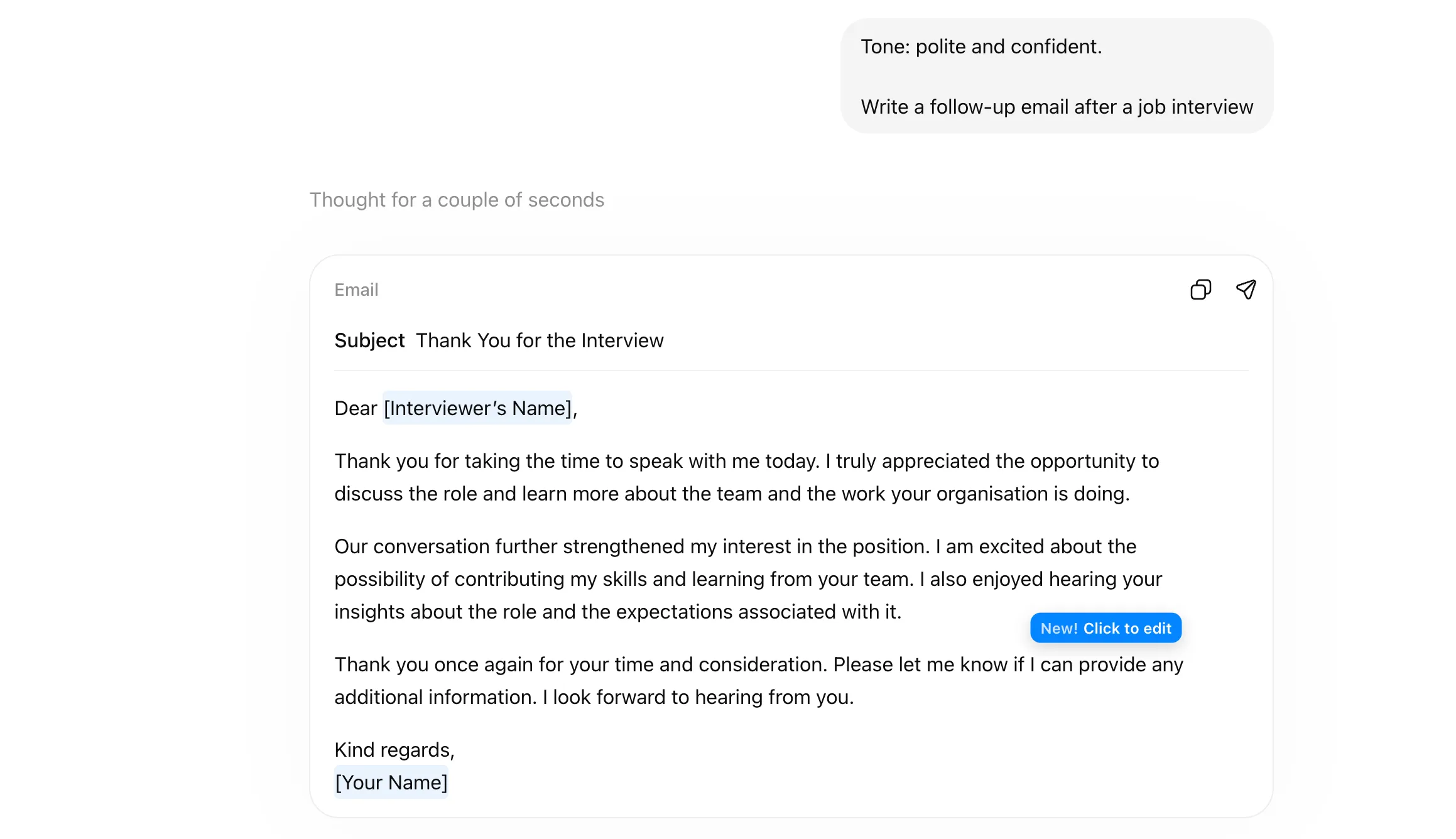
This pushes Claude toward a more technical, builder-style way of responding. Best for coding, system design, debugging, or product-building discussions.
You may not want a straight answer all the time. You want to compare options, think strategically, or view the same problem from multiple sides before you decide what makes the most sense. These shortcuts are great for exactly that kind of deeper thinking.
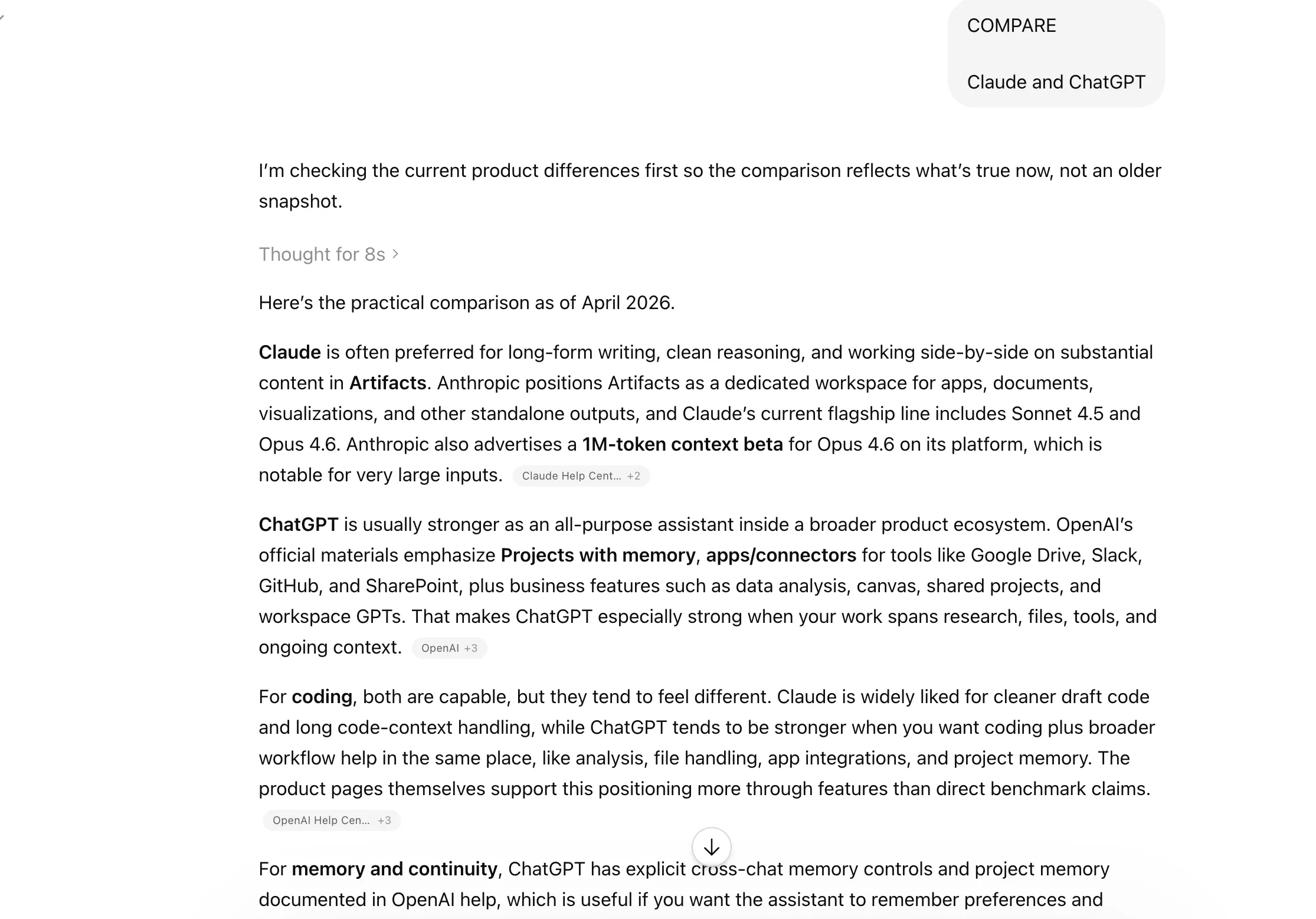
Use this when you want Claude to place two or more options side by side. Great for weighing tools, ideas, strategies, or decisions.
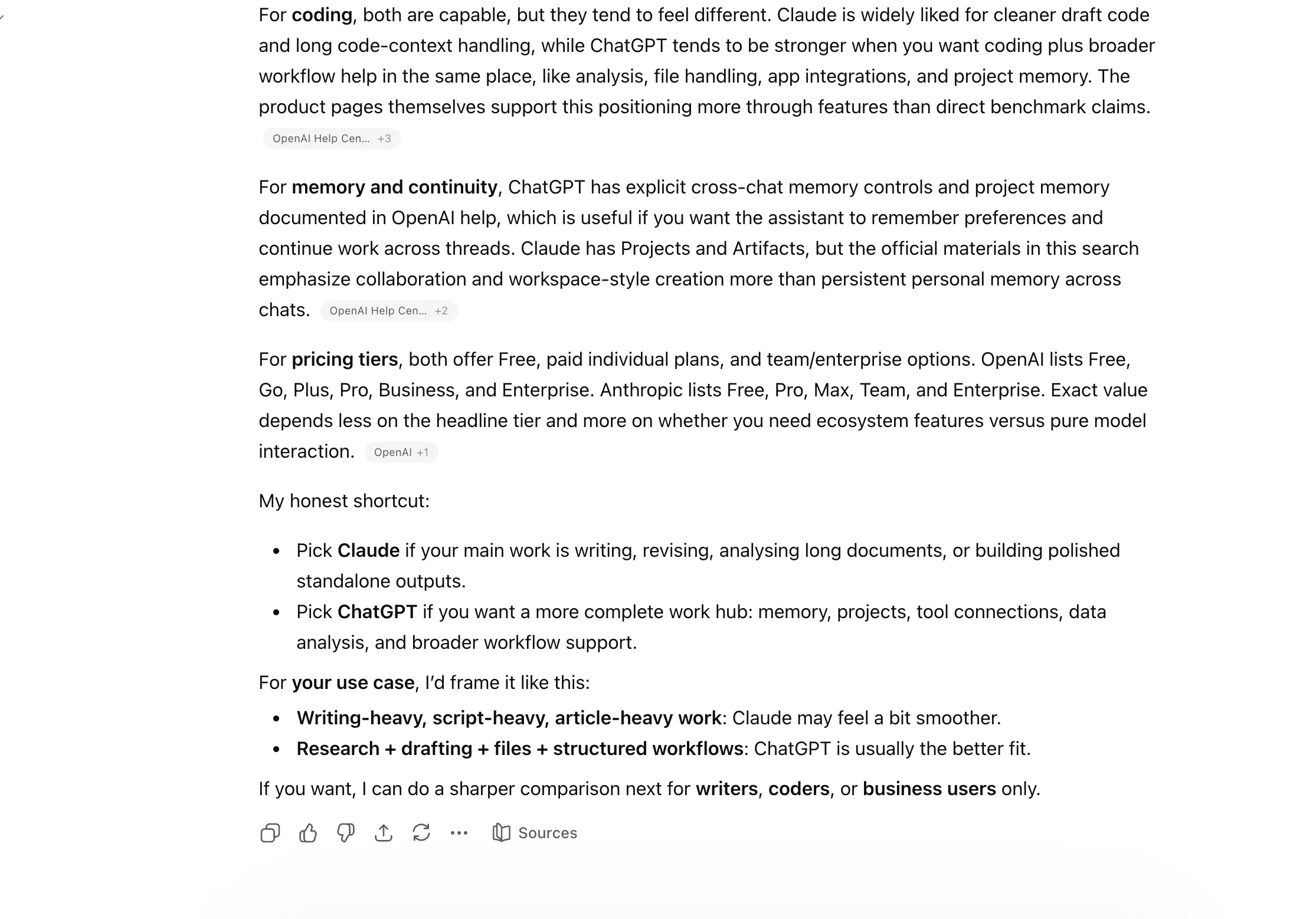
A quick way to get a strengths, weaknesses, opportunities, and threats breakdown. Very useful for business ideas, products, or strategic planning.
This tells Claude to look at the same topic from different viewpoints. Helpful when the issue is nuanced, and one angle is not enough.
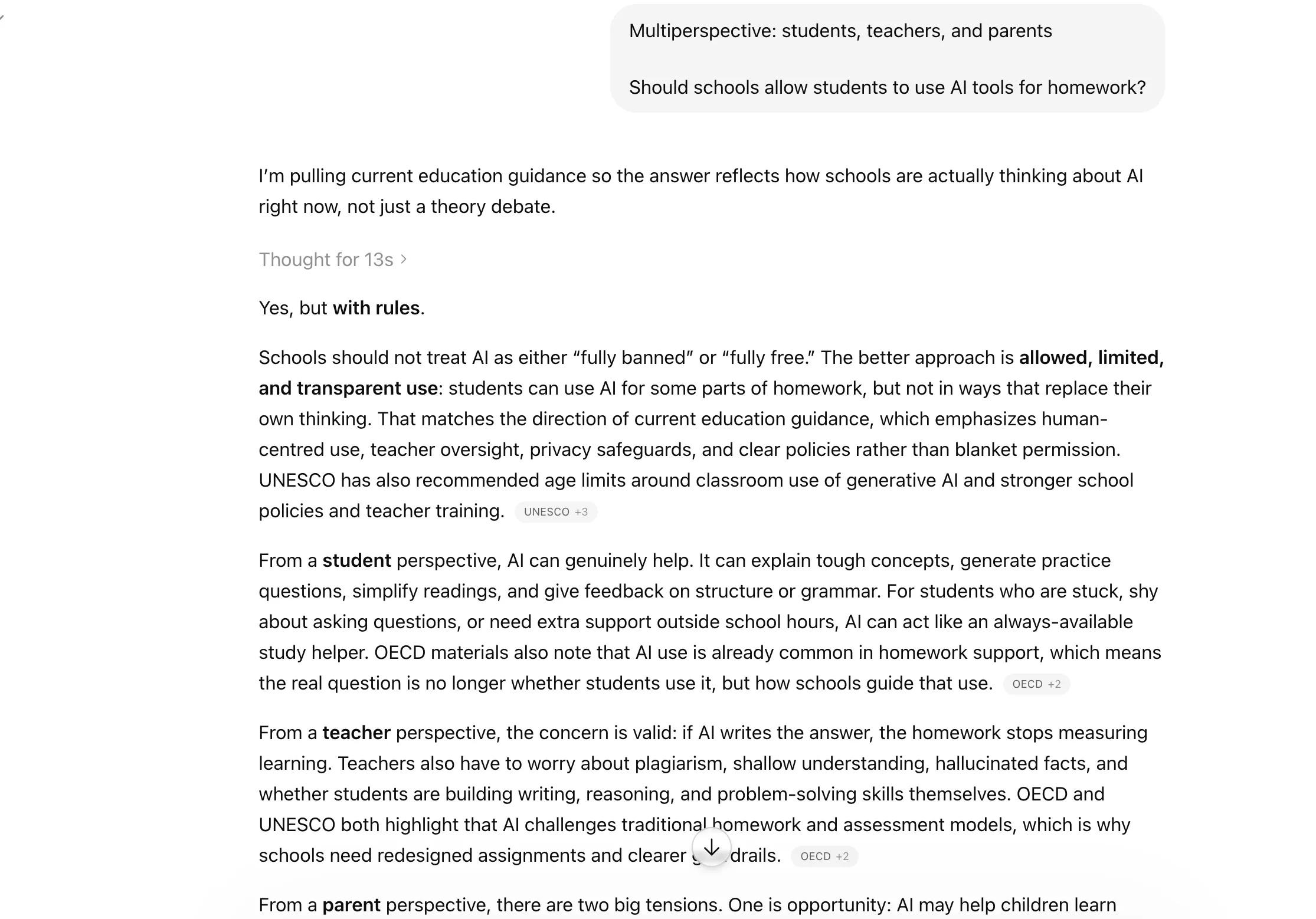
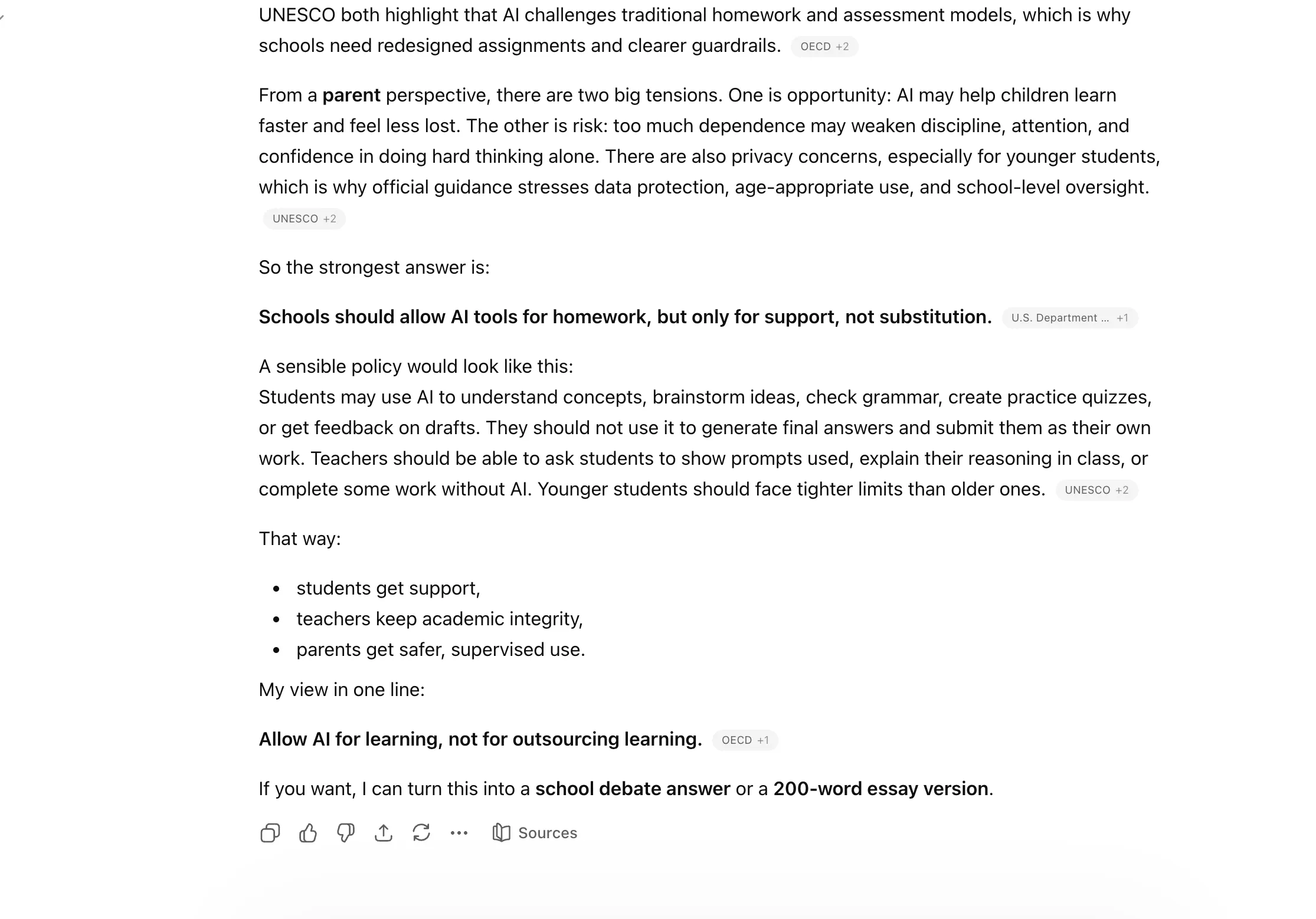
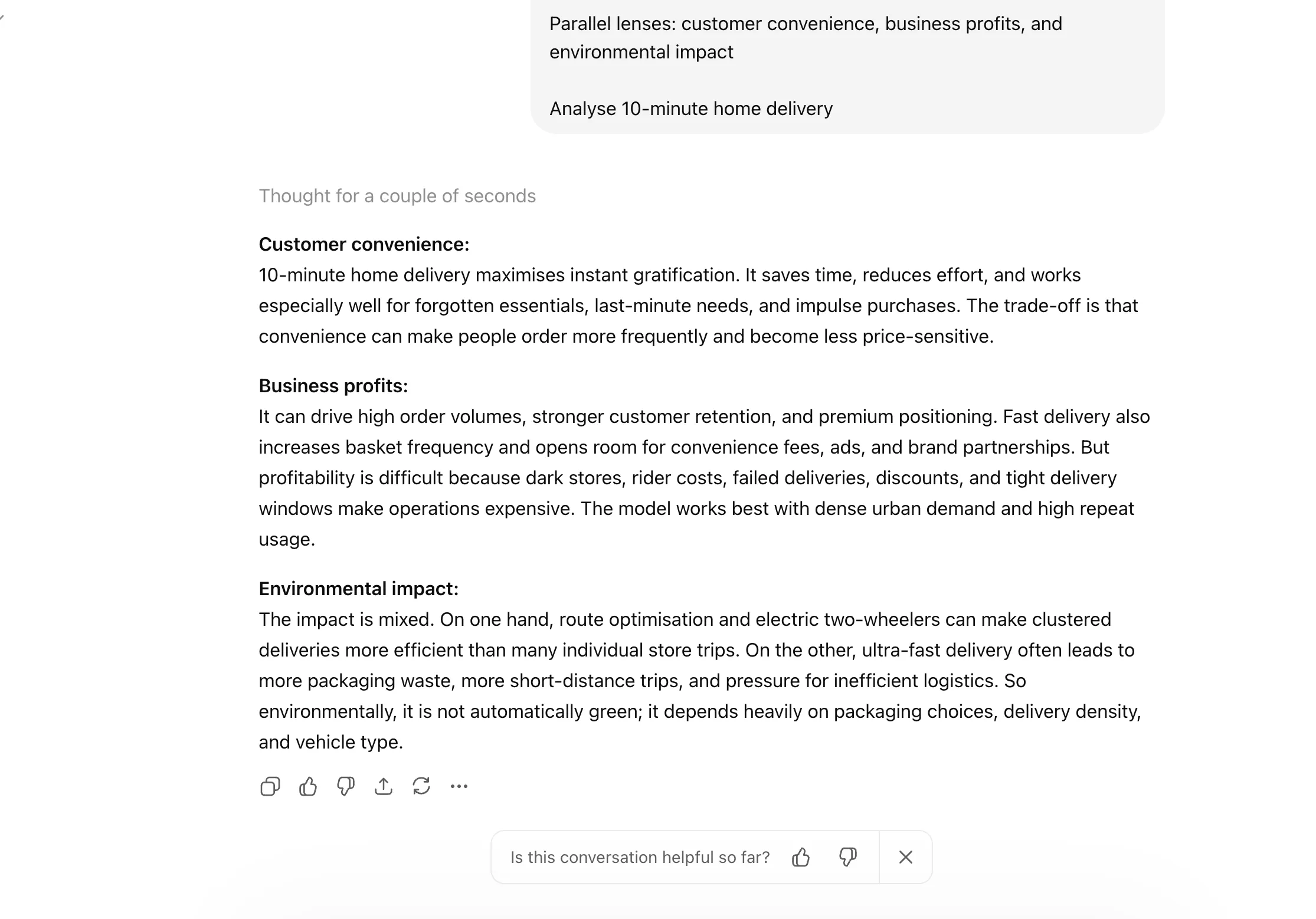
A smart shortcut for analysing something through different frameworks at once, such as business, technical, and user experience angles.
Use this when you want Claude to strip the issue down to the basics and reason from the ground up. Great for simplifying complex problems.
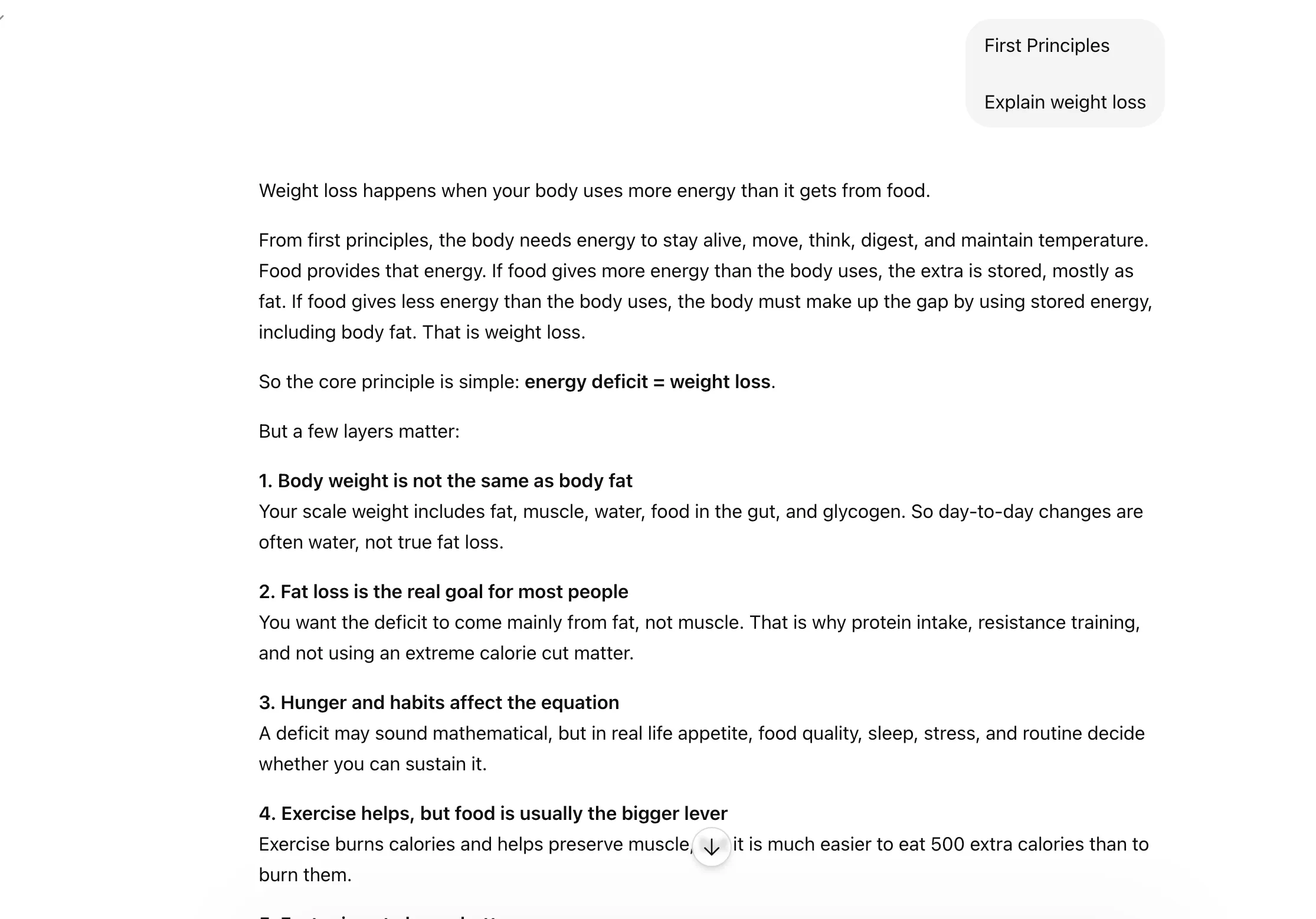
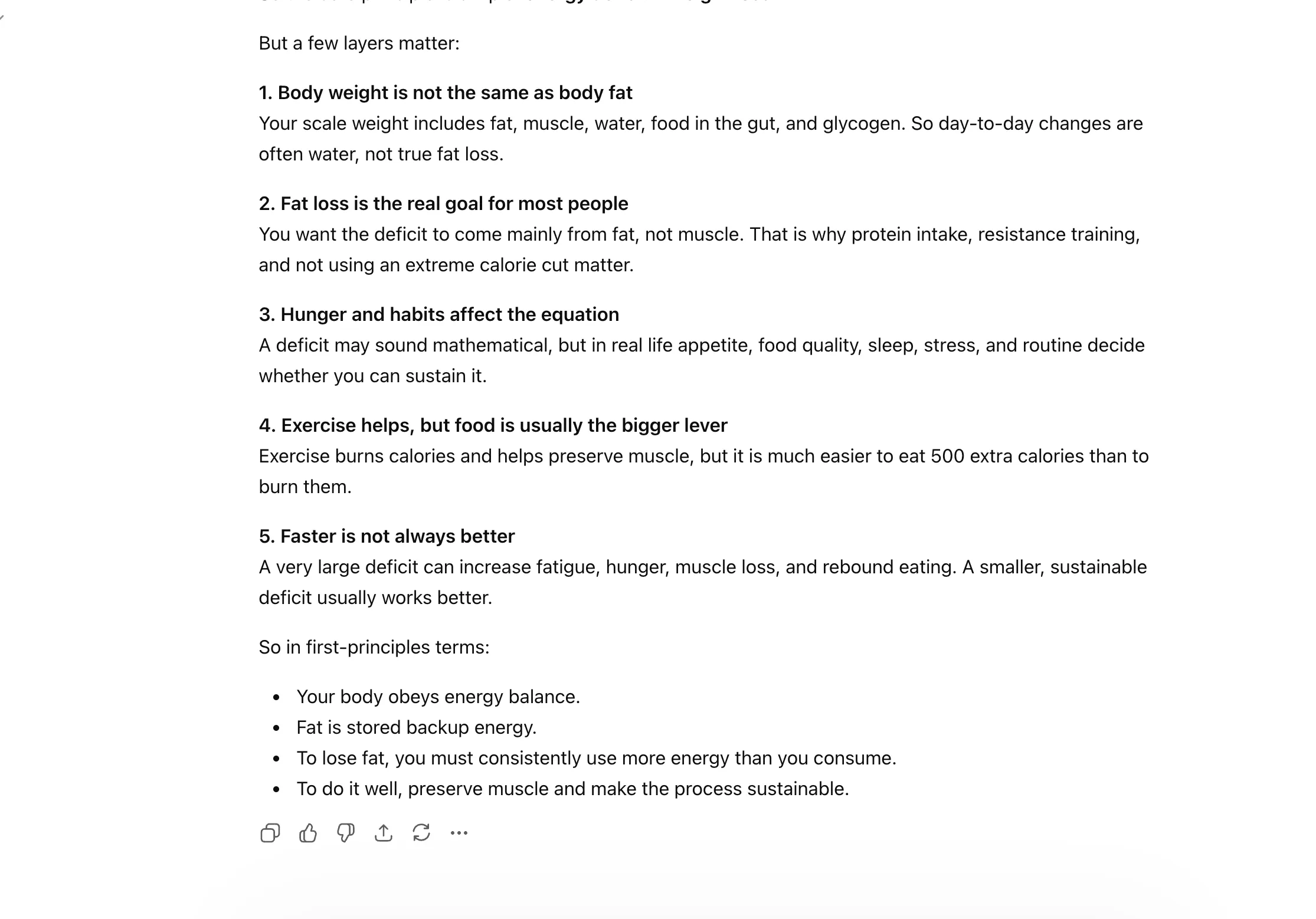
This makes Claude focus on what could go wrong. Very handy for planning, execution, or stress-testing an idea before moving ahead.
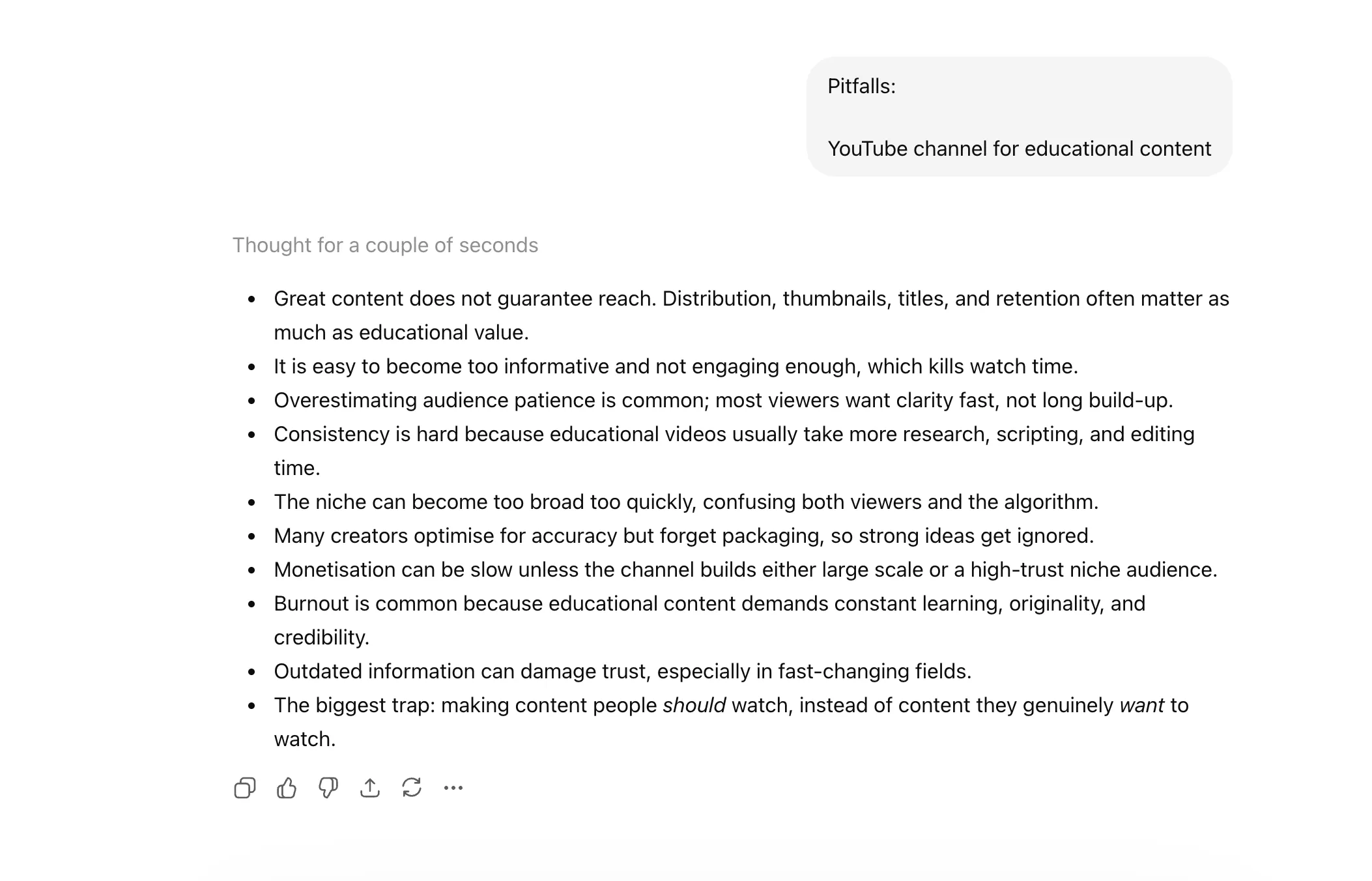
If you let AI run rogue with its thoughts, the scope of its imagination may just surprise you. But not always are you in the mood for something as creative. At times, you just want Claude to think in a specific way or direction. Basically, guide how it arrives at the answer. These shortcuts help you do just that by guiding the model’s thinking process or reshaping the output.
Use this when you want Claude to consider multiple layers of context before answering. Helpful for complex tasks where one-line prompting is not enough.
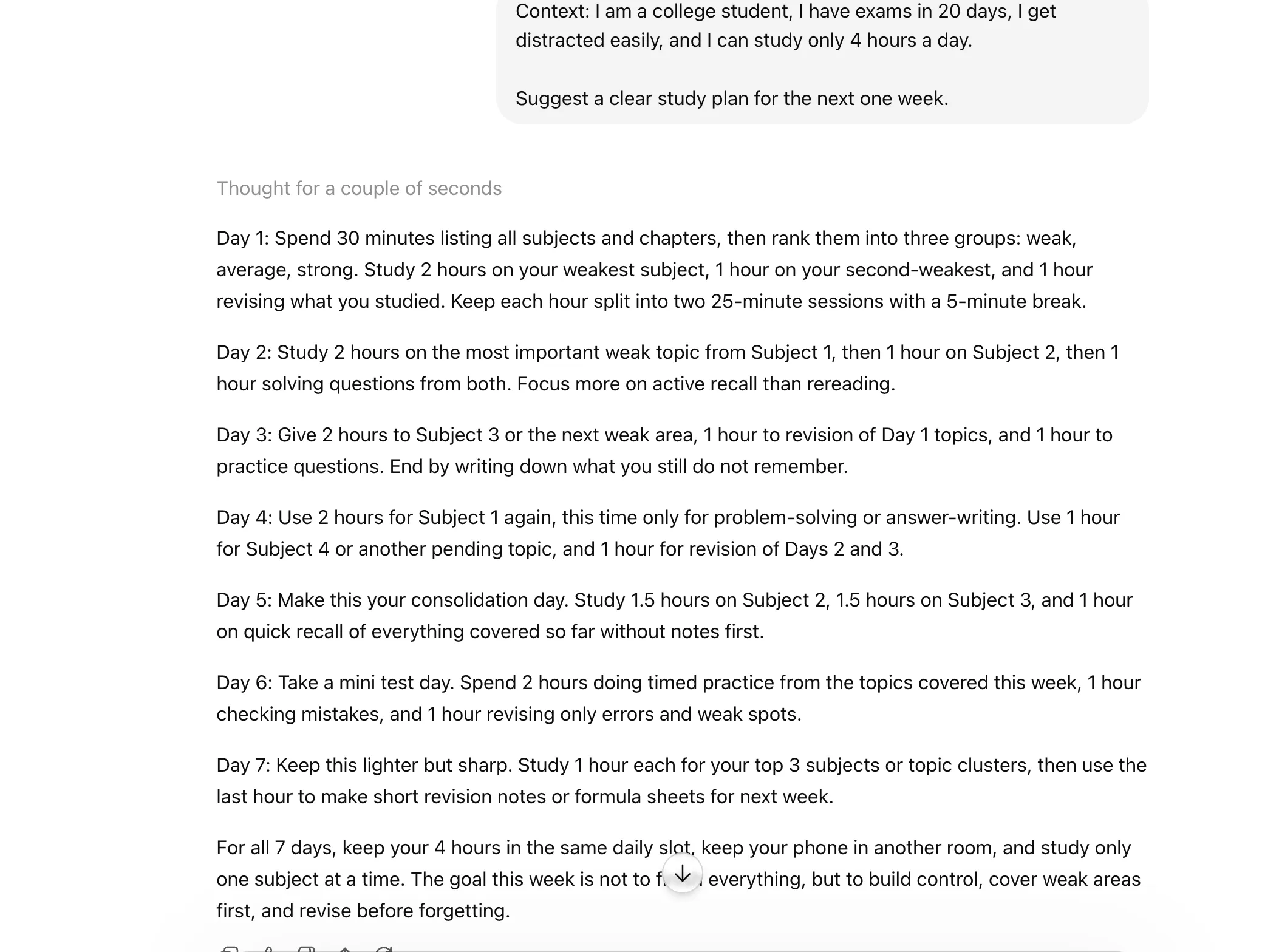
This pushes Claude to reason through the problem more carefully instead of jumping straight to the conclusion. Which means you get to see the entire thinking that goes behind the scenes. Best for trickier questions or layered logic.
Read: What is Chain-of-Thought Prompting and Its Benefits?
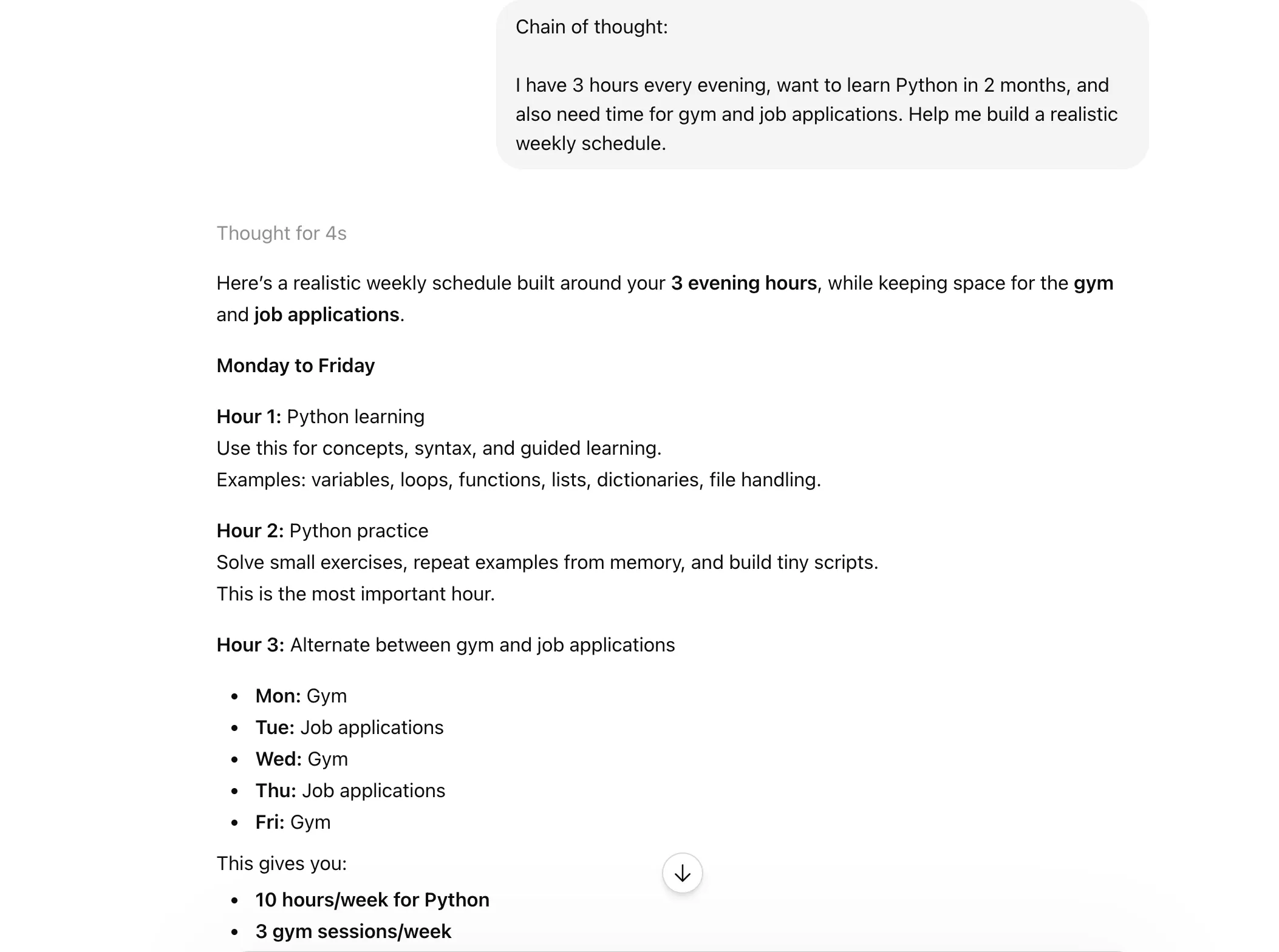
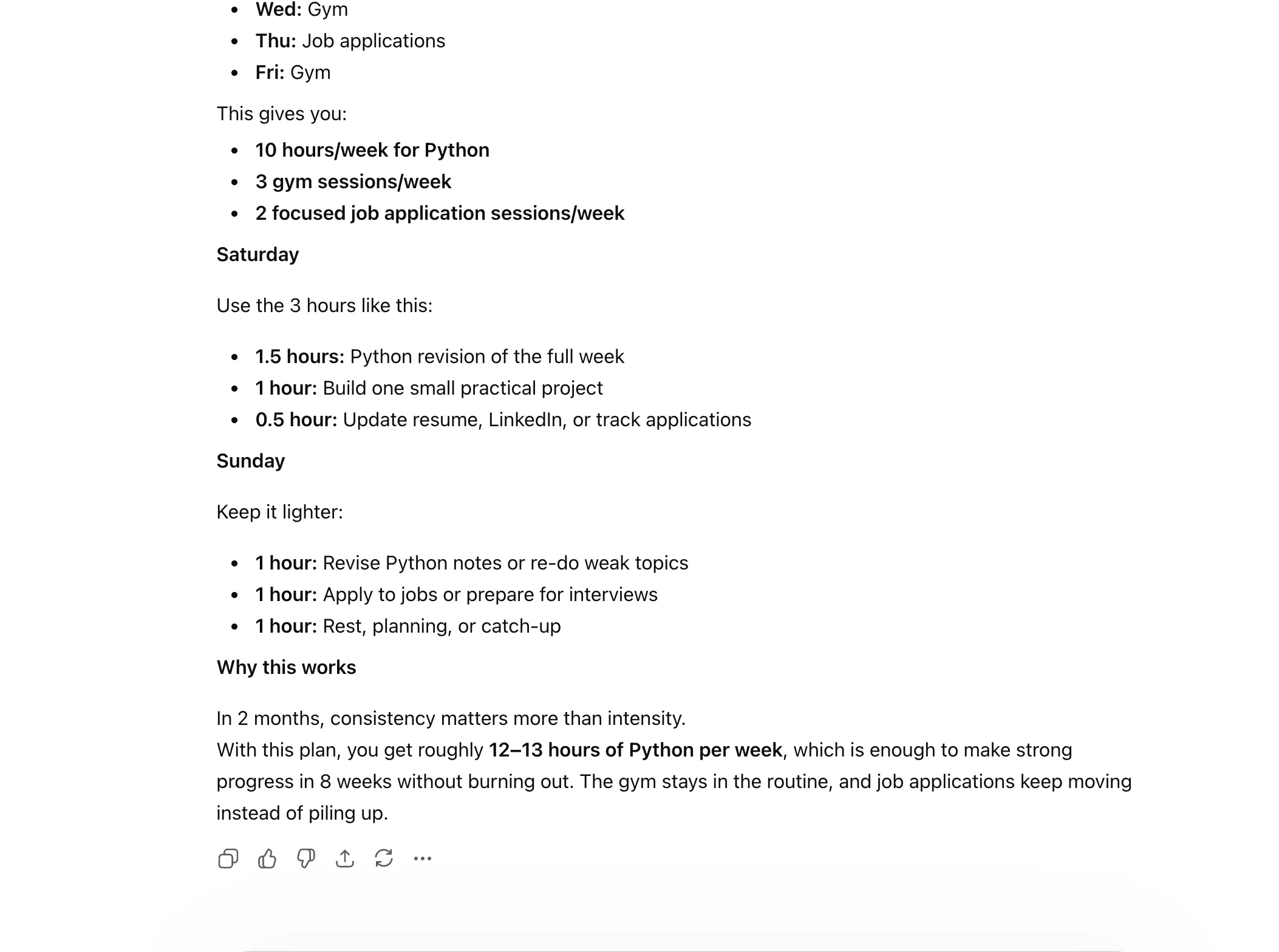
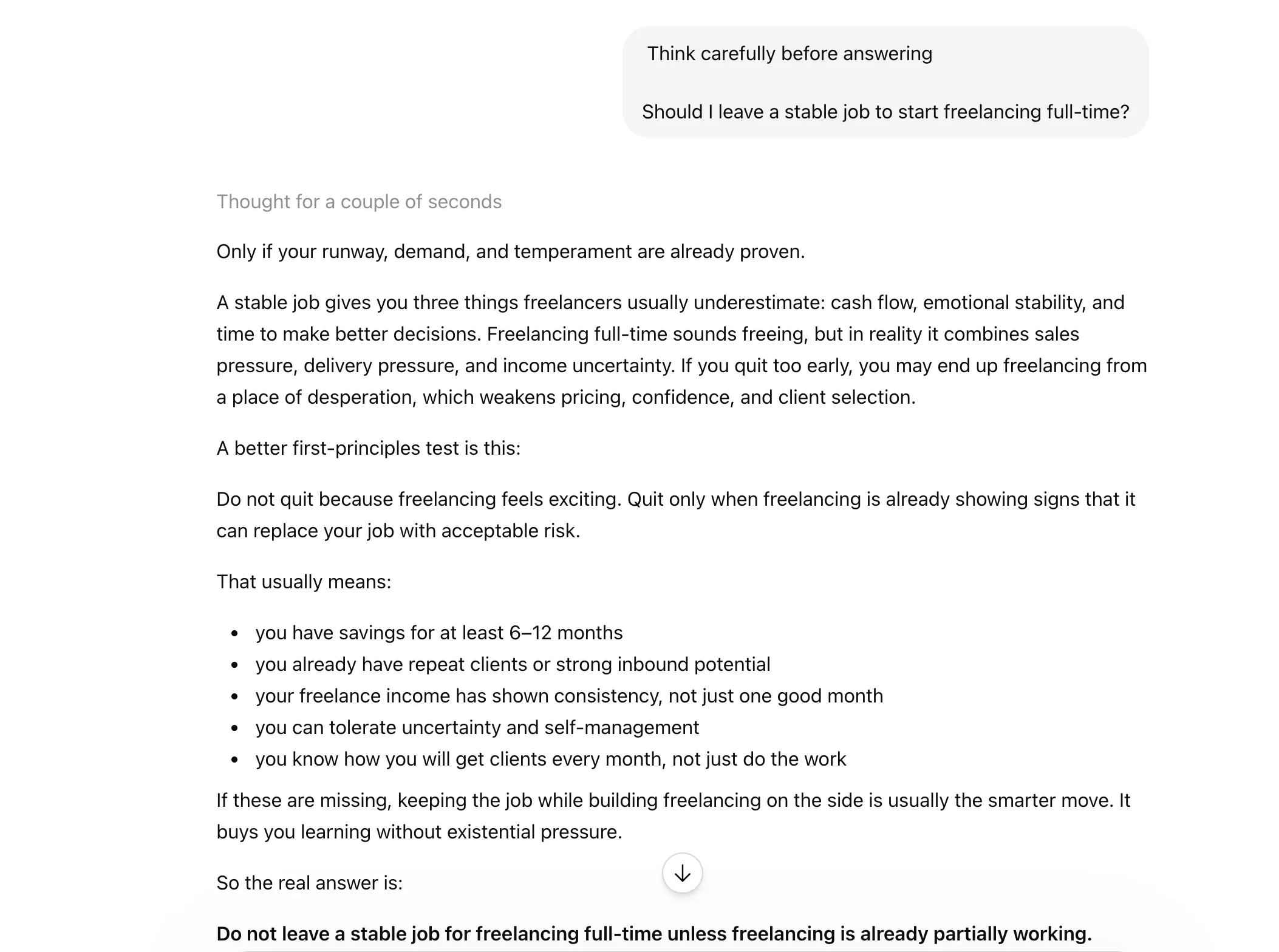
A useful shortcut when you want a slower, more considered answer. It nudges Claude to think more deeply before responding.
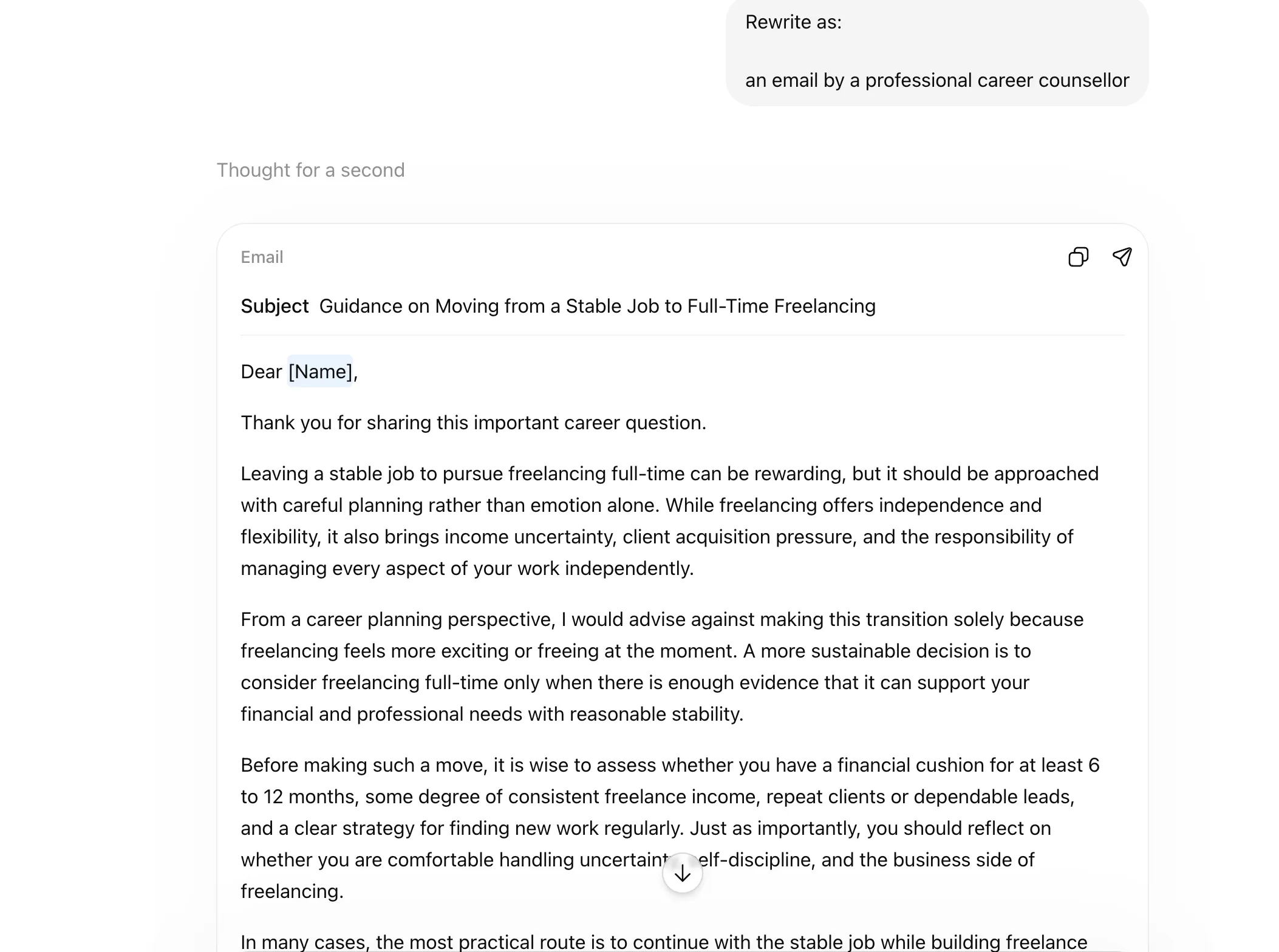
This is for when the core idea is fine, but the presentation is not. You can use it to quickly transform text into a different style, tone, or format.
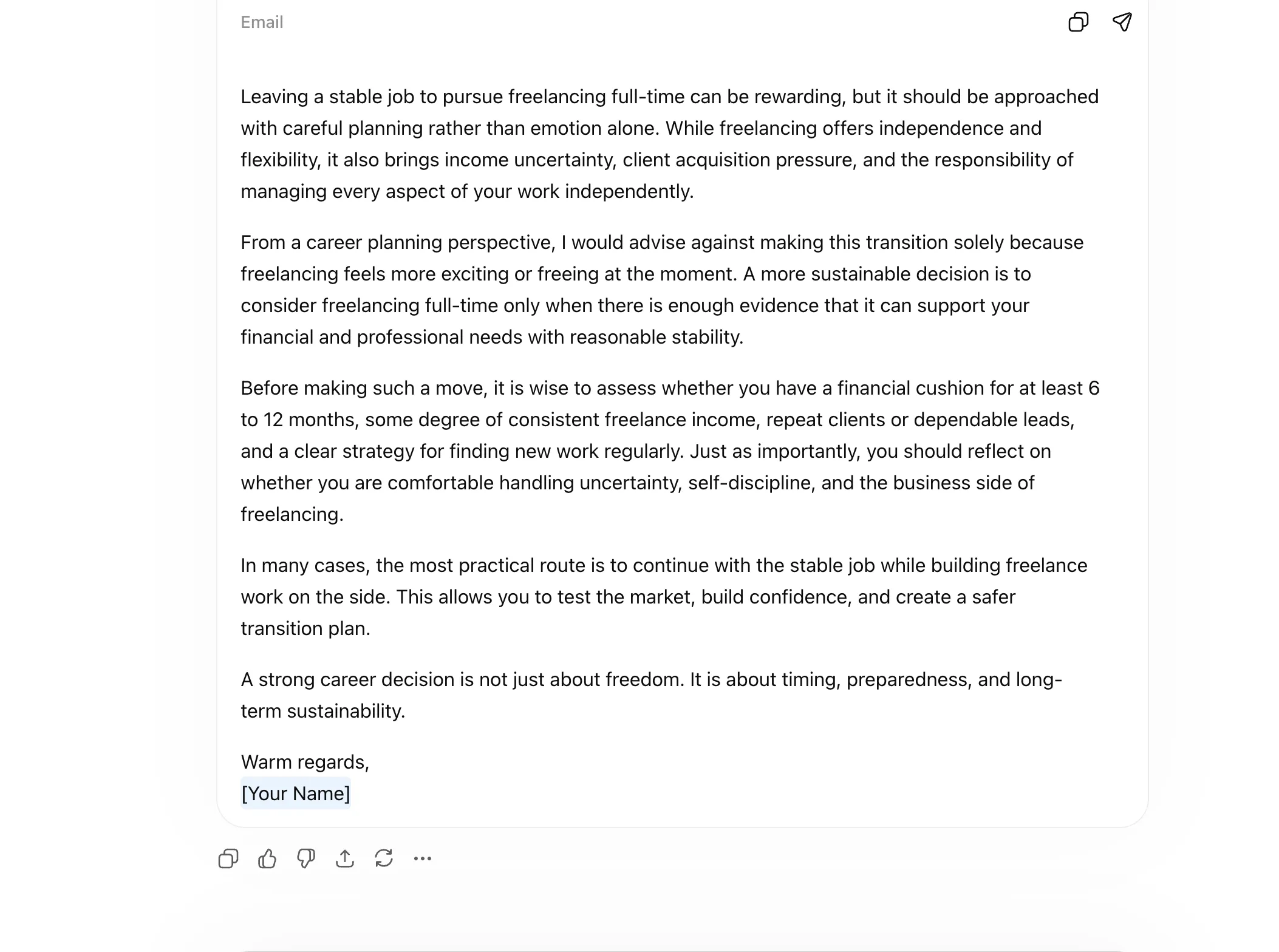
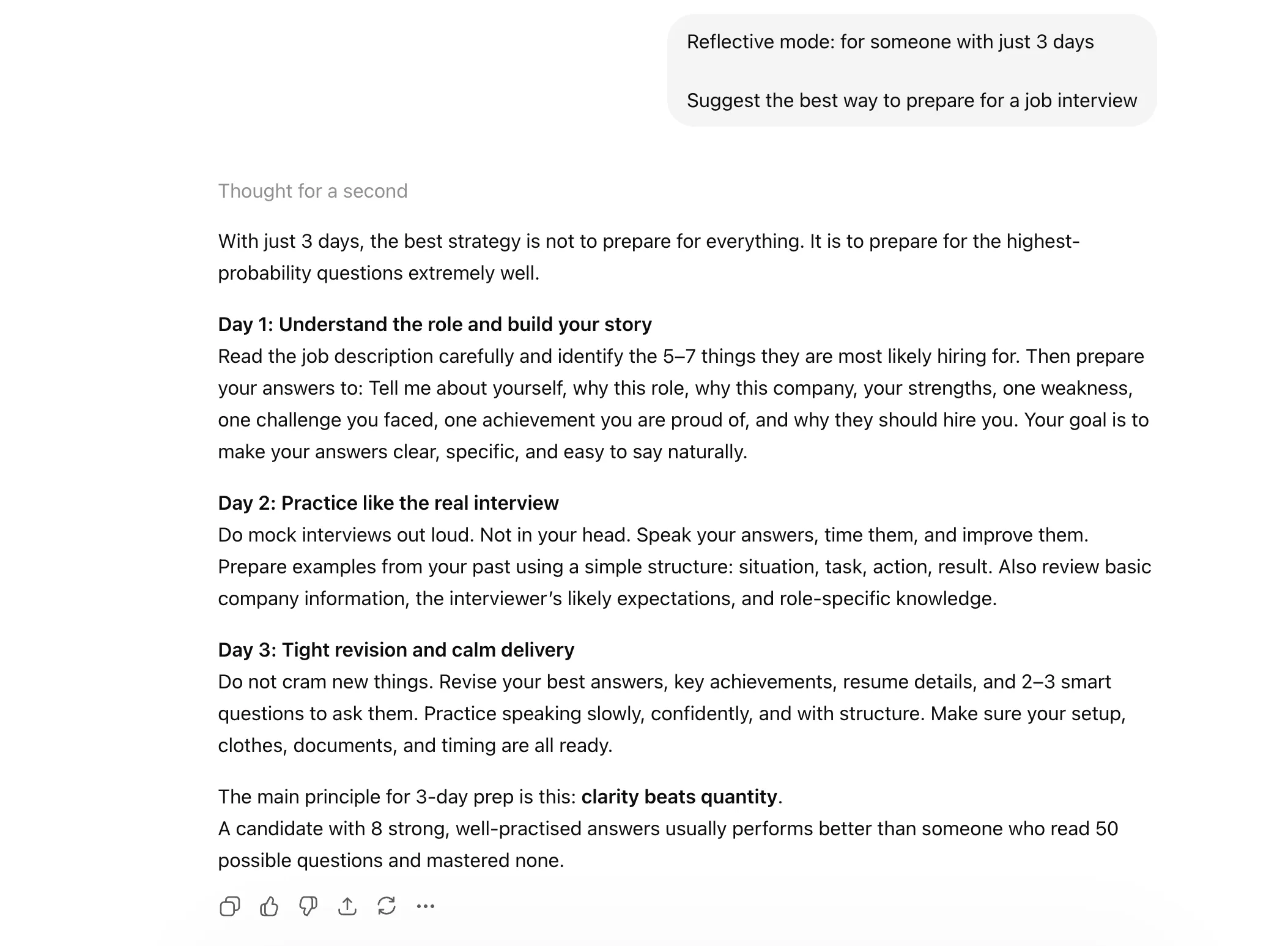
Sometimes, Claude gives you a decent answer, but not a careful one. It may miss blind spots, lean too generic, or rush past nuance. These shortcuts help slow things down a bit and push the model toward sharper, more balanced, and more reliable output.
Use this when you want Claude to think more carefully about its own answer before finalising it. Helpful for nuanced or judgment-heavy tasks.
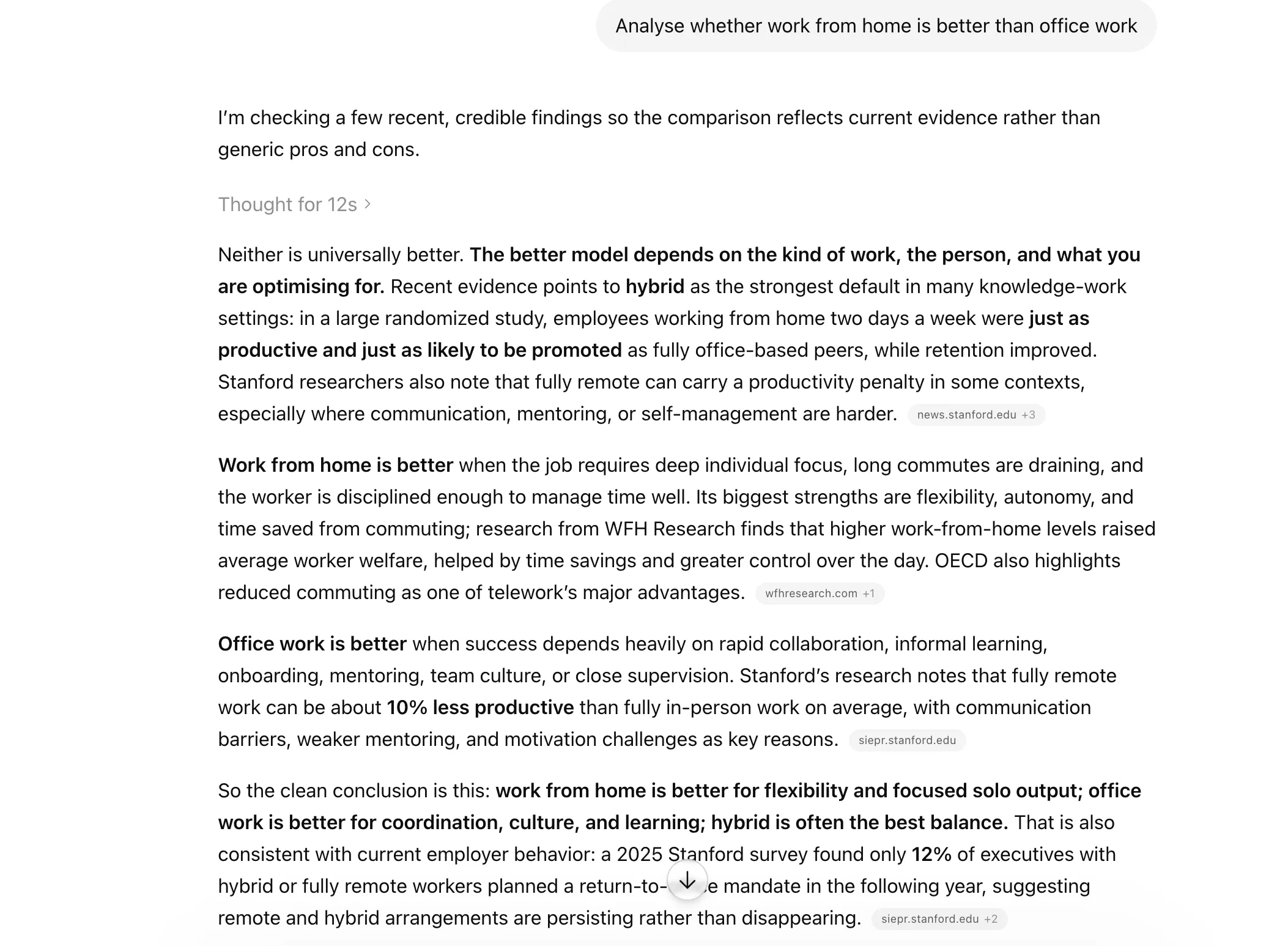
This tells Claude to look for bias, blind spots, or one-sided assumptions in the response. Very useful when dealing with sensitive or opinion-based topics.
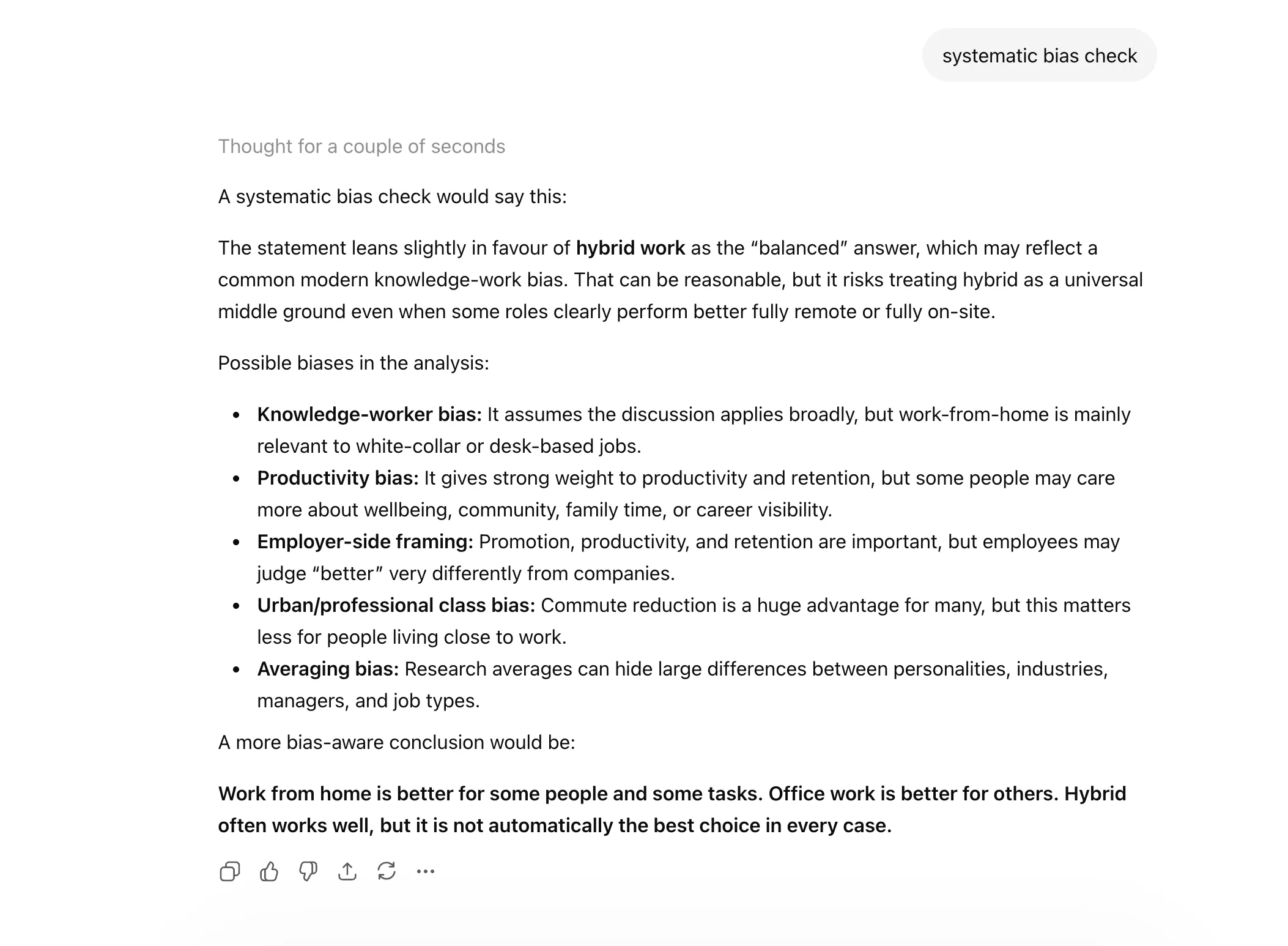
A handy shortcut when you want Claude to review its own answer and spot weaknesses. It can help improve clarity, completeness, or logic.
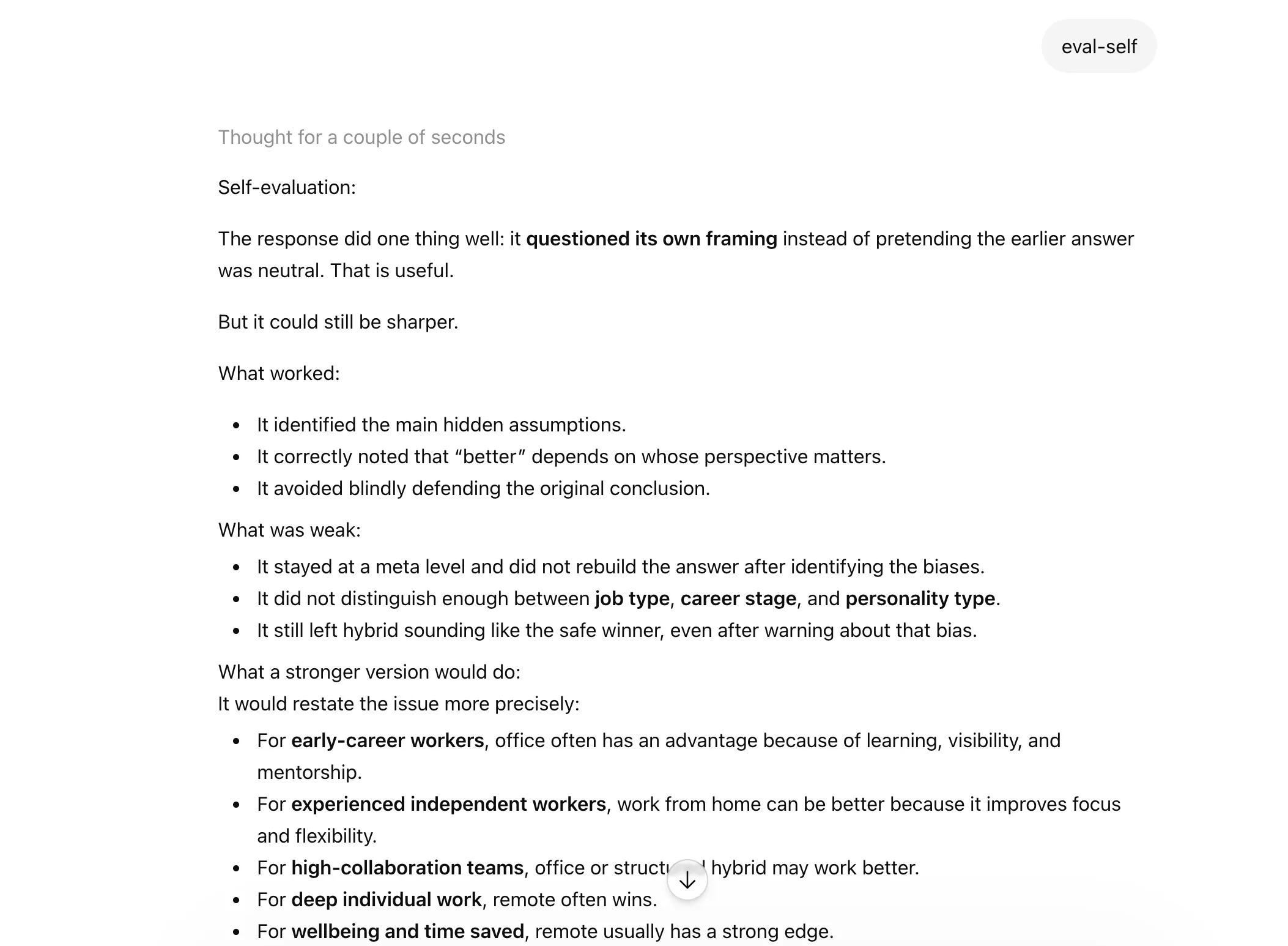
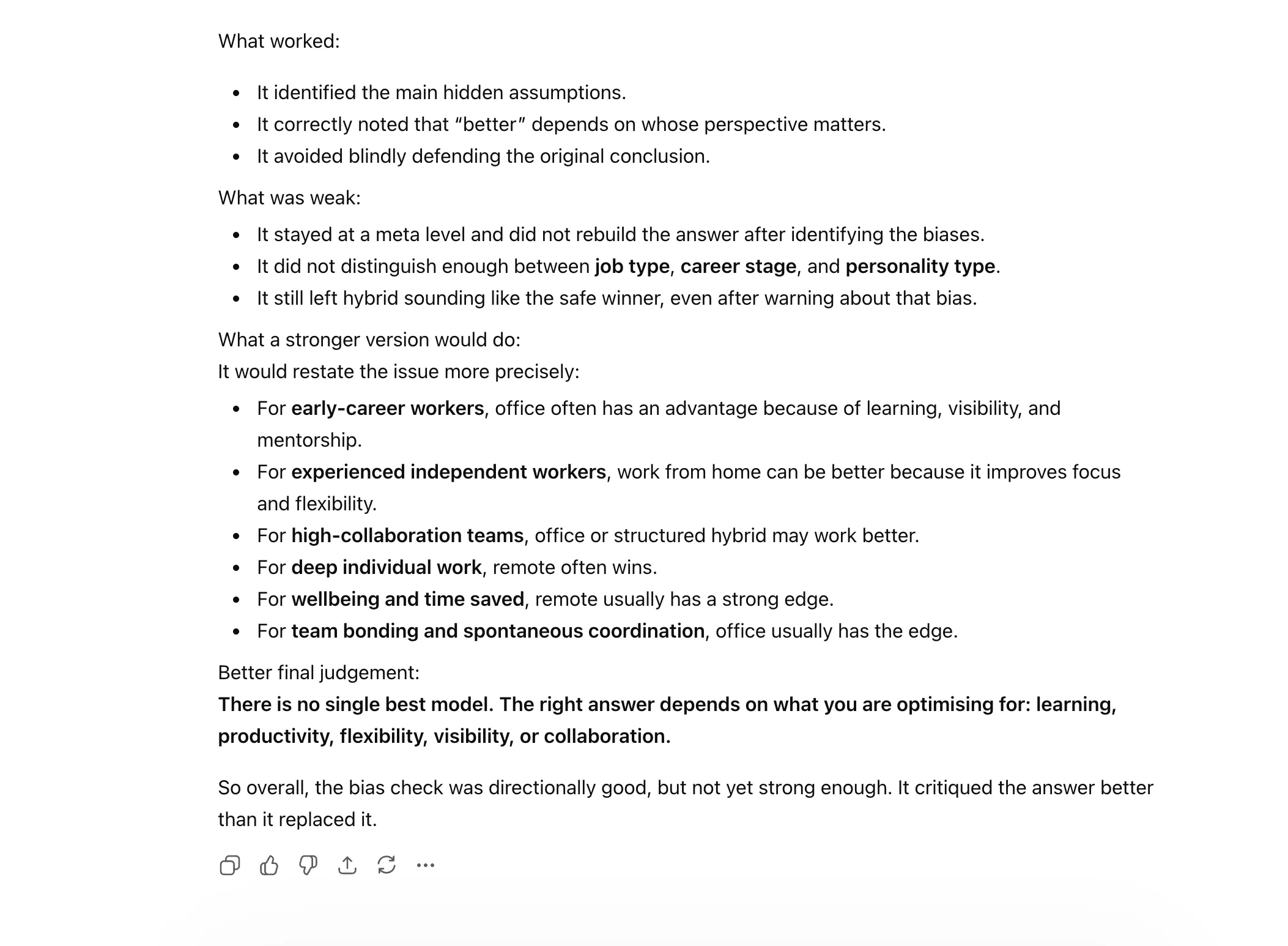
Use this to set boundaries around the response. Great when you want Claude to stay within a certain scope, tone, or level of risk.
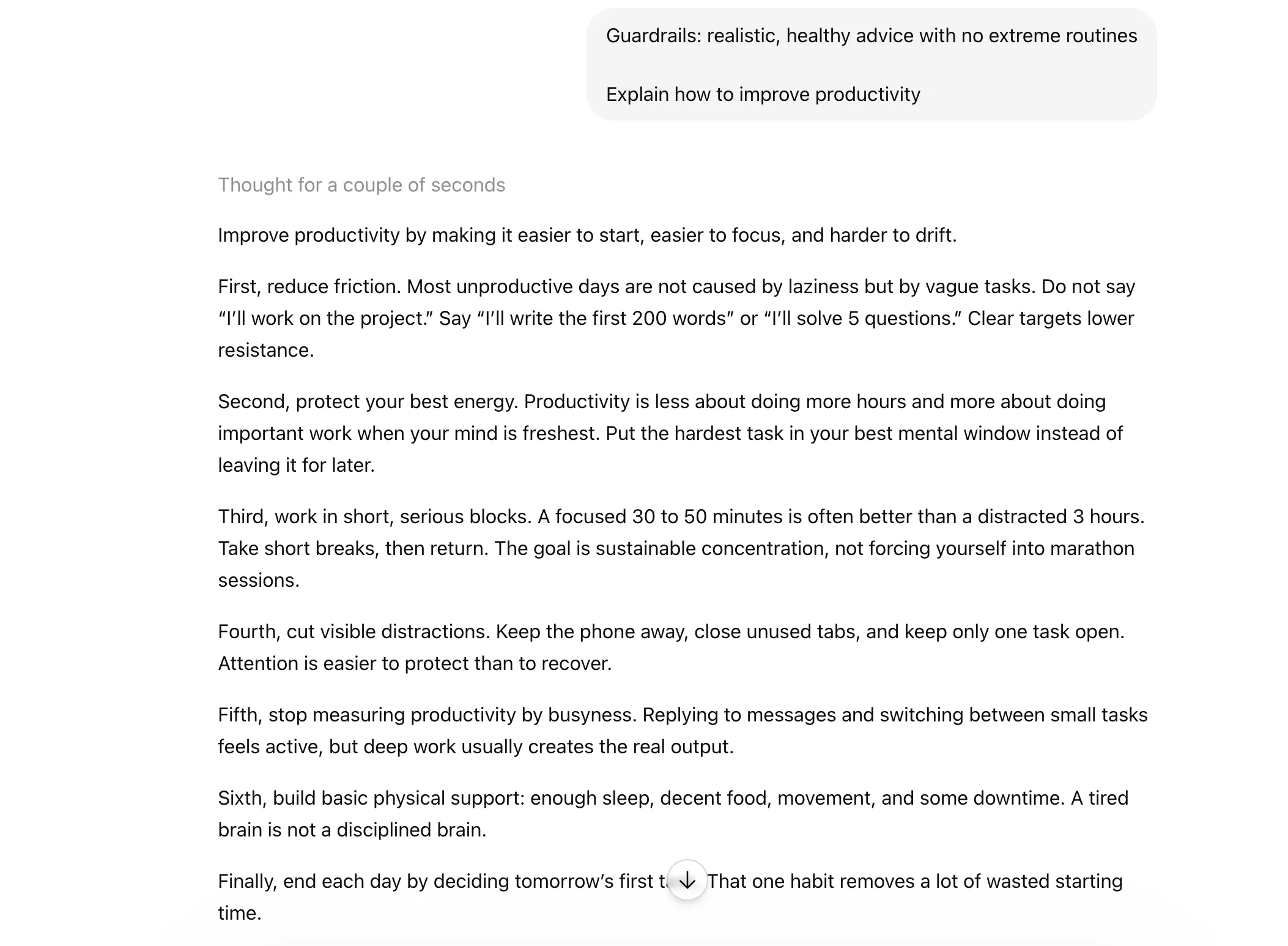
As is evident from examples I’ve shared here, the beauty of these Claude shortcuts is that they work across AI chatbots. What’s more, these do not ask you to become a master prompt engineer overnight. They are tiny tweaks, but they can make a massive difference in how clean, sharp, and useful your outputs feel.
So the next time you are about to type a full-blown instruction like a Victorian letter, pause for a second. Chances are, one shortcut can do the job faster.
Technical content strategist and communicator with a decade of experience in content creation and distribution across national media, Government of India, and private platforms
此内容由惯性聚合(RSS阅读器)自动聚合整理,仅供阅读参考。 原文来自 — 版权归原作者所有。