








cd ~{,/zhs/}A credit card is needed for signup the account, see support types below.

https://portal.aws.amazon.com/billing/signup
AWS accounts include 12 months of free tier access, including use of Amazon EC2, Amazon S3, and Amazon DynamoDB.
We will create an Arch Linux EC2 instance in this article, and setup a V2Ray service to run server for Shadowsocks and MTProxy.
(It’s not only Amazon that provides one-year free VPS, but also Google. Maybe I’ll cover on that later.)
Visit this link (from ArchWiki) and choose an image by region.
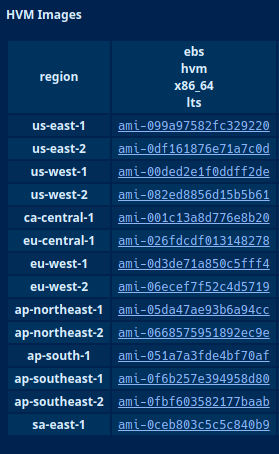
For example if you want an instance in Singapore, so be the ap-southeast-1 or ap-southeast-2.
Click on the “ami-xxxx” link and go on.
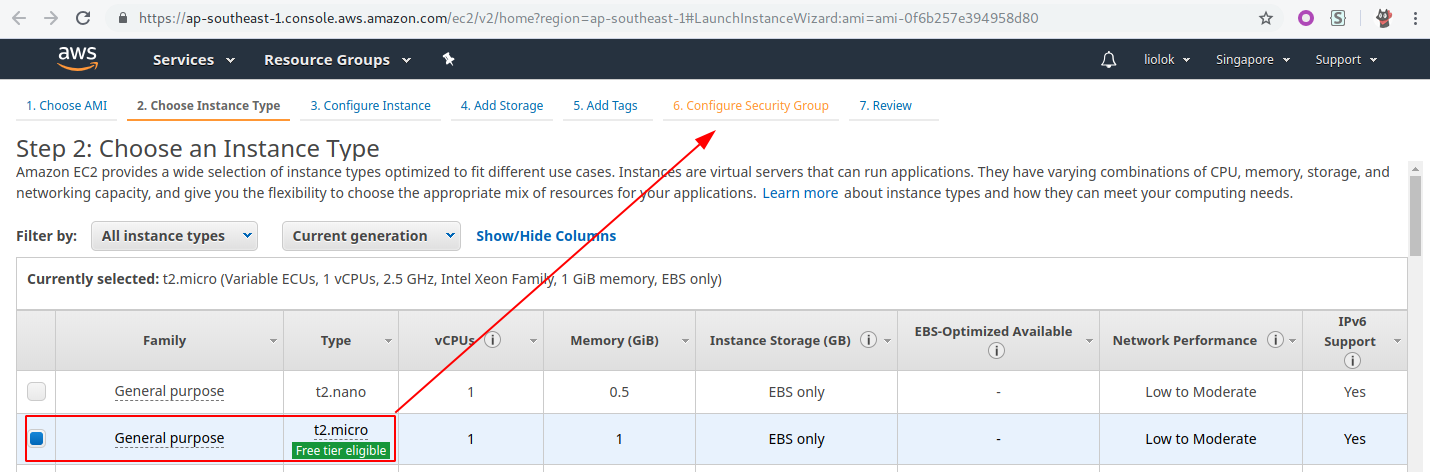
There would be only one free type so we actually have no choice, just skip to step 6.
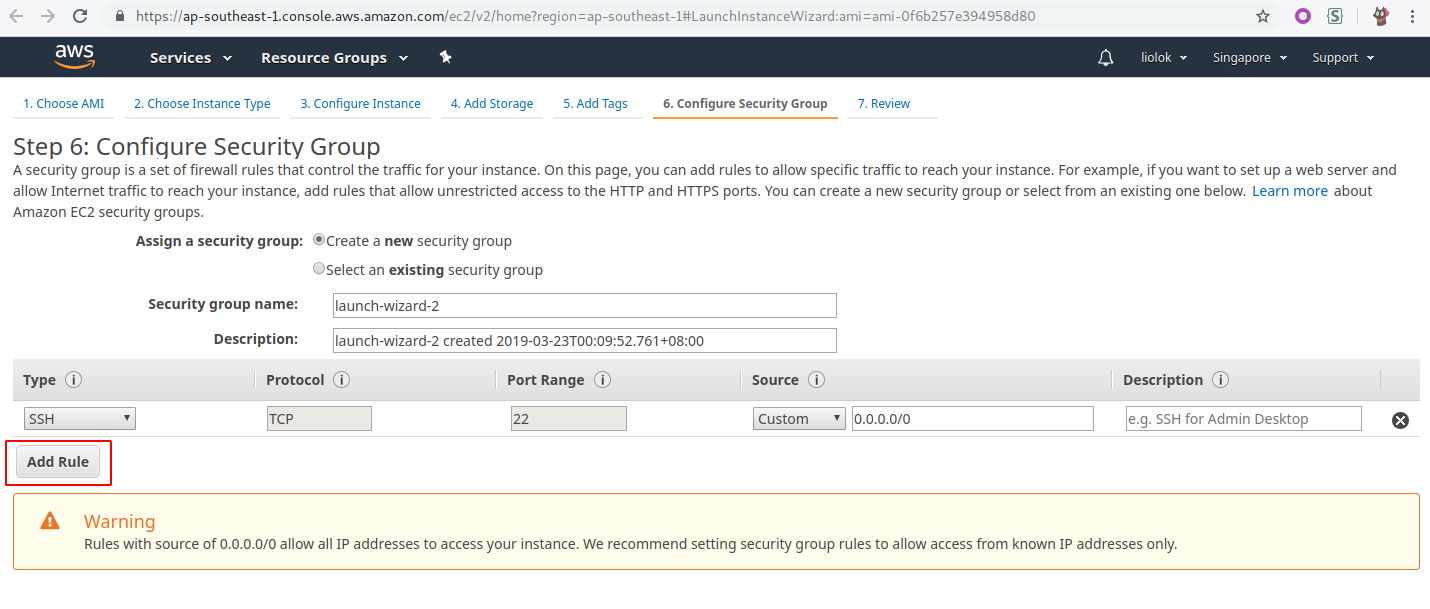
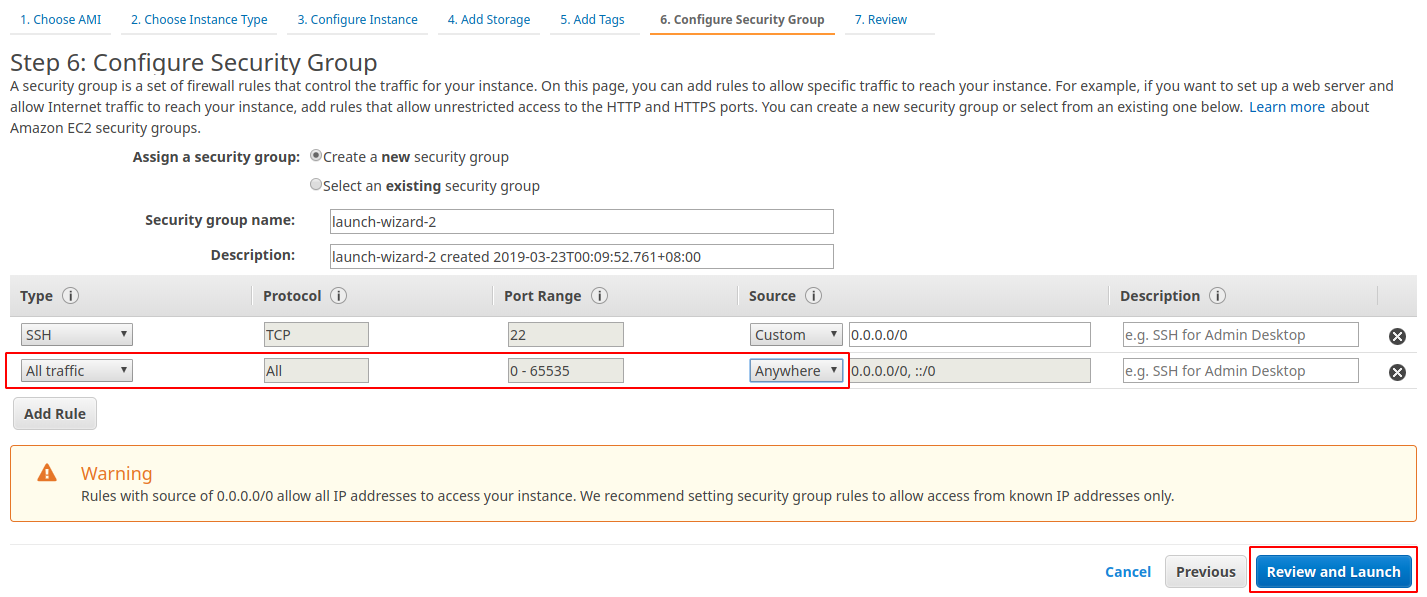
(Well, I don’t know how unsafe would it be if we allow all traffic from anywhere. If you care about security, read the documentations and make it secure.)
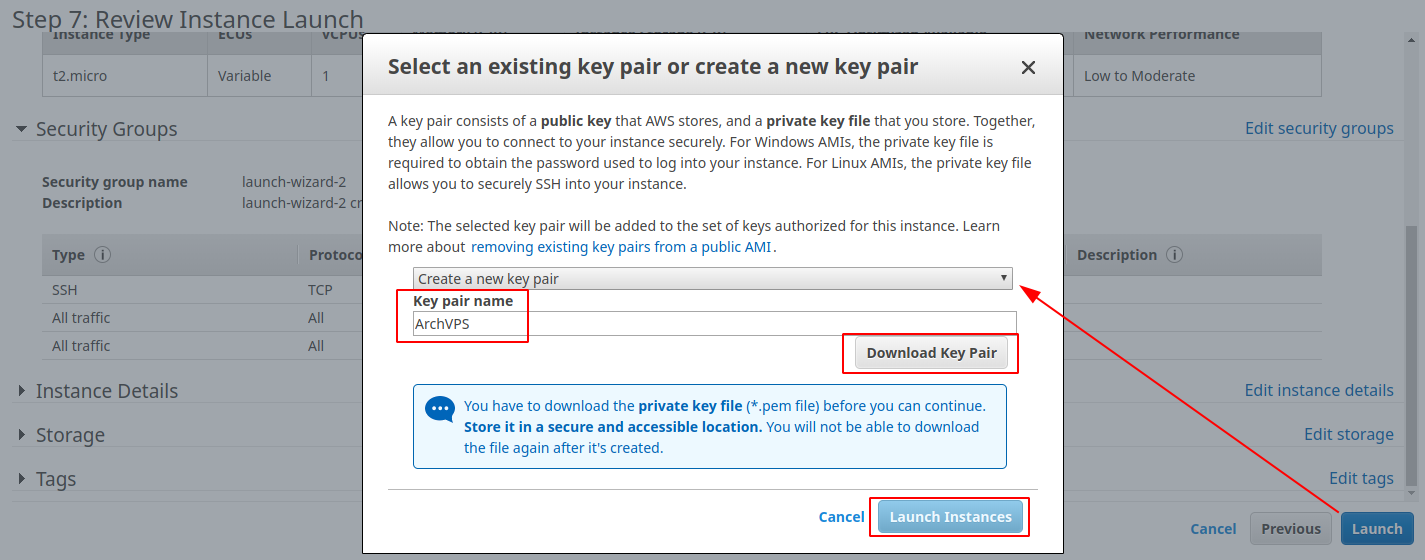
This ArchVPS.pem private key file is quite important, we download it to ~/.ssh/ArchVPS.pem,
or anywhere considered as safe and not easy to be cleared.
We can see the instance here after launched:

Now we’ve got the IP address of the instance, run this command to connect:
(Windows users might need PuTTY or similar tool.)
If you get the warning below, run chmod 400 ~/.ssh/ArchVPS.pem and retry.
@@@@@@@@@@@@@@@@@@@@@@@@@@@@@@@@@@@@@@@@@@@@@@@@@@@@@@@@@@@
@         WARNING: UNPROTECTED PRIVATE KEY FILE!          @
@@@@@@@@@@@@@@@@@@@@@@@@@@@@@@@@@@@@@@@@@@@@@@@@@@@@@@@@@@@
Permissions 0644 for '.ssh/ArchVPS.pem' are too open.
It is required that your private key files are NOT accessible by others.
This private key will be ignored.
Load key ".ssh/ArchVPS.pem": bad permissions
root@*.*.*.*: Permission denied (publickey).
If you get this, just say yes to let SSH know the host.
The authenticity of host '*.*.*.* (*.*.*.*)' can't be established.
ECDSA key fingerprint is SHA256:blablabla.
Are you sure you want to continue connecting (yes/no)? yes
Warning: Permanently added '*.*.*.*' (ECDSA) to the list of known hosts.
Now you should have already logged into the instance as root, run pacman -Syyu
and then reboot to make sure this Arch Linux is up to date.
First of all, here comes a configuration template.
Do NOT read it online, download or just copy and paste it to your favorite editor. For example in VS Code, switch to “JSON with Comments” language mode, and use folding to understand the hierarchy better.

These are what you need to know about in the inbounds part of template,
which would also be used in client configuration:
You could leave all the other values unchanged, except these two, you have to complete them on your own:
openssl rand -hex 16 locally, or on Arch VPS.Now you’ve got a complete and unique configuration. Connect to the instance, run these commands to change configuration to your own.
# pacman --sync v2ray # install V2Ray
# cd /etc/v2ray # change to V2Ray configuration directory
# mv --verbose config.json config.json.origin # backup origin configuration
# nano config.json # edit fresh new configuration
In nano editor, paste your own configuration by right-click menu or whatever,
Ctrl + O and Enter to save, Ctrl + X to exit.
# systemctl enable v2ray.service
# systemctl start v2ray.service
Now the service should be running, to check status run systemctl status v2ray.service.
此内容由惯性聚合(RSS阅读器)自动聚合整理,仅供阅读参考。 原文来自 — 版权归原作者所有。