


惯性聚合 高效追踪和阅读你感兴趣的博客、新闻、科技资讯
阅读原文 在惯性聚合中打开

推荐订阅源

V2EX - 技术
V2EX - 技术
T
Troy Hunt's Blog
The Last Watchdog
The Last Watchdog
www.infosecurity-magazine.com
S
Secure Thoughts
Hacker News - Newest:
Hacker News - Newest: "LLM"
WordPress大学
WordPress大学
freeCodeCamp Programming Tutorials: Python, JavaScript, Git & More
博客园 - 司徒正美
TaoSecurity Blog
TaoSecurity Blog
博客园 - Franky
有赞技术团队
有赞技术团队
Google Online Security Blog
罗磊的独立博客
L
LINUX DO - 最新话题
cs.CV updates on arXiv.org
NISL@THU
NISL@THU
小众软件
小众软件
OSCHINA 社区最新新闻
OSCHINA 社区最新新闻
Recent Commits to openclaw:main
K
Kaspersky official blog
奇客Solidot–传递最新科技情报
奇客Solidot–传递最新科技情报
W
WeLiveSecurity
SecWiki News
SecWiki News
Google DeepMind News
O
OpenAI News
V
V2EX
AI
AI
博客园_首页
Apple Machine Learning Research
大猫的无限游戏
大猫的无限游戏
美团技术团队
C
Cyber Attacks, Cyber Crime and Cyber Security
Threat Intelligence Blog | Flashpoint
Security Archives - TechRepublic
博客园 - 三生石上(FineUI控件)
G
GRAHAM CLULEY
月光博客
月光博客
T
Threatpost
钛媒体:引领未来商业与生活新知
钛媒体:引领未来商业与生活新知
V
Vulnerabilities – Threatpost
Last Week in AI
Last Week in AI
爱范儿
爱范儿
C
CXSECURITY Database RSS Feed - CXSecurity.com
cs.AI updates on arXiv.org
Cloudbric
Cloudbric
酷 壳 – CoolShell
酷 壳 – CoolShell
The Hacker News
The Hacker News
N
News | PayPal Newsroom
Know Your Adversary
Know Your Adversary

Comments for Tech Journey

Storage Spaces Can't Add Drives (Request Is Not Supported Error 0x00000032) - Tech Journey Chrome / Edge Disables .CRX Installed Extensions (Workarounds to Turn On) Remove Disable Developer Mode Extensions Warning Popup in Chrome / Edge How to Allow Local Network When Using WireGuard VPN Tunnel in Windows 10 How to Convert SRT to Create 3D Subtitles (ASS or SUB/IDX) Cannot Connect to CIFS / SMB / Samba Network Shares & Shared Folders in Windows 10 How to Decrypt an Enrypted SSL RSA Private Key (PEM / KEY) Install Microsoft .NET Framework 1.1 on Windows 10 / 8 / 7 / Vista (Fix RegSvcs.exe Error) Fix Windows Not Remember & Save Folder Types or Folder Views Setting (Increase BagMRU Size Cache Memory Size) How to Change the Logo of vBulletin Forum to Custom Image
Unrecognised Disk Label When Creating Partition
LK · 2015-01-11 · via Comments for Tech Journey
Skip to content

Unrecognised Disk Label When Creating Partition

Unrecognised Disk Label When Creating Partition
When creating and adding a primary partition on a new hard disk through Webmin, error occurred and the creation of new partition failed. The error message is similar to the following, where the drive name and size may differ, e.g. /dev/sda, /dev/sdc, /dev/sdd etc.

Failed to save partition : parted -s /dev/sdb unit cyl mkpart primary 0 30394 failed : Error: /dev/sdb: unrecognised disk label
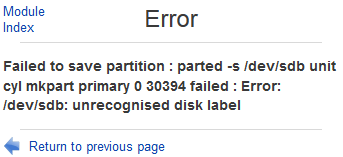
Add Partition Failed Unrecognised Disk Label

If you list the partition layout and all block devices information using “parted -l” command, it will give you similar error too:

Error: /dev/sdb: unrecognised disk label

Apparently Webmin cannot manage a new drive without any existing partition table. The resolution is to make a label on the disk first, with “parted” command.

Login to the server’s terminal which you want to install the new disk via console or SSH if remotely, and run the following command (replace the name of the disk with actual one assigned by Linux to the new disk):

$ sudo parted /dev/sdb
(parted) mklabel msdos
(parted) quit
If you prefer to use GTP GUID partition table, or have a large hard disk exceeding 2TB, or want to create a large partition exceeding 2TB, you can create a GPT partition with the following command instead of “mklabel msdos”:
(parted) mklabel gpt

Steps above create a blank table on the hard disk. Then, you can continue to add new partition using Webmin’s “Partitions on Local Disks” module.

Alternatively, you can continue to manually create the filesystem on the new partition created with parted, mkfs, and other commands. For example:

mkfs -t ext4 -q /dev/sdb1

Then, create a mount point for the new filesystem and mount the new file system:

mkdir /newdisk
mount /dev/sdb1 /newdisk

Ensure that the entry for the new filesystem and hard disk is recorded inside /etc/fstab so that it will mount automatically on system startup.

/dev/sdb1 /newdisk ext4 defaults 0 2

Where you can modify the parameters according to your need, with explanation below:

/dev/sdb1: Name for the partition
/newdisk: Mount point
ext4: Filesystem (fs) type
defaults : Mount options
0: Zero indicates to exclude this filesystem from dump command backup.
2: Second indicates the order which fsck filesystem check at boot. Only the root (/) filesystem should be specified with 1, all others should be 2.

About the Author:

LK is a technology writer for Tech Journey with background of system and network administrator. He has be documenting his experiences in digital and technology world for over 15 years. Connect with LK through Tech Journey on Facebook, Twitter or Google+.
Page load link
Go to Top