








Windows Vista and Windows 7 comes packaged with Microsoft .NET Framework 2.0 and 3.0, but not version 1.1, which may still required by some applications such as QuickBooks 7, GFI Report Packs, VS.NET 2003, InstallShield 11.5, and many other developed software. However, when trying to install Microsoft .NET Framework 1.1 (dotnetfx.exe) on Windows Vista or Windows 7, one or more error messages similar to one of the following text will appear, and stop or prevent setup installation of .NET Framework 1.1 from continuing successfully.
RegSvcs.exe – Common Language Runtime Debugging Services
Application has generated an exception that could not be handled.
Process id=0xe50 (3664), Thread id=0xd44 (3396).Click OK to terminate the application.
Click CANCEL to debug the application.
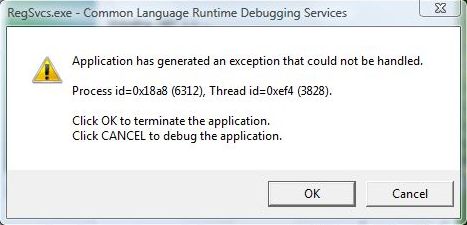
If user click “OK’, the installation of .NET 1.1 will be cancelled, while clicking “CANCEL” produces another error message similar to below:
RegSvcs.exe – No debugger found
Registered JIT debugger is not available. An attempt to launch a JIT debugger with the following command resulted in an error code of 0x2 (s). Please check computer settings.
cardbg.exe !a 9x8e
In Even Viewer of Vista or Windows 7, the following log or similar can be seen:
Source: MsiInstaller
Event ID: 1030
Description:
Product: Microsoft .NET Framework 1.1. The application tried to install a more recent version of the protected Windows file C:\Windows\Microsoft.NET\Framework\sbs_wminet_utils.dll. You may need to update your operating system for this application to work correctly. (Package Version: 1.0.0.0, Operating System Protected Version: 1.0.0.0).
Source: MsiInstaller
Event ID: 1030
Description:
Product: Microsoft .NET Framework 1.1. The application tried to install a more recent version of the protected Windows file C:\Windows\Microsoft.NET\Framework\sbs_system.enterpriseservices.dll. You may need to update your operating system for this application to work correctly. (Package Version: 1.0.0.0, Operating System Protected Version: 1.0.0.0).
The error pops up in the end of .NET Framework 1.1 setup when it’s almost finished, and is registering “System.EnterpriseServices.dll” when the error occurs, time remaining for the installation process shows 0 seconds.
Why exactly the error occurs when installing Microsoft .NET Framework 1.1 in Windows Vista or Windows 7 is not known, as the issue happens randomly. It may affect both 32-bit and 64-bit Windows Vista or Windows 7 system, but not all system will have the issue. But one thing is for sure. Microsoft .NET Framework 1.1 SP1 (Service Pack 1) has resolved the issue. However, Microsoft does not provide download to standalone .NET Framework 1.1 installer that integrated with SP1.
Thus, the workaround to fix the Microsoft.NET Framework 1.1. installation error on affected Windows system is to slipstream .NET Framework 1.1 SP1 into .NET Framework 1.1 installer, so that both the .NET Framework and the Service Pack can be installed at the same time.
In addition, Microsoft no longer supports .NET Framework 1.1 on the Windows 8, Windows 8.1, Windows Server 2012, Windows Server 2012 R2, Windows 10 or Windows Server 2016 operating systems, and has blocked .NET Framework 1.1 from installing on these systems. If you try to install the package, the following error message is displayed:
Setup cannot continue because this version of the .NET Framework is incompatible with a previously installed one.
.NET Framework 1.1 may also be automatically removed and uninstalled if you upgraded to newer Windows operating system from Windows 7 or Windows Vista.
However, the slipstream .NET Framework 1.1 with SP1 integrated may be able to be used to install .NET Framework 1.1 on to Windows 8, Windows 8.1, Windows 10 and their server equivalents.
To slipstream .NET 1.1 SP1 into .NET Framework setup package to have a integrated .NET Framework 1.1 SP1 installer, follow steps in this trick:
- Create a new folder named DotNet in C:\ drive (C:\DotNet is used in this guide, you can change to any folder you prefer, but ensure that you use correct path in the following steps).
- Download Microsoft .NET Framework 1.1 Redistributable Package (dotnetfx.exe). Make sure the setup file is saved as dotnetfx.exe.
- Download Microsoft .NET Framework 1.1 Service Pack 1 (NDP1.1sp1-KB867460-X86.exe). Make sure that the file is renamed and saved as dotnetfxsp1.exe, so that the rest of the steps can be followed easily.
- Move both installation files into the same directory (i.e. C:\DotNet), if you’re not saving them together.
- Open Command Prompt as Administrator.
- Change to the directory where the two installation setup files for .NET 1.1 are saved (i.e. C:\DotNet).
- Run the following commands one by one, press Enter after each one:
-
dotnetfx.exe /c:"msiexec.exe /a netfx.msi TARGETDIR=C:\DotNet"
If you’re not using C:\DotNet directory, change the target to your path accordingly.
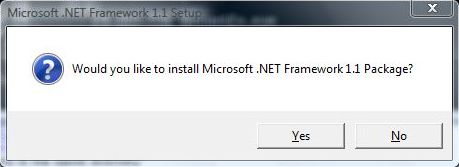
Then click on “Yes” when prompted to answer “Would you like to install Microsoft .NET Framework 1.1. Package?”
Wait for the decompression, extraction and setup to complete with the display of the following dialog which says installation complete.
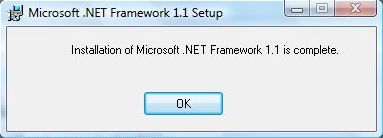
-
dotnetfxsp1.exe /Xp:C:\DotNet\netfxsp.msp
No status message for this step.
You may be prompted to install .NET Framework 3.5 (includes .NET 2.0 and 3.0) if your system has no .NET Framework installed. Allow the installation of newer version of .NET Framework to proceed. -
msiexec.exe /a c:\DotNet\netfx.msi /p c:\DotNet\netfxsp.msp

Wait for Windows Installer for Microsoft .NET Framework 1.1 to finish and disappear automatically.
-
- Install Microsoft .Net Framework 1.1 with slipstreamed/integrated Service Pack 1 by running netfx.msi created in the working folder.
About the Author: LK
