


惯性聚合 高效追踪和阅读你感兴趣的博客、新闻、科技资讯
阅读原文 在惯性聚合中打开

推荐订阅源

IT之家
IT之家
Cyber Security Advisories - MS-ISAC
freeCodeCamp Programming Tutorials: Python, JavaScript, Git & More
N
News and Events Feed by Topic
P
Privacy International News Feed
Apple Machine Learning Research
A
Arctic Wolf
OSCHINA 社区最新新闻
OSCHINA 社区最新新闻
Threat Intelligence Blog | Flashpoint
T
Threat Research - Cisco Blogs
Spread Privacy
Spread Privacy
宝玉的分享
宝玉的分享
P
Proofpoint News Feed
P
Privacy & Cybersecurity Law Blog
GbyAI
GbyAI
The Hacker News
The Hacker News
K
Kaspersky official blog
奇客Solidot–传递最新科技情报
奇客Solidot–传递最新科技情报
C
Cyber Attacks, Cyber Crime and Cyber Security
D
Darknet – Hacking Tools, Hacker News & Cyber Security
A
About on SuperTechFans
S
Secure Thoughts
G
Google Developers Blog
博客园 - 司徒正美
Forbes - Security
Forbes - Security
T
The Exploit Database - CXSecurity.com
Latest news
Latest news
V2EX - 技术
V2EX - 技术
I
InfoQ
让小产品的独立变现更简单 - ezindie.com
Security Latest
Security Latest
AI
AI
T
Tailwind CSS Blog
Recent Commits to openclaw:main
Cloudbric
Cloudbric
V
Vulnerabilities – Threatpost
Schneier on Security
P
Proofpoint News Feed
博客园 - 聂微东
Application and Cybersecurity Blog
S
Schneier on Security
博客园 - 【当耐特】
NISL@THU
NISL@THU
Y
Y Combinator Blog
cs.CL updates on arXiv.org
cs.CV updates on arXiv.org
L
Lohrmann on Cybersecurity
Help Net Security
Help Net Security
The Cloudflare Blog
H
Hackread – Cybersecurity News, Data Breaches, AI and More

Comments for Tech Journey

Storage Spaces Can't Add Drives (Request Is Not Supported Error 0x00000032) - Tech Journey Chrome / Edge Disables .CRX Installed Extensions (Workarounds to Turn On) Remove Disable Developer Mode Extensions Warning Popup in Chrome / Edge How to Convert SRT to Create 3D Subtitles (ASS or SUB/IDX) Cannot Connect to CIFS / SMB / Samba Network Shares & Shared Folders in Windows 10 Unrecognised Disk Label When Creating Partition How to Decrypt an Enrypted SSL RSA Private Key (PEM / KEY) Install Microsoft .NET Framework 1.1 on Windows 10 / 8 / 7 / Vista (Fix RegSvcs.exe Error) Fix Windows Not Remember & Save Folder Types or Folder Views Setting (Increase BagMRU Size Cache Memory Size) How to Change the Logo of vBulletin Forum to Custom Image
How to Allow Local Network When Using WireGuard VPN Tunnel in Windows 10
LK · 2020-05-13 · via Comments for Tech Journey
Skip to content

How to Allow Local Network When Using WireGuard VPN Tunnel in Windows 10

How to Allow Local Network When Using WireGuard VPN Tunnel in Windows 10

When using WireGuard to connect to a remote VPN server, such as Cloudflare WARP, for secure VPN tunnel, the default WireGuard tunnel configuration profile changes the private and local IP addresses routing for both IPv4 and IPv6 addresses.

Essentially, all traffic, including those to local network and private network, is routed through WireGuard. However, WireGuard is blocking all untunneled traffic. It’s a kill switch designed to ensure that no traffic and real IP address accidentally leak to outside world. Thus, by default WireGuard attempts to restrict all traffic to the tunnel and all attempts to get outgoing traffic that bypasses the tunnel, i.e. traffic within the local network, fail.

The issue of broken local network routing appears to only happen in WireGuard for Windows, where all traffic is force to go through WireGuard first prior to routing. To resolve the issue that local network routing is prohibited by WireGuard involved adding static route. However, there is easier solution built into WireGuard’s Windows client.

To allow traffic within local network to bypass WireGuard so that the route does not get killed, follow these steps:

  1. Open the WireGaurd Windows client.
  2. In the left pane, select the tunnel that you want local network routing to work, if you have more than one tunnel.
  3. Hit the Edit button.
  4. Uncheck Block untunneled traffic (kill-switch) option.
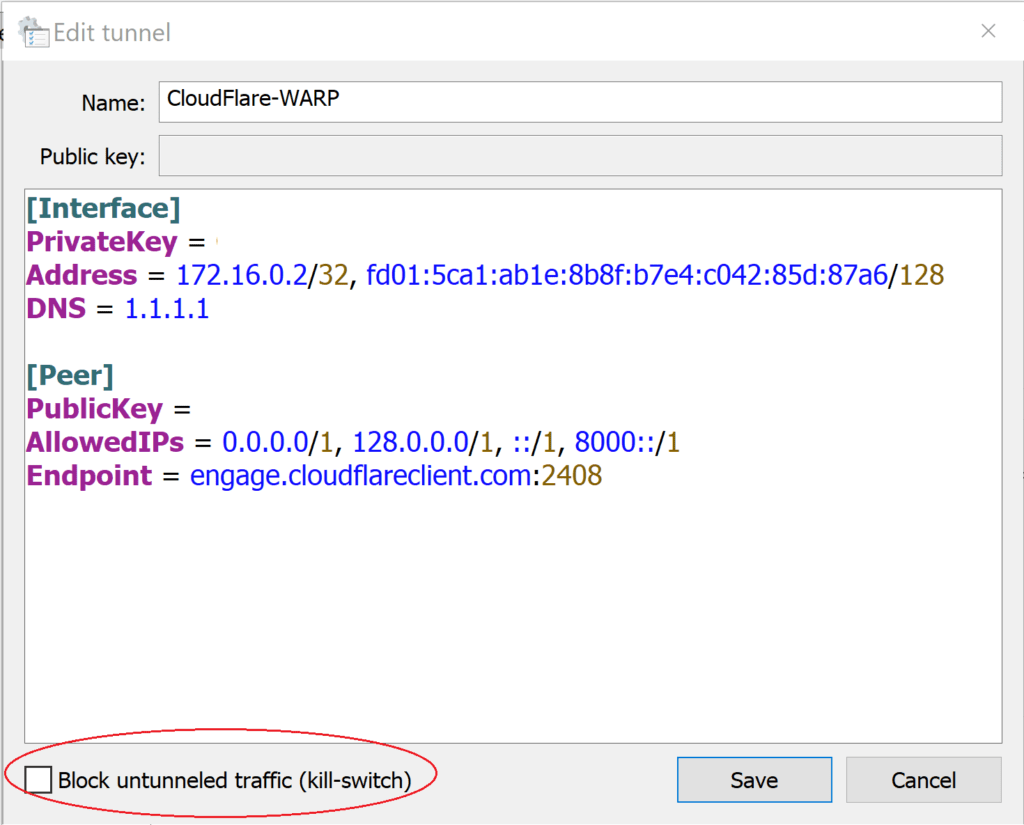
    Unblock Untunneled Traffic Kill Switch

  5. Hit Save button.
  6. Deactivate and re-activate the tunnel, if the app not yet already done so.
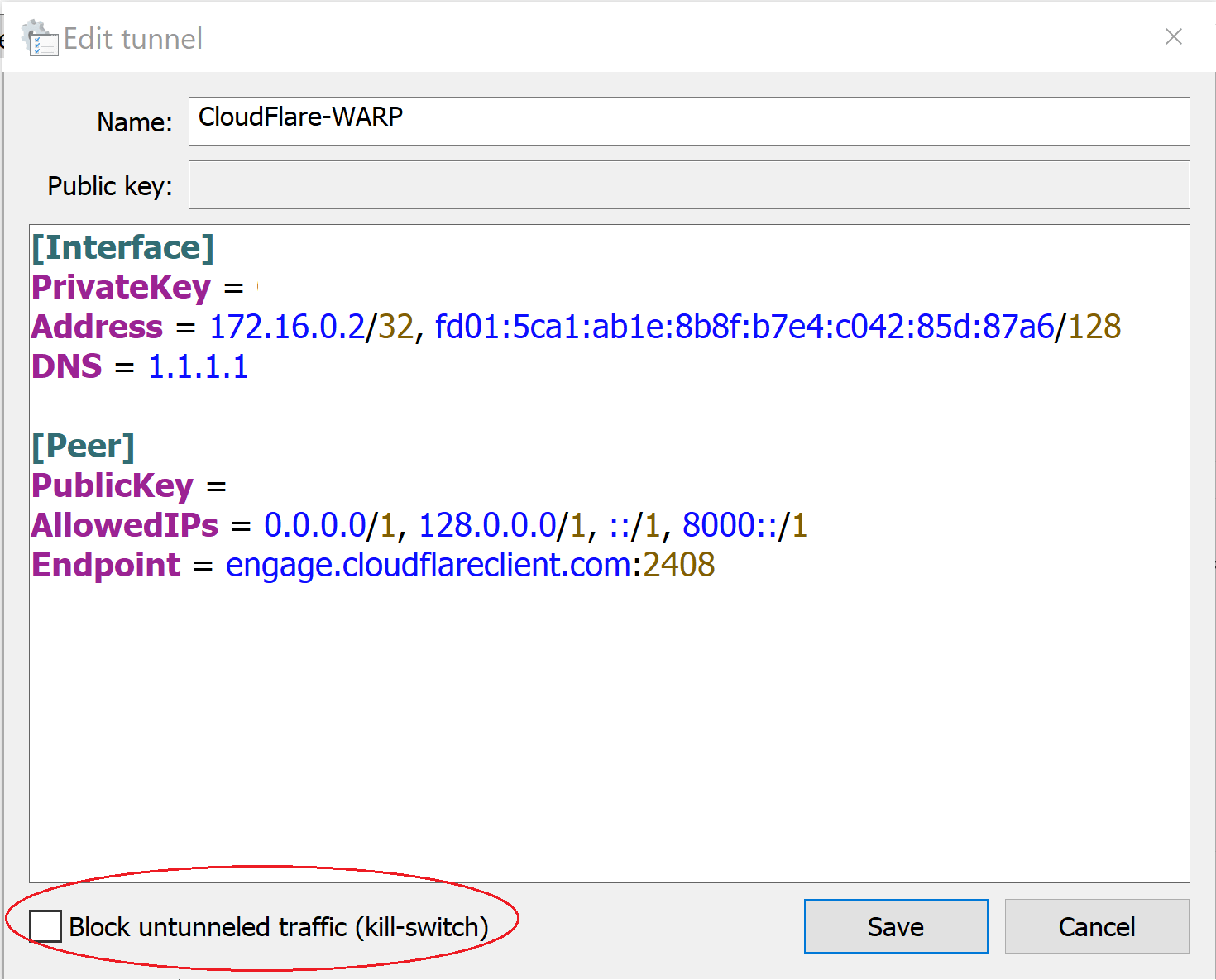
The deselecting of “block untunneled traffic (kill-switch)” option changes the following line:

AllowedIPs = 0.0.0.0/0, ::/0

To:

AllowedIPs = 0.0.0.0/1, 128.0.0.0/1, ::/1, 8000::/1

The allowed IPs value tells WireGuard tunnel from which incoming traffic for this peer is allowed and to which outgoing traffic for this peer is directed. By using a more specific route which is always preferred over a more general route, it may be triggering some specific actions or controls from within WireGuard on Windows machine that allows local network traffic to be routed properly, instead of blocking them.

About the Author:

LK is a technology writer for Tech Journey with background of system and network administrator. He has be documenting his experiences in digital and technology world for over 15 years. Connect with LK through Tech Journey on Facebook, Twitter or Google+.
Page load link
Go to Top