





\\Remote-Server\Path is not accessible. You might not have permission to use this network resource. Contact the administrator of this server to find out if you have access permissions.
The account is not authorized to log in from this station.
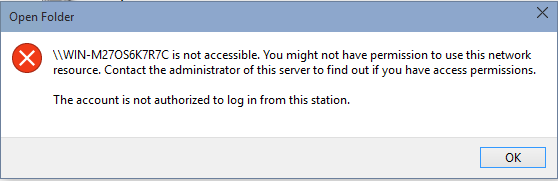
Note: The error message may change as Microsoft finalized Windows 10, but the symptom is the same.
Cause
The issue happens because Microsoft decided to “help” you to be more secure, by disabled guest access to remote file access without an account (i.e. user name and password). Microsoft explained:
The security change is intended to address a weakness when using guest access. While the server may be fine not distinguishing among clients for files (and, you can imagine in the home scenario that it doesn’t matter to you which of your family members is looking at the shared folder of pictures from your last vacation), this can actually put you at risk elsewhere. Without an account and password, the client doesn’t end up with a secure connection to the server. A malicious server can put itself in the middle (also known as the Man-In-The-Middle attack), and trick the client into sending files or accepting malicious data. This is not necessarily a big concern in your home, but can be an issue when you take your laptop to your local coffee shop and someone there is lurking, ready to compromise your automatic connections to a server that you can’t verify. Or when your child goes back to the dorm at the university. The change we made removes the ability to connect to NAS devices with guest access, but the error message which is shown in build 9926 does not clearly explain what happened. We are working on a better experience for the final product which will help people who are in this situation.
Resolution
Microsoft recommended to add an explicit user account and password on your NAS device or remote server which hosts the shared folders or remote file access, and use that account for the connections. Or you can use HomeGroup if everything is running Windows 7 or newer. As Windows 10 can remember the user name and password credentials, so it’s a one-time inconvenience to help secure your data and connections.
But thanks Microsoft. Remote file access has always included a way of authenticating with user name and password before the access is granted to connect to a file server. The fact that users are still setting up the file sharing with guest access, where everyone can connect without a user accounts shows there is a need for accessing remote files and folders without worrying about user accounts authenticating.
To re-enable the guest access to remote shared folders and network locations in Windows 10:
- Run Registry Editor (REGEDIT).
- Navigate to the following registry key:
HKEY_LOCAL_MACHINE\SYSTEM\CurrentControlSet\Services\LanmanWorkstation\Parameters
- Right click on the Parameters key name, and select New -> DWORD (32-bit) Value.
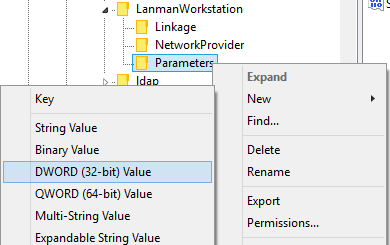
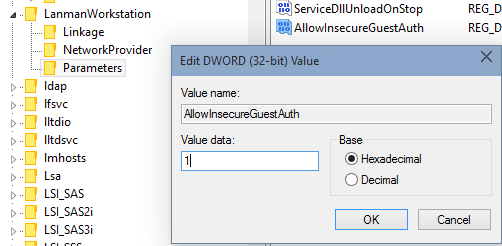
- Name the new value as AllowInsecureGuestAuth and set its value data to 1.
- You should be able to access CIFS / SMB / Samba network shares instantly without login.
Update: If you’re using a Microsoft Account (MSA) to sign into Windows 10, you may also need to create a domain user account with proper access permissions configured in Samba or Windows Shared Folders on the remote server for authentication purpose, as Windows 10 may assume those logging in with MSA as domain users and requires higher trust level for security.
The solution is to create a local user that had the same username with Microsoft Account (the [email protected] or [email protected] email address) used to sign onto Windows 10. In Windows, you can use Control Panel or PC Settings app to create a new local user account, while in Linux, uses useradd, passwd, and usermod to create the local user account, set its password and add it to the user groups which has the access rights in Samba.
Once you added the user account in remote server to connect to, time to add the user credentials for the network share to your system. To do so:
- Open Power Users Quick Access menu and select Control Panel.
- Go to User Accounts.
- Click or tap on Manage Windows Credentials. Or, go to Credentials Manager then Windows Credentials tab.
- Click or tap on Add a Windows credential.
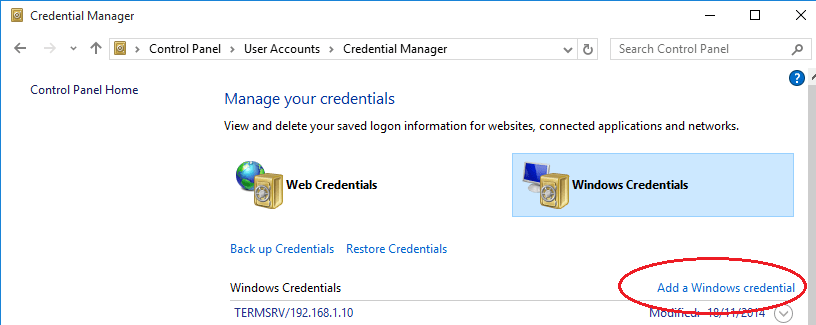
- Enter the remote server computer name as the Internet or network address, and then enter the user name and password similar to MSA created on the remote server.
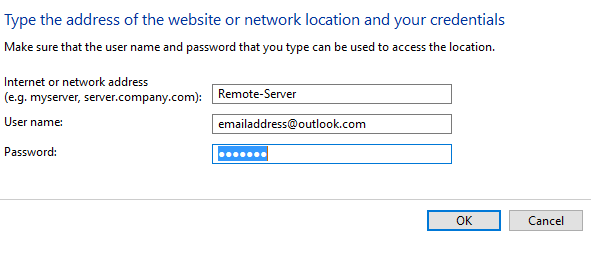
- Hit OK when done.
You can now try to connect to network shared folders.
About the Author: LK
