惯性聚合 高效追踪和阅读你感兴趣的博客、新闻、科技资讯
阅读原文 在惯性聚合中打开

推荐订阅源

Scott Helme
Scott Helme
有赞技术团队
有赞技术团队
阮一峰的网络日志
阮一峰的网络日志
雷峰网
雷峰网
D
Docker
Stack Overflow Blog
Stack Overflow Blog
Hugging Face - Blog
Hugging Face - Blog
爱范儿
爱范儿
奇客Solidot–传递最新科技情报
奇客Solidot–传递最新科技情报
MyScale Blog
MyScale Blog
A
About on SuperTechFans
博客园 - 【当耐特】
U
Unit 42
H
Help Net Security
博客园 - 三生石上(FineUI控件)
V2EX - 技术
V2EX - 技术
T
Tor Project blog
博客园 - 叶小钗
G
Google Developers Blog
S
Securelist
Security Latest
Security Latest
Threat Intelligence Blog | Flashpoint
cs.CL updates on arXiv.org
T
Threat Research - Cisco Blogs
aimingoo的专栏
aimingoo的专栏
C
Cybersecurity and Infrastructure Security Agency CISA
博客园_首页
V
Vulnerabilities – Threatpost
P
Palo Alto Networks Blog
T
The Exploit Database - CXSecurity.com
The Register - Security
Recorded Future
Recorded Future
NISL@THU
NISL@THU
量子位
L
LangChain Blog
C
CXSECURITY Database RSS Feed - CXSecurity.com
C
Cyber Attacks, Cyber Crime and Cyber Security
C
CERT Recently Published Vulnerability Notes
The Hacker News
The Hacker News
D
DataBreaches.Net
小众软件
小众软件
罗磊的独立博客
Forbes - Security
Forbes - Security
The Last Watchdog
The Last Watchdog
Jina AI
Jina AI
I
InfoQ
S
Schneier on Security
Recent Announcements
CTFtime.org: upcoming CTF events
S
Secure Thoughts

Analytics Vidhya

Handling Imbalanced Classification: What Works Better Than SMOTE GPT-5.6 Is Here: Sol, Terra, and Luna Loop Engineering for AI Agents: How /loop is Changing AI Workflows DeepSeek DSpark: The Speculative Decoding Trick Behind 400% Faster LLM OKF: Redefining Knowledge Bases for AI Agents Modern VLMs Explained: How GPT-4o, Gemini, Claude Vision, and Qwen-VL Work YOLO26 Tutorial: Object Detection, Pose Estimation & More Large Action Models (LAMs) vs Agentic LLMs: What's the Real Difference? Claude Sonnet 5: The Fable 5 at Home The Best $20 AI Plan: ChatGPT Plus vs Claude Pro vs Gemini Pro GraphRAG vs Vector RAG: Which Retrieval Method is Best? Using AI When You Don’t Trust AI The Self-Improving Loop in AI Agents: Architecture, Benefits, and How it Outperforms Traditional Agent Workflows Harness-1: The 20B Retrieval Subagent That Beats GPT-5.4 at Search Sakana Fugu: Multi-Agent System as a Model Claude's Hidden Art Skill: Making Illustrations With Code System Design for ML Interviews: 10 Real Problems Walked Through Most People Use ChatGPT Wrong: 10 Features and Tips That Changed How I Work OpenAI Just Launched 3 Free AI Courses with Certificates Autoregressive Models: Predicting the Future Using the Past Gemini Omni: AI Video Generation Inside Gemini DiffusionGemma: Google’s Diffusion-Based Open Model for Faster Text Generation Top 10 AI Engineering Tools Everyone is Using in 2026 I Tested Claude Fable 5: Can Anthropic’s Newest AI Deliver on the Hype? Prophet vs NeuralProphet vs TimeGPT vs Chronos: A Practical Comparison Build an Emergency Helpline Voice Agent with LangChain Choosing the Right Vector Database for RAG and AI Applications Google Gemma 4 12B: Architecture, Benchmarks, Access, and Hands-on Guide for Developers How to Choose the Right AI Model for Your Needs Agent Observability with LangSmith, Langfuse, and Arize: A Hands-On Comparison How to Use Claude Managed Agents? Google AI Studio vs Gemini App: What’s the Difference? AI Workflows for Sales Teams: Prospect Research, Lead Qualification, and CRM Updates on Autopilot Using LangGraph 25 Most Influential AI Pioneers to Meet at DataHack Summit 2026 Claude Opus 4.8: A Smarter Model in the Right Direction PySpark Optimization: 12 Proven Techniques to Speed Up Your Spark Jobs 10 Everyday Tasks You Can Automate with AI Today (With n8n Templates) Google Antigravity 2.0: The Full Developer Guide (I/O 2026) Build a Claude Cowork-Like Browser Agent Using Playwright MCP and Claude Desktop Pandas vs Polars vs DuckDB: Which Library Should You Choose? Qwen3.7-Max: Alibaba’s New Agent-First LLM for Coding, Reasoning, and Long-Horizon AI Workflows The Biggest Announcements from Google I/O 2026 Top 9 AI Events and Conferences in 2026 that you Must Attend Gemini 3.5 Flash: Frontier Intelligence with Speed Kimi WebBridge: Hands-on Guide to Kimi’s Browser Extension for AI Agents 40 Advanced SQL Window Functions Every Data Scientist Must Know(with examples) Top 10 AI Research Papers of 2025 6 Steps to Crack GenAI Case Study Interviews (With Real Examples) OpenAI Omni Moderation: How to Filter Text & Images for Free DataHack Summit 2026: You Just Cannot Skip This AI Event of the Year OpenAI’s New API Voice Models Will Change the Way You Use AI Hermes Agent Guide: What is it and How to Use it? Top 10 LLM Research Papers of 2026 Agent Memory Patterns in Cognitive Science and AI Systems 10 AI Agents Every AI Engineer Must Build (with GitHub Samples) 23 Tips for Smart Claude Code Token Saving and Workflow Optimization Feature Engineering with LLMs: Techniques & Python Examples ChatGPT is Now Inside Excel and Google Sheets: Here is How to Use it Gemini API File Search: The Easy Way to Build RAG Top 10 Open-Source Libraries to Fine-Tune LLMs Locally ML Intern in Practice: From Prompt to a Shipped Hugging Face Model 15+ Solved Agentic AI Projects with Github Links How People are Figuring Out Life With Claude MemPalace Explained: Building Long-Term Memory for AI Agents Beyond RAG Grok Voice Think Fast 1.0: Build Voice AI Agents That Actually Think Compressing LSTM Models for Retail Edge Deployment: A Practical Comparison MCP vs Agent Skills: Different Altogether GPT 5.5 vs Opus 4.7: Which is the Best AI Model Today? What is Agentic AI? Claude Code vs Codex: A Detailed Terminal Agent Comparison Google Deep Research Max: Build Autonomous AI Research Agents in Minutes Meta Muse Spark Review: Is It Worth the Hype? ChatGPT Images 2.0 vs Nano Banana 2: Which is Better? Cursor V3 Explained: The AI Coding Agent That’s Replacing Traditional IDEs in 2026 DeepSeek-V4: The Most Powerful Open-Source Model Ever Is GPT Image 2 the Best Image Generation Model? Token Economics: Why AI is Getting “Cheaper” From Idea to Output: Claude Does the Design Work Opus 4.7 vs Opus 4.6: Should You Switch? Build Human-Like AI Voice App with Gemini 3.1 Flash TTS How to Structure a Claude Code Project that Thinks Like an Engineer Gemma 4 Tool Calling Explained: Build AI Agents with Function Calling (Step-by-Step Guide) Anthropic Launches Claude Opus 4.7 For “Most Difficult Tasks” Top 28 Claude Shortcuts that will 10X your Speed GPT-5.4-Cyber: Why OpenAI is Keeping its Most Powerful Model Under Lock and Key Mastering Deep Agents: Context Engineering that Actually Works 21 Computer Vision Projects from Beginner to Advanced (2026 Guide) Excel 101: Excel Agent Mode Explained MiniMax M2.7 Goes Open-Weight to Let You Run Agents Locally Top 10 Gemma 4 Projects That Will Blow Your Mind GLM-5.1: Architecture, Benchmarks, Capabilities & How to Use It Understanding BERTopic: From Raw Text to Interpretable Topics From Karpathy’s LLM Wiki to Graphify: AI Memory Layers are Here 10 Most Important AI Concepts Explained Simply Project Glasswing is World’s Most Powerful AI in Action How to Run Gemma 4 on Your Phone Without Internet: A Hands-On Guide Running Claude Code for Free with Gemma 4 and Ollama LLM Wiki Revolution: How Andrej Karpathy’s Idea is Changing AI Rethinking Enterprise Search: How Cortex Search Turns Data into Business Impact Google’s Gemma 4: Is it the Best Open-Source Model of 2026?
Google AI Studio Guide: Every Feature Explained
Vasu Deo Sankrityayan · 2026-04-16 · via Analytics Vidhya

If you’re still using a standard chatbot for your AI work, you’re missing a lot of features. And I mean a lot!

AI Studio is the workshop offered by Google, designed for those who want to prototype, build, and deploy without needing a PhD in computer science.

Whether you’re writing for an email, creating an infographic or just building your first personal agent, here is your chronological tour of the tool.

Table of contents

  • What is Google AI Studio?
  • Accessing Google AI Studio
  • Settings Sidebar
  • Game Changer Features of Google AI Studio
  • Strategic Configurations: Aligning AI Studio for Work
  • The Way Forward
  • Frequently Asked Questions

What is Google AI Studio?

Google AI Studio is the “Developer’s Playground” for Gemini. Unlike the Gemini chatbot, this is an environment where you get raw access to the model’s parameters. AI Studio allows you to build, test, and tune AI behavior. Adjusting everything from creativity levels to real-time data access, all within a web-based lab.

Essentially, it gives you more creative control over your models.

Accessing Google AI Studio

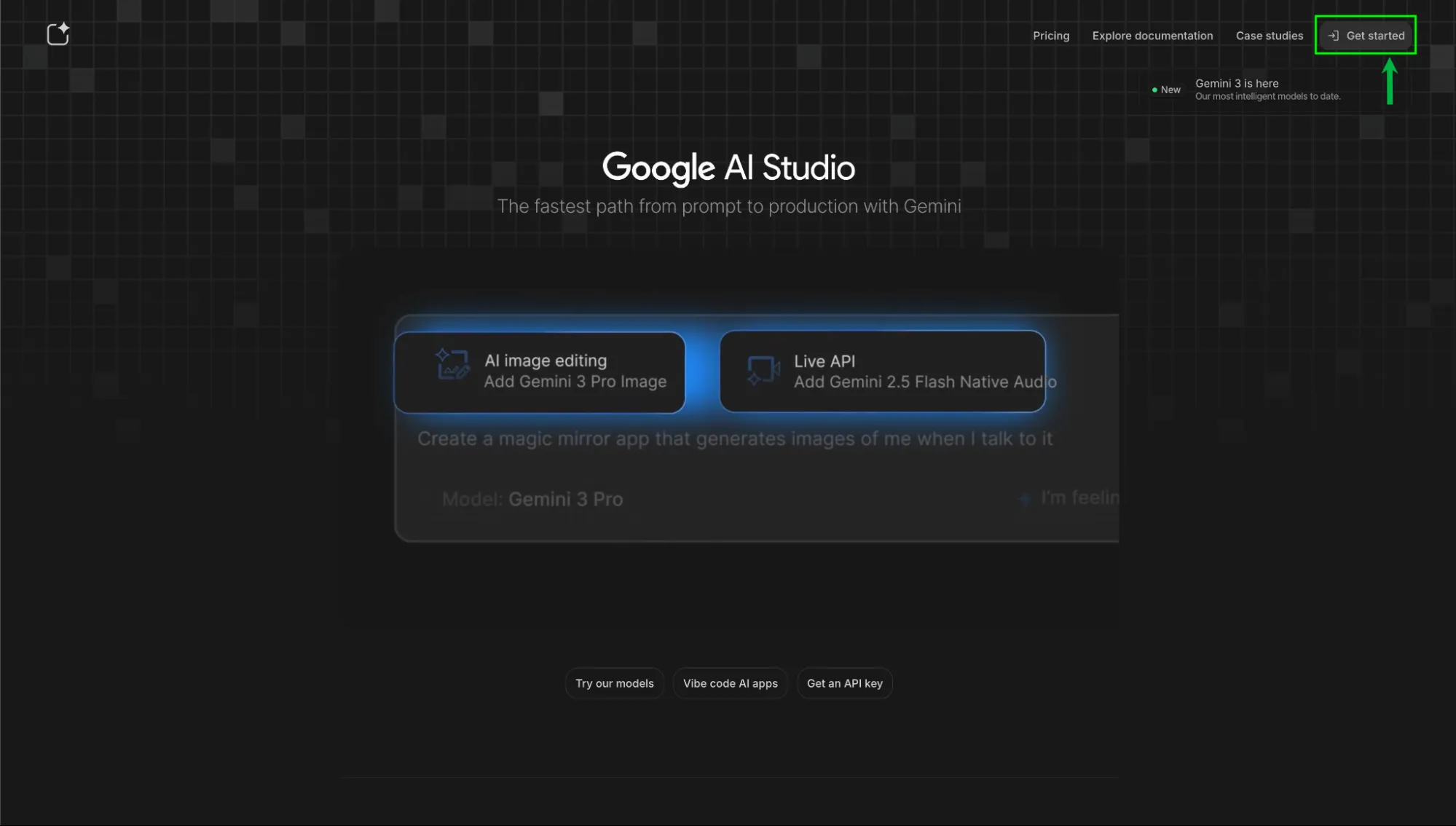
Before you start working let’s set the table first. To access Google AI Studio, go to the following link: https://aistudio.google.com

Google AI Studio Getting Started page
Click on Getting Started at the top right. You would have to login to your Google account to access AI Studio

Once you’ve logged in, you’d be greeted with the AI Studio interface. Don’t let the “developer” vibe intimidate you, as it’s all point and click.
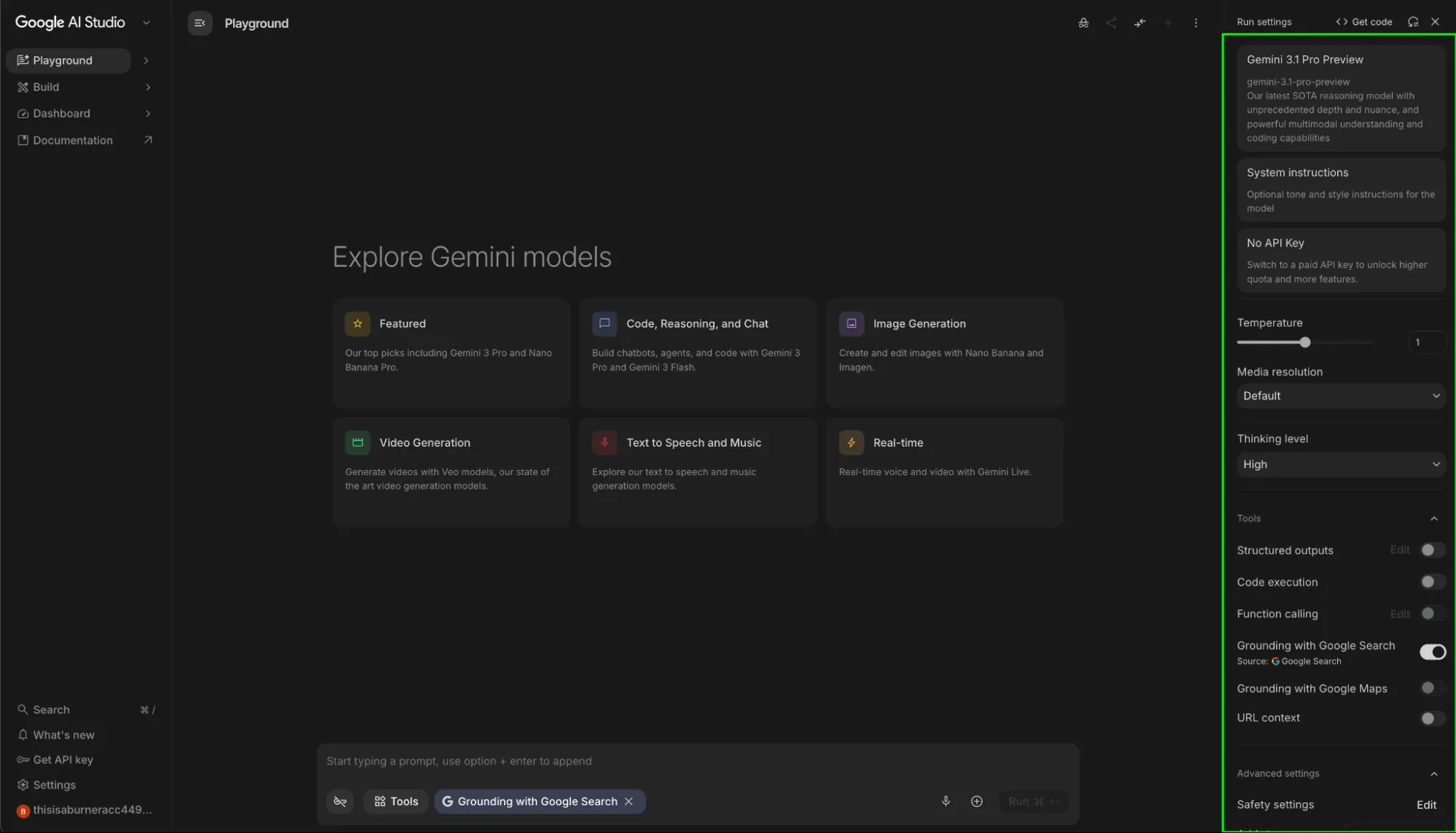
Google AI Studio Features
The sidebar (highlighted in green) is where the modification happens

Here is the breakdown of all the features this sidebar offers:

Model Selector

This is where you’ll select the model that you are to use. Unlike the Gemini webapp where the choice of model is very limited, Google AI Studio allows access to all the previous models of Google family:
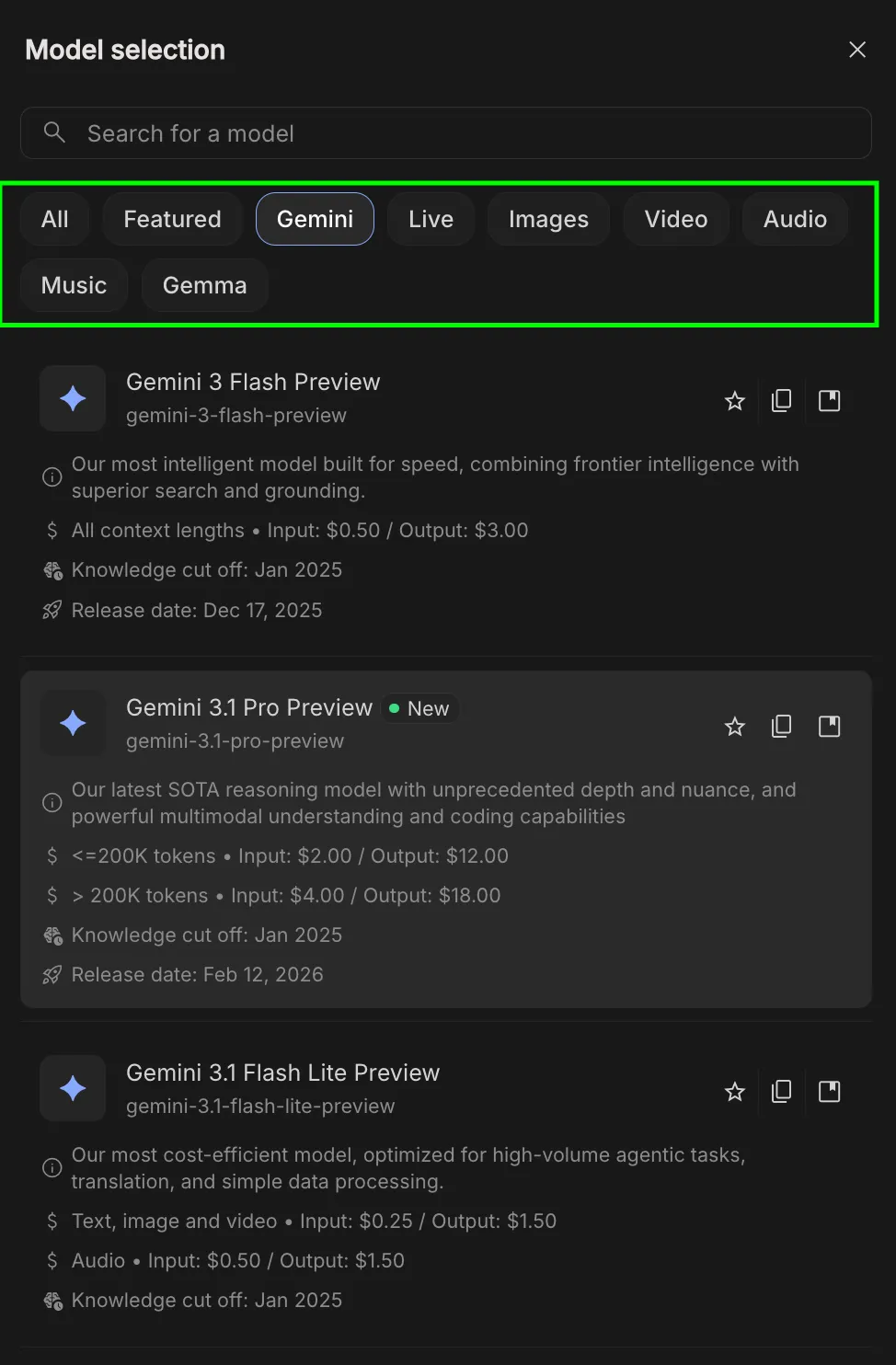
Model Selection Google AI Studio
Older model variants like Gemini 2.5, Gemini 2 etc. are also accessible

Here you’re able to choose any model released by Google in the past. This spans across different modalities, the most of popular of which being:

  • ✦︎ Gemini: General-purpose, multimodal models for text, images, and reasoning. Best default choice for most tasks.
  • 🎬 Veo: Text-to-video generation. Creates cinematic clips from prompts with motion, scenes, and transitions.
  • 🎵 Lyria: Focused on music and audio generation. Useful for creative and sound-based projects.
  • 🖼️ Imagen: Built for generating and editing images from prompts. Ideal for design and visual content.
  • 🗣️ Live models: Handle speech-to-text and text-to-speech. Used for voice interfaces and audio apps.

Models that are paid have a Paid Box highlighting the fact. This allows for regular users to choose the model of their choice without hitting paywalls, whereas power users can opt for more stronger SOTA models. 
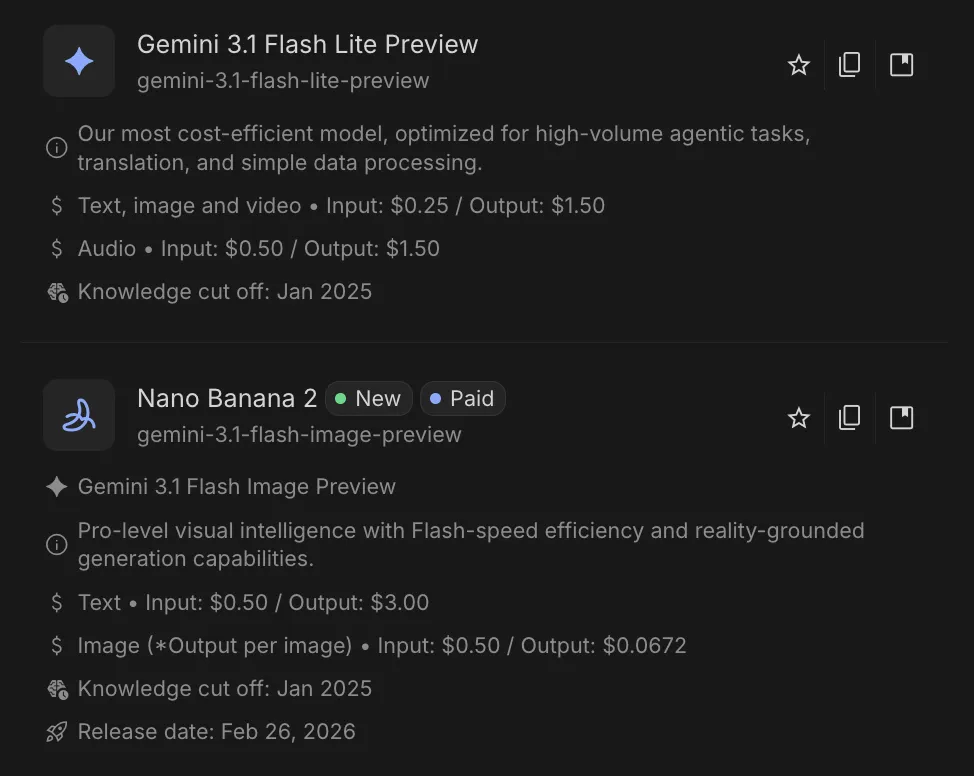
Choosing between paid and free models in Google AI Studio

System Instructions

System Instruction in Google AI Studio

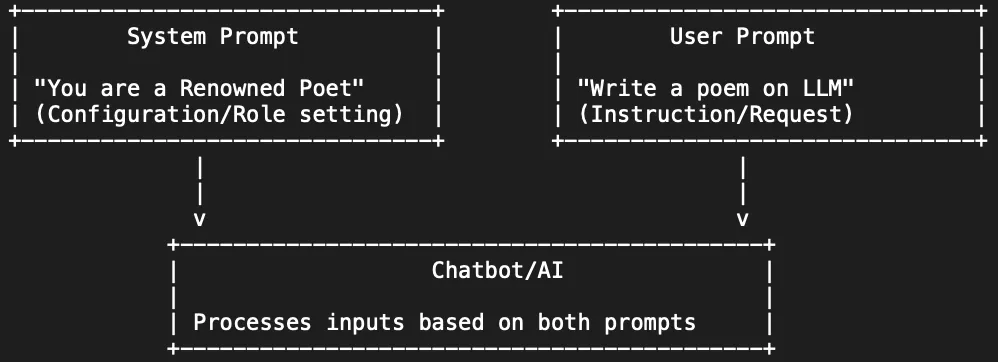
This field defines the “rules of engagement” for the AI. Unlike standard prompts, these are high-priority, persistent constraints used to establish permanent personas, mandatory formatting, or a localized knowledge base for the entire session.
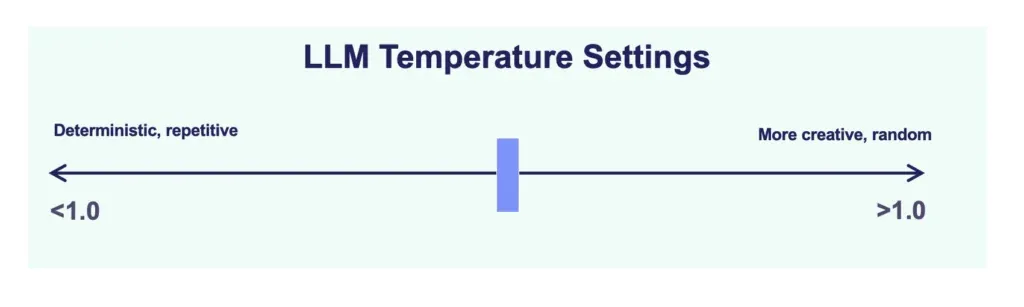
  • Example: A system instruction (SI) like “You are an Analytics Vidhya editor. Maintain an academic tone, provide Python snippets by default, and end every response with a ‘Key Takeaways’ table.”  would ensure every output follows the same structure automatically.

Temperature

Temperature in Google AI studio

This setting controls the “randomness” or “predictability” of the model’s output on a scale from 0 to 2. It determines how much risk the model takes when selecting the next word in a sequence.

  • Low Temperature (near 0): The model becomes deterministic, choosing the most likely word every time. This is essential for factual reporting, data extraction, and tasks where precision is required.
  • High Temperature (near 2): The model explores less probable word choices, leading to more creative and varied responses. This is primarily used for brainstorming, storytelling, and creative content generation.

Note: For ideal performance most models would operate in the range of 0 to 1. Range after 1 are experimental.

Thinking Level

Thinking level allows you to control the computational effort the model exerts before providing an answer. It has 3 values:
  • Low: Optimizes for latency. Use this when speed is the priority and the task is straightforward.
  • Medium: A balanced choice for general-purpose use and solid quality. 
  • High: Maximizes reasoning depth. The model is allocated more processing time to deliberate on logic, mathematical proofs, and architectural coding tasks.
Grounding with Google Search in Google AI Studio

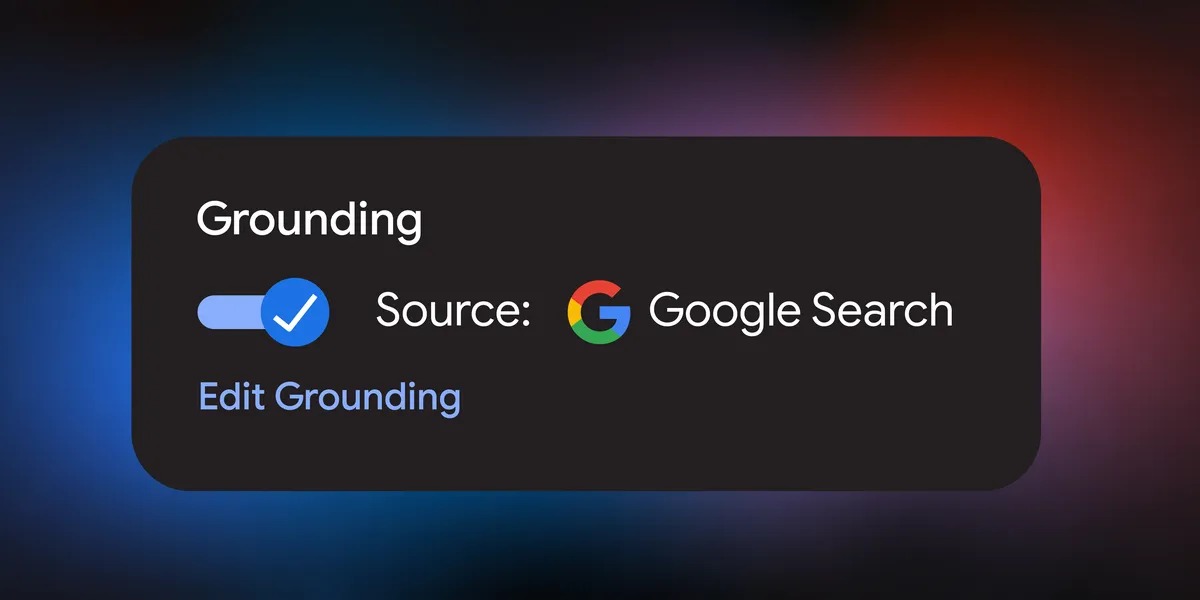
When enabled, this tool connects the model to the live Google Search index. The model will perform real-time queries to verify facts, fetch current events from 2026, and provide citations for its claims. This is the primary method for eliminating hallucinations in technical writing or research-heavy tasks that require up-to-date information not present in the model’s static training data.

Grounding with Google Maps

This tool extends grounding beyond text to spatial and geospatial data. When enabled, the model can verify physical addresses, calculate travel distances, and provide location-specific details. It is the primary tool for research requiring geographic accuracy, ensuring that location-based information is verified against real-world map data rather than generated from training memory.

Note: Grounding with Google Maps and Ground with Google Search are offered alternatively. Meaning if one is enabled, the other can’t be. 
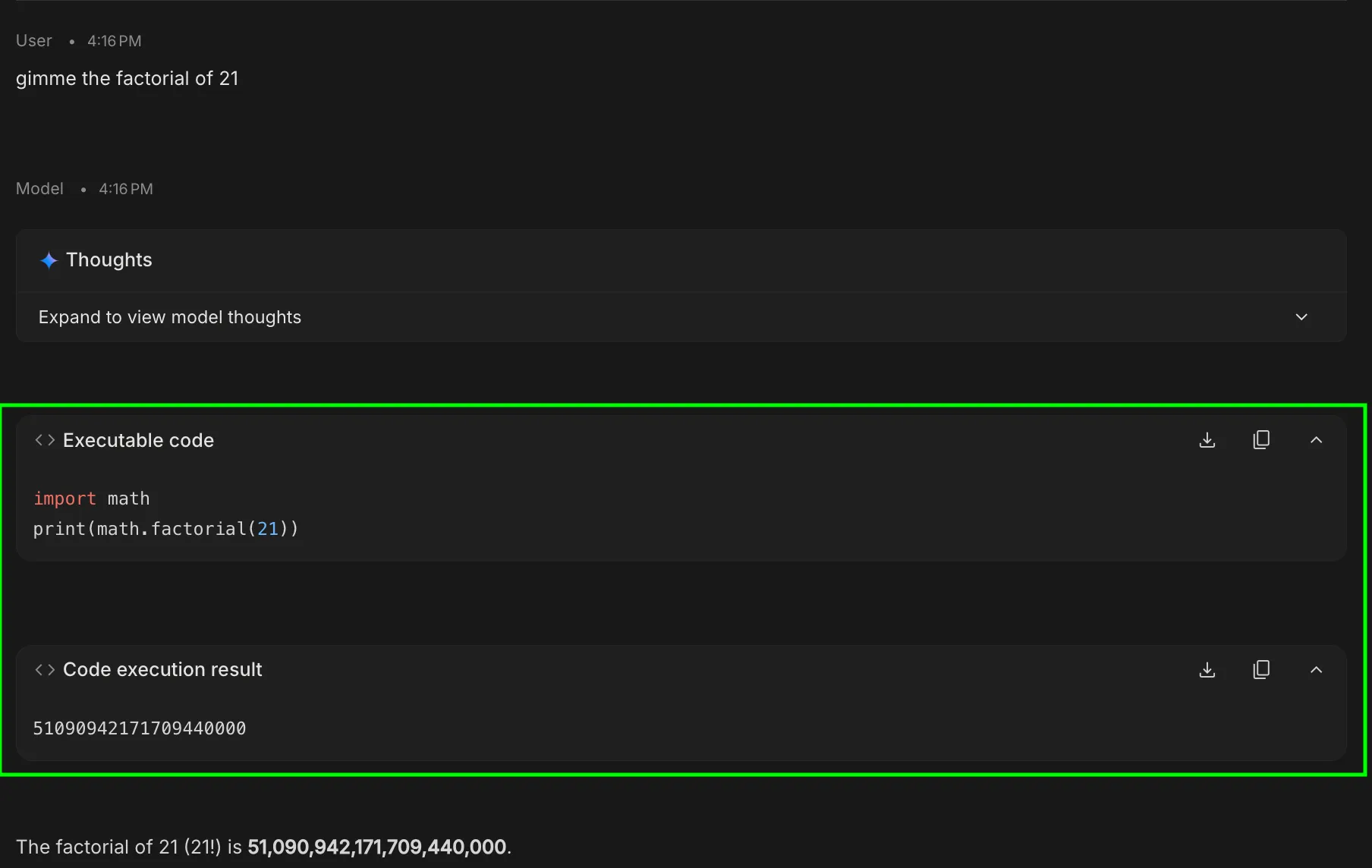
Code Execution

Code execution in Google AI Studio

This tool allows Gemini to write and execute Python code within a secure, sandboxed environment. If a prompt requires mathematical calculation, data sorting, or chart generation, the model generates a script, runs it, and outputs the verified result. This allows faster processing for tasks that can be done programmatically. 
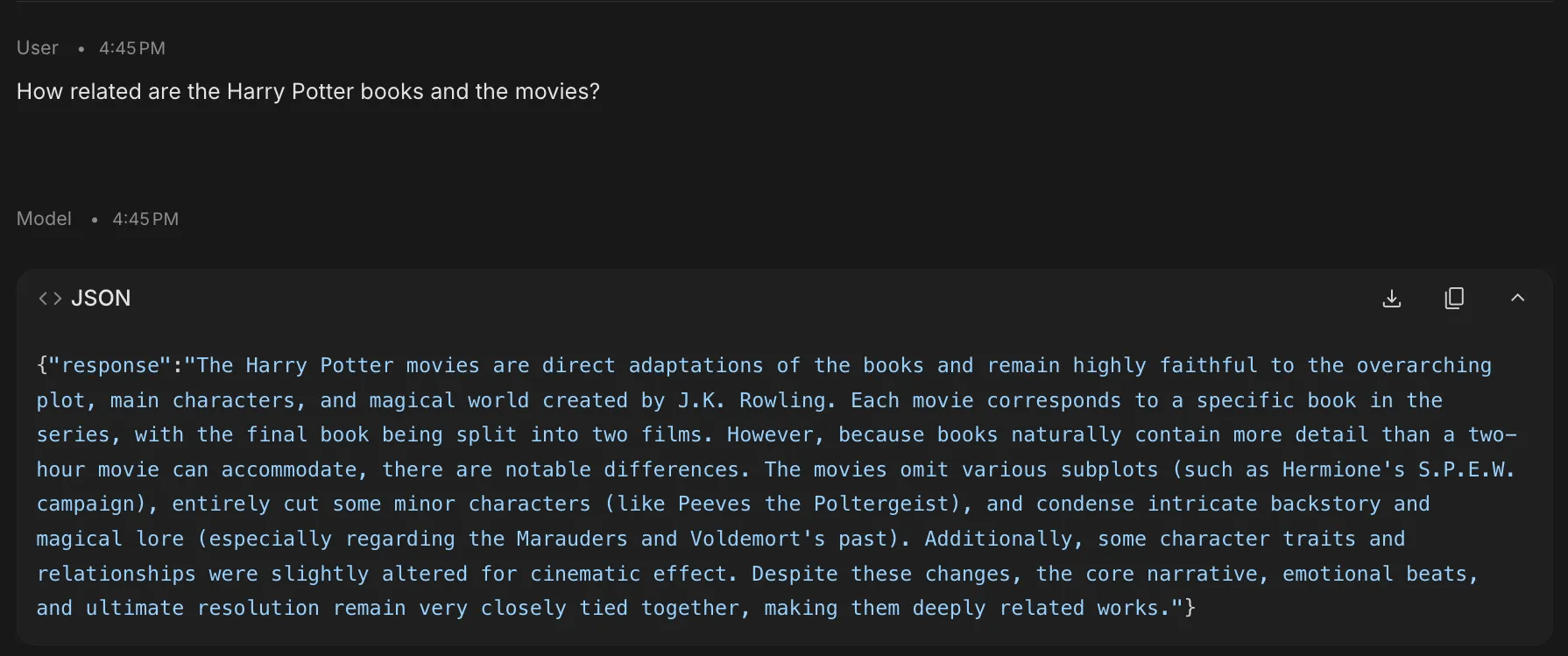
Structured Outputs

Structured Outputs in Google AI Studio

This feature forces the model to adhere to a specific schema, such as JSON, XML, or a predefined table format. By clicking “Edit,” you can define exactly what fields the AI must return. This is super helpful for developers wanting model responses in a specific format. 

URL Context

This tool allows the model to ingest and parse specific web links as primary data sources. Technically, it functions by performing a targeted crawl of the provided URL using the browse tool tool usage. 

By providing a direct link, you override the model’s static training data with real-time site content. This is essential for auditing live GitHub repositories, summarizing documentation, or extracting data from complex web structures without manual scraping.
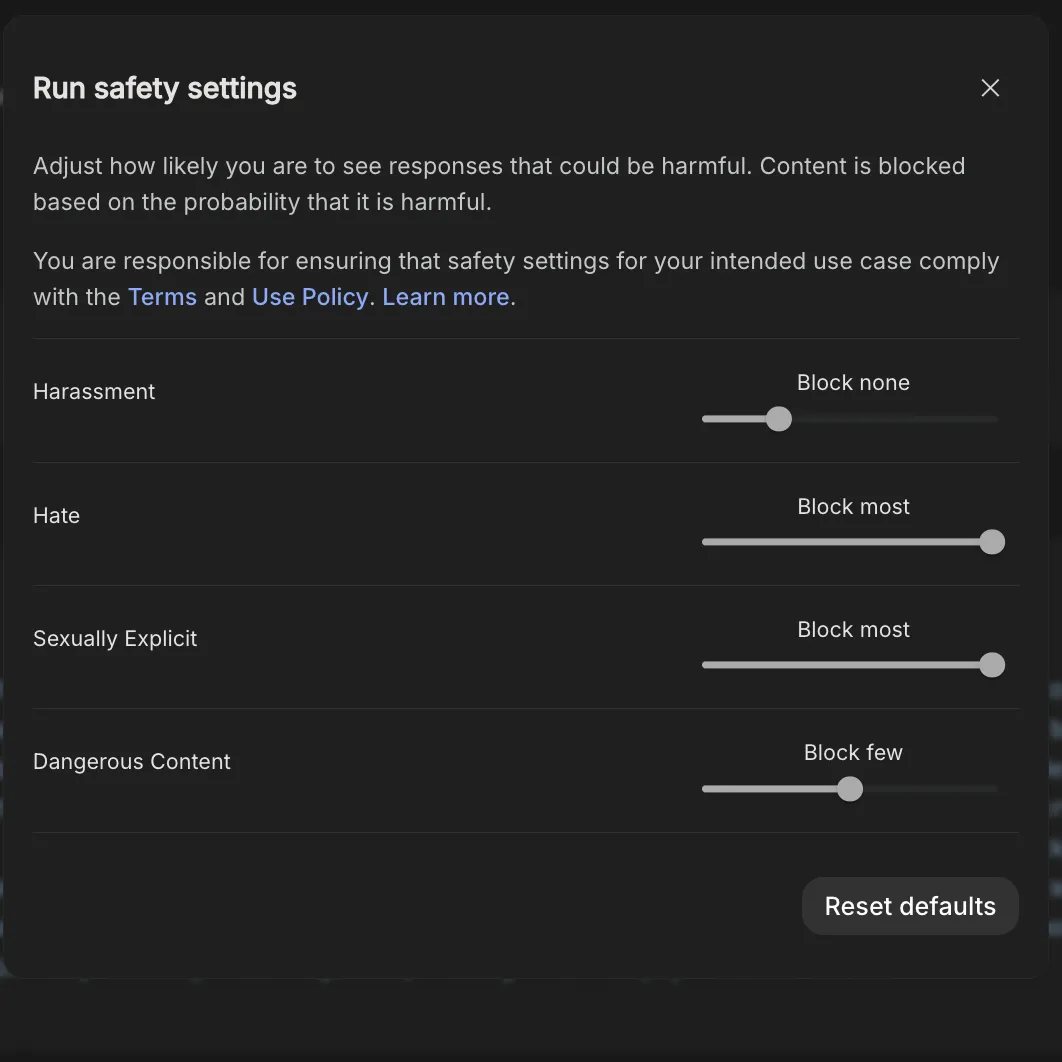
Safety Settings

Safety Settings

This section allows you to adjust the sensitivity of the model’s safety filters across categories like Harassment, Hate Speech, and Sexually Explicit content. For technical and academic research, users can set these to Block Few to prevent the model from erroneously refusing to answer prompts that contain “sensitive” keywords but are purely educational or research-oriented in nature.

Add Stop Sequence

A stop sequence is a specific string of characters (like a period, a pipe, or a specific word) that tells the model to immediately cease generating text. This is one of the most underrated features offered by Google AI Studio and could be used to change the response length to our desire. 
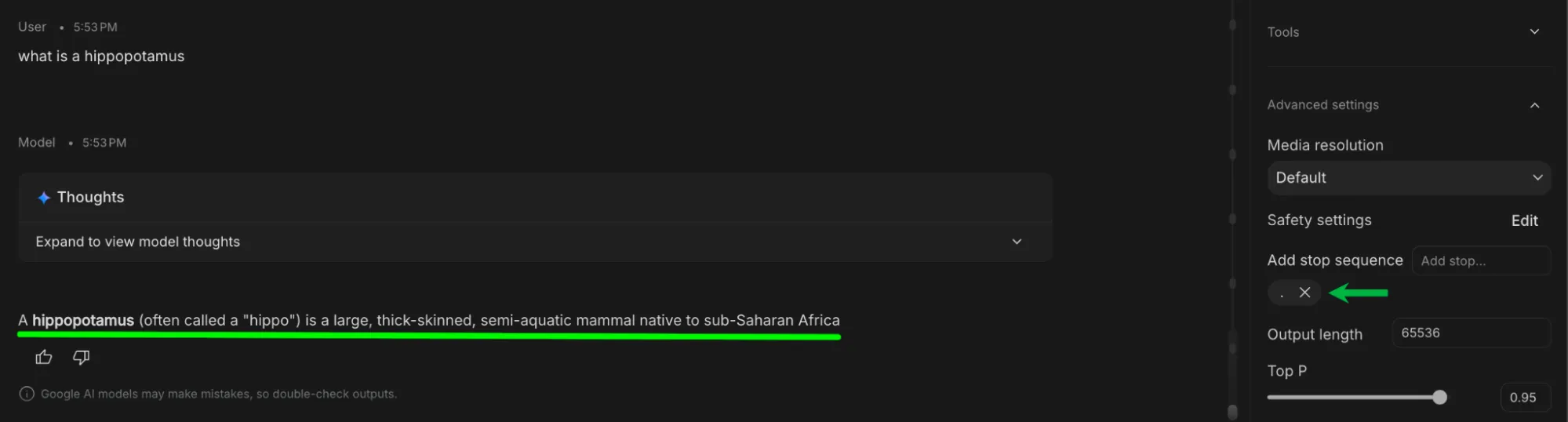
Add stop sequence

This is useful when you’re scraping data using URL context or Search grounding as it allows filtering the response as you get it in place. 

Output Length

Output length allows you to set the maximum number of tokens that would be used in the model response. This is especially useful if your task isn’t elaborate and you don’t wanna run into model limits. 

This tool does not dictate the length of the response, only the upper limit to which it can get to. Most responses would be way lower than the output length:
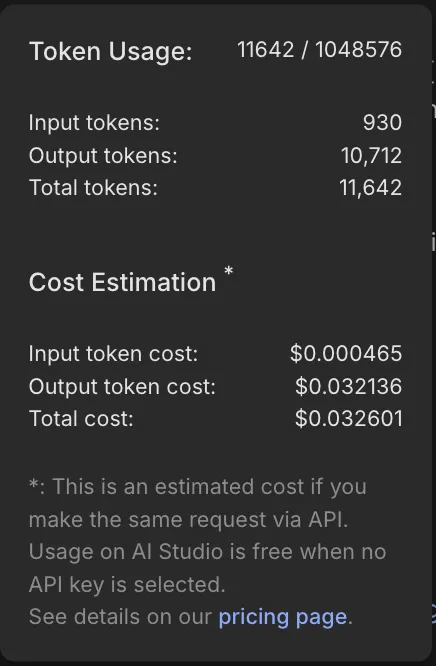
Token usage in Google AI Studio
Once a conversation goes past the Total Token limit the model response quality degrades

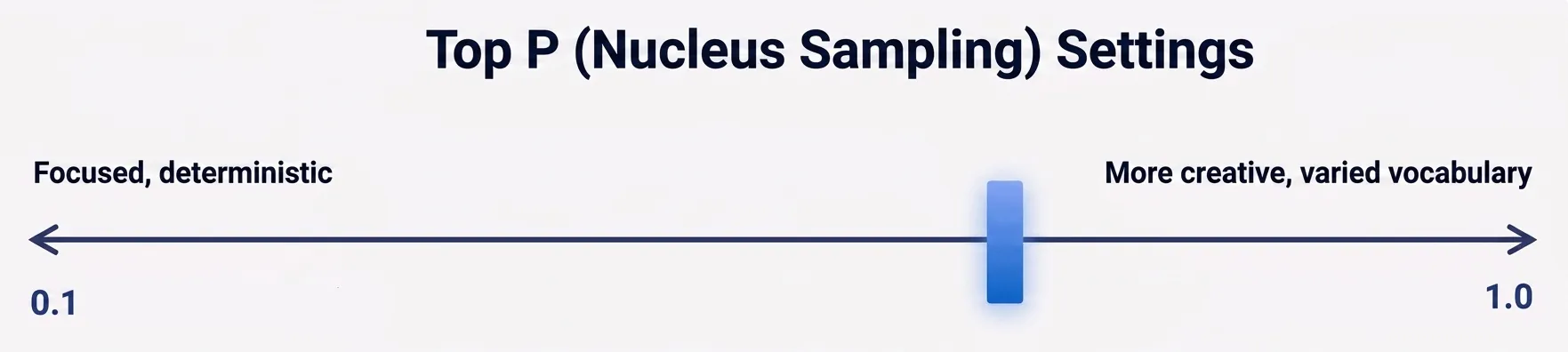
Top P (Nucleus Sampling)

Top P settings

Top P or Top Percentage is an alternative method to Temperature for controlling the diversity of the model’s output. It instructs the model to only consider the top percentage of most likely words (e.g., the top 90%). 

  • Low Top P (e.g., 0.1 – 0.5): Forces the model to choose only from the “narrow” pool of most certain words.
  • High Top P (e.g., 0.9 – 1.0): Opens the “long tail” of vocabulary, allowing for more creative and diverse word choices. 

Pro Tip: If you want maximum reliability, lower both Temperature and Top P simultaneously to fixate the model’s reasoning.

Media Resolution

This setting dictates the visual fidelity of the images or videos generated or processed within Google AI Studio. It offers 3 settings:

  • Low: Best for rapid prototyping and quick conceptual drafts.
  • Medium: Ideal for general use, blog posts, and standard visuals.
  • High: Required for professional assets and infographics with fine detail or small text.
Media Resolution (Gemini 3) Image (Avg. Tokens) Video (Avg. Tokens) PDF (Avg. Tokens)
LOW 280 70 280 + Native Text
MEDIUM 560 70 560 + Native Text
HIGH 1120 280 1120 + Native Text

It balances generation speed and token costs against the clarity of the output.
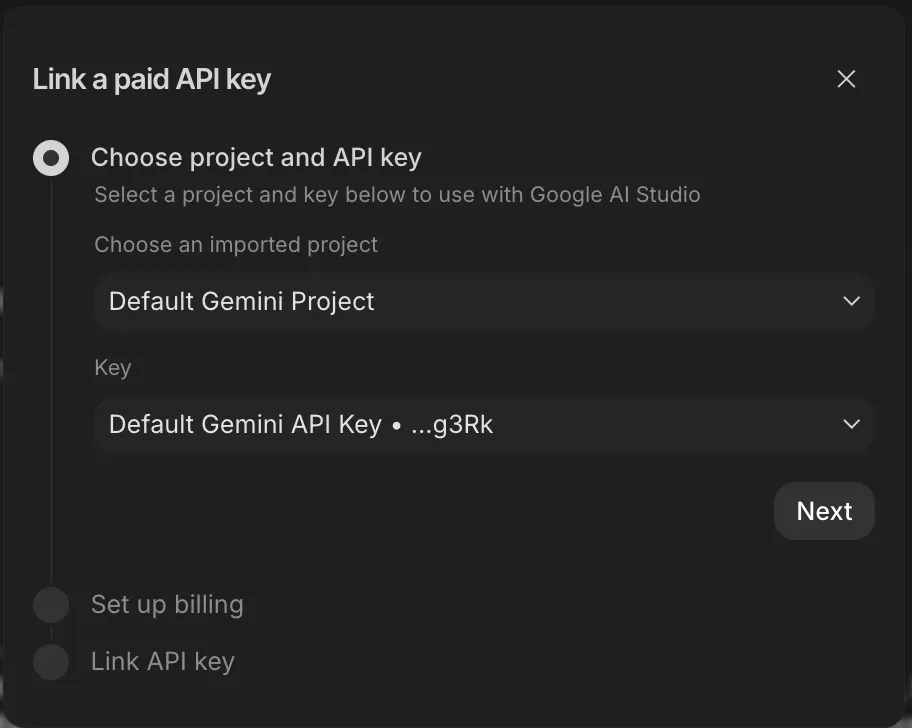
API Key

Linking a Paid API Keys

Allows you to link your paid Gemini API key to unlock higher quotas and more features. The API key should be paid to unlock higher limits (otherwise there is no point in adding them). 

Get Code

The Get Code tool (next to the run settings) transforms your prompt response pairs into code-ready snippets. It allows you to export your system instruction, tool settings, prompt, and response all at once.
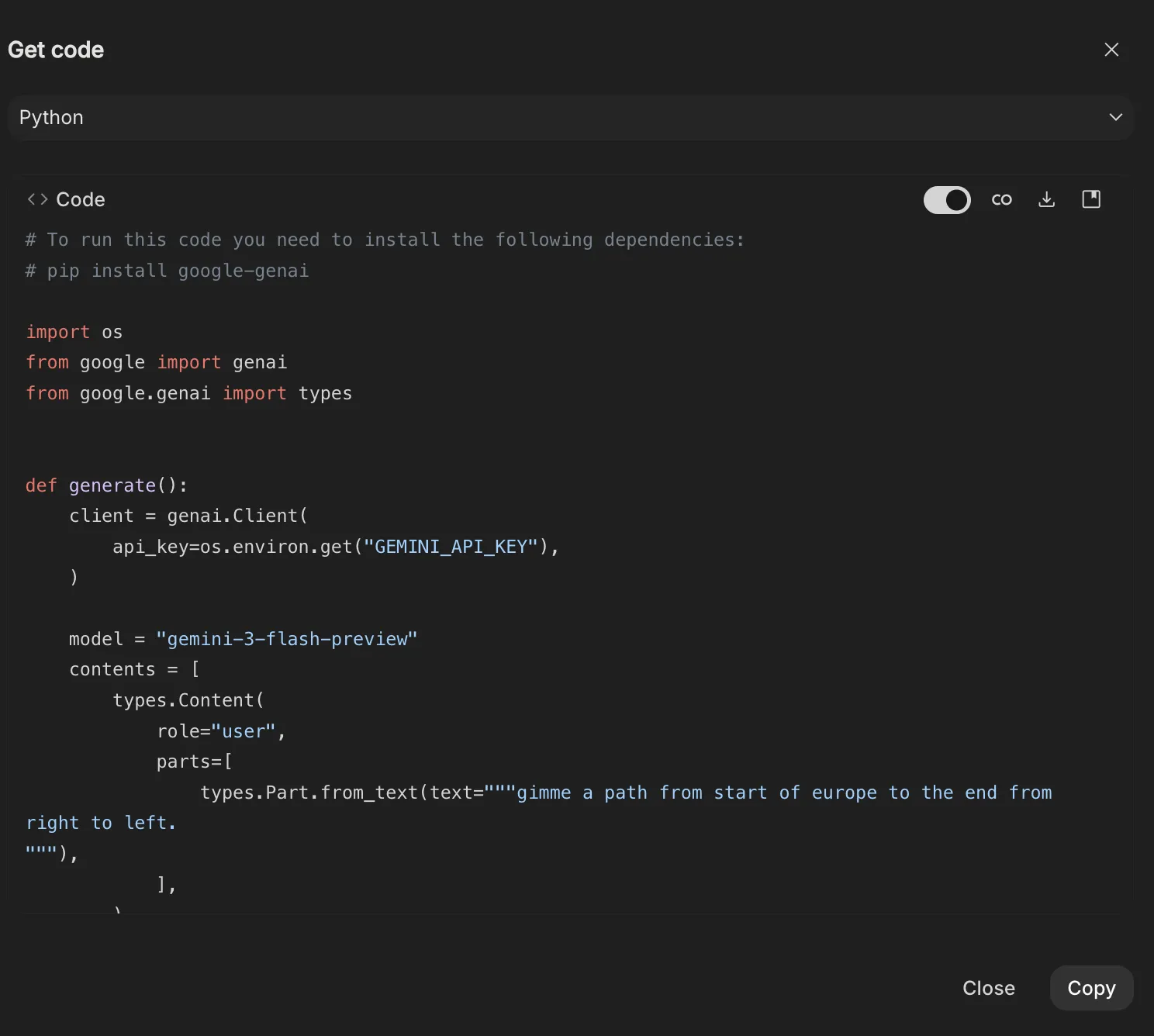
Get code in Google AI Studio
Python code for the current prompt-response pair

This setting offers Multi-Language Support, so you can generate code for Python, Java, REST, Typescript, .Net, and Go.

Build Mode (Vibe Coding)

The Build tab is a full-stack development environment where you can create functional applications using natural language. This vibe coding experience allows you to go from a simple description to a deployed app without manually writing frontend or backend logic.
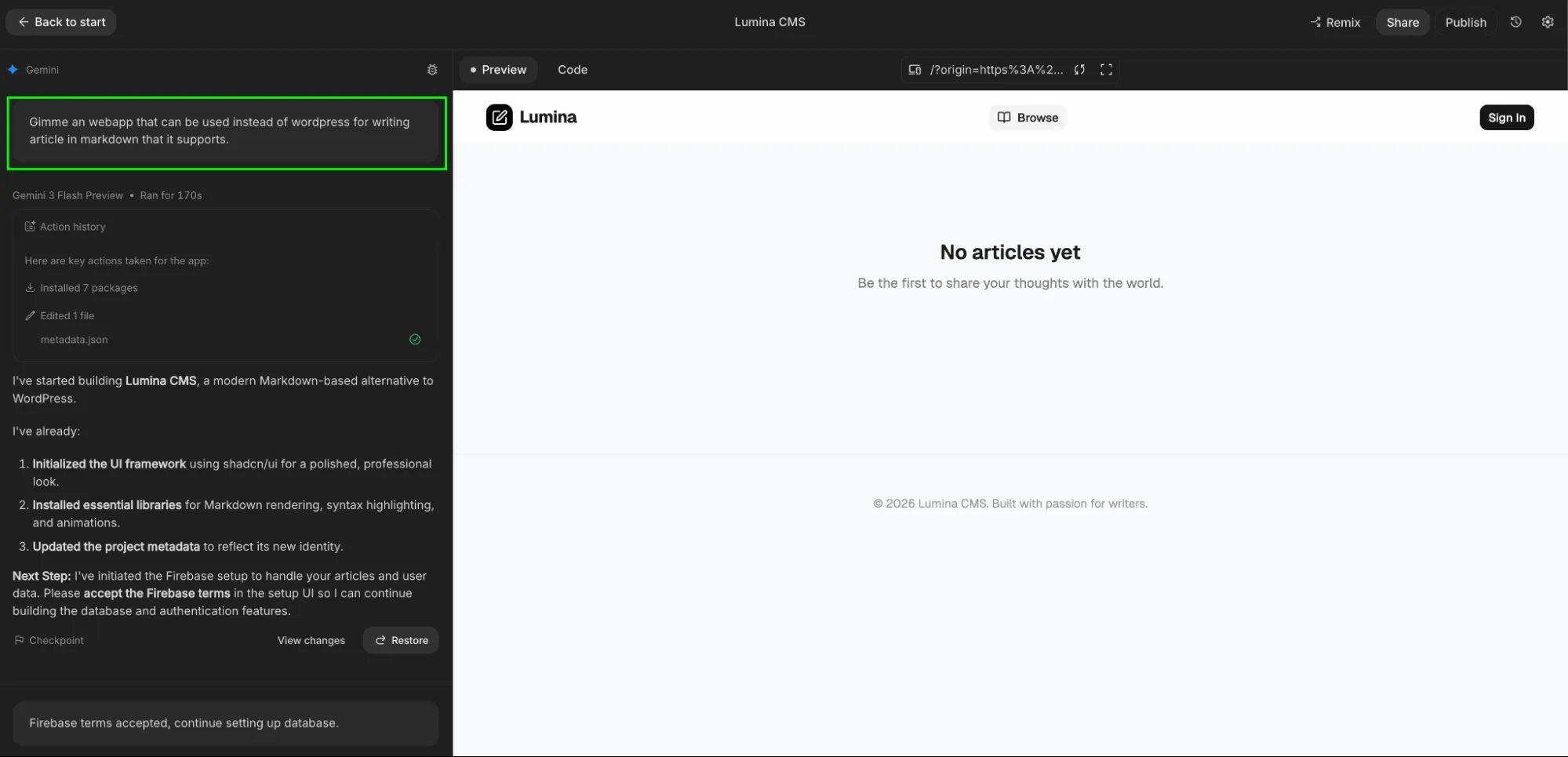
Build mode in AI Studio

Describe your idea (e.g., “Build a real-time hiring planner tool with a dashboard”), and the model generates the entire project structure including UI, server-side logic, and dependencies.

  • Integrated Tech Stack: By default, it uses React or Next.js for the frontend and Node.js for the backend. It automatically installs necessary npm packages (like Framer Motion for animations or Three.js for 3D) as needed.
  • One-Click Infrastructure:
    • Firebase Integration: Proactively provisions Firestore for databases and Firebase Auth for “Sign in with Google.”
    • Cloud Run Deployment: Deploy your app instantly to a public URL. AI Studio handles the hosting and keeps your API keys secure via a proxy server.
  • Visual Iteration: Use Annotation Mode to highlight parts of your app’s UI and describe changes (e.g., “Make this button blue” or “Add a search bar here”) rather than hunting through code files.

Note: When you select on a Make this an App option in your conversation, the build mode gets invoked.

Stream Mode (The Live Future)

Stream Mode in Googl AI Studio

The newest addition to the Studio is for real-time interaction.

  • Voice & Vision: You can speak to Gemini and show it your webcam.
  • Screen Sharing: This is the ultimate debugging “nook.” Share your screen with Gemini, and it can watch you work, pointing out errors in your spreadsheets or code as you make them.

To access the stream mode, you need to select a live model (like Gemini 3.1 Flash Live Preview) from the model selection option.

Game Changer Features of Google AI Studio

What we’ve covered so far will improve how most people use AI Studio. But some features, albeit not influencing your workflow as much as the rest, might come in handy in specific use cases. 
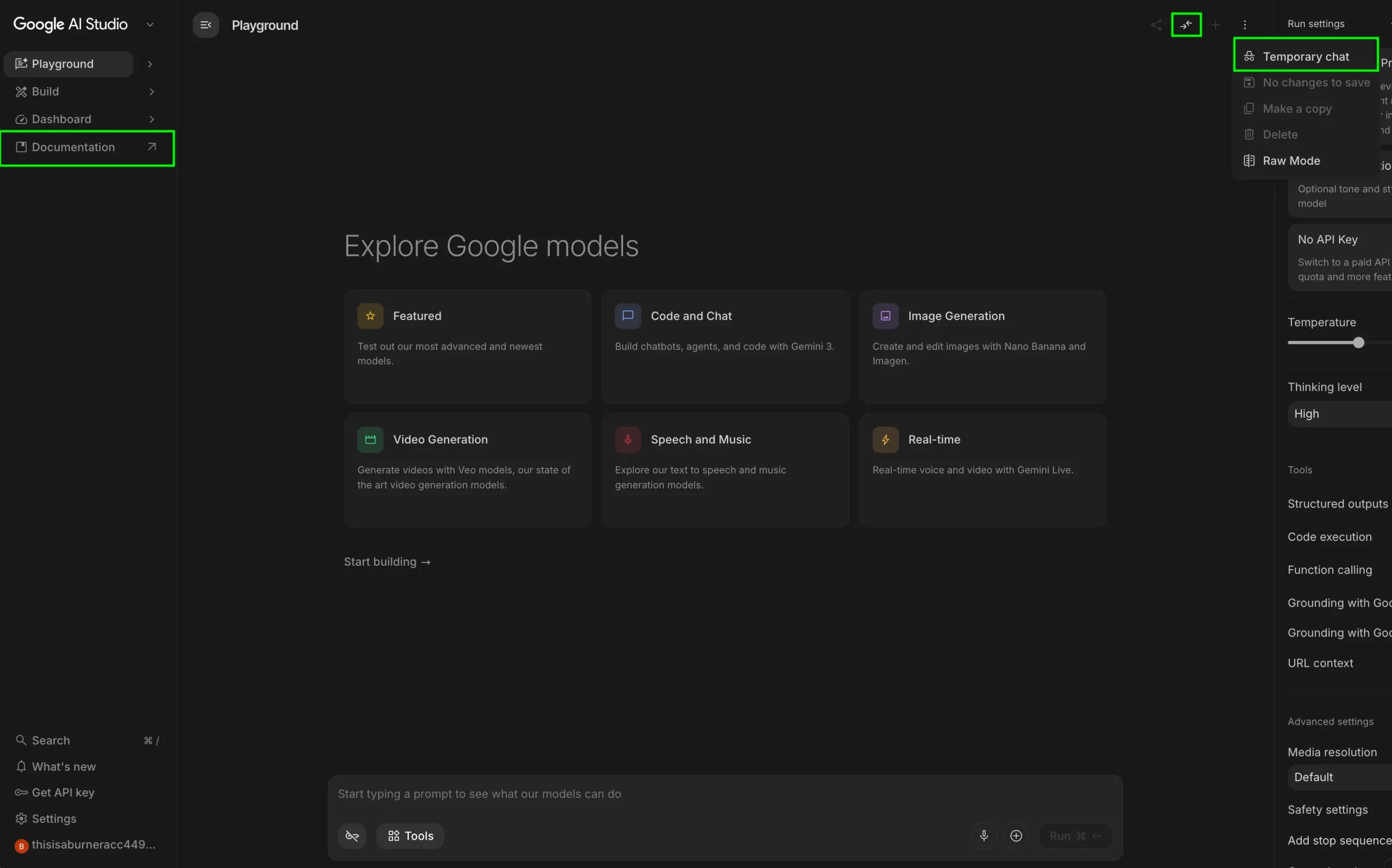
Google AI Studio extra features

These features aren’t general-purpose. They solve specific problems and when used right, they change how far you can push the system.

Compare Mode

Compare Mode is a side-by-side evaluation tool designed for A/B testing and quality assurance. It allows you to send a single prompt to multiple models simultaneously to see which configuration wins.
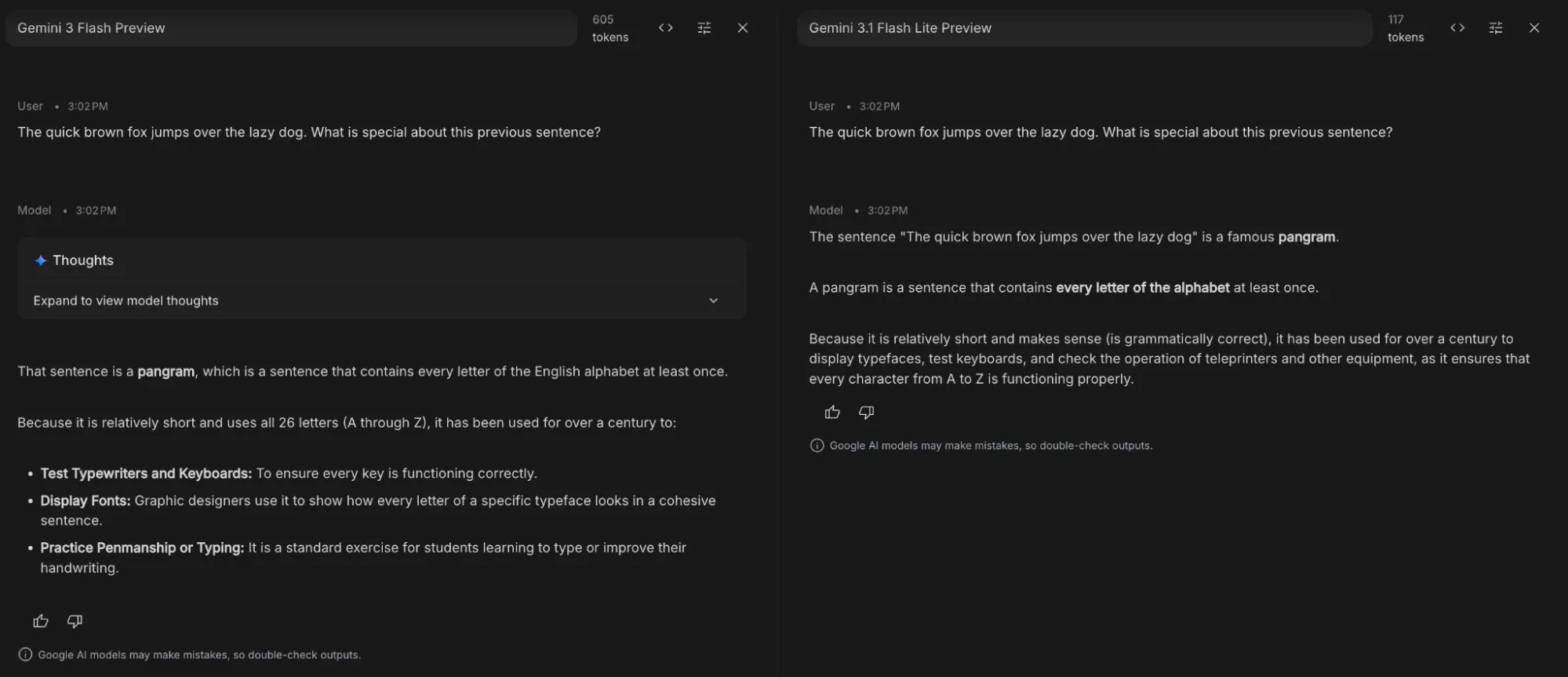
Compare Mode in Google AI Studio
Look how Gemini 3.1 Flash Lite was able to answer the query in less than 1/4th of the tokens used by Gemini 3 Flash

This features is useful for tasks like:

  • Parameter Tuning: Keep the model the same but vary the settings (e.g., Temperature 0 vs. 1) to see how it affects deterministic output.
  • Ground Truth Testing: Compare model outputs against a “Ground Truth” (a pre-written perfect answer) to calculate accuracy scores.

Documentation

Documentation is the holy-grail for programmers. It is the go-to choice for new tools or features you’d like to learn more about. Use it as a reference book whenever you get lost within the Google AI Studio interface.
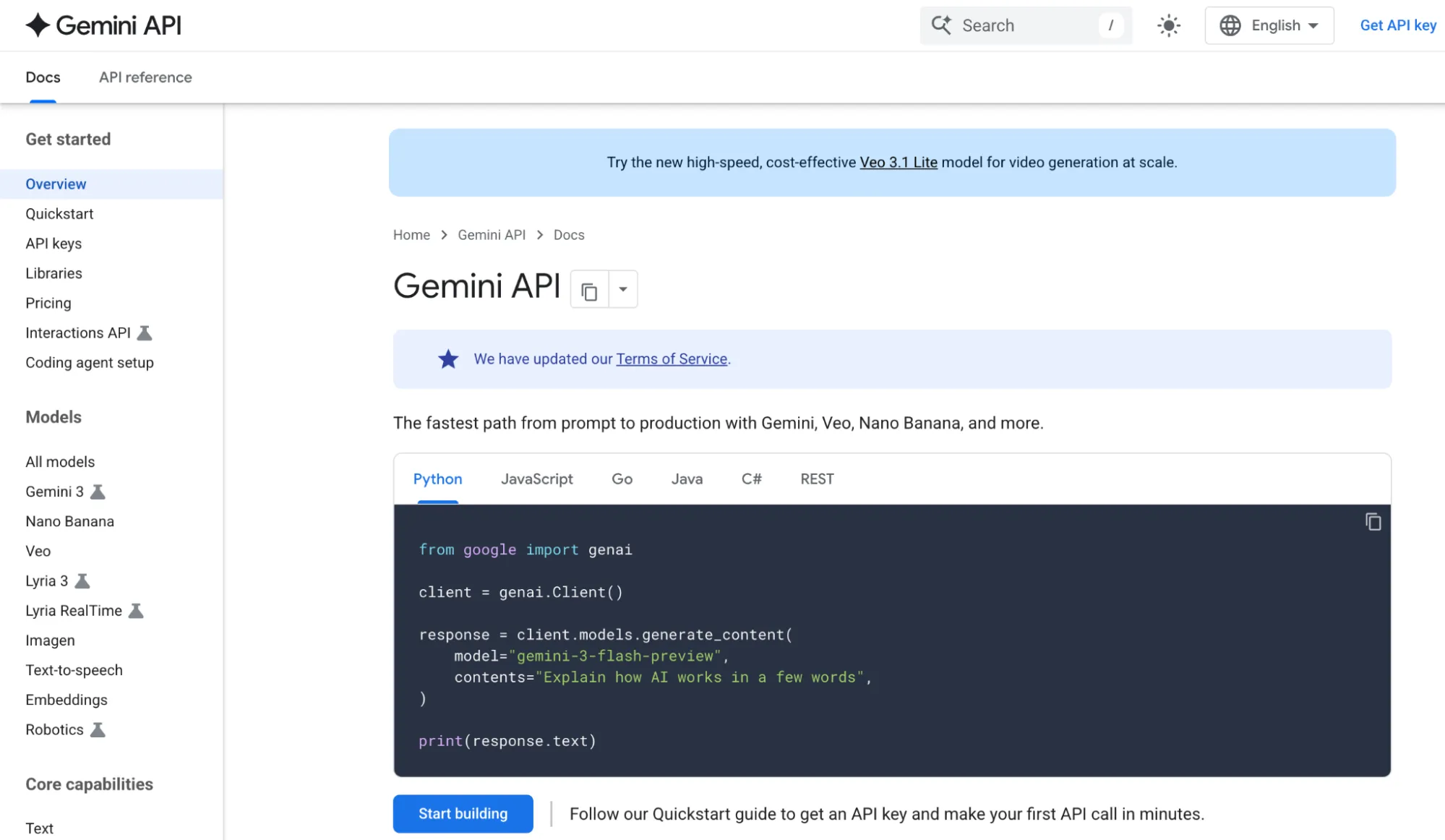
Documentation in Google AI Studio

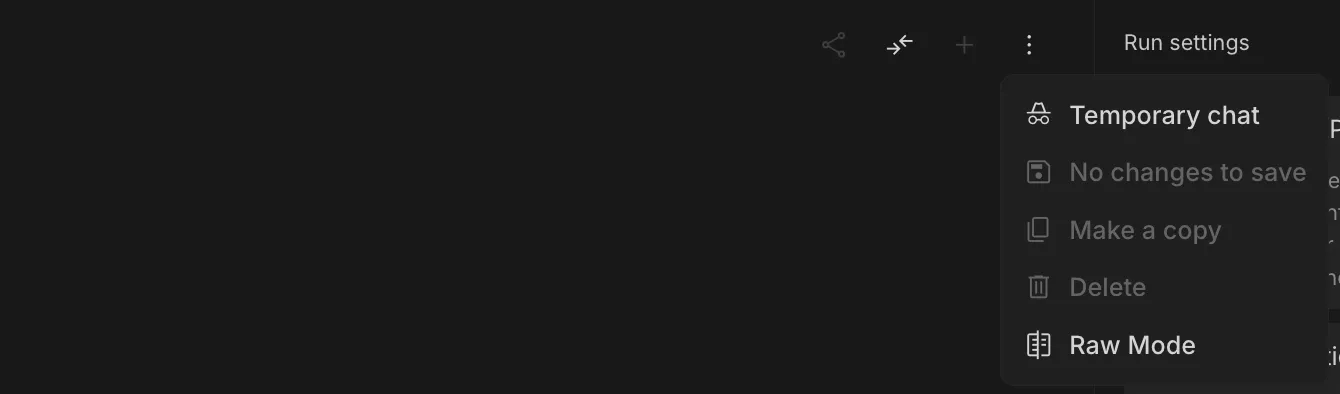
Temporary Chat

Temporary Chat in AI Studio

Temporary Chat is a “blank slate” session designed for privacy and quick experimentation. It is similar to the incognito mode offered in a browser. None of the chat history with the model is retained once the session is over. 

Strategic Configurations: Aligning AI Studio for Work

In Google AI Studio, individual features are useful, but combinations are powerful. Most users tweak one setting at a time, but control comes from aligning the entire “stack” to your specific workload.

Workload Presets

Workload Temperature Top P Thinking Level Best Tools
Factchecking 0.1 – 0.3 0.4 Medium Search Grounding (ON)
Creative Writing 0.8 – 1.0 0.9 Low None (Freedom to drift)
System Debugging 0.0 0.1 High Code Execution (ON)
Data Extraction 0.0 0.1 Low Structured Parsing

High-Impact Setting Interactions

Settings are not isolated. Change in one setting can lead to overhaul of how some other setting works. Here are few pointers to keep in mind before you go tweaking around with the parameters:

  • The “Reliability Lock”: Lowering both Temperature and Top P simultaneously creates a “Deterministic Mode.” Use this when one wrong word (like in a legal summary or code snippet) ruins the entire output.
  • Depth vs Speed: Thinking Level when set to high is a lopsided. process. It’s 3x slower but 10x more logical. Reserve it for logic puzzles or architecture; using it for a “thank you” email is a waste of latency.

The “Silent Killers”: Common Configuration Errors

Avoid these four patterns that lead to “Model Failure” (which is usually User Error):

  1. Fact-Checking at High Temp: High temperature makes the model prioritize “sounding good” over “being right.” Rule: If you need facts, Temp must be < 0.2.
  2. The Context Overflow: When the token counter hits the limit, the model starts “forgetting” your System Instructions. Fix: Periodically summarize the chat and start a fresh conversation.
  3. Prompt vs Instruction: Placing rules in the chat box instead of the System Instructions field. Chat prompts are suggestions; System Instructions are laws.
  4. Noise via Search: Enabling Search Grounding for simple logic tasks adds unnecessary latency and “hallucinated” noise from the web.

Programmer Workflows: 60-Second Setups

These are some tool configuration combos that you can use for time savings:

  • Clean Data Extraction: Structured Output (JSON) + Temp 0. This guarantees the model won’t add conversational sentences like “Here is your JSON:” which breaks code parsers.
  • The Research Auditor: URL Context + Search Grounding. Use this to check if a specific article’s claims align with broader consensus on the web.
  • Rapid Prototyping: Use Build Mode for iterative UI/UX. Describe the component, iterate with 3-word prompts, and deploy immediately.

Hopefully these tips are able to save time and effort required inn your workflows. If there is something missing that should be included in the article, please let us know in the comments below.

The Way Forward

By moving beyond the default settings and mastering using parameters like Temperature, Top P, Thinking Levels, and specialized tools like the Build Tab, you shift your role from a casual user to an AI Studio expert.

Whether you are automating data extraction with structured outputs, debugging complex logic with high-thinking models, or “vibe coding” full-stack apps in Build Mode, your success depends on how precisely you define the model’s operational boundaries.

Getting the most out of a model isn’t just about getting the best model out there, but also getting it to work in the best manner possible.

Frequently Asked Questions

Q1. What is Google AI Studio used for?

A. Google AI Studio is a developer-focused environment to configure, test, and deploy AI models with control over parameters, workflows, and integrations.

Q2. How do you improve AI output quality in AI Studio?

A. Optimize settings like temperature, Top P, thinking level, and structured outputs to match your task for better accuracy, creativity, or consistency.

Q3. What is the biggest mistake when using AI Studio?

A. Treating it like a chatbot instead of configuring settings and workflows properly, which leads to inconsistent or low-quality outputs. 

I specialize in reviewing and refining AI-driven research, technical documentation, and content related to emerging AI technologies. My experience spans AI model training, data analysis, and information retrieval, allowing me to craft content that is both technically accurate and accessible.