




When watching a 3D movie, 3D film or 3D TV show series on the 3D TV, you may need the subtitle. Subtitles are easily available in many formats, such as .srt, .sub or .ass, but almost all of the subtitles that are available for free download on the Internet or comes with DVD or Blu-ray are only for 2D format.
While using the standard subtitle meant for normal 2D movie works for majority of media players, but the subtitle will not have 3D effect. The main issue has to be related to how 3D movies are encoded and streamed to the display.
Most 3D movies use 3D video formats that is frame compatible, which are currently mainly Half Side by Side (H-SBS, Half SBS or HSBS) that places the left and right images one next to the other in an HD image; or Half Over and Under (Half Top and Bottom, H-OU, Half OU or HOU) that places left and right images one above the other in a HD image. In both cases, standard subtitles are placed and viewed at the center of 3D movies, possibly causing the subtitles to be split into half, or without any 3D depth.

Example of incompatible standard 2D subtitle for 3D movie
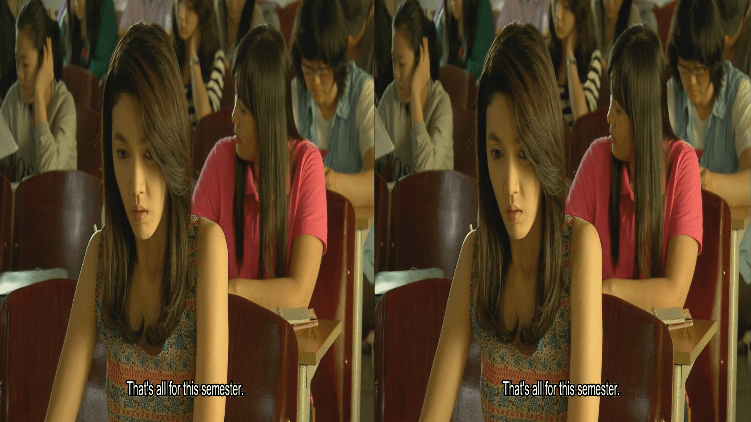
Example of 3D subtitle when viewing in media player
It’s possible and easy to convert the standard 2D subtitles to a 3D format, which does not break the 3D perspective when watching 3D movies. By converting the subtitles to a 3D-compatitble format, the subtitles will be shown for each eye separately, similar to how 3D movies work when viewing with 3D glasses.
How’s a few ways on how to convert a 2D subtitle to 3D format:
Method 1: Subtitle3D Online Service
The easiest way to create a 3D subtitle is by converting the standard subtitle to 3D though an online service named Subtitle3D.com. Through the service, user can easily convert a subtitle to Side-by-Side or Top-and-Bottom 3D format, with the ability to customize font size, outline and 3D depth for the 3D subtitle. Once the subtitle is converted on the cloud, user will be able to download the 3D subtitle.
Visit Subtitle3D.com (WARNING: The website is full of pop-ups, pop-unders and other intrusive ads that appear on every clicks, so make sure you have strong popup blocker and other ads blocker in place)
Method 2: Create 3D subtitles with 3D-Subtitler
Another way but a more tedious way to create a 3D subtitle is by using software application and do it yourself. One such software is 3D-Subtitler. 3DSubtitler is a Java-based application that converts SRT subtitles into a readable VobSub IDX/SUB or Blu-Ray SUP subtitles file when using side-by-side or over/under type 3D movies.
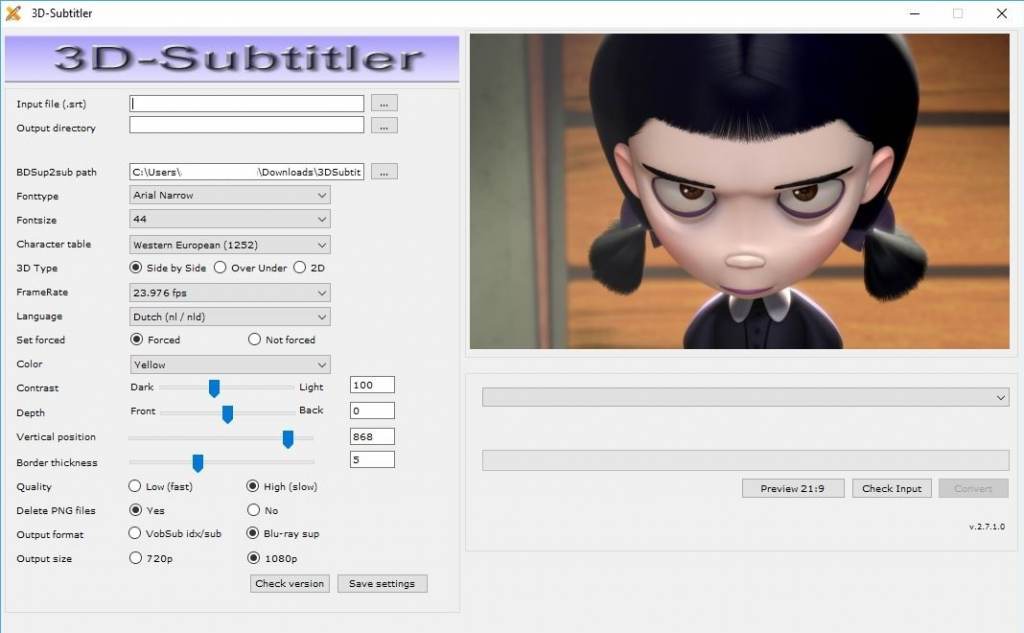
Here’s the steps to convert a 2D subtitle to 3D subtitle using 3D Subtitler:
- Download 3D-Subtitler (latest version 2.7.1.0).
- Run 3DSubtitler.
- Select a .SRT subtitle file which you want to convert as the Input file.
- Set Output directory to save the converted 3D-compatible subtitle.
- Optional – ensure that the BDSup2Sub path is correct (by default, it comes with the 3D-Substitler download, so they’re at the same folder).
- Set the font type that you want to use in subtitle.
- Set the font size for subtitle.
- Set the charset of subtitle in Character table which is important if the subtitle has special characters.
- In 3D Type, select the 3D movie format of either Side by Side or Over Under (Top and Bottom).
- Set the frame rate of the movie.
- Set the subtitle language.
- Set the subtitle color.
- Set the 3D depth of the subtitle.
- Set the vertical position of the subtitle.
- Set the quality of subtitle (High is strongly recommended).
- Choose whether to delete PNG files (recommended to leave as default – yes).
- Choose the output format – VobSub idx/sub supports most common media players such as VLC Player, Blu-Ray sup home theaters and media centers, and thus highly recommended.
- Set output size to match the 3D movie resolution.
- Modify other settings as you wish.
- When all setting are properly set, click on Check Input button.
- If the settings are correct, the Convert button will be enabled. Proceed to click the Convert button to generate the 3D subtitle.
About the Author: LK
