









When installing a packed extension with .crx extension into Chromium-based web browser such as Google Chrome or Microsoft Edge, the extension is disabled automatically, and user cannot turn it on with the toggle grayed out. In addition, the following message is displayed as the reason for disabling of extensions:
This extension is not listed in the Chrome Web Store and may have been added without your knowledge.
This extension is not from any known source, and may have been added without your knowledge.
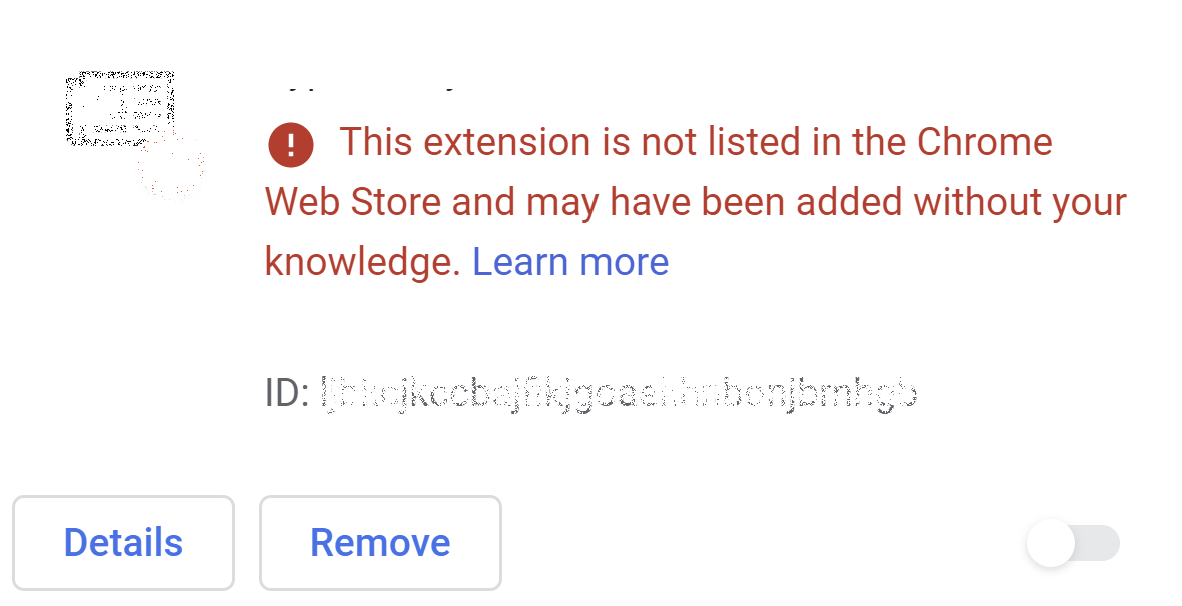
Chrome and Edge automatically turns off all extensions that are deemed unsafe. And these included custom .crx packed extensions that are not installed via official extensions store. The exceptions are unpacked extensions, and extensions that are loaded via command line. In both allowed cases, the browser displays a “disable developer mode extensions” popup warning message on every browser startup.
In order to allow an extension installed via sideload of .crx file to be turned on, here’s a few workarounds.
Method 1: Whitelist the Extension through Policies
Google Chrome and Microsoft Edge supports policies configuration for enterprise customers. The policy of whitelisting and allowing an otherwise blocked extension can be used to force browser to enable and turn the extension. To set the policy, follow these steps:
- In Chrome / Edge, go to the following URL in the address bar (or open Extensions from Chrome menu -> More tools or Extensions from Edge menu).
Chrome:
chrome://extensions/
Edge:edge://extensions/ - Locate the extensions that are disabled by Chrome / Edge. Record the ID of the extension, which is in the format of long string, e.g. abcdefghijklmnopqrstuvwxyz.
- Run Registry Editor (regedit).
- Navigate to the following registry key:
Chrome:
HKEY_LOCAL_MACHINE\SOFTWARE\Policies\Google\Chrome
Edge:HKEY_LOCAL_MACHINE\SOFTWARE\Policies\Microsoft\Edge - For Chrome, right click on Chrome and select New -> Key, and name the new key as ExtensionInstallWhitelist.
For Edge, right click on Edge and select New -> Key, and name the new key as ExtensionInstallAllowlist.
Note: Ignore this step if the key is already existed.
- Right click on the new key created (i.e. ExtensionInstallWhitelist or ExtensionInstallAllowlist), and select New -> String Value. Name the new value with a sequential number, starting with 1, 2, 3, and so on. So if it’s the first extension to be allowed, name the new value as “1”.
- For the value data, enter the ID of the extension you copied from step above so that the values look like:
1 REG_SZ abcdefghijklmnopqrstuvwxyz
- Restart the browser and the disabled extensions should be automatically turned on.
Method 2: Install as Unpacked Extension
Extract .crx file to a folder, and then install the extension by using Load unpacked option.
Method 3: Publish to Chrome Web Store or Microsoft Edge Addons Store as Unlisted or Hidden Extension
When publish the extension to Chrome Web Store or Microsoft Edge Addons catalog, you have controls over who can see or install the extension. The public visibility is always made available to everyone and the extension listed on the store. However, there are other options available that are hiding the extension from the store, and can restrict who can install them. These options are:
- Unlisted (Hidden in Edge): Hidden from the store and do not appear in users searching results or browsing. Only users with the app or extension link can see and install it. You can share the app or extension link with users outside your domain.
- Private (not available in Edge Addons Store): Only users in your domain can see and install the app or extension. Or, you can restrict the app or extension to trusted testers that you specified in your developer dashboard.
- Group publishing (not available in Edge Addons Store): If your extension is meant to be shared and co-developed among several developers, you can publish extension to group publishing account so that everyone on the group can own all the items and make the changes to extension. Only available if you pay a one-time developer signup fee. Or, if at least one extension is added to your list and set to private.
About the Author: LK
