



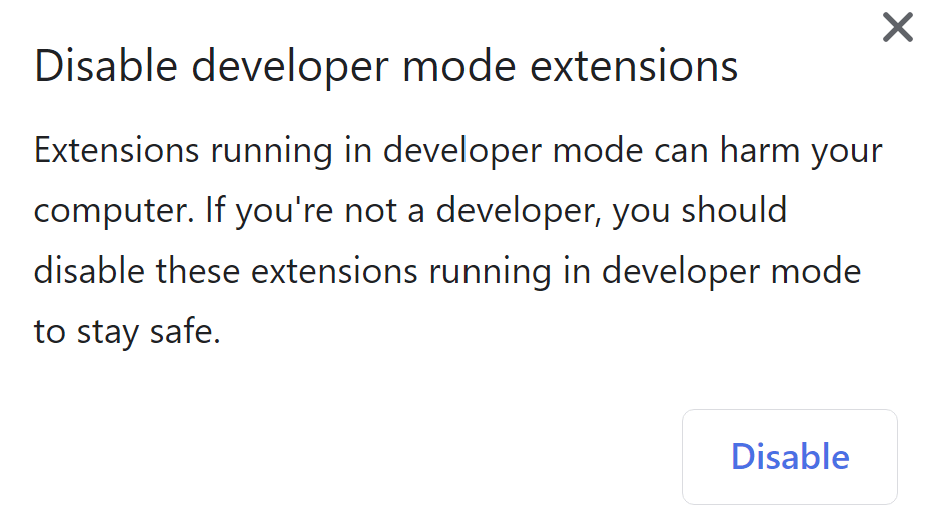
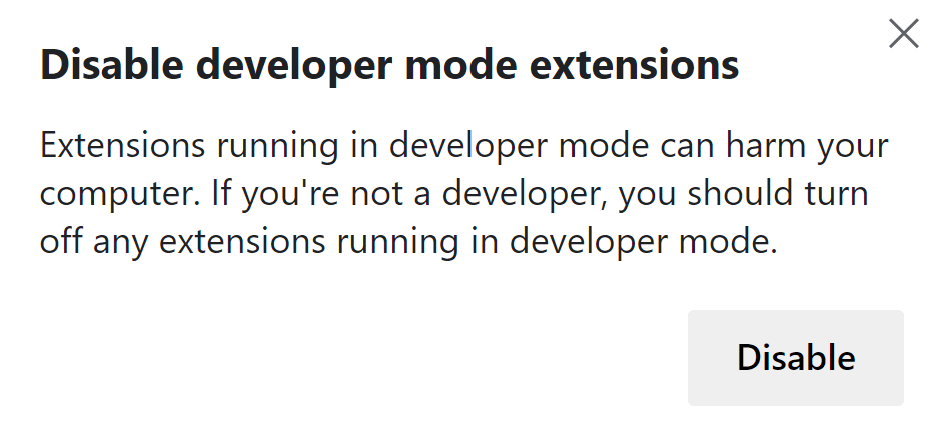
If you’re apps developer or extensions developer for Chrome and Edge web browser who have to test your extensions, or you’ve sideloaded and installed any third-party custom extensions that are not published on the official Chrome Web Store or Microsoft Edge Add-ons Store (for Edge Chromium), the browser will pop up a “disable developer mode extensions” warning on browser launch, with message similar to figure below.
Disable developer mode extensions
Extensions running in developer mode can harm your computer. If you’re not a developer, you should disable these extensions running in developer mode to sstay safe.
Disable developer mode extensions
Extensions running in developer mode can harm your computer. If you’re not a developer, you should turn off any extensions running in developer mode.
The warning popup is a security feature built into Chrome and Edge browser to safeguard the users against malware and malicious add-ons, and cannot be disabled. However, as a workaround, you can use browser enterprise policy to whitelist the custom extensions that you manually installed to Chrome or Edge so that they’re trusted and allowed automatically without the developer mode extensions popup warning on browser startup.
This tutorial will show you how to put an extension into a whitelist or allowed-list which forces the web browser to override default Chrome or Edge policy that blacklists all unauthorized extensions, which results in stoppage of disabling developer mode extensions popup message.
- Go to the following URL in the address bar (or open Extensions from Chrome menu -> More tools or Extensions from Edge menu).
Chrome:
chrome://extensions/
Edge:edge://extensions/ - Toggle Developer mode to On.
- Click on Pack extension button.
- Click Browse button and select the root directory of the extension to pack for Extension root directory field.
You can ignore the “Private key file (optional)” field if this is your first time packing the extension, and the extension packing process will automatically generate a private key file in .pem extension. Save the private key file safely if you want to repack the same extension for new versions and update the previously installed extension (having the same ID, which is important for next steps) instead of installing as new extension.
- Hit Pack extension button when done. A .crx (extension) and a .pem (private key) file will be generated.
- Drag and drop the .crx file into the Extensions page to install it.
- After installed, locate the newly installed plugin in the Extensions page. The extension should be disabled by Chrome / Edge with error stating “This extension is not listed in the Chrome Web Store and may have been added without your knowledge” in Chrome or “This extension is not from any known source, and may have been added without your knowledge” in Edge.
Record the ID of the extension, which is in the format of long string, e.g. abcdefghijklmnopqrstuvwxyz.
- Run Registry Editor (regedit).
- Navigate to the following registry key:
Chrome:
HKEY_LOCAL_MACHINE\SOFTWARE\Policies\Google\Chrome
Edge:HKEY_LOCAL_MACHINE\SOFTWARE\Policies\Microsoft\Edge - For Chrome, right click on Chrome and select New -> Key, and name the new key as ExtensionInstallWhitelist.
For Edge, right click on Edge and select New -> Key, and name the new key as ExtensionInstallAllowlist.
Note: Ignore this step if the key is already existed.
- Right click on the new key created (i.e. ExtensionInstallWhitelist or ExtensionInstallAllowlist), and select New -> String Value. Name the new value with a sequential number, starting with 1, 2, 3, and so on. So if it’s the first extension to be allowed, name the new value as “1”.
- For the value data, enter the ID of the extension you copied from step above so that the values look like:
1 REG_SZ abcdefghijklmnopqrstuvwxyz
- Restart the browser and the developer mode extensions warning popup should not be displayed again.
If you have many Chromium-based web browsers, and don’t mind to have some DLL files patched, Chrome Developer Mode Extension Warning Patcher is a third-party utility that can patch the chrome.dll file to disable developer mode extension warning popup. In addition, the tool also can restore the https:// and www in the URL shown in the omnibox address bar, which are removed from the browser automatically.
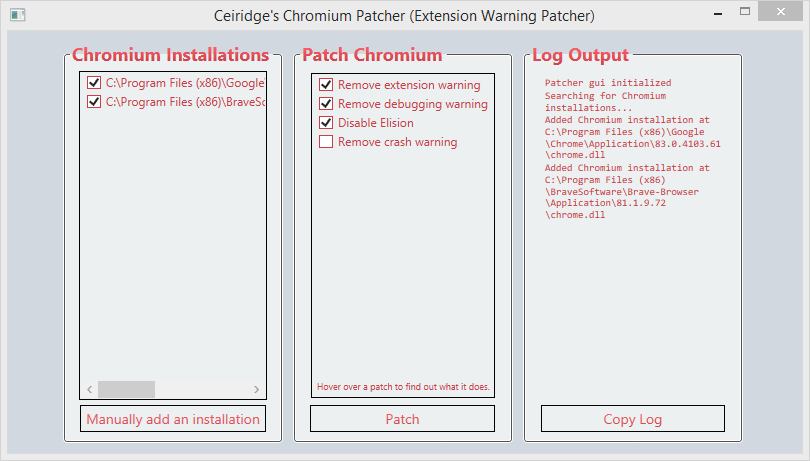
Chrome Developer Mode Extension Warning Patcher works in every 64-bit (x64) and 32-bit (x86) Chromium-based browsers, including Chrome, Edge, Brave, Opera, Vivaldi, Blisk, Colibri, Epic Browser and Iron Browser and more. In fact, it automatically scans and discovers all chrome.dll files of the all installed Chromium browsers, though you can select which browsers that you want to apply the patch.
Download Chrome Developer Mode Extension Warning Patcher from github.com. Note that you need to re-apply the patch after every browser upgrade, as the patched DLL will be replaced during upgrading.
About the Author: LK
