


惯性聚合 高效追踪和阅读你感兴趣的博客、新闻、科技资讯
阅读原文 在惯性聚合中打开

推荐订阅源

阮一峰的网络日志
阮一峰的网络日志
P
Proofpoint News Feed
Hacker News: Ask HN
Hacker News: Ask HN
T
Threatpost
WordPress大学
WordPress大学
钛媒体:引领未来商业与生活新知
钛媒体:引领未来商业与生活新知
博客园 - 【当耐特】
Know Your Adversary
Know Your Adversary
P
Palo Alto Networks Blog
S
SegmentFault 最新的问题
月光博客
月光博客
Latest news
Latest news
博客园 - Franky
T
Threat Research - Cisco Blogs
有赞技术团队
有赞技术团队
博客园_首页
T
The Exploit Database - CXSecurity.com
The Cloudflare Blog
人人都是产品经理
人人都是产品经理
C
Cybersecurity and Infrastructure Security Agency CISA
S
Schneier on Security
Simon Willison's Weblog
爱范儿
爱范儿
Security Latest
Security Latest
Scott Helme
Scott Helme
博客园 - 聂微东
T
Tor Project blog
美团技术团队
IT之家
IT之家
Stack Overflow Blog
Stack Overflow Blog
B
Blog
酷 壳 – CoolShell
酷 壳 – CoolShell
C
Cisco Blogs
Cisco Talos Blog
Cisco Talos Blog
cs.CL updates on arXiv.org
G
Google Developers Blog
让小产品的独立变现更简单 - ezindie.com
AWS News Blog
AWS News Blog
Jina AI
Jina AI
Vercel News
Vercel News
小众软件
小众软件
T
Tenable Blog
OSCHINA 社区最新新闻
OSCHINA 社区最新新闻
Forbes - Security
Forbes - Security
aimingoo的专栏
aimingoo的专栏
O
OpenAI News
奇客Solidot–传递最新科技情报
奇客Solidot–传递最新科技情报
The Last Watchdog
The Last Watchdog
Cloudbric
Cloudbric
AI
AI

Comments for Tech Journey

Chrome / Edge Disables .CRX Installed Extensions (Workarounds to Turn On) Remove Disable Developer Mode Extensions Warning Popup in Chrome / Edge How to Allow Local Network When Using WireGuard VPN Tunnel in Windows 10 How to Convert SRT to Create 3D Subtitles (ASS or SUB/IDX) Cannot Connect to CIFS / SMB / Samba Network Shares & Shared Folders in Windows 10 Unrecognised Disk Label When Creating Partition How to Decrypt an Enrypted SSL RSA Private Key (PEM / KEY) Install Microsoft .NET Framework 1.1 on Windows 10 / 8 / 7 / Vista (Fix RegSvcs.exe Error) Fix Windows Not Remember & Save Folder Types or Folder Views Setting (Increase BagMRU Size Cache Memory Size) How to Change the Logo of vBulletin Forum to Custom Image
Storage Spaces Can't Add Drives (Request Is Not Supported Error 0x00000032) - Tech Journey
LK · 2026-07-13 · via Comments for Tech Journey
Skip to content

Storage Spaces Can’t Add Drives (Request Is Not Supported Error 0x00000032)

Storage Spaces Can’t Add Drives (Request Is Not Supported Error 0x00000032)

When trying a add a disk drive to a storage pool of Storage Spaces, whether it’s internal HDD or SSD or portable external USB disk drive, the following error message may occur, and the disk addition to the storage pool failed:

Can’t add drives

Check the drive connections, and then try again.

Expanding the details indicates that the error was due to the request is not supported with 0x00000032 error code.
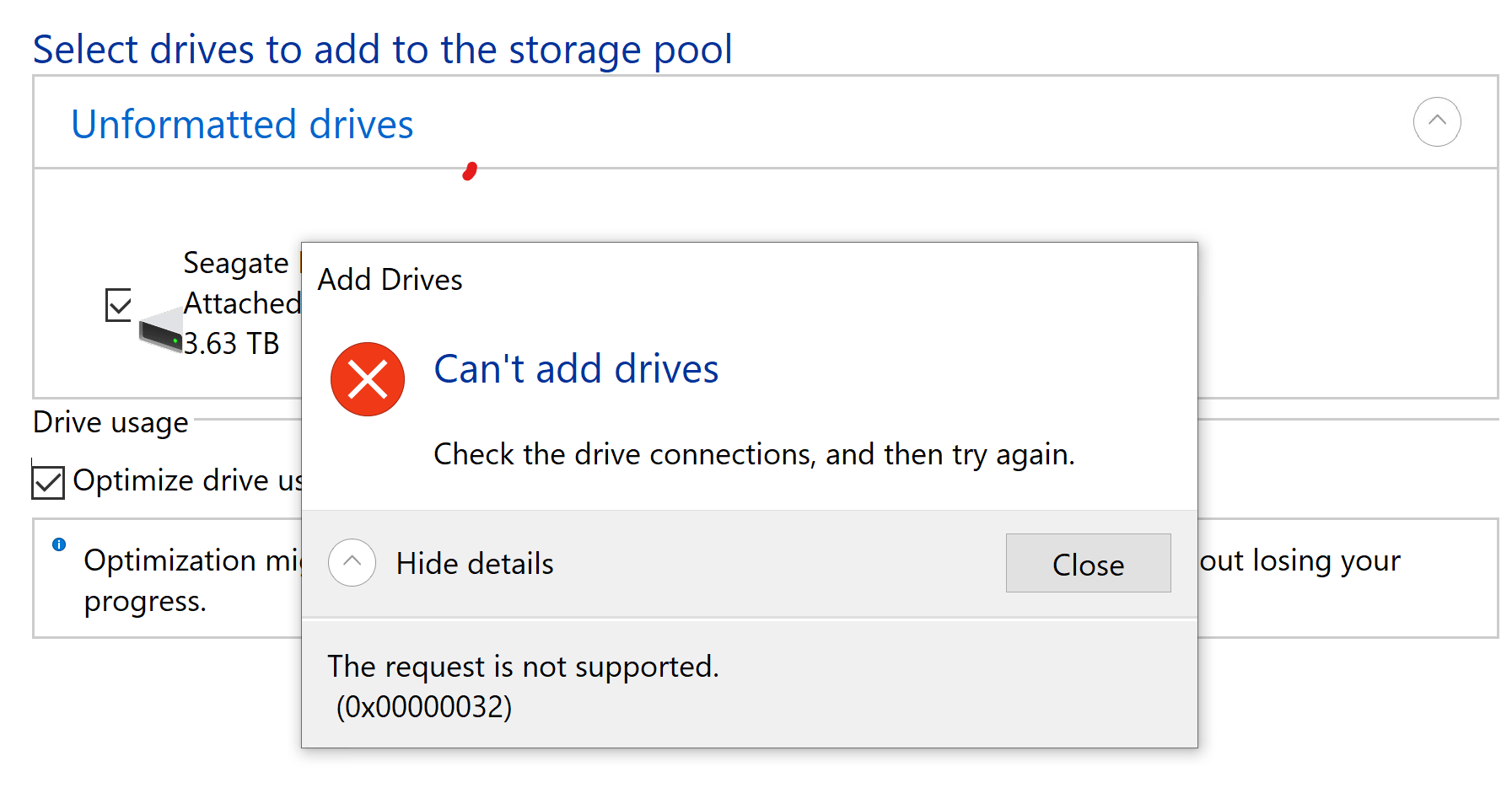
Can't Add Drives

If you use PowerShell Add-PhysicalDisk cmdlet to try to add a disk to Storage Spaces pool, it will return the following error:

Add-PhysicalDisk : One or more physical disks are not supported by this operation.

Extended information:
One or more physical disks encountered an error during addition to the storage pool.

Physical Disks:
{Disk Unique ID}: The request is not supported.

Activity ID: {Activity ID}
At line:1 char:1
+ Add-PhysicalDisk …
+ ~~~~~~~~~~~~~~~~~~~~~~~~~~~~~~~~~~~~~~~~~~~~~~~~~~~~~~~~~~~~~~~~~~~~~
+ CategoryInfo : NotSpecified: (StorageWMI:ROOT/Microsoft/…_StorageCmdlets) [Add-PhysicalDisk], CimException
+ FullyQualifiedErrorId : StorageWMI 51000,Add-PhysicalDisk

To add a disk to Storage Space storage pool, the disk has to be clean. It means that the disk drive should not have any volume or partition it, and ideally should just be initialized.

Thus, if you attempt to add an existing hard disk, or a new preformatted disk drive to the storage pool, you should try to delete and remove all partitions and volumes on the disk through Disk Management.

But if you can’t add the drive to storage pool even if the disk is clean, then the error may be caused by faulty disk metadata. To resolve the issue so that the disk can be attached to the pool, try to reset the disk.

  1. Open PowerShell window as Administrator (normally accessible from Win-X menu if you don’t replace PowerShell with Command Prompt).
  2. Run the following command to get a list of all your physical disks with their friendly name, unique ID, serial number, media type, size and etc.:
    Get-PhysicalDisk
  3. Reset the problematic disk by FriendlyName or by UniqueId:
    Reset-PhysicalDisk -UniqueId "abcdefgh12345678"
    Reset-PhysicalDisk -FriendlyName "physical-disk-name"

    Replace the value for UniqueID or FriendlyName with actual unique ID or friendly name shown in step above.

    Make sure that you identify the correct disk and enter the correct Unique ID or Friendly Name, as the command will wipe the whole disk drive. If there are multiple disks using the same friendly name, then you must use unique ID.

Once the disk is reset, you can try to re-add the disk to the Storage Spaces pool.

About the Author:

LK is a technology writer for Tech Journey with background of system and network administrator. He has be documenting his experiences in digital and technology world for over 15 years. Connect with LK through Tech Journey on Facebook, Twitter or Google+.
Page load link
Go to Top