





The popularity of agentic development extends to infrastructure as code. However, the lack of relevant context and up-to-date documentation and examples is problematic when using agents to author IaC with Terraform.
The model-context protocol (MCP) can help with elements of these issues. It does this by exposing capabilities to your agents in the form of tools that it can call to perform read or write operations in external systems, as well as resources and prompts.
In this blog post, we will explore the Terraform MCP server: what it is, how to configure and run it locally, examples of how it is used, and best practices.
What we’ll cover:
The Terraform MCP server gives your AI agent live access to the public Terraform registry, so it writes Terraform with accurate, version-specific docs for providers, modules, and policies instead of outdated guesses.
search_providers are safe to run automatically. Action-tools like create_run can change or destroy infrastructure, so gate them behind a confirmation prompt.ENABLE_TF_OPERATIONS is false until you set it to true.AI agents are based on large language models (LLMs). These models are trained on a huge amount of training data. This data represents a snapshot in time and does not include any new information that becomes available later.
To combat this, we extend our AI agents with knowledge in a few different formats:
In the rest of this blog post, we will focus on MCP.
MCP is made available to your agents using a traditional client-server architecture. The agent is the client that calls the tools and resources exposed by the MCP server.
You often run MCP servers locally to avoid security issues related to exposing the MCP server over a network (e.g., the internet). MCP servers are often distributed as Docker containers, but can also be run as a binary.
The Terraform MCP server gives your AI agent tools to access up-to-date documentation on providers, modules, and policies from the public Terraform registry. This ensures your agent can provide accurate suggestions when assisting you with Terraform configurations.
The Terraform MCP server also provides your AI agent with tools to interact with your HCP Terraform organization to fetch information from your private registry and manage projects, workspaces, and runs.
In addition, the Terraform MCP server has access to resources to help your agents write standardized Terraform code. These resources include the Terraform style guide and module development documentation.
A huge advantage of using the Terraform MCP server over giving your agent access to generic web-search tools is that you can pinpoint specific provider versions and resources to reduce the risk of model hallucinations or version mismatches in the generated code.
With the Terraform MCP server, you can perform end-to-end Terraform development with AI agents: generating Terraform code and provisioning it through HCP Terraform.
You can host and run the Terraform MCP server in three different ways:
You can also build the Terraform MCP server from source if you need to customize the binary to your environment.
It is usually wise to host the MCP server locally because sensitive operations it exposes are accessible to anyone who can access it. You configure the MCP server with a token that has permissions to perform actions in your HCP Terraform environment. You do not want to expose this carelessly over the internet. If you do host it remotely, you need to ensure proper authentication, authorization, and network security measures are in place.
At the time of writing, the Terraform MCP server contains 44 tools, most of them for HCP Terraform and Terraform Enterprise. You can see all currently available tools in the documentation.
In this section, we will follow the required steps to get the Terraform MCP server running locally, and we will cover the two primary use cases of the Terraform MCP server:
Note that in this section, we will see only a fraction of the tools available in the Terraform MCP server.
To interact with your HCP Terraform or Terraform Enterprise organization, you will need to provide the Terraform MCP server with a token. You can create your own user token or you can create a team with a team token. This example will use a user token, but the experience is the same with a team token.
Sign in to your HCP Terraform or Terraform Enterprise organization, go to your user profile, and create a new user token:
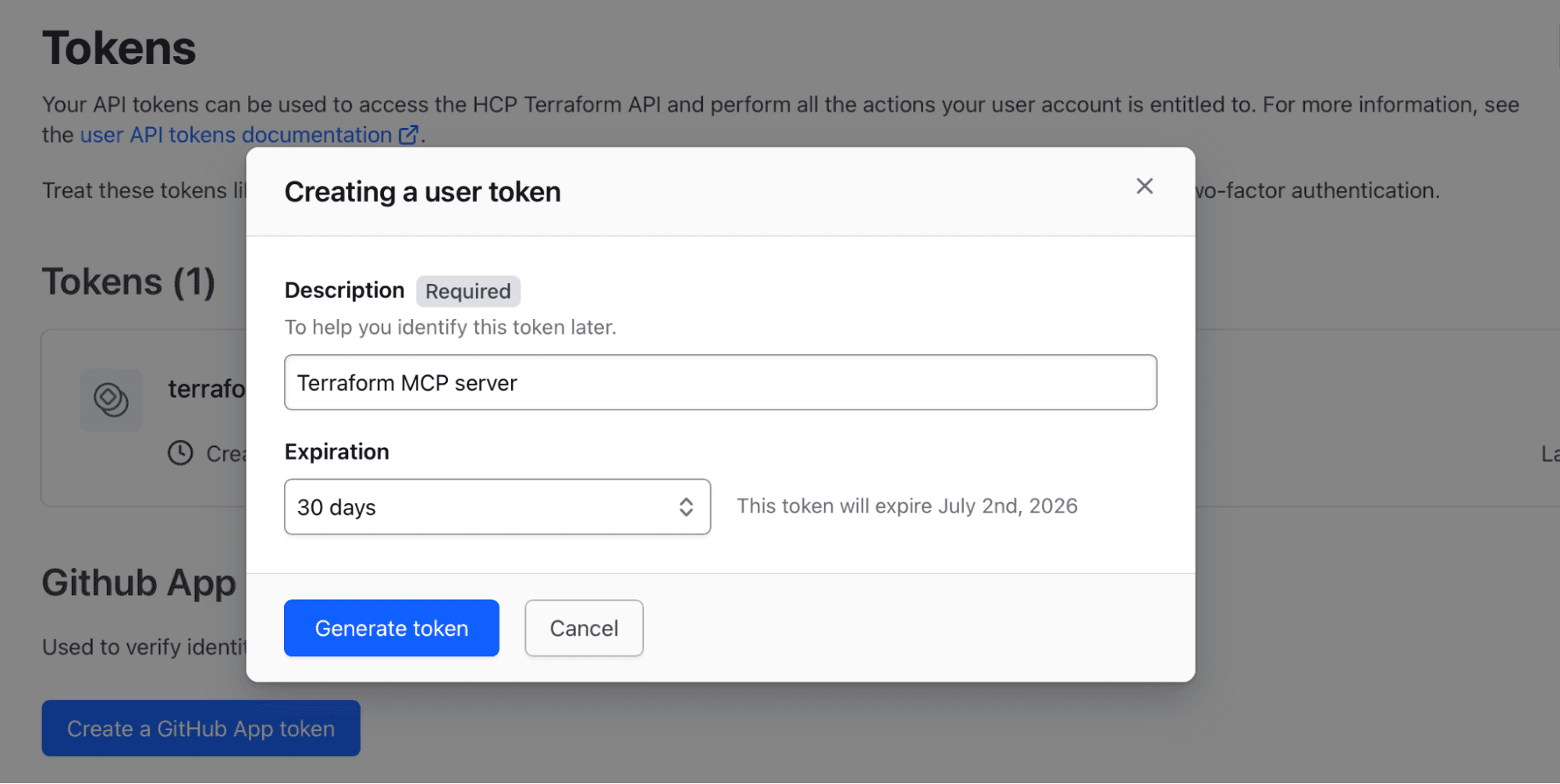
Store the value of the user token somewhere safe. You will provide this value interactively to the Terraform MCP server in a later step.
You can run the Terraform MCP server without configuring a HCP Terraform token. This is useful if you intend to use the MCP server only to interact with the public Terraform registry.
As mentioned earlier, you can host the Terraform MCP server locally or remotely.
In this section, we will use the recommended option and host the Terraform MCP server locally using Docker. This allows us to securely connect our local agents to the server’s tools without interacting with the server over the network.
The first step is to start Docker on your system. Instructions for how to install and run Docker on your system are outside the scope of this blog post. If you have a tool that is similar to Docker (e.g., Podman) you can use that instead.
Make sure Docker is running before you proceed (the output is truncated):
$ docker --version
Docker version …
Create a new working directory somewhere on your system where you can experiment with the Terraform MCP server:
$ mkdir spacelift-terraform-mcp
$ cd spacelift-terraform-mcp
Start your IDE or other client where you run your AI agents. VS Code and GitHub Copilot will be used as an example environment in the rest of this blog post. The steps to configure other environments are similar to what you will see here.
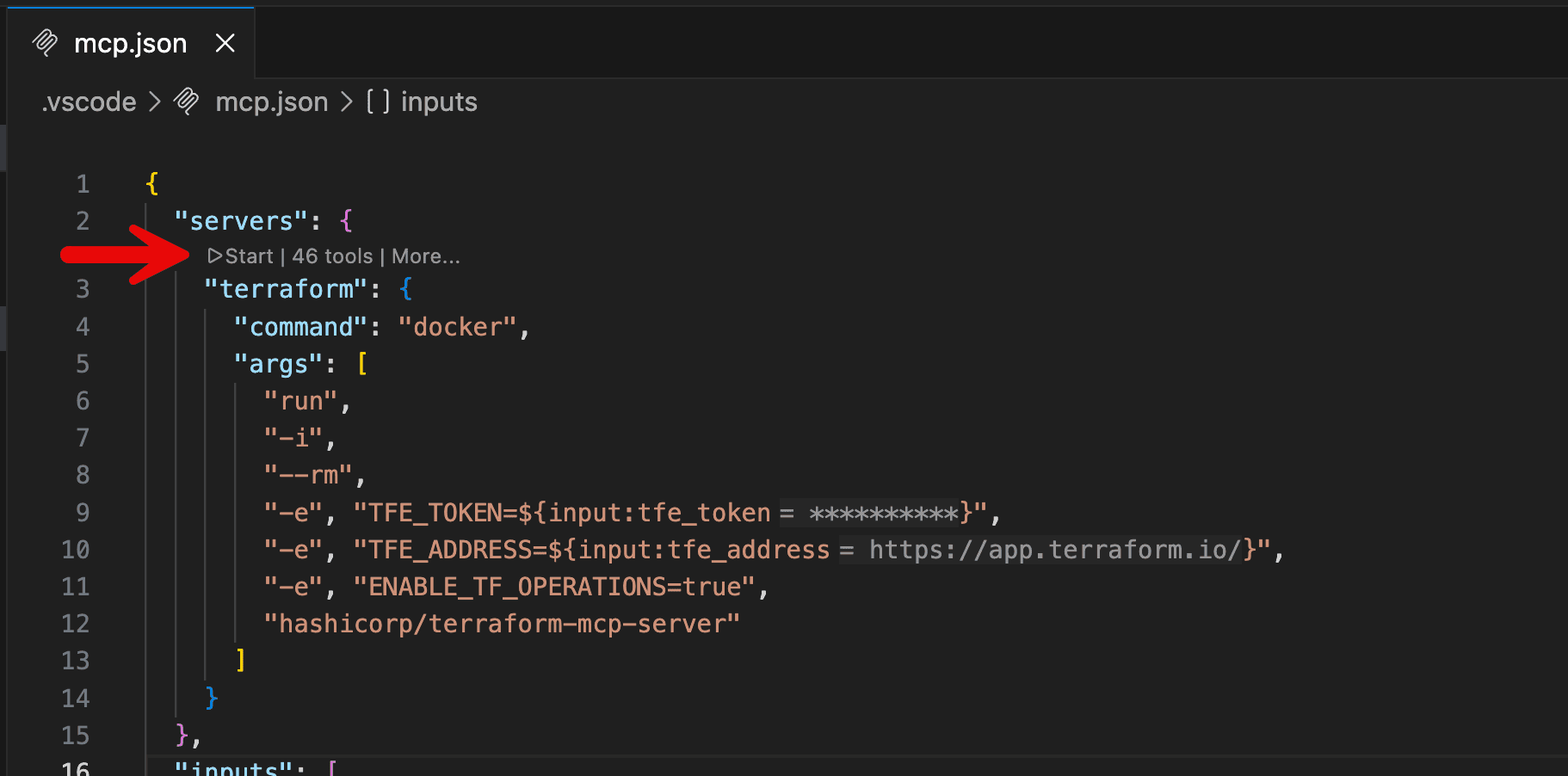
You could enable the Terraform MCP server globally, but it is usually advisable to enable it for specific projects where you will use Terraform. To do this, create a new directory named .vscode and create a file named mcp.json within this directory.
Add the following JSON configuration to mcp.json:
{
  "servers": {
    "terraform": {
      "command": "docker",
      "args": [
        "run",
        "-i",
        "--rm",
        "-e", "TFE_TOKEN=${input:tfe_token}",
        "-e", "TFE_ADDRESS=${input:tfe_address}",
        "-e", "ENABLE_TF_OPERATIONS=true",
        "hashicorp/terraform-mcp-server"
      ]
    }
  },
  "inputs": [
    {
      "type": "promptString",
      "id": "tfe_token",
      "description": "Terraform API Token",
      "password": true
    },
    {
      "type": "promptString",
      "id": "tfe_address",
      "description": "Terraform Address",
      "password": false
    }
  ]
}
The Terraform MCP server requires two environment variables:
TFE_TOKEN with the value of a user or team token with access to your HCP Terraform or Terraform Enterprise organization.TFE_ADDRESS with the value of the URL to your Terraform Enterprise instance or HCP Terraform. For HCP Terraform, the address is https://app.terraform.io/ (unless you use HCP Terraform in the EU, where it is https://app.eu.terraform.io/) . For Terraform Enterprise, it is the address you have exposed your instance on.The input values for these two variables will be set interactively and stored securely within your VS Code configuration. You configure this by setting the type of the input variables to promptString and referencing the values in the server startup command using the syntax ${input:tfe_token}.
In addition, this configuration sets ENABLE_TF_OPERATION to true. This environment variable enables your agent to use tools that perform more delicate operations in your HCP Terraform or Terraform Enterprise environment, including creating, updating, and deleting workspaces.
Start the Terraform MCP server by clicking the start button that appears above the server name within mcp.json:
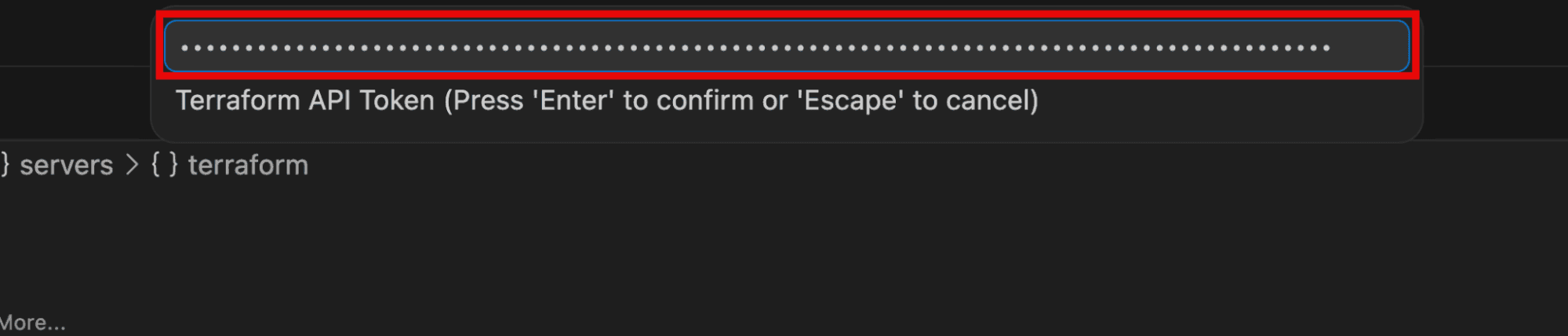
VS Code will ask you for the values of the required input variables. Provide the token value you saved earlier for the Terraform API token input:
Similarly, provide the URL to your HCP Terraform or Terraform Enterprise environment when asked for the Terraform address (use https://app.terraform.io/ for HCP Terraform):

At this point, the status of the Terraform MCP server should show as running. You can also verify that the Docker container is running using the Docker CLI (the output is truncated for brevity):
$ docker ps
CONTAINER ID   IMAGE ...
75080ff5394c hashicorp/terraform-mcp-server ...When you use a foundation LLM model with no additional source of knowledge to generate a Terraform configuration, you commonly end up with older Terraform provider versions that do not have the latest features, resources, and behaviors. This is because the model has been trained at a specific time in the past.
This is a behavior that the Terraform MCP server can rectify through tools that interact with the public Terraform registry.
In this and the following section, we will work on a simple Terraform configuration to provision a static website to Amazon S3 with an Amazon CloudFront distribution as the CDN.
With the Terraform MCP server configured and running, we can ask it to configure a Terraform configuration to use the latest available version of the AWS provider:
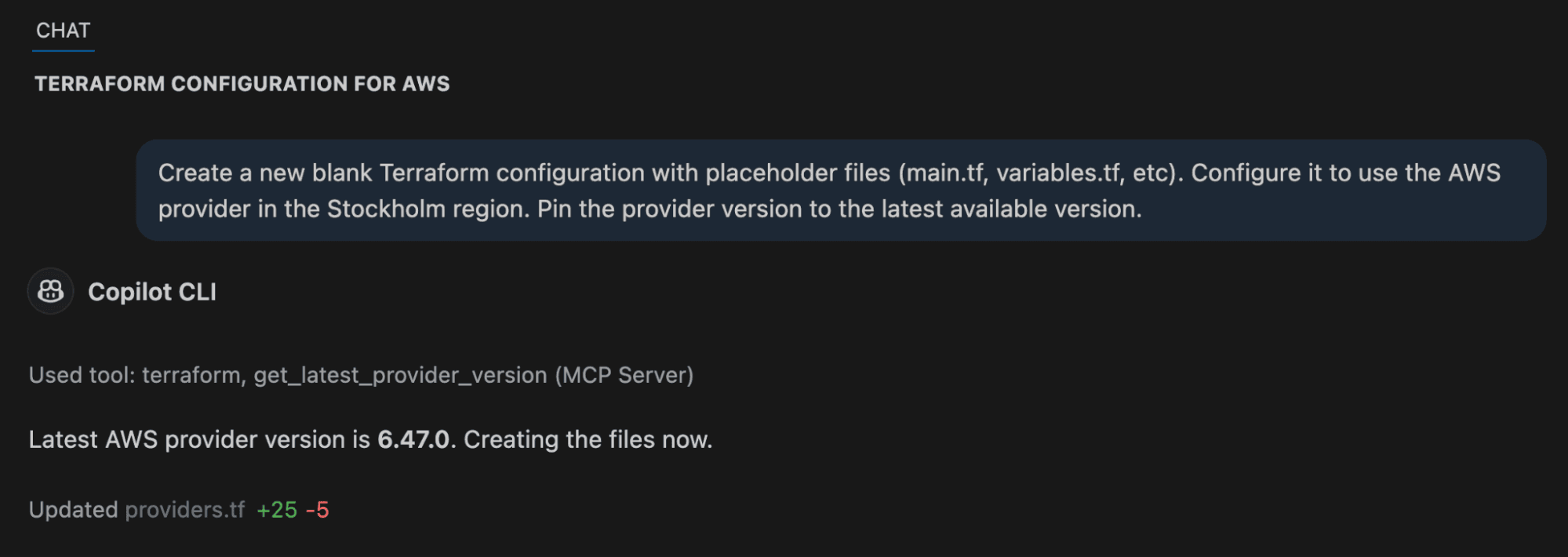
The chat indicates which tools are used. In this example, you can see that a tool named get_latest_provider_version from the Terraform MCP server was called.
If you expand the tool call, you can see the input that was sent to the tool and the response that was received:
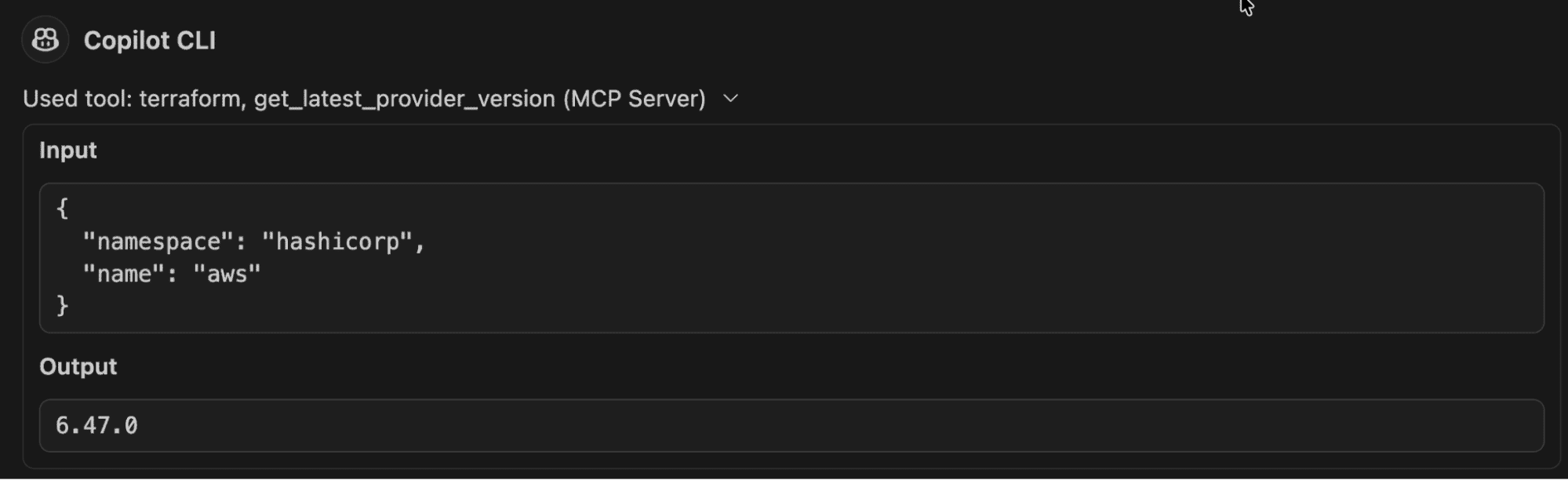
We do not have to explicitly tell our agent to use the Terraform MCP server. It automatically finds and uses the appropriate available tools.
Let’s now ask our agent to create the infrastructure for our static website:
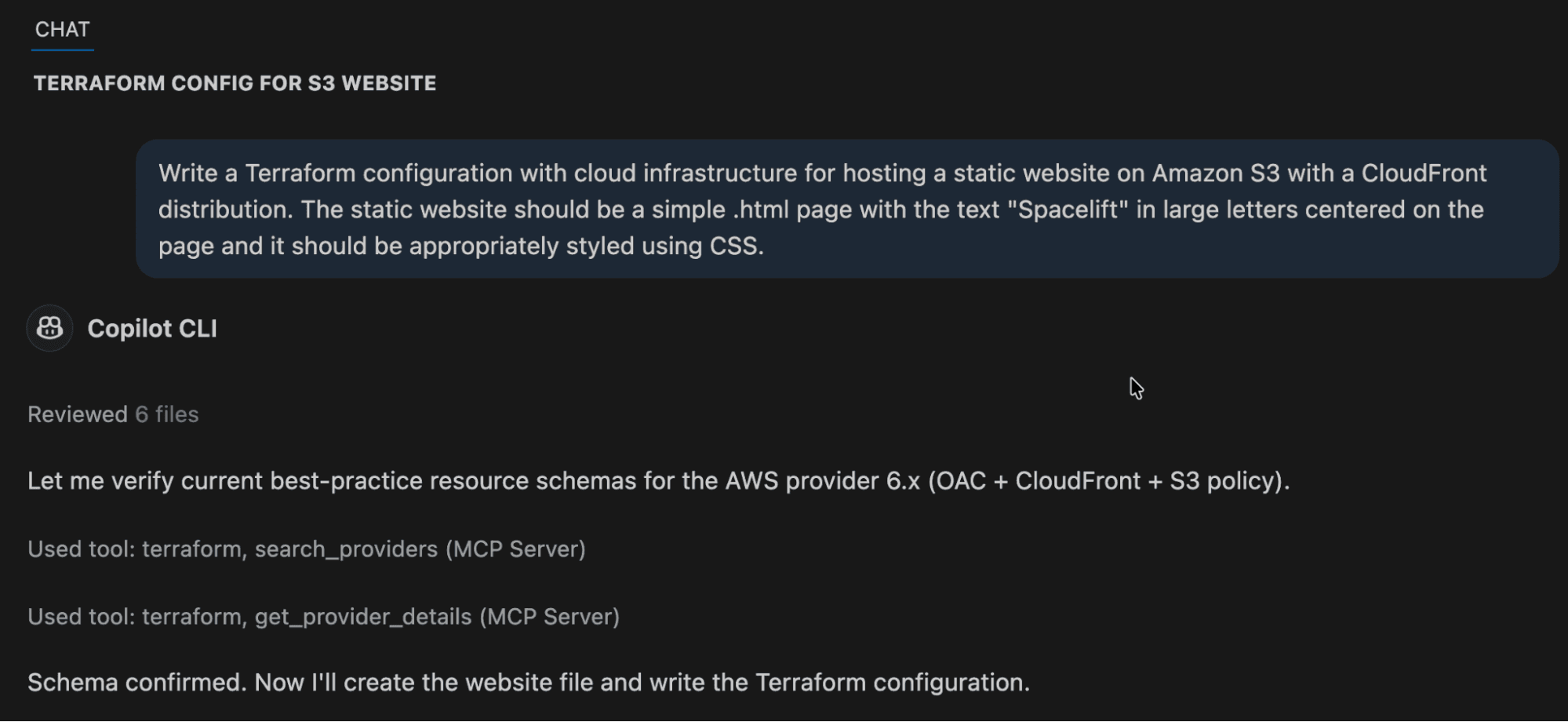
In this interaction, we see that the agent used two new tools: search_providers and get_provider_details.
The agent uses the search_providers tool to find relevant documentation on a given resource. Expand the tool call section to see that the following input was sent to the tool:
{
  "provider_name": "aws",
  "provider_namespace": "hashicorp",
  "service_slug": "cloudfront_origin_access_control",
  "provider_document_type": "resources",
  "provider_version": "6.47.0"
}
The response includes the following text (truncated for brevity):
Available Documentation ... in Terraform provider hashicorp/aws version: 6.47.0 ...

- providerDocID: 12380400
- Title: cloudfront_origin_access_control
- Category: resources
- Description: Terraform resource for managing an AWS CloudFront Origin Access Control.
In the subsequent tool call to get_provider_details the agent use the providerDocID from the previous call output as input:
{
  "provider_doc_id": "12380400"
}
The response to the second tool call contains the documentation page in markdown for the aws_cloudfront_origin_access_control resource. The agent can now use this up-to-date documentation page when generating the specific resource in the Terraform configuration.
In the previous section, we used tools to extract up-to-date documentation to help during authoring Terraform configurations.
In this section, we will explore how the Terraform MCP server can help during operations of Terraform configurations in your HCP Terraform or Terraform Enterprise environments. Here we will see how it works for HCP Terraform, but the experience is the same for Terraform Enterprise.
A basic use case is to ask your agent about your HCP Terraform environment:
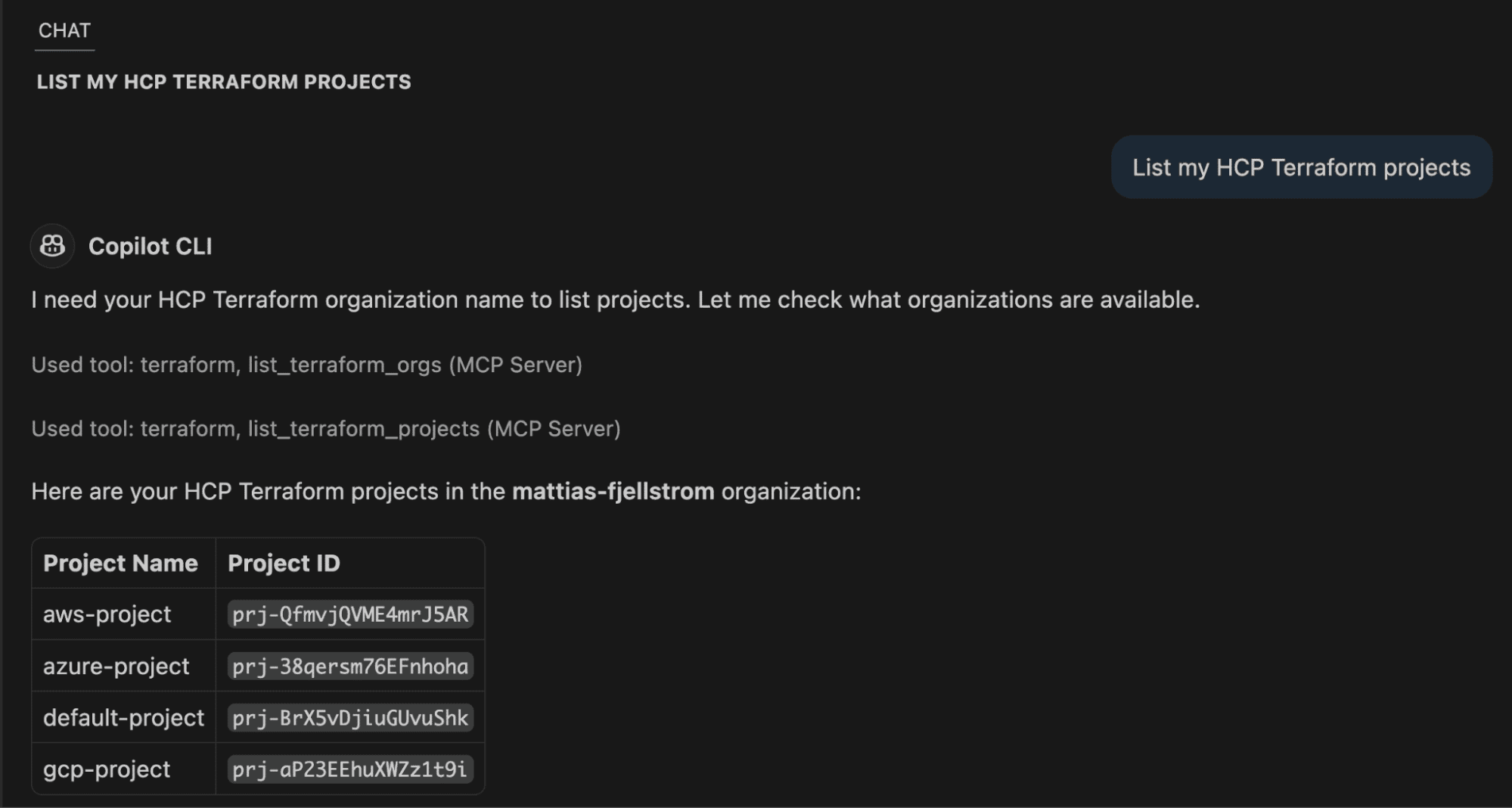
The output indicates that two tools were used: list_terraform_orgs and list_terraform_projects.
Assuming your working directory is pushed to a version control system (e.g. GitHub as in this example) you can now ask your agent to set up a VCS-driven workspace on HCP Terraform for this configuration.
The output of this chat is truncated for brevity, and the relevant tool calls are highlighted:
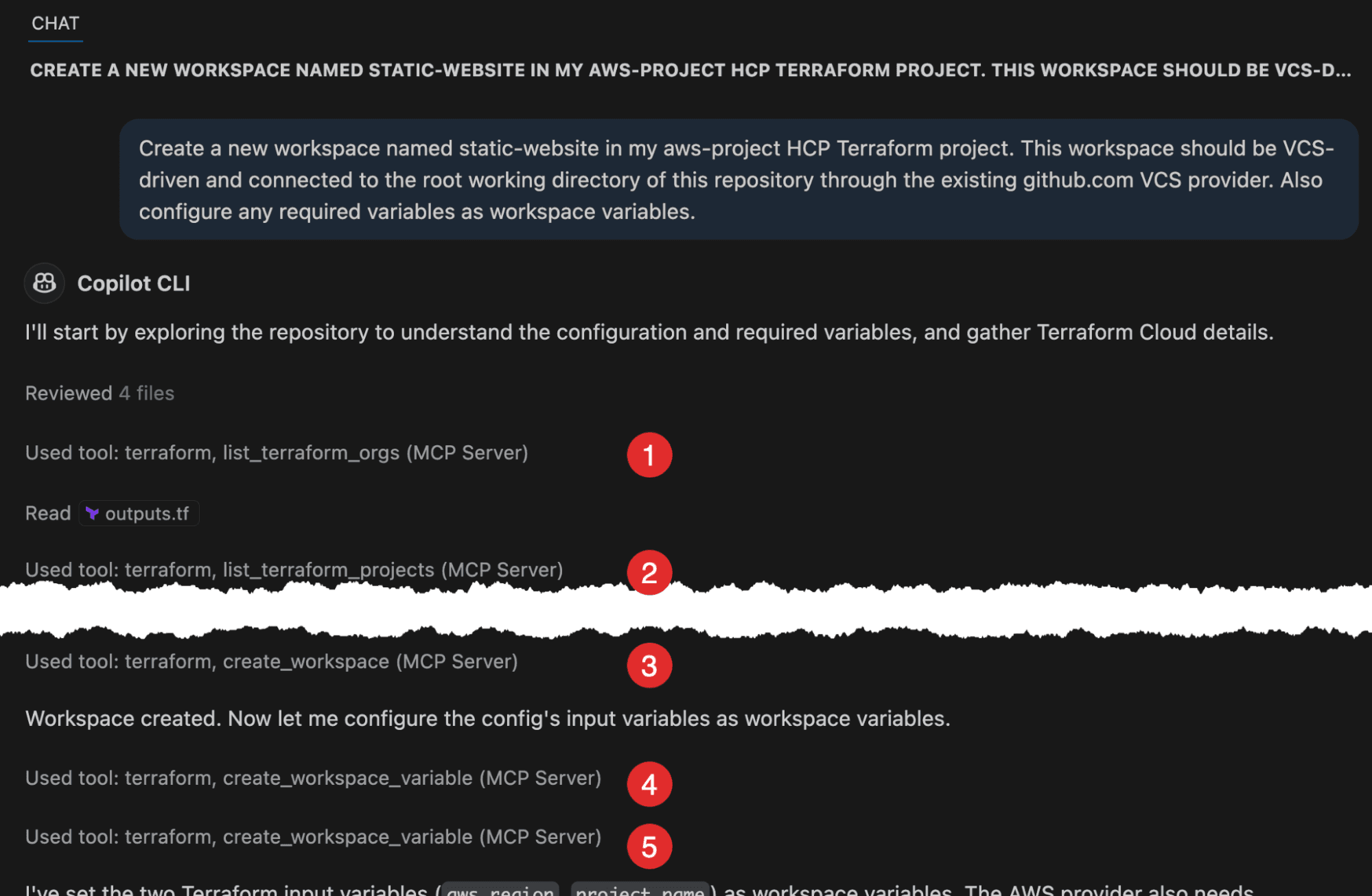
In addition to tools we have seen before (number 1 and 2 in the image above), we see that the agent used the create_workspace tool (number 3 in the image above) and the create_workspace_variable tool (number 4 and 5 in the image above).
As a final task, we should run a terraform apply to provision our infrastructure:
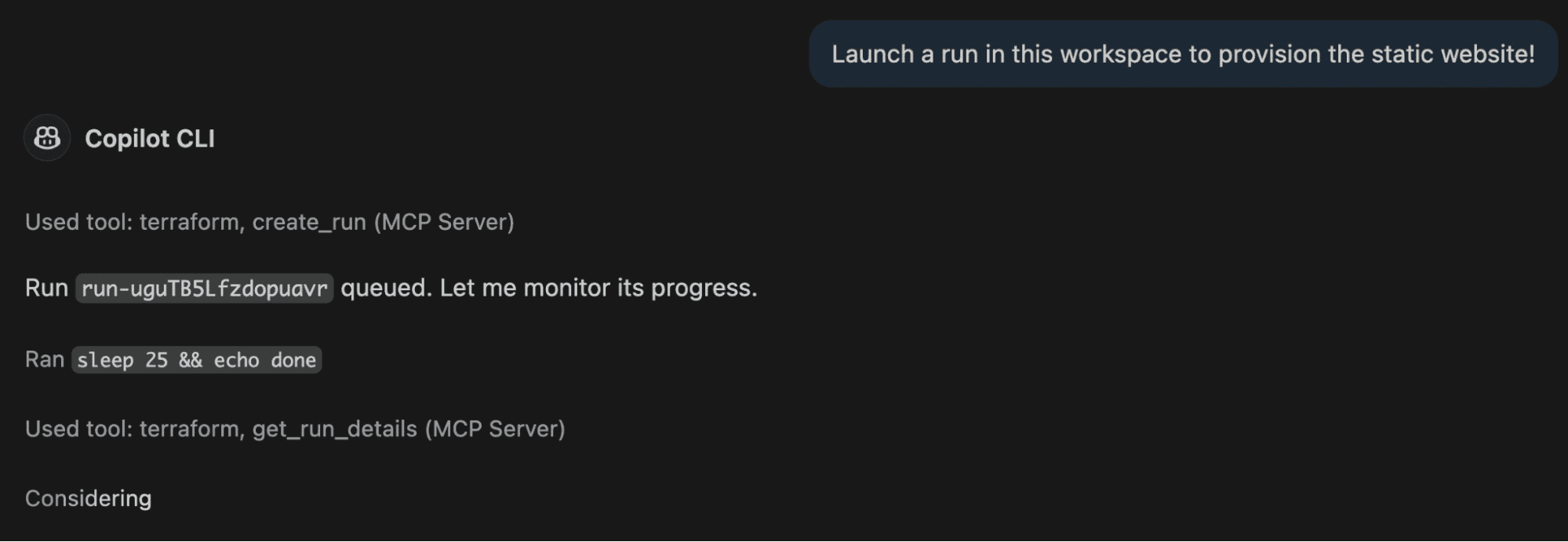
The agent uses the create_run tool to start a new run in the workspace, and it queries the status of this run using the get_run_details tool.
Note that the HCP Terraform workspace requires credentials to work with my AWS environment. The details of how to configure them are beyond the scope of this blog post.
We saw some situations where the Terraform MCP server can be used. Below is a summary of the primary use cases for the Terraform MCP server:
Keep the following best practices in mind when working with the Terraform MCP server.
You configure the Terraform MCP server with a TFE_TOKEN that has permissions to perform several different actions in your HCP Terraform environment. This is a security risk that you must handle carefully. For this reason, you should not expose the Terraform MCP server over a network unless you have specific requirements to do this.
If you do expose the MCP server online, make sure to implement proper authentication, authorization and network security measures.
The token you assign to the Terraform MCP server should be scoped to the actions it must be able to perform. Ideally, you scope the token to individual projects and workspaces, as well as scoping it to specific permissions within projects and workspaces.
If you are an administrator of your whole HCP Terraform or Terraform Enterprise environment, avoid using a user token for authentication. Instead, configure a dedicated team with a team token and assign this team the required permissions.
Some tools exposed by the Terraform MCP server are read-only operations. These include the search_providers, get_provider_details, and get_latest_provider_version tools. These tools can be referred to as read-tools.
Tools that interact with your HCP Terraform or Terraform Enterprise environment could perform destructive actions. For instance, the update_workspace and create_run tools could cause some issues unless used carefully. These tools can be referred to as action-tools.
For this reason, you should not allow the use of action-tools in a production environment. To be safe, configure your agent to prompt you to confirm each use of an action-tool while allowing read-tools with no confirmation prompt.
You can configure the Terraform MCP server not to allow destructive Terraform actions by setting the ENABLE_TF_OPERATIONS environment variable to false. In fact, this is the default value for this variable.
As a general best practice for MCP servers, including the Terraform MCP server, you should avoid exposing credentials and other sensitive data to the server.
For instance, when provisioning infrastructure to a cloud provider, you can configure OIDC workload identity federation between HCP Terraform and your target provider to manage authentication. There is no need to provide authentication details to the Terraform MCP server.
As with all of your cloud infrastructure and related IT infrastructure, you should log details around the use of Terraform MCP servers. This is especially true for action-tools targeting your HCP Terraform or Terraform Enterprise environment.
Several environment variables are available to configure logging and monitoring of the Terraform MCP server, including OTEL_METRICS_ENABLED and LOG_LEVEL. For enterprise use, you can package the Terraform MCP server with preconfigured log export to a centralized monitoring solution.
Action blocks are powerful, but on their own, they won’t solve the problems you have with running Terraform safely at scale. In most cases, you need policy enforcement, drift detection, run visibility, and a way to manage multiple stacks across cloud providers.
Spacelift is the infrastructure orchestration platform built for the AI-accelerated software era, managing the full lifecycle of both traditional IaC and AI-provisioned infrastructure.
It helps you manage all your IaC, Ansible, and Kubernetes from a single control plane, making it easy to implement a GitOps workflow that handles all your governance, including built-in policy as code, drift detection and remediation, dependency management across your stacks, self-service infrastructure with Templates, and more.
Spacelift Intelligence adds an AI-powered layer for natural language provisioning, diagnostics, and operational insight across both your traditional and AI-driven workflows.
Watch the video below:
Learn more about what you can do with Spacelift here.
You can run Terraform actions directly by binding them to a resource’s lifecycle events, or, if you’d like to replicate the CLI approach, you can leverage the built-in Spacelift Tasks for your Stacks.
Agentic AI is everywhere. Agents are based on LLMs trained on large datasets. You extend what your agents can do using RAG, agent skills, fine-tuning, and MCP servers. MCP servers expose tools for agents allowing them to call these tools to perform actions on your behalf.
The Terraform MCP server allows your agents to query the public Terraform registry for up-to-date provider, module, and policy documentation. It also allows agents to perform operations in your HCP Terraform environment such as creating workspaces and triggering runs.
In this blog post, we explored how to configure the Terraform MCP server to run locally as a Docker container and how to use it from VS Code with GitHub Copilot. We used an agent to create infrastructure for a simple static website, and we used the MCP server to find the latest version of the AWS provider, locate up-to-date documentation and examples for specific resources, create a workspace on HCP Terraform, and trigger a run to provision the static website.
Many other tools and resources in the Terraform MCP server will help you manage your Terraform authoring and operations experience. This blog post has been an introduction to what is possible.
Yes. HashiCorp maintains the official Terraform MCP server, which connects AI assistants to live Terraform Registry data (providers, modules, policies) and to HCP Terraform or Terraform Enterprise workspaces.
It runs as a local or remote server that exposes Terraform Registry APIs and HCP Terraform operations through JSON-RPC 2.0, communicating over stdio or streamable HTTP. AI clients query it for current provider docs, modules, and Sentinel policies instead of relying on training data.
It gives AI assistants real-time access to current provider schemas, modules, and policies, which reduces hallucinated arguments and outdated syntax. It also supports workspace, run, and variable management in HCP Terraform or Terraform Enterprise directly from the AI client.
HashiCorp’s Terraform MCP server is the official, actively maintained implementation that queries the Terraform Registry and HCP Terraform or Terraform Enterprise. The AWS Labs Terraform MCP server (from awslabs/mcp) handled AWS-specific Terraform and Terragrunt workflows with Checkov scanning, but has been deprecated in favor of HashiCorp’s version.
Yes. HashiCorp’s Terraform MCP server is open source under the Mozilla Public License 2.0, with source code, releases, and prebuilt Docker images publicly available on GitHub and Docker Hub under hashicorp/terraform-mcp-server.
此内容由惯性聚合(RSS阅读器)自动聚合整理,仅供阅读参考。 原文来自 — 版权归原作者所有。