










一、 前言
公司项目基于WPF开发,最近项目上线有点空闲时间写一篇基于wpf的基础教材,WPF也是近期才接触,学习WPF也是在网上查资料与微软的MSDN进行学习,写本博客的目为了温故而知新把学习过程记录下来,以备后查。
二、WPF控件和布局
回顾下WPF最常用的布局有几种方式? 上次给大家介绍了5种布局方式。废话不多说,直接到主题。之前出过一篇串口通讯的博文,今天就借助WPF控件与布局给大家分享一个串口调试助手,直接上图看下效果。
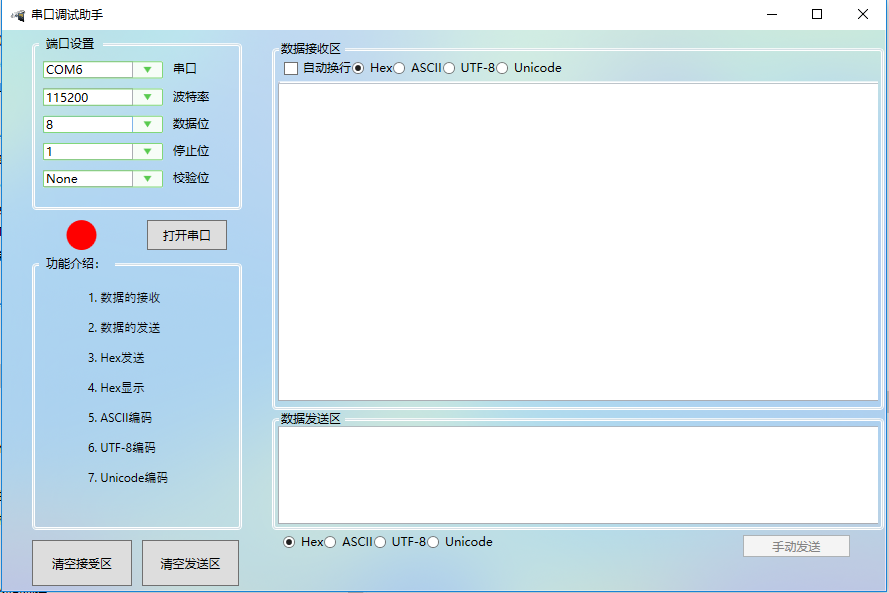
XAML CODE:

  1 <Window x:Class="WpfSerialPort.MainWindow"
  2         xmlns="http://schemas.microsoft.com/winfx/2006/xaml/presentation"
  3         xmlns:x="http://schemas.microsoft.com/winfx/2006/xaml"
  4         xmlns:d="http://schemas.microsoft.com/expression/blend/2008"
  5         xmlns:mc="http://schemas.openxmlformats.org/markup-compatibility/2006"
  6         xmlns:local="clr-namespace:WpfSerialPort"
  7         mc:Ignorable="d"
  8         Title="串口调试助手" Height="600" Width="900" WindowStyle="SingleBorderWindow"  Loaded="Window_Loaded">
  9     <Window.Resources>
 10         <Style x:Key="TextBlockStyle1" TargetType="{x:Type TextBlock}">
 11             <Setter Property="TextWrapping" Value="NoWrap"/>
 12             <Setter Property="TextTrimming" Value="None"/>
 13         </Style>
 14     </Window.Resources>
 15     <Grid Width="Auto" Height="Auto">
 16         <Grid.Background>
 17             <ImageBrush  ImageSource="/WpfSerialPort;component/images/背景.png"></ImageBrush>
 18         </Grid.Background>
 19         <Grid.RowDefinitions>
 20             <RowDefinition Height="*"/>
 21             <RowDefinition Height="Auto"/>
 22         </Grid.RowDefinitions>
 23         <Grid.ColumnDefinitions>
 24             <ColumnDefinition Width="270"/>
 25             <ColumnDefinition Width="*"/>
 26         </Grid.ColumnDefinitions>
 27
 28         <StackPanel>
 29             <GroupBox Margin="30,0,30,0" Height="180">
 30                 <GroupBox.Header>
 31                     <Label Content="端口设置"/>
 32                 </GroupBox.Header>
 33                 <StackPanel>
 34                     <WrapPanel>
 35                         <ComboBox x:Name="cbSerial" Grid.Row="0" Margin="5" Style="{StaticResource ComboBoxStyle}" Width="120" ></ComboBox>
 36                         <Label Grid.Row="0" Content="串口"/>
 37                     </WrapPanel>
 38
 39                     <WrapPanel>
 40                         <ComboBox x:Name="cbBaudRate" Grid.Row="0" Margin="5" Style="{StaticResource ComboBoxStyle}" Width="120" ></ComboBox>
 41                         <Label Grid.Row="0" Content="波特率"/>
 42                     </WrapPanel>
 43
 44                     <WrapPanel>
 45                         <ComboBox x:Name="cbDataBits" Grid.Row="0" Margin="5" Style="{StaticResource ComboBoxStyle}" Width="120" ></ComboBox>
 46                         <Label Grid.Row="0" Content="数据位"/>
 47                     </WrapPanel>
 48
 49                     <WrapPanel>
 50                         <ComboBox x:Name="cbStop" Grid.Row="0" Margin="5" Style="{StaticResource ComboBoxStyle}" Width="120" ></ComboBox>
 51                         <Label Grid.Row="0" Content="停止位"/>
 52                     </WrapPanel>
 53
 54                     <WrapPanel>
 55                         <ComboBox x:Name="cbParity" Grid.Row="0" Margin="5" Style="{StaticResource ComboBoxStyle}" Width="120" ></ComboBox>
 56                         <Label Grid.Row="0" Content="校验位"/>
 57                     </WrapPanel>
 58
 59                 </StackPanel>
 60             </GroupBox>
 61             <WrapPanel Height="40" Width="270">
 62                 <Grid Height="40" Width="270">
 63                     <Grid.RowDefinitions>
 64                         <RowDefinition Height="10"/>
 65                         <RowDefinition Height="*"/>
 66                     </Grid.RowDefinitions>
 67                     <Grid.ColumnDefinitions>
 68                         <ColumnDefinition Width="100"/>
 69                         <ColumnDefinition Width="*"/>
 70                     </Grid.ColumnDefinitions>
 71
 72                     <Ellipse x:Name="stateColor" Height="30" Width="30" Grid.Row="1" Grid.Column="0"  Fill="Red"  Margin="60,0,1,0"/>
 73                     <Button  x:Name="btnOpen"  Height="30" Width="80" Grid.Row="1" Grid.Column="1" Click="btnOpen_Click"  Content="打开串口"/>
 74                 </Grid>
 75
 76
 77             </WrapPanel>
 78
 79             <GroupBox Margin="30,0,30,0" Height="280">
 80                 <GroupBox.Header>
 81                     <Label Content="功能介绍:"/>
 82                 </GroupBox.Header>
 83                 <Canvas>
 84                     <TextBlock FontFamily="思源雅黑" Canvas.Left="50" Canvas.Top="15" TextAlignment="Center" FontSize="12">1. 数据的接受</TextBlock>
 85                     <TextBlock FontFamily="思源雅黑" Canvas.Left="50" Canvas.Top="45" TextAlignment="Center" FontSize="12">2. 数据的发送</TextBlock>
 86                     <TextBlock FontFamily="思源雅黑" Canvas.Left="50" Canvas.Top="75" TextAlignment="Center" FontSize="12">3. Hex发送</TextBlock>
 87                     <TextBlock FontFamily="思源雅黑" Canvas.Left="50" Canvas.Top="105" TextAlignment="Center" FontSize="12">4. Hex显示</TextBlock>
 88                     <TextBlock FontFamily="思源雅黑" Canvas.Left="50" Canvas.Top="135" TextAlignment="Center" FontSize="12">5. ASCII编码</TextBlock>
 89                     <TextBlock FontFamily="思源雅黑" Canvas.Left="50" Canvas.Top="165" TextAlignment="Center" FontSize="12">6. UTF-8编码</TextBlock>
 90                     <TextBlock FontFamily="思源雅黑" Canvas.Left="50" Canvas.Top="195" TextAlignment="Center" FontSize="12">7. Unicode编码</TextBlock>
 91                 </Canvas>
 92             </GroupBox>
 93             <WrapPanel Height="56" Margin="30,0">
 94                 <Grid Width="207.334" Height="56" RenderTransformOrigin="0.521,0.273">
 95                     <Grid.RowDefinitions>
 96                         <RowDefinition Height="10"/>
 97                         <RowDefinition Height="46"/>
 98                     </Grid.RowDefinitions>
 99                     <Grid.ColumnDefinitions>
100                         <ColumnDefinition Width="100"/>
101                         <ColumnDefinition Width="10"/>
102                         <ColumnDefinition Width="100"/>
103                     </Grid.ColumnDefinitions>
104                     <Button Content="清空接受区" HorizontalAlignment="Left" Grid.Row="1" VerticalAlignment="Top" Width="100" Height="46" Click="btnClearRev_Click"/>
105                     <Button Content="清空发送区" Grid.Column="2" HorizontalAlignment="Left" Grid.Row="1" VerticalAlignment="Top" Width="97" Height="46" Click="btnClearSend_Click"/>
106
107
108                 </Grid>
109
110             </WrapPanel>
111
112
113         </StackPanel>
114         <GroupBox Grid.Column="1" Header="数据接受区" HorizontalAlignment="Left" Height="370" Margin="0,10,0,0" VerticalAlignment="Top" Width="612">
115             <StackPanel>
116                 <WrapPanel Margin="5">
117                     <CheckBox x:Name="chkAutoLine" Content="自动换行" HorizontalAlignment="Left" VerticalAlignment="Top"/>
118                     <RadioButton x:Name="rbtnHex" Content="Hex" IsChecked="True"/>
119                     <RadioButton x:Name="rbtnASCII"  Content="ASCII"/>
120                     <RadioButton x:Name="rbtnUTF8" Content="UTF-8"/>
121                     <RadioButton x:Name="rbtnUnicode" Content="Unicode"/>
122
123                 </WrapPanel>
124                 <WrapPanel Background="White" >
125                     <Border  CornerRadius="10" BorderBrush="#BEC4D5" Background="Red" BorderThickness="1">
126
127                     </Border>
128                 </WrapPanel>
129                 <TextBox x:Name="txtShowData" HorizontalAlignment="Left" Width="602"  Height="318"/>
130             </StackPanel>
131
132         </GroupBox>
133         <GroupBox Header="数据发送区" HorizontalAlignment="Left" Height="120" Margin="0,380,0,0" VerticalAlignment="Top" Width="612" Grid.Column="1">
134             <TextBox x:Name="txtSendData" HorizontalAlignment="Left" Height="98"  Width="602" />
135         </GroupBox>
136         <WrapPanel Margin="10,505,10,29.901" Grid.Column="1">
137             <RadioButton x:Name="rbtnSendHex" Content="Hex" IsChecked="True"/>
138             <RadioButton x:Name="rbtnSendASCII"  Content="ASCII"/>
139             <RadioButton x:Name="rbtnSendUTF8" Content="UTF-8"/>
140             <RadioButton x:Name="rbtnSendUnicode" Content="Unicode" Height="22.24"/>
141             <Label Width="50"/>
142             <Label x:Name="lblSendCount" Width="200"/>
143             <Button x:Name="btnSend" IsEnabled="False" Content="手动发送" Width="107" Click="btnSend_Click"/>
144         </WrapPanel>
145
146
147
148     </Grid>
149 </Window>
View Code
1.)Grid布局
Grid允许我们通过自定义行列来进行布局,这类似于表格.通过定义Grid的RowDifinitions和ColumnDifinitions来实现对于表格行和列的定义,元素根据附加属性Grid.Row和Grid.Column确定自己的位置。
Grid的列宽与行高可采用固定、自动、按比列三种方式定义
第一种,固定长度——值为一个确定的数字
第二种,自动长度——值为Auto,实际作用就是取实际控件所需的最小值
第三种,比例长度——*表示占用剩余的全部宽度;两行都是*,将平分剩余宽度;一个2*,一个*,则前者占剩余全部宽度的2/3,后者占1/3;依此类推
 1 <Window x:Class="WpfLayout.MainWindow"
 2         xmlns="http://schemas.microsoft.com/winfx/2006/xaml/presentation"
 3         xmlns:x="http://schemas.microsoft.com/winfx/2006/xaml"
 4         xmlns:d="http://schemas.microsoft.com/expression/blend/2008"
 5         xmlns:mc="http://schemas.openxmlformats.org/markup-compatibility/2006"
 6         xmlns:local="clr-namespace:WpfLayout"
 7         mc:Ignorable="d"
 8         Title="MainWindow" Height="600" Width="900">
 9     <Grid Width="Auto" Height="Auto">
10         <Grid.RowDefinitions>
11             <RowDefinition Height="*"/>
12             <RowDefinition Height="Auto"/>
13         </Grid.RowDefinitions>
14         <Grid.ColumnDefinitions>
15             <ColumnDefinition Width="270"/>
16             <ColumnDefinition Width="*"/>
17         </Grid.ColumnDefinitions>
18
19         <Label  Background="Blue" Grid.Column="0" Content="串口配置与介绍区" HorizontalContentAlignment="Center" VerticalContentAlignment="Center" FontFamily="SourceHanSansCN-Regular"  Foreground="red"  FontSize="30" />
20         <Label  Background="Orange" Grid.Column="1" Content="数据接受与发送区" HorizontalContentAlignment="Center" VerticalContentAlignment="Center" FontFamily="SourceHanSansCN-Regular"  Foreground="red"  FontSize="30" />
21     </Grid>
22 </Window>
View Code
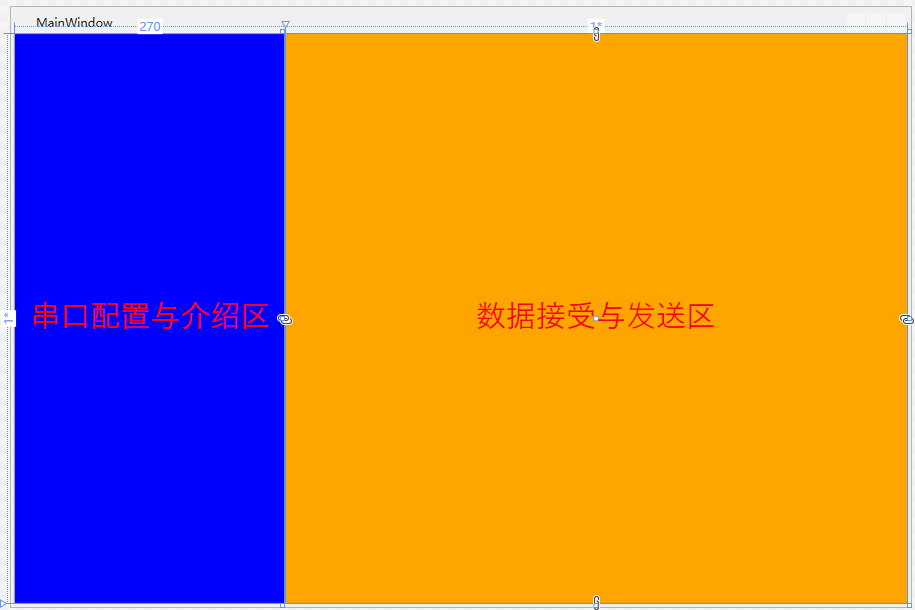
2.)StackPanel布局
StackPanel将控件按照行或列来顺序排列,但不会换行。通过设置面板的Orientation属性设置了两种排列方式:横排(Horizontal默认的)和竖排(Vertical),默认为竖排(Vertical)。
注意:Orientation="Horizontal"时,设置FlowDirection属性为RightToLeft,,则元素将从右向左排列。
3.)WrapPanel布局
WrapPanel布局面板将各个控件按照一定方向罗列,当长度或高度不够时自动调整进行换行换列。
Orientation="Horizontal"时各控件从左至右罗列,当面板长度不够时,子控件就会自动换行,继续按照从左至右的顺序排列。
Orientation="Vertical"时各控件从上至下罗列,当面板高度不够时,子控件就会自动换列,继续按照从上至下的顺序排列。
 1 <Window x:Class="WpfLayout.MainWindow"
 2         xmlns="http://schemas.microsoft.com/winfx/2006/xaml/presentation"
 3         xmlns:x="http://schemas.microsoft.com/winfx/2006/xaml"
 4         xmlns:d="http://schemas.microsoft.com/expression/blend/2008"
 5         xmlns:mc="http://schemas.openxmlformats.org/markup-compatibility/2006"
 6         xmlns:local="clr-namespace:WpfLayout"
 7         mc:Ignorable="d"
 8         Title="MainWindow" Height="600" Width="900">
 9     <StackPanel Orientation="Vertical">
10
11         <WrapPanel Orientation="Horizontal">
12             <ComboBox x:Name="cbSerial" Grid.Row="0" Margin="5"  Width="120" ></ComboBox>
13             <Label Grid.Row="0" Content="串口"/>
14         </WrapPanel>
15
16         <WrapPanel Orientation="Horizontal">
17             <ComboBox x:Name="cbBaudRate" Grid.Row="0" Margin="5" Width="120" ></ComboBox>
18             <Label Grid.Row="0" Content="波特率"/>
19         </WrapPanel>
20
21         <WrapPanel Orientation="Horizontal">
22             <ComboBox x:Name="cbDataBits" Grid.Row="0" Margin="5"  Width="120" ></ComboBox>
23             <Label Grid.Row="0" Content="数据位"/>
24         </WrapPanel>
25
26         <WrapPanel Orientation="Horizontal">
27             <ComboBox x:Name="cbStop" Grid.Row="0" Margin="5"  Width="120" ></ComboBox>
28             <Label Grid.Row="0" Content="停止位"/>
29         </WrapPanel>
30
31         <WrapPanel Orientation="Horizontal">
32             <ComboBox x:Name="cbParity" Grid.Row="0" Margin="5"  Width="120" ></ComboBox>
33             <Label Grid.Row="0" Content="校验位"/>
34         </WrapPanel>
35
36     </StackPanel>
37 </Window>
View Code
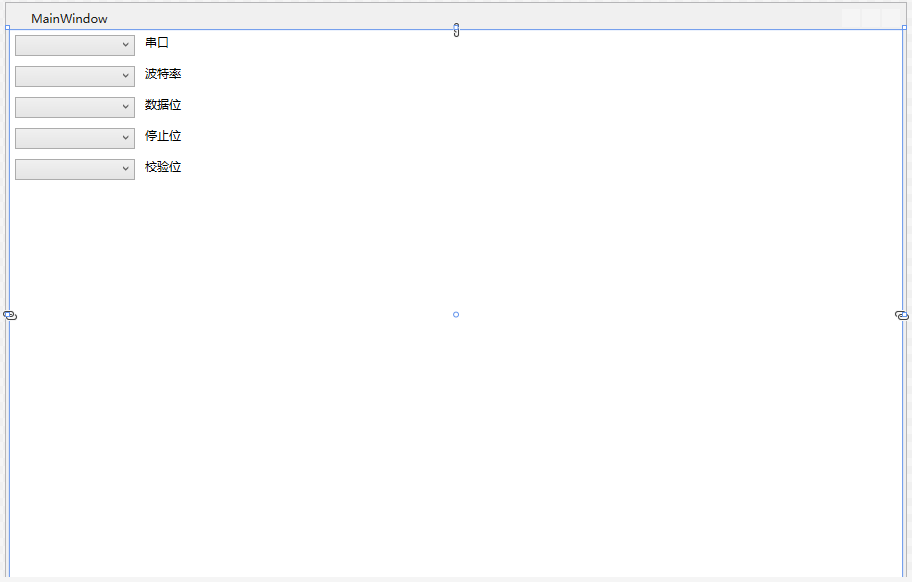
4.)Canvas布局
Canvas是一个类似于坐标系的面板,所有的元素通过设置坐标来决定其在坐标系中的位置。具体表现为使用Left、Top、Right、 Bottom附加属性在Canvas中定位控件。
 1 <Window x:Class="WpfLayout.MainWindow"
 2         xmlns="http://schemas.microsoft.com/winfx/2006/xaml/presentation"
 3         xmlns:x="http://schemas.microsoft.com/winfx/2006/xaml"
 4         xmlns:d="http://schemas.microsoft.com/expression/blend/2008"
 5         xmlns:mc="http://schemas.openxmlformats.org/markup-compatibility/2006"
 6         xmlns:local="clr-namespace:WpfLayout"
 7         mc:Ignorable="d"
 8         Title="MainWindow" Height="600" Width="900">
 9     <Canvas>
10         <TextBlock FontFamily="思源雅黑" Canvas.Left="50" Canvas.Top="15" TextAlignment="Center" FontSize="12">1. 数据的接受</TextBlock>
11         <TextBlock FontFamily="思源雅黑" Canvas.Left="50" Canvas.Top="45" TextAlignment="Center" FontSize="12">2. 数据的发送</TextBlock>
12         <TextBlock FontFamily="思源雅黑" Canvas.Left="50" Canvas.Top="75" TextAlignment="Center" FontSize="12">3. Hex发送</TextBlock>
13         <TextBlock FontFamily="思源雅黑" Canvas.Left="50" Canvas.Top="105" TextAlignment="Center" FontSize="12">4. Hex显示</TextBlock>
14         <TextBlock FontFamily="思源雅黑" Canvas.Left="50" Canvas.Top="135" TextAlignment="Center" FontSize="12">5. ASCII编码</TextBlock>
15         <TextBlock FontFamily="思源雅黑" Canvas.Left="50" Canvas.Top="165" TextAlignment="Center" FontSize="12">6. UTF-8编码</TextBlock>
16         <TextBlock FontFamily="思源雅黑" Canvas.Left="50" Canvas.Top="195" TextAlignment="Center" FontSize="12">7. Unicode编码</TextBlock>
17     </Canvas>
18 </Window>
View Code
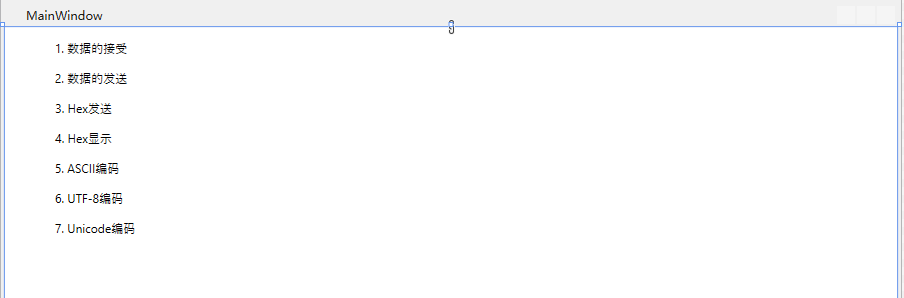
5.)DockPanel布局
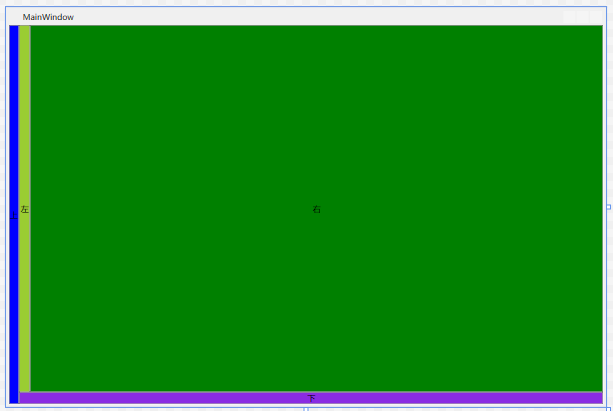
DockPanel支持让元素简单地停靠在整个面板的某一条边上,然后拉伸元素以填满全部宽度或高度。它也支持让一个元素填充其他已停靠元素没有占用的剩余空间。
DockPanel有一个Dock附加属性,因此子元素用4个值来控制她们的停靠:Left、Top、Right、Bottom。Dock没有Fill值。作为替代,最后的子元素将加入一个DockPanel并填满所有剩余的空间,除非DockPanel的LastChildFill属性为false,它将朝某个方向停靠。
 1 <Window x:Class="WpfLayout.MainWindow"
 2         xmlns="http://schemas.microsoft.com/winfx/2006/xaml/presentation"
 3         xmlns:x="http://schemas.microsoft.com/winfx/2006/xaml"
 4         xmlns:d="http://schemas.microsoft.com/expression/blend/2008"
 5         xmlns:mc="http://schemas.openxmlformats.org/markup-compatibility/2006"
 6         xmlns:local="clr-namespace:WpfLayout"
 7         mc:Ignorable="d"
 8         Title="MainWindow" Height="600" Width="900">
 9     <DockPanel>
10         <Button Content="上" DockPanel.Dock="Left" Background="Blue"></Button>
11         <Button Content="下" DockPanel.Dock="Bottom" Background="BlueViolet"></Button>
12         <Button Content="左" DockPanel.Dock="Left" Background="YellowGreen"></Button>
13         <Button Content="右" DockPanel.Dock="Right" Background="Green"></Button>
14     </DockPanel>
15 </Window>
View Code
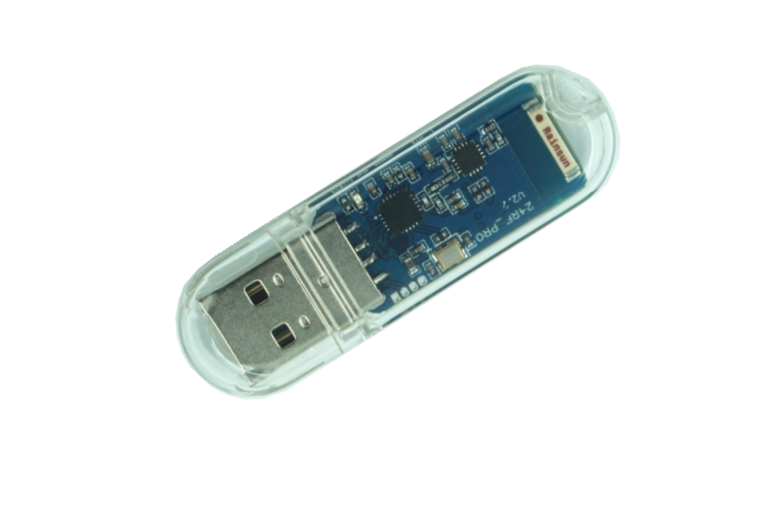
nRF24L01 无线串口
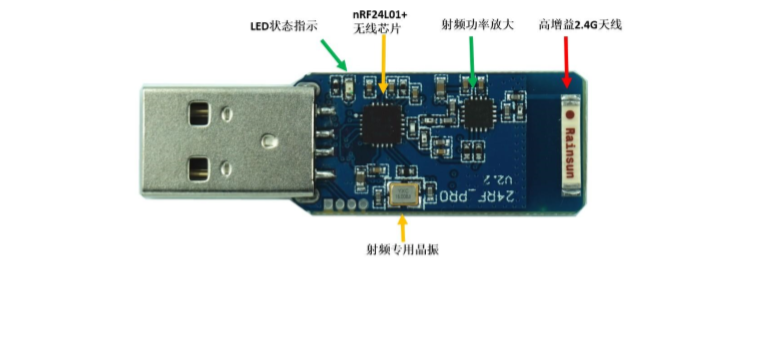
无线串口 A面
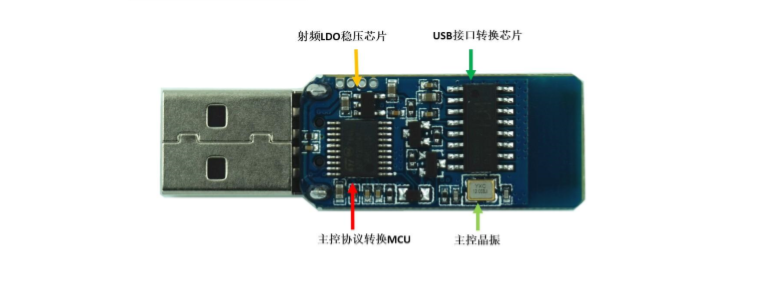
无线串口 B面
三、 小结
WPF布局牵涉的内容很多,只有在平时不断积累才能渐趋完善!布局一直是自己的弱项,布局会比较差,但是重在理解控件的作用以及能举一反三。 通过实例加深对各个控件的理解,具体的运用还需多加强练习和查阅msdn。,有不足之处还望大家多多指正。
Demo下载:WpfSerialPort.rar
此内容由惯性聚合(RSS阅读器)自动聚合整理,仅供阅读参考。 原文来自 — 版权归原作者所有。