

惯性聚合 高效追踪和阅读你感兴趣的博客、新闻、科技资讯
阅读原文 在惯性聚合中打开

推荐订阅源

D
Darknet – Hacking Tools, Hacker News & Cyber Security
爱范儿
爱范儿
GbyAI
GbyAI
A
About on SuperTechFans
阮一峰的网络日志
阮一峰的网络日志
U
Unit 42
博客园_首页
奇客Solidot–传递最新科技情报
奇客Solidot–传递最新科技情报
S
Secure Thoughts
Security Latest
Security Latest
Exploit-DB.com RSS Feed
Hacker News - Newest:
Hacker News - Newest: "LLM"
PCI Perspectives
PCI Perspectives
MyScale Blog
MyScale Blog
罗磊的独立博客
Y
Y Combinator Blog
Know Your Adversary
Know Your Adversary
月光博客
月光博客
C
CXSECURITY Database RSS Feed - CXSecurity.com
Recorded Future
Recorded Future
S
Securelist
T
Tor Project blog
Apple Machine Learning Research
人人都是产品经理
人人都是产品经理
WordPress大学
WordPress大学
The GitHub Blog
The GitHub Blog
P
Privacy & Cybersecurity Law Blog
Application and Cybersecurity Blog
雷峰网
雷峰网
Microsoft Security Blog
钛媒体:引领未来商业与生活新知
钛媒体:引领未来商业与生活新知
Project Zero
Project Zero
T
Tailwind CSS Blog
腾讯CDC
C
Cisco Blogs
T
The Exploit Database - CXSecurity.com
The Hacker News
The Hacker News
F
Full Disclosure
cs.CL updates on arXiv.org
美团技术团队
N
Netflix TechBlog - Medium
云风的 BLOG
云风的 BLOG
N
News and Events Feed by Topic
C
Cybersecurity and Infrastructure Security Agency CISA
D
Docker
酷 壳 – CoolShell
酷 壳 – CoolShell
Cyber Security Advisories - MS-ISAC
T
Threat Research - Cisco Blogs
O
OpenAI News
Cloudbric
Cloudbric

Runpod Blog.

DeepSeek V4 in the wild, and how to run it on Runpod New Runpod datacenter now live: AP-IN-1 Track GPU spend across your team with Cost Centers The GPU supply supercycle is here. Here’s what AI builders need to know. Community Spotlight: One-click AI image and video generation on Runpod with SwarmUI | Runpod Blog Community Spotlight: LoRA Pilot Data Prep to Inference Introducing the Runpod Assistant: Manage Your Cloud GPU Resources with Natural Language OpenAI's Parameter Golf: Train the Best Language Model That Fits in 16MB on Runpod LLM inference optimization: techniques that actually reduce latency and cost Pruna P-Video and Vidu Q3 public endpoints now available on Runpod Runpod brand spelling guide Quickstart - Runpod Documentation The AI market looks nothing like the narrative Training StyleGAN3 with Vision-Aided GAN on Runpod KoboldAI – The Other Roleplay Front End, And Why You May Want to Use It How to Connect Cursor to LLM Pods on Runpod for Seamless AI Dev Community Spotlight: How AnonAI Scaled Its Private Chatbot Platform with Runpod Prompt Scheduling with Disco Diffusion on Runpod Runpod's Latest Innovation: Dockerless CLI for Streamlined AI Development Run Your Own AI from Your iPhone Using Runpod Introducing Flash: Run GPU workloads on Runpod Serverless: No Docker required Use Claude Code with your own model on Runpod: No Anthropic account required Avoid Errors by Selecting the Proper Resources for Your Pod What hackers built on Runpod at TreeHacks 2026 Easily Back Up and Restore Your Pod with Cloud Sync + Backblaze B2 The Complete Guide to GPU Requirements for LLM Fine-Tuning AI Guides, Tutorials & GPU Infrastructure Insights | Runpod Your first Claude Code project within Runpod: a complete setup guide 10 billion Serverless requests and counting Building for resilience: Runpod’s response to the AWS us-east-1 outage How to Connect Google Colab to Runpod Founder Series #1: The Runpod Origin Story AMD MI300X vs. NVIDIA H100: Mixtral 8x7B Inference Benchmark How to Run the FLUX Image Generator with ComfyUI on Runpod Run Llama 3.1 405B with Ollama on Runpod: Step-by-Step Deployment How to Run FLUX Image Generator with Runpod (No Coding Needed) How to Use 65B+ Language Models on Runpod Deploy Llama 3.1 with vLLM on Runpod Serverless: Fast, Scalable Inference in Minutes Open Source Video & LLM Roundup: The Best of What’s New Run vLLM on Runpod Serverless: Deploy Open Source LLMs in Minutes Introduction to vLLM and PagedAttention New update to Github integration: release rollback! | Runpod Blog A note to the developers who built Runpod with us Deploy ComfyUI as a Serverless API Endpoint Setting up Slurm on Runpod Clusters: A Technical Guide Building an OCR System Using Runpod Serverless From No-Code to Pro: Optimizing Mistral-7B on Runpod for Power Users Lessons While Using Generative Language and Audio For Practical Use Cases Runpod RoundUp 3 – AI Music and Stock Sound Effect Creation New Navigational Changes To Runpod UI Use alpha_value To Blast Through Context Limits in LLaMa-2 Models Runpod Roundup 5 – Visual/Language Comprehension, Code-Focused LLMs, and Bias Detection Runpod is Proud to Sponsor the StockDory Chess Engine Runpod Roundup 4 – Open Source LLM Evaluators, 3D Scene Reconstruction, Vector Search Meta and Microsoft Release Llama 2 as Open Source SuperHot 8k Token Context Models Are Here For Text Generation How to Manage Funding Your Runpod Account Encrypted Volumes on Runpod: Protect Your Data at Rest How to Run a "Hello World" on Runpod Serverless Runpod AI field notes: December 2025 Faster GitHub Builds: Major Performance Improvements to Our Automated Integration Partnering with Defined AI to Bridge the Data Wealth Gap How to Run Serverless AI and ML Workloads on Runpod How to fine-tune a model using Axolotl Transcribe and translate audio files with Faster Whisper Runpod Achieves SOC 2 Type II Certification: Continuing Our Compliance Journey Orchestrating GPU workloads on Runpod with dstack Exploring Runpod Serverless: Create Workers From Templates DeepSeek V3.1: A Technical Analysis of Key Changes from V3-0324 Deep Cogito Releases Suite of LLMs Trained with Iterative Policy Improvement Wan 2.2 Releases With a Plethora Of New Features Iterative Refinement Chains with Small Language Models The New Runpod.io: Clearer, Faster, Built for What’s Next Introducing Clusters: On-Demand Multi-Node AI Compute Run DeepSeek R1 on Just 480GB of VRAM How Do I Transfer Data Into My Runpod? Spot vs. On-Demand Instances: What’s the Difference? Deploy GitHub Repos to Runpod with One Click Run GGUF Quantized Models Easily with KoboldCPP on Runpod How to Work with GGUF Quantizations in KoboldCPP Introducing Better Forge: Spin Up Stable Diffusion Pods Faster Supercharge Your LLMs with SGLang: Boost Performance and Customization Mastering Serverless Scaling on Runpod: Optimize Performance and Reduce Costs RAG vs. Fine-Tuning: Which Is Best for Your LLM? Run Larger LLMs on Runpod Serverless Than Ever Before – Llama-3 70B (and beyond!) How to Run vLLM on Runpod Serverless (Beginner-Friendly Guide) Embracing New Beginnings: Welcoming Banana.dev Community to Runpod Stable Diffusion + ComfyUI on Runpod: Easy Setup Guide Runpod RoundUp 2 – 32k Token Context LLMs and New StabilityAI Offerings Runpod Roundup: High-Context LLMs, SDXL, and Llama 2 16k Context LLM Models Now Available On Runpod Savings Plans Are Here For Secure Cloud Pods – How To Purchase a Monthly Plan And Save Big Pygmalion-7b from PygmalionAI has been released, and it's amazing Ada Architecture Pods Are Here – How Do They Stack Up Against Ampere? Spin up a Text Generation Pod with Vicuna and Experience a GPT-4 Rival Using OpenPose to Annotate Poses Within Stable Diffusion Set Up a Chatbot with Oobabooga on Runpod Deploy a Stable Diffusion UI on Runpod in Minutes Google Colab Pro vs. Runpod: Best GPU Cloud for AI Workloads How to Run a GPU-Accelerated Virtual Desktop on Runpod
Connect VSCode to Your Runpod Instance (Quick SSH Guide)
Zhen Lu · 2023-03-03 · via Runpod Blog.

While working in a terminal window is sometimes good enough, it's much nicer to work within your IDE if you are doing interactive development. Fortunately, you can connect your VSCode IDE to your Runpod instance via SSH. This will allow you to edit files and code on your remote instance directly from VSCode.

Pre-requisites:

1) A generated SSH key pair that you've configured in your settings (see this blog post)

2) A running Runpod instance with exposed TCP connection (You have to deploy the pod after you set up your SSH key!)

To keep this blog post short, I am going to assume that you already have done the pre-requisites 1 and 2. To make sure that this was done correctly, open your pod dashboard and click on the "Connect" button.
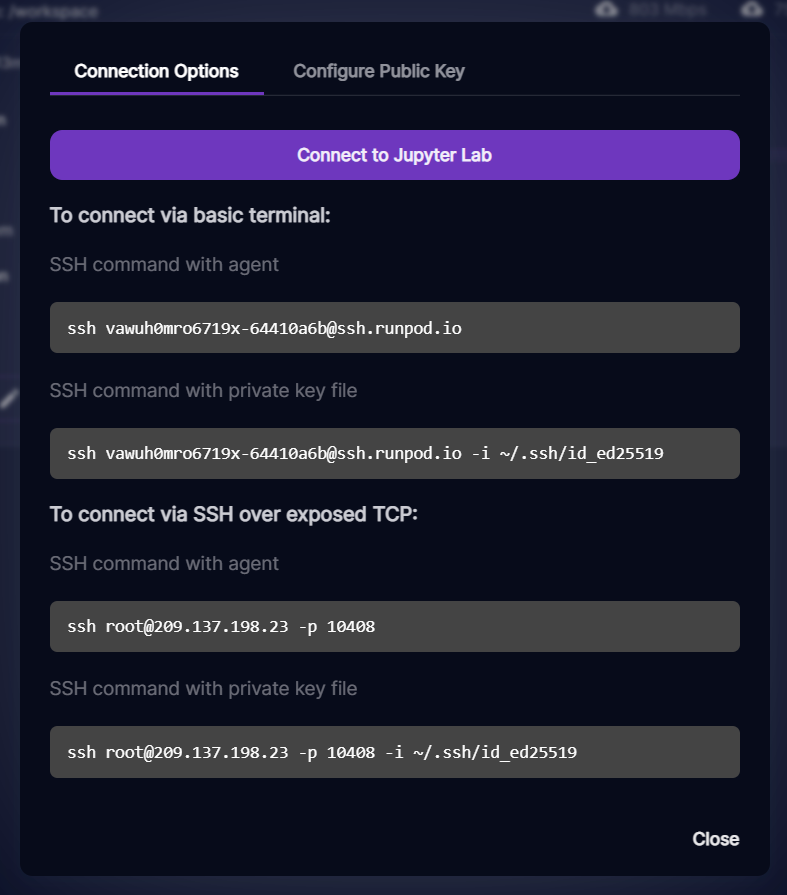
Runpod connection options with a Connect to Jupyter Lab button and SSH commands, including SSH over exposed TCP

You should see the "To connect via SSH over exposed TCP" section (Make sure that you see a number IP and NOT something like blah@ssh.runpod.io !). Go ahead and run the last SSH command in a terminal window to confirm that you are able to connect via SSH. Make sure that the path after "-i" points to the path where you saved/generated your public key.

If you are able to SSH to your instance with this, then you have met the pre-reqs and should be able to connect via VSCode in a few short steps! If not, then check your key pair for extra spaces and irregularities. If it's asking for a password, this is generally a problem with your key pair.

First, open VSCode and make sure you have the following extension installed:
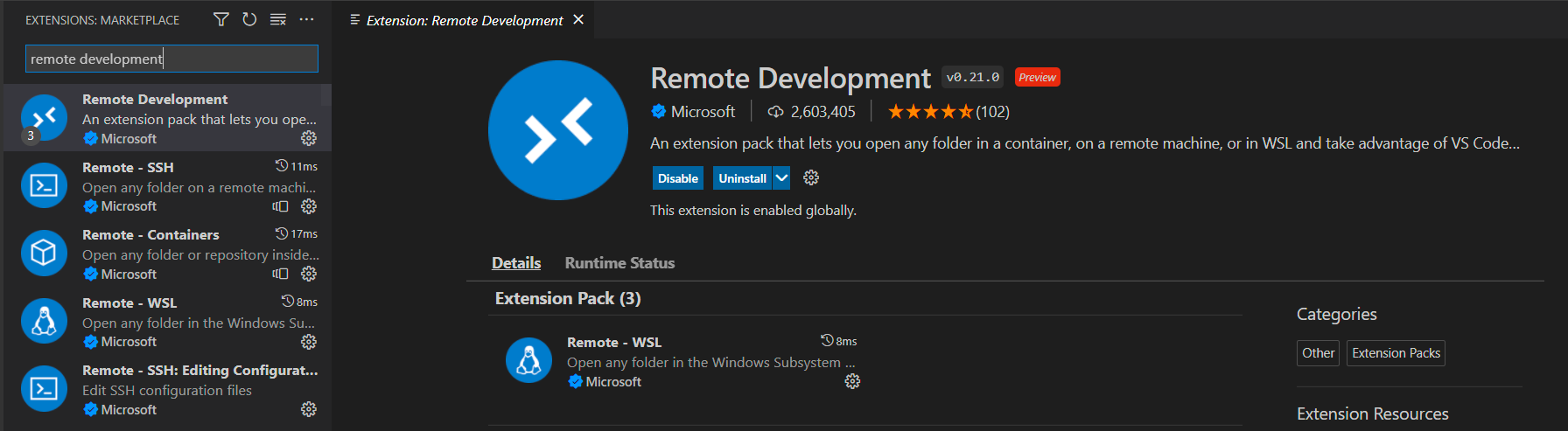
VS Code Extensions Marketplace showing the Microsoft Remote Development extension pack

Once you've installed this extension, you should be able to open the command palette by hitting "ctrl+shift+p". You should be able to then choose the "Remote-SSH: Connect to Host..." option.
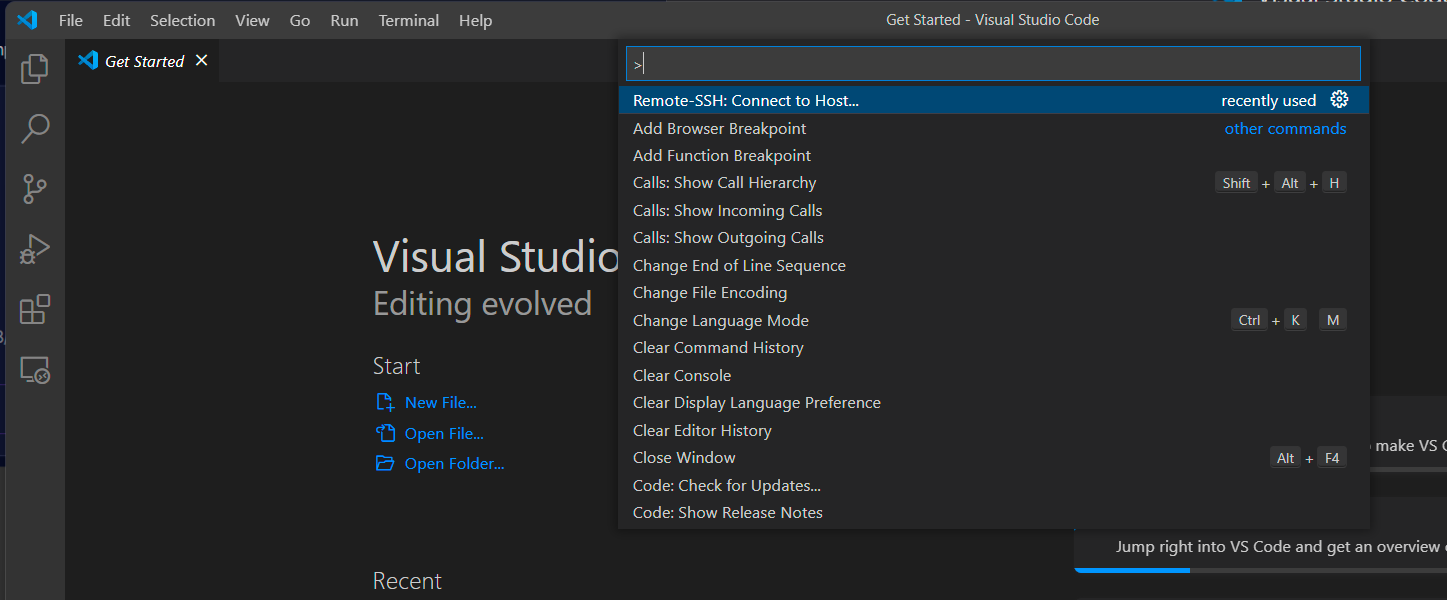
VS Code command palette with Remote-SSH: Connect to Host highlighted

This should present you with some new options. Choose "Add new SSH Host".
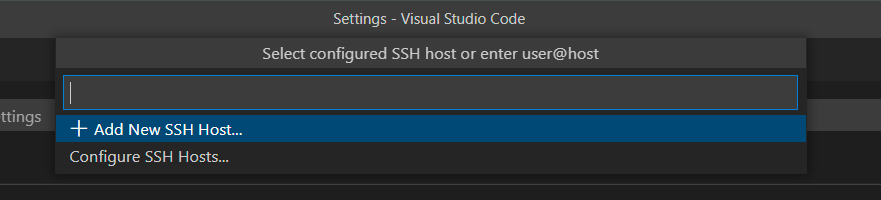
VS Code prompt to select a configured SSH host with the Add New SSH Host option

This should bring up a new prompt for you to put in an SSH command. Put in the SSH command that you confirmed works earlier and then hit enter.


VS Code Enter SSH Connection Command input showing an example SSH command placeholder

VS Code SSH connection command entered with root user, custom port, and private key path

It will prompt you to choose a SSH configuration file. You can choose whichever you want. Choosing the default is safe if you don't know what this is.
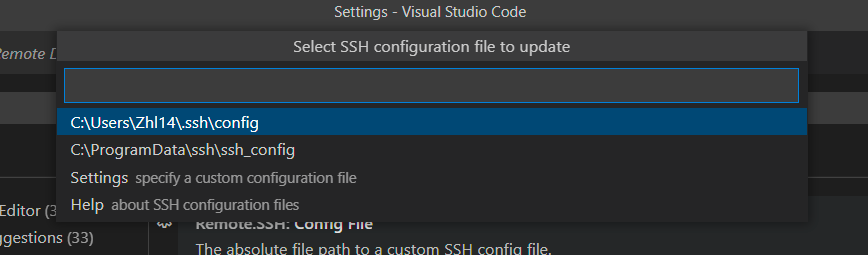
VS Code prompt to select an SSH configuration file to update

Now that your host is added, go back to the command palette menu "ctrl+shift+p" and choose the "Remote-SSH: Connect to Host..." option again. This time, you should have a host in your options:

VS Code SSH host picker listing the pod IP address 209.137.198.23

Go ahead and select it and it should connect to your pod.
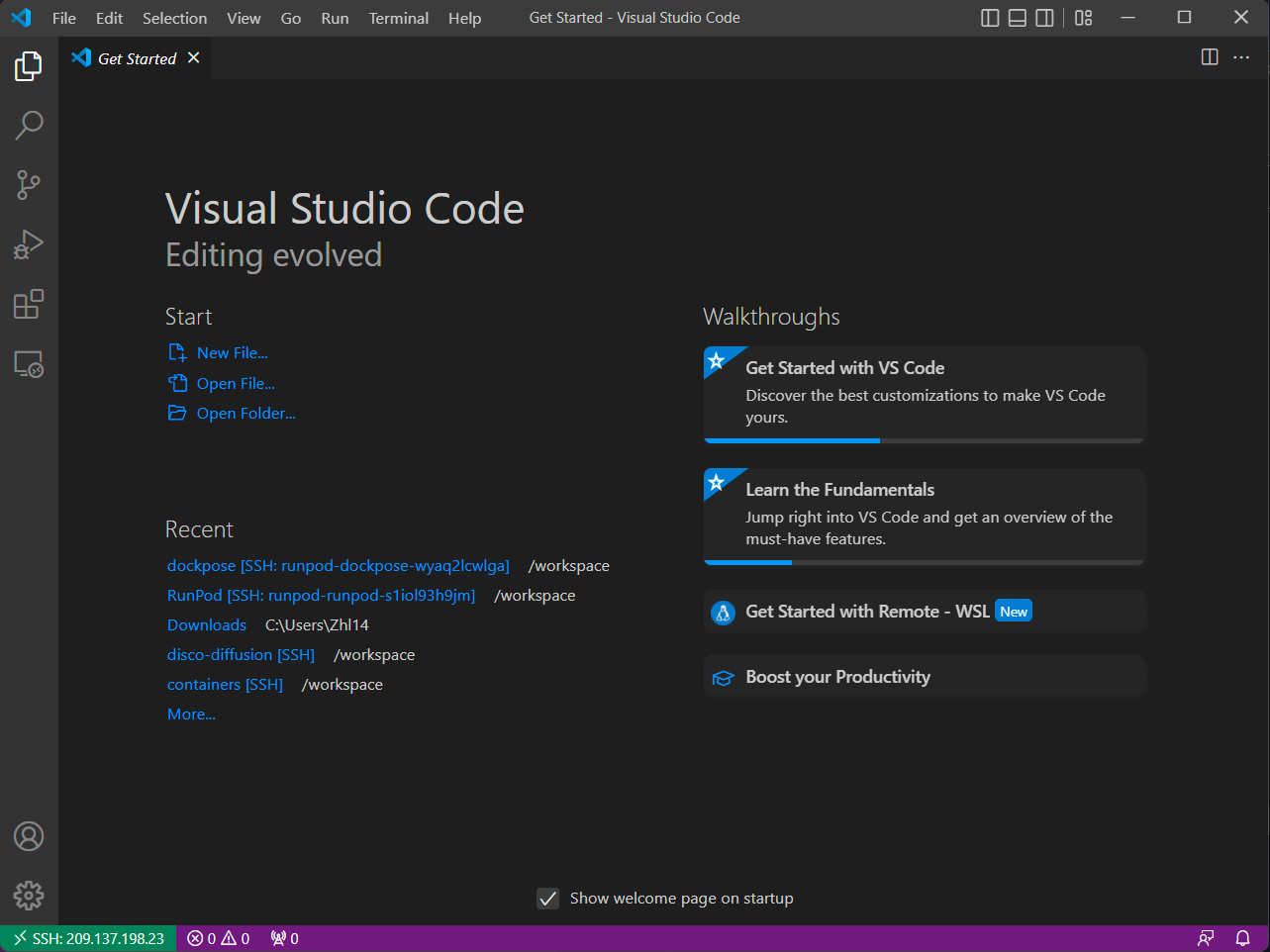
VS Code welcome screen connected over SSH, with the remote host shown in the status bar

You can verify that you are connected by looking for the IP address in green in the bottom left corner. You can now develop remotely in your IDE! Enjoy!

Author profile: Zhen Lu