


It ain’t exactly the Mississippi, the experiential moat that separates people who write and edit code and people who don’t. It is narrow and shallow. Especially in the realm of email, with its roots in the earliest days of the internet and its relatively simple protocols, someone without a technical background can arrive on that not-so distant shore wetting nothing but their socks.
For people who don’t know how to read or write code, understanding and interacting with something called an API is fun, empowering, and–even if you don’t use the knowledge to build anything–a worthwhile first step into the water. It’s something you can apply to most modern apps, not just those specific to email.
An application programming interface (API) lets you request information and issue commands to an app or operating system without opening said app or operating system. Ask an API to do something or to respond with specific information and it will, in plain text.
Everyone should try it at least once.
A five-minute API exercise
You already have everything you need to interact with an API. On a Mac, open Spotlight, type “terminal” and hit enter. Or, in Windows, open the Start menu and type “command prompt” and press enter. Then copy and paste this into your terminal:
curl "https://wttr.in/Seattle?format=4"
Hit enter and you should see a single line of live weather data for Seattle. Try changing the city to your own and doing it again. You just made your first personalized API “call” (using the correct verbiage is essential to sounding cool while working in your terminal).
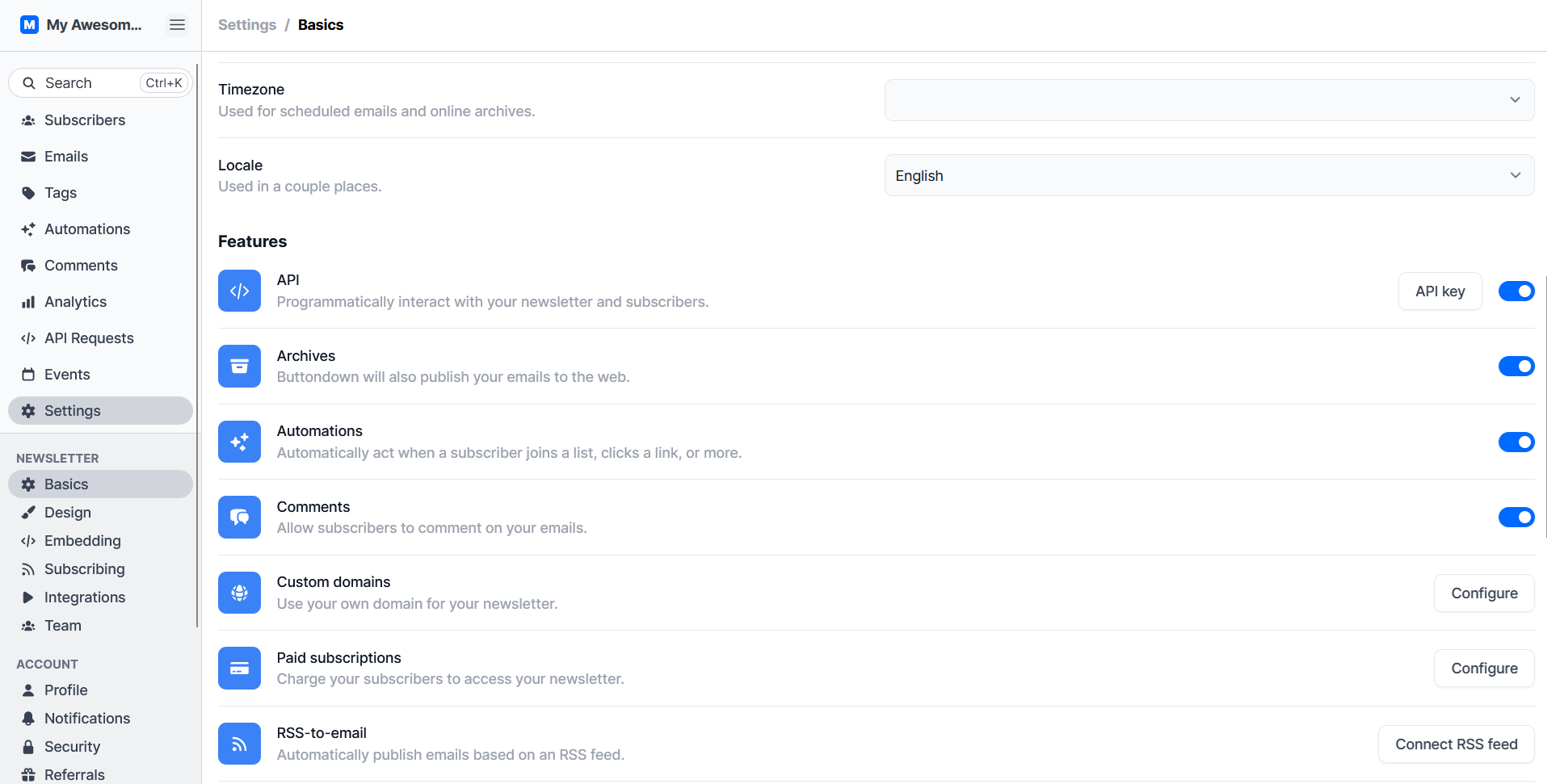
Now, many of the apps you already use likely provide access to your account’s data via API. You just need to prove who you are. Buttondown, for example, lets you retrieve your list of subscribers with a call as long as you provide your private key (found in Settings > API). With that copied to your clipboard, you’d open the API documentation, find the command, and replace the placeholder text with your API key. Here’s what it looks like with a Buttondown account:
curl --request GET --url https://api.buttondown.com/v1/subscribers --header "accept: application/json" --header "authorization: Token $BUTTONDOWN_API_KEY"
At first glance, the output from that request seems orders of magnitude more convoluted than opening the app and exporting your list to a spreadsheet. But API outputs are standardized, which means programmers can add them to the code of their app, reformat the data, and voila! Now they have real-time information, styled however and wherever they’d like, without having to code the weather app from scratch or sync your subscriber list to long-term storage.
You could take another step across that narrow gulley by learning how to filter the output of an API call. Adding ?creation_date=2024-12-18 to the end of the subscriber URL, for instance, would only list people who joined your list on or after December 18, 2024:
curl --request GET --url "https://api.buttondown.com/v1/subscribers?creation_date=2024-12-18" --header "accept: application/json" --header "authorization: Token $BUTTONDOWN_API_KEY"
Inserting API calls into an app-store-ready app isn’t the only way to use these functions. You could, say, run a cURL command inside a basic iOS Shortcut, triggering it after a text or voice input. Or create a custom Windows keyboard shortcut with AutoHotKey to run the call.
Requesting information via an API is the best place to practice. It’s straightforward and nearly impossible to screw anything up with your account or its data. Updating data with a call is a different story.
Creating or altering records via API
Hopefully, you’re starting to feel more confident about how to read schema and apply small tweaks to get the results you want. So let’s try something a tiny bit more difficult: updating a subscriber’s notes.
But first, a disclaimer. While most API calls will reject anything that requires writing over existing data, only experiment with records that you aren’t afraid to lose. If you’ve already added notes to a subscriber’s record and then make an API call to add new notes, the previous ones will be replaced with the new ones. For now, stick to subscribers whose Notes field is currently blank.
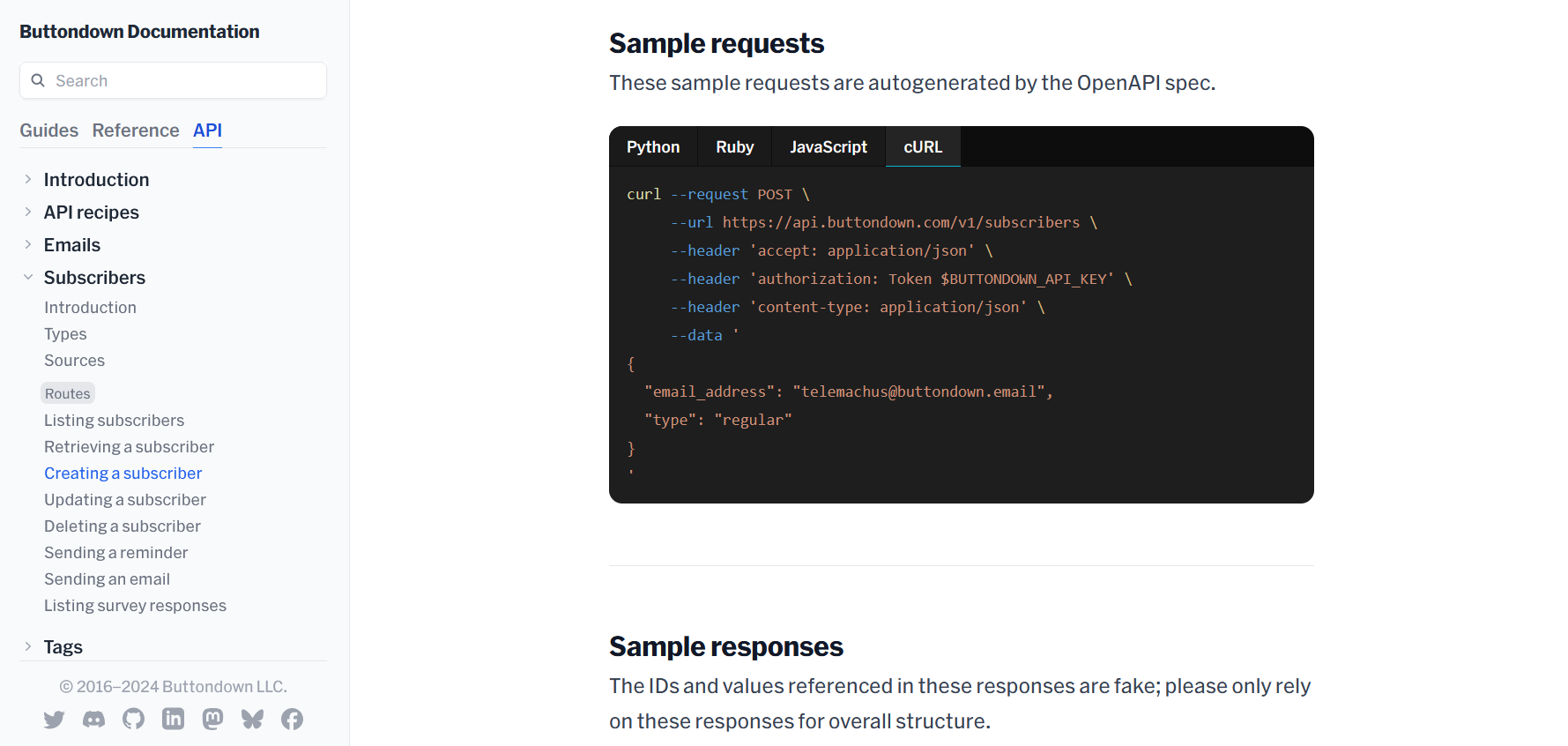
With that out of the way, open the cURL tab on the updating a subscriber documentation and try to personalize it on your own. You might be able to do it correctly without any additional help!
Step one would be replacing {id_or_email} with the email address of the subscriber you want to update. Then, change $BUTTONDOWN_API_KEY to your own. Assuming you don’t want to update the subscriber’s email address, delete that line. Write something of your own after ”notes”:. Finally, there are some very fiddly, very annoying syntax differences between making this API call in a Mac Terminal versus in a Windows Command prompt.
In Windows, you need backslashes before any quotation mark inside the curly brackets:
curl -X PATCH "https://api.buttondown.com/v1/subscribers/{id_or_email}" -H "accept: application/json" -H "Authorization: Token $BUTTONDOWN_API_KEY" -H "Content-Type: application/json" -d "{ \"notes\": \"I updated this via the API!\" }"
In macOS or Linux, switch the double quotes just outside of the curly brackets to single quotes and remove the backslashes inside of the curly brackets. Everything else is exactly the same. Make the necessary adjustments, send the API call, and open your Buttondown account to double-check that the note was added. It’s that easy.
Wrapping it in a user-friendly interface
You don’t need to create a full-blown app to abstract out the terminal, confusing backslashes, and 36-character API key. MacOS or iOS can do that for you.
Open Shortcuts on your iPhone, iPad, or Mac. Create a new Shortcut, and name it “Add a new subscriber.” Type Ask for input into the search bar and tap it. Select Prompt and enter something like “Add a new subscriber email.”
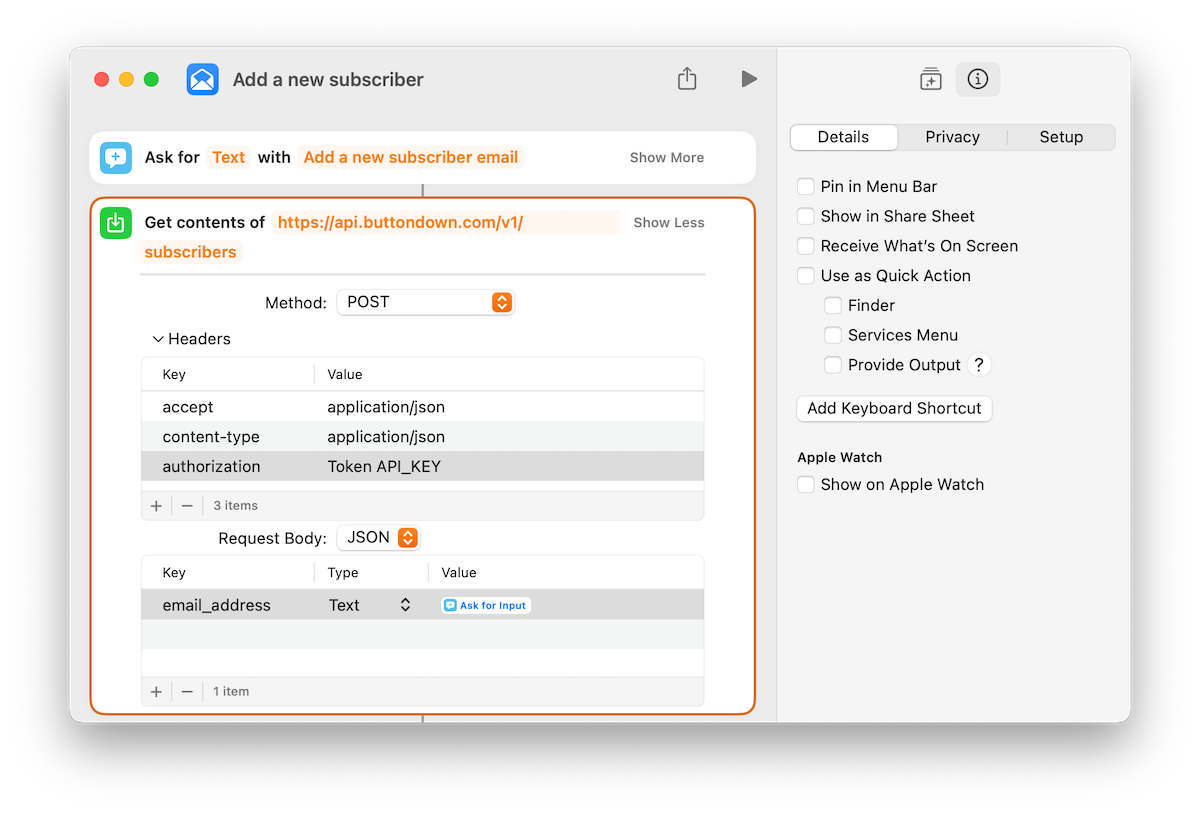
Next, search for and add the Get Contents of URL action, pasting this URL into the “Get Contents Of” field https://api.buttondown.com/v1/subscribers. If it shows “Get Contents Of Ask For Input” by default, delete the “Ask For Input” field then paste in the URL.
Switch Method POST and add the following:
- A Header key of “accept” followed by “application/json”
- Another header key pair consisting of “Content-Type” and “application/json” in the field to its right.
- One last header key pair named “authorization” with “Token ” followed by your API key in the field next to it.
- Set Request Body set to JSON.
- Below the Request Body, add a new field named “data,” tap the newly created field, add a new text field, and insert the “Ask for Input” variable (on a Mac, you’ll need to right-click to add it).
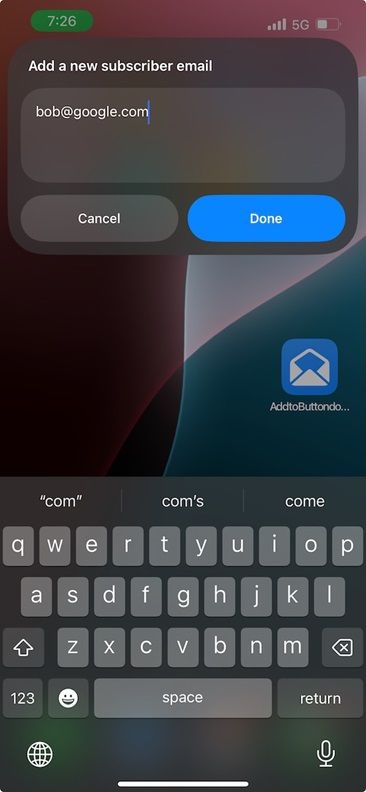
The next time you’re at an in-person event and meet someone interested in staying connected via your newsletter, tap the shortcut, enter their email, and that’s all she wrote! Shortcuts will run the API call without you needing to futz with any of the syntax.
Applying the same basic ideas, you could create Shortcuts that add tags to a subscriber or add metadata like first and last names. You may not get them on the first try, but neither do people who do this stuff for a living! Trial and error is part and parcel of building software and automations. Sometimes the error message will be enough to deduce what’s wrong. If not, chatbots are pretty good at troubleshooting this stuff too. Heck, if you’ve got an actual use case for an API call in mind, reach out and someone from our team might be able to help.
Build it the way you want it
For the vast majority of cases, it will be easier and more reliable to move data into and out of your newsletter via built-in integrations or an automation platform like Zapier. But where’s the fun in that?
Working in a terminal, even as a one-off experiment, is worth it if only to gain a new perspective on how the apps you use store, share, and secure your data. It’ll make you a smarter, more efficient creator.
Turn what you learned into the topic of your next newsletter. Bring some people with you on the journey across the moat. We’re here on the other side, ready to pull you ashore and give you a tour.