






WPF Layout
在窗体布局中,为了适应不同的分辨率时,我们常常用到神奇的Viewbox控件帮助我们.
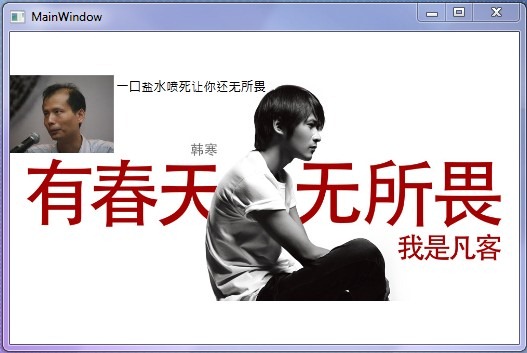
XAML:
      <Viewbox>
            <Canvas Width="980" Height="435" x:Name="canvas">
                <Canvas.Background>
                    <ImageBrush ImageSource="images\hhbanner.jpg"></ImageBrush>
                </Canvas.Background>

                <Label Canvas.Left="200"  Content="一口盐水喷死让你还无所畏" FontSize="24"  Name="label1" />
                <Image  Height="150" Name="image1" Stretch="Fill" Width="200" Source="/WPFLayoutTest;component/images/fzz.jpg" />
            </Canvas>
        </Viewbox>
如上窗体布局中,Viewbox 里放入了一个Lable,一个Image,当窗体拉伸时,Lable和Image将自动缩放.
那么如何让窗体放大时,方先生的形象不随着韩同学的形象一起放大呢?
了解一下WPF Layout System,WPF 提供了一个两个自定义接口(MeasureOverride和ArrangeOverride)给用户自定义Layout.
详细解释参照:
WPF/Silverlight Layout 系统概述——Measure
实现如上需求,我们自定义一个Canvas,在重写其ArrangeOverride 方法,当发现子控件是Image时,按照一定比例缩放:
   <Viewbox>
            <my:CustomCanvas Width="980" Height="435" x:Name="canvas">
                <my:CustomCanvas.Background>
                    <ImageBrush ImageSource="images\hhbanner.jpg"></ImageBrush>
                </my:CustomCanvas.Background>

                <Label Canvas.Left="200"  Content="一口盐水喷死让你还无所畏" FontSize="24"  Name="label1" />
                <Image  Height="150" Name="image1" Stretch="Fill" Width="200" Source="/WPFLayoutTest;component/images/fzz.jpg" />
            </my:CustomCanvas>
        </Viewbox>
在Window Size Change 时计算还原要的缩放比率
        private void Window_SizeChanged(object sender, SizeChangedEventArgs e)
        {
            if (defaultWinSize == Size.Empty)
                return;
            var newSize = e.NewSize;
            var scaleX = defaultWinSize.Width / newSize.Width;
            var scaleY = defaultWinSize.Height / newSize.Height;

            this.canvas.SetScale(scaleX, scaleY);

        }
 public class CustomCanvas : Canvas
    {
        private double scaleX = 1;
        private double scaleY = 1;

        public void SetScale(double x, double y)
        {
            this.scaleX = x;
            this.scaleY = y;
            this.InvalidateArrange();
        }

        /// <summary>
        /// 重写ArrangeOverride 方法,使Image不随着外面的Viewbox缩放而缩放.
        /// </summary>
        /// <param name="arrangeSize"></param>
        /// <returns></returns>
        protected override Size ArrangeOverride(Size arrangeSize)
        {
            Transform scaleTransform = new ScaleTransform(this.scaleX, this.scaleY);
            foreach (UIElement uIElement in base.InternalChildren)
            {
                if (uIElement != null)
                {
                    double x = 0.0;
                    double y = 0.0;
                    double left = Canvas.GetLeft(uIElement);
                    if (!DoubleUtil.IsNaN(left))
                    {
                        x = left;
                    }
                    else
                    {
                        double right = Canvas.GetRight(uIElement);
                        if (!DoubleUtil.IsNaN(right))
                        {
                            x = arrangeSize.Width - uIElement.DesiredSize.Width - right;
                        }
                    }
                    double top = Canvas.GetTop(uIElement);
                    if (!DoubleUtil.IsNaN(top))
                    {
                        y = top;
                    }
                    else
                    {
                        double bottom = Canvas.GetBottom(uIElement);
                        if (!DoubleUtil.IsNaN(bottom))
                        {
                            y = arrangeSize.Height - uIElement.DesiredSize.Height - bottom;
                        }
                    }
                    if (uIElement is Image)
                    {
                        uIElement.RenderTransform = scaleTransform;
                    }
                    uIElement.Arrange(new Rect(new Point(x, y), uIElement.DesiredSize));
                }
            }
            return arrangeSize;

        }
    }
Demo Code: 下载
Image 异步加载:
WPF UI 上的东西,不是太容易异步,常用的Backgroud,Dispatch.Invoke 之类的方法,只能对于所操作代码中没有UI相关的才能真的异步,从而不堵住UI线程.
一下加载很多图片,很容易卡住UI,下面有个方案很好解决了异步加载图片的问题,
Loading Images Asynchronously in WPF
http://dotnetlearning.wordpress.com/2011/01/27/loading-images-asynchronously-in-wpf/
Code 下载
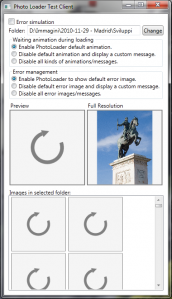
效果:
此内容由惯性聚合(RSS阅读器)自动聚合整理,仅供阅读参考。 原文来自 — 版权归原作者所有。