




参考了一个博客(http://www.pampigt.se/?p=69),其中自己也下了不少功夫,主要是对SharePoint Designer中Data view的使用方法不熟悉,走了些弯路,但终于还是搞定了。贡献给大家,应该也算是个原创吧。
1. 在NewPost画面增加Attach File按钮。
 代码
代码
<Forms>
<Form Type="DisplayForm" Url="ViewPost.aspx" WebPartZoneID="Main" />
<Form Type="EditForm" Url="EditPost.aspx" ToolbarTemplate="BlogEditFormToolBar" Template="BlogForm" WebPartZoneID="Main" />
<Form Type="NewForm" Url="NewPost.aspx" ToolbarTemplate="BlogNewFormToolBar" Template="BlogForm" WebPartZoneID="Main" />
</Forms>
代码
<Forms>
<Form Type="DisplayForm" Url="ViewPost.aspx" WebPartZoneID="Main" />
<Form Type="EditForm" Url="EditPost.aspx" WebPartZoneID="Main" />
<Form Type="NewForm" Url="NewPost.aspx" WebPartZoneID="Main" />
</Forms>
2. 修改Post.aspx,显示附件的链接。
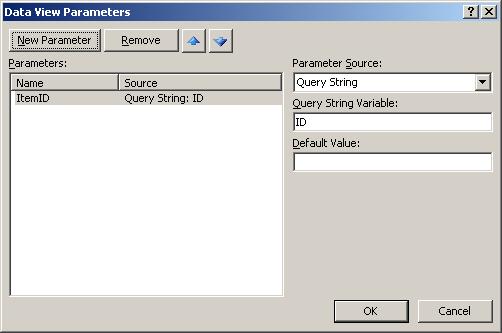
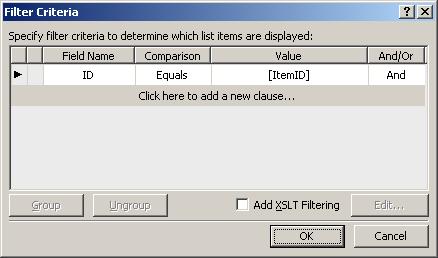
代码
<xsl:when test="@Attachments=''"></xsl:when>
<xsl:otherwise>Attachments:
<xsl:if test="not (@Attachments=0)">
<img border="0" src="{$HttpVDir}/_layouts/images/attach.gif" />
</xsl:if>
</xsl:otherwise>
代码
<xsl:when test="@Attachments=''"></xsl:when>
<xsl:otherwise>Attachments:
<xsl:if test="not (@Attachments=0)">
<xsl:element name="SharePoint:AttachmentsField">
<xsl:attribute name="runat">server</xsl:attribute>
<xsl:attribute name="ListId">{AC915FEE-C3BE-4102-8D84-75A384A327A2}</xsl:attribute>
<xsl:attribute name="FieldName">Attachments</xsl:attribute>
<xsl:attribute name="ControlMode">Display</xsl:attribute>
<xsl:attribute name="Visible">true</xsl:attribute>
</xsl:element>
</xsl:if>
</xsl:otherwise>
注意:ListId要替换为自己网站内的ListId。
至此,大功告成。重新在IE下打开Post.aspx,将会看到原来附件图标不见了,取而代之的是附件的链接。有多个附件时,将以多行显示。
此内容由惯性聚合(RSS阅读器)自动聚合整理,仅供阅读参考。 原文来自 — 版权归原作者所有。