








Visual Studio 2005 Web Application Projects provide a companion web project
model option for Visual Studio 2005 that works like the Visual Studio 2003
project model and can be used as an alternative to the built-in web-site based
solution. This tool is perfect for working with existing Visual Studio
2003 projects!
Download URL:
http://download.microsoft.com/download/6/3/7/637980F5-34DF-4A85-B9E1-98B1E1323B2F/Setup.msi
Tutorial URL:
http://webproject.scottgu.com/CSharp/HelloWorld/HelloWorld.aspx
The below tutorial walks-through how to create, build and run your first web app using C# and the ASP.NET Web Application Project support in VS 2005.
Select File->New Project within the Visual Studio 2005 IDE. This will bring up the New Project dialog. Click on the “Visual C#” node in the tree-view on the left hand side of the dialog box and choose the "ASP.NET Web Application" icon:
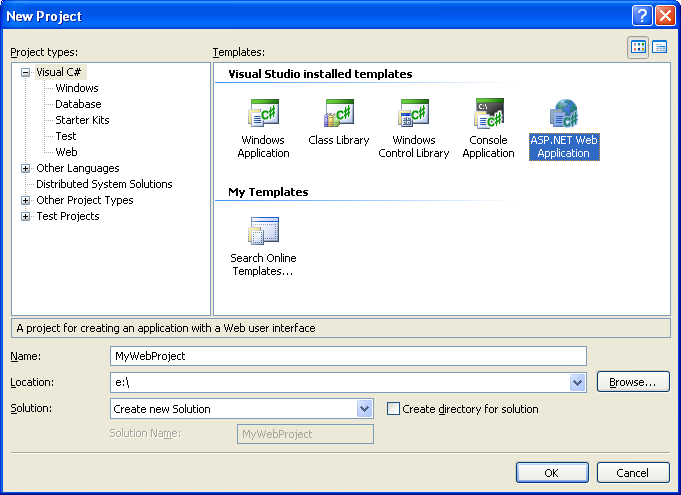
Choose where you want the project to be created on disk (note that there is no longer a requirement for web projects to be created underneath the inetpub\wwwroot directory -- so you can store the project anywhere on your filesystem). Then name it and hit ok.
Visual Studio will then create and open a new web project within the solution explorer. By default it will have a single page (Default.aspx), an AssemblyInfo.cs file, as well as a web.config file. All project file-meta-data is stored within a MSBuild based project file.
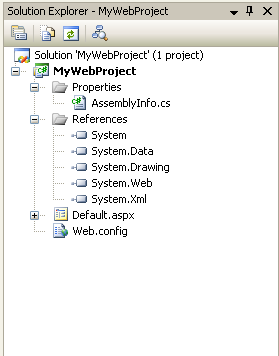
Double click on the Default.aspx page in the solution explorer to open and edit the page. You can do this using either the HTML source editor or the design-view. Add a "Hello world" header to the page, along with a calendar server control and a label control (we'll use these in a later tutorial):

Hit F5 to build and run the project in debug mode. By default, ASP.NET Web Application projects are configured to use the built-in VS web-server (aka Cassini) when run. The default project templates will run on port 8080 as a root site (http://localhost:8080/):
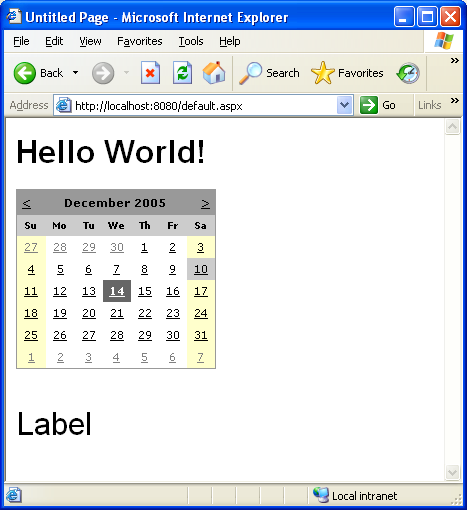
You can end the debug session by closing the browser window, or by choosing the Debug->Stop Debugging (Shift-F5) menu item.
When you compile/build ASP.NET Web Application projects, all code-behind code, embedded resources, and standalone class files are compiled into a single assembly that is built in the \bin sub-directory underneath the project root (note: you can optionally change the location if you want to - for example, to build it into a parent application directory).
If you choose the "Show All Files" button in the solution explorer, you can see what the result of our compilation output looks like:

This works exactly the same as with Visual Studio 2003 ASP.NET Web Application Projects
ASP.NET Web Application Projects share the same configuration settings and behaviors as standard VS 2005 class library projects. You access these configuration settings by right-clicking on the project node within the Solution Explorer in VS 2005 and selecting the "Properties" context-menu item. This will then bring up the project properties configuration editor. You can use this to change the name of the generated assembly, the build compilation settings of the project, its references, its resource string values, code-signing settings, etc:

ASP.NET Web Application Projects also add a new tab called "Web" to the project properties list. Developers use this tab to configure how a web project is run and debugged. By default, ASP.NET Web Application Projects are configured to launch and run using the built-in VS Web Server (aka Cassini) on port 8080 of the machine.
This port number can be changed if this port is already in use, or if you want to specifically test and run using a different number:

Alternatively, Visual Studio can connect and debug IIS when running the web application. To use IIS instead, select the "Use IIS Web Server" option and enter the url of the application to launch, connect-to, and use when F5 or Control-F5 is selected:

Note that ASP.NET Web Application Projects do not automatically create the IIS vroot or application for you. Instead, you should use the IIS Admin Tool to create an IIS application that points to the root of the ASP.NET Web Application Project on disk. Important: Make sure any web applications you create in the IIS Admin tool are configured to use ASP.NET 2.0.
Then configure the url to this application in the above property page for the web project. When you hit F5 in the project, Visual Studio will then launch a browser to that web application and automatically attach a debugger to the web-server process to enable you to debug it.
此内容由惯性聚合(RSS阅读器)自动聚合整理,仅供阅读参考。 原文来自 — 版权归原作者所有。