

惯性聚合 高效追踪和阅读你感兴趣的博客、新闻、科技资讯
阅读原文 在惯性聚合中打开

推荐订阅源

有赞技术团队
有赞技术团队
B
Blog
IT之家
IT之家
奇客Solidot–传递最新科技情报
奇客Solidot–传递最新科技情报
Last Week in AI
Last Week in AI
钛媒体:引领未来商业与生活新知
钛媒体:引领未来商业与生活新知
人人都是产品经理
人人都是产品经理
博客园 - 聂微东
量子位
博客园 - 叶小钗
T
Tailwind CSS Blog
小众软件
小众软件
WordPress大学
WordPress大学
酷 壳 – CoolShell
酷 壳 – CoolShell
博客园 - Franky
雷峰网
雷峰网
博客园 - 三生石上(FineUI控件)
让小产品的独立变现更简单 - ezindie.com
Blog — PlanetScale
Blog — PlanetScale
V
V2EX
博客园_首页
I
InfoQ
B
Blog RSS Feed
Microsoft Azure Blog

Runpod Blog.

DeepSeek V4 in the wild, and how to run it on Runpod New Runpod datacenter now live: AP-IN-1 Track GPU spend across your team with Cost Centers The GPU supply supercycle is here. Here’s what AI builders need to know. Community Spotlight: One-click AI image and video generation on Runpod with SwarmUI | Runpod Blog Community Spotlight: LoRA Pilot Data Prep to Inference Introducing the Runpod Assistant: Manage Your Cloud GPU Resources with Natural Language OpenAI's Parameter Golf: Train the Best Language Model That Fits in 16MB on Runpod LLM inference optimization: techniques that actually reduce latency and cost Pruna P-Video and Vidu Q3 public endpoints now available on Runpod Runpod brand spelling guide Quickstart - Runpod Documentation The AI market looks nothing like the narrative Training StyleGAN3 with Vision-Aided GAN on Runpod KoboldAI – The Other Roleplay Front End, And Why You May Want to Use It How to Connect Cursor to LLM Pods on Runpod for Seamless AI Dev Community Spotlight: How AnonAI Scaled Its Private Chatbot Platform with Runpod Prompt Scheduling with Disco Diffusion on Runpod Runpod's Latest Innovation: Dockerless CLI for Streamlined AI Development Run Your Own AI from Your iPhone Using Runpod Introducing Flash: Run GPU workloads on Runpod Serverless: No Docker required Use Claude Code with your own model on Runpod: No Anthropic account required Avoid Errors by Selecting the Proper Resources for Your Pod What hackers built on Runpod at TreeHacks 2026 Easily Back Up and Restore Your Pod with Cloud Sync + Backblaze B2 The Complete Guide to GPU Requirements for LLM Fine-Tuning AI Guides, Tutorials & GPU Infrastructure Insights | Runpod Your first Claude Code project within Runpod: a complete setup guide 10 billion Serverless requests and counting Building for resilience: Runpod’s response to the AWS us-east-1 outage
Connect VSCode to Your Runpod Instance (Quick SSH Guide)
Zhen Lu · 2023-03-03 · via Runpod Blog.

While working in a terminal window is sometimes good enough, it's much nicer to work within your IDE if you are doing interactive development. Fortunately, you can connect your VSCode IDE to your Runpod instance via SSH. This will allow you to edit files and code on your remote instance directly from VSCode.

Pre-requisites:

1) A generated SSH key pair that you've configured in your settings (see this blog post)

2) A running Runpod instance with exposed TCP connection (You have to deploy the pod after you set up your SSH key!)

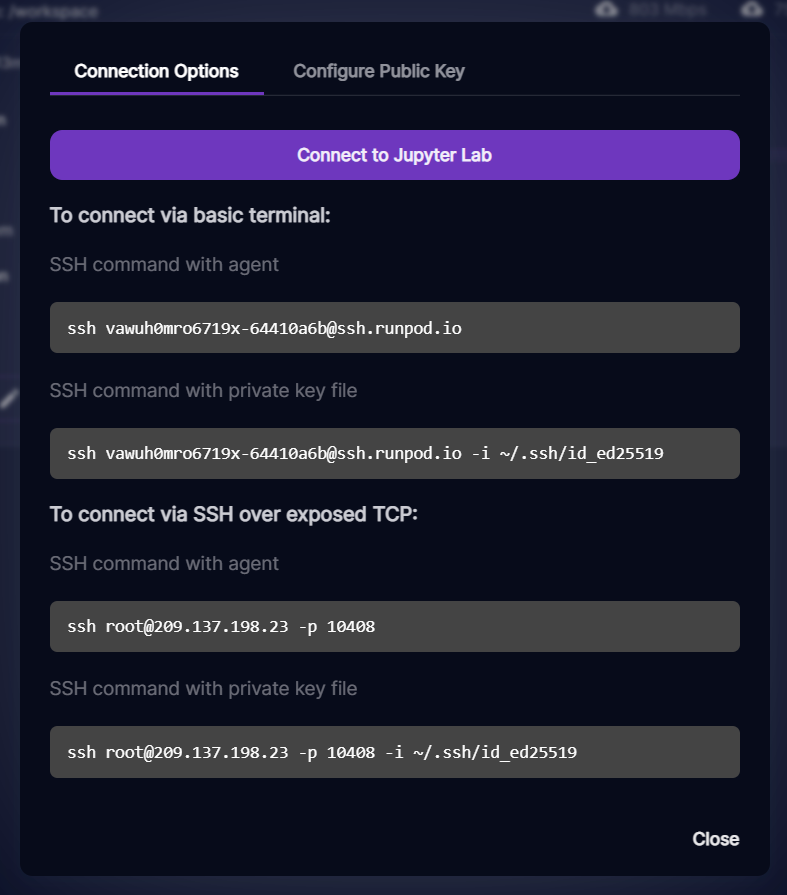
To keep this blog post short, I am going to assume that you already have done the pre-requisites 1 and 2. To make sure that this was done correctly, open your pod dashboard and click on the "Connect" button.
Runpod connection options with a Connect to Jupyter Lab button and SSH commands, including SSH over exposed TCP

You should see the "To connect via SSH over exposed TCP" section (Make sure that you see a number IP and NOT something like blah@ssh.runpod.io !). Go ahead and run the last SSH command in a terminal window to confirm that you are able to connect via SSH. Make sure that the path after "-i" points to the path where you saved/generated your public key.

If you are able to SSH to your instance with this, then you have met the pre-reqs and should be able to connect via VSCode in a few short steps! If not, then check your key pair for extra spaces and irregularities. If it's asking for a password, this is generally a problem with your key pair.

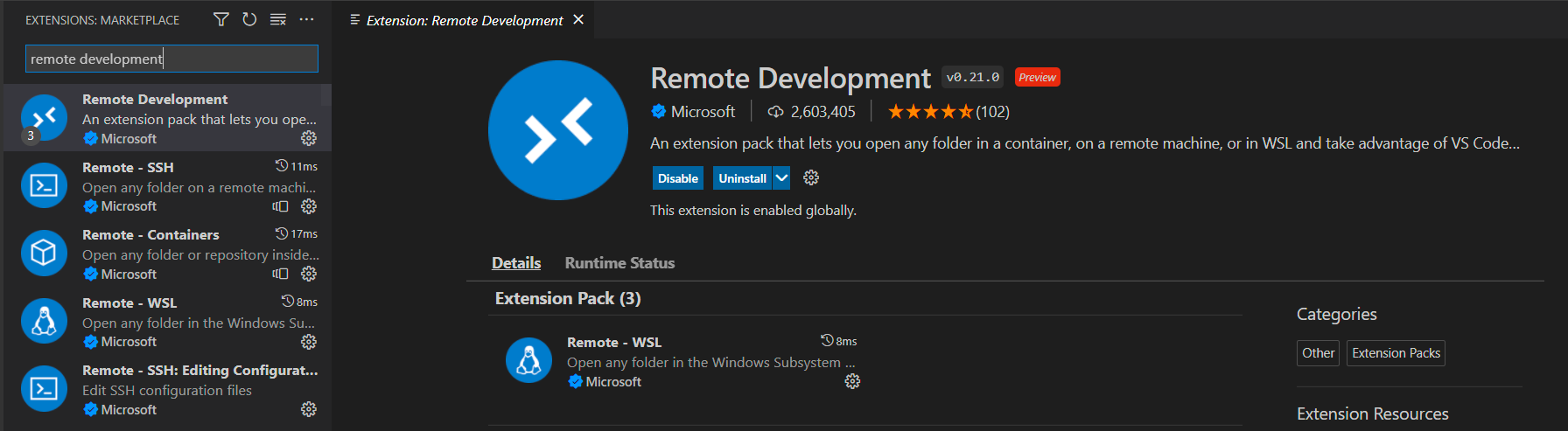
First, open VSCode and make sure you have the following extension installed:
VS Code Extensions Marketplace showing the Microsoft Remote Development extension pack

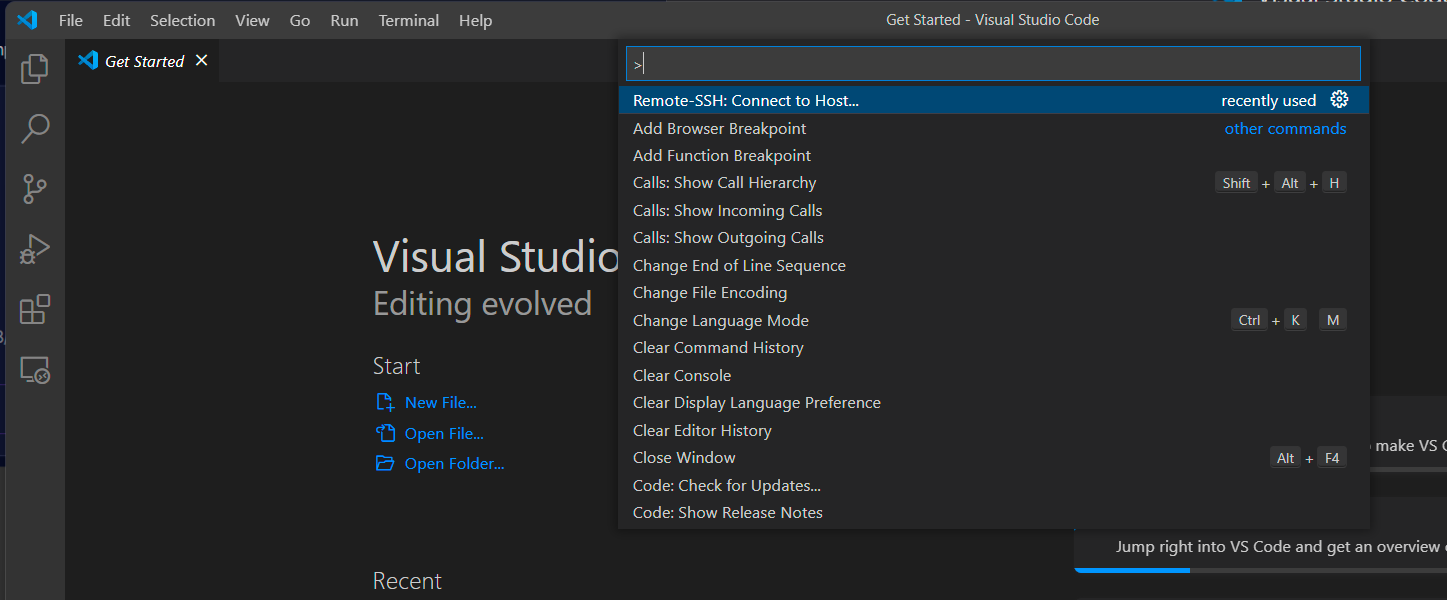
Once you've installed this extension, you should be able to open the command palette by hitting "ctrl+shift+p". You should be able to then choose the "Remote-SSH: Connect to Host..." option.
VS Code command palette with Remote-SSH: Connect to Host highlighted

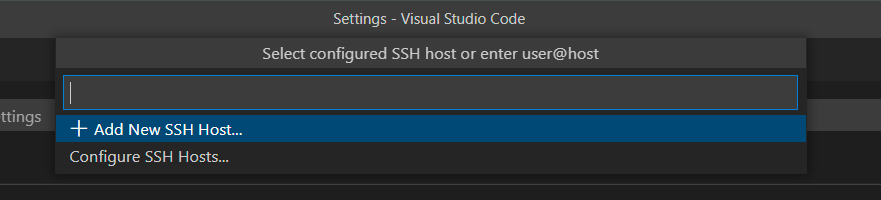
This should present you with some new options. Choose "Add new SSH Host".
VS Code prompt to select a configured SSH host with the Add New SSH Host option

This should bring up a new prompt for you to put in an SSH command. Put in the SSH command that you confirmed works earlier and then hit enter.


VS Code Enter SSH Connection Command input showing an example SSH command placeholder

VS Code SSH connection command entered with root user, custom port, and private key path

It will prompt you to choose a SSH configuration file. You can choose whichever you want. Choosing the default is safe if you don't know what this is.
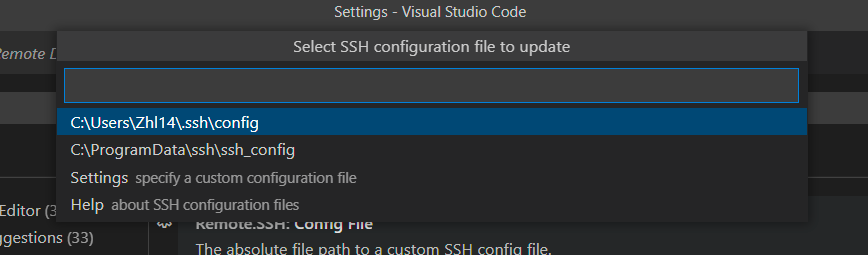
VS Code prompt to select an SSH configuration file to update

Now that your host is added, go back to the command palette menu "ctrl+shift+p" and choose the "Remote-SSH: Connect to Host..." option again. This time, you should have a host in your options:

VS Code SSH host picker listing the pod IP address 209.137.198.23

Go ahead and select it and it should connect to your pod.
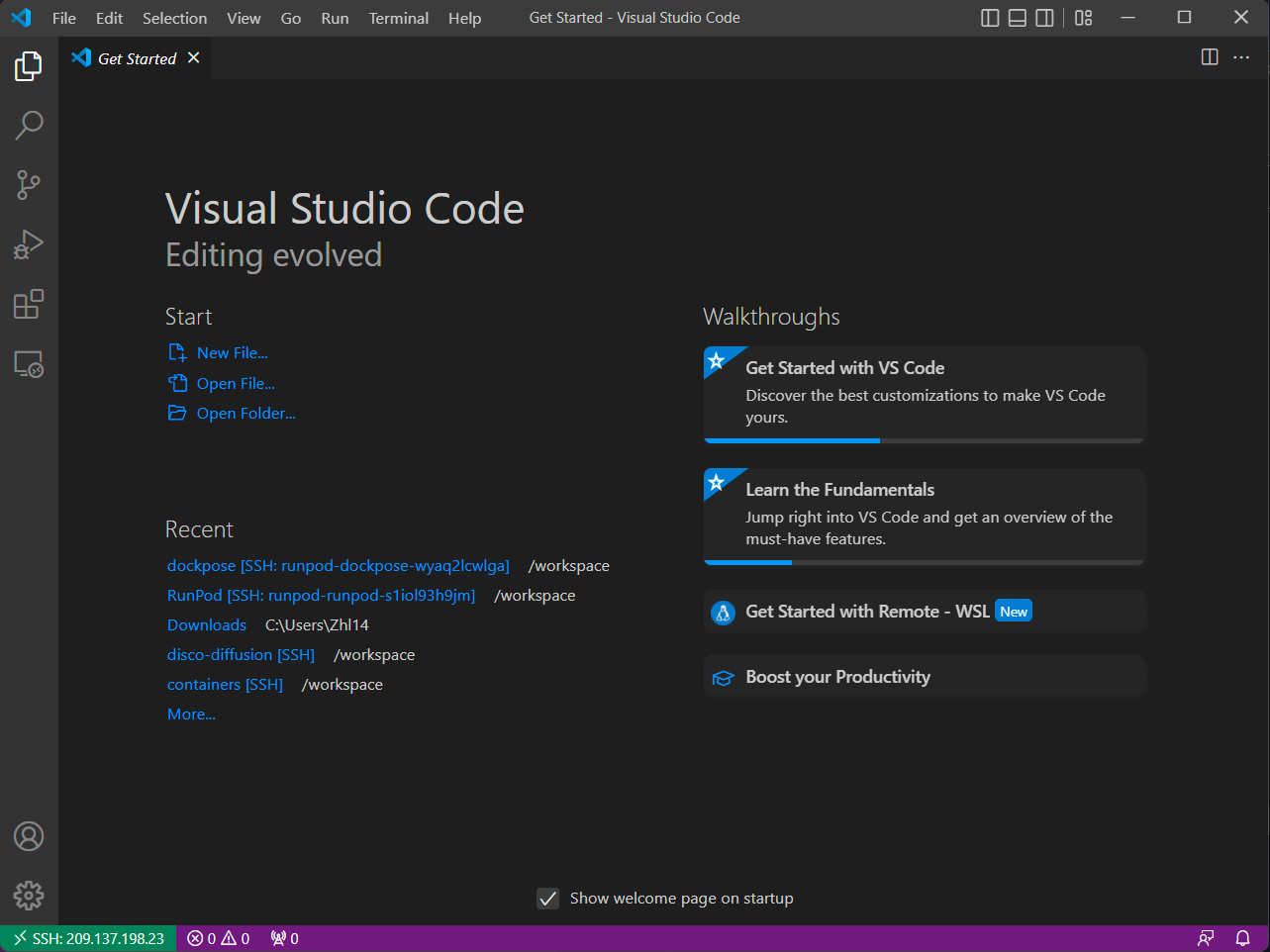
VS Code welcome screen connected over SSH, with the remote host shown in the status bar

You can verify that you are connected by looking for the IP address in green in the bottom left corner. You can now develop remotely in your IDE! Enjoy!

Author profile: Zhen Lu