





Expand connectivity and reduce wire clutter with these versatile USB-C displays.
USB-C is the one connection to rule them all. Its popularity has made USB-C a common sight on new monitors. A USB-C monitor can act as USB hub, giving you additional ports for connecting various USB devices, but the monitor’s USB-C port can also serve as a video-input alternative to HDMI or DisplayPort; and some USB-C monitors can even charge a connected device while in use.
The details of USB-C can be confusing, however, and pricing for USB-C monitors is often higher than that for monitors that lack the interface. See our buyers’ guide below our recommendations to better understand the nuances.
|
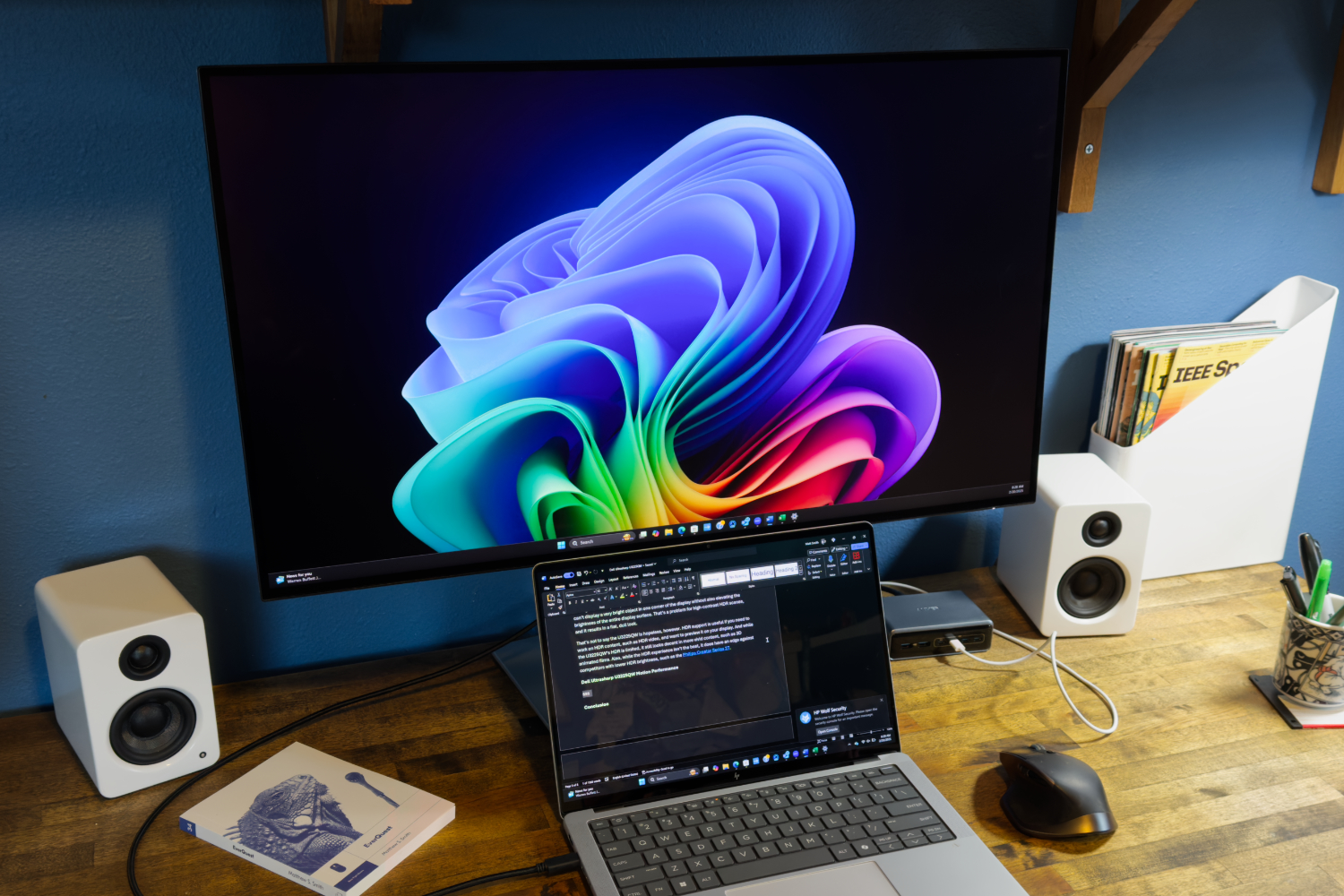
Best USB-C monitor overall Dell Ultrasharp U3225QE ↓ See why we picked it |
Check | |
|
Show Pros & Cons Pros
Cons
Hide Pros & Cons |
|||
|
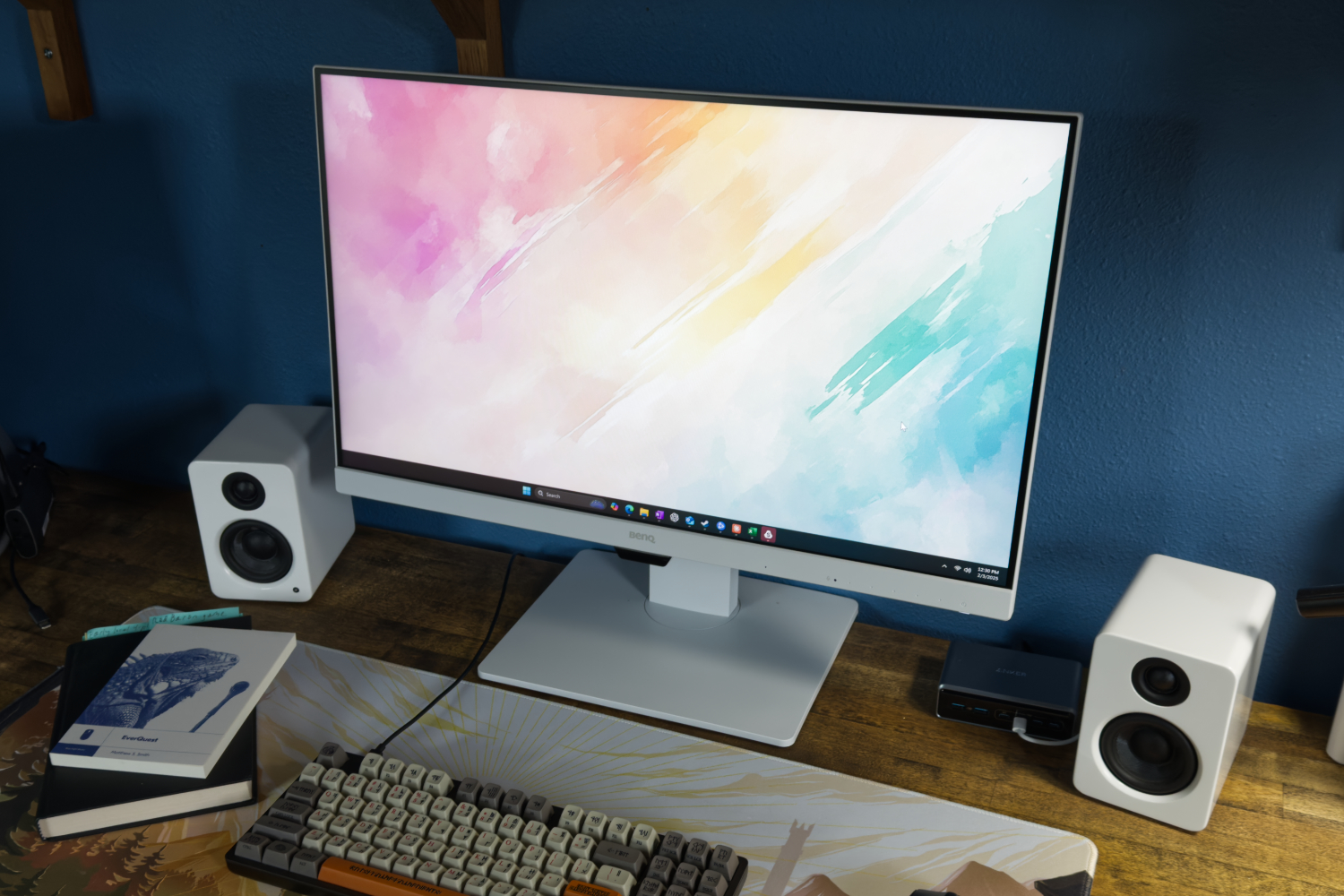
Best budget USB-C monitor BenQ GW2786TC ↓ See why we picked it |
Check | |
|
Show Pros & Cons Pros
Cons
Hide Pros & Cons |
|||
|
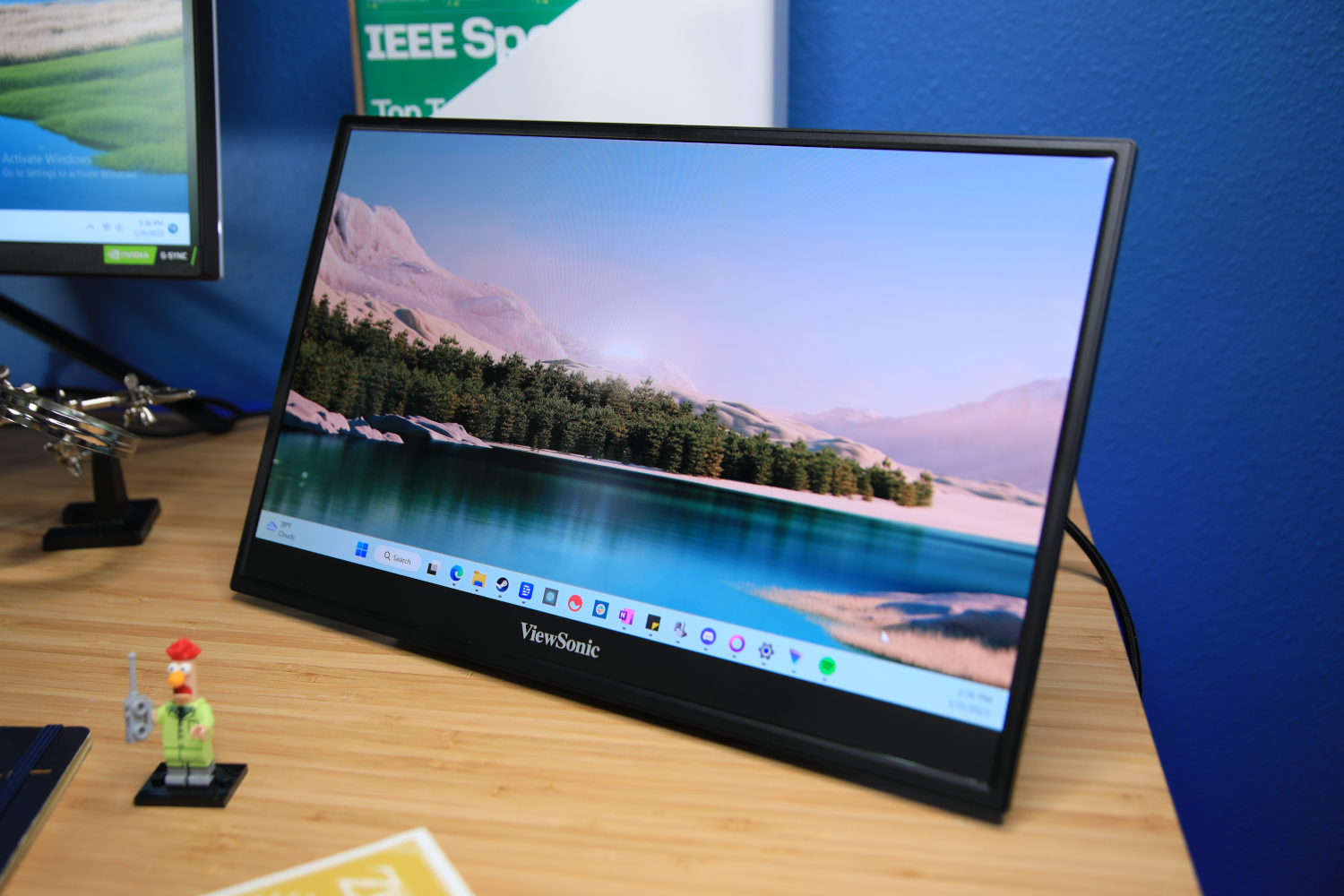
Best portable USB-C monitor Viewsonic ColorPro VP16 OLED ↓ See why we picked it |
Check | |
|
Show Pros & Cons Pros
Cons
Hide Pros & Cons |
|||
Why you should trust PCWorld for monitor reviews and buying advice: PCWorld prides itself on PC hardware experience and expertise. We’ve been covering PCs since 1983, and we review dozens of monitors every year. All of our recommendations have been personally tested and vetted by our expert reviewers, who’ve applied not only performance benchmarks but rigorous usability standards.
Dell Ultrasharp U3225QE – Best USB-C monitor overall
Pros
- Functional, professional design
- Thunderbolt 4, USB-C, Ethernet, and 140 watts of Power Delivery
- New generation of IPS Black boosts contrast ratio
- Excellent sharpness from 31.5-inch 4K panel
- 120Hz refresh rate with VRR
Cons
- Contrast ratio is good for an IPS panel, but still behind VA and OLED panels
- HDR brightness is decent, but contrast remains limited
- Doesn’t have speakers
Best Prices Today:

Who should buy the Dell Ultrasharp U3225QE?
The Dell Ultrasharp U3225QE is an excellent choice for professionals who need a high-quality display with best-in-class USB-C connectivity.
The U3225QE’s connectivity eliminates the need for external docks and adapters. It features Thunderbolt 4 / USB-C ports with 140W of Power Delivery—enough to charge most laptops—along with HDMI, DisplayPort, and a secondary DisplayPort for daisy-chaining multiple monitors. A built-in 2.5Gbps Ethernet port ensures a fast and stable wired network connection, a rare feature among monitors. It also offers six USB-A ports, a pop-out USB hub with quick-access USB-C and USB-A ports, and KVM switch functionality for seamless switching between two connected PCs.
In addition to its connectivity, the U3225QE has a sharp 31.5-inch 4K IPS Black panel with excellent color accuracy and an above-average contrast ratio for a productivity monitor. The 120Hz refresh rate enhances responsiveness, making tasks like scrolling through documents and multitasking smoother. The ergonomic stand provides height, tilt, swivel, and portrait mode adjustments, and the anti-glare coating ensures comfortable viewing in various lighting conditions.
Dell Ultrasharp U3225QE: Further considerations
While it lacks built-in speakers and its HDR performance is limited, the U3225QE’s extensive connectivity and high-quality display make it a standout choice for professionals who need a central hub for their workspace.
Want a smaller version of this monitor? Check out the Dell Ultrasharp U2725QE. It has a similar 4K IPS Black display panel and Thunderbolt 4 / USB-C connectivity.
Read our full Dell Ultrasharp U3225QE review
BenQ GW2786TC – Best budget USB-C monitor
Pros
- Attractive design and ergonomic stand
- Great connectivity including USB-C with Power Delivery
- Includes ambient light sensor, microphone
- Good contrast ratio for the price
Cons
- Only 1080p resolution
- Color performance is mid-pack
- Lacks Adaptive Sync
Best Prices Today:
Who should buy the BenQ GW2786TC?
Budget shoppers, take note. The BenQ GW2786TC is one of the best USB-C monitors you can buy for under $200. It offers a 27-inch IPS display with 1080p resolution, a 100Hz refresh rate, and an ergonomic stand with height, tilt, and swivel adjustments. While it’s not the sharpest monitor at this size, it delivers good contrast and a smooth viewing experience for everyday work.
It has USB-C with 65W Power Delivery, allowing a single-cable connection for video, power, and data. It also includes DisplayPort-out for daisy-chaining a second monitor, a rare perk in this price range. Built-in speakers, a noise-canceling microphone, and an ambient light sensor add extra convenience for home office use.
BenQ GW2786TC: Further considerations
BenQ markets this monitor as a companion for MacBooks like the MacBook Air, but don’t let that fool you: It works just as well with Windows PCs, Chromebooks, and Linux laptops.
The BenQ GW2786TC’s biggest flaw is its lack of adaptive sync, which means gameplay won’t appear as smooth as on some price-competitive alternatives.
That aside, the BenQ GW2786TC’s numerous features and low price make it one of the best budget-friendly USB-C monitors available.
Read our full BenQ GW2786TC review
Viewsonic ColorPro VP16 OLED – Best portable USB-C monitor
Pros
- Versatile, useful stands
- Good connectivity, cables included
- Numerous image quality customization options
- Top-tier image quality even at default settings
Cons
- Speakers are included, but weak
- Pricey for a portable monitor
- No HDR
Best Prices Today:
Who should buy the Viewsonic VP16-OLED?
If you want a work setup worthy of productivity that’s also easily transportable, the Viewsonic VP16-OLED is a remarkable portable OLED monitor for the job. It brings together top-notch image quality, USB-C connectivity, and an innovative stand design.
The monitor’s 15.6-inch 1080p OLED panel delivers exceptional color accuracy, gamut, and contrast. It surpasses many full-sized OLED monitors and nearly all portable monitors. This makes it a great choice for productivity, though it also looks excellent when viewing movies or playing games.
The VP16-OLED’s stand can be used as a kickstand or expanded to hold the monitor upright, making it ideal for professionals who want to maximize their workspace or need improved ergonomics.
Viewsonic VP16-OLED: Further considerations
The stand includes two USB-C ports, both of which can provide power and video input to the monitor, and a micro-HDMI port for compatibility with non-USB-C devices. The monitor includes all the necessary cables as well as a USB-C power brick.
There is a drawback: the cost. The Viewsonic VP16-OLED’s MSRP of $399.99 is expensive for a portable monitor. However, if you place a high value on image quality and want the best monitor for your portable office, the Viewsonic VP16-OLED is an excellent choice.
Read our full Viewsonic ColorPro VP16-OLED review
Other notable USB-C monitor reviews
- LG Ultragear Evo GX9: A big, expensive OLED with a razor-sharp image and plenty of HDR punch.
- KTC H27P3: Among the least expensive 5K monitors available.
- HP Series 7 Pro: This pro monitor is packed with ports and delivers good image quality, too.
- Acer Predator X32 X: Another solid 32-inch 4K monitor with excellent image quality.
- Gigabyte MO27Q28G: A great way to get into OLED at a reasonable price.
- Dell Ultrasharp 52 Thunderbolt Hub Monitor: A nice option for multitaskers.
- BenQ PD2770U: Built for content creation.
- Acer Predator X27U F5: This 500Hz OLED is more affordable than its peers while offering similar performance.
- Acer Predator X34 X0: An ultrawide with a Mini-LED backlight, a vivid picture, and USB-C connectivity with 65W Power Delivery.
- Asus ProArt PA32QCV: An excellent and affordable 6K monitor that opts for Thunderbolt 4 as opposed to USB-C, making it a good fit for Mac users.
- Samsung Smart Monitor M9: Doubles as a smart TV and a productivity monitor complete with USB-C connectivity.
- Viewsonic VA1655: A portable monitor with with 60 watts of power delivery and pass-through support for charging a laptop.
- Dell Pro 27 Plus: A nice 4K monitor, but its key feature is its USB-C hub.
- LG Ultragear 39GX90SA-W: A 39-inch OLED with TV smarts.
- MSI Modern MD272UPSW: Another smart TV disguised as a monitor.
- Asus ProArt PA32UCDM: Leans heavily on Thunderbolt 4 and USB-C. Perhaps too heavily, as it falls short in other ports compared to its peers.
- Dell Pro 34 Plus USB-C: A decent choice if you want an ultrawide with lots of connectivity, but the monitor’s image quality fails to impress.
- BenQ PD3226G: IPS monitor aimed at creative pros who might also enjoy some gaming, with lots of Thunderbolt and USB-C connectivity.
How we test monitors
Our monitor guides are the result of extensive product testing by freelance and staff contributors with decades of combined experience.
While we rely on a hands-on evaluation of real-world usage for an initial impression, we also thoroughly test each monitor with a Datacolor Spyder X2 Ultra color calibration tool. This specialized hardware can objectively measure a monitor’s brightness, contrast, color gamut, color accuracy, luminance and color uniformity, gamma, and many other aspects of image quality.
Using this tool helps us detect strengths and weaknesses that don’t necessarily appear at a glance and guarantees that a change in lighting conditions or monitor location won’t skew our impression.
For more details, see our article on on how we test monitors at PCWorld.
Who curated this article?
Matthew S. Smith is a freelance technology journalist with more than 15 years of experience reviewing consumer electronics and PC hardware, including the universe of computer monitors. In addition to PCWorld, his work can be found on Wired, Digital Trends, Reviewed, Lifewire, and other technology publications.
How to choose the best USB-C monitor
Many features desirable in a USB-C monitor are the same as on any other display. A sharp, vivid, bright, and contrast-rich screen is best. However, shoppers who want to buy a USB-C monitor should keep an eye on details only relevant to USB-C.
Remember, too, that a USB-C display can be used in two contexts. First, you can connect your USB-C monitor to a desktop PC or laptop via a USB-C cable, and use it like a traditional USB-C hub via the USB-C cable’s 20Gbps interface. That’s pretty straightforward.
Second, you can also use the USB-C cable as a replacement for a display cable like HDMI or DisplayPort, especially for newer laptops that might eliminate an HDMI or DisplayPort port.
It’s here that USB-C monitors can get tricky. The traditional rule of thumb is that a USB-C port can support a 4K display at 30Hz resolution. DisplayPort Alternate Mode (see below) increases that to 4K60, which is much easier on the eyes. Newer laptops use DisplayPort 1.4, which combines a high-bit-rate mode (HBR3) with a DSC compression mode that should allow for 4K60 video alongside the ability to use USB 3.1 storage devices.
Be aware, however, that the USB-C cable’s 20Gbps throughput may not allow for video to be passed to premium displays like the NZXT Canvas S27Q at its full 1440p, 165Hz refresh rate. Those specifications probably assume that you’re using a dedicated video port like DisplayPort, instead, as well as its separate video cable. You can certainly connect the display to your laptop using both a video cable and the USB-C cable simultaneously, however.
If your laptop uses either Thunderbolt 3 or Thunderbolt 4 or USB4 — all of which use a 40Gbps data connection and a USB-C port on your laptop — you should probably have no issues connecting your laptop to the monitor at the full refresh rate using a Thunderbolt cable. Just consult your laptop’s specifications and/or manual to make sure.
Power Delivery
USB-C Power Delivery provides power over a USB-C cable. It’s not part of the core USB-C specification, so devices with USB-C (including monitors) don’t always support it. Power Delivery can pack up to 240 watts, but most USB-C monitors provide just 65 to 90 watts. It’s a perfect fit for those who own a thin-and-light laptop, 2-in-1, or tablet.
Power Delivery is inadequate for some devices, such as gaming laptops, which consume more power than current USB-C monitors can provide. These laptops may still charge when left at idle but will charge slowly (or even discharge the battery) when in use.
Ethernet
Wired ethernet is a desirable feature in a USB-C monitor. Many modern laptops lack a physical Ethernet port, so its inclusion on a monitor is convenient. It can improve the speed and reliability of a connected device’s internet connection.
While useful, this is an expensive feature available only on premium models. The Dell U3223QE is the only USB-C monitor on this list with ethernet support.
DisplayPort Alternate Mode
DisplayPort Alternate Mode is a feature available to USB-C that handles video as if the USB-C cable was a DisplayPort cable. It supports all the features you’d expect from DisplayPort including high refresh rates and adaptive sync.
A monitor without this feature won’t accept video over USB-C, meaning you’ll have to connect both USB-C and a separate video input. All the monitors on this list support DisplayPort Alternate Mode.
FAQ
1.
What is the best USB-C monitor?
The best USB-C monitor is the Dell Ultrasharp U3225QE. In addition to being a high-quality 4K IPS display capable of meeting the needs of a professional, the monitor is unparalleled when it comes to connectivity, featuring Thunderbolt 4 / USB-C ports with 140W of Power Delivery—enough to charge most laptops—along with HDMI, DisplayPort, and a secondary DisplayPort for daisy-chaining multiple monitors. It also offers a 2.5Gbps Ethernet port for a fast and stable wired network connection, as well as six USB-A ports, a pop-out USB hub with quick-access USB-C and USB-A ports, a KVM switch.
2.
What is the best cheap USB-C monitor
The best budget USB-C monitor is the BenQ GW2786TC. While it’s come up in price since our original review, it still offers good value at $250. It has USB-C with 65W Power Delivery, allowing a single-cable connection for video, power, and data. It also includes DisplayPort-out for daisy-chaining a second monitor, which is uncommon at this price range.
Built-in speakers, a noise-canceling microphone, and an ambient light sensor are nice extras that make this monitor great for home office use.
3.
Do I really need a USB-C monitor?
A USB-C monitor is a great way to expand your computer’s connectivity without the added clutter of a USB-C hub or dock. It reduces the wires present on your desk, freeing up space for other uses. PC World’s guide to USB-C hub monitors has the full story.
USB-C monitors are excellent when used with a USB-C laptop that consumes less than 90 watts of power at load. Docking a laptop at a desk can be annoying if you use a wired keyboard, wired mouse, and external monitor. A USB-C monitor can consolidate all your wired devices to a single USB-C cable.
If these benefits sound good, then a USB-C monitor could be for you. If not, you may get more value from a conventional monitor.
4.
Are USB-C monitors expensive?
Yes, USB-C monitors are more expensive. Basic monitors without USB-C retail for as little as $100, while similar monitors with USB-C start around $150.
That price premium persists through all price categories. You can expect to pay around $50 to $100 more for a USB-C monitor than you would for a similar monitor without it.
Premium productivity and professional monitors are an exception. Nearly all monitors in these categories offer some form of USB-C support. They remain expensive, though, and are often priced between $500 to $1,000 (and sometimes more).
5.
Are USB-C monitors good for gaming?
Technically speaking, USB-C monitors can be great for gaming. USB-C video is handled over DisplayPort Alternate Mode, which preserves all the usual benefits of DisplayPort. This includes great support for high refresh rates, high resolutions, and adaptive sync.
But there’s a catch: Many monitors that have a USB-C port don’t support important gaming features like an enhanced refresh rate, low pixel response times, or adaptive sync. The Asus ProArt PG348CGV, our pick for best ultrawide with USB-C, and the NZXT Canvas 27Q, our best budget pick, are two notable exceptions. Just make sure that you’re connecting to them with a dedicated DisplayPort or HDMI video cable, and not using the USB-C cable as the video cable, too.