



惯性聚合 高效追踪和阅读你感兴趣的博客、新闻、科技资讯
阅读原文 在惯性聚合中打开

推荐订阅源

D
Docker
爱范儿
爱范儿
T
The Exploit Database - CXSecurity.com
量子位
T
Tailwind CSS Blog
T
Threatpost
The GitHub Blog
The GitHub Blog
AWS News Blog
AWS News Blog
云风的 BLOG
云风的 BLOG
K
Kaspersky official blog
P
Proofpoint News Feed
博客园 - 司徒正美
L
LangChain Blog
T
Threat Research - Cisco Blogs
C
CERT Recently Published Vulnerability Notes
罗磊的独立博客
酷 壳 – CoolShell
酷 壳 – CoolShell
博客园 - 叶小钗
S
Secure Thoughts
The Last Watchdog
The Last Watchdog
Spread Privacy
Spread Privacy
H
Hacker News: Front Page
T
Troy Hunt's Blog
Cyber Security Advisories - MS-ISAC
Google DeepMind News
W
WeLiveSecurity
A
Arctic Wolf
Apple Machine Learning Research
cs.AI updates on arXiv.org
P
Proofpoint News Feed
T
Tor Project blog
T
The Blog of Author Tim Ferriss
I
Intezer
P
Privacy & Cybersecurity Law Blog
美团技术团队
N
Netflix TechBlog - Medium
博客园_首页
OSCHINA 社区最新新闻
OSCHINA 社区最新新闻
V
Vulnerabilities – Threatpost
Application and Cybersecurity Blog
G
Google Developers Blog
Attack and Defense Labs
T
Tenable Blog
月光博客
月光博客
Stack Overflow Blog
Stack Overflow Blog
J
Java Code Geeks
腾讯CDC
Microsoft Security Blog
A
About on SuperTechFans
Last Week in AI
Last Week in AI

菜鸟教程

Linux Cron 定时任务 | 菜鸟教程 REST API 教程 | 菜鸟教程 Python 进度条 | 菜鸟教程 pip 指定国内镜像,并设置不使用 https | 菜鸟教程 Trae 入门教程 | 菜鸟教程 Dify 零门槛打造专属 AI 应用 | 菜鸟教程 1.11 算法代码练习 | 菜鸟教程 解决 VS 编译中产生 C4996 错误的方式 中国大模型大全 | 菜鸟教程
ChromeDriver 说明 | 菜鸟教程
tianqixin · 2025-03-15 · via 菜鸟教程

ChromeDriver 是一个独立的服务器,作为 Selenium WebDriver 与 Google Chrome 浏览器之间的桥梁。

ChromeDriver 允许开发者通过编程方式控制 Chrome 浏览器,实现自动化测试和网页抓取等操作。
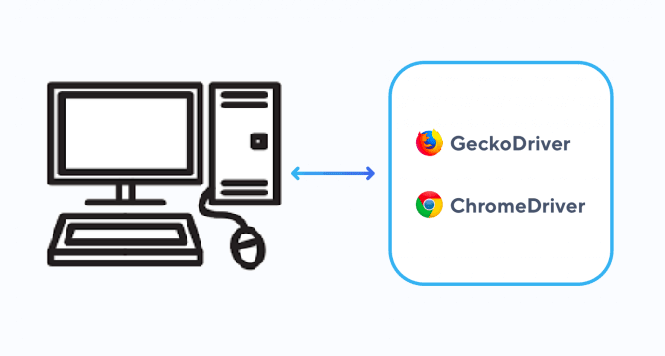

ChromeDriver 的工作原理

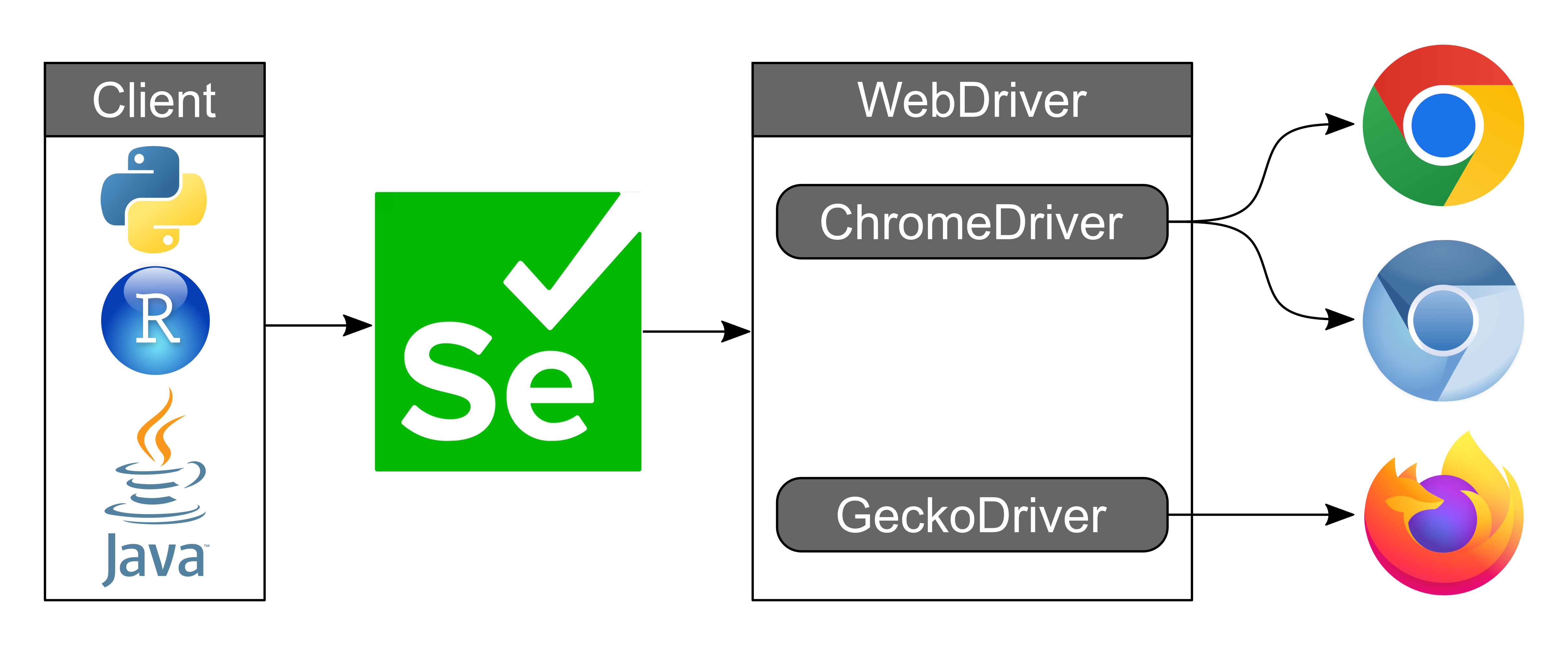
ChromeDriver 充当了 Selenium WebDriver 和 Chrome 浏览器之间的中介。当您通过 Selenium 发送命令时,ChromeDriver 会将这些命令转换为 Chrome 能够理解的协议,并将浏览器的响应返回给 Selenium。这种机制使得您可以通过代码模拟用户在浏览器中的操作。

安装 ChromeDriver

1. 下载 ChromeDriver

首先,您需要下载与您使用的 Chrome 浏览器版本匹配的 ChromeDriver。您可以在 ChromeDriver 官方下载页面 找到适合您操作系统的版本。

具体下载地址:https://googlechromelabs.github.io/chrome-for-testing/

2. 解压下载文件

下载完成后,将压缩文件解压到您的系统目录中。例如,在 Windows 系统下,您可以将 chromedriver.exe 文件解压到 C:\Program Files\ChromeDriver\

3. 配置环境变量

为了让系统能够识别 ChromeDriver,您需要将其路径添加到系统的环境变量中。以下是配置步骤:

  • Windows

    1. 右键点击"此电脑",选择"属性"。
    2. 点击"高级系统设置"。
    3. 在"系统属性"窗口中,点击"环境变量"。
    4. 在"系统变量"部分,找到 Path 变量并点击"编辑"。
    5. 点击"新建",然后输入 ChromeDriver 的路径(例如 C:\Program Files\ChromeDriver\)。
    6. 点击"确定"保存更改。
  • macOS/Linux

    1. 打开终端。
    2. 编辑 ~/.bash_profile 文件,添加以下内容:
      export PATH=$PATH:/path/to/chromedriver
    3. 保存文件并执行 source ~/.bash_profile 使更改生效。

使用 ChromeDriver 进行自动化测试

1. 安装 Selenium

在使用 ChromeDriver 之前,您需要安装 Selenium 库。您可以通过以下命令安装:

pip install selenium

2. 编写简单的测试脚本

以下是一个使用 ChromeDriver 打开 Chrome 浏览器并访问 Google 首页的示例代码:

实例

from selenium import webdriver

# 初始化 ChromeDriver
driver = webdriver.Chrome()

# 打开 Google 首页
driver.get("https://www.google.com")

# 打印网页标题
print("Page title: ", driver.title)

# 关闭浏览器
driver.quit()

3. 运行脚本

保存上述代码为 example.py,然后在终端中运行:

python example.py

如果一切正常,您将看到 Chrome 浏览器自动打开并访问 Google 首页,同时在终端中打印出网页标题。


常见问题与解决

1. ChromeDriver 版本不匹配

如果您遇到 This version of ChromeDriver only supports Chrome version XX 的错误,这可能是因为 ChromeDriver 的版本与 Chrome 浏览器的版本不匹配。您可以通过以下步骤解决:

  1. 检查 Chrome 浏览器的版本:
    • 在 Chrome 地址栏中输入 chrome://settings/help,查看当前版本。
  2. 下载与 Chrome 版本匹配的 ChromeDriver。

2. ChromeDriver 无法启动

如果您遇到 chromedriver cannot be opened because the developer cannot be verified 的错误(macOS),您可以按照以下步骤解决:

  1. 打开"系统偏好设置"。
  2. 选择"安全性与隐私"。
  3. 在"通用"选项卡中,点击"允许"以允许运行 ChromeDriver。

3. ChromeDriver 报错 unknown error: DevToolsActivePort file doesn't exist

这个错误通常是由于 Chrome 浏览器在无头模式下运行时缺少必要的依赖项。您可以通过以下方式解决:

实例

from selenium.webdriver.chrome.options import Options

chrome_options = Options()
chrome_options.add_argument("--no-sandbox")
chrome_options.add_argument("--disable-dev-shm-usage")

driver = webdriver.Chrome(options=chrome_options)


参考资料