










macOS is designed to put your Mac to sleep when it is not being used. That is usually exactly what you want. Sleep saves power, protects battery life, and keeps a MacBook from running when it is closed and stuffed in a bag.
Sometimes tasks like downloads, backups, remote sessions, and AI coding need a temporary exception. Fortunately, there are some great Mac apps for giving you this control.
Apple gives you some control in System Settings.
On macOS, you can go to System Settings > Lock Screen to change when the display turns off, and on Mac laptops you can use System Settings > Battery > Options to prevent automatic sleeping on the power adapter when the display is off.
Apple also supports using a Mac laptop with the lid closed when it is connected to power and paired with an external display, keyboard, and mouse or trackpad.
I generally prefer not to make those settings permanent. Most of the time, I want my Mac to sleep normally. What I want instead is a quick, intentional override that I can turn on for a specific job and turn off when I am done.
For that, there are three Mac utilities worth knowing.
KeepingYouAwake is the utility that has lived in my Mac menu bar the longest.
It is free, lightweight, and built around the same basic idea that made Caffeine popular years ago: click a menu bar icon, and your Mac stays awake. Click it again, and your Mac returns to its normal sleep behavior.
I started using KeepingYouAwake years ago when Macs moved to Retina displays. Caffeine, the classic coffee-cup utility, did not make that transition to high-resolution design.
KeepingYouAwake became the simple replacement. It honors the spirit of Caffeine with no dashboard or complex automation. It’s just a reliable on/off switch for the Mac’s default sleep behavior.
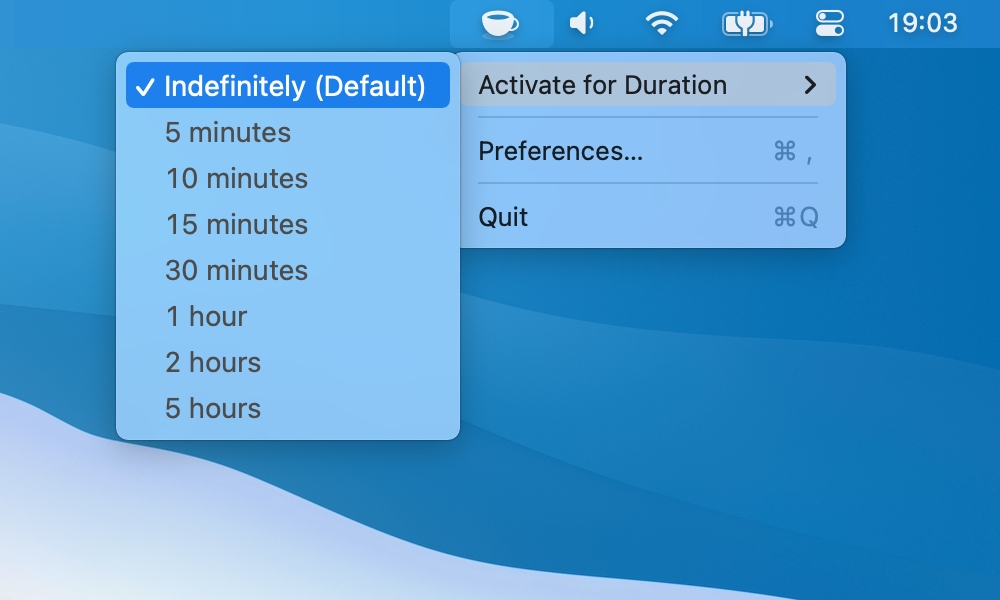
You can activate it indefinitely or for preset durations, and it can automatically disable itself when your MacBook battery drops below a set level. It supports Retina displays and Dark Mode, and under the hood it uses Apple’s built-in caffeinate command-line utility.
The important limitation: KeepingYouAwake is not the closed-lid solution. Its own documentation is clear that, because of macOS limitations and thermal considerations, it only prevents sleep on desktop Macs and portable Macs with the lid open.
That makes KeepingYouAwake ideal for the simple stuff: reading, presentations, screen recordings, long downloads, or any time you are still using the Mac and just do not want the screen or system to nod off. It is the utility I use as my everyday “do not sleep yet” toggle.
When I actually want to close my MacBook and keep a task running, Amphetamine is the app I open.
Amphetamine has been the gold standard in this category for a long time because it gives you much more control than a simple on/off toggle.
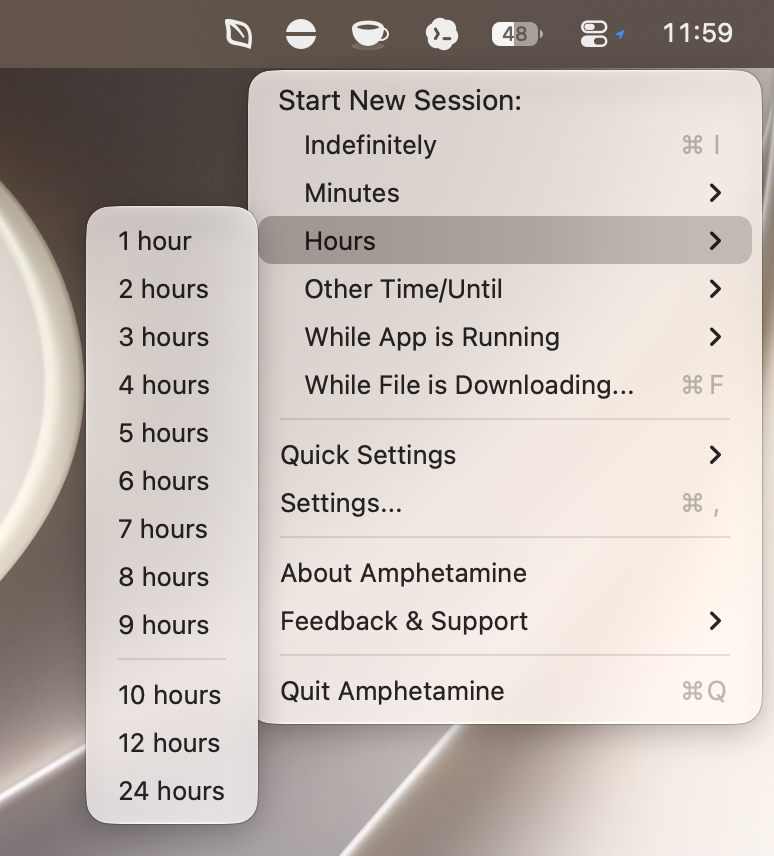
You can start a session indefinitely, for a set amount of time, until a specific time, while a file is downloading, or while a specific app is running. You can also decide what happens to display sleep, screen savers, screen locking, and system sleep when the MacBook’s built-in display is closed.
That last part is the key for my current workflow. KeepingYouAwake is what I use for simple open-lid situations. Amphetamine is what I use when I want Codex, a download, or another long-running task to keep going after I close the lid.
Amphetamine can also automate sessions with triggers. It can keep your Mac awake when an external display is connected, when a specific app is running, when a USB or Bluetooth device is connected, when your Mac is on a certain Wi-Fi network, when the power adapter is connected, when battery level is above a threshold, or even when CPU utilization meets a threshold.
That can be overkill if all you want is a coffee-cup-style toggle. But for closed-lid use, the extra control is the point. You can make the session temporary, tie it to the thing you are actually doing, and avoid leaving your Mac awake longer than necessary.
Coca is another option that recently came onto my radar through the Mac App Store. It offers the same general promise: a lightweight menu bar utility that keeps your Mac awake when you need it.
The app is free with optional support purchases. It features one-click activation, optional timers, Focus Filters, and Shortcuts support. Coca 2.0 also recently refreshed the app with a redesigned settings interface, custom time controls, and closed-lid support.
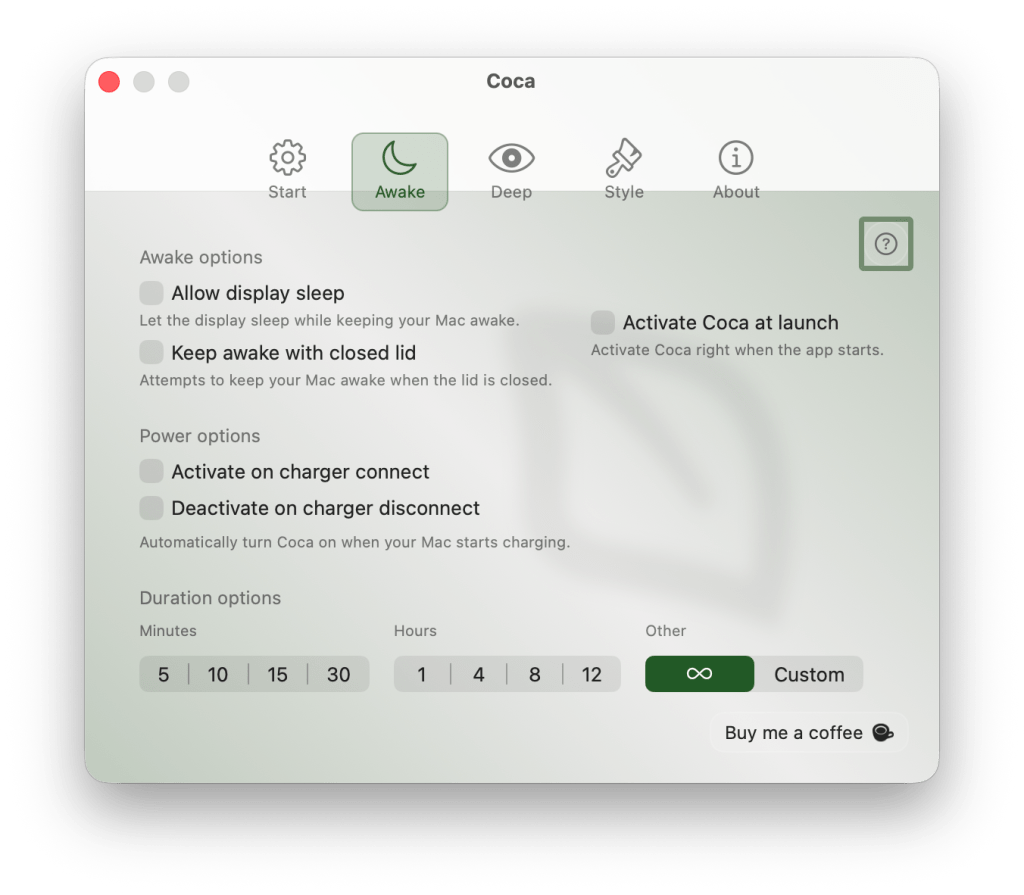
That makes Coca interesting if you want something that feels closer to KeepingYouAwake in spirit but now reaches into territory that matters for MacBook users who close the lid during long-running work.
Amphetamine still looks like the most powerful choice if you want detailed triggers and session rules. Coca is worth a look if you want a simpler, modern Mac App Store utility with closed-lid mode built in.
Which apps do you use on your MacBook for these kinds of tasks? Share your thoughts in the comments!


FTC: We use income earning auto affiliate links. More.

此内容由惯性聚合(RSS阅读器)自动聚合整理,仅供阅读参考。 原文来自 — 版权归原作者所有。