




惯性聚合 高效追踪和阅读你感兴趣的博客、新闻、科技资讯
阅读原文 在惯性聚合中打开

推荐订阅源

N
News and Events Feed by Topic
A
About on SuperTechFans
D
DataBreaches.Net
量子位
云风的 BLOG
云风的 BLOG
T
The Blog of Author Tim Ferriss
U
Unit 42
M
MIT News - Artificial intelligence
小众软件
小众软件
博客园 - Franky
GbyAI
GbyAI
OSCHINA 社区最新新闻
OSCHINA 社区最新新闻
Help Net Security
Help Net Security
Recorded Future
Recorded Future
The Last Watchdog
The Last Watchdog
S
Secure Thoughts
S
Security @ Cisco Blogs
MongoDB | Blog
MongoDB | Blog
Exploit-DB.com RSS Feed
IT之家
IT之家
L
LINUX DO - 热门话题
H
Hacker News: Front Page
V
Vulnerabilities – Threatpost
Security Latest
Security Latest
C
CXSECURITY Database RSS Feed - CXSecurity.com
博客园 - 叶小钗
J
Java Code Geeks
奇客Solidot–传递最新科技情报
奇客Solidot–传递最新科技情报
Hugging Face - Blog
Hugging Face - Blog
PCI Perspectives
PCI Perspectives
Cyberwarzone
Cyberwarzone
S
Schneier on Security
Scott Helme
Scott Helme
Microsoft Security Blog
Attack and Defense Labs
T
The Exploit Database - CXSecurity.com
C
Cisco Blogs
Y
Y Combinator Blog
D
Darknet – Hacking Tools, Hacker News & Cyber Security
T
Tenable Blog
Google DeepMind News
T
Threat Research - Cisco Blogs
H
Hackread – Cybersecurity News, Data Breaches, AI and More
www.infosecurity-magazine.com
V
V2EX
美团技术团队
Cyber Security Advisories - MS-ISAC
大猫的无限游戏
大猫的无限游戏
freeCodeCamp Programming Tutorials: Python, JavaScript, Git & More
Know Your Adversary
Know Your Adversary

The Eclectic Light Company

Apple has released an update to XProtect for all macOS Hero or hooligan: Theseus’ later years BSD flags are incompatible with iCloud Drive Apple has released macOS Tahoe 26.5.1 In memoriam Mary Cassatt: 1, 1868-1880 Solutions to Saturday Mac riddles 362 What Location Services do in macOS Eclectic paintings of Joseph Stella: 2 European myths Last Week on My Mac: Razzle and dazzle Eclectic paintings of Joseph Stella: 1 American landscapes Saturday Mac riddles 362 Protect files with the Locked or Immutable flag Reading Visual Art: 252 Dragonfly What happens in the log when an app crashes as it starts up? Portraits of trees: Introduction On Reflection: Conclusions and contents Which tasks require mains power? Medium and message: Vast canvases Online reference to external displays for Apple silicon Macs What’s in that phishing email? Hero or hooligan: Theseus and Ariadne Solutions to Saturday Mac riddles 361 How to search document versions Rubens’ Consequences of War Rubens’ Peace and War Saturday Mac riddles 361 How to search Time Machine backups? Naturalists: Contents and artists On Reflection: Extending the image Tackle QuickLook problems Medium and message: Pottery Hero or hooligan: Theseus and the sandals How QuickLook provides thumbnails and previews Last Week on My Mac: Syncing metadata in iCloud Drive Paintings of visits to India 1778-1877 Saturday Mac riddles 360 Naturalists: Sorolla and Zorn On Reflection: Pierre Bonnard 1909-1946 SpotTest 1.2 can display Spotlight metadata directly On Reflection: Pierre Bonnard 1899-1908 How to preserve versions, and how to create versioned PDFs Medium and message: Sculpture What gets synced in iCloud Drive? Hero or hooligan: Perseus 2 Solutions to Saturday Mac riddles 359 Last Week on My Mac: snapshots, the elephant in APFS Paintings of Beatrice Portinari: to 1862 Saturday Mac riddles 359 Naturalists: Into the 20th century How to check whether Spotlight is getting the right metadata On Reflection: Mirror play Hero or hooligan: Perseus 1 The bicentenary of Frederic Edwin Church: 1857-77 Solutions to Saturday Mac riddles 358 macOS virtual machines and audio-video syncing A walk in the parks of Rome, Vienna, Manhattan and Brooklyn Saturday Mac riddles 358 Naturalists: Photography Use Finder tags for categories Control what gets written to the log Medium and message: Tapestry Virtualisation on Apple silicon Macs is different Jerusalem Delivered: Overview and contents The bicentenary of Frederic Edwin Church: 1849-57 Solutions to Saturday Mac riddles 357 Painting Pandora and her box: 1883-1919 Painting Pandora and her box: 1550-1882 Saturday Mac riddles 357 Reading Visual Art: 250 Winged sandals The secret life of the xattr The macOS Natural Language framework and Nalaprop Medium and Message: Stained glass The MACL extended attribute Jerusalem Delivered: 13 Leading characters Solutions to Saturday Mac riddles 356 Privacy: How locations are protected Painting Spring blossom 2 Last Week on My Mac: Don’t be a victim of fraud Painting Spring blossom 1 Saturday Mac riddles 356 Reading Visual Art: 249 Mask Naturalists: Urban poverty On Reflection: Cézanne Privacy: Which folders are protected in Tahoe? Medium and Message: Mosaic Jerusalem Delivered: 12 Delivery Solutions to Saturday Mac riddles 355 Centaurs 2: Revenge Centaurs 1: Fights Saturday Mac riddles 355 Explainer: sandboxes Naturalists: The modern meal Why you can’t trust Privacy & Security Apple has just released an update to macOS Tahoe, to version 26.4.1 On Reflection: Divisionism Please help update CPU frequencies for Apple silicon Macs Commemorating the centenary of the death of John Ferguson Weir Privacy: Files & Folders or Full Disk Access? Jerusalem Delivered: 11 Into Jerusalem Privacy: protected folders
Explainer: Recovery
hoakley · 2026-04-18 · via The Eclectic Light Company

For the first decade of Mac OS X there was no Recovery system. The closest equivalent had been booting in Single User Mode, which took the user straight into the command line to check and repair disks, for example. In the summer of 2011, in Mac OS X Lion, Apple introduced the first Recovery partition, complete with Disk Utility and tools to install or reinstall Mac OS X, and restore from a Time Machine backup. This was augmented by Internet Recovery, which connected to an Apple server to download a disk image containing the Recovery system, in case the local Recovery partition was damaged or unavailable.

In March 2017 macOS Sierra 10.12.4 expanded that into three different Recovery modes:

  • local Recovery mode, engaged with Command-R, behaved as before, in providing the version of macOS already running on that Mac, even if a more recent version was available;
  • remote latest Recovery mode, engaged with Command-Option-R, behaved differently according to the version of macOS installed. In 10.12.3 and earlier, reinstalling restored the version that came with that Mac. In 10.12.4 and later, reinstalling upgraded that Mac to the latest version of macOS compatible with it.
  • remote original Recovery mode, engaged with Command-Option-Shift-R, only worked when running macOS 10.12.4 or later, where it reinstalled the version of macOS that shipped with the Mac.

With the arrival of APFS, what had been an HFS+ partition became just another volume inside the same container as the boot volume, and when the latter was divided into conjoined System and Data volumes in macOS Catalina, the Recovery volume was paired with that boot volume group in that container.
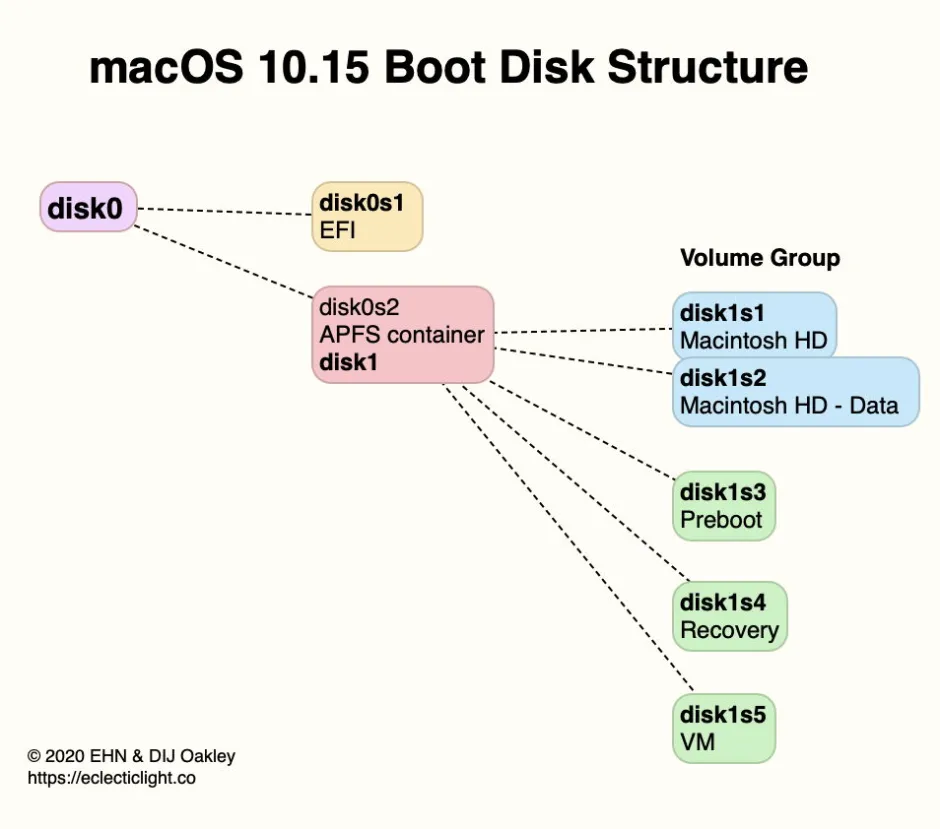
BootDiskStructureCatalina

When the first Apple silicon Macs came in 2020, they had a brand new Recovery system, dubbed 1 True Recovery (1TR), run from a hidden container on their internal SSD, and engaged by pressing and holding the Power button. For security, this requires both physical contact with the Mac and a mechanical action.
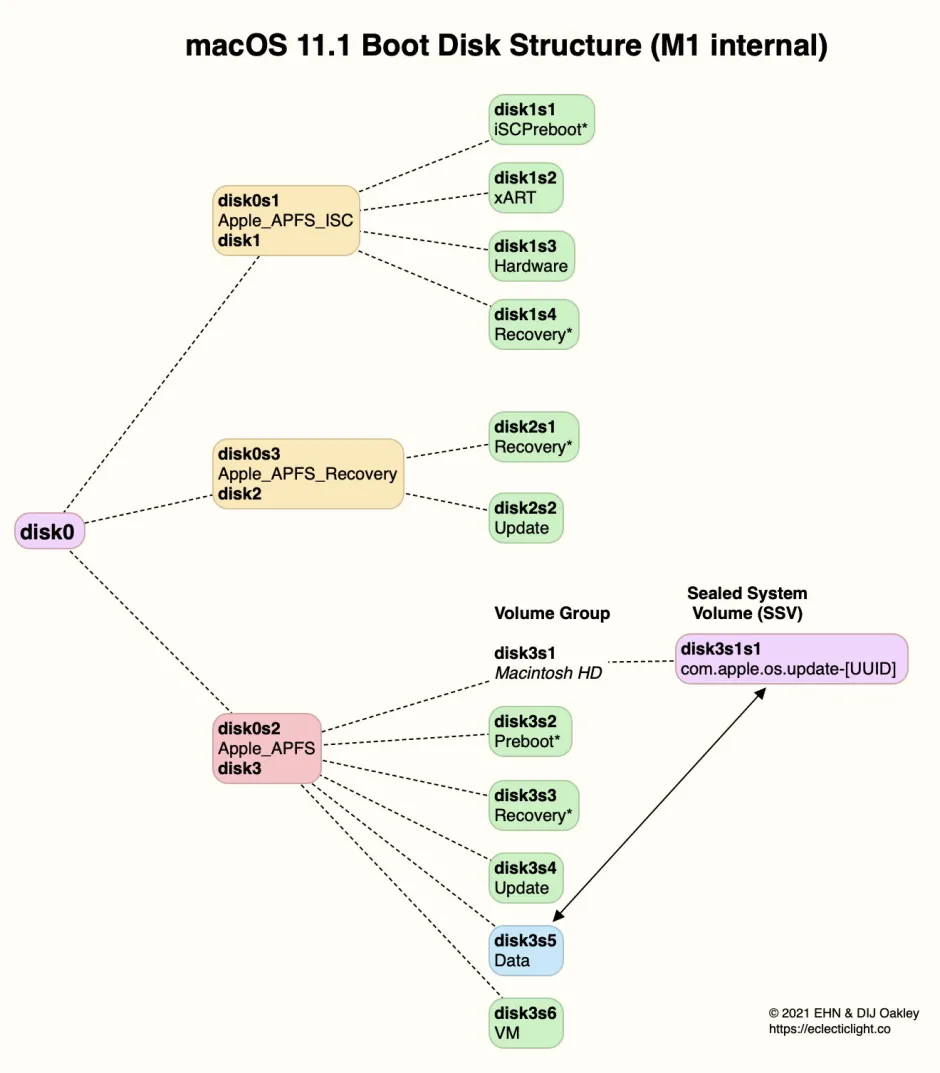
BootDiskStructureM1

In Big Sur on an Apple silicon Mac, the Apple_APFS_Recovery container was dedicated to providing 1TR, stored in its Recovery volume. This includes a second part of iBoot and all that’s necessary for the M1’s full Recovery mode. In this scheme, there was just one True Recovery system on each M1 Mac, regardless of how many different versions of macOS it might have installed.

If you needed your M1 Mac to enter 1 True Recovery but that failed, there was a second copy of the software required for 1TR “for resiliency”, stored in the Recovery volume paired in the current boot volume group. To boot into that, instead of just holding the Power button until 1TR starts loading, you pressed the Power button twice in rapid succession, and on the second press, instead of releasing the button, hold it pressed until recovery options are reported as loading. What you then got was every bit as good as regular 1TR, with one significant exception: you couldn’t set the system security state using Startup Security Utility.

That new Recovery architecture was fine while Apple silicon Macs could only boot into the one major version of macOS, Big Sur. When Apple released the next, Monterey, it changed Recovery to cope better with those that might have two different boot volume groups installed on their internal storage. That swapped the locations of primary and fallback Recovery.

From Monterey onwards, starting up in primary Recovery using the Power button boots that Mac into the Recovery volume paired with the current boot volume group. Starting up in fallback Recovery using the doubly-pressed Power Button boots that Mac into the fallback Recovery (frOS) installed in the hidden Apple_APFS_Recovery container on the internal SSD. Now any paired Recovery volume can use Startup Security Utility, but it’s not available in fallback Recovery.
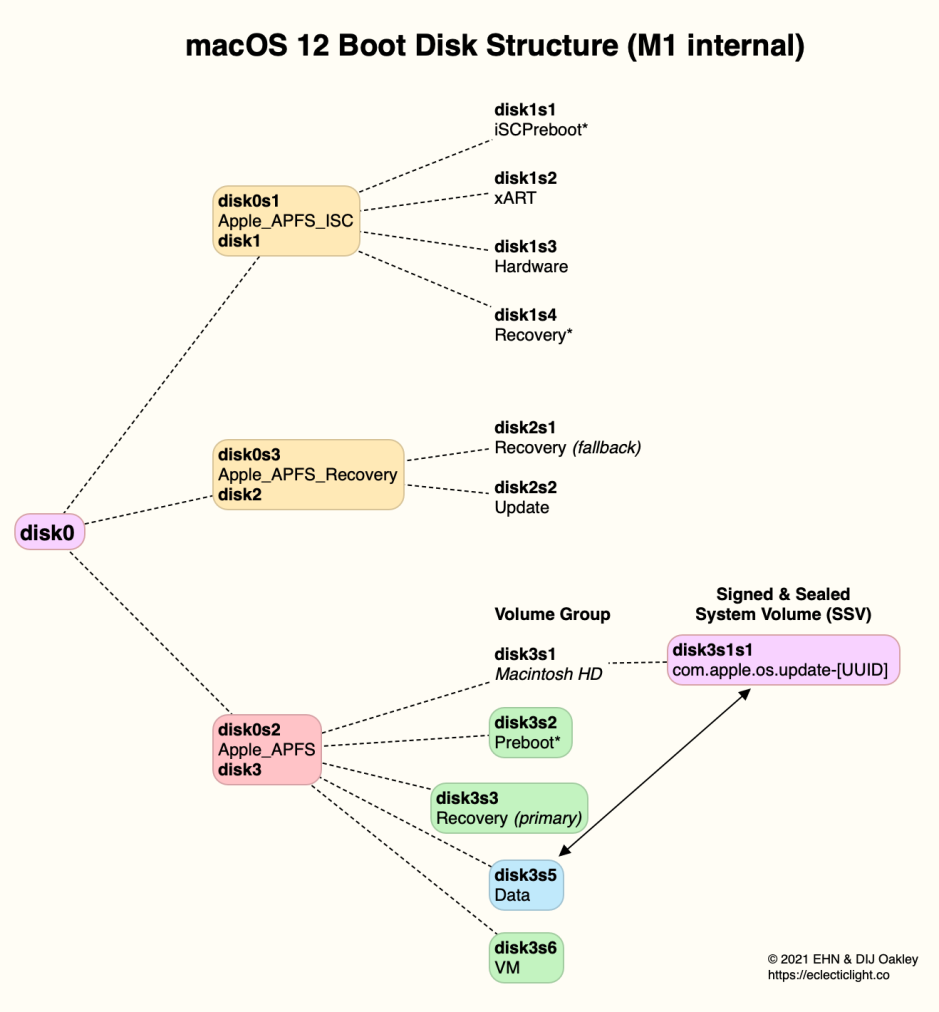
BootDiskStructureM1Monty

Since then there has been further economy that allows one paired Recovery volume to act as the primary Recovery system for additional boot volume groups installed within the same container.

Because the Recovery system is a sealed disk image, users can’t add their own tools to augment it. However, it has become progressively more capable, with the recent addition of Device Recovery Assistant and Repair Assistant. The diagram below gives an overview of its anatomy as of macOS 26.4.
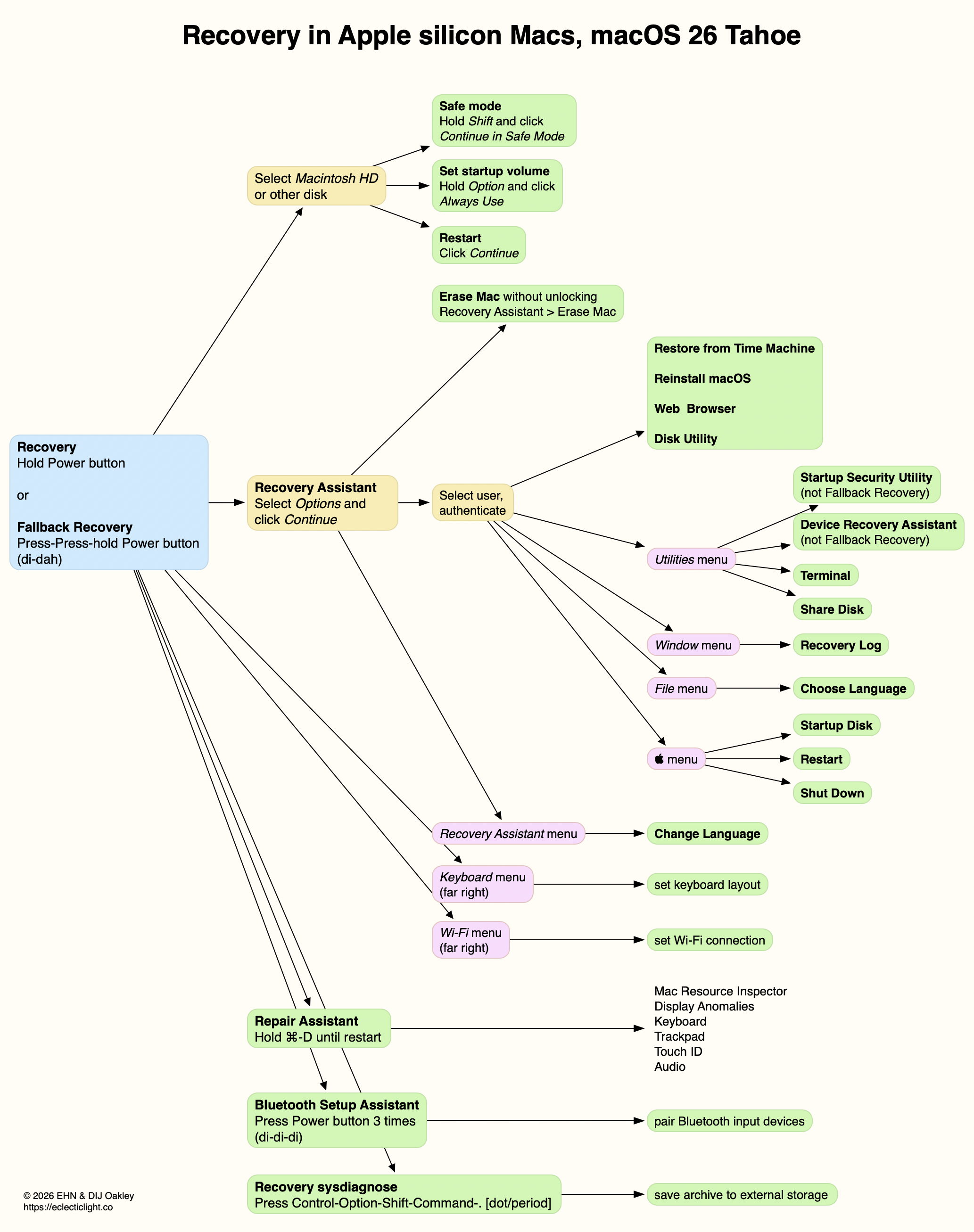
Further details are illustrated in my guide to Recovery on Apple silicon Macs.

How to enter Recovery in recent macOS

Intel Macs
  • local Recovery, Command-R;
  • remote latest Recovery, Command-Option-R, for latest version of macOS compatible with that Mac, over the internet;
  • remote original Recovery, Command-Option-Shift-R, to reinstall the version of macOS that shipped with the Mac, over the internet.
Apple silicon Macs
  • primary (paired) Recovery, press and hold Power button until entering Options;
  • fallback Recovery, short press, press and hold (di-dah) Power button until entering Options.