










Here is a post about how to increase the memory limit in WordPress. Allowed memory size exhausted error message showed up in your WordPress installation? No worries – this is one of the most common errors in WordPress. You can apply an easy fix by increasing the memory limit in your PHP.
WordPress is one of the most stable platforms today, and most of the problems you can encounter are not so difficult to fix. Memory limit error is also known as ‘PHP memory limit error, and if it happens in your WordPress installation, it will look like this.
fatal error: allowed memory size of 67108864 bytes exhausted |
This error happens in different circumstances, but the most common are:
Your hosting provides this memory. When you buy your hosting plan, your site will get a specific amount of resources. As your site grows, you start using more complex plugins and scripts – you may hit your memory limit. Again, speaking WordPress – if you see this error, you won’t complete the action that you wanted to take.
Top WP Hosting recommended by Meks
WordPress 5.2 introduced a pretty handy tool called “Site Health.” It is located in the WordPress dashboard’s Tools / Site Health section. To see the memory limit of your website, go to Tools / Site Health / Info and go to the Server section.
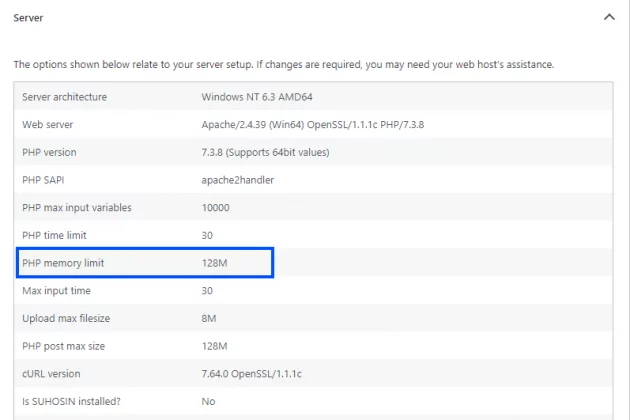
This means that your server has a 128MB memory limit. If there is a memory limit error on your website, make sure that you increase this number. We will show several most efficient ways to do this.
If you are not 100% sure about what you are doing, please contact your hosting provider and ask them to increase your PHP memory limit for you.
Before editing the wp-config.php file, make sure that there is a backup of this file. Look for the “WP_MEMORY_LIMIT ” text inside wp-config. If you don’t find the WP_MEMORY_LIMIT line inside the wp-config.php file, you can paste it right before the part that says: “That’s all, stop editing! Happy publishing.”
define('WP_MEMORY_LIMIT', '256M'); |
If you still get the error, open the wp-config file, increase the memory limit further, re-upload the file, and see what will happen next.
Follow this link to find more info about the wp-config.php file.
If your hosting allows access to the PHP.ini file, edit it and increase the maximum amount of memory a script may consume (in this case, this is 128MB)
memory_limit = 256M ; Maximum amount of memory a script may consume (128MB) |
If your host doesn’t allow access to the PHP.ini file, there is a quick but not so recommended method of modifying your .htaccess file. Before editing, please make sure that you have a backup of this file, too. Add the following code to your .htaccess file.
php_value memory_limit 256M |
If the methods above don’t work or aren’t successful, make sure to talk to your hosting about your hosting problems and increase your memory limit. Maybe it’s the right time to test their support skills.
Got questions or like to talk? Please subscribe to our YouTube Channel for more WordPress tutorials. You can also find us on Twitter and Facebook.
Tags: error codes, memory limit, WordPress
此内容由惯性聚合(RSS阅读器)自动聚合整理,仅供阅读参考。 原文来自 — 版权归原作者所有。