

惯性聚合 高效追踪和阅读你感兴趣的博客、新闻、科技资讯
阅读原文 在惯性聚合中打开

推荐订阅源

爱范儿
爱范儿
博客园_首页
U
Unit 42
Apple Machine Learning Research
云风的 BLOG
云风的 BLOG
MongoDB | Blog
MongoDB | Blog
美团技术团队
H
Help Net Security
G
Google Developers Blog
B
Blog RSS Feed
让小产品的独立变现更简单 - ezindie.com
aimingoo的专栏
aimingoo的专栏
Google DeepMind News
J
Java Code Geeks
M
MIT News - Artificial intelligence
腾讯CDC
IT之家
IT之家
Vercel News
Vercel News
C
Check Point Blog
博客园 - 三生石上(FineUI控件)
Last Week in AI
Last Week in AI
I
InfoQ
博客园 - 司徒正美
A
About on SuperTechFans

Derek Seaman's Tech Blog

SmartWings Blinds Review: Matter over Thread Zebra Shades Aqara Camera Hub G350: World’s First Matter v1.5 Camera ESPHome: Micro-Air EasyStart Integration ESPHome: Introducing the Seeed Studio Xiao ESP32-C5 Seeed Studio ESP32 Showdown: C3 vs. C6 vs. S3 (ESPHome Edition) Home Assistant: Updating Aqara FP300 Zigbee Firmware How-To: Using my ESPHome Bluetooth IRK Capture Package Vibe Coding: My ESPHome Bluetooth IRK Capture Tool Home Assistant: Track Who’s in Each Room with ESPHome + Bermuda BLE 3-2-1-1 Go: Implementing Foolproof Backups Proxmox Backup Server (PBS) 4.0 Blog Series How To: Proxmox Backup Server 4 as a Synology VM How To: Backblaze B2 as a Proxmox Backup Server 4 S3 Datastore How To: Synology NFS for Proxmox Backup Server Datastore (2025) How To: Proxmox Backup Server 4 (VM) Installation How MVNOs Like US Mobile Can Save You Money on Your Cell Phone Bill Data Brokers Exposed: How to Opt Out and Secure Your Personal Data Digital Privacy Decoded: Simple Ways to Secure Your Information Part 2: Ruckus Unleashed (200.18+) Best Practices Guide Part 1: Ruckus Unleashed (200.18+) Best Practices Guide 3-2-1 Go: A Step-by-Step Guide to Implementing Foolproof Backups Geek Chic Eyewear: My Optometrist Saga, Eyewear Collection & More Geek Chic Eyewear: Optometry Tools, Eye Health and Insurance Geek Chic Eyewear: Understanding Lens Materials and Designs Essential Tips for a Stable Matter over Thread Network Aqara U200 Thread/Matter/Homekey Smart Lock Impressions Home Assistant: The Ultimate Light Automation Blueprints 6 GHz Wi-Fi: Are Your Devices ready for Standard Power? Demystifying Ruckus Home Wi-Fi: Getting Started Guide Mastering Home Wi-Fi: A Guide to Predictive RF Planning
Stecker: Trigger macOS Shortcuts with USB Devices (FREE)
2023-07-05 · via Derek Seaman's Tech Blog

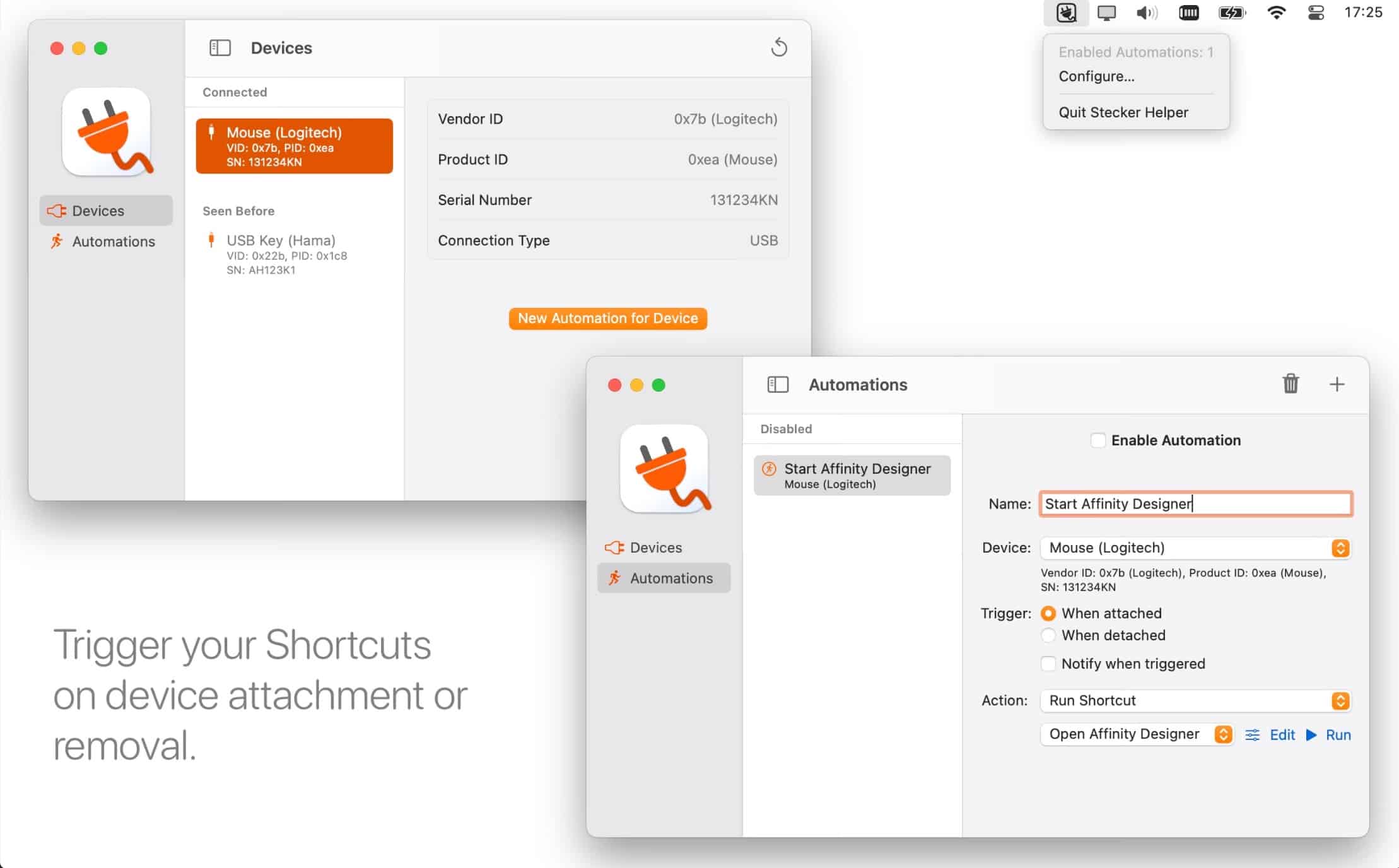
Do you want to trigger a macOS shortcut when you connect or disconnect a USB device? Look no further than the FREE app Stecker. There can be occasions when you would like to trigger a macOS Shortcut when you connect or disconnect a specific USB device. For example, maybe you have a KVM switch between two Macs and want to run a Shortcut when you switch between active devices. Or maybe you want to run a Shortcut when you connect or disconnect a dock. 

There are a few third party apps that I’ve tried with various degrees of success (and cost). But I stumbled on a brand new free app the Mac App Store that is phenomenal. It is called Stecker.
What is Stecker?

What is Stecker? It was first released in May 2023, and it’s a FREE app on the Mac store (with optional $2.99 supporter level). It serves a single purpose, and it does it very well. When a particular USB device is connected or disconnected it will fire off an Apple Shortcut on your Mac. Yup it’s that simple, but the execution and UX is genius. 

When you launch Stecker you are presented with a full list of all USB devices that are connected to your Mac. As you can see, it lists individual devices (like my StreamDeck XL) and USB hubs and bridges. In fact, I ran the system_profiler SPUSBDataType command and Stecker detected 100% of my USB devices. Awesome!
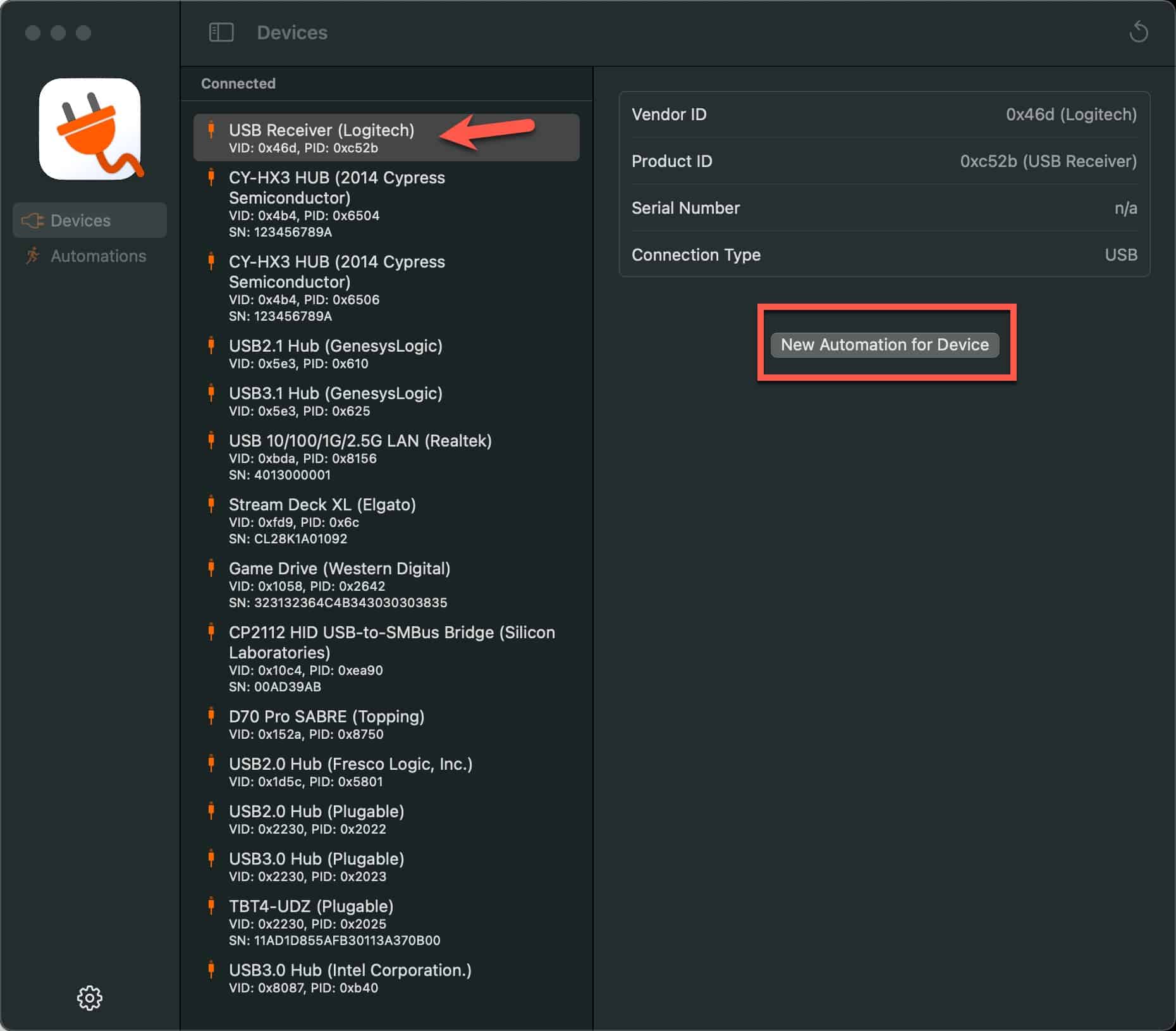
Creating an automation can be accomplished in just a couple of clicks. First, click on the USB device that you want to trigger on. In my case I want to trigger on my Logitech unified receiver. As you can see this device is at the top of the list. I then clicked on New Automation for Device.
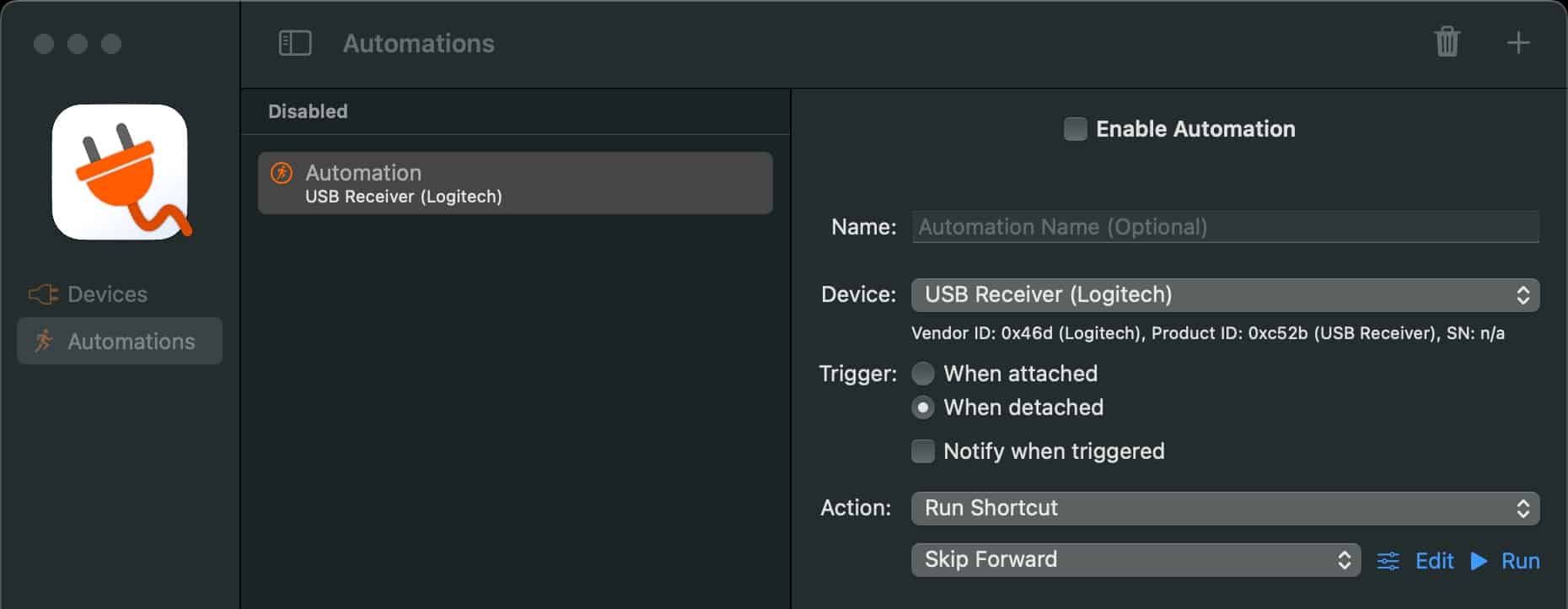
The next screen lets you select between When Attached or When detached triggers, then you can select the shortcut you want to run. Tick the box to Enable Automation and you are set! In my testing it was flawless and instantly detected when the USB device was attached or detached. You can also select a different USB device in the Device: dropdown. 

On the near term road map is adding the ability to Run Executable. I also hope the developer adds the ability to send a hotkey keystroke to macOS as well. Yes you could have a shortcut send a global hotkey, but doing directly in Stecker would be a big plus. It’s also a tad odd to need to disable the automation to make any changes. But that’s a minor quibble. 

Stecker Alternatives

Stecker is not the first app to trigger on USB device attachment or detachment and fire a Shortcut. I tried the following apps, but Stecker (for me) is hands down the best..and it’s FREE.

  • Keyboard Maestro – It can trigger on USB device connection or disconnection, and it worked well for me. However, it has two big drawbacks: It’s not free. $36 USD. And the USB trigger interface UX is not great. But if you already own it, sure, go for it.
  • Shortery – This is supposed to detect USB device connection state and fire a Shortcut. However, it failed to detect multiple USB devices (e.g., Logitech receiver) that I tried. It worked with other devices though, like a webcam and USB stick. I reported the bug to the developer, but let’s just say he wasn’t receptive to fixing the bugs so I’d steer clear. 

Summary

Stecker is a FREE dedicated purpose macOS app to fire Shortcuts when it detects a USB device being attached or detached. It works flawlessly, detected all of my USB devices, and the UX is awesome. If you need to trigger macOS Shortcuts based on the connection state of a USB device look no further than Stecker. He is on Reddit as u/Lfrggr. You can also find his website here.