

惯性聚合 高效追踪和阅读你感兴趣的博客、新闻、科技资讯
阅读原文 在惯性聚合中打开

推荐订阅源

V
Visual Studio Blog
T
Tailwind CSS Blog
Google DeepMind News
D
DataBreaches.Net
P
Proofpoint News Feed
Simon Willison's Weblog
Microsoft Azure Blog
MongoDB | Blog
MongoDB | Blog
腾讯CDC
月光博客
月光博客
A
Arctic Wolf
T
Threatpost
Jina AI
Jina AI
博客园 - 聂微东
美团技术团队
V
V2EX
云风的 BLOG
云风的 BLOG
宝玉的分享
宝玉的分享
Recent Commits to openclaw:main
M
MIT News - Artificial intelligence
S
Secure Thoughts
Martin Fowler
Martin Fowler
Webroot Blog
Webroot Blog
V
Vulnerabilities – Threatpost
爱范儿
爱范儿
人人都是产品经理
人人都是产品经理
Help Net Security
Help Net Security
Google Online Security Blog
博客园 - Franky
The Last Watchdog
The Last Watchdog
让小产品的独立变现更简单 - ezindie.com
阮一峰的网络日志
阮一峰的网络日志
博客园 - 【当耐特】
S
Schneier on Security
Application and Cybersecurity Blog
Know Your Adversary
Know Your Adversary
Latest news
Latest news
有赞技术团队
有赞技术团队
AWS News Blog
AWS News Blog
cs.CV updates on arXiv.org
Y
Y Combinator Blog
G
Google Developers Blog
NISL@THU
NISL@THU
H
Heimdal Security Blog
L
LangChain Blog
T
Troy Hunt's Blog
I
InfoQ
U
Unit 42
C
Check Point Blog
Engineering at Meta
Engineering at Meta

阁子

相机小述 四元数与旋转矩阵 小工具(二) 私有办公服务搭建 小工具(一) 图床搭建 Git基本用法 Telegram接管聊天消息 Hashcat密码破解 Docker博客环境封装及自动化部署 小聊乐理 LXD搭设服务器 Time Machine 不满就折腾小记 GStreamer笔记五: Media Formats and Pad Capabilities GSreamer笔记四: GUI Toolkit Integration GStreamer笔记三: Time Management GStreamer笔记二: Dynamic Pipeline GStreamer笔记一: GStreamer Concepts
小工具(三)
本文作者: dfine · 2020-08-10 · via 阁子

小工具(三)

发表于 | 分类于 Share | 阅读次数

竟然真的有后续!!!(Again)

花里胡哨的命令行监视器bashtop

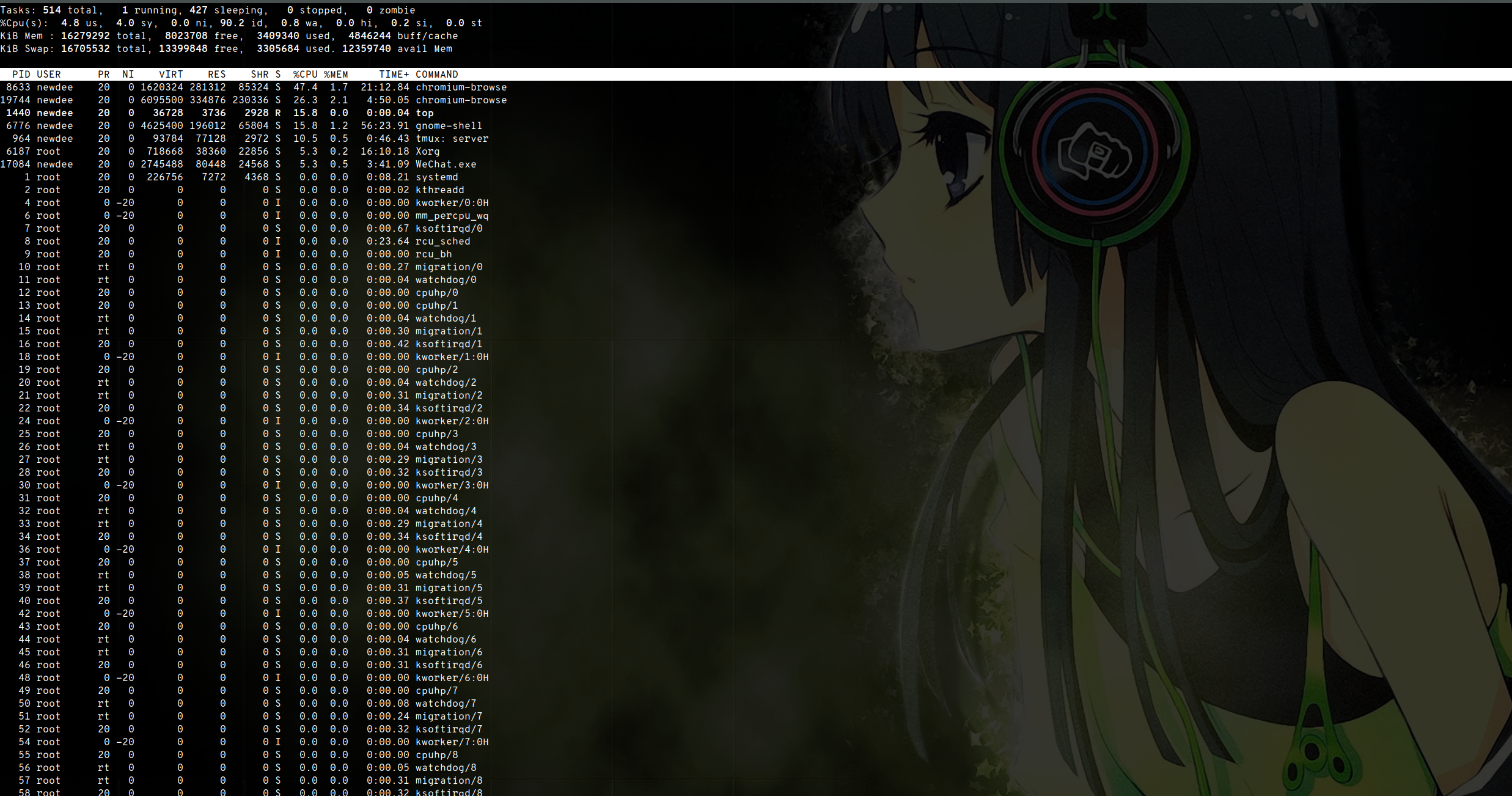
作用基本上就跟top差不多,不过视觉效果还不错。对比一下,
top命令:
bashtop命令:
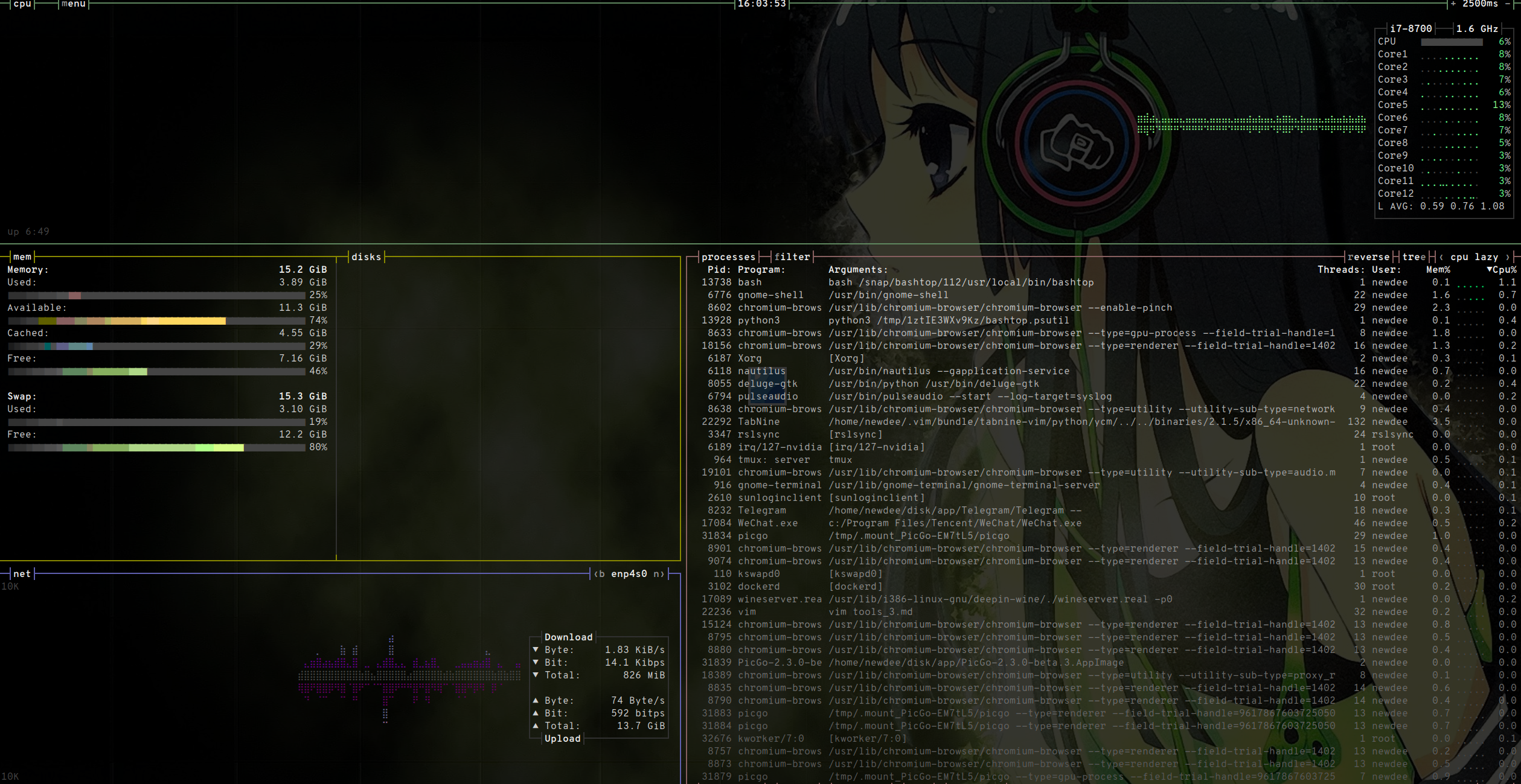
其中,最上面是CPU资源使用情况,左侧是内存和网络资源使用情况,右边是和top一样的进程状态,可以使用方向键来选择进程,或者翻页键来翻页,按f可以filter需要找的进程。
在选中进程之后,可以使用回车键查看该进程详细信息,t和k健可以terminate或者kill进程,i可以中断进程(interrupt)。
按q退出,按ESC可以跳回主界面,如果不清楚命令或者快捷键,可以选择HELP查看,总之使用方法比top简单不少。
缺点,就是感觉没有top出来的快,可能是因为要在terminal上绘图。

文件格式转换工具xxd

xxd是linux上比较老的文件格式转换工具了,经常使用vim的在打开二进制文件的时候输入的!xxd就是这个命令,一般作用是将文件转为十六进制。

1

2

3

4

5

6

7

8

9

10

11

12

13

14

15

16

17

18

19

20

21

22

Usage:

xxd [options] [infile [outfile]]

or

xxd -r [-s [-]offset] [-c cols] [-ps] [infile [outfile]]

Options:

-a toggle autoskip: A single '*' replaces nul-lines. Default off.

-b binary digit dump (incompatible with -ps,-i,-r). Default hex.

-C capitalize variable names in C include file style (-i).

-c cols format <cols> octets per line. Default 16 (-i: 12, -ps: 30).

-E show characters in EBCDIC. Default ASCII.

-e little-endian dump (incompatible with -ps,-i,-r).

-g number of octets per group in normal output. Default 2 (-e: 4).

-h print this summary.

-i output in C include file style.

-l len stop after <len> octets.

-o off add <off> to the displayed file position.

-ps output in postscript plain hexdump style.

-r reverse operation: convert (or patch) hexdump into binary.

-r -s off revert with <off> added to file positions found in hexdump.

-s [+][-]seek start at <seek> bytes abs. (or +: rel.) infile offset.

-u use upper case hex letters.

-v show version: "xxd V1.10 27oct98 by Juergen Weigert".

文件转十六进制

最简单的方式是xxd file,会在终端输出转换后该文件的十六进制内容,使用重定向或者管道可以写到文件或作用于其他输入。
如果文件比较大,可能转换比较慢,而且很多并不是我们需要的话,可以使用-s或者-l参数。
-s参数如上所示,“start at bytes abs”,从指定位置开始转换。
-l参数则是指定要转换内容的长度。

二进制文件的比较

如果要比较两个二进制文件内容是否一致,可以借助于xxd命令。
例如,需要比较两个原始的yuv格式视频文件是否一致,比如两种方式通过h264解码出来的文件,平常的diff命令是无法完成的,可以先利用xxd命令转成十六进制后再进行比较。

1

2

3

xxd a.yuv > a.hex

xxd b.yuv > b.hex

diff a.hex b.hex

之所以举这个例子,是因为yuv是原始视频数据,比如一个1920x1080的h264编码后的视频大小只有8M多,但是其对应的解码后的yuv大小则可能有1.1G多,而使用xxd转成十六进制文件之后,体积可以达到4.5G,直接用diff命令比较费时,而且用vim打开还容易卡死。而通常只需要比较其中一部分可以判断出解码的文件是否正常,这时候就可以在xxd命令转换的时候加上-l或者-s参数,指定比较的文件位置和长度,可以很快的得到结果。

当然,比较方式也不是绝对的,对于视频文件,使用ffmpeg也可以查看许多详细信息。

应用代理工具proxychains

这个其实很早以前打算说的,不过忘记了。作用有点像chrome里的SwitchyOmega之类的扩展程序,不同的是,SwitchyOmega是针对特定网页选择本地的代理端口和协议,proxychains是针对某个命令或者应用选择本地代理端口和协议。
安装方法比较简单,ubuntu下直接使用apt命令可以安装:

1

sudo apt install proxychains

安装好之后,配置文件放在/etc目录下的proxychains.conf文件,修改里面的协议和端口即可。
使用方式是直接在命令前加上proxychains,这样只对该命令代理,不影响其他应用。
比如使用ubuntu的snap命令下载软件时,通常国内会比较慢,如果有代理,则可以使用:

1

proxychains sudo snap install xxx

其实很多工具也不是啥新鲜玩意,不过有时候确实挺实用的,不过仅仅对工具而言,没有任何性质,怎么用在于个人。