





Every year around the holidays I end up having a conversation with at least one friend or family member about the importance of choosing unique passwords for each web site or service they use. Usually, it’s after they’ve received a phone or a camera or some other “smart” device for Christmas and have asked me to help them set it up. Most recently, it was when a friend told me his eBay account got hacked, and he asked me how he could keep it from happening again in the future.
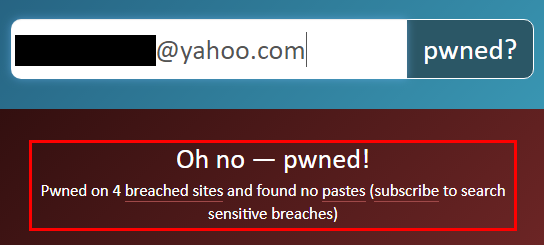
I told him that it was likely the attacker found his password in a data breach of another website and then used the password to login to his account on eBay. Then I introduced him to HaveIBeenPwned.com – an online service that tracks data breaches so users can find out if their data has been leaked. We searched the database for his email address and sure enough, his password was stolen in four separate breaches. When I asked him if he used the same password on all his accounts, he said he did.
Suddenly he realized the importance of using a unique password for every different service. Sure, sites like eBay, PayPal, and your bank usually have pretty strong security, but other sites you use might not be so secure. When an attacker steals your password from an insecure website, they can easily use it to log in to every other site where you use the same password.
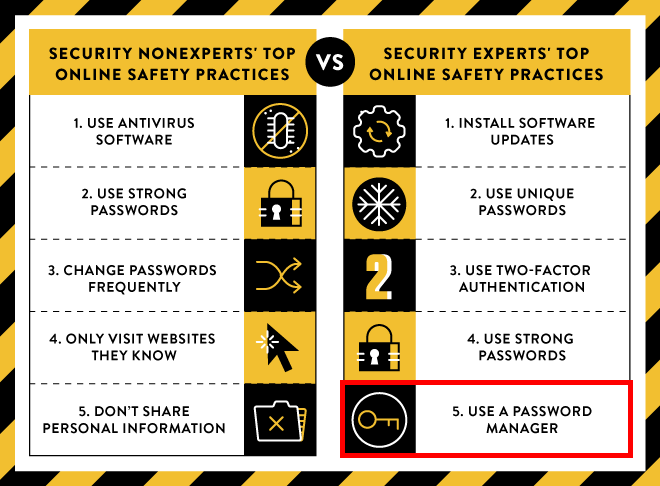
Experts often recommend using a password manager to keep track of all the passwords that accumulate as a person creates accounts on different websites. A password manager is typically an app (either for a smartphone or a computer) or a website intended to store all of a user’s passwords in a secure way – usually in an encrypted database. After logging in to the password manager, the user can store and retrieve the passwords they use on other websites. That way instead of having to remember many different passwords, the user only has to remember one password – the password that unlocks their password manager. Then the password manager does the job of remembering all the other passwords for them.
The problem with computer- or smartphone-based password managers (which I’ll refer to as “electronic password managers” from here onward) is that they require a base level of familiarity and expertise to be used every day. For regular readers of the BHIS blog, using an electronic password manager would likely require little to no effort. But for casual technology users who may not be fluent in all of their devices’ functions, electronic password managers are often difficult to learn and too cumbersome to use regularly.
Just about all of my family members and friends outside of work fall into that second category. Older family members, especially, still ask me to copy and paste files or move pictures from their phone to their computer whenever I come to visit; so for them, recommending an electronic password manager didn’t make sense.
For many people keeping track of unique passwords to their personal accounts, writing the passwords down on paper seems like a pretty good solution. It solves the problem of having a different password for every account. But if the list of passwords is carried outside the home, there’s a very real possibility it will be lost or stolen.
Even if the list of passwords never leaves the house, it may still be at risk. I’m amazed how frequently I hear stories of friends, caregivers, children, and even parents who make fraudulent purchases and even steal money outright from the accounts of people who trust them. An ideal solution would also need to keep passwords safe even if it fell into the hands of an untrusted third party.
After giving it a little thought, I came up with what I now call the Paper Password Manager.
The Paper Password Manager (PPM) is a simple solution that allows just about anyone to keep track of multiple, unique passwords regardless of their proficiency with a computer.
Granted, it’s not perfect. The user still has to learn the system; and like any system, it isn’t perfectly secure. The purpose of the Paper Password Manager is to be a “good enough” solution so that if one of a user’s accounts is compromised, all of their other accounts remain secure. And if the Paper Password Manager itself is compromised through loss or theft by an attacker who doesn’t know the key, login credentials to the user’s account are not immediately known – giving the user time to change their passwords before the attacker gains access to their accounts.
The table below illustrates the relative strength of the Paper Password Manager compared with other password management strategies.
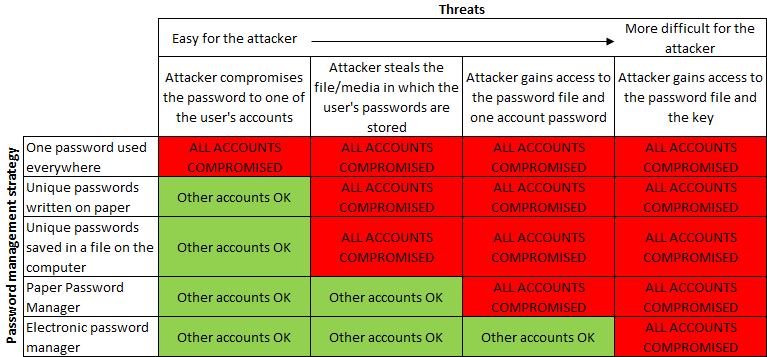
As you can see, the Paper Password Manager is more secure than some of the other common, low-tech solutions to password management. Although it isn’t quite as secure as an electronic password manager, it is simple enough that basic instructions for its use can be summed up in just a few sentences.
In short, the process can be described as follows:
The Paper Password Manager is just a handwritten list of the user’s accounts and passwords, with one exception – Instead of writing down the whole password for each account, the user writes down only the first half (what we’ll call the “unique bit”). The second half of the password (called the “key”) is the same for every account and is not written down. Instead, the key is memorized by the user. To type the password of any account stored in the Paper Password Manager, the user simply types in the account’s unique bit followed by the key. In other words: Account Password = Unique Bit + Key
This gives the Paper Password Manager the following characteristics:
Detailed instructions for making and using the Paper Password Manager are included in the section below.
To try and keep things clear throughout this article, I made up the following terms for things that get referred to often.
To make your own Paper Password Manager, you’ll need:
Depending on where you plan to keep your Paper Password Manager (e.g. at your desk, in your pocket, in your wallet, etc.) you might choose a notepad, a folded sheet of paper, or a set of small index cards. Anything with enough space to capture all your login credentials will do.
After gathering the materials, the first step in creating your Paper Password Manager is to select its’ key. The key is a password that must be memorized – not written down anywhere in the PPM. You can write it down somewhere else if you like, and I’ll discuss that more in the section on backing up your PPM. When selecting the key, I recommend including at least one uppercase letter, one lowercase letter, and one numeral. The key should also be at least 8-12 characters long.
I don’t recommend including any special characters in the key because, unfortunately, not all websites allow all special characters to be used in passwords. Your key will be part of every password you create, so if you pick a key that isn’t allowed on one website because the site doesn’t allow you to use special characters, you’ll have to make an exception for that site, and that can get confusing. (I do recommend including a special character in the unique bit whenever possible, which we’ll get to later.)
Similarly, the reason I recommend keys 8-12 characters long is because not all websites allow long passwords. A longer key is always better; just be aware that if you have a longer key, you may need to select a shorter unique bit for any websites that don’t allow long passwords.
Here are some keys I made up as examples along with some details of each. Don’t use any of these keys for your own PPM! Make up your own key so it will be completely secret.
Example Keys
Once you’ve selected your key, you’re ready to begin recording account details in your PPM. How you record the information is completely up to you. At a minimum, each entry should probably include:
You might also want to include the phone number associated with the account or other information you provided when you signed up that you might need later. However, don’t include the answers to your security questions in your PPM. I’ll discuss how to store those securely later in the article.
Here’s an example of how an entry for Amazon might look in my PPM:
If you’re following along with these instructions, go ahead and fill in all the information for one of your accounts in your PPM. You won’t be able to fill in the unique bit yet – you’ll do that in the next step.
The last piece of information to fill in from the previous step is the unique bit. Each account should have its own unique bit since that’s what makes the password for each account unique.
To generate the unique bit, create another password that’s at least 8 characters long (longer is even better) and includes at least one of each character type – upper case, lower case, numerals, and special characters. If you visit a website that doesn’t allow special characters, you can create a unique bit using only letters and numbers; but for maximum security, include special characters whenever they’re allowed. Also, remember that spaces are often considered special characters and are easy to include between words in the unique bit.
Here’s an example of the Amazon entry in my PPM after creating a unique bit:
TIP: You might notice that I use words in my key and unique bit examples instead of scrambling up a bunch of letters. I choose random words instead of individual random letters because words are so much easier to read and to type when I’m entering my password. Copying “8 Fluffy Clouds” from my PPM is much easier than copying “8 uyflFf uldCso”, even though they’re both the same length and contain all of the same characters. Since all of your passwords will be a minimum of 16 characters in length (at least 8 in the unique bit and at least 8 in the key), your passwords will be plenty strong if they contain random words instead of random letters. And they’ll be way easier to type!
Retrieving a password from an entry in your PPM is very easy. When you enter your password into the website to login, first type the account’s unique bit written in your PPM, and then type your memorized key.
For example, if the unique bit for the account I was logging into was “8 Fluffy Clouds” and my key was “6PackOfCola”, then the password to my account would be: “8 Fluffy Clouds6PackOfCola”.
Together, the unique bit and the key give my account a password that is different than all of my other passwords. The password is also 26 characters long and contains all four types of characters, making it extremely difficult for an attacker to guess.

Because the Paper Password Manager exists on paper, it’s easy to create backups just by making a copy with a copier or multi-function printer. When backing up the key, the key should be written down separately and stored in a secure location away from the PPM, such as a safe deposit box.
A backup plan for the PPM might look something like this:
Since answers to security questions can be used to reset passwords on accounts, they should not be stored in or with the PPM. Instead, answers to security questions should be stored in a separate location such as the safe deposit box where the PPM key is stored.
Here are some other tips to consider when using the PPM:

I hope you found this article valuable and that for you or someone you know, it makes securing your online accounts a little less daunting. Like any new skill, incorporating the Paper Password Manager into your routine may take some practice. To make it a little easier to remember how it works, I created a one-page reference sheet that you can download and optionally print from the link below.
Download the Paper Password Manager Reference Sheet
Want more content from Michael? Why not take a class with him?
Available live/virtual and on-demand!
此内容由惯性聚合(RSS阅读器)自动聚合整理,仅供阅读参考。 原文来自 — 版权归原作者所有。