









Beau Bullock //

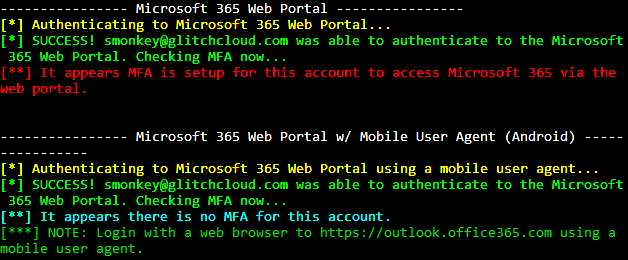
On offensive engagements, such as penetration tests and red team assessments, I have been seeing inconsistencies in how MFA is applied to the various Microsoft services. Across Microsoft 365 and Azure, there are multiple endpoints. These endpoints can all be configured under different Conditional Access policy settings, which sometimes lead to variations in how MFA is applied. An organization that is trying to prevent single-factor access to email and/or Azure may need to double-check their configurations to ensure MFA is enforced on all access portals.
To help both offensive operators and defenders check for MFA coverage on an account, I wrote a tool called MFASweep that attempts to log in to various Microsoft services using a provided set of credentials to identify if MFA is enabled. To jump straight to the tool, click here: https://github.com/dafthack/MFASweep
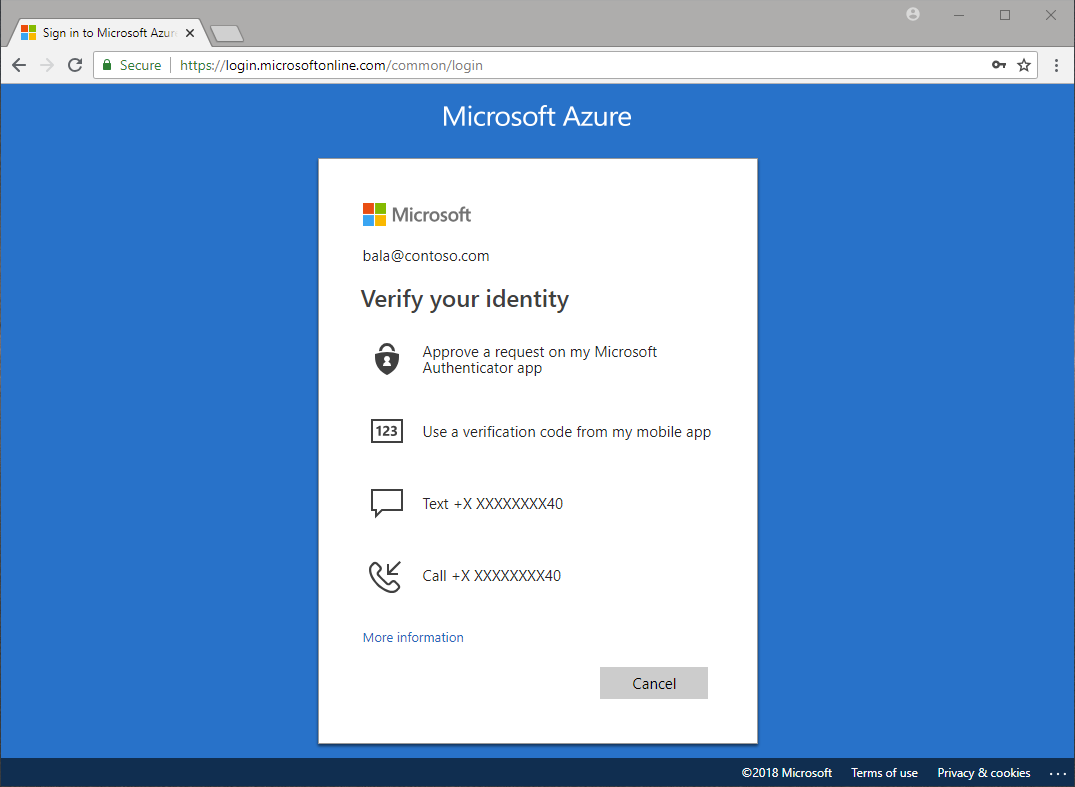
Microsoft 365 and Azure have built-in MFA options. Even free Microsoft accounts can use the MFA features. More and more organizations are implementing MFA across accounts. Microsoft MFA has a few different options for verification:
During offensive engagements, we commonly perform password attacks such as password spraying or credential-based phishing. Oftentimes, if we successfully compromise a credential, MFA can put a stop to any further activities. However, as shown in this blog post, administrators have a lot of options to consider in terms of how that MFA is applied and where. This can lead to misconfigurations and inconsistencies in MFA coverage.
When an organization signs up for Microsoft 365, it uses Azure AD as the directory for users. Azure AD has a setting that is enabled by default called “Security Defaults”. Security Defaults is a setting that helps protect Microsoft accounts by doing the following:
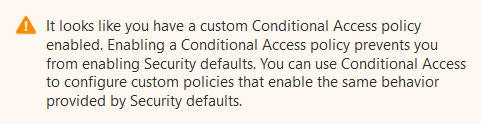
These settings tremendously help to protect access to an account. Misconfigurations can arise when this setting gets disabled… So why would you disable it? Well, as it turns out you can’t have “Security defaults” enabled if you are also using Conditional Access policies.
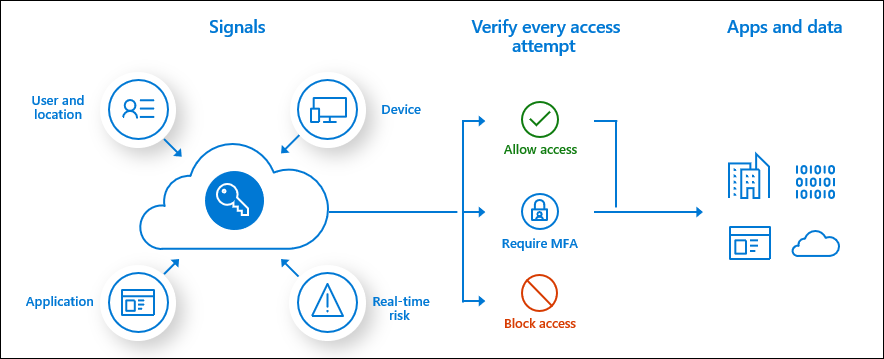
Conditional Access policies are the fine-grained controls over how a user is granted access to a resource. These also can control when and where MFA is applied. Conditional Access policies can be built around a number of different scenarios, such as the user who is authenticating, the location they are coming from, the device they are using, their “real-time risk” level, and more.
For example, I have tested organizations that utilized conditional access policies to allow single-factor access to Microsoft 365 from their IP space, but required MFA everywhere else.
When setting up Conditional Access policies, an admin has a number of different options to consider. Do users need to authenticate to legacy protocols or will they only be using modern authentication? Will they be authenticating from their phones, desktops, or both? Will they be allowed to connect from home or only on-prem? The ability for admins to allow or block certain protocols is where differences in MFA implementations are commonly seen across different organizations. Some organizations I have done assessments for allow authentication to all the common portals, while others lock access down tightly.
One of the more common areas I have seen single factor sneak into place is on legacy authentication-protocols. Microsoft defines the following list as “legacy”:
Access can be blocked to these via a Conditional Access policy applied to the “Legacy authentication clients” in the “Client apps” setting.
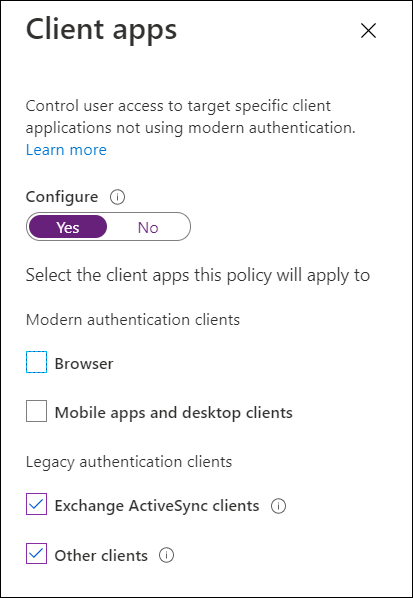
The good news is that Microsoft is planning on disabling legacy authentication. The bad news is that due to COVID-19, the date for disabling it has moved back to the 2nd half of 2021. So, it looks like we’ll be checking for legacy authentication for a while longer.
Due to the variations I have been seeing in different organizations’ MFA setups on Microsoft Services, I wrote a tool to automate authenticating to some of the different protocols. MFASweep is a PowerShell script that attempts to log in to various Microsoft services using a provided set of credentials and will attempt to identify if MFA is enabled. Depending on how conditional access policies and other multi-factor authentication settings are configured, some protocols may end up being left single factor (and this will tell you which ones). It also has an additional check for ADFS configurations and can attempt to log in to the on-prem ADFS server if detected.
Currently, MFASweep has the ability to log in to the following services:
All you need is a set of valid credentials and the script. Import the script into a PowerShell session, then run one of the commands below.
WARNING: This script attempts to log in to the provided account SIX (6) different times (7 if you include ADFS). If you enter an incorrect password, this may lock the account out.
This command will use the provided credentials and attempt to authenticate to the Microsoft Graph API, Azure Service Management API, Microsoft 365 Exchange Web Services, Microsoft 365 Web Portal (both desktop and mobile browsers), and Microsoft 365 Active Sync.
Invoke-MFASweep -Username [email protected] -Password Winter2020
This command runs with the default authentication methods and checks for ADFS as well.
Invoke-MFASweep -Username [email protected] -Password Winter2020 -Recon -IncludeADFS
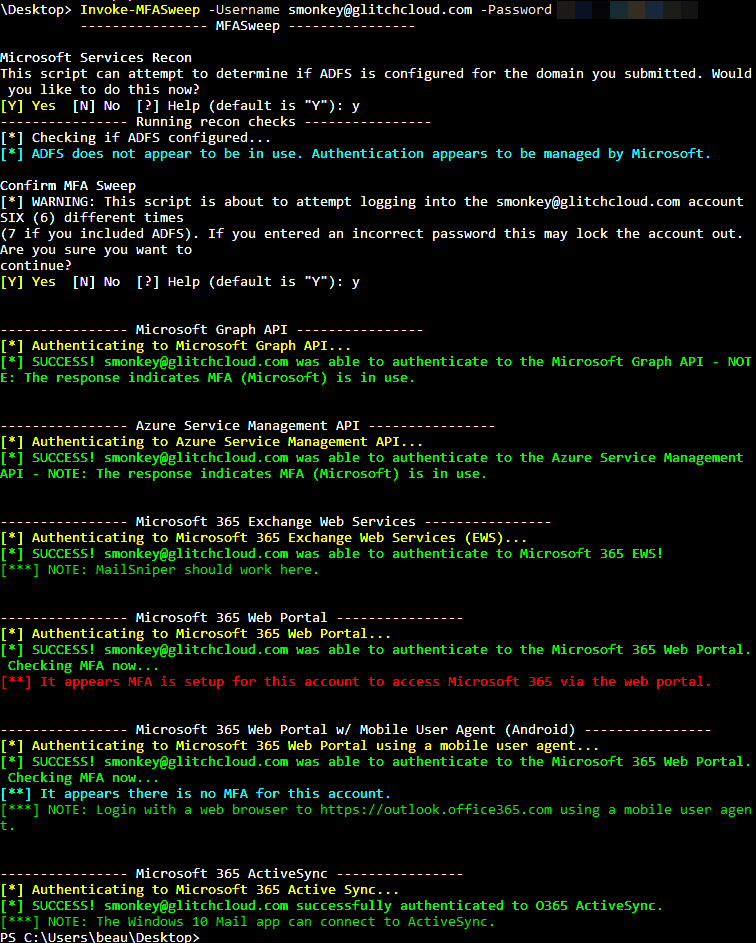
If you run MFASweep and find you have access to a certain Microsoft protocol, you may be wondering what you can do with that access. The next few sections give a quick overview of what you might be able to do.
One of the best ways for working with the Graph API is to use the MSOnline PowerShell module. The Graph API is primarily tied to Azure AD. This allows you to view information from the directory such as users and groups. To authenticate with MSOnline, import the MSOnline PowerShell module and then run Connect-MsolService. This will open the built-in PowerShell browser for authentication.
Import-Module MSOnline
Connect-MsolService
Or… try passing the credential to a PowerShell variable first and then use the -Credential flag with Connect-MsolService. I have seen where authenticating via this method bypassed some MFA restrictions.
$credential = Get-Credential
Connect-MsolService -Credential $credential
For a list of some commands to run after authenticating, see my cloud pentesting cheat sheets here: https://github.com/dafthack/CloudPentestCheatsheets
ROADTools should work here as well: https://github.com/dirkjanm/ROADtools
If the user has a subscription tied to their account, you can leverage the Azure Service Management API to perform actions within the subscription. To do this you could use the “Az” PowerShell module. You can import it and authenticate with the command Connect-AzAccount.
Import-Module Az
Connect-AzAccount
Similar to the MSOnline module, you could also use a PowerShell variable and pass it to Connect-AzAccount with the -Credential flag. The cloud pentesting cheat sheets mentioned in the Microsoft Graph section should be useful here as well.
Access to EWS allows for reading a user’s email, getting the global address list, converting email addresses to internal AD usernames, and more. You can use MailSniper to perform these actions: https://github.com/dafthack/MailSniper. When using MailSniper with EWS on Microsoft 365, make sure to use the -Remote flag as shown in the following command for authentication.
Invoke-SelfSearch -Mailbox [email protected] -ExchHostname outlook.office365.com -Remote
Log in with a browser at https://outlook.office365.com or https://portal.azure.com.
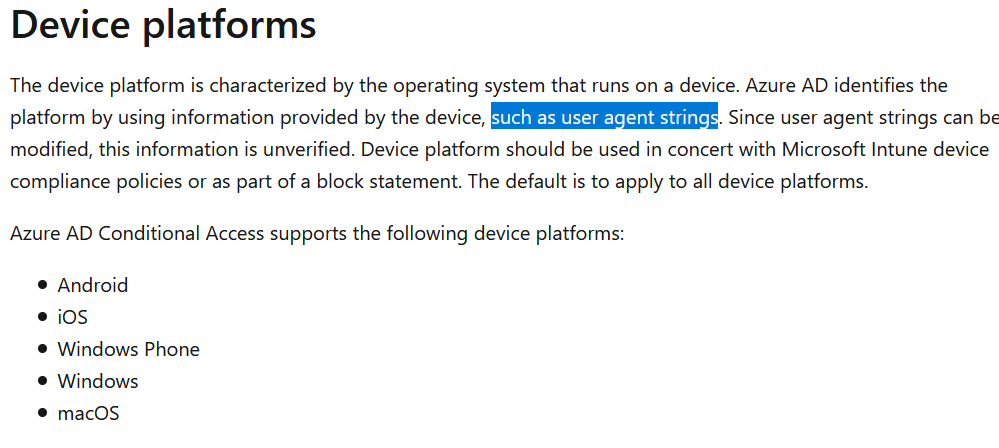
One conditional access policy I have seen organizations use allowed users to access O365 with a mobile device using single-factor authentication, but trying in a desktop client required MFA. This was set up using “Device platforms” as the condition. As documented by Microsoft, the device platform is identified by user agent so simply changing the user agent to a common mobile device can trigger this policy.
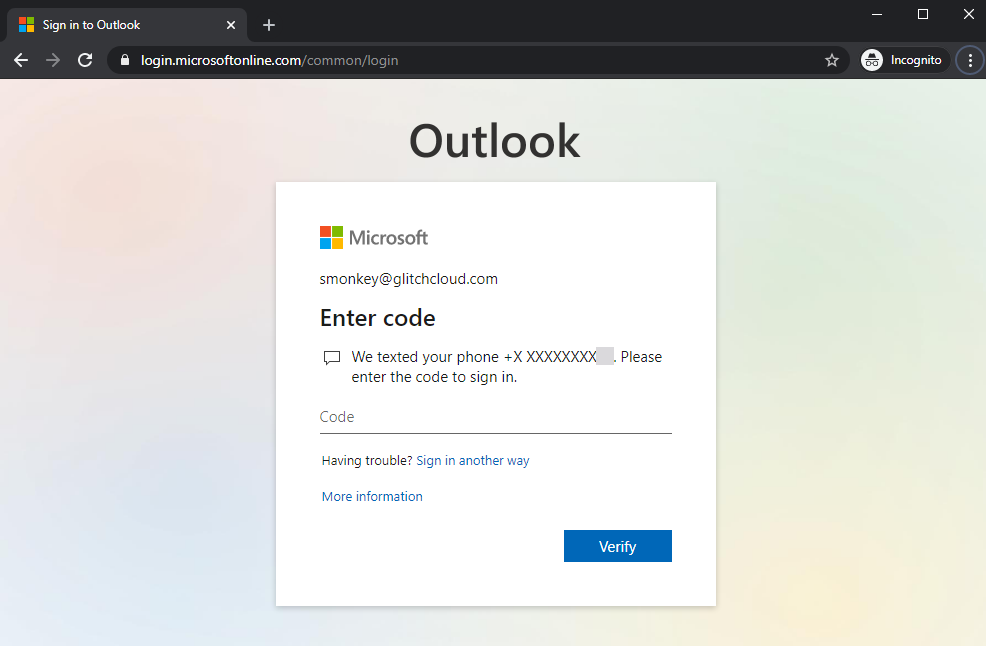
In the screenshot below, I attempted to log in to an account via desktop web browser with a conditional access policy in place that only allowed mobile devices, so MFA was required.
In the next screenshot, I tried logging in to the same account after I changed my user agent using Chrome’s built-in developer tools feature to mimic an Android device. This time, MFA was not required.
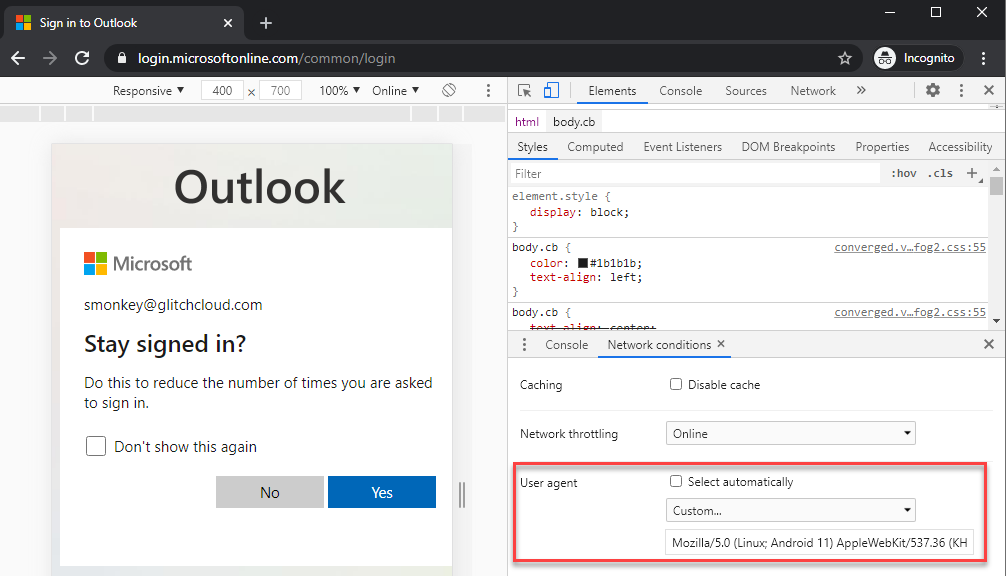
Shoutout to Nikhil Mittal for his tweet about this: https://twitter.com/nikhil_mitt/status/1287049649363144705
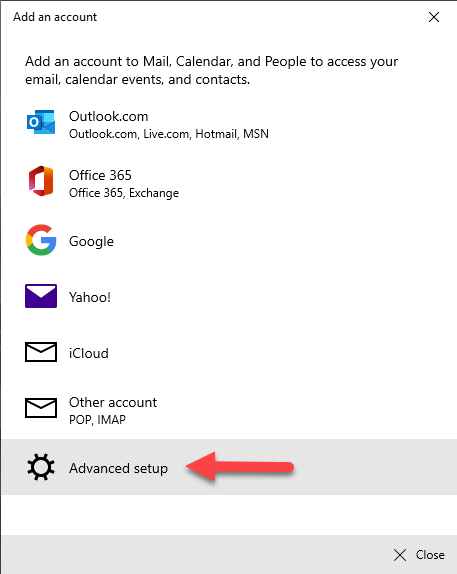
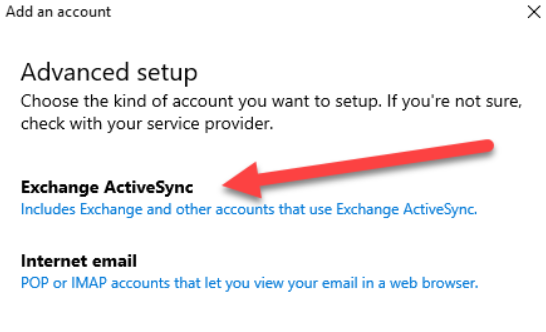
ActiveSync is treated as a separate “Client app” in Conditional Access policies instead of being lumped in with the other legacy protocols like IMAP, EWS, etc. So, there is potential there for legacy protocols like EWS to be blocked but access to ActiveSync is allowed. Windows 10 has a built-in Mail application that supports ActiveSync. To do this, open Mail in Windows 10 and add an account. Click “Advanced setup”.
Then, click “Exchange ActiveSync”.
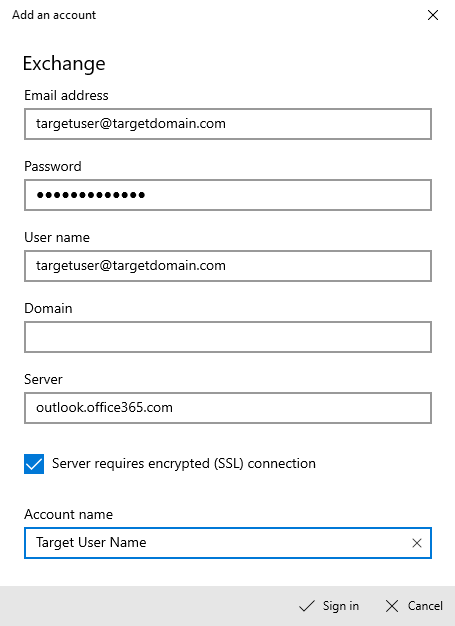
Fill out the information as shown in the screenshot below and click “Sign in”. This should set up ActiveSync to start syncing email with the user’s account.
Active Directory Federation Services is another common method for authenticating users that we see deployed. With ADFS, no credentials are stored in Azure. When a user attempts to authenticate to Microsoft Online services, such as Microsoft 365, a redirect occurs to a system hosted by the organization where authentication can occur. One quick way to check if an organization has ADFS set up is to send a web request to the following URL substituting the “[email protected]” for any email address at the domain you are testing (whether or not the user account exists doesn’t matter, just the domain):
https://login.microsoftonline.com/[email protected]&xml=1
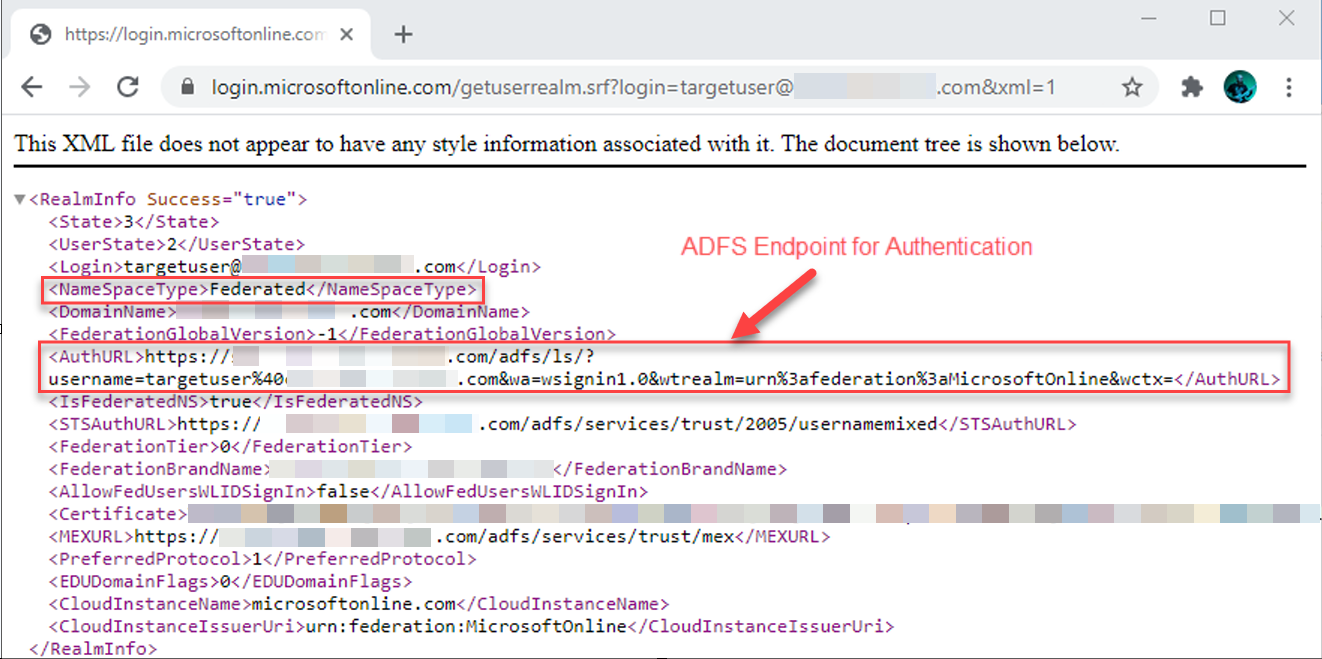
I added in a check for this into MFASweep. The script automatically prompts asking if you want to check the domain for ADFS, or you can specify the -Recon flag to force it.
The script also can attempt to log into the ADFS server, letting you know if MFA is configured there.
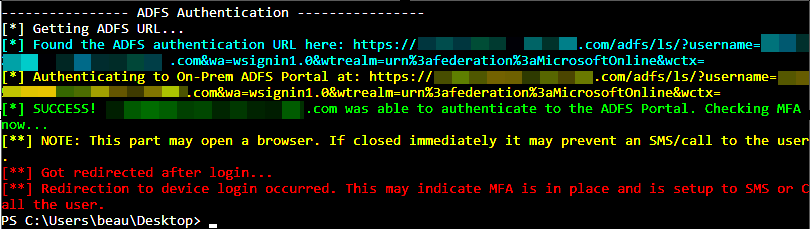
Before I released this tool, I used it on a few real world engagements and found inconsistencies in MFA deployments that allowed me to gain access to information that was supposed to be protected. I think that both red teamers and blue teamers can use this tool to gain a better understanding of the MFA coverage deployed to accounts. Keep in mind these are not the only conditions possible. With conditional access, there are other possibilities for how it can be configured, and multiple options can be combined to create more complex rules. The checks I’ve included in MFASweep are some of the more common scenarios I have seen on engagements, but there will likely be more added in the future. If there are any other checks you would like to see in MFASweep, send me a DM on Twitter and let me know!
Get MFASweep here: https://github.com/dafthack/MFASweep
Available live/virtual and on-demand!
此内容由惯性聚合(RSS阅读器)自动聚合整理,仅供阅读参考。 原文来自 — 版权归原作者所有。