








Follow us on LinkedIn, X, Bluesky
Release date: June 10, 2026
Update 1.124.1: The update addresses these issues.
Update 1.124.2: The update addresses these issues.
Downloads: Windows: x64 Arm64 | Mac: Universal Intel silicon | Linux: deb rpm tarball Arm snap
Welcome to the 1.124 release of Visual Studio Code. This release makes it faster to work across agent sessions and gives agents more autonomy to finish your tasks.
Autopilot: Autopilot, enabled by default, is now smarter to determine when a task is truly done.
Background sessions: Quickly send a request in the background and keep composing the next session.
Session navigation: Search, jump, and step through agent sessions with the keyboard.
Browser history: Revisit and search pages you've already opened in the integrated browser.
Happy Coding!
The Agents window is a dedicated companion window optimized for exploring, iterating on, and reviewing agent sessions across projects and machines. This release focuses on making it faster to move between sessions and on preserving your context across reloads.
Previously, starting a new session meant waiting for it to load before you could compose the next one. You can now send a request in the background instead: press Alt+Enter (or hold Alt and select Send) in the new session view.
The view resets immediately and keeps its state, such as the selected model and context, clearing only the query text, so you can keep queuing up requests. Each started session appears in the sessions list once it commits.
Sending a prompt with Enter still navigates into the new session as before.
When you work across many agent sessions, being able to find and switch between them quickly matters. This release adds several keyboard-driven ways to move through your sessions, from a searchable picker to back and forward navigation and direct jumps by position.
Sessions picker: Press Ctrl+R (Cmd+R on macOS) to open a Quick Pick that lists your sessions in two groups, recently opened and other sessions, with the active session pre-selected. Search across both the session title and its folder, then:
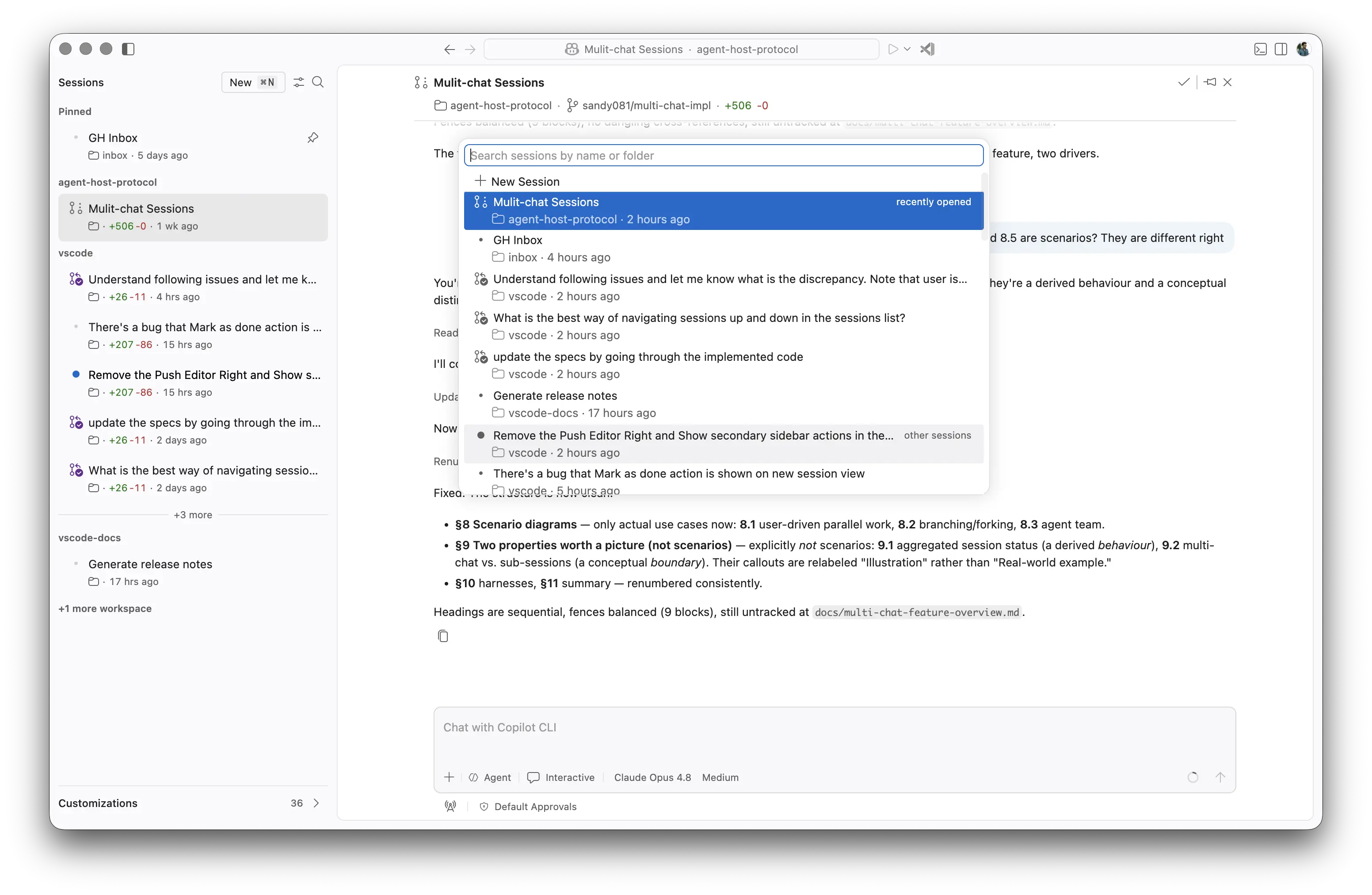
Go back and forward: Press Ctrl+Tab to go back and Ctrl+Shift+Tab to go forward through the sessions you have visited, in most-recently-visited order.
Previous and Next session: The Go to Previous Session and Go to Next Session commands step through the visible sessions list in display order, respecting grouping, filtering, and collapsed sections, and clamp at the list edges. Use Alt+Up / Alt+Down (or Ctrl+PageUp / Ctrl+PageDown; Cmd+Alt+Left / Cmd+Alt+Right on macOS).
Focus a session by position: Press Ctrl+1 through Ctrl+9 (Cmd+1 to Cmd+9 on macOS) to focus the Nth visible session in the grid, left to right.
Reloading or reopening the Agents window no longer loses your layout. The previously visible sessions and their state are restored automatically, so you land back where you left off. This includes:
Similar to editor's Close All... commands, you can now close all your sessions in one step with the new Close All Sessions command. This is especially useful when you have many sessions open and want to quickly switch to a new session without having to close each session individually.
Use the keyboard shortcut Ctrl+K Ctrl+W (Cmd+K Cmd+W on macOS) while a session has focus, or access the command from the Command Palette.
Setting: sessions.changes.openSingleFileDiff
By default, selecting a file in the Changes view opens the multi-file diff editor. To open only the changes for that file, you had to press Alt and select the file (Open Changes).
To always open a focused single-file diff editor when you select a file in the Changes view, enable sessions.changes.openSingleFileDiff . This lets you concentrate on one change at a time without the distraction of other files in the multi-file diff. When the setting is enabled, the redundant Open Changes inline action is hidden.
When you open a file inside the Agents window, a chevron toggle now appears in the editor title bar, to the right of the tabs. Select it to collapse the secondary side bar (auxiliary bar) and widen the editor, and select it again to bring the side bar back. The chevron direction reflects the current side bar visibility.
Autopilot is one of the chat permission levels that allows agents to take initiative and act autonomously, without needing explicit user approval for each action.
Settings: chat.permissions.default , chat.tools.global.autoApprove This setting is managed at the organization level. Contact your administrator to change it.
Autopilot is now enabled by default in VS Code. Organizations can still control the visibility and usage of Autopilot via the chat.tools.global.autoApprove This setting is managed at the organization level. Contact your administrator to change it. setting.
You can configure your default permission level for new chats with chat.permissions.default . Change the current permission level at any time in the chat input box.
Setting: chat.autopilot.advanced.enabled
Knowing when an agent has truly finished a task is hard. Stop too early and the work is incomplete, loop too long and you waste time and tokens. Advanced Autopilot changes how Autopilot (Preview) decides when to keep iterating and when to finish, so you get more complete results without manually monitoring the loop.
Instead of relying on fixed rules, a small utility model reads a transcript of the chat and decides whether the task is done. The objective that Autopilot works towards is surfaced in a tooltip above the chat, so you can always see what it is trying to accomplish. To keep things bounded, Autopilot loops a maximum of three times before it stops.
Set
chat.autopilot.advanced.enabled
to true to try this out.
When you are opening a folder from the simple file dialog ( files.simpleDialog.enable ), you can now create a new folder directly from the dialog by typing the name of the folder you want to create and pressing Enter or selecting OK.
Setting: workbench.browser.maxHistoryEntries
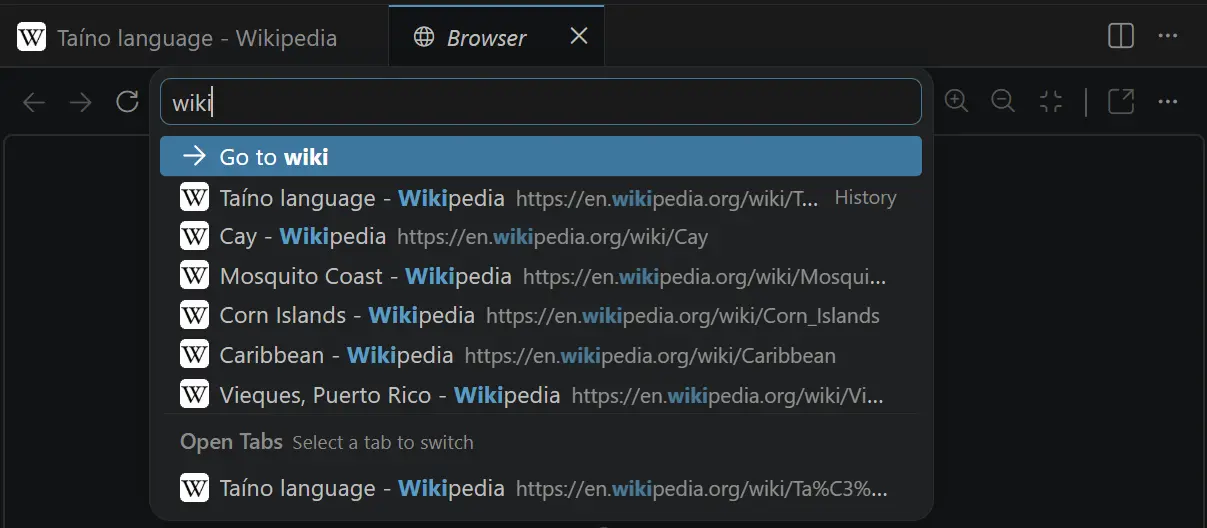
The integrated browser now retains the history of visited pages. History items are surfaced as suggestions when typing in the URL bar, and can be managed using ⌘H (Windows, Linux Ctrl+H) from within a browser tab. The maximum number of history items to remember can be adjusted via workbench.browser.maxHistoryEntries .
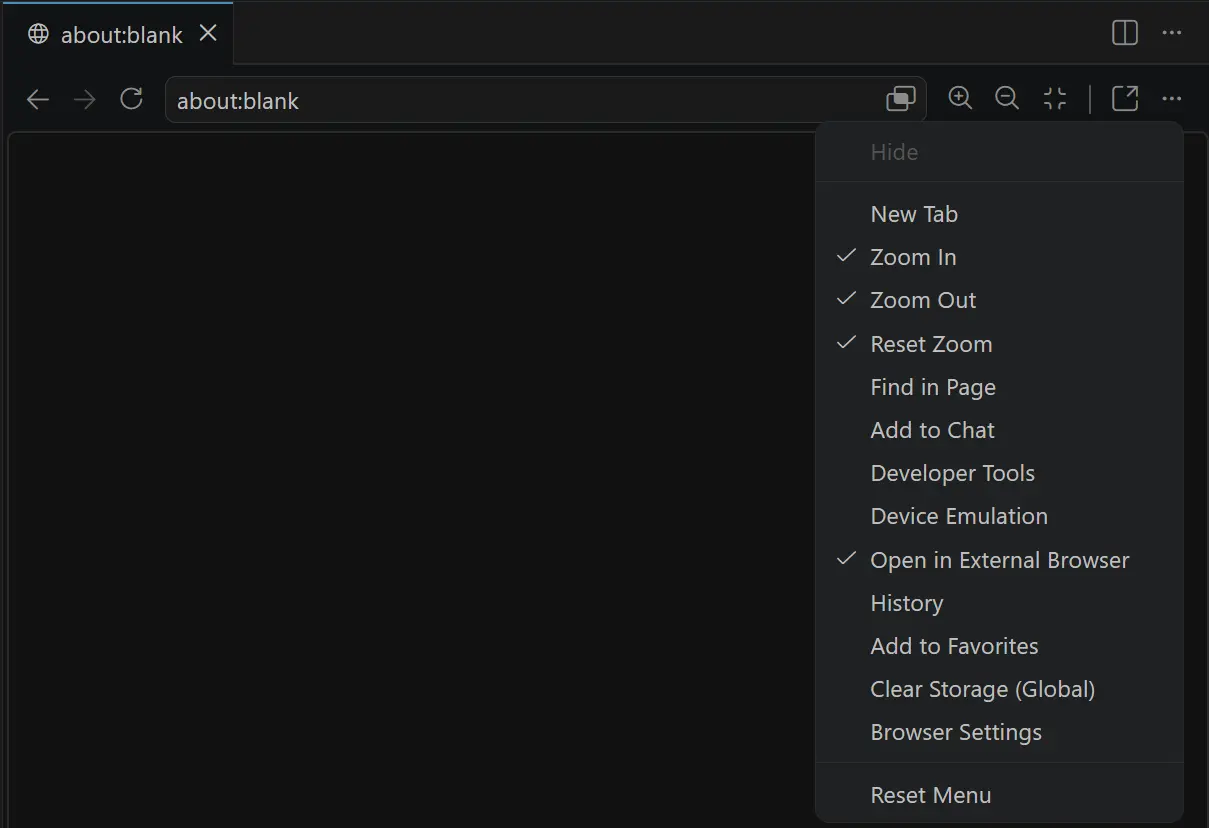
Previously, Add Element to Chat and Toggle Developer Tools were the only actions that could be made persistently visible in the right side of the browser toolbar.
Now, all actions that appear within the overflow menu can also be surfaced persistently by right-clicking on the toolbar area to the right of the URL input:
Previously, typing text and pressing Enter required two separate tool calls. Now, the typeInPage tool supports a submit parameter to allow agents to type text and press Enter in one tool call.
This reduces round-trips for common text-entry scenarios.

VS Code now reads policy from the same configuration file that already drives enterprise plugin standards for Copilot CLI, so a single policy definition applies to both clients. In the future, VS Code and the CLI will align further on policy management from this shared source.
Enterprise admins can now centrally control which chat plugins and plugin marketplaces are available to developers, instead of asking each developer to configure them locally.
Introduced in 1.123, three new policy-backed settings can be configured through the Copilot enterprise settings file or via existing MDM solutions:
Plugins that are blocked by policy remain visible but appear disabled. Marketplaces that are managed by policy are tagged as such in the marketplace picker.
None
Contributions to our issue tracking:
Contributions to vscode:
Contributions to vscode-extension-samples:
Contributions to vscode-pull-request-github:
contributes.yamlValidation PR #8761We really appreciate people trying our new features as soon as they are ready, so check back here often and learn what's new.
If you'd like to read release notes for previous VS Code versions, go to Updates on code.visualstudio.com.
此内容由惯性聚合(RSS阅读器)自动聚合整理,仅供阅读参考。 原文来自 — 版权归原作者所有。