





Follow us on LinkedIn, X, Bluesky
Release date: June 3, 2026
Update 1.123.1: The update addresses these security issues.
Update 1.123.2: The update addresses these issues.
Downloads: Windows: x64 Arm64 | Mac: Universal Intel silicon | Linux: deb rpm tarball Arm snap
Welcome to the 1.123 release of Visual Studio Code. This release improves how you work with agents and the integrated browser.
Make sure to rewatch VS Code Live at Build 2026!
Happy Coding!
Setting: chat.sessionSync.enabled This setting is managed at the organization level. Contact your administrator to change it.
Your chat sessions now sync automatically to your GitHub account, giving you a personal, searchable history of your work across machines and workspaces.
Each session captures the conversation, the files you touched, repository context (repo, branch, timestamps), and any pull requests, issues, or commits referenced along the way.
With the new chronicle commands (/chronicle) in chat, you can put that history to work:
To enable session sync, turn on chat.sessionSync.enabled This setting is managed at the organization level. Contact your administrator to change it.. You can view the status of session sync in the Copilot status dashboard in the VS Code Status Bar.
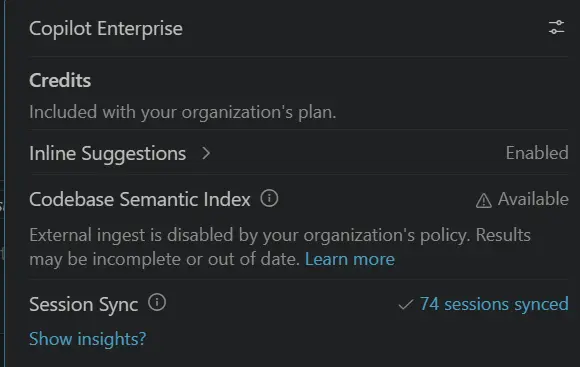
For more details, see the Session Sync and Chronicle documentation.
Setting: chat.agent.sandbox.retryWithAllowNetworkRequests
When a terminal command that is run by a local agent requires access to domains that are not configured as allowed domains, the command is automatically retried inside the sandbox with unrestricted network access. After that, if it still fails, it falls back to unsandboxed execution. This allows network-dependent operations such as git fetch to finish, while keeping filesystem protections in place.
The Agents window is a dedicated companion window optimized for exploring, iterating on, and reviewing agent sessions across projects and machines. This release, we focused on letting you work with multiple sessions side by side.
You can now have more than one session open at the same time in the Agents window. In addition to the active session, open another session next to it by:
Even though multiple sessions can be visible at once, only one is the active session at any time. The Terminal, Files, and Changes views all operate on the currently active session, so switching the active session updates these views to reflect its state.
By default, selecting a session in the sessions list replaces the active session view with the selected one. To keep a session view from being replaced, pin it with the pin action in the top right of the view. Pinned session views are never replaced—selecting another session opens it in an unpinned view instead. If every session view is pinned, the selected session opens to the side.
Use the maximize action in the top right of a session view to expand it across all open session views, giving you a focused view of a single session without closing the others.
For more details, see the Agents window documentation.
Note: The research agent is currently in preview and available only in Copilot CLI (local) sessions in Insiders.
When you need to understand unfamiliar code, compare approaches, or learn how a library or API works, a quick chat answer isn't always enough. The research agent runs deep research on a topic and produces a thorough, well-cited Markdown report by gathering and synthesizing information from your codebase, relevant GitHub repositories, and the web.
The research agent is optimized for depth rather than speed and has read-only access, so it investigates and reports instead of changing your code. To run it, type /research followed by your topic in the chat input of a Copilot CLI (local) session.
For more details, see Run deep research with the research agent.
VS Code now supports 1 million token context windows for compatible Anthropic and OpenAI models. This expanded context window enables you to work with significantly larger codebases and longer conversations without losing important context. The expanded context window is available when using supported models, such as Claude Opus 4.7 and GPT-5.5.
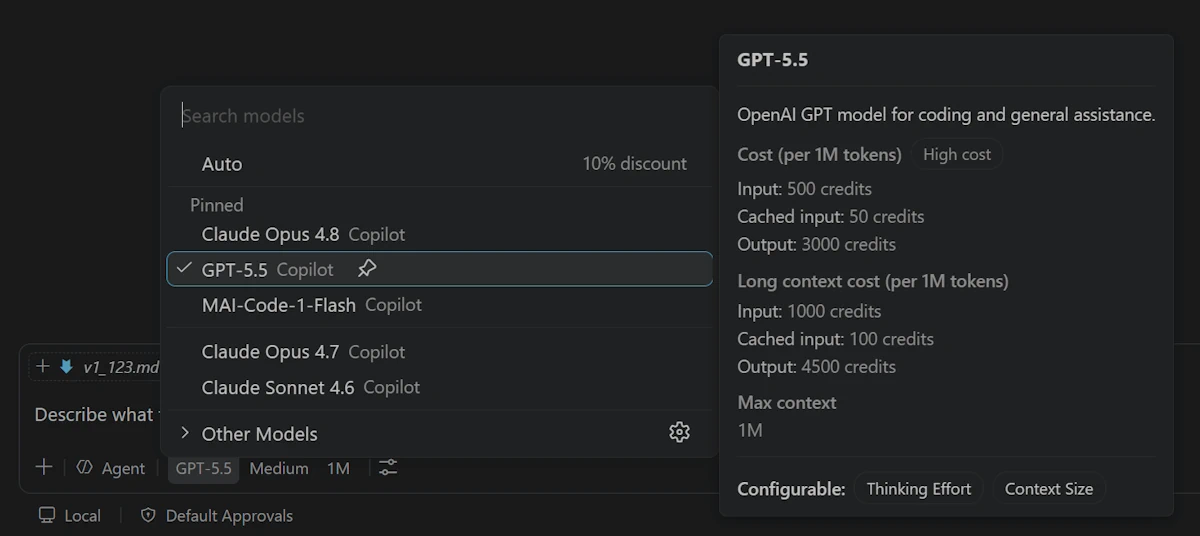
Note: Larger context windows may consume more tokens per interaction, which increases AI credits usage under usage-based billing.
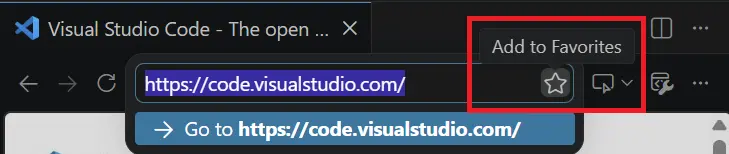
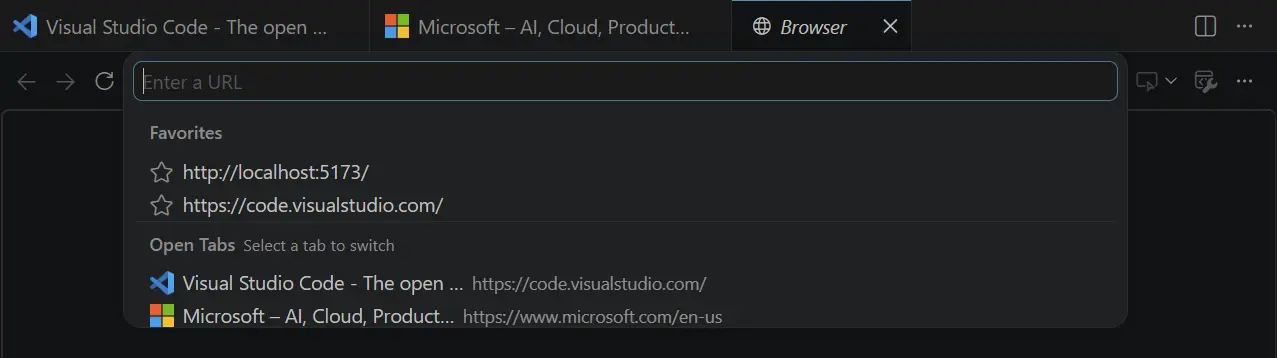
We've remodeled the address bar in the integrated browser into a more versatile experience where you can not only enter URLs but also favorite pages and easily access your favorites and open tabs.
To add a page to your favorites, select the star icon in the browser URL bar.
When you select the URL bar, you can see your list of favorite pages and open tabs.
Setting: workbench.browser.experimentalUserTools.enabled
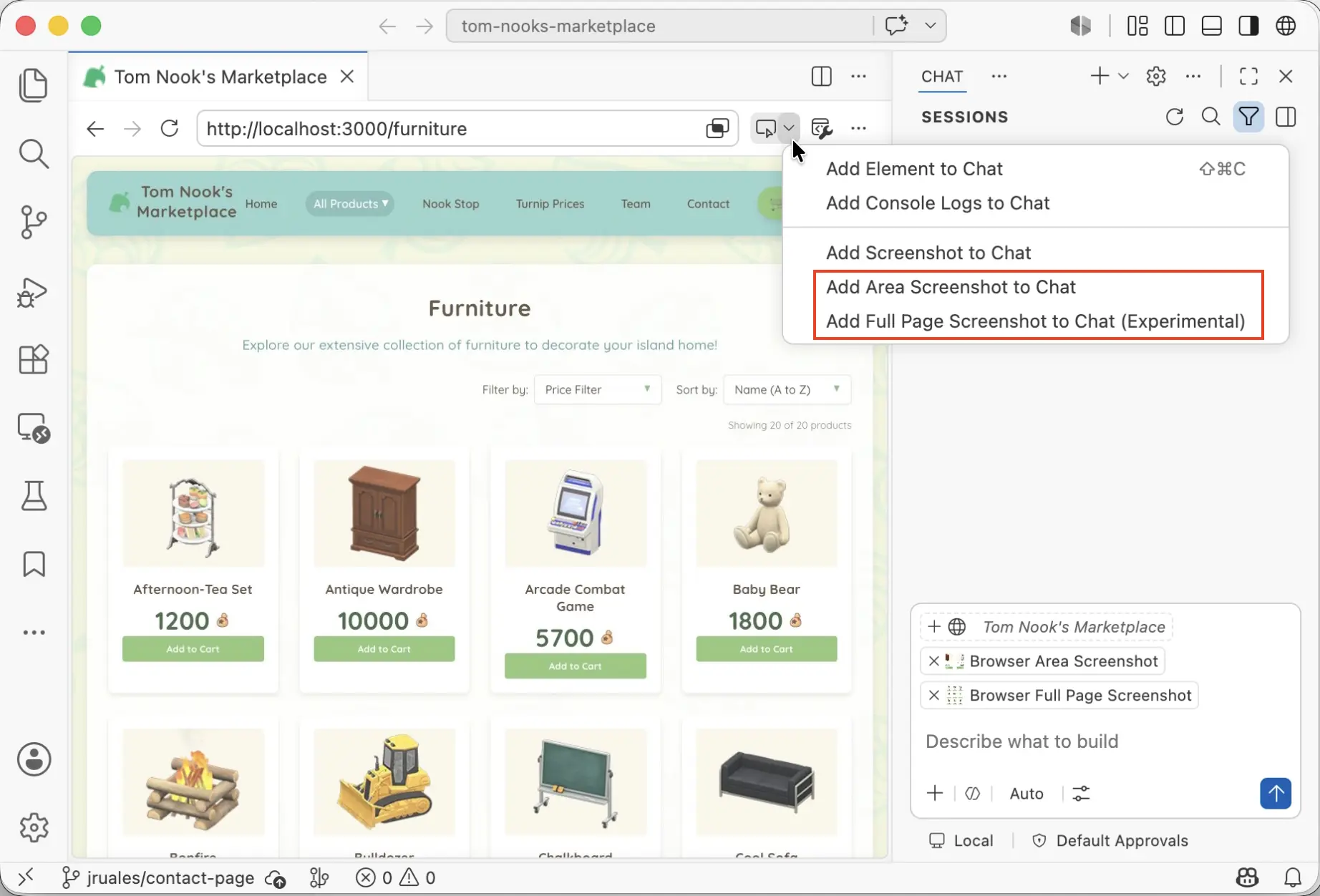
The previous release introduced Add Screenshot to Chat, which lets you attach a screenshot of the current browser viewport to chat as context. This is especially useful for UI-related tasks, such as debugging a layout issue.
This release, we added two related features:
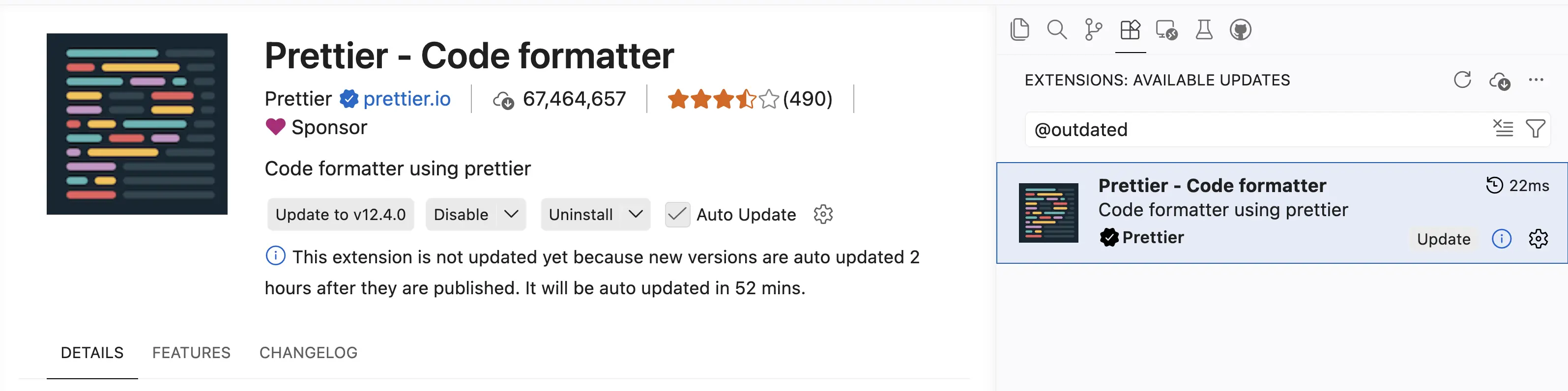
VS Code now applies a two-hour delay before automatically updating extensions to a newly published version. When automatic updates are enabled, new versions are auto-updated two hours after they are published, adding an extra layer of protection against problematic or potentially compromised releases.
This never gets in your way, as you can still update any extension immediately at any time by using the Update button. While an update is waiting, the extension's details view explains why it hasn't updated yet and when the automatic update will happen.
Note: This delay does not apply to extensions from trusted publishers such as Microsoft, GitHub, and OpenAI. These extensions continue to update immediately.
Contributions to our issue tracking:
Contributions to vscode:
We really appreciate people trying our new features as soon as they are ready, so check back here often and learn what's new.
If you'd like to read release notes for previous VS Code versions, go to Updates on code.visualstudio.com.
此内容由惯性聚合(RSS阅读器)自动聚合整理,仅供阅读参考。 原文来自 — 版权归原作者所有。