



Progressive Web Apps are web applications that have been designed with three main ideas behind: capability, reliability and installability. These main pillars make PWAs feel like a native application.
Once a Progressive Web App is installed it will run in a standalone window instead of a browser tab. They can be launched from the home screen and it's possible to search for them.
You can transform your Ghost theme into a progressive web app. Let's see how.
Requirements
In order to create a PWA from your ghost theme we need at least the following features:
- Secure contexts (HTTPS)
- Service Worker
- manifest file
Secure contexts (HTTPS)
The application must be served over a secure network connection. Ghost comes with Let's Encript integration. For Ghost Pro users there is not configuration needed, while for self hosted Ghost Instances during installation you are asked if you want SSL setup.
In case you don't have an SSL Certificate you can run this command to start the setup:
ghost setup ssl
In general having SSL is not only a best practice, but it also establishes your web application as a trusted site.
Service workers
A service worker is a script that your browser runs in the background and it allows intercepting and control of how a browser handles its network requests and caching.
The service worker script is run separately from the web page. Using service workers, we are able to create an offline experience for our web app.
Manifest file
The web app manifest is a JSON file that tells the browser about your Progressive Web App and controls how the app appears to the user.
Typically manifest file includes the name of the app, the start ULR, the icons the app should use, and other details necessary to transform the website into app format.
Create the Service Worker
We will create a new file in the root folder of the ghost theme sw.js.
const PRECACHE = 'precache';
const RUNTIME = 'runtime';

// A list of local resources we always want to be cached.
const PRECACHE_URLS = ['/offline/'];

const OFFLINE_URL = ['/offline/'];

// The install handler takes care of pre caching the resources we always need.
self.addEventListener('install', (event) => {
  event.waitUntil(
    caches
      .open(PRECACHE)
      .then((cache) => cache.addAll(PRECACHE_URLS))
      .then(self.skipWaiting()),
  );
});

// The activate handler takes care of cleaning up old caches.
self.addEventListener('activate', (event) => {
  const currentCaches = [PRECACHE, RUNTIME];
  event.waitUntil(
    caches
      .keys()
      .then((cacheNames) => {
        return cacheNames.filter(
          (cacheName) => !currentCaches.includes(cacheName),
        );
      })
      .then((cachesToDelete) => {
        return Promise.all(
          cachesToDelete.map((cacheToDelete) => {
            return caches.delete(cacheToDelete);
          }),
        );
      })
      .then(() => self.clients.claim()),
  );
});

// The fetch handler serves responses for same-origin resources from a cache.
// If no response is found, it populates the runtime cache with the response
// from the network before returning it to the page.
self.addEventListener('fetch', (event) => {
  // Skip cross-origin requests, like those for Google Analytics.
  if (event.request.url.startsWith(self.location.origin)) {
    event.respondWith(
      caches.match(event.request).then((cachedResponse) => {
        if (cachedResponse) {
          return cachedResponse;
        }

        return caches.open(RUNTIME).then((cache) => {
          return fetch(event.request)
            .then((response) => {
              // Put a copy of the response in the runtime cache.
              return cache.put(event.request, response.clone()).then(() => {
                return response;
              });
            })
            .catch((error) => {
              // Check if the user is offline first and is trying to navigate to a web page
              return caches.match(OFFLINE_URL);
            });
        });
      }),
    );
  }
});
That can seem a bit complicated so let's try and break it down.
PRECACHEandRUNTIMEdefine the cache name.PRECACH_URLSare the paths we want always to be cached. In this case we want the home page and a custom offline page to be pre cached.OFFLINE_URLwill be the URL we will redirect when a user tries to access a page(when offline) that is not cached. More about this later.
Then we have the service worker API events
installevent, which takes care of pre caching the resources we always need (PRECACHE_URLS)activateevent, which takes care of cleaning up old cachesfetchevent, which handles the server responses and populates the runtime cache and returns it
Create the manifest file
When creating the manifest file we have to consider the key properties.
short_name and/or name- You must provide at least the short_name or name property.icons- When the PWA is installed the icons are used, depending of the device can be different sizes.start_url- The start_url is required and tells the browser where your application should start when it is launched.background_color- The background_color property is used on the splash screen when the application is first launched on mobile.display- You can customize what browser UI is shown when your app is launched
More options and details can be found here.
Let's create the manifest.webmanifest file in the root folder.
{
  "name": "Auden Ghost Theme",
  "short_name": "Auden",
  "description": "Auden - a Magazine & Membership Ghost Theme",
  "lang": "en",
  "start_url": "/",
  "background_color": "#ffffff",
  "display": "standalone",
  "theme_color": "#e50b4f",
  "icons": [
    {
      "src": "/assets/icon-192x192.png",
      "type": "image/png",
      "sizes": "192x192"
    },
    {
      "src": "/assets/icon-512x512.png",
      "type": "image/png",
      "sizes": "512x512"
    }
  ]
}
You should change the property values for your website as well as add the icons and change the path/name if necessary.
Create offline page
To have a fallback when a user is offline and doesn't have a certain path cached, we can have a fallback page.
For this create a new page in your Ghost Admin, call it Offline and make sure the Page URL is offline (or the value you provided in the service worker file).
You can define a message you want to appear on that page, for example: 'It looks like currently you are offline. Please try again when your network connection is available again.'
When you are done and the page is saved you can navigate to /offline and you should see your page.
Adapt the default.hbs file
This part can also be done using the Code Injection in Ghost Admin.
After all the files are created we need to change the default.hbs file to link to our manifest and service worker files.
First we need to adapt the content of the <head> tag, and add the following lines:
{{! PWA }}
<link rel='manifest' href='/manifest.webmanifest' />
<meta name='theme-color' content='#e50b4f' />
<link rel='apple-touch-icon' href='/assets/icon-192x192.png' />
Don't forget to replace the theme-color with your own and make sure to the icon exists.
And now for the service worker you have to add the following code before the closing </body> tag.
{{!-- Service Worker for PWA --}}
<script>
  if ('serviceWorker' in navigator) {
    window.addEventListener('load', () => {
      navigator.serviceWorker.register('/sw.js');
    });
  }
</script>
This will reference our service worker.
Testing
Now that all is done (you can upload your modified theme), we can test if it's working.
You can use Lighthouse either as Chrome extension, or by opening Developer Tools in your Chrome Browser (Ctrl+Shift+I) and go to the Audits tab and press Generate Report.
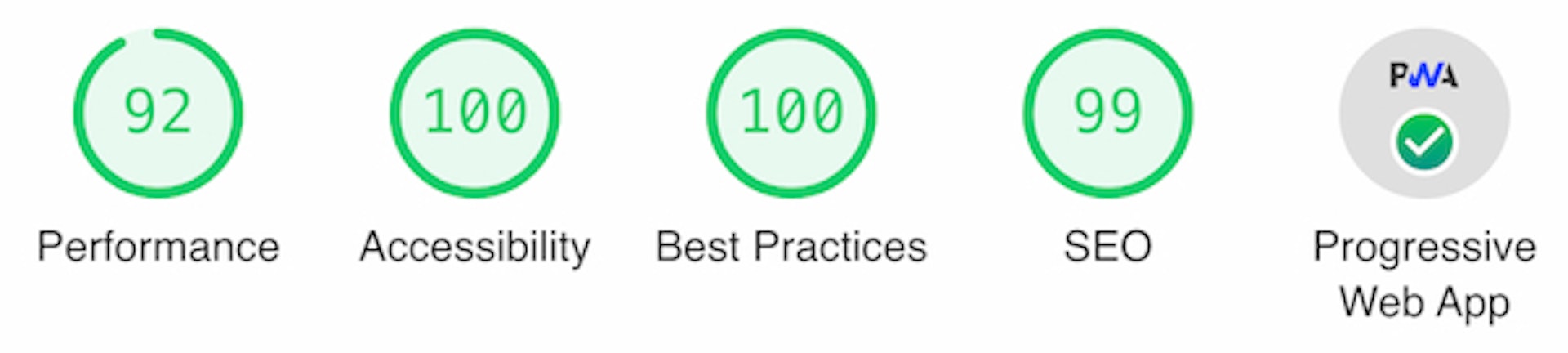
Lighthouse will analyze the whole website, besides the PWA check, it will also analyze the site's performance, accessibility, best practices and SEO.
You can see PWA live and working for our Auden Ghost Theme.
Here is the lighthouse report for it:
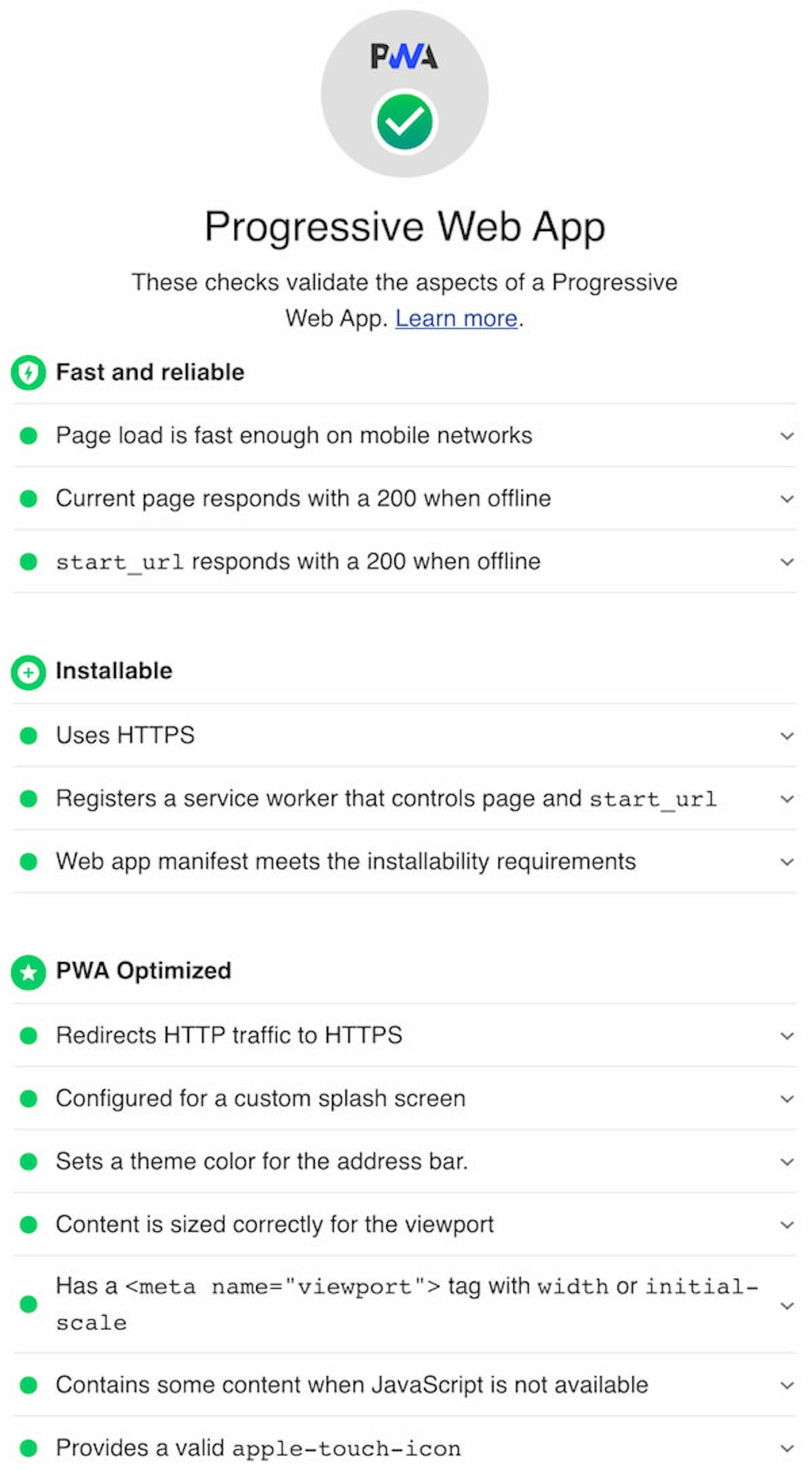
And a detailed PWA report by Lighthouse:
That's it, your Ghost Theme should work as a progressive web app now.
I hope you find this tutorial useful.