


惯性聚合 高效追踪和阅读你感兴趣的博客、新闻、科技资讯
阅读原文 在惯性聚合中打开

推荐订阅源

freeCodeCamp Programming Tutorials: Python, JavaScript, Git & More
GbyAI
GbyAI
OSCHINA 社区最新新闻
OSCHINA 社区最新新闻
博客园 - 三生石上(FineUI控件)
美团技术团队
Last Week in AI
Last Week in AI
WordPress大学
WordPress大学
L
LangChain Blog
雷峰网
雷峰网
让小产品的独立变现更简单 - ezindie.com
博客园 - 叶小钗
Engineering at Meta
Engineering at Meta
腾讯CDC
Recent Announcements
The Register - Security
有赞技术团队
有赞技术团队
Blog — PlanetScale
Blog — PlanetScale
博客园 - Franky
博客园 - 司徒正美
The Cloudflare Blog
Google DeepMind News
T
Tailwind CSS Blog
C
Check Point Blog
小众软件
小众软件
V
Visual Studio Blog
V
V2EX
F
Full Disclosure
J
Java Code Geeks
MongoDB | Blog
MongoDB | Blog
罗磊的独立博客
人人都是产品经理
人人都是产品经理
量子位
Apple Machine Learning Research
F
Fortinet All Blogs
Microsoft Security Blog
奇客Solidot–传递最新科技情报
奇客Solidot–传递最新科技情报
博客园 - 【当耐特】
博客园_首页
Y
Y Combinator Blog
N
Netflix TechBlog - Medium
酷 壳 – CoolShell
酷 壳 – CoolShell
Stack Overflow Blog
Stack Overflow Blog
Recorded Future
Recorded Future
G
Google Developers Blog
Vercel News
Vercel News
大猫的无限游戏
大猫的无限游戏
Microsoft Azure Blog
U
Unit 42
爱范儿
爱范儿
Jina AI
Jina AI

Example blog

Ghost routing explained with routes.yaml examples — routes, collections & taxonomies Ghost redirects explained with practical redirects.yaml examples How to Serve JSON or XML Data in Ghost How to Change Your Default Post Template in Ghost Ghost Custom Theme Settings How to add Google Fonts to Ghost Themes How to Configure Ghost with Mailgun Ghost Theme Structure & Organization How to Make Custom Templates in Ghost Themes How to Install Ghost CMS via Ghost-CLI How to Add Syntax Highlighting to Ghost The best Ghost CMS hosting platforms Ghost 6.0 — Social Web and Native Ghost Analytics Ghost CMS Social web beta, email 2FA and more author social links How to keep custom design settings when updating your Ghost theme How to use the public preview card in Ghost How to add members-specific sections in Ghost How to customize the default content CTA in Ghost How to build a custom homepage in Ghost Ghost CMS News: One-time payments & collecting sales tax How to customize the private site access template in Ghost How to add custom fonts in Ghost themes Ghost CMS News: Additional payment methods & internal linking How to use Code Injection in Ghost How to set meta data of your custom routes & collections in Ghost Ghost CMS News: TK reminders, ActivityPub and improvements How to format dates and use the date helper in Ghost Ghost CMS internationalization, custom fonts & spam protection Understanding and optimizing post and page settings in Ghost CMS Trigger the Ghost Portal popup based on page scroll progress How to Deploy Your Ghost Theme with GitHub Actions How to create a custom recommendations page for your Ghost CMS theme Ghost CMS News: New editor, refreshed settings & recommendations Ghost CMS News: Source - the new default theme and native image editing How to Add Different Logos for Dark & Light Themes in Ghost Upgrade to Node v18 for Ghost CMS & common errors Ghost Snippets: Adding Schema markup in Ghost How to add a scroll-based progress bar to your Ghost CMS site How to Create a Custom Navigation Template in Ghost How to Segment Subscribers with Member Labels in Ghost The best way to create a contact page in Ghost How to Use the Ghost Subscription Forms in Your Theme & Posts How to update your Ghost site URL when self-hosting Ghost CMS News: Signup cards and better landing pages How to Add Breadcrumbs to Your Ghost Theme How to integrate the Applause Button into your Ghost theme How to Hide a Post From the Home Page in Ghost CMS Ghost CMS block and contentFor helper overview & tips How to add Image Lightbox to Ghost Themes Ghost CMS News: Signup form embed, new editor and bulk actions. Biron Themes becomes Bright Themes 🎉 How to Audit & Test a Ghost Theme How to Create Related Posts Section in Ghost How to Use Ghost Filter Expressions Ghost CMS newsletter settings and post analytics How to Update Your Ghost Theme When We Release New Versions Ghost CMS News: Automatic list cleaning & email troubleshooting How to Create a Featured Post Slider in Ghost How to Add Reading Time to Ghost Blog Posts How to Create a Post Archive for Your Ghost Theme Ghost CMS Price Helper Overview & Tips Self-Hosted Ghost CMS with DigitalOcean Ghost CMS News: Member Growth Sources & Audience Feedback How to Open External Links in a New Tab in Ghost How to Integrate Google Analytics with Ghost Ghost CMS News: History Log & Newsletter Analytics How to Automatically Add Member Labels From Referral Traffic in Ghost? Ghost CMS News: Free trials & email notifications Ghost CMS Match Helper Usage & Tips Ghost CMS News: Native Comments Ghost CMS News: Ghost Explore & Premium Newsletter Previews Ghost Snippets: Custom Progress Cards & Steps Ghost CMS News: Native Search The Best Ghost CMS Search Plugins & Libraries Ghost Snippets: Custom Stylish Tables How to Add a Scroll Top & Progress Indicator Button in Ghost Ghost Snippets: Accordions How to Add Tag Dropdown to Your Ghost Theme Ghost 5.0 released 🎉 Ghost Snippets: Custom Subscribe Forms Ghost Snippets: Custom Alert Boxes How to Show Post or Newsletter Issue Number in Ghost How to Self-Host Google Fonts in Ghost CMS Ghost CMS News: Membership, Tiers & Activity Feed Custom Pages in Ghost CMS Themes Ghost CMS Search Using Fuse.js Ghost CMS News: Offers and Discounts & New Cards Ghost CMS News: Membership tiers, email CTA & filters Ghost CMS News: Grammarly Support & Feature Image Captions. Ghost CMS News: Improved Member Accounts & Personalized Newsletter. Ghost 4.0 Launched With Native Newsletters & Membership Ghost CMS News: Cancellation Feedback & Newsletter Stats. Ghost CMS News: Improved Member Dashboard & Sidebar Views. Ghost CMS News: Google Pay support, email newsletters & secondary navigation Ghost CMS News: Member Support, Portal & Content Snippets. Ghost CMS News: Referral Programs & Responsive Images. Ghost Themes as Progressive Web Apps Ghost 3.0 is here with brand new features Ghost 2.0 is here with new features How to Add Search to Ghost Using ghostHunter
An overview of Ghost editor cards and and how they work
Bright Themes · 2025-01-04 · via Example blog

Ghost editor cards simplify content creation by providing a wide range of pre-built elements, making it easy for non-technical users to customize their site. In this article, we’ll explore what Ghost editor cards are, how to use them, and give you a detailed look at the existing cards available in Ghost.

What are editor cards

Ghost editor cards are pre-designed content blocks that allow you to easily add and structure different types of content within your posts or pages. They are an integral part of the Ghost editor, providing a simple and intuitive way to create rich, engaging layouts without the need for coding.

Each editor card is tailored to a specific type of content or functionality. These cards are designed to be flexible, allowing you to mix and match them to create a seamless and visually appealing user experience.

How to use editor cards

Using Ghost editor cards is simple and intuitive, making it easy to enhance your content without any technical expertise. Here’s a step-by-step guide to help you get started:

  • Adding a new card

    1. Open the Ghost Admin and navigate to the post or page editor.
    2. Click the + icon that appears on a new line or type / to bring up the card menu.
    3. Select the type of card you want to add from the dropdown menu (e.g., Image, Markdown, HTML, etc.).
    4. Once the card is added, you can start customizing it by filling in the content or adjusting its settings.
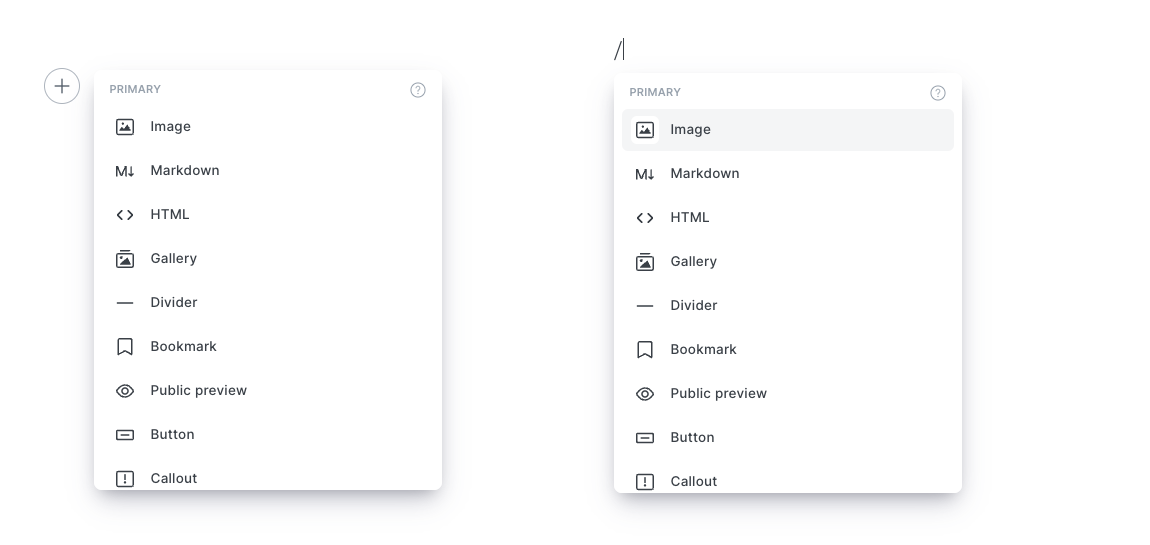
    Ghost editor add new card
    Ghost editor add new card
  • Reordering and editing cards

    • To reorder cards, simply drag and drop them into the desired position within your content.
    • To edit a card, click directly on the card to make changes. The editor provides context-specific tools for each card type, ensuring a smooth editing experience.

Existing Ghost editor cards

Ghost offers a wide range of editor cards, each tailored to specific content needs. Below is a list of all available cards, along with a brief description of their functionality:

  • Image — Upload standalone images, adjust alignment, and add alt text for accessibility.
  • Markdown — Add advanced text formatting using Markdown syntax.
  • HTML — Embed custom HTML code for widgets, forms, or other elements.
  • Gallery — Display multiple images in a grid or carousel layout.
  • Divider — Insert a horizontal line to separate sections of content.
  • Bookmark — Generate a visual preview for external links with title, description, and image.
  • Email Content — Add content visible only in email newsletters.
  • Email Call-to-Action — Create buttons or prompts specifically for email subscribers.
  • Public Preview — Display a teaser of member-only content to encourage signups.
  • Button — Add customizable buttons for CTAs like “Subscribe” or “Learn More.”
  • Callout — Highlight important information in a stylized box.
  • GIF — Insert animated GIFs to make content more engaging.
  • Toggle — Create collapsible sections for FAQs or detailed information.
  • Audio — Embed audio files or links with a simple playback interface.
  • Video — Add videos from platforms like YouTube or upload your own files.
  • File — Share downloadable files such as PDFs or ZIPs.
  • Product — Showcase a product with an image, description, and purchase link.
  • Header — Insert large, styled headings to organize content.
  • Embeds — Integrate multimedia from platforms like Instagram, Spotify, or Twitter.
  • Signup — Add a newsletter signup form directly to your content.

Ghost editor cards offer a powerful, flexible way to enhance your content with rich multimedia, interactive elements, and tailored layouts. Whether you’re embedding a video, showcasing a product, or adding a call-to-action, these cards make it easy to create engaging and visually appealing posts without the need for coding.

By understanding the purpose and functionality of each card, you can leverage them to deliver a better experience for your readers and make your content stand out. Experiment with the available options and find the perfect combination to suit your style and goals.