




惯性聚合 高效追踪和阅读你感兴趣的博客、新闻、科技资讯
阅读原文 在惯性聚合中打开

推荐订阅源

博客园 - 司徒正美
T
The Blog of Author Tim Ferriss
雷峰网
雷峰网
S
Secure Thoughts
GbyAI
GbyAI
Google DeepMind News
P
Proofpoint News Feed
G
GRAHAM CLULEY
MongoDB | Blog
MongoDB | Blog
WordPress大学
WordPress大学
M
MIT News - Artificial intelligence
Martin Fowler
Martin Fowler
C
Cyber Attacks, Cyber Crime and Cyber Security
I
Intezer
A
About on SuperTechFans
Hugging Face - Blog
Hugging Face - Blog
T
Threatpost
S
Securelist
T
Tenable Blog
博客园_首页
P
Privacy International News Feed
Cisco Talos Blog
Cisco Talos Blog
OSCHINA 社区最新新闻
OSCHINA 社区最新新闻
月光博客
月光博客
C
CXSECURITY Database RSS Feed - CXSecurity.com
小众软件
小众软件
美团技术团队
Project Zero
Project Zero
The Cloudflare Blog
L
Lohrmann on Cybersecurity
The Register - Security
B
Blog
钛媒体:引领未来商业与生活新知
钛媒体:引领未来商业与生活新知
L
LINUX DO - 热门话题
C
CERT Recently Published Vulnerability Notes
C
Cybersecurity and Infrastructure Security Agency CISA
有赞技术团队
有赞技术团队
IT之家
IT之家
A
Arctic Wolf
Scott Helme
Scott Helme
Latest news
Latest news
T
Tailwind CSS Blog
Jina AI
Jina AI
Microsoft Azure Blog
Recent Announcements
Cyberwarzone
Cyberwarzone
宝玉的分享
宝玉的分享
The Hacker News
The Hacker News
S
Schneier on Security
Y
Y Combinator Blog

Example blog

Ghost routing explained with routes.yaml examples — routes, collections & taxonomies Ghost redirects explained with practical redirects.yaml examples How to Serve JSON or XML Data in Ghost How to Change Your Default Post Template in Ghost Ghost Custom Theme Settings How to add Google Fonts to Ghost Themes How to Configure Ghost with Mailgun Ghost Theme Structure & Organization How to Install Ghost CMS via Ghost-CLI How to Add Syntax Highlighting to Ghost The best Ghost CMS hosting platforms Ghost 6.0 — Social Web and Native Ghost Analytics Ghost CMS Social web beta, email 2FA and more author social links How to keep custom design settings when updating your Ghost theme How to use the public preview card in Ghost How to add members-specific sections in Ghost How to customize the default content CTA in Ghost How to build a custom homepage in Ghost An overview of Ghost editor cards and and how they work Ghost CMS News: One-time payments & collecting sales tax How to customize the private site access template in Ghost How to add custom fonts in Ghost themes Ghost CMS News: Additional payment methods & internal linking How to use Code Injection in Ghost How to set meta data of your custom routes & collections in Ghost Ghost CMS News: TK reminders, ActivityPub and improvements How to format dates and use the date helper in Ghost Ghost CMS internationalization, custom fonts & spam protection Understanding and optimizing post and page settings in Ghost CMS Trigger the Ghost Portal popup based on page scroll progress How to Deploy Your Ghost Theme with GitHub Actions How to create a custom recommendations page for your Ghost CMS theme Ghost CMS News: New editor, refreshed settings & recommendations Ghost CMS News: Source - the new default theme and native image editing How to Add Different Logos for Dark & Light Themes in Ghost Upgrade to Node v18 for Ghost CMS & common errors Ghost Snippets: Adding Schema markup in Ghost How to add a scroll-based progress bar to your Ghost CMS site How to Create a Custom Navigation Template in Ghost How to Segment Subscribers with Member Labels in Ghost The best way to create a contact page in Ghost How to Use the Ghost Subscription Forms in Your Theme & Posts How to update your Ghost site URL when self-hosting Ghost CMS News: Signup cards and better landing pages How to Add Breadcrumbs to Your Ghost Theme How to integrate the Applause Button into your Ghost theme How to Hide a Post From the Home Page in Ghost CMS Ghost CMS block and contentFor helper overview & tips How to add Image Lightbox to Ghost Themes Ghost CMS News: Signup form embed, new editor and bulk actions. Biron Themes becomes Bright Themes 🎉 How to Audit & Test a Ghost Theme How to Create Related Posts Section in Ghost How to Use Ghost Filter Expressions Ghost CMS newsletter settings and post analytics How to Update Your Ghost Theme When We Release New Versions Ghost CMS News: Automatic list cleaning & email troubleshooting How to Create a Featured Post Slider in Ghost How to Add Reading Time to Ghost Blog Posts How to Create a Post Archive for Your Ghost Theme Ghost CMS Price Helper Overview & Tips Self-Hosted Ghost CMS with DigitalOcean Ghost CMS News: Member Growth Sources & Audience Feedback How to Open External Links in a New Tab in Ghost How to Integrate Google Analytics with Ghost Ghost CMS News: History Log & Newsletter Analytics How to Automatically Add Member Labels From Referral Traffic in Ghost? Ghost CMS News: Free trials & email notifications Ghost CMS Match Helper Usage & Tips Ghost CMS News: Native Comments Ghost CMS News: Ghost Explore & Premium Newsletter Previews Ghost Snippets: Custom Progress Cards & Steps Ghost CMS News: Native Search The Best Ghost CMS Search Plugins & Libraries Ghost Snippets: Custom Stylish Tables How to Add a Scroll Top & Progress Indicator Button in Ghost Ghost Snippets: Accordions How to Add Tag Dropdown to Your Ghost Theme Ghost 5.0 released 🎉 Ghost Snippets: Custom Subscribe Forms Ghost Snippets: Custom Alert Boxes How to Show Post or Newsletter Issue Number in Ghost How to Self-Host Google Fonts in Ghost CMS Ghost CMS News: Membership, Tiers & Activity Feed Custom Pages in Ghost CMS Themes Ghost CMS Search Using Fuse.js Ghost CMS News: Offers and Discounts & New Cards Ghost CMS News: Membership tiers, email CTA & filters Ghost CMS News: Grammarly Support & Feature Image Captions. Ghost CMS News: Improved Member Accounts & Personalized Newsletter. Ghost 4.0 Launched With Native Newsletters & Membership Ghost CMS News: Cancellation Feedback & Newsletter Stats. Ghost CMS News: Improved Member Dashboard & Sidebar Views. Ghost CMS News: Google Pay support, email newsletters & secondary navigation Ghost CMS News: Member Support, Portal & Content Snippets. Ghost CMS News: Referral Programs & Responsive Images. Ghost Themes as Progressive Web Apps Ghost 3.0 is here with brand new features Ghost 2.0 is here with new features How to Add Search to Ghost Using ghostHunter
How to Make Custom Templates in Ghost Themes
Bright Themes · 2026-03-27 · via Example blog

By default every Ghost Theme contains post.hbs file which defines how your posts are rendered, but a great feature in Ghost Themes is the ability to create custom templates, which gives us the possibility to assign different layouts to different posts.

Ghost templates are not just for posts, you can apply these custom templates to your pages as well. So let's see how to create a custom template in a Ghost Theme.

Ghost template files

At this point you need the ghost theme, you would like to extend with the custom template. We'll be using Handlebars, the templating language used by Ghost CMS to provide content to Ghost Themes.

Open the theme folder in your editor (I am using vscode), inside the folder you have to see a couple of .hbs files as well as other folders such as assets, partials. The hbs files are responsible for rendering your content.

The most important thing to notice when creating custom templates for ghost is that we have to prefix the template name by custom-. If we want to create a new custom template which will contain a sidebar, we will name this: custom-with-sidebar.hbs. This file has to be created in the root folder of the theme.

Remember the naming convention:

custom-{{template-name}}.hbs

This naming convention serves as helper for Ghost to know that this is a custom template, and this can be assigned to your posts and pages later on. The template we create will appear in the Post/Page setting in the Ghost Admin Panel. In our case: With Sidebar.

Ghost template definition

Now that the file is created let's add some code to it. You can start from the layout defined in post.hbs or you can write the whole layout from scratch.

This is a general and simplified layout of a post template for a ghost theme:

{{!-- insert everything in this file into the {body} of the default.hbs template --}}
{{!< default}}

{{!-- Everything inside the #post tags pulls data from the post --}}
{{#post}}
<main class="site-main">
  <article class="{{post_class}}">
    <h1 class="post-full-title">{{title}}</h1>

    <div class="post-content">
        {{content}}
    </div>

    {{!-- comments --}}
    <section class="post-comments">
      {{> comments}}
    </section>

  </article>
</main>

{{/post}}

Let's explain some parts of the code. The <main> tag is wrapped around the {{#post}} block, which means the template is rendered in the post context and you can use post properties like {{title}} and {{content}}.

We also have a section for comments, and what happens here is we include a partial name comments for this to work, there needs to be a file called comments.hbs in the partials folder.

What we want to do next is to add another section to this template, a sidebar, which will contain a tag cloud. For this we have to add the following code between the ending </article> tag and the </main> tag:

<aside class='sidebar'>
  <div class='tag-cloud'>
    {{#get 'tags' limit='20' as |tag|}}
      {{#foreach tag}}<a href='{{url}}'>{{name}}</a>{{/foreach}}
    {{/get}}
  </div>
</aside>

This will fetch us 20 tags and create an anchor element for each of those. If you want you can look more into ghost filter expressions to learn how to use advanced filtering. For our needs this is enough for now.

Of course you will have to style the content to really appear as a sidebar, using CSS we will not go into that in this tutorial.

The next step would be to assign our new custom template to a post.

Using custom templates

Now that the template is created you have to upload the theme to your Ghost site, you can use the Ghost Admin to upload a zipped theme file.

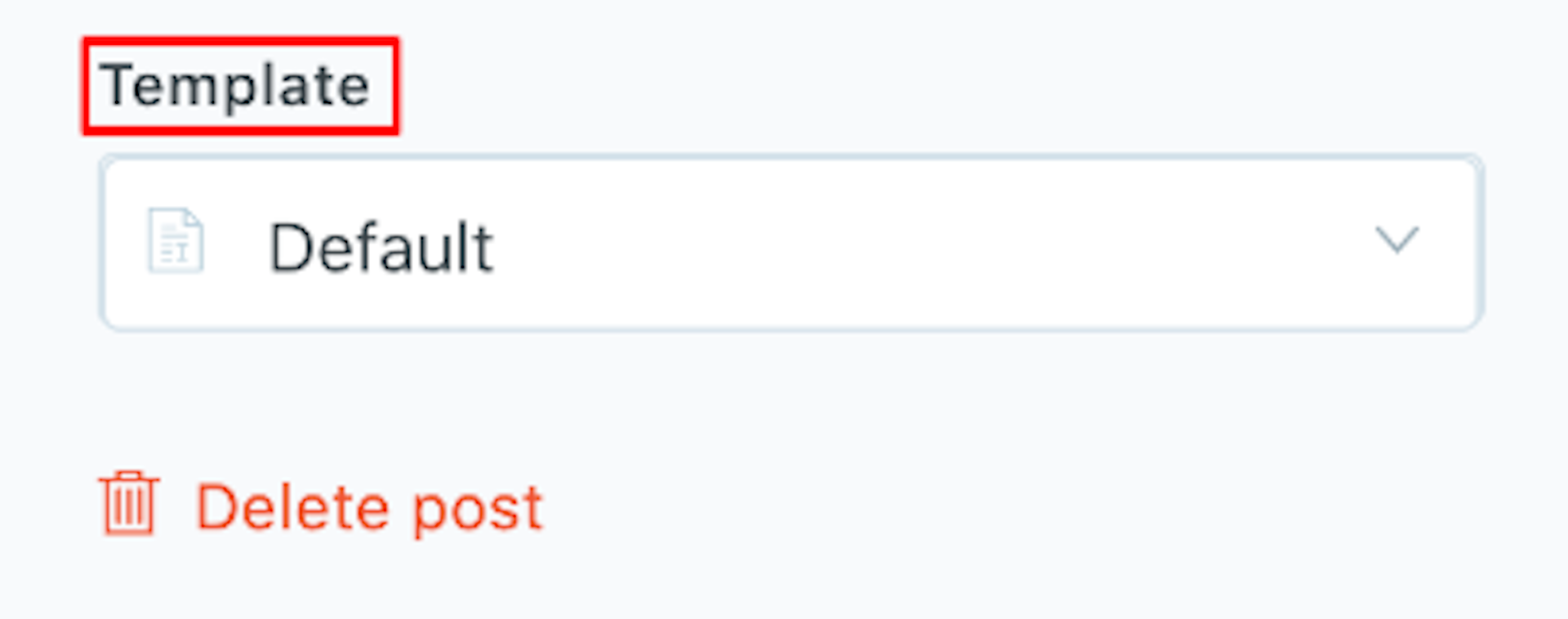
After the theme is uploaded, the final step is to select the custom template. For this open any post and then access the post settings by pressing the cog in the top right corner. At the bottom of the settings panel you should have a dropdown titled Template and besides the Default you should see the custom template created previously.

Select the template and update the post, when you access the post you should see the new layout.
Ghost Members Mailgun Config

I hope this was helpful.