





Our very own Madiator2011 has done it again with the release of Better Forge, a streamlined template that lets you spin up an instance with a minimum of fuss. One fairly consistent piece of feedback brought up by Runpod users is how long it takes to start up an image generation pod for the first time, especially in Community Cloud where machines may not have access to data-center quality bandwidth levels. The primary reason for this long wait is because models are often "baked into" the Docker image, which drastically increases the size of the image, leading to a long download before you can start working in the pod – for a model that you may not even want to use. Better Forge installs Forge with a total payload of approximately 12gb when all is said, done, and unpacked.
If you'd like to try out Madiator's previous work, Better ComfyUI, that is also still available here!
Better Forge comes with the following perks:
You can get started with Better Forge today by going to its page in the template explorer, clicking Deploy, selecting a GPU spec, and off you go.
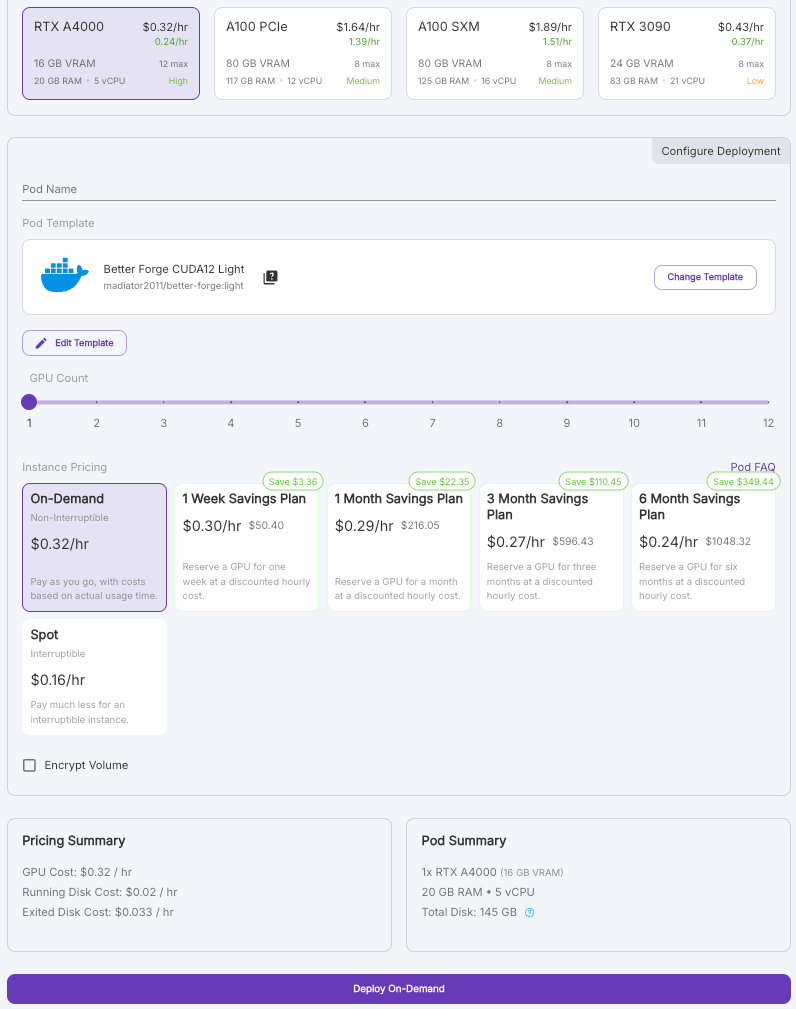
On the Deploy Pod page, select a GPU spec and then choose the Better Forge template, and click Deploy On Demand.
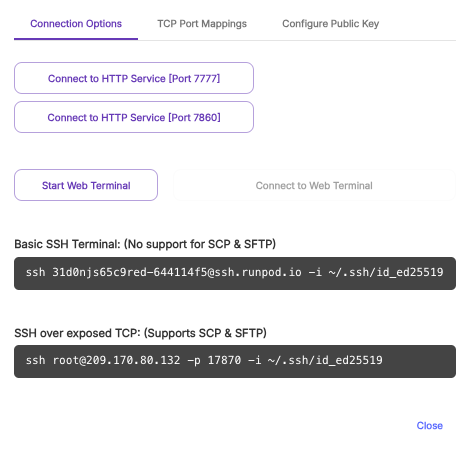
When you click on Connect, you'll see two options for different ports:
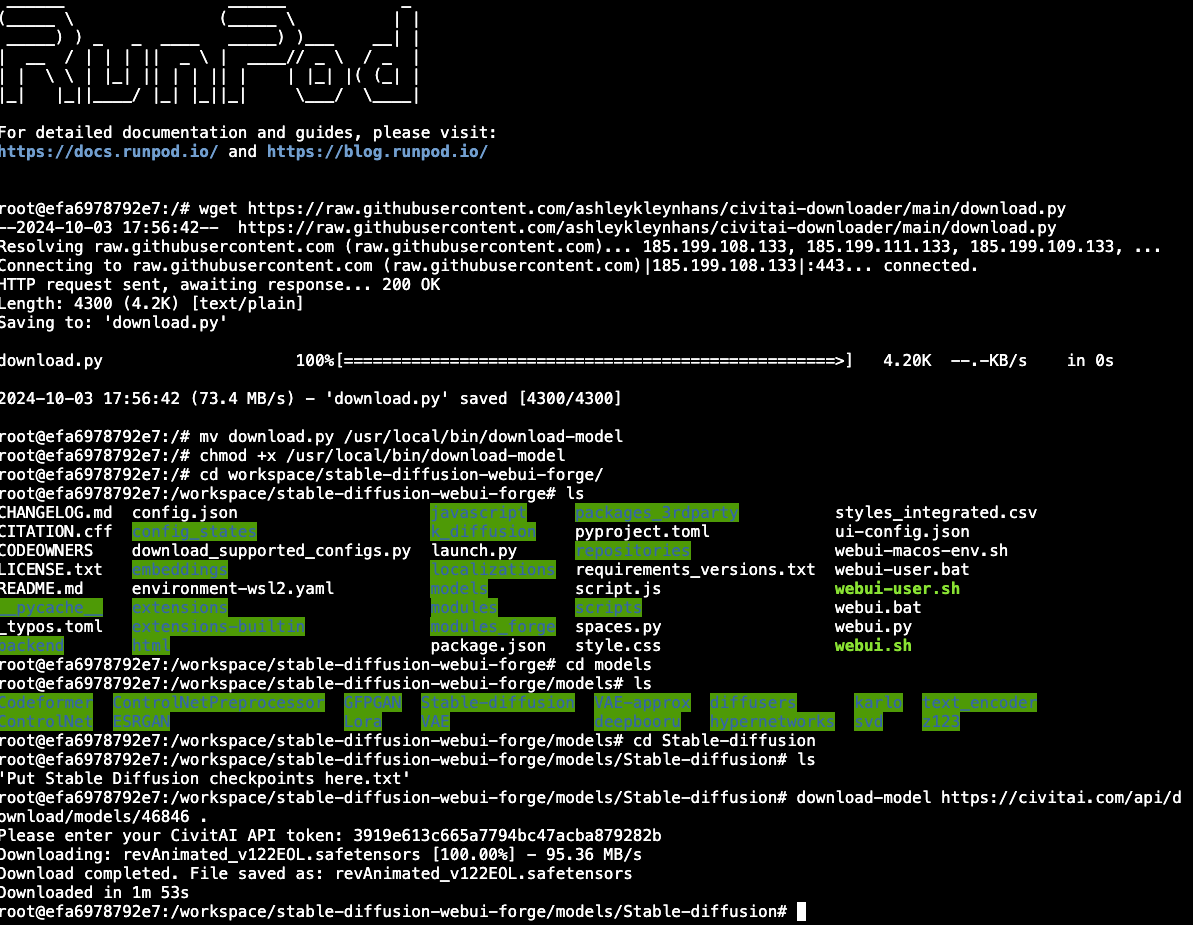
This template is Bring Your Own Model, so you'll need to download a model on your own. One of the preferred ways to do so is the model downloader by ashleykleynhans which you can run in the Web Terminal. Enter the download URL for the model (right click the download link on CivitAI and click Copy.) You'll also need an API key that can be created under the CivitAI user page. This will download the model.
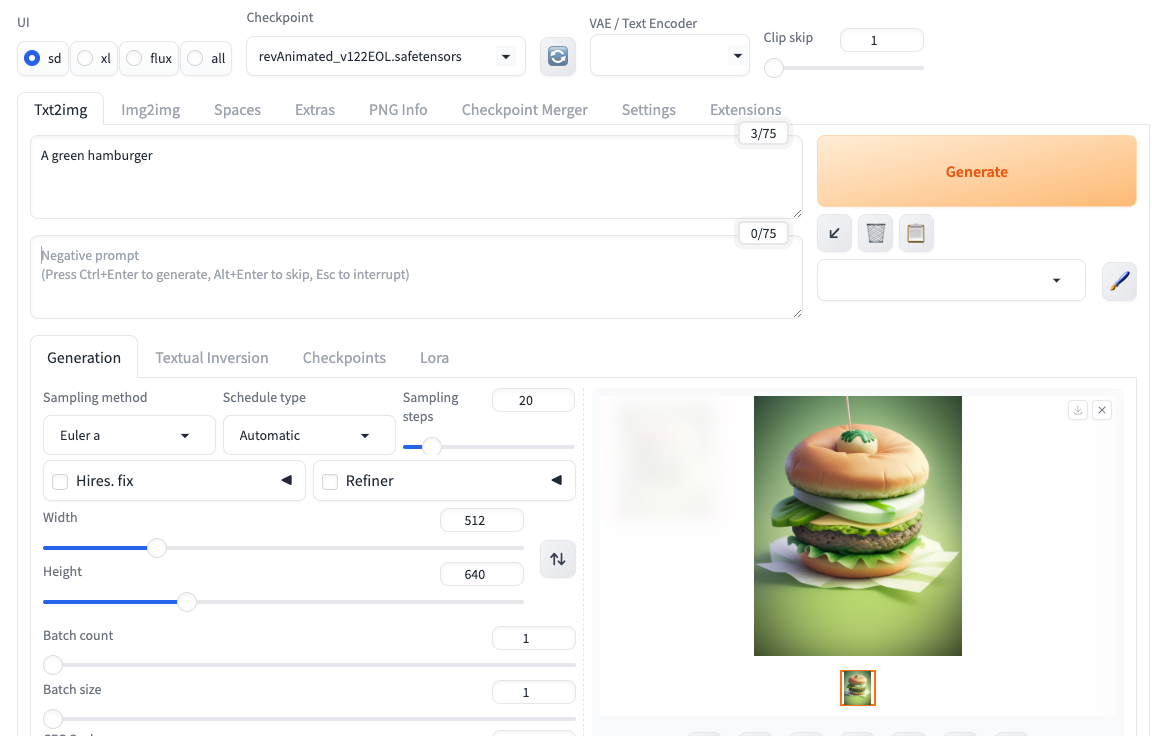
Once completed, you can connect to the pod on port 7860 and select the model in the Checkpoint dropdown, enter a prompt, click Generate, and there you have it.
Madiator also has a template intended for use in Secure Cloud that allows you to not only use network volumes to store your work, but also has a loader that lets you install ComfyUI, Automatic1111, or Forge. The advantage of this approach is that not only does it allow you to keep your models and workflow stored on the network volume, but it also allows you to use any available GPU in that data center, so you are not locked to the eight or so GPUs in a specific machine.
First, ensure that you have a network volume selected. If you don't already have one, then create one.
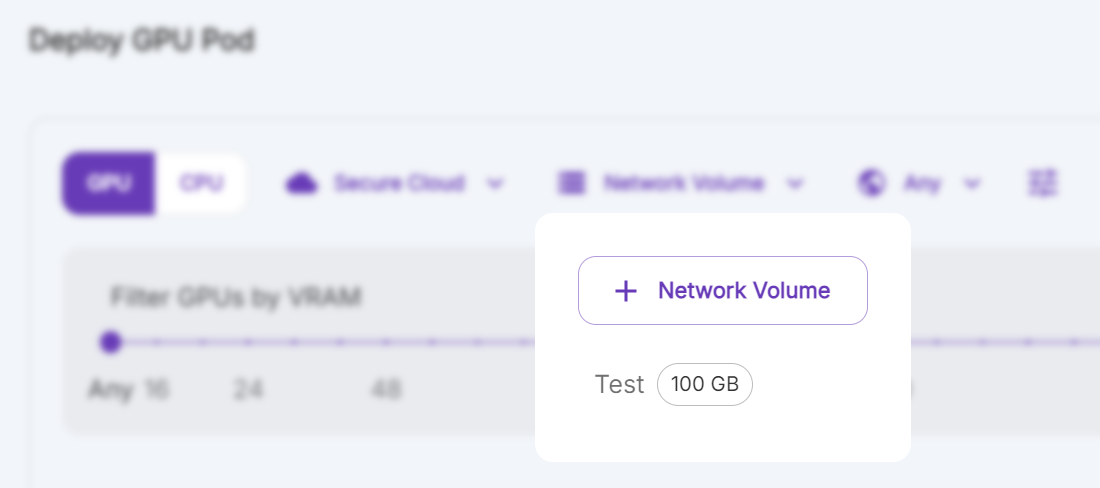
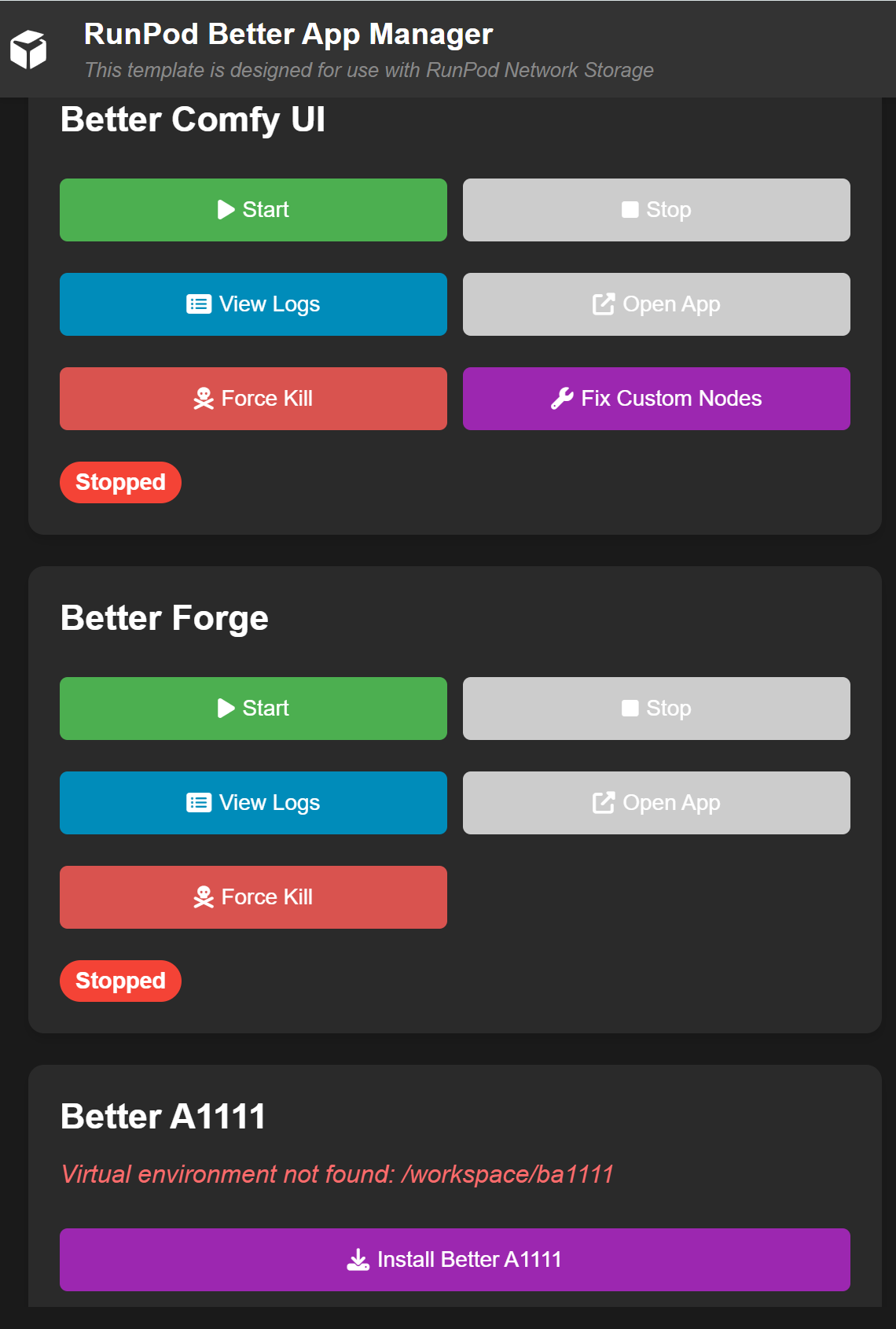
Once you deploy the pod, you can connect to it on port 7772, which will show the launcher for the three front ends. You can install your preferred package there with one click, and then connect to the pod on the corresponding port.
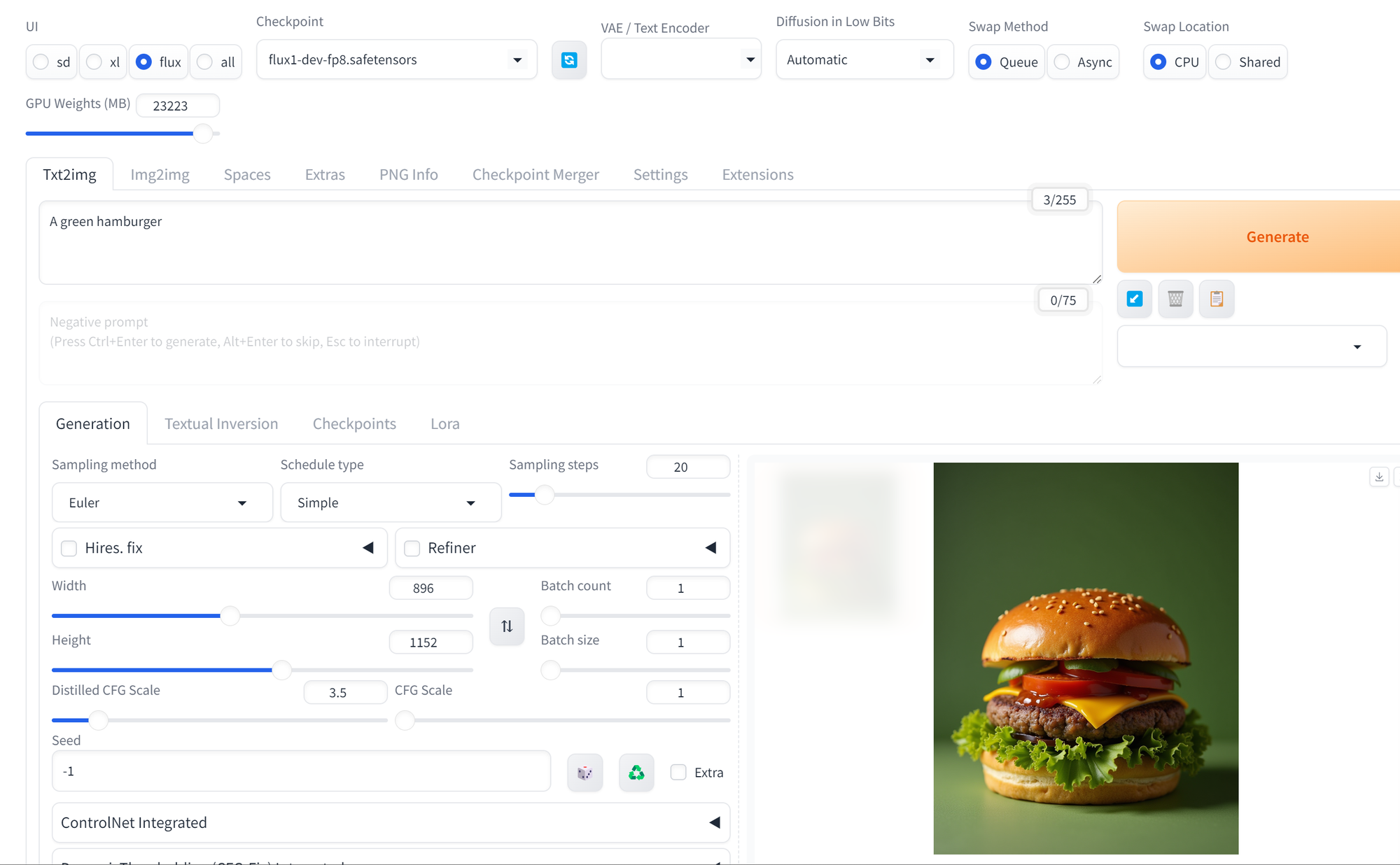
The package is "bring your own model" - but we could not package Flux with it regardless due to licensing. But you can easily download the model straight from Huggingface into your pod.
Just connect to the web terminal and cd into the following directory, and run the following command:
This will download the model into the proper folder:
Once you download the model, refresh, select Flux in the upper left, and you are good to go.
If you'd rather not use a CLI, you can also download models using the built-in model manager:
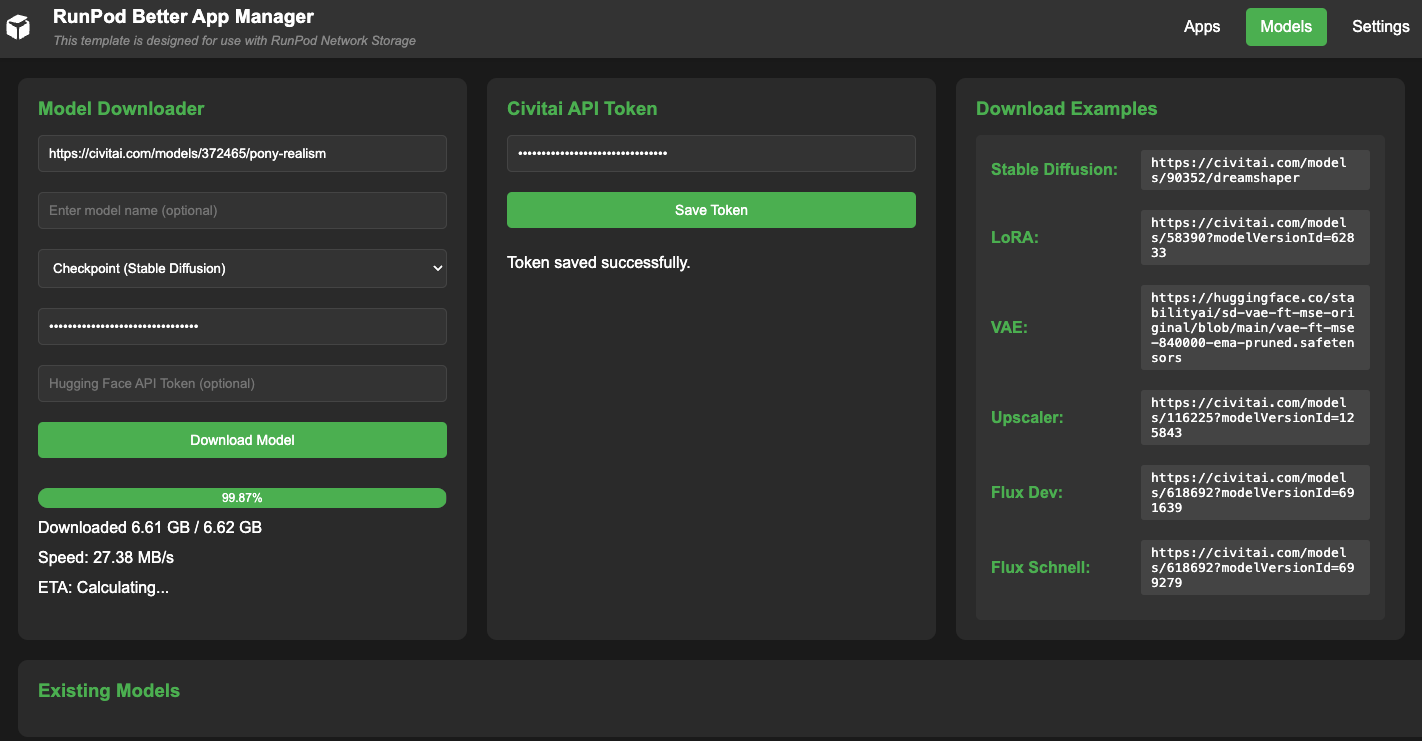
All you need to do is plug in the URL of the model and put in your CivitAI or Huggingface API token if necessary:
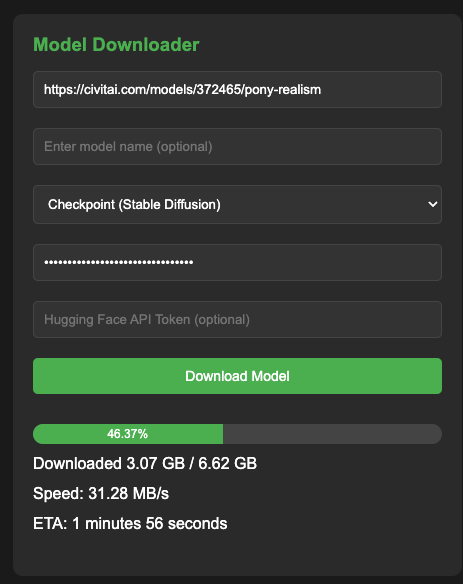
This will download the models into your shared_models folder in your volume, which can then be used by whichever front end you choose.
If you prefer, you can also use this CivitAI downloader from ashleykleynhans to download models directly from the CLI. Instructions to use this are linked in the GitHub repo. Note that you will need to set up a CivitAI API Key first as shown here.
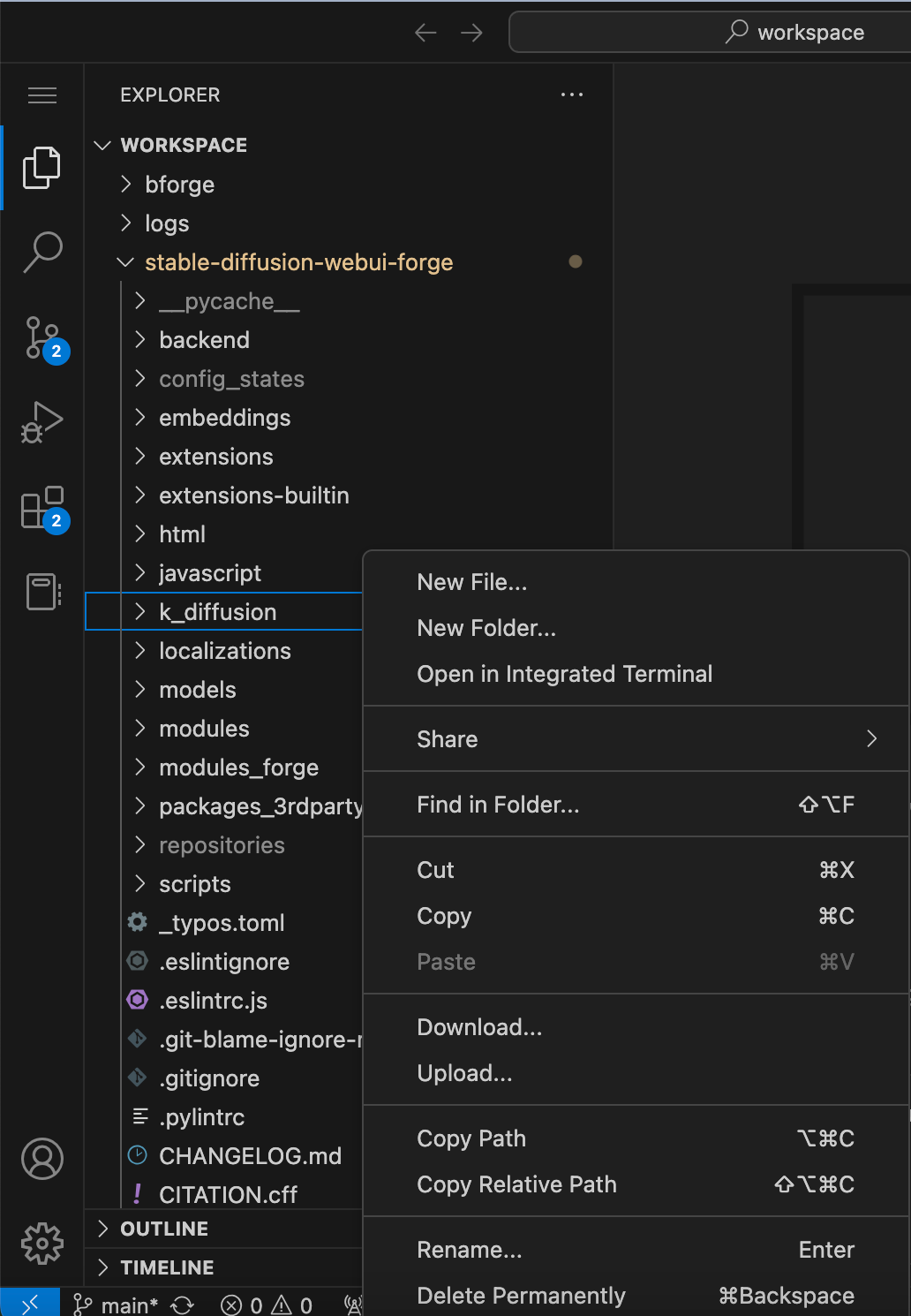
If you'd prefer to not have to set up an API key, you can simply connect to the pod on port 7777 if VSCode is enabled, right click on the folder, and upload directly from your local PC. Note that how fast the file will upload is entirely dependent on your local internet throughput in this case.
Madiator has created an extremely helpful hour-long video tutorial on using the template that you can refer to for further assistance.
Questions? Feel free to pop on our Discord and ask for help!
Author profile: Brendan McKeag
此内容由惯性聚合(RSS阅读器)自动聚合整理,仅供阅读参考。 原文来自 — 版权归原作者所有。