



惯性聚合 高效追踪和阅读你感兴趣的博客、新闻、科技资讯
阅读原文 在惯性聚合中打开

推荐订阅源

Engineering at Meta
Engineering at Meta
Cloudbric
Cloudbric
云风的 BLOG
云风的 BLOG
A
About on SuperTechFans
The GitHub Blog
The GitHub Blog
IT之家
IT之家
F
Full Disclosure
B
Blog RSS Feed
奇客Solidot–传递最新科技情报
奇客Solidot–传递最新科技情报
Hugging Face - Blog
Hugging Face - Blog
B
Blog
H
Help Net Security
The Cloudflare Blog
Recorded Future
Recorded Future
P
Proofpoint News Feed
P
Proofpoint News Feed
C
Cisco Blogs
T
Tailwind CSS Blog
P
Palo Alto Networks Blog
D
Docker
爱范儿
爱范儿
Know Your Adversary
Know Your Adversary
博客园 - 聂微东
D
Darknet – Hacking Tools, Hacker News & Cyber Security
Y
Y Combinator Blog
雷峰网
雷峰网
AWS News Blog
AWS News Blog
D
DataBreaches.Net
博客园 - 司徒正美
Threat Intelligence Blog | Flashpoint
博客园 - Franky
C
Cybersecurity and Infrastructure Security Agency CISA
Blog — PlanetScale
Blog — PlanetScale
cs.CL updates on arXiv.org
Latest news
Latest news
Google DeepMind News
Martin Fowler
Martin Fowler
MongoDB | Blog
MongoDB | Blog
C
CERT Recently Published Vulnerability Notes
阮一峰的网络日志
阮一峰的网络日志
K
KPMG report finds enterprise disconnect between AI and its ROI | CIO
C
CXSECURITY Database RSS Feed - CXSecurity.com
酷 壳 – CoolShell
酷 壳 – CoolShell
C
Cyber Attacks, Cyber Crime and Cyber Security
腾讯CDC
小众软件
小众软件
G
Google Developers Blog
Hacker News - Newest:
Hacker News - Newest: "LLM"
Scott Helme
Scott Helme
O
OpenAI News

Runpod Blog.

DeepSeek V4 in the wild, and how to run it on Runpod New Runpod datacenter now live: AP-IN-1 Track GPU spend across your team with Cost Centers The GPU supply supercycle is here. Here’s what AI builders need to know. Community Spotlight: One-click AI image and video generation on Runpod with SwarmUI | Runpod Blog Community Spotlight: LoRA Pilot Data Prep to Inference Introducing the Runpod Assistant: Manage Your Cloud GPU Resources with Natural Language OpenAI's Parameter Golf: Train the Best Language Model That Fits in 16MB on Runpod LLM inference optimization: techniques that actually reduce latency and cost Pruna P-Video and Vidu Q3 public endpoints now available on Runpod Runpod brand spelling guide Quickstart - Runpod Documentation The AI market looks nothing like the narrative Training StyleGAN3 with Vision-Aided GAN on Runpod KoboldAI – The Other Roleplay Front End, And Why You May Want to Use It How to Connect Cursor to LLM Pods on Runpod for Seamless AI Dev Community Spotlight: How AnonAI Scaled Its Private Chatbot Platform with Runpod Prompt Scheduling with Disco Diffusion on Runpod Runpod's Latest Innovation: Dockerless CLI for Streamlined AI Development Run Your Own AI from Your iPhone Using Runpod Introducing Flash: Run GPU workloads on Runpod Serverless: No Docker required Use Claude Code with your own model on Runpod: No Anthropic account required Avoid Errors by Selecting the Proper Resources for Your Pod What hackers built on Runpod at TreeHacks 2026 Easily Back Up and Restore Your Pod with Cloud Sync + Backblaze B2 The Complete Guide to GPU Requirements for LLM Fine-Tuning AI Guides, Tutorials & GPU Infrastructure Insights | Runpod Your first Claude Code project within Runpod: a complete setup guide 10 billion Serverless requests and counting Building for resilience: Runpod’s response to the AWS us-east-1 outage How to Connect Google Colab to Runpod Founder Series #1: The Runpod Origin Story AMD MI300X vs. NVIDIA H100: Mixtral 8x7B Inference Benchmark How to Run the FLUX Image Generator with ComfyUI on Runpod Run Llama 3.1 405B with Ollama on Runpod: Step-by-Step Deployment How to Run FLUX Image Generator with Runpod (No Coding Needed) How to Use 65B+ Language Models on Runpod Deploy Llama 3.1 with vLLM on Runpod Serverless: Fast, Scalable Inference in Minutes Open Source Video & LLM Roundup: The Best of What’s New Run vLLM on Runpod Serverless: Deploy Open Source LLMs in Minutes Introduction to vLLM and PagedAttention New update to Github integration: release rollback! | Runpod Blog A note to the developers who built Runpod with us Deploy ComfyUI as a Serverless API Endpoint Setting up Slurm on Runpod Clusters: A Technical Guide Building an OCR System Using Runpod Serverless From No-Code to Pro: Optimizing Mistral-7B on Runpod for Power Users Lessons While Using Generative Language and Audio For Practical Use Cases Runpod RoundUp 3 – AI Music and Stock Sound Effect Creation New Navigational Changes To Runpod UI Use alpha_value To Blast Through Context Limits in LLaMa-2 Models Runpod Roundup 5 – Visual/Language Comprehension, Code-Focused LLMs, and Bias Detection Runpod is Proud to Sponsor the StockDory Chess Engine Runpod Roundup 4 – Open Source LLM Evaluators, 3D Scene Reconstruction, Vector Search Meta and Microsoft Release Llama 2 as Open Source SuperHot 8k Token Context Models Are Here For Text Generation How to Manage Funding Your Runpod Account Encrypted Volumes on Runpod: Protect Your Data at Rest How to Run a "Hello World" on Runpod Serverless Runpod AI field notes: December 2025 Faster GitHub Builds: Major Performance Improvements to Our Automated Integration Partnering with Defined AI to Bridge the Data Wealth Gap How to Run Serverless AI and ML Workloads on Runpod How to fine-tune a model using Axolotl Transcribe and translate audio files with Faster Whisper Runpod Achieves SOC 2 Type II Certification: Continuing Our Compliance Journey Orchestrating GPU workloads on Runpod with dstack Exploring Runpod Serverless: Create Workers From Templates DeepSeek V3.1: A Technical Analysis of Key Changes from V3-0324 Deep Cogito Releases Suite of LLMs Trained with Iterative Policy Improvement Wan 2.2 Releases With a Plethora Of New Features Iterative Refinement Chains with Small Language Models The New Runpod.io: Clearer, Faster, Built for What’s Next Introducing Clusters: On-Demand Multi-Node AI Compute Run DeepSeek R1 on Just 480GB of VRAM How Do I Transfer Data Into My Runpod? Spot vs. On-Demand Instances: What’s the Difference? Deploy GitHub Repos to Runpod with One Click Run GGUF Quantized Models Easily with KoboldCPP on Runpod How to Work with GGUF Quantizations in KoboldCPP Introducing Better Forge: Spin Up Stable Diffusion Pods Faster Supercharge Your LLMs with SGLang: Boost Performance and Customization Mastering Serverless Scaling on Runpod: Optimize Performance and Reduce Costs RAG vs. Fine-Tuning: Which Is Best for Your LLM? Run Larger LLMs on Runpod Serverless Than Ever Before – Llama-3 70B (and beyond!) How to Run vLLM on Runpod Serverless (Beginner-Friendly Guide) Embracing New Beginnings: Welcoming Banana.dev Community to Runpod Stable Diffusion + ComfyUI on Runpod: Easy Setup Guide Runpod RoundUp 2 – 32k Token Context LLMs and New StabilityAI Offerings Runpod Roundup: High-Context LLMs, SDXL, and Llama 2 16k Context LLM Models Now Available On Runpod Savings Plans Are Here For Secure Cloud Pods – How To Purchase a Monthly Plan And Save Big Pygmalion-7b from PygmalionAI has been released, and it's amazing Ada Architecture Pods Are Here – How Do They Stack Up Against Ampere? Spin up a Text Generation Pod with Vicuna and Experience a GPT-4 Rival Using OpenPose to Annotate Poses Within Stable Diffusion Connect VSCode to Your Runpod Instance (Quick SSH Guide) Deploy a Stable Diffusion UI on Runpod in Minutes Google Colab Pro vs. Runpod: Best GPU Cloud for AI Workloads How to Run a GPU-Accelerated Virtual Desktop on Runpod
Set Up a Chatbot with Oobabooga on Runpod
Pardeep Singh · 2023-03-24 · via Runpod Blog.

In this post we'll walk through setting up a pod on Runpod using a template that will run Oobabooga's Text Generation WebUI with the Pygmalion 6B chatbot model, though it will also work with a number of other language models such as GPT-J 6B, OPT, GALACTICA, and LLaMA.  Note that Pygmalion is an unfiltered chat model and can produce NSFW output, so beware of that.

Getting Started

To get started, create a pod with the "Runpod Text Generation UI" template.  
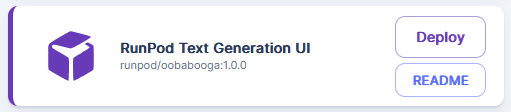
template in Set Up a Chatbot with Oobabooga on Runpod

Once everything loads up, you should be able to connect to the text generation server on port 7860.  Go to "Connect" on your pod, and click on "Connect via HTTP [Port 7860]".
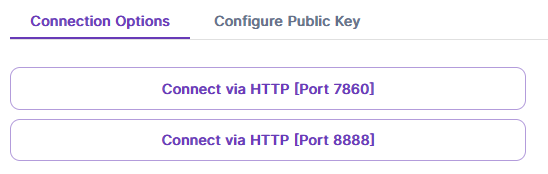
connect in Set Up a Chatbot with Oobabooga on Runpod

You should then see a simple interface with "Text generation" and some other tabs at the top, and "Input" with a textbox down below.  Below that are some command buttons, and drop-downs that are preset to the Pygmalion model and generation parameters, as well as a "Character gallery" extension at the very bottom.  Note, I've shortened the chat dialogue box in the screenshot below, you should see more blank space above the input field.
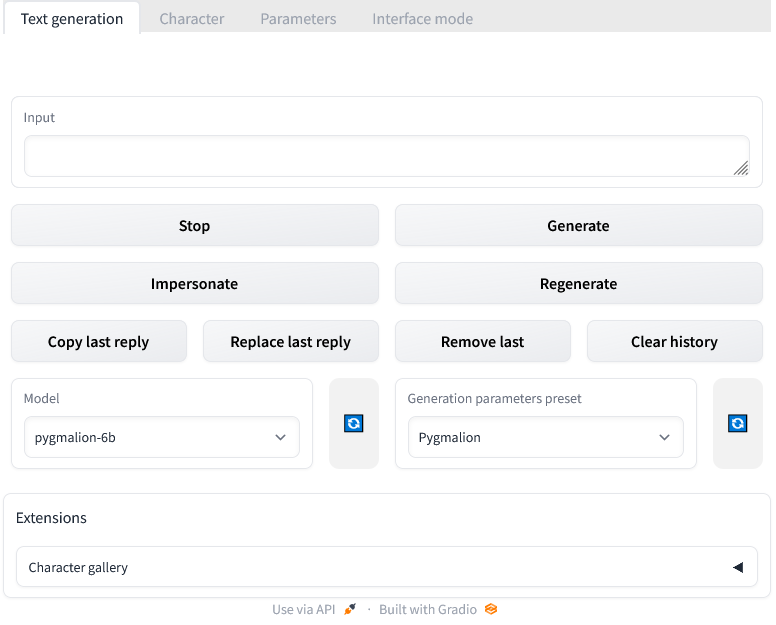
Oobabooga Text Generation WebUI with the pygmalion-6B model loaded and generation control buttons

Basic Usage

The Pygmalion model is trained to be a chatbot, and uses the concept of "characters" which tell the generation engine who it supposed to "be".

You can use the model out of the box, but the results won't be particularly good. The chatbot mode of the Oobabooga textgen UI preloads a very generic character context.  The generic text generation mode of the UI won't use any context, but it will still function without it.

To load a more flushed out character, we can use the WebUI's "Character gallery" extension at the bottom of the page.  Click on the triangle in the upper right of the extension to expand it.  You'll see the base installation includes one example character, "Chiharu Yamada".  Click the picture to load it.
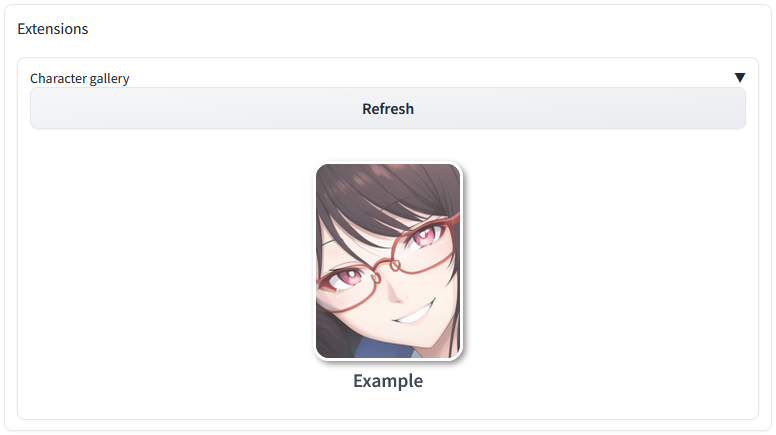
character selection in Set Up a Chatbot with Oobabooga on Runpod

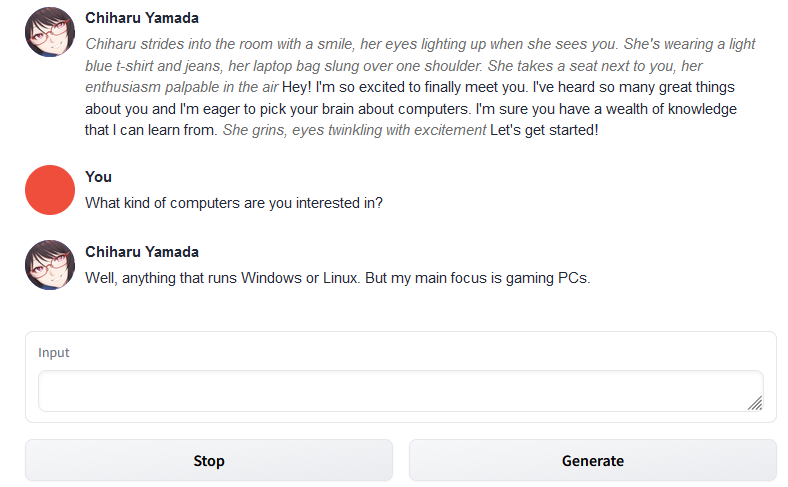
When you load the character, you'll see the model generates an initial message in the chatbox above.  You'll probably see italicized text which is meant to represent actions, and non-italicized text which is meant to represent speech.

You can now respond to this initial message by typing into the "Input" textbox below.  Words wrapped in asterisks are interpreted as actions (e.g. "*I sit in a chair.*"), everything else as speech. Once you type a reply, clicking the "Generate" button will elicit a response from the model as the loaded character.  If you want the model to try again, you can hit "Regenerate" and it will replace its last reply.
chat sample in Set Up a Chatbot with Oobabooga on Runpod

The "Impersonate" button will use the model to suggest a prompt for you, "Remove Last" will erase your most recent input and the reply to it, "Clear History" followed by "Confirm" will reset the entire conversation. The other buttons on the interface are pretty self-explanatory.  With this, you can play around with the model and create conversations and narratives.

Characters

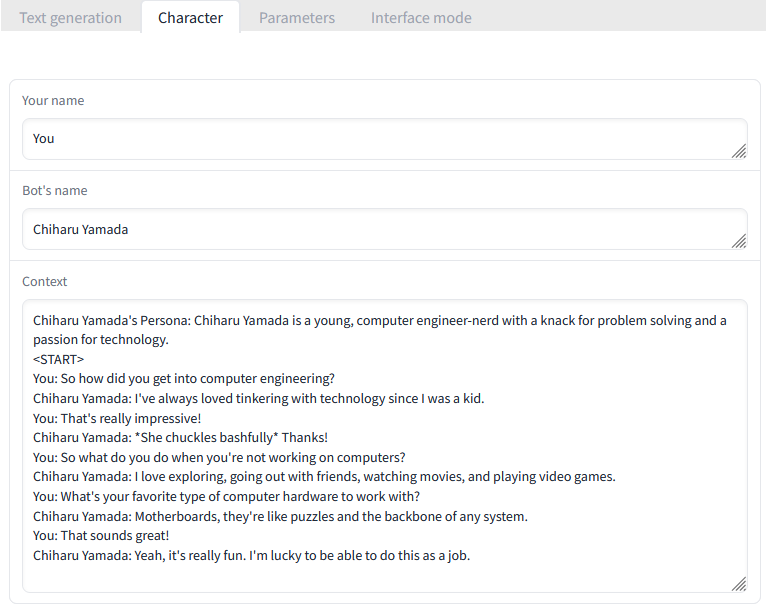
As mentioned above, the Pygmalion model depends a lot on having a "character" context to tell it "who" it is. This includes a name, a description, and sample dialogue(s).  This context is set to persist throughout the session in addition to the actual conversation so the model can "remember" who it is supposed to be.

If you want to see what this context looks like, you can go to the top of the interface and click the "Character" tab.
character tab in Set Up a Chatbot with Oobabooga on Runpod

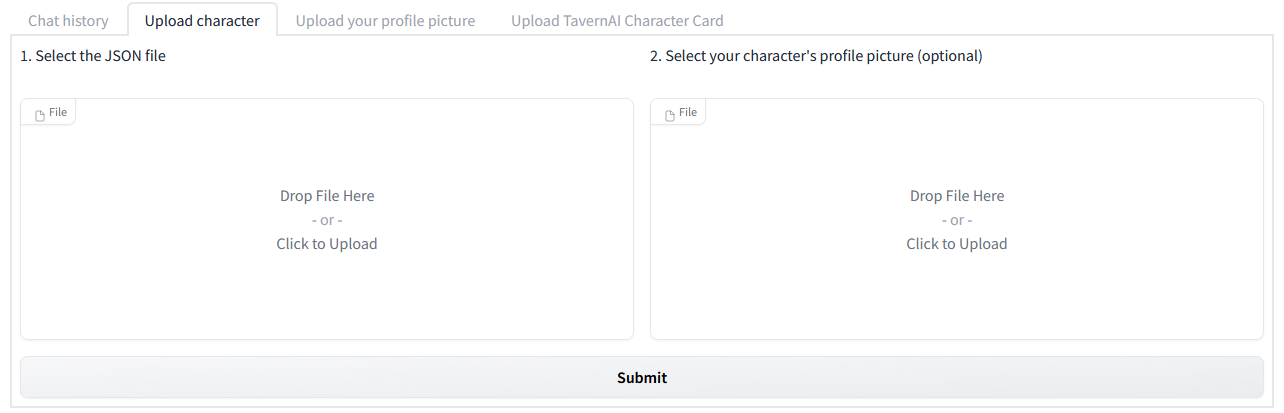
You can see that the current profile is telling the model that "You" are to be referred to as "You", the bot's current name, and the character's context including a description, and sample dialogue for the model to generate around.  Oobabooga wrote an online character generator that you can use to create your own character profiles which can be exported as JSON and imported at the bottom of the "Character" tab in the textgen UI in "Upload character".  Another character generator by ZoltanAI can be found here. This one allows you to generate the character as JSON or attach an image for the context to be embedded within as a PNG file in so-called "TavernAI" format.  The Oobabooga chatbot interface also allows these to be imported, again at the bottom, under "Upload TavernAI Character Card".  
character upload in Set Up a Chatbot with Oobabooga on Runpod

Searching online, you can find suggestions for how to create a character as well as find characters built by other people that can be imported. There are apparently a few different strategies for populating these context fields that work.

Other Modes and Options

If you would like to launch the Oobabooga WebUI in a more generic text generation mode, you can edit your pod's "WEBUI" environment variable to "textgen" or any value other than the default "chatbot".  

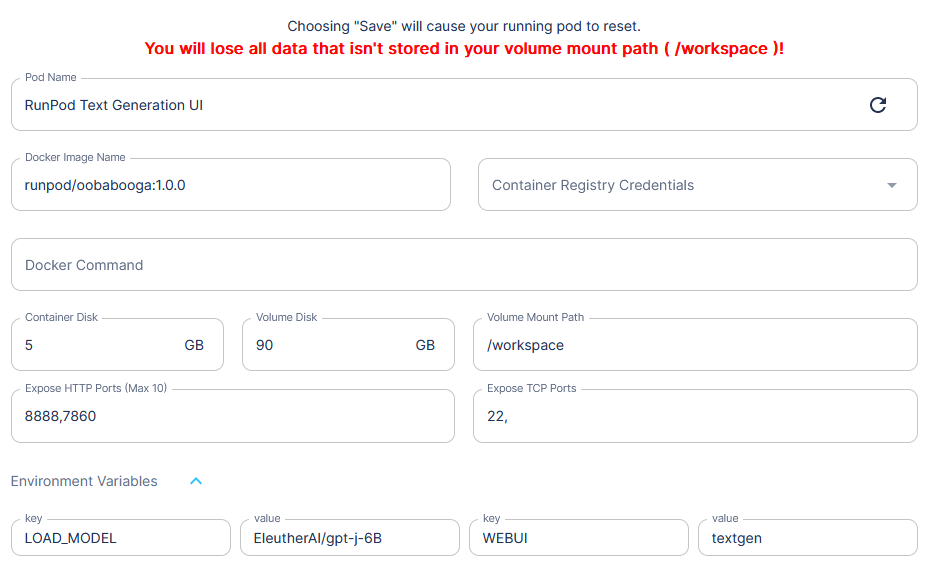
If you would like to replace the Pygmalion model with another appropriate text generation model, you can set the "LOAD_MODEL" environment variable to another model with the format "HuggingfaceUser/ModelName".  Note that because this will need to download the new model upon the pod resetting, it will initially take some time before the server is available.  Check the logs for the current status.  You may also need to boost the volume size depending on the size of the model you want to load.

For example, perhaps I want to launch the Oobabooga WebUI in its generic text generation mode with the GPT-J-6B model.  To do so, I'll go to my pod, hit the "More Actions" hamburger icon in the lower left, and select "Edit Pod". I know from the Huggingface page that this model is pretty large, so I'll boost the "Volume Disk" to 90 GB.  I'll then hit the drop-down arrow next to "Environment Variables" at the bottom.  I'll change the value next to the "LOAD_MODEL" key to "EleutherAI/gpt-j-6B" from the model's Huggingface page, and the value next to "WEBUI" to "textgen".
changing pod parameters in Set Up a Chatbot with Oobabooga on Runpod

After that, hit "Save" and the pod should reset with the new parameters. Go back to the hamburger icon and select "Reset Pod" if it doesn't. The new model will take significant time to download and extract, but you can track its progress in the pod's Container Log.  Once it's complete and the server is running, connect again to port 7860 via the pod's "Connect" interface.

This time you will see a different UI, with an input field on the left, and output field on the right.  The model and generation parameters are in the lower left and you can see this time it loaded "gpt-j-6B" as the model, and it's automatically selected "NovelAI-Sphinx Moth" as the default generation parameter preset.  It also by default provides a template guide for you to ask the model "Common sense questions and answers", you can modify this by typing a question after the "Question: " line.  

Under the input textbox is a "max_new_tokens" parameter with a slider you can adjust (defaulting to 200 tokens).  In this mode, unlike the chatbox interface before, the text generation will generally produce output up to this value rather than stop itself after a sensible reply. You might notice if this value is high, the text generator might start "asking" and "answering" itself with related questions. You can experiment with the "Generation parameters preset", or set parameters directly in the "Parameters" tab to see what values work best with the model you have loaded.
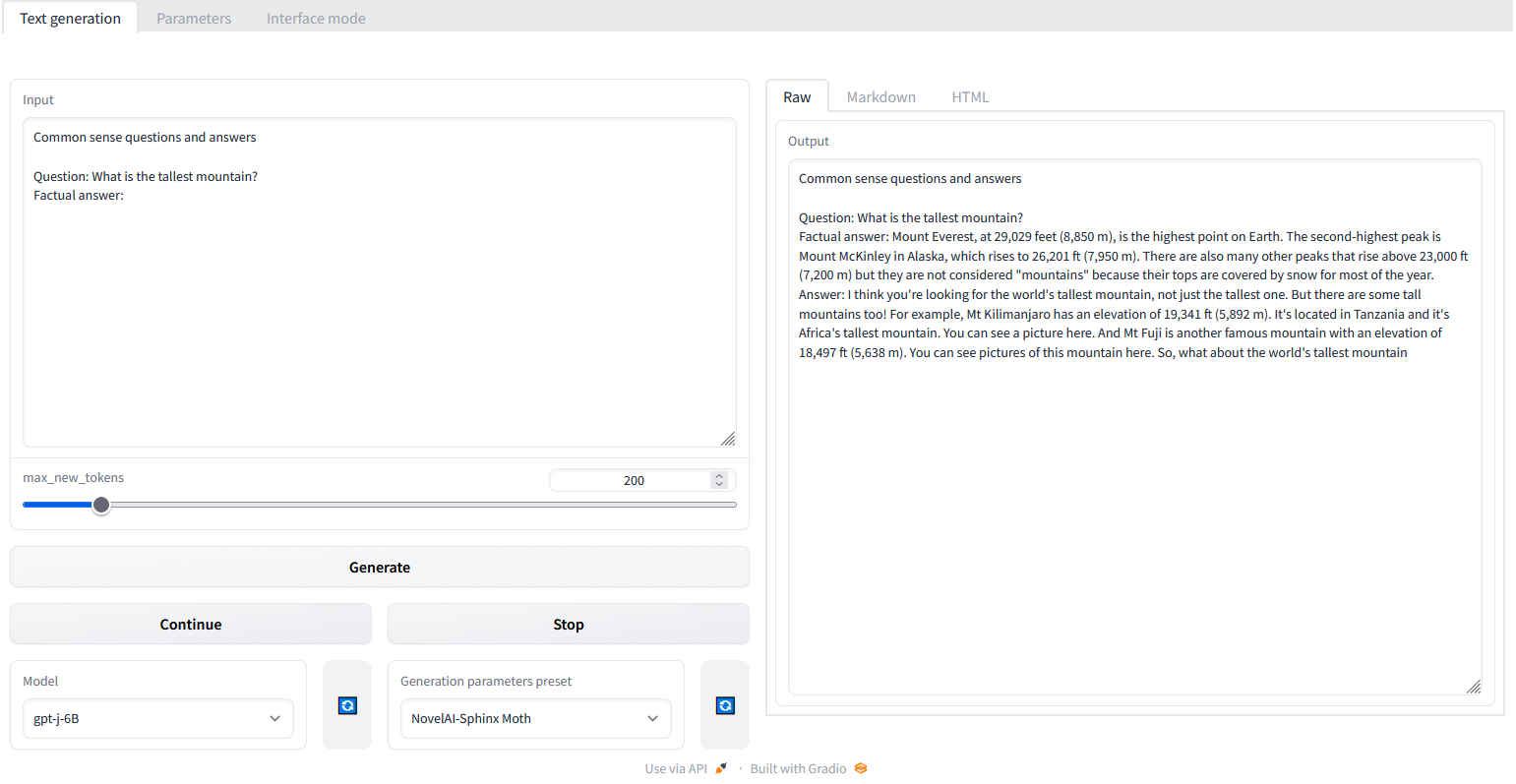
Oobabooga WebUI with gpt-j-6B answering a question about the tallest mountain in the output panel

Conclusion

In this article we've walked through setting up a Runpod pod with the Oobabooga's Text Generation template.  We used it as a chatbot with the bundled Pygmalion model and discussed the related "character" contexts. Finally, we also showed how to use the template with other language models as a more generic text generation interface.  Have fun exploring with this tool!

Author profile: Pardeep Singh