





As discussed in the Runpod Roundup, Stable Diffusion XL is now available for the public and we've got you covered if you'd like to give it a shot. The Fast Stable Diffusion Template in Runpod has already been updated to take advantage of SDXL. Getting up and running is just as simple as spinning up a new pod and running through the steps in the provided Jupyter notebook.
The easiest way to jump into the action is to set up a new pod to ensure that you have the latest version of the Jupyter setup notebook. If you'd prefer to set it up in your existing pod instead, you can, as long as it has the most up to date version of AUTOMATIC1111. This guide will also have the updated parameters for the Notebook so you can install it in your current pod, if you make the changes manually to the notebook.
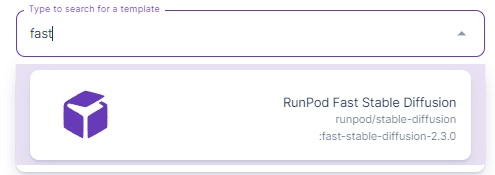
Set up a new pod using the Runpod Fast Stable Diffusion template:
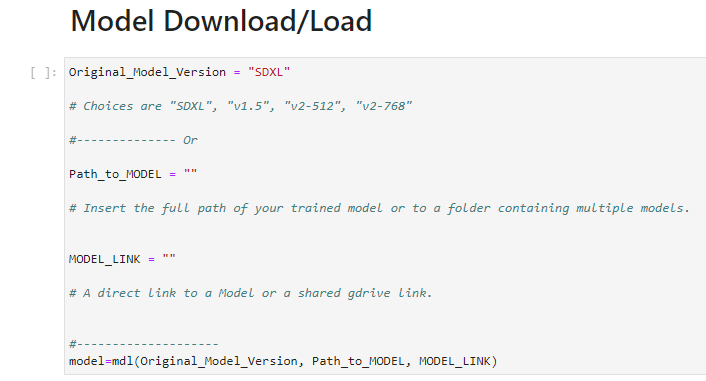
Go ahead and connect to the Jupyter Notebook for the pod, and as usual, hit Ctrl+Enter in each cell to get it up and running. Note that the version in the Model Download/Load cell has changed to SDXL.
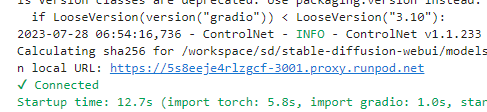
Once you run through all the cells, the last one will have a link to A1111 within your pod.
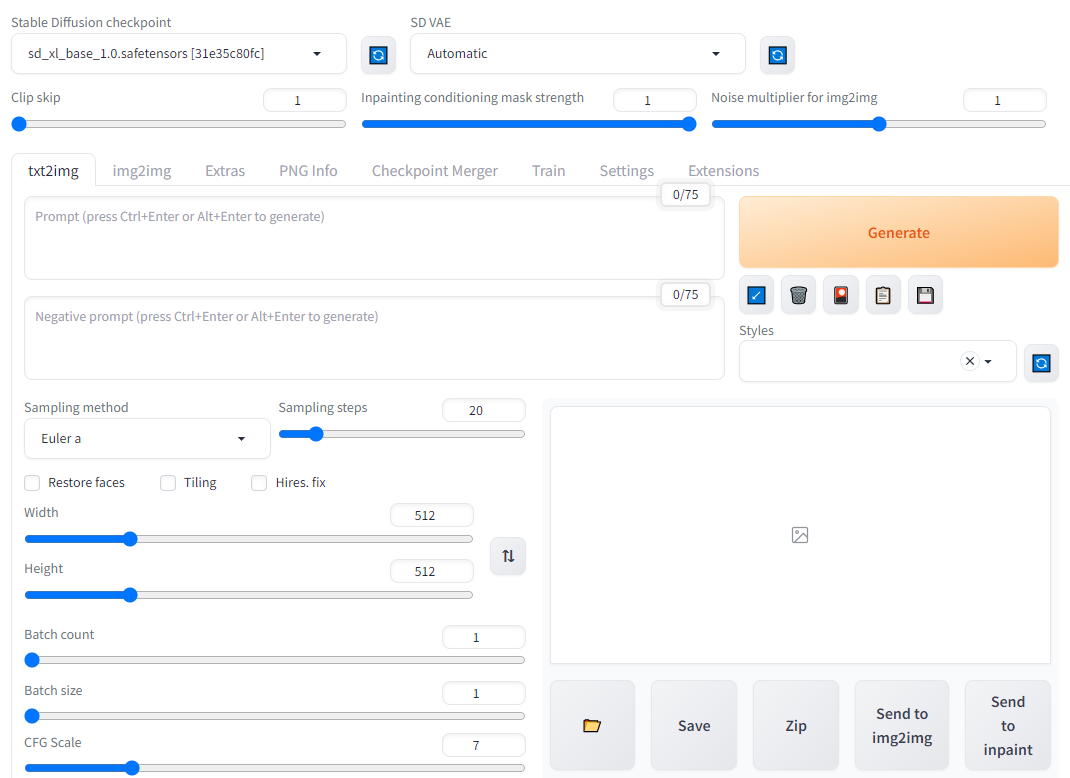
Following the link should get you to the familiar A1111 interface with the SDXL model already loaded (top left.)
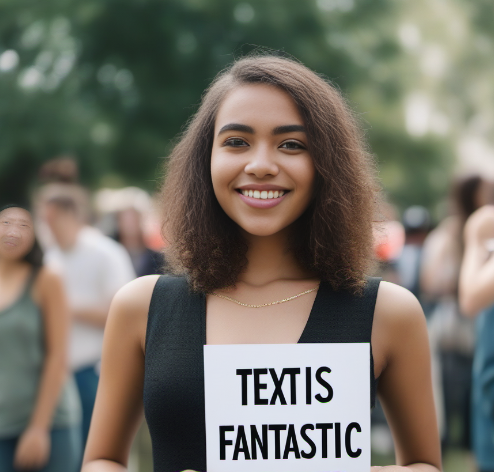
SDXL now supports text in images. (Mostly) gone are the fever dream interpretations of almost-language that Stable Diffusion used to generate, and it can now simply generate text natively. It's not entirely perfect and may take a few iterations, but I got this on my third try, so it shouldn't need a whole lot of tinkering.
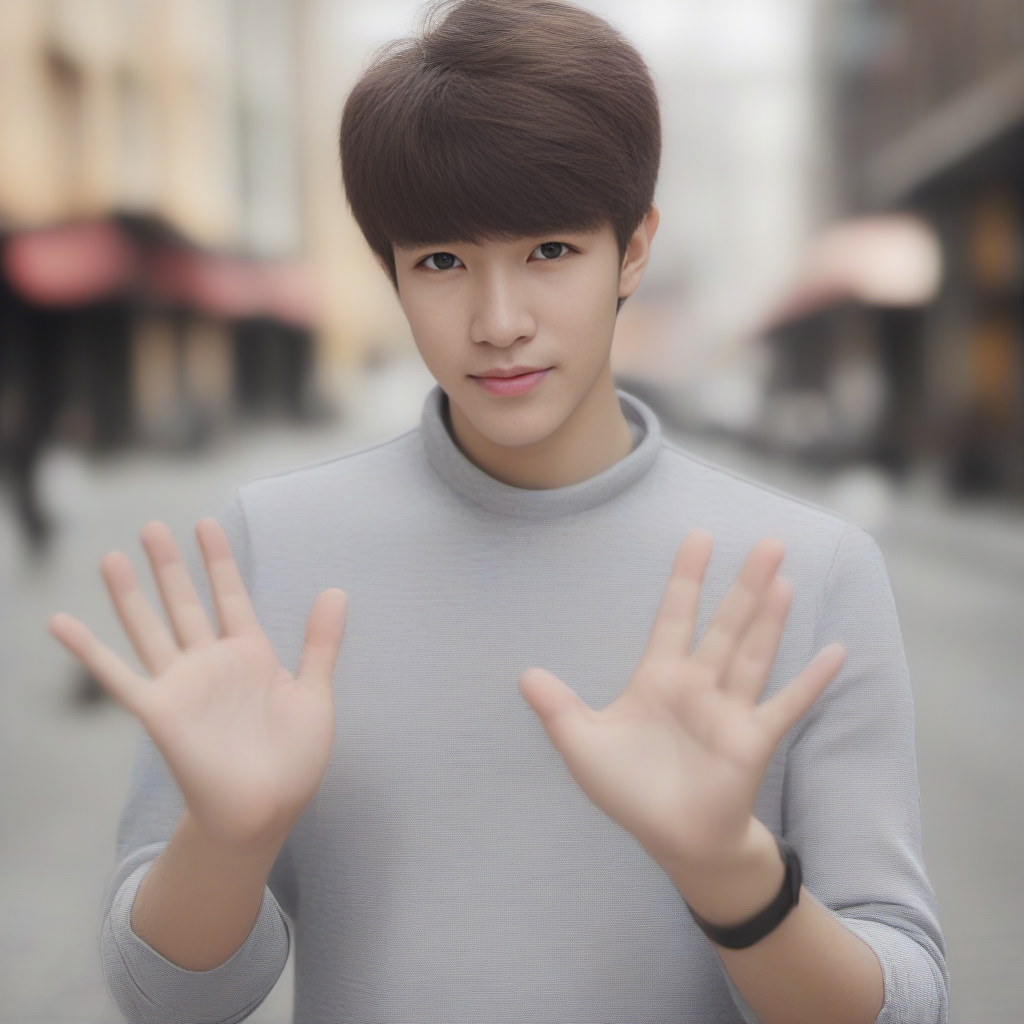
SDXL also has greatly improved how it handles anatomy, such as arms and hands.
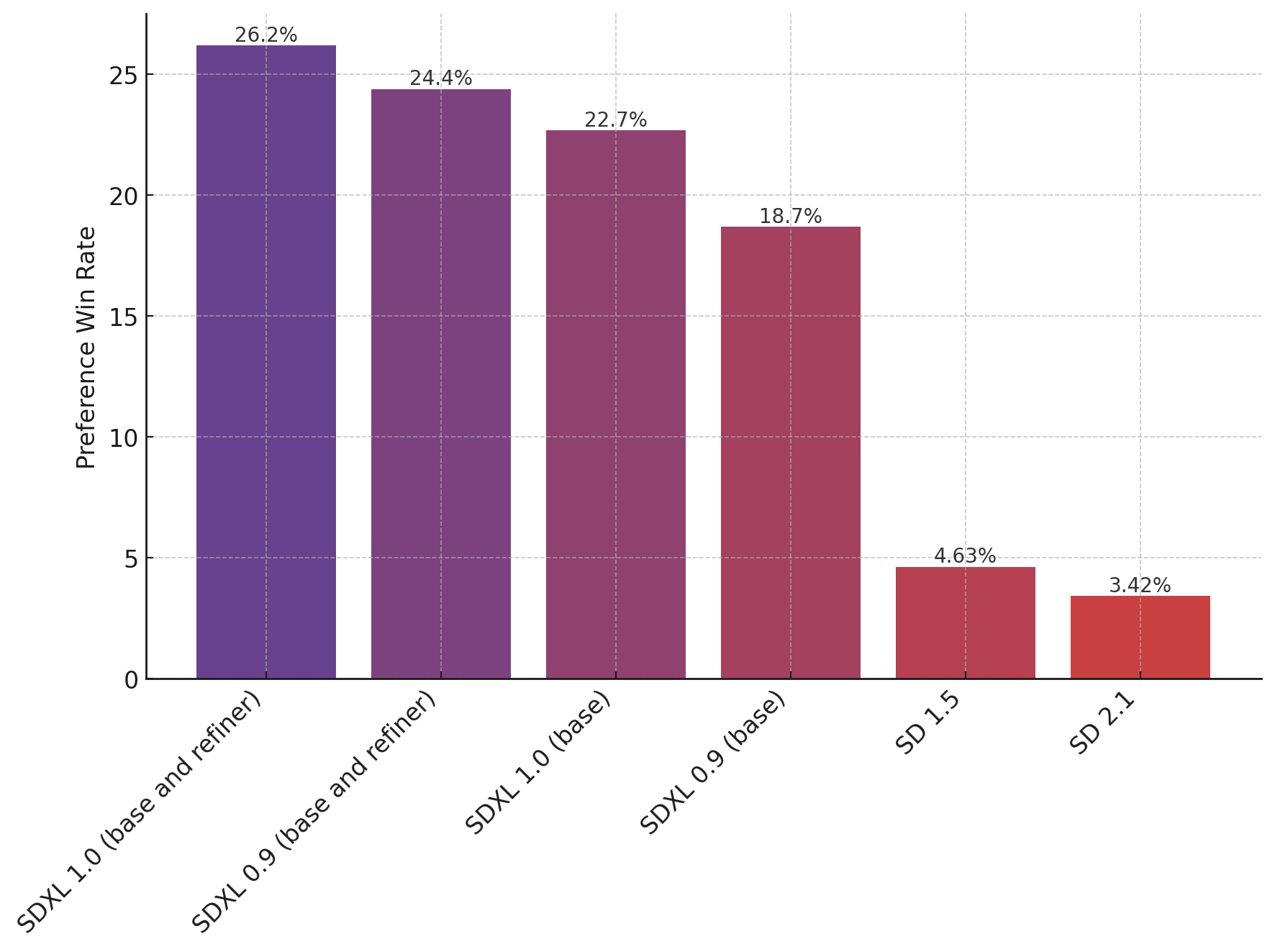
The language involved in SDXL prompts has also been greatly simplified. In previous versions of SD, you previously had to get very specific with admittedly rather arcane keywords in prompts, such as mentioning camera types, exposure times and apertures, odd keywords without relation to the subject matter such as "instagram" and so on. In particular, SDXL has better fine tuning for colors, shadows, and so on, meaning that you should need to poke and prod at prompts much less to get the look that you want. According to the StabilityAI Huggingface, site, it appears that human evaluators far and away prefer the new SDXL models over SD 1.5 or 2.1.
Finally, SDXL also supports higher resolutions natively compared to the 512x512 insisted on by earlier versions of Stable Diffusion. StabilityAI actually recommends generating images at 1024x1024 out of the box instead, leading to a much greater level of detail and richness in images.
Long story short, there really doesn't seem to be a reason NOT to use SDXL that we're aware of, and it may begin to render previous iterations obsolete as new models based on SDXL begin to make their way into the community.
Runpod has a vibrant Stable Diffusion and art community within our Discord, and if you need any help getting up and running, we would love to help out. Feel free to drop in!
Author profile: Brendan McKeag
此内容由惯性聚合(RSS阅读器)自动聚合整理,仅供阅读参考。 原文来自 — 版权归原作者所有。