







Push TLS certificates to a Windows machine from any SSH-capable machine (like a Linux box). Useful to deploy self-signed or Let’s Encrypt certificates for services like RDP or web servers.
Windows can use normal TLS certificates to authenticate RDP sessions. This gets rid of the annoying RDP certificate warnings:
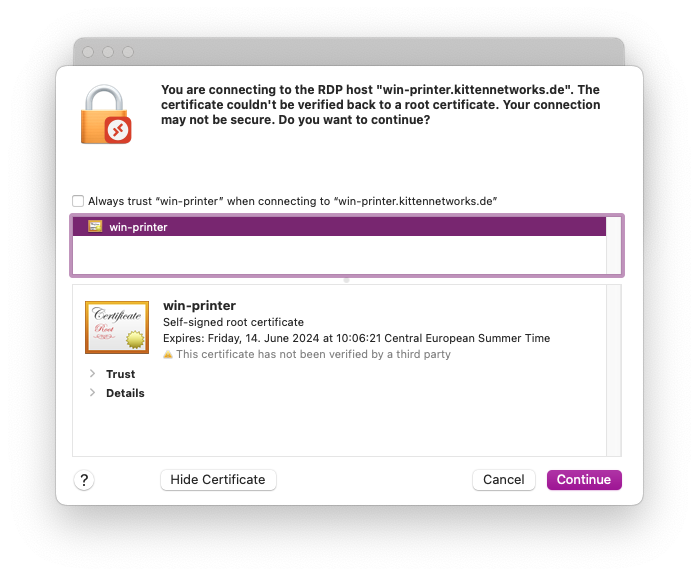
Using real, signed certificates for RDP offers a way to enhance security (preventing man-in-the-middle attacks) and reduce alert fatigue.
Read through the following help pages:
tl;dr:
# Install the OpenSSH Client
Add-WindowsCapability -Online -Name OpenSSH.Client~~~~0.0.1.0

# Install the OpenSSH Server
Add-WindowsCapability -Online -Name OpenSSH.Server~~~~0.0.1.0

# Confirm the Firewall rule is configured. It should be created automatically by setup. Run the following to verify
if (!(Get-NetFirewallRule -Name "OpenSSH-Server-In-TCP" -ErrorAction SilentlyContinue | Select-Object Name, Enabled)) {
    Write-Output "Firewall Rule 'OpenSSH-Server-In-TCP' does not exist, creating it..."
    New-NetFirewallRule -Name 'OpenSSH-Server-In-TCP' -DisplayName 'OpenSSH Server (sshd)' -Enabled True -Direction Inbound -Protocol TCP -Action Allow -LocalPort 22
} else {
    Write-Output "Firewall rule 'OpenSSH-Server-In-TCP' has been created and exists."
}
Open C:\ProgramData\ssh\sshd_config with a text editor running as Administrator (Notepad++ works well) and disable password logins.
Find the following line:
#PasswordAuthentication yes
and change it to:
PasswordAuthentication no
Create C:\ProgramData\ssh\administrators_authorized_keys and put the SSH public key of the deploy box into the file.
Open a shell with administrator/elevated permissions and run:
icacls.exe "C:\ProgramData\ssh\administrators_authorized_keys" /inheritance:r /grant "Administrators:F" /grant "SYSTEM:F"
to set the permissions of the authorized_keys file to be only accessible by SYSTEM and the administrative group.
Then start and enable the sshd service:
# Start the sshd service
Start-Service sshd

# Autostart sshd
Set-Service -Name sshd -StartupType 'Automatic'
Try to log onto the windows machine from your deploy box:
ssh myuser@windowsbox.example.com
Acknowledge the fingerprint warning and check if you get dropped into a cmd.exe shell.
On our deploy box, we’ll create a PowerShell script called certimport.ps1. Change example.com to the CN of your certificate. The certificate can have more hosts in the SAN fields, but the CN is used for managing/cleanup of old certificates.
$domain = "example.com"

# Import pkcs.pfx into the local key store
$pfxfile = "pkcs.pfx"
$CertificatePassword = ""
$certRootStore = "LocalMachine"
$certStore = "My"
$pfx = New-Object System.Security.Cryptography.X509Certificates.X509Certificate2
$pfx.Import($pfxfile,$CertificatePassword,"Exportable,PersistKeySet,MachineKeySet")
$store = New-Object System.Security.Cryptography.X509Certificates.X509Store($certStore,$certRootStore)
$store.Open('ReadWrite')
$store.Add($pfx)
$store.Close()
$certThumbprint = $pfx.Thumbprint

# Set RDP certificate thumbprint to the new certificate
wmic /namespace:\\root\cimv2\TerminalServices PATH Win32_TSGeneralSetting Set SSLCertificateSHA1Hash="$certThumbprint"

Write-Output $pfx.Thumbprint

# Remove all old certificates from LetsEncrypt, for this domain and not using the new thumbprint
$date = Get-Date
$store = New-Object System.Security.Cryptography.X509Certificates.X509Store($certStore,$certRootStore)
$store.Open('ReadWrite')
foreach($cert in $store.Certificates) {
  if($cert.Subject -eq "CN=$domain" -And $cert.Issuer.Contains("Let's Encrypt") -And $cert.Thumbprint -ne $certThumbprint) {
    Write-Log "Removing certificate $($cert.Thumbprint)"
    $store.Remove($cert)
  }
}
$store.Close()
To upload the certificate to the windows box, run the following commands (manually or in your renew script):
openssl pkcs12 -passout pass: -keypbe NONE -certpbe NONE -nodes -export -out pkcs.pfx -in /home/acme/.acme.sh/example.com/fullchain.cer -inkey /home/acme/.acme.sh/example.com/example.com.key
scp certimport.ps1 myuser@windowsbox.example.com:
scp pkcs.pfx myuser@windowsbox.example.com:
ssh myuser@windowsbox.example.com "powershell ~/certimport.ps1 && del certimport.ps1 && del pkcs.pfx"
OpenSSL takes the full certificate chain (certificate + intermediate certs) and the private key and converts them into a PKCS12/PFX file.
SCP/SFTP is used to copy both the certimport.ps1 script and the pkcs.pfx certificate to the Windows machine.
The final SSH command then:
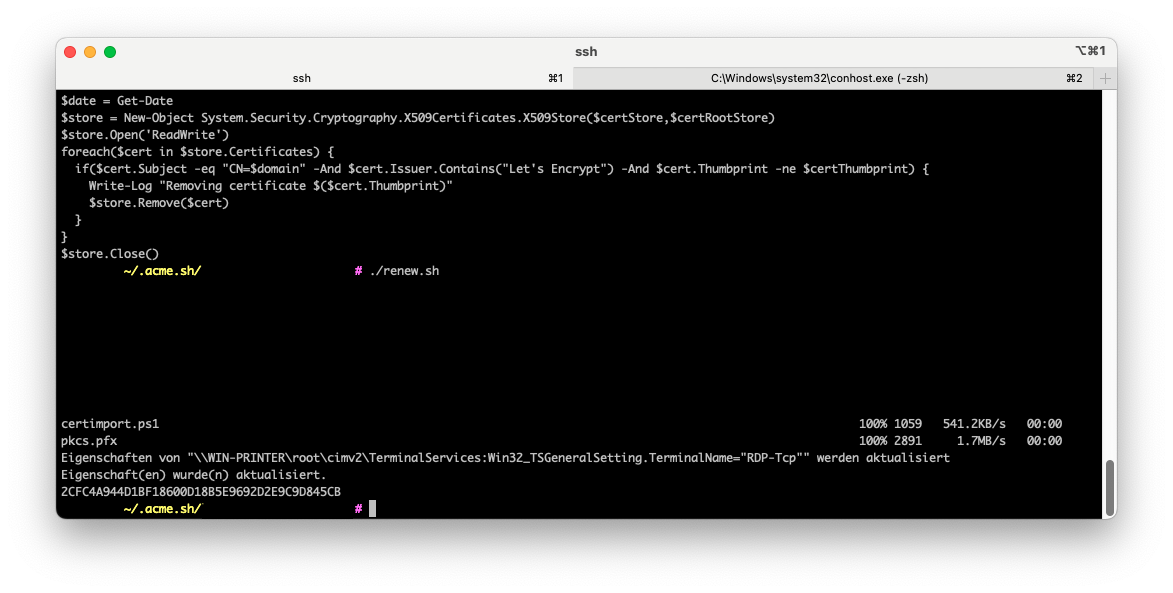
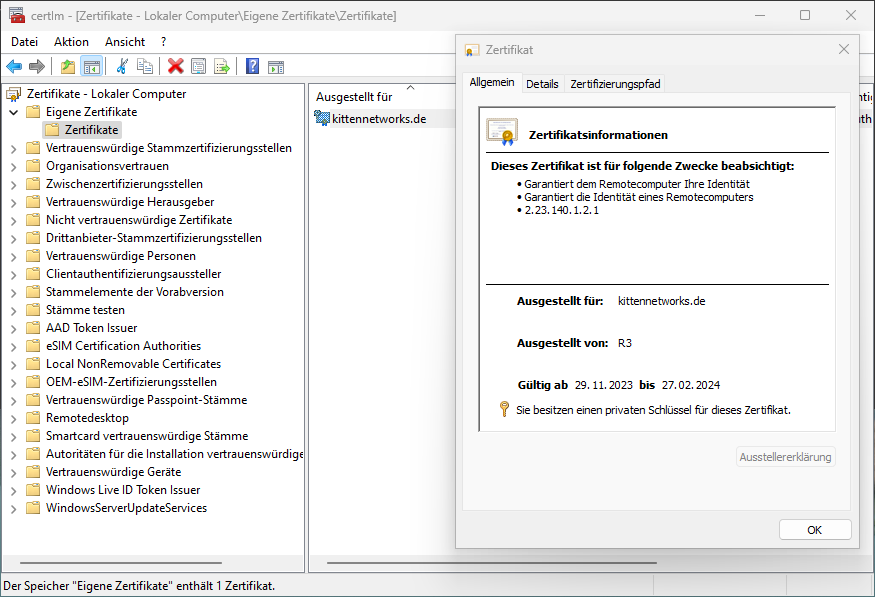
You can run certlm.msc to check the imported certificates:
At the bottom of the “details” tab, the SHA1 fingerprint is shown:
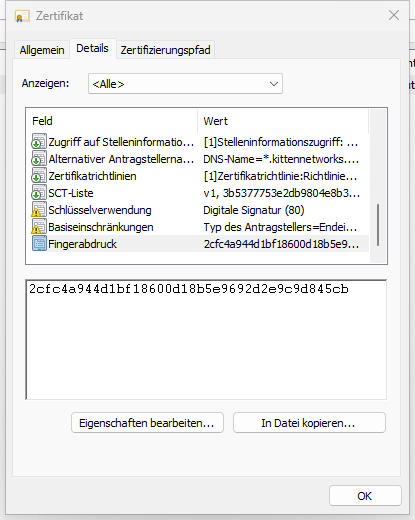
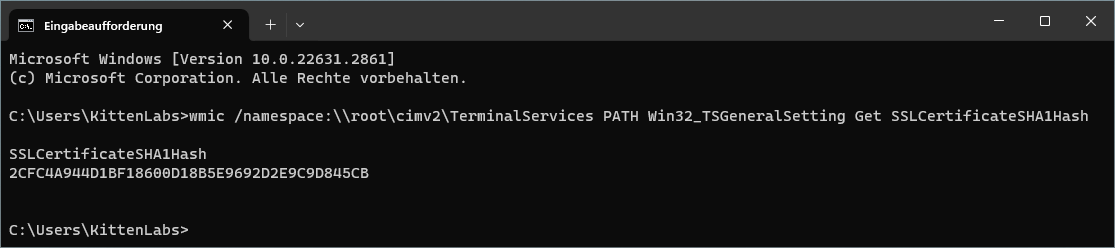
You can check the currently configured RDP fingerprint by running:
wmic /namespace:\\root\cimv2\TerminalServices PATH Win32_TSGeneralSetting Get SSLCertificateSHA1Hash
此内容由惯性聚合(RSS阅读器)自动聚合整理,仅供阅读参考。 原文来自 — 版权归原作者所有。