








Using WPA-Enterprise with EAP-SIM to authenticate against a network using SIM cards
Wireless networks can authenticate clients using a surprising number of different mechanisms.
The typically used and most well known is WPA(2)-PSK (also called -Personal), which is the “classic” mechanism with a known passphrase.
WPA-Enterprise allows an access point to forward the authentication request to a RADIUS server.
This radius server then uses the Extensible Authentication Protocol (EAP) to offer various authentication mechanisms like EAP-TTLS/PAP, etc.
These can be used with TLS client certificates, username and password (against LDAP or other SSO mechanisms) or others.
A rather unknown mechanism is EAP-SIM (and EAP-AKA / EAP-AKA’ for that matter).
Using EAP-SIM, a device can use a regular cellular SIM card to authenticate against a wireless network, which uses the same cryptographic keys that are also used to authenticate against the cellular network itself.
Extracting secret keys from modern, commercial SIM cards (which act as an HSM) is very hard.
Stealing WiFi credentials from a compromised device becomes almost impossible this way.
In 2G networks, the SIM card stores a secret key called Ki. This same key is also stored at the network operator.
To authenticate a mobile station, the network will generate a random challenge (called RAND, 128bit), which is sent to the SIM.
The SIM will then use Ki to calculate a signed response (SRES, 32bit) and a temporary encryption key (called Kc, 64-128bit).
The signed response SRES is sent back to the network and the communication can then be carried out (somewhat) safely using Kc.
The network (AuC) will do the same calculations as the SIM and send the resulting keys to the other network components.
This key material is also called triplet (as it consists of the 3 parameters RAND, SRES and Kc).
This authentication procedure is handled between the SIM and the AuC with no involvement of the cellular modems itself.
The actual key derivation approach can thus be switched out (by replacing the SIM and updating the AuC).
3G-capable SIM cards will often use a 3G algorithm (like MILENAGE) instead of the much weaker COMP128 schemes.
For private GSM networks (for example in lab environments or at hacker events), the secret key material is known.
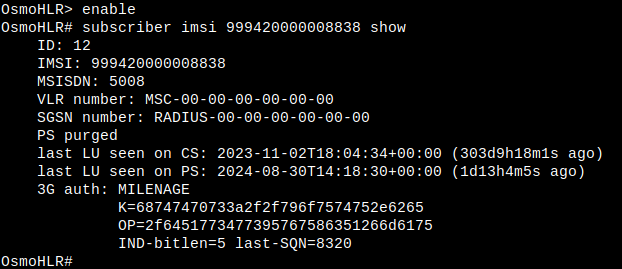
When using the Osmocom GSM stack, the keys are stored directly in OsmoHLR (which acts as the AuC, among other tasks).
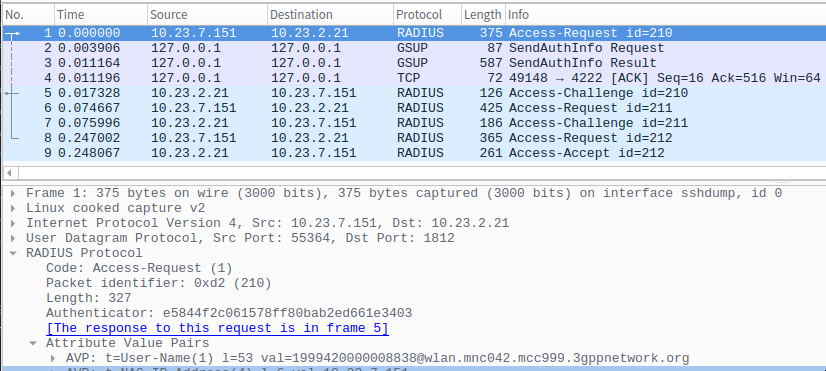
OsmoHLR acts as a Generic Subscriber Update Protocol (GSUP) server and will usually be contacted by OsmoMSC to handle authentication and location related tasks.
Traditional GSM networks would use something like SS7/TCAP/MAP instead, which are MUCH more complex.
A very common, free and open source RADIUS server is FreeRADIUS.
FreeRADIUS has support for EAP-SIM natively.
Recommended reading: FreeRadius Wiki - Testing EAP-SIM and EAP-AKA
Hardcoding the SIM secrets into FreeRADIUS’ database is theoretically possible, but not encouraged of course. Having two separate sources of truth and another database with secret key material (with a lot of potential attack surface) is frowned upon.
FreeRADIUS offers a nice Python API, which can be used to write custom modules.
FreeRADIUS EAP-SIM OsmoHLR/GSUP client was developed for this project.
The IPA/GSUP protocol stack for OsmoHLR was implemented in Python3 (using Twisted and PyOsmocom) and the freeradius_osmohlr_gsup module will transparently request authentication triplets from the HLR when a client tries to connect:
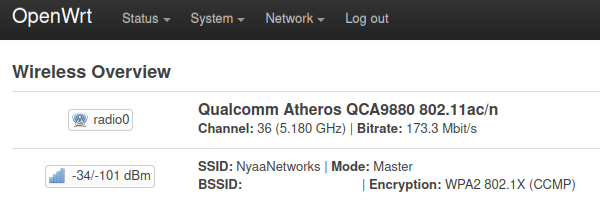
The well-known OpenWRT router firmware can use WPA-EAP and forward the authentication requests to our FreeRADIUS server:
The RADIUS parameters can be set using the regular interface configuration dialogs: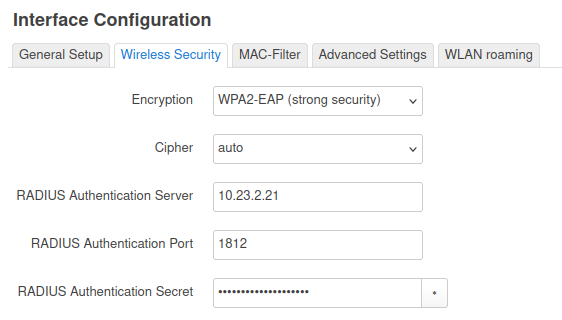
Without any additional configuration, devices connecting to the SSID will just expect a username/password authentication scheme and try to request those from the user.
With Hotspot 2.0 (also sometimes called Passpoint), additional metadata can be supplied along with the network announcement.
HS2.0 is supported by OpenWRT, but only manually in the configuration files.
/etc/config/wireless can be changed to add the numerous Hotspot 2.0 configuration options.
iw_anqp_3gpp_cell_net, iw_domain_name and iw_nai_realm are the only really important ones for this usecase.
  list iw_anqp_3gpp_cell_net '999,042'
  list iw_anqp_3gpp_cell_net '262,042'
specifies the MCC/MNC pair of the SIM cards which are able to connect to this network.
list iw_domain_name 'wlan.mnc042.mcc999.3gppnetwork.org'
specifies the MCC/MNC again, this time as part of the username for authentication.
list iw_nai_realm '0,*wlan.mnc042.mcc999.3gppnetwork.org,18[5:1][5:2]'
The NAI realm specifies the MCC/MNC yet again, but also has a number of flags, specifying the valid EAP authentication methods (such as EAP-SIM) and also which credentials might be used (like a SIM or USIM).
A full UCI config for a Hotspot 2.0/WPA2-EAP/RADIUS network might look like this:
config wifi-iface 'default_radio0'
  option device 'radio0'
  option network 'lan'
  option mode 'ap'
  option ssid 'NyaaNetworks'
  option encryption 'wpa2'

  # RADIUS server
  option auth_server '10.23.2.21'
  option auth_port '1812'
  option auth_secret '[secretHere]'

  # Operating Class Indication
  # List of operating classes the BSSes in this ESS use. The Global operating
  # classes in Table E-4 of IEEE Std 802.11-2012 Annex E define the values that
  # can be used in this.
  # format: hexdump of operating class octets
  # for example, operating classes 81 (2.4 GHz channels 1-13) and 115 (5 GHz
  # channels 36-48):
  option hs20_operating_class '5173'
  # See Instructions Below (Optional, omit if you want.)
  option hs20_wan_metrics '01:3e80:3e80:33:99:3000'

  # Venue Info
  # The available values are defined in IEEE Std 802.11u-2011, 7.3.1.34
  option iw_venue_group '1'
  option iw_venue_type '7'

  # Specify the same nasid for both 2.4ghz and 5ghz. Use any time the network is different. Normally it'll be the same across the board for all AP's in the same location.
  option nasid 'NyaaNetworks'

  # Specify the IP address type availability as '11'.
  # IP Address Type Availability (ANQP) setting that indicates the availability of IP address types on the Passpoint network.
  # The value '11' informs Passpoint clients that both IPv4 and IPv6 addresses are available on the network.
  # It helps clients understand the network's IP address capabilities.
  # Refer to IEEE Std 802.11-2016, Section 9.4.2.72 for more details on IP Address Type Availability.

  option iw_ipaddr_type_availability '11'

  # Specify the access network type as '2' (Chargeable public network).
  # Access Network Type (ANQP) is set to '2' indicating a Chargeable public network.
  # This value informs clients that the network requires payment for access.
  # Refer to IEEE Std 802.11-2016, Section 9.4.2.72 for more details.
  option iw_access_network_type '2'

  # Specify the network authentication type as '00'.
  # Network Authentication Type (ANQP) setting that specifies the network's authentication type for Passpoint.
  # The value '00' indicates that the network authentication is open or unspecified.
  # It informs Passpoint clients about the type of authentication used by the network.
  # Refer to IEEE Std 802.11-2016, Section 9.4.2.72 for more details on Network Authentication Type.
  option iw_network_auth_type '00'

  # Operator-friendly name for Hotspot 2.0. (Can be anything you'd like as long as it is prefixed with your lang code.)
  option hs20_oper_friendly_name 'eng:Nyaa'

  # List of venue names associated with the Passpoint network, specifying language code and venue information.
  list iw_venue_name 'eng:Nyaa'
  # List of venue URLs associated with the Passpoint network, specifying language code and URL.
  list iw_venue_url '1:https://orionwifi.com'
  # List of operator icons, specifying width, height, language code, image format, and icon filename.
  list operator_icon '64:64:eng:image/png:operator_icon:operator_icon.png'

  list iw_anqp_3gpp_cell_net '999,042'
  list iw_anqp_3gpp_cell_net '262,042'

  list iw_domain_name 'wlan.mnc042.mcc999.3gppnetwork.org'

  # NAI Realm information
  # One or more realm can be advertised. Each nai_realm line adds a new realm to
  # the set. These parameters provide information for stations using Interworking
  # network selection to allow automatic connection to a network based on
  # credentials.
  # format: <encoding>,<NAI Realm(s)>[,<EAP Method 1>][,<EAP Method 2>][,...]
  # encoding:
  # 0 = Realm formatted in accordance with IETF RFC 4282
  # 1 = UTF-8 formatted character string that is not formatted in
  #     accordance with IETF RFC 4282
  # NAI Realm(s): Semi-colon delimited NAI Realm(s)
  # EAP Method: <EAP Method>[:<[AuthParam1:Val1]>][<[AuthParam2:Val2]>][...]
  # EAP Method types, see:
  # http://www.iana.org/assignments/eap-numbers/eap-numbers.xhtml#eap-numbers-4
  # AuthParam (Table 8-188 in IEEE Std 802.11-2012):
  # ID 2 = Non-EAP Inner Authentication Type
  # 1 = PAP, 2 = CHAP, 3 = MSCHAP, 4 = MSCHAPV2
  # ID 3 = Inner authentication EAP Method Type
  # ID 5 = Credential Type
  # 1 = SIM, 2 = USIM, 3 = NFC Secure Element, 4 = Hardware Token,
  # 5 = Softoken, 6 = Certificate, 7 = username/password, 9 = Anonymous,
  # 10 = Vendor Specific
  list iw_nai_realm '0,*wlan.mnc042.mcc999.3gppnetwork.org,18[5:1][5:2]'

  list iw_roaming_consortium 'f4f5e8f5f4'
  # ANQP (Access Network Query Protocol) Domain ID, used to uniquely identify the Passpoint domain.
  option anqp_domain_id '0'
  # Enable BSS (Basic Service Set) transition support for efficient handovers between APs.
  option bss_transition '1'
  # Disable Directed Group Address Forwarding (DGAF) support.
  option disable_dgaf '1'
  # Set disabled to '0' to enable the interface.
  option disabled '0'
  # Identify the ap as a guest access point.
  option guest '1'
  # Enable Hotspot 2.0 support in Passpoint.
  option hotspot20 '1'
  # Enable Hotspot 2.0 (HS2) support in Passpoint.
  option hs20 '1'
  # Set the deauthentication request timeout for Hotspot 2.0.
  option hs20_deauth_req_timeout '60'
  # Enable internet access for the Passpoint network.
  option internet '1'
  # Isolate clients on the Passpoint network for enhanced security.
  option isolate '1'
  # Enable or disable ASRA (ANQP Service Required for Access).
  option iw_asra '0'
  # Disable Directed Group Address Forwarding (DGAF) for Passpoint.
  option iw_disable_dgaf '1'
  # Enable Passpoint functionality.
  option iw_enabled '1'
  # Enable or disable Emergency Services Reachability (ESR) for Passpoint.
  option iw_esr '0'
  # Enable internet access for Passpoint.
  option iw_internet '1'
  # Enable interworking with external networks for Passpoint.
  option iw_interworking '1'
  # Disable UESA (Unauthenticated Emergency Service Availability)
  option iw_uesa '0'
  # Enable the Requested Connectivity to User Information (CUI) feature.
  # CUI is used to request user-specific information during the network selection process and is mandatory for Google Orion.
  option request_cui '1'
  # Enable the WNM (Wireless Network Management) Sleep Mode Transition with No Keys option.
  # This option allows the device to perform sleep mode transitions without exchanging keys, improving efficiency.
  option wnm_sleep_mode_no_keys '1'
Sadly, even with Hotspot 2.0 data present, Apple devices won’t connect to EAP-SIM access points without manual configuration.
Using the Apple Configurator app on macOS, a configuration profile (.mobileconfig) can be created, which allows the use of EAP-SIM (or AKA/AKA’) for a wireless network.
This profile has to be manually installed on the device (or deployed via MDM), which limits the adoption of this mechanism somewhat.
Big cellular operators have also shipped these configuration profiles with iOS itself through their provider-specific configurations.


My apologies for the german locale screenshots, switching the system language to take a screenshot would’ve been unreasonable…
Connecting to the EAP-SIM secured network will then work just fine:

Very similar to EAP-SIM, but use the 3G authentication mechanisms instead (for improved security).
freeradius-osmohlr-gsup will fetch the required data from OsmoHLR, but the current stable release of FreeRADIUS (3.2.7) does not support EAP-AKA/AKA’ yet.
Support for EAP-AKA was added in the upcoming 4.0, which is still in development (as of September 2024).
Further testing required.
此内容由惯性聚合(RSS阅读器)自动聚合整理,仅供阅读参考。 原文来自 — 版权归原作者所有。