








Screen is a terminal multiplexer and has a wide feature set. It allows you to split your terminal window into multiple windows (split screen feature), detach sessions to let commands run in the background, connect to a device via serial interface, and many more. Screen sessions keep running even if you disconnect, which is especially great for unreliable connections. There are more advanced use cases, but we will focus on the basics.
You can have multiple sessions within the screen and each session can contain multiple windows. When you use the split screen function, each panel would be a window called region in screen.
 screen
    │
    │
    ├───── session 29324.x
    │         │
    │         ├────── window 0: name x
    │         │
    │         └────── window 1: name y
    │
    └───── session 29399.a
               │
               ├───── window 0: name a
               │
               └───── window 1: name b
In this blog post, I'll call the escape combination 'prefix', but there are multiple names for it: meta key, leading key, escape combination, and some others.
The prefix tells the terminal that the following command or shortcut will be used in the screen context. Almost every shortcut starts with it and the default prefix is CTRL + a. So, if you see Prefix in the reference section, I mean this key combination. I'll show you how to change the prefix as an example in the configuration section.
A list of all default key bindings can be found in the official documentaion.
Screen won't create the startup configuration file by default but will look for these two files if it gets started.
~/.screenrc / /usr/local/etc/screenrc
Comments in the configuration file start with a #.
The following two sections will show some simple examples of different configurations.
CTRL + f:escape ^FfYou can change it to a difference key combination, especially as the default prefix key combination is commonly used otherwise.
#Do not show copyright msg at the start of a session
startup_message off
Simply add these lines to your configuration file, and the copyright message won't appear again.
Before we start with the sessions and windows, it might be beneficial to talk about logging. For most troubleshooting sessions, it is required to save the logs. I am going to show you some ways to do it.
Use Prefix + h to create an output file with the content of the current screen window you are in. It will be saved as hardcopy.n ('n' for the number of the current window ) in the directory from where you have started the screen initially. If you repeat the shortcut, the initial file will be overwritten.
If you want to append the output to a file, you can add hardcopy_append on to your configuration file.
If you want to change the directory in which the harcopy files will be saved, simply add hardcopydir /your/dir/ to your configuration file.
Logging is disabled by default.
You can start a logged screen session with -L flag + -Logfile /path/to/logfile.txt. If you are already in a session, you can activate it with Prefix + SHIFT + h. The output file will be called screenlog.n, where 'n' is the number of the current window.
screen -lskuser@pleasejustwork:~$ screen -ls
There are screens on:
29265.demo-session (27.01.2023 02:19:51) (Detached)
26508.pts-8.pleasejustwork (26.01.2023 23:20:50) (Detached)
2 Sockets in /run/screen/S-kuser.
screenscreen -S nameofthissessionscreen -d -m ping 10.10.10.10Prefix + dscreen -d -RRscreen -r 2232 # screen will auto complete if the prompt is uniquescreen -r nameofthissession # either use the session number or the namescreen -X -S nameofsession quitscreen -X 269 quit # auto-completes if uniquescreen -S OLDSESSIONNAME -X sessionname NEWSESSIONNAMEPrefix + :sessionname NEW-NAME # screen command to change the current session namePrefix + SHIFT + wPrefix + SHIFT + aPrefix + SPACEPrefix + pexitPrefix + kScreen has the feature to show multiple windows in a split screen. Every window would then be a so called 'Region' in screen.
Prefix + SHIFT +sPrefix + |Prefix + TabPrefix + xPrefix + qPrefix + SHIFT +fYou could create layouts, and save and reuse them later. This topic is out of the scope of this post and I am going to write about it later. You can get a reference and further information in the official documentaion.
It can be used to try out configurations and screen-specific commands.
Prefix + : + config
Prefix + :logfile ~/path/to/new/logfile.txt
I am not too familiar with screen commands, so I won't go into detail. A list of all commands can be found in the official documentaion.
Screen sets an environment variable STY. If the output is empty, you are not in a screen session.
kuser@pleasejustwork:~$ echo $STY
22829.demo
This won't work if you start up screen and SSH into a remote machine. Without further configuration, the variables stay local.
Another environment variable you could try is TERM.
kuser@pleasejustwork:~$ screen
kuser@pleasejustwork:~$ echo $TERM
screen.xterm-256color
kuser@pleasejustwork:~$ exit
kuser@pleasejustwork:~$ echo $TERM
xterm-256color
Screen will add the prefix screen. in front of it.
This works even after connecting to a remote machine but presumes that you didn't mess with the TERM variable.
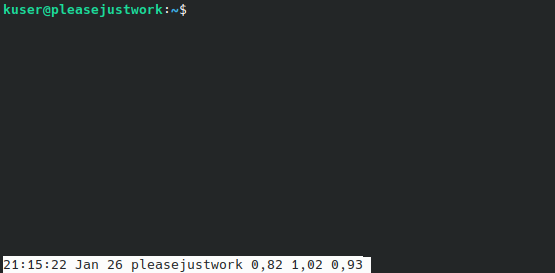
Another method would be to work with the screen prefix. You could simply use Prefix + CTRL + t to let screen tell you the time in the bottom left corner.
此内容由惯性聚合(RSS阅读器)自动聚合整理,仅供阅读参考。 原文来自 — 版权归原作者所有。